Translate and customize texts in your webshop
Guide to language management in Shoporama. Customize and translate all texts in your online store, from buttons to checkout texts. Includes developer documentation with Smarty examples and CSV import.
Alle tekster i din webshop kan tilpasses og oversættes via tekststyringen. Det gælder knaptekster som "Læg i kurv", fejlmeddelelser, checkout-tekster, formularfelter, mailtekster og alle andre tekster i dit tema. Du bestemmer selv, hvad der skal stå — og kan tilpasse sproget, så det passer til din målgruppe og din brandidentitet.
Åbn tekststyringen
- Gå til Design > Tekster i administrationen
- Du ser nu alle tekster organiseret i sektioner (fx Basket, User, Mail, Order)
- Brug søgefeltet til at finde en bestemt tekst, eller filtrer på en sektion
Tilpas en tekst
For hver tekst ser du den originale tekst til venstre og et felt til din tilpassede version til højre. Indtast din ønskede tekst og klik Gem. Hvis feltet er tomt, bruges den originale tekst.
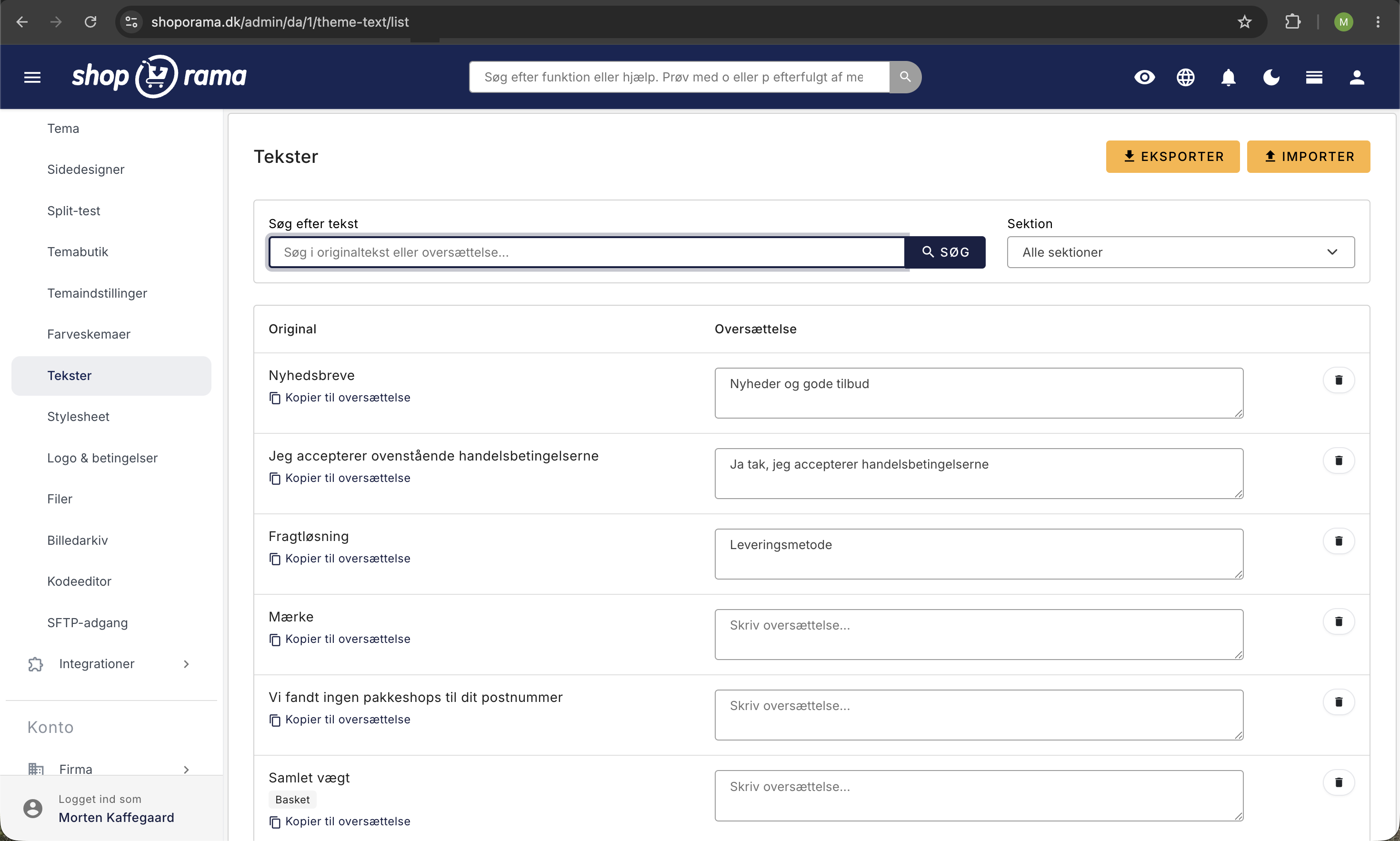
Du kan fx ændre:
- "Læg i kurv" til "Tilføj til indkøbskurv"
- "Udsolgt" til "Midlertidigt udsolgt — kontakt os for levering"
- "Ordrebekræftelse" til "Tak for din ordre!"
- Checkout-tekster, så de passer til din målgruppe
Nogle tekster indeholder variabler (som ordrenummer eller produktnavn). Disse vises med krøllede parenteser, fx {x}. Du skal beholde variablerne i din tilpassede tekst, men du kan frit flytte dem rundt i sætningen.
Sektioner
Teksterne er organiseret i sektioner, der svarer til forskellige dele af din webshop. Det gør det nemt at finde de tekster, du vil tilpasse:
- Mail — Tekster i ordrebekræftelser, forsendelsesmails og andre automatiske mails
- User — Profiltekster, login, opret konto og kontosider
- Order — Ordrehistorik og ordredetaljer for kunden
- Basket — Kurv og produkttilføjelse
- Checkout — Betalingsflow og afslutning af ordre
- Thanks — Tak-siden efter gennemført køb
- Search — Søgefunktionen
- Product — Produktsider
- Address — Adressefelter
- General — Generelle tekster på tværs af shoppen
Nye tekster dukker op automatisk
Når en side i din webshop vises for første gang, registrerer systemet automatisk alle tekster på siden. Nye tekster dukker altså op under Design > Tekster, efterhånden som siderne besøges. Du behøver ikke oprette dem manuelt — besøg blot de relevante sider i din webshop, og teksterne vil blive tilgængelige for tilpasning.
Eksportér og importér oversættelser
Du kan eksportere alle dine tekster som CSV-fil, redigere dem i et regneark og importere dem igen. Det er særligt nyttigt, hvis du skal oversætte mange tekster på én gang eller vil have en oversætter til at gennemgå dem.
- Klik Eksportér for at downloade alle tekster som CSV
- Åbn filen i et regneark (fx Excel eller Google Sheets)
- Udfyld kolonnen translated med dine tilpassede tekster
- Gem filen som CSV (med semikolon som separator og UTF-8 encoding)
- Klik Importér for at uploade den opdaterede fil
Vigtigt: Originalteksten i CSV-filen skal matche præcis med den tekst, der ligger i systemet. Systemet bruger et tjeksum til at finde den rigtige tekst, så selv små ændringer i originalteksten kan betyde, at oversættelsen ikke kobles korrekt.
CSV-filen har fire kolonner:
- original — Den originale tekst (må ikke ændres)
- translated — Din tilpassede/oversatte tekst
- hint — En kontekstbeskrivelse, der forklarer hvor teksten bruges
- section — Hvilken sektion teksten hører til
Flere sprog
Hvis din webshop understøtter flere sprog, har hvert sprog sin egen tekststyring. Skift sprog øverst i administrationen for at tilpasse tekster for det pågældende sprog. Læs mere om flersproget opsætning i artiklen Sprogsupport i temaer.
Tips til gode tekster
- Vær konsekvent — Brug den samme tone og stil i alle tekster
- Tænk på kunden — Skriv tekster, der er nemme at forstå for dine kunder
- Test i webshoppen — Besøg de relevante sider for at se, hvordan teksterne ser ud i praksis
- Brug hints — Hints giver kontekst og hjælper dig med at huske, hvor teksten vises
Har du brug for hjælp til tekststyringen? Kontakt os på support@shoporama.dk.
For udviklere: Smarty-syntaks til oversættelige tekster
Når du udvikler eller tilpasser et Shoporama-tema, kan du gøre alle tekster oversættelige ved at bruge Smarty-blokken <{t}>...<{/t}>. Tekster, der er indkapslet i denne blok, vises automatisk i tekststyringen under Design > Tekster og kan tilpasses af butiksejeren.
Grundlæggende syntaks
Den simpleste form omslutter blot teksten:
<{t}>Læg i kurv<{/t}>Teksten "Læg i kurv" vil nu dukke op under tekststyringen, hvor butiksejeren kan erstatte den med fx "Tilføj til indkøbskurv".
Sektioner — gruppér dine tekster
Brug parameteren section til at organisere tekster i logiske grupper. Det gør det nemmere for butiksejeren at finde og redigere tekster:
<{t section="Basket"}>Basket<{/t}>
<{t section="User"}>Edit profile<{/t}>
<{t section="Mail"}>Ordrebekræftelse<{/t}>
De mest brugte sektioner i Shoporama-temaer er:
- Mail — E-mail-skabeloner
- User — Bruger- og kontosider
- Order — Ordrehistorik og ordredetaljer
- Basket — Kurv
- Address — Adressefelter
- Thanks — Tak-side
- General — Generelle tekster
- Checkout — Checkout-flow
- Search — Søgefunktion
- Product — Produktsider
Hints — giv kontekst til oversætteren
Brug parameteren hint til at give en beskrivelse af, hvor teksten bruges. Hintet vises i tekststyringen og hjælper butiksejeren med at forstå konteksten:
<{t section="Mail" hint="Email Subject"}>Tak for din afhentning<{/t}>Variabler i tekster
Du kan indsætte dynamiske værdier i oversættelige tekster ved at angive dem som parametre. I teksten refereres de med krøllede parenteser:
<{t x=$product->getName()}>Hvilken emoji beskriver din oplevelse med {x}?<{/t}>Du kan bruge flere variabler i samme tekst:
<{t section="Thanks" x=$order->getWebshopOrderId() y=$smarty.capture.order_total}>Ordre #{x} er modtaget. Total: {y}<{/t}>Variablerne erstattes automatisk med de faktiske værdier, når siden vises. Butiksejeren kan frit flytte variablerne rundt i teksten, men skal beholde dem i den tilpassede version.
Auto-discovery af tekster
Når en template renderes og systemet møder en <{t}>-blok, der endnu ikke er registreret, oprettes teksten automatisk i databasen. Du behøver altså ikke oprette tekster manuelt — nye tekster dukker op i tekststyringen, efterhånden som siderne besøges af brugere.
Bemærk: Auto-discovery opretter kun nye tekster, når sproget er dansk. Det sikrer, at originalteksterne ikke forurenes med fremmedsprogede tekster.
CSV import/eksport — tekniske detaljer
CSV-filen bruger følgende format:
- Separator: Semikolon (;)
- Encoding: UTF-8
- Kolonner: original;translated;hint;section
Eksempel på CSV-indhold:
original;translated;hint;section
Læg i kurv;Tilføj til indkøbskurv;;Basket
Udsolgt;Ikke på lager lige nu;;Product
Ordrebekræftelse;Tak for din ordre!;Email Subject;Mail
Vigtigt for udviklere: Systemet matcher tekster via et MD5-tjeksum af originalteksten. Det betyder, at originalteksten i CSV-filen skal være identisk med den tekst, der bruges i templaten — selv en lille ændring i mellemrum eller tegnsætning vil skabe en ny, separat tekstpost i stedet for at opdatere den eksisterende.
Best practices for temaudviklere
- Brug altid sektioner — Det giver butiksejeren et overblik og gør det nemt at finde tekster
- Tilføj hints til tvetydige tekster — Fx "OK" kan bruges mange steder, så et hint forklarer konteksten
- Navngiv variabler beskrivende — Brug fx x, y, z — parametrene (udover section og hint) bliver automatisk til variable i teksten
- Hold originaltekster på dansk — Auto-discovery kræver dansk sprog for at oprette nye tekster
- Test oversættelserne — Besøg siderne i webshoppen for at se, at variablerne erstattes korrekt
Læs mere om temaudvikling og sprogsupport i artiklen Sprogsupport i temaer.
Related articles
Customize your checkout
Guide to customizing the checkout flow in your Shoporama online store, including payment methods, shipping, customer fields and gift cards.
Blacklist - Block unwanted orders
Learn how to use Shoporama's blacklist feature to block spam orders and unwanted customers by blacklisting email, phone number or IP address.
Checkout flow and shipping calculation
Guide for developers to implement shipping in the checkout flow of a Shoporama theme.