Pick list
Guide to Shoporama's pick list. Pick and pack orders efficiently with barcode scanning, batch management and mobile-friendly interface.
The picking list in Shoporama gives you an overview of all orders that need to be packed. You can view the products, quantities, warehouse locations, and item numbers for each order, and mark products as packed as you pick them.
Open the Picking List
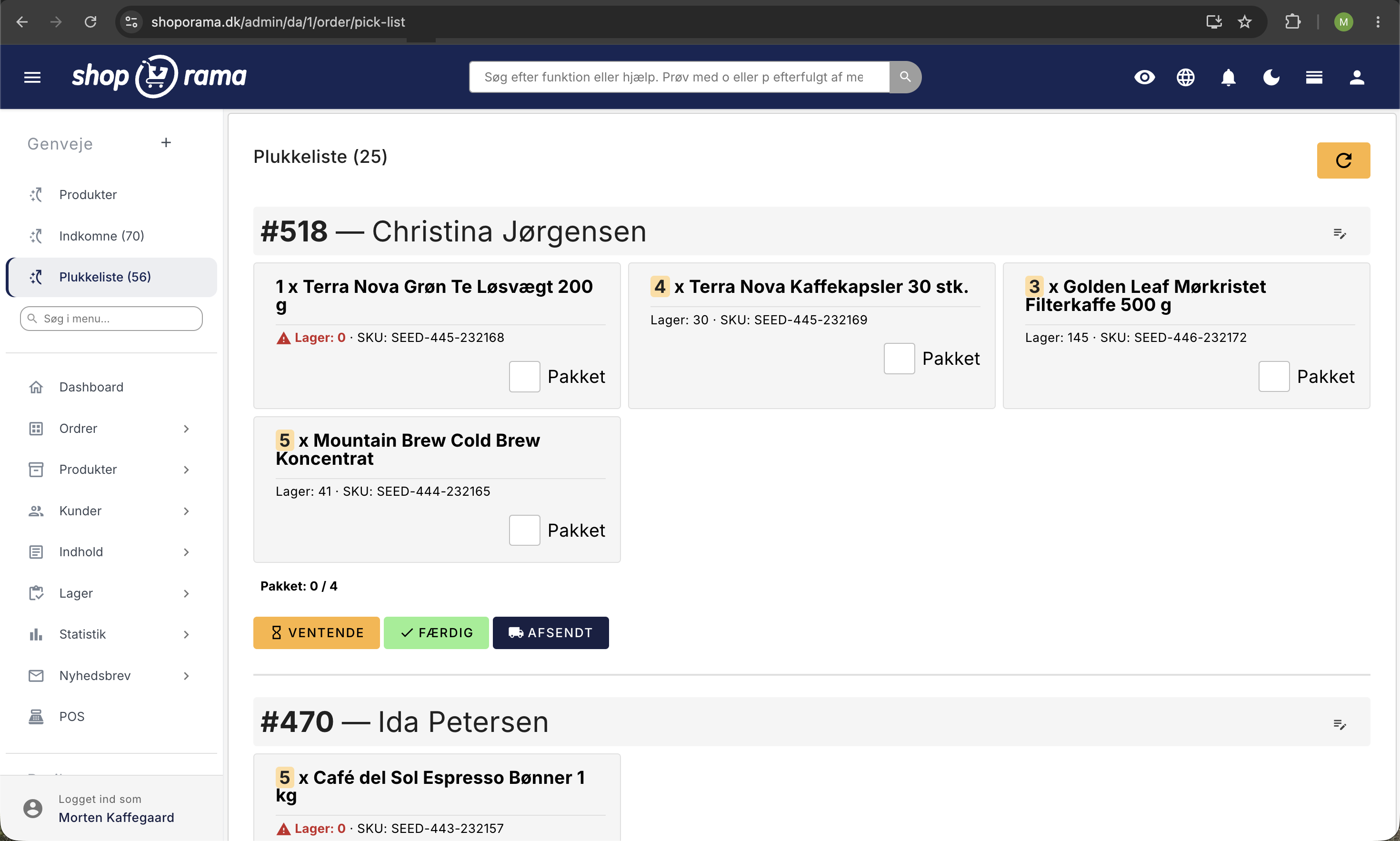
You’ll find the picking list under Shortcuts → Picking List in the admin panel. The list shows all orders with the status “In Progress.” In the menu, you can see the number of orders waiting to be picked.
What is displayed for each order?
For each order in the picking list, you’ll see:
- Order number and any order labels
- Product image — Click to view a larger image
- Product name and quantity — Quantity is displayed as a badge
- Variants — Size, color, and other attributes
- Stock location — Highlighted so you can quickly find the item
- Item number (SKU) and barcode (GTIN/EAN)
- Current stock status
- Internal comments — Can be edited directly from the picking list
Pick and Pack
For each product, there is a "Packed" checkbox. As you pick and pack the items, mark them as packed. A counter shows how many items have been packed out of the total number. When all items are packed, the order is visually marked in green.
Change order status
Once the order is packed, you can change its status directly from the picking list:
- Change to "Pending " — If the order needs to be put on hold (e.g., missing items)
- Change to "Complete " — The order is packed and ready for shipment
- Change to Shipped — The order has been shipped to the customer
Ship only part of the order
If an item is out of stock, the rest of the order doesn’t have to wait. The “Partial Shipment” button is located next to the three status buttons and takes you to a page where you can select which items to include in the package. The rest remains on the order, and the customer is automatically notified that a portion is on its way.
If an order has partial shipments, the picking list shows only the items that still need to be shipped, so you don’t end up picking the same item twice. If the rest of the items aren’t available yet, the order disappears from the picking list and reappears automatically the day the item is back in stock. The order status changes to “Shipped” only when the last item has been shipped. Read more in “Partial Shipments: Send Part of the Order Now and the Rest Later.”
Batch Management for Picking
If you use batch management, you can choose which batch the items are picked from. The system automatically suggests the oldest batch (FIFO), so you always ship items with the shortest shelf life first. You can also split an order line across multiple batches if there isn’t enough in a single batch.
Install the picking list as an app on your phone or tablet
The picking list can be installed as a standalone app (web app) on your phone or tablet. Once installed, it opens in full-screen mode without the browser’s address bar or menus—just like a real app. This provides a focused workflow, and you can walk around the warehouse and pick orders directly from the device.
iPhone and iPad (Safari)
- Open the picking list in Safari on your iPhone or iPad
- Tap the Share button (square with an up arrow) at the bottom of the screen
- Scroll down and tap “Add to Home Screen”
- Give the app a name (e.g., “Pick”) and tap “Add”
- The "Shoporama Pluk" app will now appear as an icon on your Home Screen
Android (Chrome)
- Open the shopping list in Chrome on your Android phone or tablet
- Tap the three dots (⋮) in the upper-right corner
- Tap "Install app" or "Add to home screen"
- Confirm by tapping "Install"
- The app will now appear on your home screen and in your app list
Computer (Chrome, Edge)
- Open the drop-down menu in Chrome or Edge
- Click the install icon in the address bar (a screen with a down arrow)
- Click "Install"
- The app opens in its own window and can be launched from the desktop or taskbar
When you open the picking list via the app icon, it appears in a clean, minimalist layout without the administration sidebar or top navigation. You’ll see only the picking list itself, making it easy to focus on the picking task.
Tip
Combine the picking list with warehouse locations for the most efficient picking process. When all products have a warehouse location, you can quickly find the items in your warehouse.
Related articles
Warehouse locations
Learn how to organize your inventory across multiple locations in Shoporama.
Order queue
Guide to the order queue in Shoporama. See the status of automatic order actions such as capture, invoicing and stock pull, and learn how to manage...
Order labels
Guide to order labels in Shoporama. Create color-coded labels to organize and categorize your orders and set up automatic allocation based on...
Split Delivery: Ship part of the order now and the rest later
Can't you ship the entire order at once? With split shipping, you ship what you have in stock, and the rest will be shipped when it arrives. The...
Related features
Pick list
Print picking lists directly from Shoporama. Streamline your warehouse work with an overview of orders, products and batch numbers in one clear view.
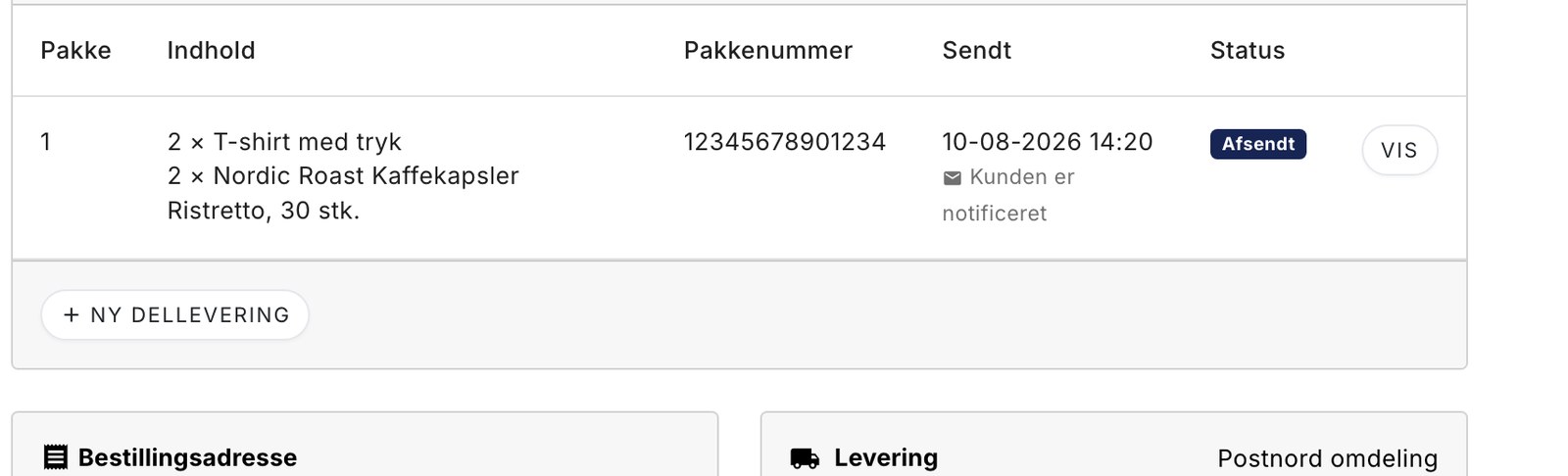
Partial delivery: Send what you have now, and the rest when it arrives home
Send part of the order now and the rest later
Was an item missing from the shelf? Now you can ship what you have, and the rest will be shipped when it arrives. One order, one invoice, and the...