Vis butikkens adresse og et kort på din webshop
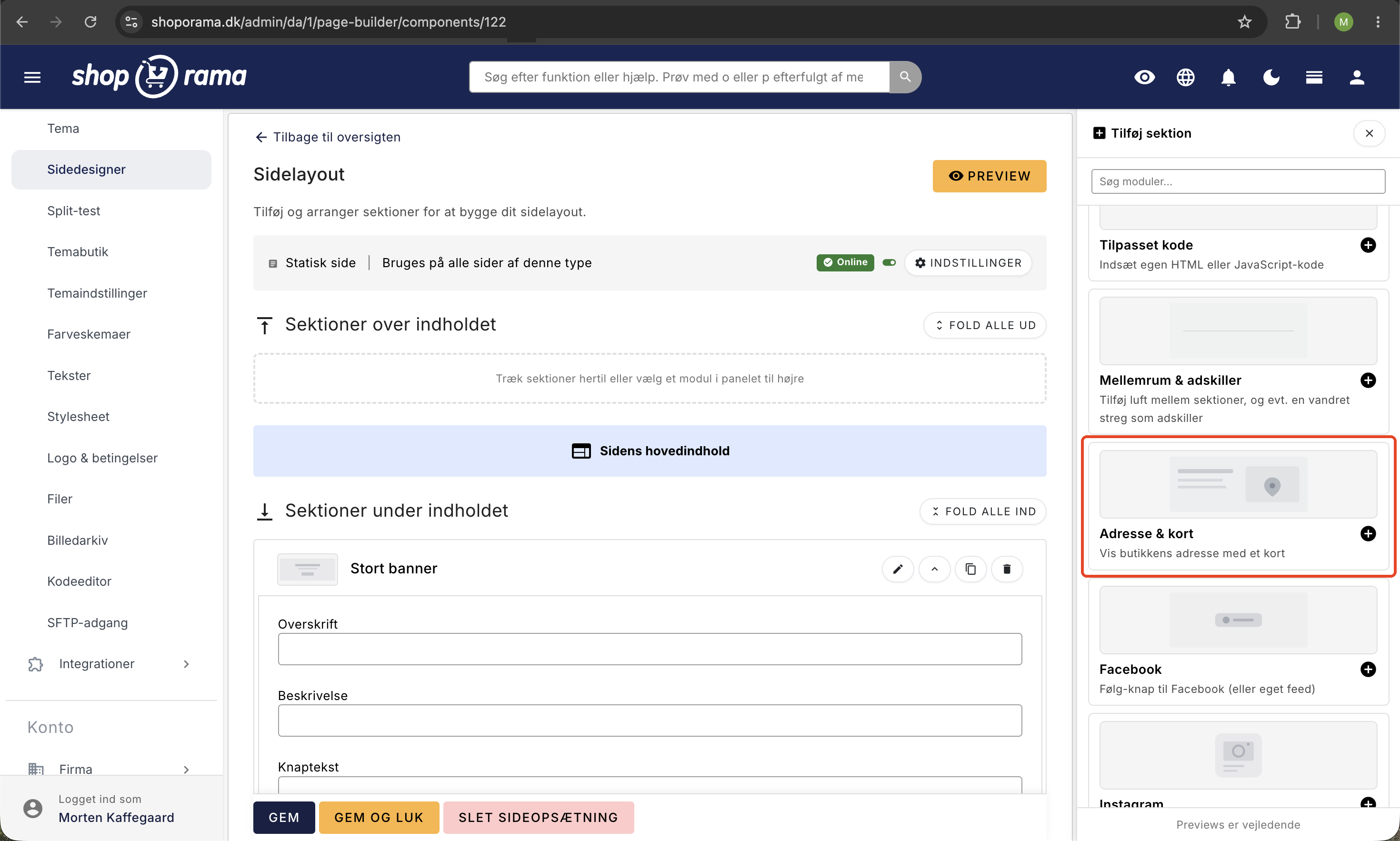
Med modulet Adresse & kort kan du vise din fysiske butiks adresse sammen med et interaktivt kort direkte på din webshop. Det er oplagt til en "Om os"-side, en kontaktside, eller forsiden, så kunderne nemt kan se hvor de finder dig.
Det bedste er, at modulet ikke kræver nogen Google Maps API-nøgle, ingen konto, og ingen betaling. Du skriver bare din adresse, og kortet vises automatisk. Modulet er en del af Sidedesigner og findes i temaerne Delaware, DelawareDK, og Montana.
Sådan tilføjer du Adresse & kort
- Gå til Sidedesigner og åbn (eller opret) den sideopsætning du vil redigere, fx din "Om os"-side.
- Tilføj en ny blok, og vælg Adresse & kort i listen over bloktyper, præcis som du ville vælge Hero, Tekst, eller Nyhedsbrev.
- Skriv din adresse i adressefeltet, fx Eksempelvej 12, 9999 Eksempelby.
- Vælg layout, zoomniveau, og højde efter behov, og gem.
Kortet finder selv stedet ud fra adressen. Du kan altid forhåndsvise siden via preview-linket i Sidedesigner, før du publicerer.
To måder at vise kortet på
Du kan vælge mellem en hurtig og en helt præcis metode:
- Skriv adressen (anbefalet): Udfyld blot adressefeltet, så finder kortet automatisk stedet. Hurtigt, og kræver ingen opsætning.
- Indsæt din egen indlejringskode (avanceret): Vil du have en helt præcis markør, kan du bruge feltet "Egen indlejringskode". Gå til Google Maps, find dit sted, vælg Del, derefter Indlejr et kort, og kopiér HTML-koden ind i feltet. Udfylder du dette felt, bruges din kode i stedet for den automatiske adresse-søgning.
Indstillinger
- Overskrift: En valgfri overskrift over blokken, fx "Find os" eller "Besøg butikken".
- Adresse: Vises som almindelig tekst på siden, og bruges samtidig til at finde stedet på kortet. Du kan skrive den over flere linjer.
- Ekstra info: Et rich text-felt til fx åbningstider, telefonnummer, eller en kort vejbeskrivelse. Vises under adressen.
- Layout: Kort til højre, kort til venstre, eller kun kort i fuld bredde.
- Zoomniveau: Tæt på (gade), normal (kvarter), eller oversigt (by).
- Korthøjde: Lav, medium, eller høj.
- Vis rutevejledning-link: Slår du dette til, vises et "Få rutevejledning"-link, der åbner Google Maps med ruten til din adresse.
Godt for din lokale synlighed
Fordi adressen står som almindelig tekst på siden, er den både god for søgemaskiner (lokal SEO) og nem for kunderne at markere og kopiere. Har du flere fysiske butikker, kan du tilføje flere Adresse & kort-blokke på samme side, så hver butik får sit eget kort.
Ofte stillede spørgsmål
Hvad koster det, og skal jeg oprette en konto hos Google?
Det koster ingenting, og du skal hverken oprette en konto eller en API-nøgle. Du tilføjer blokken, skriver din adresse, og kortet vises automatisk.
Hvor finder jeg modulet?
Du finder det i Sidedesigner, hvor du bygger dine sider. Tilføj "Adresse & kort" som en blok på samme måde som Hero, Tekst, eller Nyhedsbrev.
Kan jeg lægge kortet på alle mine sider?
Ja. Blokken kan vælges på alle sidetyper, fx forside, statiske sider, landingssider, kategori, produkt, og blog. Du er ikke bundet til kun at have det på kontaktsiden.
Pinnen rammer lidt ved siden af. Kan jeg gøre den præcis?
Ja. Brug feltet "Egen indlejringskode (avanceret)". Gå til Google Maps, vælg Del, derefter Indlejr et kort, og kopiér HTML-koden ind. Så rammer kortet helt præcist.
Virker kortet på mobil?
Ja, kortet er responsivt og tilpasser sig mobilen automatisk. Du kan vælge korthøjden lav, medium, eller høj alt efter hvor meget plads det skal fylde.
Kan jeg vise åbningstider og telefonnummer ved siden af kortet?
Ja, det skriver du i feltet "Ekstra info", som er et rich text-felt. Her kan du frit skrive åbningstider, telefonnummer, eller en kort vejbeskrivelse.
Kan kunderne få rutevejledning direkte fra siden?
Ja. Slå "Vis rutevejledning-link" til, så vises et "Få rutevejledning"-link, der åbner Google Maps med ruten til din adresse.
Kan jeg vise flere butikker?
Hver blok viser én adresse. Har du flere butikker, tilføjer du blot flere Adresse & kort-blokke på samme side, så hver butik får sit eget kort med egen overskrift, adresse, og ekstra info.