Shared values: consistent sizes across profiles
Use shared values so that, for example, "Medium" is the same value across all your product profiles, and customers can filter by "Medium" for all items, whether they're T-shirts or pants.
If you sell both T-shirts and pants, you likely have two product profiles, each with a “size” attribute. To you, “Medium” for T-shirts and “Medium” for pants are the same size, but to the online store, they are two different values because each profile has its own. With shared values, you tell Shoporama that these are the same value. This allows the customer to filter by “Medium” and see both T-shirts and pants in “Medium” at once.
What are shared values?
Shared values are a single, unified list of values for your entire store, such as XS, Small, Medium, Large, XL, and XXL. The list is flat, so there are no groups or sets. You can include sizes, materials, and prints in the same list, such as Small, Medium, Cotton, and 400 bar.
A value on a product profile can be linked to a shared value. Then it’s “the same value” across all the profiles linked to it. The values in the profiles remain their own; the link simply overlays them. Therefore, shared values do not change your products, inventory, variants, prices, or orders, and you can always remove the link without losing anything.
Shared values are used for attributes of the “List of Values” type—that is, values you enter yourself. They are not used for fields that the customer fills out. If you’re unsure what profiles, attributes, and variants are, start with the article on product profiles and variants.
Create your shared values
- Go to Webstore → Product Profiles in the menu.
- Click the Shared Values button in the top right corner.
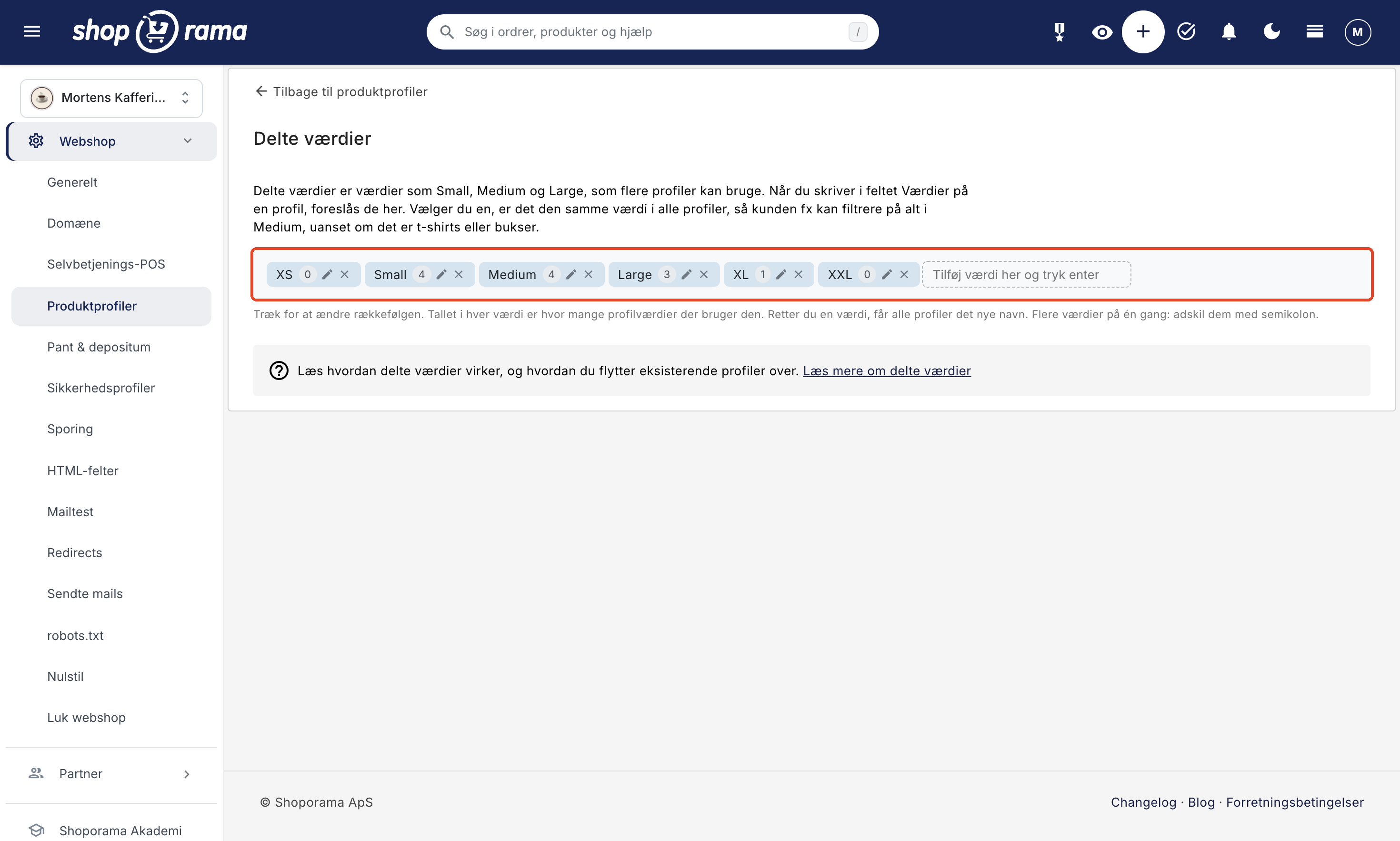
- Type a value in the Add value here field and press Enter. To create multiple values at once, separate them with semicolons, e.g., XS;Small;Medium;Large.
- Drag the values around to change their order.
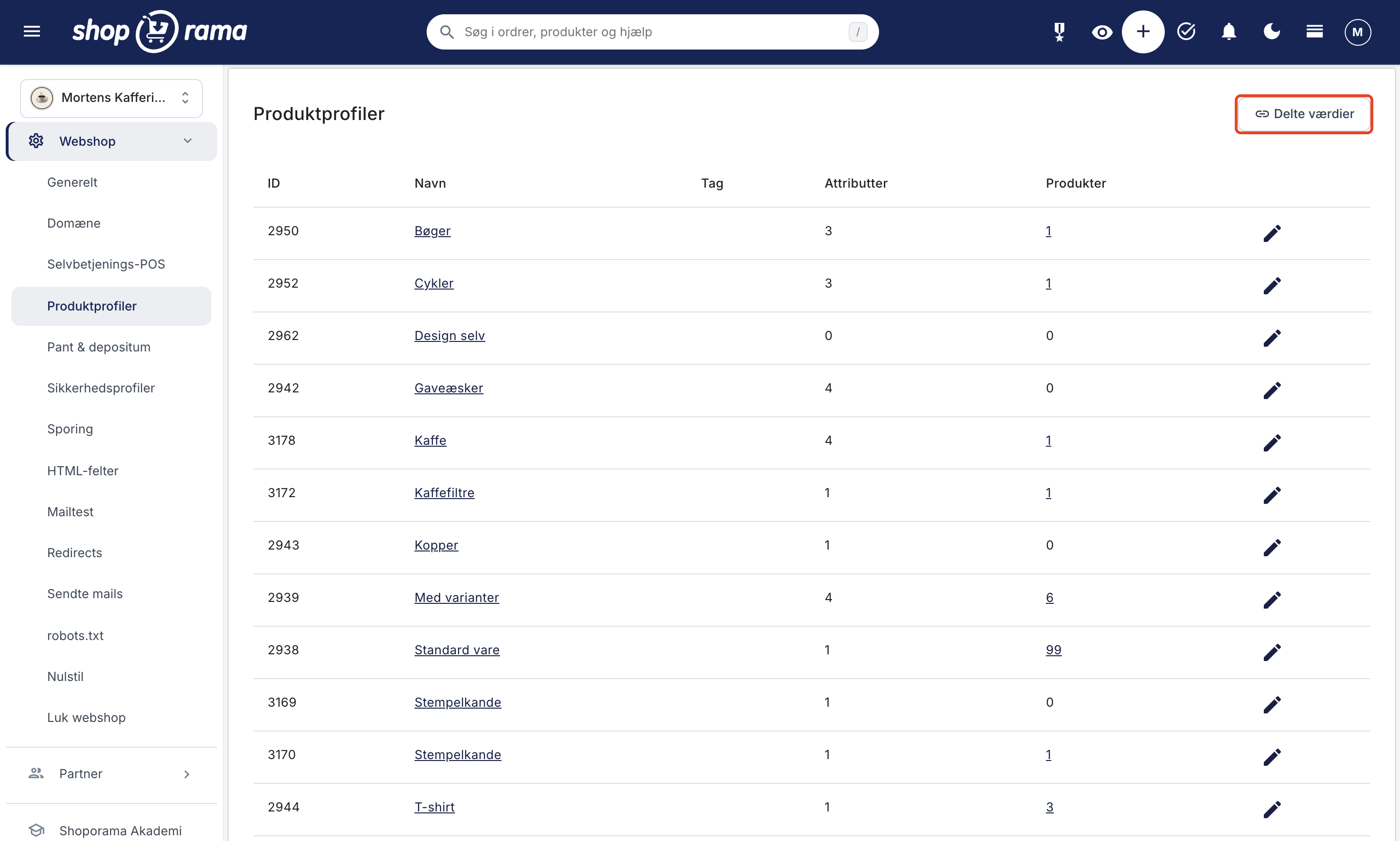
Use the names that will appear in the online store, as these are the ones the customer will see. If a value already exists, it won’t be created again. Upper- and lowercase letters don’t matter, so “medium” and “Medium” are considered the same value.
Each value is displayed as a small tile with a number. The number indicates how many values in your profiles are linked to it. If it says 0, it isn’t used in any profile yet. Use the pencil icon to edit the value, and the X icon to delete it.
When you edit a shared value with the pencil icon, there’s also a field called “Number.” It’s filled in automatically when the value starts with a number, e.g., 400 for “400 bar.” Currently, the number is not used by the filter in the web store, but themes and integrations can retrieve it.
Use a shared value on a profile
Once you’ve created your shared values, they’ll be automatically suggested when you add values to a profile.
- Open the profile under Web Store → Product Profiles.
- Start typing in the Values field for the attribute, e.g., “x.”
- A list of shared values containing what you typed will appear. They have a link icon in front of them.
- Click the value you want to use, or select it using the arrow keys and press Enter.
The value is added to the profile with the shared value’s name and is linked immediately. If you type a value yourself and press Enter without selecting anything from the list, it becomes a regular value, just as you’re used to. The exception is when the attribute already has shared values, and the name is among your shared values. In that case, it will be linked automatically (see Import and Automatic Linking below).
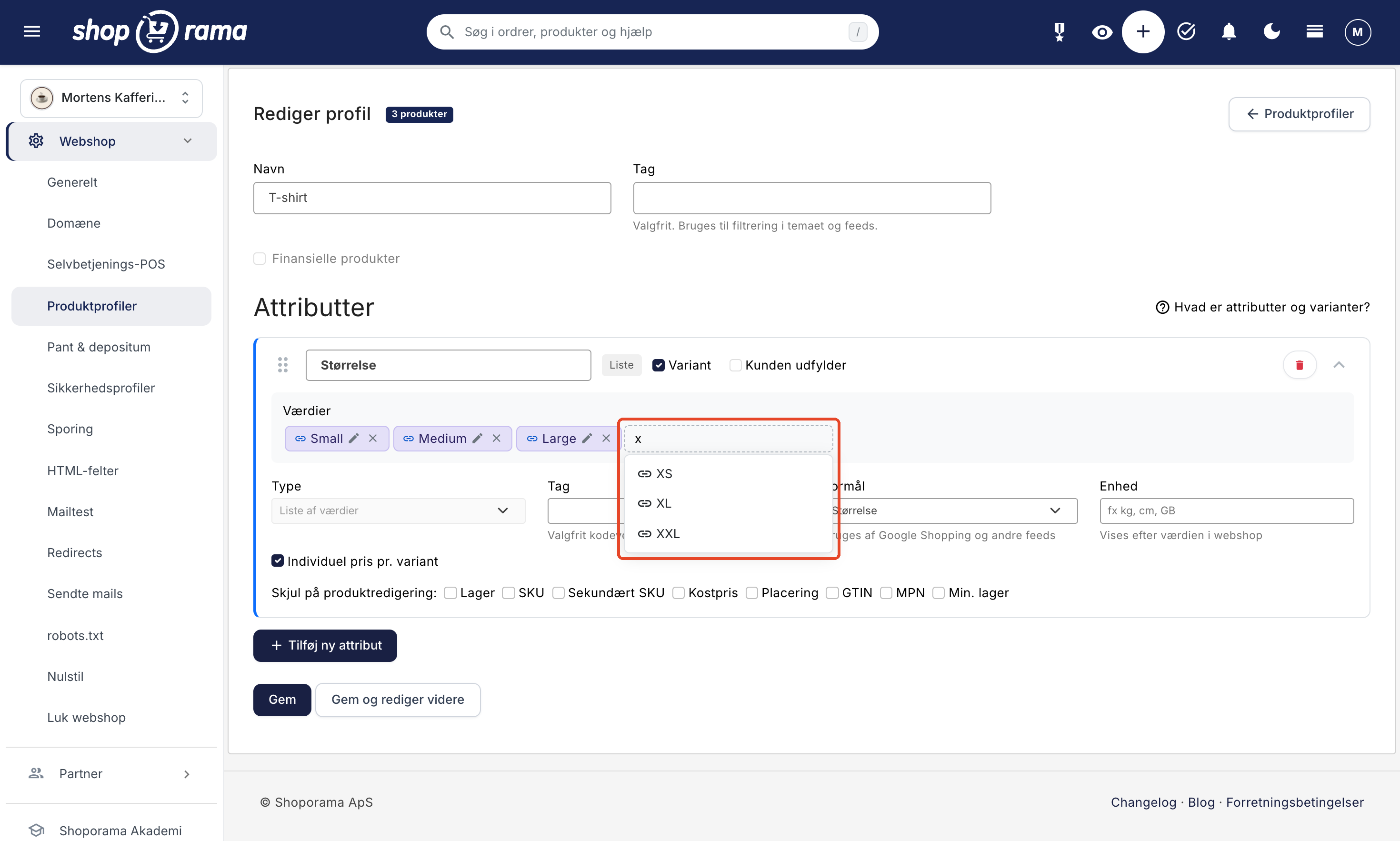
The list may show two small text labels next to a value:
- Already exists: The profile already has a value linked to the shared value. It cannot be selected again, so you avoid duplicates.
- Make your value shared: The profile already has a regular value with the same name. If you select this option, your existing value will be linked to the shared value. No new value is created, and your variants, inventory, and prices remain unchanged.
How to tell if a value is shared
On the profile, shared values are purple and have a link icon in front of the name. If you hover over the icon, it says “Shared value.” Regular values look the same as before.
In the “What are attributes and variants?” help box on the profile, there’s also a short section about shared values with the “View your shared values” link, which takes you directly to the list.
The name of a shared value is locked in the profile
If you click the pencil icon next to a shared value in a profile, the “Edit Value” window opens as usual, but the “Value” field is locked. This is intentional: a shared value must have the same name in all profiles; otherwise, filtering won’t make sense. You can still edit the value’s tag.
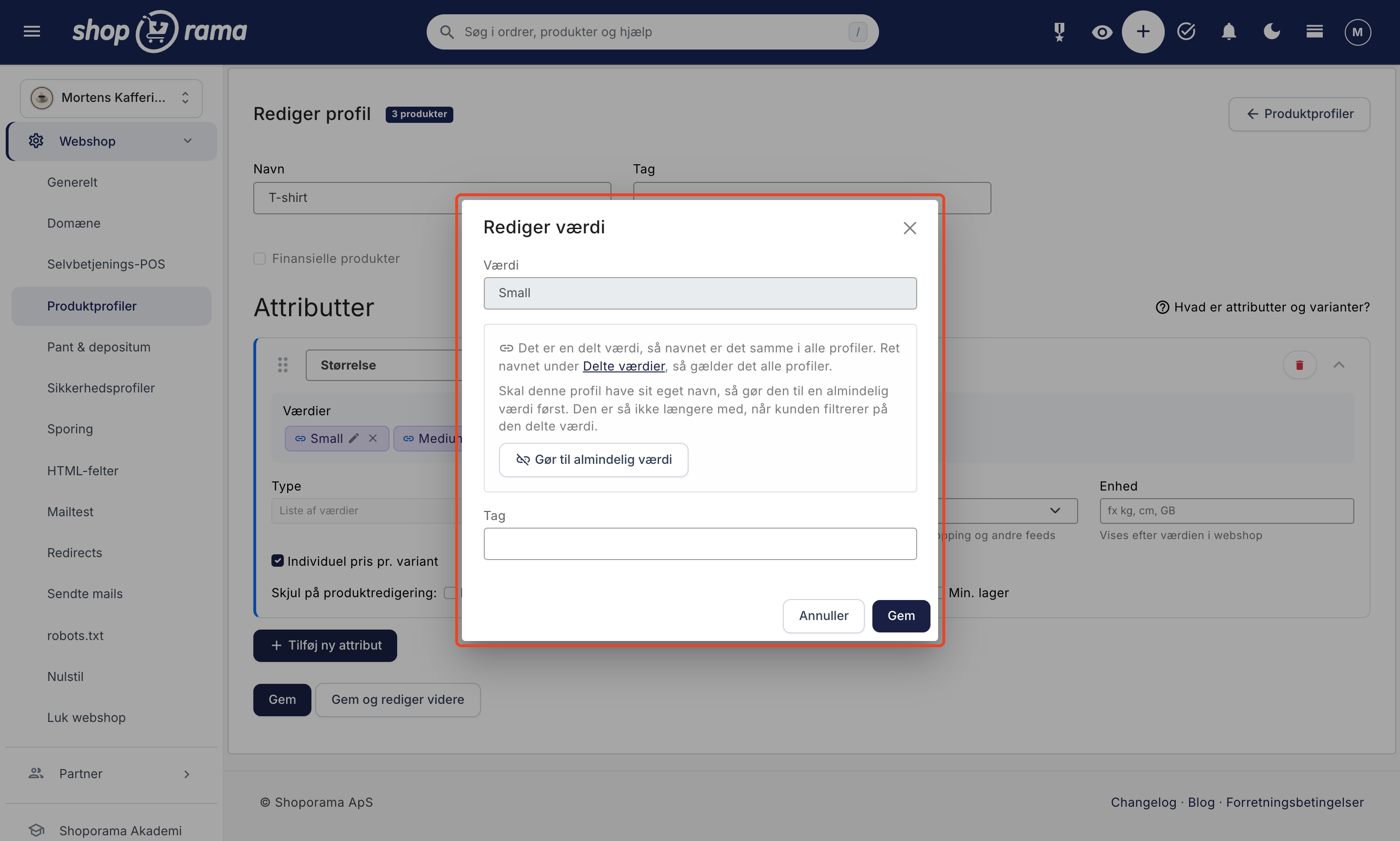
You have two options if you need to change the name:
- Edit the name for all profiles: Click the “Shared Values” link in the window and edit the value there.
- Give only this profile its own name: click on “Make a Regular Value.” The value will then no longer be shared, and you can rename it. Keep in mind that it will no longer be included when the customer filters by that shared value.
Rename or delete a shared value
If yourename a shared value on the Shared Values page, all linked values in your profiles will immediately receive the new name. This also applies to the names of variants in the inventory overview. Orders that have already been placed will retain the name the item had when the customer purchased it. If renaming would result in two identical values in the same attribute, the profile value in question will retain its old name, but it will still be linked.
If youdelete a shared value, the values in your profiles will remain with their current names. They simply won’t be shared anymore. You’ll be asked, “Delete the shared value?” before any action is taken.
Tip: Never delete a value from a profile to replace it with a shared value. When you delete a variant value, the variant’s inventory history is lost. Instead, select the shared value using “Make your value shared” from the suggestion list, and your existing value will be linked.
Import and Automatic Linking
When a new value is added to a profile—for example, by importing products via CSV, from an integration, or by manually entering it—Shoporama automatically links it to a shared value, but only when two conditions are met:
- the attribute already has other shared values, and
- there is a shared value with the same name. Upper- and lowercase letters are ignored.
Attributes without shared values are left untouched, and the list of shared values never grows on its own during an import. The same applies if you rename a regular value to the name of a shared value: if the attribute already has shared values, it will be linked.
Filtering in the Online Store
It’s in the filter where shared values make a difference for the customer. Once you’ve set up a product filter under Design → Filter, two things happen with an attribute that has shared values:
- Linked values from different profiles are displayed as a single option with the shared value’s name. In other words, the customer sees one “Medium,” not one per profile.
- The same shared values from other profiles are automatically included (only the shared values, not the profiles’ regular values). If the customer selects “Medium,” both T-shirts and pants in “Medium” will be displayed.
This works in the built-in themes that use the product filter, i.e., Montana and MontanaB2B. If you use a different theme, it won’t work automatically. Read more about the filter in the article on product filtering. Developers can retrieve products with a specific shared value via AJAX filtering and the REST API.
"M" and "M (kids)": when similar names mean different things
Only link values that are truly the same for the customer. If you use “M” for both adult and children’s sizes, create two distinct values, such as “M” and “M (children).” Otherwise, a customer filtering for “M” for themselves will also see children’s clothing.
Change a product’s profile
If you change a product’s profile, inventory entries with variants and the product’s profile settings are typically removed. Split values are the exception: if the same split value exists in both the old and new profiles, the product’s data for that value—such as inventory, SKU, and prices—is transferred along with it. This requires that the value be a variant in both profiles (or a regular field in both) and that it is clear where it should go in the new profile. Read more in Can you change a product’s profile?
Create new profiles from existing attributes
When you create a new profile, you can copy an attribute from another profile using “Copy from another profile” on the profile page. The shared values are included as shared, so the new profile is immediately filtered along with the others. Read more in “Product Profiles and Variants.”
Do you have many profiles?
If you only have a few profiles, you can quickly handle this in the admin panel using “Make your value shared.” If you have many profiles, or if the values are spelled differently from profile to profile—for example, “S” in one and “Small” in another—you can link them all at once via the REST API or by asking Claude to do it, if you’ve connected your store to the AI. You can preview the result before anything is saved and undo it afterward. Read the step-by-step guide in the article “Move Your Profiles to Shared Values.”
Frequently Asked Questions
Do I need to use shared values if I only have one profile?
No, it’s not necessary. Shared values only make sense when multiple profiles have the same types of values—such as sizes for both T-shirts and pants—and the customer needs to be able to filter across them. You can easily wait until you need it.
Will my inventory or variants change when I link a value?
No. Linking a value does not change inventory, variants, prices, orders, or the shopping cart. If you select “Make your value shared,” your existing value will be linked, and no new one will be created. The only thing that may change is the name, if you later rename the shared value.
Does the product retain its stock if I switch to a different profile?
For shared values that also exist in the new profile, yes. For example, if both the T-shirt and the pants have the shared value “Medium” as a variant, the inventory, SKU, and prices for “Medium” will be transferred. Variants without a shared counterpart in the new profile will be removed, just as in a regular profile switch.
Why can’t I edit the name of a value in my profile?
Because it’s a shared value, and it must have the same name across all profiles. Edit the name under “Shared Values,” and the change will apply to all profiles. If this specific profile needs its own name, click “Make a Regular Value” first.
What does “already exists” mean in the list?
It means the profile already has a value linked to the shared value. That’s why you can’t select it again. This prevents you from having the same size listed twice in the profile.
I changed “Medium” to “Mellem” under Shared Values. Will this change my old orders?
No. The profiles and variants will be given the new name, but orders that have already been placed will retain the name the item had when the customer purchased it.
Are my sizes automatically included when I import products via CSV?
Only if the attribute already has split values and there is a split value with the same name. In that case, the new value is automatically linked. Attributes without split values remain unchanged, and the import never creates new split values on its own.
Can the customer see that a value is shared?
Not directly. The link icon and the purple color are only visible in the admin panel. The customer notices it in the filter, where “Medium” appears only once and displays items from all profiles that use it. This requires a theme with the product filter, i.e., Montana or MontanaB2B.
I have 40 profiles. Do I really have to open them all?
No. The linking can be done in bulk via the REST API or by asking Claude to do it, and you can see the result before it’s saved. See the article “Move Your Profiles to Shared Values.”
Can I undo it if I linked something incorrectly?
Yes. Click the pencil icon next to the value in the profile and select “Make it a regular value.” If the value was added by mistake—for example, because you selected a shared value that the profile didn’t already have—you can delete it instead, as long as it doesn’t have any inventory. If you delete the entire shared value, the values in the profiles will remain; they just won’t be shared anymore.
Need help? Contact us at support@shoporama.dk.
Related articles
Move your profiles to shared values
Here's how to link the same sizes, colors, and other values across multiple product profiles to shared values. You can do this in the admin panel,...
Product Profiles and Variants
Guide to product profiles and variants in Shoporama. Understand how profiles, attributes and variants are related.
Product Filtering in Your Online Store
Guide to Product Filtering in Shoporama. You build the filter yourself under Design → Filter, select which facets customers will see (brand,...
Ajax filtering
Technical documentation for Shoporama's /ajax endpoint for filtering products. For developers and theme designers.
Related features
Product Profiles and Variants: Set Up Your Product Types
Create product profiles, attributes, and variants in Shoporama with your own prices and inventory, and see how you can customize both color and size.
Shared Values
Shared values are attribute values such as Small, Medium, and Large that are used by multiple product profiles, allowing customers to filter across...