Export orders as CSV
Guide to exporting order data as CSV from Shoporama, with the option to filter by order number or date range.
Du kan eksportere dine ordrer som CSV-fil til brug i regneark, regnskabsprogrammer eller andre systemer. Eksporten indeholder alle ordredetaljer inkl. kundeoplysninger, produkter, priser og forsendelsesinfo.
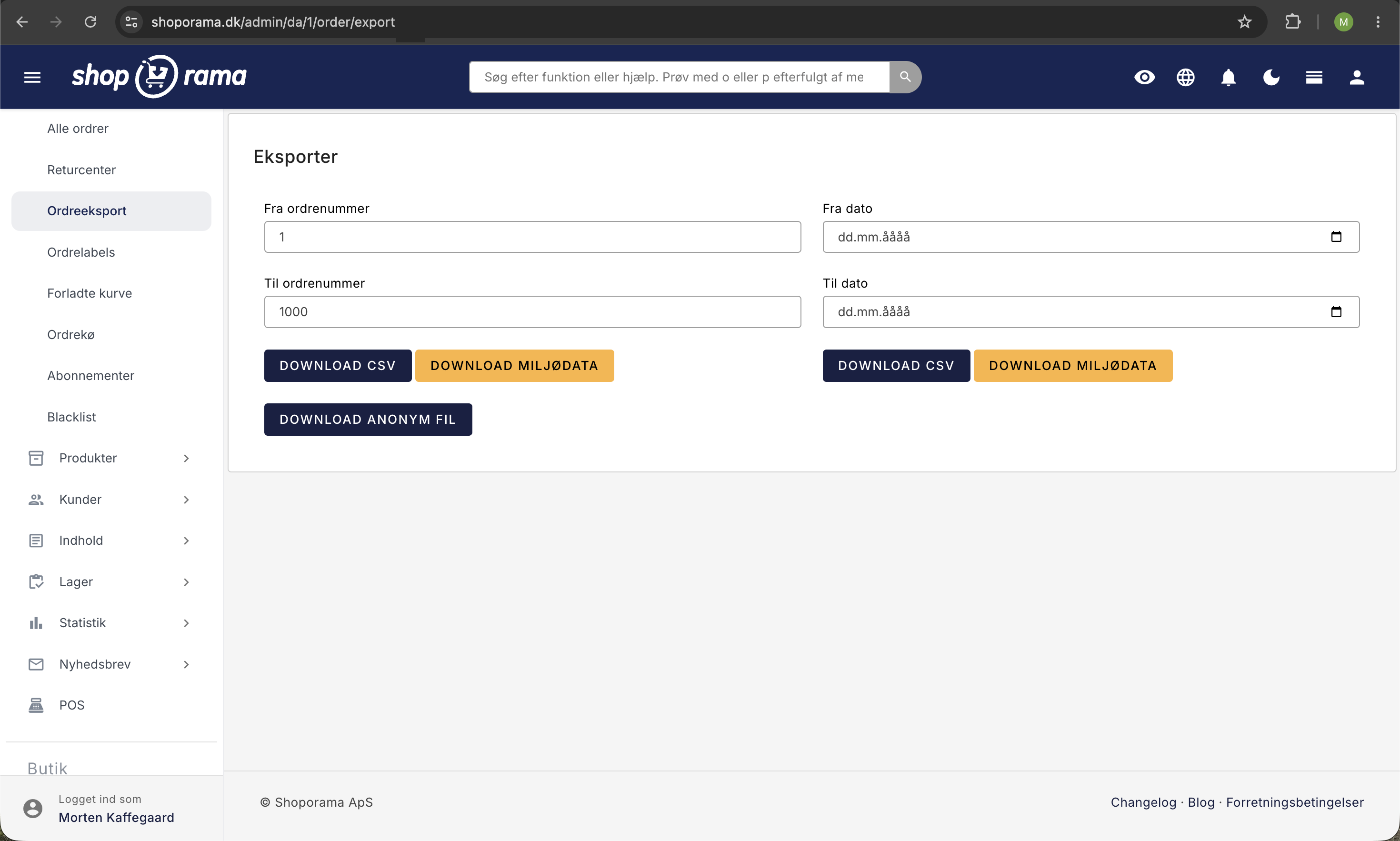
Eksportér ordrer
- Gå til Ordrer > Ordreeksport
- Vælg eksportmetode:
- Efter ordrenummer – Angiv fra- og til-ordrenummer
- Efter dato – Vælg en datoperiode
- Klik Download CSV
Ved mange ordrer kan eksporten tage et øjeblik. Systemet viser en statusbar, mens filen genereres.
Felter i eksporten
CSV-filen indeholder bl.a.:
- Ordredata – Ordrenummer, status, dato, fakturanummer
- Priser – Pris ekskl. moms, totalpris, moms, fragtkostnad
- Kunde – E-mail, telefon, kundefelter
- Faktureringsadresse – Navn, firma, adresse, postnummer, by, land
- Leveringsadresse – Samme format som faktureringsadresse
- Betaling – Betalingsmetode, transaktions-ID, korttype
- Fragt – Fragtmetode, rabatkode, kampagnerabat
- Labels – Eventuelle ordrelabels
- Avance – Overskudsberegning (hvis kostpris er sat)
Miljødata-eksport
Der er også en separat eksport for miljødata, som indeholder produkternes emballageinformationer (papir, plast, metal, glas, træ), WEEE-kategori, batterioplysninger og EPR-registreringsnumre. Denne eksport er relevant for virksomheder, der skal rapportere miljødata.
Related articles
Billy's Billing integration
Guide to setting up Billy's Billing in Shoporama. Automatically transfer orders to your accounts, synchronize products and post payments.
What emails does Shoporama send to my customers?
Overview of automatic emails Shoporama sends to your customers - order confirmation, abandoned baskets, track-and-trace, product reviews, and more.
Which templates are used for which emails?
Complete overview of all email templates in Shoporama - order confirmations, abandoned baskets, return labels, product reviews and much more.