Gift cards and vouchers
Guide to creating and managing gift cards and vouchers in your Shoporama online store, including gift card products and discount codes.
In Shoporama, you can manage gift cards and store credit in several ways: You can sell gift cards as products in your online store, create discount codes manually in the admin panel, or have the returns center automatically issue store credit when a customer chooses it instead of a refund. All methods provide the customer with a code that can be redeemed at checkout.
Sell gift cards as products
The easiest way to offer gift cards is to create a product that automatically generates a gift card code when the customer purchases it.
- Create a new product (e.g., "Gift Card – 200 DKK")
- Go to the Credit, etc. section in the product editor
- Check the “Credit Note” box and enter the amount (including tax)
- Specify the number of days the gift card is valid (e.g., 365 days = 1 year)
- Save the product
When a customer purchases the product, the system automatically generates a unique gift card code. The code is sent to the customer in the order confirmation email under the heading "Your Gift Certificate."
Gift cards created this way automatically save the remaining balance, so the customer can use the card across multiple purchases.
Create gift cards manually
You can also create gift cards and discount codes manually under Gift Cards in the left-hand menu.
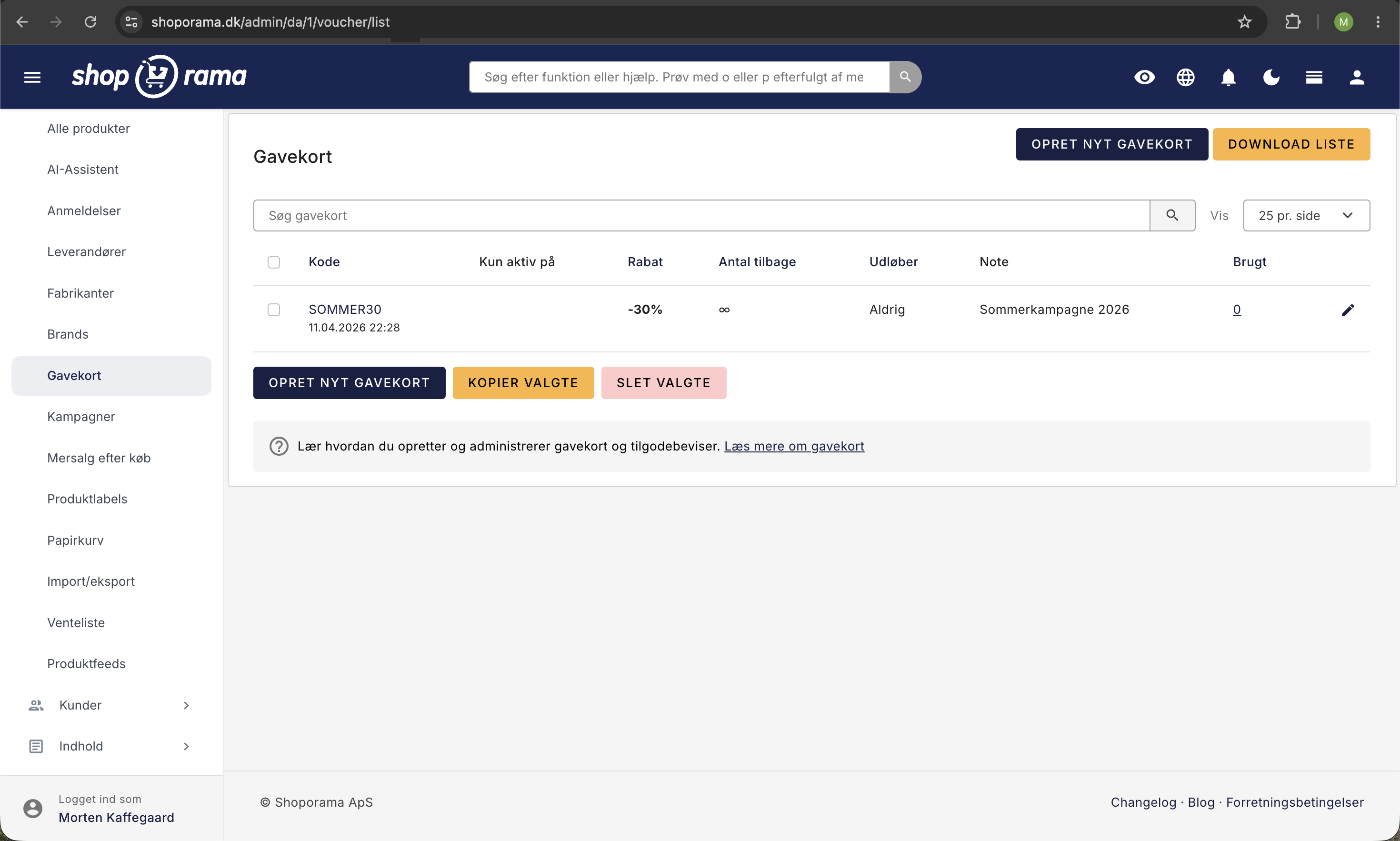
- Go to Gift Cards in the menu and click Create New Gift Card
- Choose how the codes are created:
- Single code – enter the code yourself
- Generate automatically – specify the quantity (up to 1,000 at a time)
- Upload file – one code per line
- Specify the discount type: Percentage discount or Fixed-amount discount
- Set an expiration date, minimum amount, and other restrictions if applicable
- Save the gift card
Store Credit from Returns
Credit notes can also be generated automatically by the returns center. If you offer the customer a credit note instead of a refund, Shoporama automatically creates a gift card for the return amount when you approve the return and sends the code to the customer via email. The code is valid for 3 years and stores the remaining balance, just like a regular gift card.
You can enable this feature in the Returns Center. Learn more in the Returns Center.
Gift Card Settings
When you create a gift card manually, you can control a number of settings:
- Expiration date – Select “never” or a specific date
- Number of times the code can be used – Unlimited or a specific number
- Only once per customer – Based on the customer’s email address
- Minimum amount – The code only works if the order exceeds a certain amount
- Includes free shipping – The gift card also provides free shipping
- Allow on sale items – Whether the code also applies to sale items
- Can be combined with promotions – Whether the code can be used in conjunction with an active promotion
- Can be combined with loyalty program points – Whether the code can be used with points
- Save remaining balance – If the customer does not use the entire amount, the remainder is saved for the next purchase
Restrict to specific products or categories
You can choose to restrict a gift card so that it applies only to specific categories or products. If you do not select any restrictions, the code applies to all products in your store.
How the customer redeems a gift card
At checkout, the customer sees a field where they can enter their gift card code. The system automatically verifies that the code is valid, has not expired, and that any conditions are met. The discount is deducted from the order total.
A customer can use only one gift card per order.
Overview of your gift cards
Under "Gift Cards " in the menu, you can view an overview of all created codes. The list includes the columns Code, Active Only On, Discount, Quantity Remaining, Expires, Note, and Used, and you can sort by most of them by clicking on the column header. The Note column displays the beginning of the internal comment for the code. You can view the minimum amount within each individual code and in the file you download using “Download List.”
Gift Cards or Discount Codes: How to Tell the Difference in the Overview
Gift cards, credit notes, and discount codes are all listed together under “Gift Cards.” There’s no column that tells you which is which, but the overview reveals the difference anyway once you know what to look for. It’s worth keeping track of the difference: a gift card is a form of payment that the customer has already paid for, while a discount code is a price reduction that you provide yourself.
The “Discount” column has two different meanings
- Discount Code: Shows the fixed discount the code provides, e.g., -20% or -100.00 DKK. The number remains constant, regardless of how many customers use the code.
- Gift cards and credit notes: show the amount currently remaining on the card. Gift cards are created with “Save remaining balance” enabled, so the balance is deducted each time the customer makes a purchase, and the amount decreases. When the card is completely used up, the “Discount” column is empty.
"Count remaining" also has two different meanings
- Discount code: The number indicates how many times the code can still be used, and it decreases by one with each purchase. If the infinity symbol (∞) appears, you have not set a limit on the number of uses.
- Gift cards and store credit: The infinity symbol always appears here because the balance—not the number of purchases—sets the limit. The customer may make five purchases as long as there is money left on the card.
The code and the internal comment reveal the origin
- Manually created codes typically have a name you came up with yourself, such as SUMMER30, plus the internal comment you wrote.
- Gift cards purchased as a product are assigned a short, random code with the order number at the end and the internal comment “Created in connection with order” followed by the order number.
- Credit notes from the returns center are assigned a longer, random code, also ending with the order number, and the comment “Credit note for return on order” followed by the order number.
The search field at the top of the overview searches both the code and the internal comment. If you enter an order number in the search field, you’ll see all the gift cards and credit notes associated with that specific order. This is the quickest way to find them when a customer calls to say they’ve lost their code.
The “Scheduled” and “Expired” Labels
- "Scheduled " means that the code has a start date in the future. It has been created but will automatically take effect on that date.
- "Expired" means either that the expiration date has passed or that the "Quantity Remaining" has reached zero.
If you cancel an order that included gift cards, Shoporama automatically resets the “Quantity Remaining” to zero for the gift cards created by that order, so they appear as “Expired.” If the customer cancels the purchase, the gift card can no longer be used, and you don’t have to clean up the system yourself.
Note, however, that a gift card whose balance has been used up will not be marked as “Expired.” The card is still valid; it’s just empty, and you’ll see this instead in the empty “Discount” column.
Gift cards are treated as payment, not as a discount
When Shoporama creates a gift card or credit note itself, the “Do not include in free shipping threshold” setting is automatically applied to the code. This means the gift card cannot bring the order total below your free shipping threshold: if a customer purchases 600 kroner worth of items and pays 400 with a gift card, free shipping still applies if your threshold is 500. This is how it should work, since the gift card represents the customer’s own money and is not a discount on the price. If you create a gift card manually, be sure to check that box.
Report on Redemptions by Code
On the right side of the overview is the “Used” column. The number shows how many orders the code has been used on, and it also serves as a link. If you click on it, the order list opens, filtered specifically for that code, so you can see every single order on which the code has been used.
The filtered list shows all orders with the code, regardless of status, and it is not filtered by the status filter at the top of the order list. This means you get the entire history of the code in a single view, from the first redemption to the most recent.
Show code and discount amount per order
On the order list, you can enable two additional columns under “Customize View”: “Discount Code ” and “Discount Amount.” This allows you to see which code the customer used and how much the discount cost you on each individual order. These columns apply to the entire order list—not just the filtered view—so you can also use them to identify codes you didn’t distribute yourself. This setting is saved for your store, so it will be there the next time you log in. Learn more about the order list in Manage Your Orders in Shoporama.
Find the codes that work
Click the “Used” column header to sort the list by usage. With the most-used codes at the top, you’ll see which codes are actually driving sales. If you reverse the sort order, you’ll see the codes that were never used—and these are often the most instructive: either they were never marketed, or the terms are so restrictive that customers can’t get them to work. You can sort in the same way by Code, Discount, Quantity Remaining, and Expiration Date.
Check the number before using it in your accounting
The number in “Used” counts all orders to which the code was applied, including orders that were never paid for and orders you later canceled. If you need to calculate a campaign’s total in kroner, click through to the list and review the orders’ status and amounts instead of relying on the “Used” figure alone. This way, you’ll avoid having a few abandoned payments skew the results.
Download the list as a file
The “Download List” button at the top of the overview downloads all your codes as a semicolon-separated file that you can open in Excel or Google Sheets. The file contains the code, remaining quantity, whether the code can be used on discounted items, whether it offers free shipping, a percentage discount, a fixed-amount discount, the expiration date, whether it can only be used once per customer, and the minimum purchase amount. The number of redemptions and the internal comment are not included in the file, so if you need the redemption count per code, you’ll need to retrieve it from the “Used” column.
Immediately after you create a batch of codes, the “Download Latest List” button appears at the bottom of the page. It downloads only the codes you’ve just created, which is handy when you need to send a batch of codes to a magazine, an influencer, or a partner.
For Developers
If you’re building your own reporting system, you can retrieve the codes via the voucher endpoint in Shoporama’s REST API, and you can filter the order endpoint by voucher_id. This is the same filter used by the “Used” column, so you’ll get exactly the same orders. This allows you, for example, to create a weekly report by code across multiple online stores in your own spreadsheet or BI tool.
Frequently Asked Questions
How can I tell if a code in the list is a gift card or a discount code?
Check three things. If there’s an amount in the “Discount” column, an infinity symbol in “Quantity Remaining,” and a note mentioning an order number, it’s a gift card or a credit note. If there’s a percentage or a number in the “Quantity Remaining” column that’s counting down, it’s a discount code that you or a colleague created.
Can I rely on the number in the “Used” column when I’m wrapping up a campaign?
Not without checking. The number includes all orders associated with the code, including unpaid and canceled orders. Click on the number to view the orders, and review their status before finalizing the campaign results. If you enable the “Discount Amount” column in the order list, you can also add up the actual discount amounts.
How do I find out which discount codes are actually being used?
Sort the overview by the “Used” column. The most redeemed codes appear at the top, and at the other end, you’ll find the codes that have never been used. If you want to see the amounts behind the numbers, enable the “Discount Amount” column in the order list under “Customize View.”
A customer says there’s money left on the gift card, but the “Discount” column is empty. What happened?
That means the gift card has been fully used. Gift cards store the remaining balance, and each time the customer makes a purchase, the amount spent is deducted from the balance. When the balance reaches zero, the column is empty. Click on the number in “Used” to see exactly which orders the money was applied to, and show this to the customer.
Where can I see the original amount of a gift card?
The overview shows the current balance, not the original amount. The internal comment on the code refers to the order number the gift card came from, so open that order to see what the customer paid for the gift card. If the code is a credit note from a return, you’ll find the amount on the return itself in the Returns Center.
The customer has canceled their gift card purchase. What happens to the code?
If you cancel the order, Shoporama automatically resets the Quantity to zero for the gift cards created by that order, and they will appear as Expired in the overview. This means you don’t need to find and delete the code yourself afterward.
We have multiple online stores. Can I automatically retrieve redemption data?
Yes. Each store has its own overview and its own “Download List” button, and if you want this to be automated, your developer can retrieve the codes and the associated orders via Shoporama’s REST API. See the “For Developers” section above.
Can I track a code I share in a newsletter or an ad?
Yes. On the individual code page, you’ll find a link like ?voucher=YOURCODE, which you can append to any URL in your shop. If the customer clicks the link, the code will be applied when they make a purchase, and all redemptions will be tracked under the same code, so you can monitor them in the “Used” column. If you want to combine the code with a campaign, you can read more in the “Campaigns” section.
Need help? Email us at support@shoporama.dk.
Related articles
Child money credit, customer credit and vouchers in Shoporama
Do you want to give customers a fixed balance or defer payment? Shoporama doesn't have a customer credit field, but there are two built-in...
Campaigns
Learn how to create promotions in Shoporama that automatically give your customers a discount. Choose from five promotion types: fixed price,...
Create volume discounts on products
How to automatically give customers a discount when they buy more of the same product. The quantity discount is set up per product in the Quantity...
Related features
Voucher
Create gift cards and discount codes with fixed amounts, percentage discount, free shipping and expiration date. Target categories or products.
Webshop for hairdressing
Start a webshop for your hair salon. Sell hair care products, gift cards and accessories online with integrated checkout system. 30 days free.
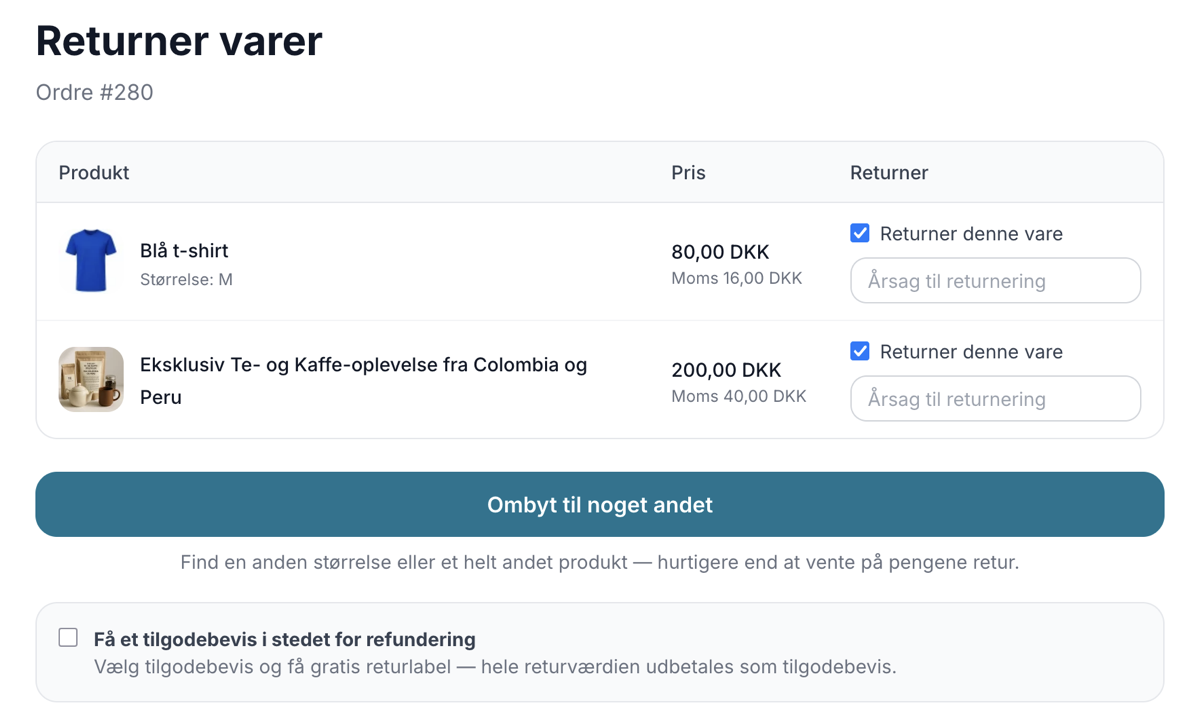
Now your customers can exchange instead of return
Let customers exchange for a different size or a completely different product directly in the return center. Keep revenue, save time and let the...
Webshop til tøjbutik
Få en webshop til din tøjbutik med varianter, fælles lager for butik og web, returcenter, og gavekort. Dansk support. Prøv gratis i 30 dage uden...
Product Profiles and Variants: Set Up Your Product Types
Create product profiles, attributes, and variants in Shoporama with your own prices and inventory, and see how you can customize both color and size.