Import orders from your previous online store
Here's how to import orders from your old online store as historical orders so that customer value, repeat customers, order history, and statistics also cover the period before Shoporama. Using Claude or the REST API.
If you migrate your online store to Shoporama from another platform, your order history will start over from scratch. This will make your numbers look off. A customer who has shopped with you five times over the course of three years will suddenly appear as a new one-time customer, and the average customer value will look far too low. This is especially noticeable if your customers shop infrequently—for example, a few times a year—or if you’ve just made the switch.
The solution is to import your previous orders as historical orders. That way, customer value, repeat customers, the customer’s order history, and the statistics will also cover the years before Shoporama, and your customers can see their past purchases when they log in to the online store.
For both store owners and developers
There is no page in the admin panel where you can upload a file containing orders. The easiest way is to send the file to Claude, who will take care of the rest for you. If you’re handling the migration yourself using code, use the REST API, which is described in the section for developers at the bottom of this article.
What is a historical order?
A historical order is an order from your previous online store that has been imported into Shoporama on its original date. It is saved as paid and shipped, marked as “Historical,” and retains its old order number. It is for display and statistical purposes only. It cannot be modified afterward, and importing it does not trigger any actions: no emails, no accounting entries, and no inventory adjustments. You can view the full list further down.
Before you begin
Retrieve the orders from your old online store
Most platforms can export orders as a CSV file or a spreadsheet. One row per order is sufficient. If the export also includes the item lines, they can be included, but this is not required.
Import the customers first
The order import does not create any customers. It links the order to a customer who already exists in the store with the same email address. If you want your customers to have a profile so they can log in and view their old orders, you must therefore import the customers first and the orders afterward. Here’s how to do it in “Import Customers via CSV.” You can also ask Claude to import the customers.
Orders that were imported before the customer existed in the store will not be linked afterward, even if you run the import again or the customer creates a profile later. In that case, the order must be deleted and imported again.
Customer statistics are based on email addresses. Therefore, they include historical orders, even for customers without a profile.
Include only completed orders
All historical orders are saved as paid and shipped. The import does not have a status field, so filter out canceled orders before importing. If an order has been refunded in full or in part, use the amount after the refund. The amounts must be in the store’s currency, as they will not be converted.
How to import orders with Claude
If you’ve connected Claude to your store, this is the fastest way, and you don’t need a developer. Claude reads your file, identifies which columns represent what, and converts dates and amounts to the format Shoporama requires. If you haven’t gotten started with Claude yet, begin with “Manage Your Store with AI: Get Started with Claude.”
- Start a conversation with Claude and attach the file containing the orders.
- Specify that the orders should be imported as historical orders. Feel free to explain what the columns mean if it’s not clear.
- Claude will first run a test import where nothing is saved. You’ll be told how many orders will be imported, how many are skipped because they already exist, and which rows contain errors and why.
- Correct the errors in the file, or ask Claude to correct them—for example, a date format. Then ask Claude to import the orders. Claude imports a maximum of 250 orders at a time and will split a larger file into multiple batches on his own.
- Check the results under Orders → All Orders.
Examples of what you can write to Claude
"Here is an export of all orders from my old online store. Import them as historical orders into Shoporama. Run a test import first and show me how many are imported and which rows contain errors."
"The 'Order No.' column contains the old order number, the dates are in day/month/year format, and 'Total' includes tax and shipping. Skip the canceled orders."
If you’ve enabled Extra Security, the import will await your approval, just like other changes from Claude. Claude will provide you with a link, and on the approval page, the test run appears under " Preview," so you can see how many orders will be imported before you approve them. Each batch of up to 250 orders requires one approval. Learn more in Extra Security: Approve Changes from Claude.
The import is located in the Orders section under your AI tools. If the section is set to Read-only or Off, Claude cannot import orders. Set it to “Read and Edit” while you’re importing. See how in “Customize Which Tools Claude Can Use in Your Store.” If the user who connected Claude has a restricted role, the import also requires the “Deletion and Bulk Import” option.
What information must each order contain?
Three pieces of information are required. If any one of them is missing, the row will be rejected:
- The customer’s email address. This links the order to the customer and is what customer statistics are based on. It must be a valid email address.
- The order date, preferably including the time. The date must not be in the future or before 1990.
- The order total, including tax and shipping.
The rest is optional, but the more you include, the more complete the history will be:
- The old order number. This is displayed instead of a Shoporama number and is used to avoid duplicates if you run the import again. Include it if you have it.
- Total excluding VAT or the VAT amount. If you don’t have either, Shoporama calculates the VAT based on the VAT rate in the order’s country, e.g., 25% in Denmark. If you have both and they don’t match the total, the row will be rejected.
- Shipping including tax. Shipping is part of the total.
- Name and address, company name, country, phone number, CVR number, and EAN number. If the shipping address is missing, the billing address is used; if the country is missing, the store’s default country is used.
- Item lines with name, quantity, unit price including VAT, and preferably VAT rate and item number. There can be up to 200 lines per order. If the item number is found in the store, the line item is linked to the item. Otherwise, the line item is simply saved with the name and price. Today’s prices and inventory are neither used nor changed.
Dates and Amounts
Shoporama only accepts dates written as year-month-day, e.g., 2023-12-06 or 2023-12-06 18:27:00, and amounts with a period as the decimal separator, e.g., 1234.50. A date such as 05/03/2024 will be rejected because it can mean either March 5 or May 3, and an amount such as 1,234.50 will also be rejected. Also, do not use a thousands separator: an amount with more than two decimal places, e.g., 1,234, will be rejected.
You don’t need to correct the file yourself. Claude converts dates and amounts for you. Just tell Claude whether the dates are in day/month or month/day format if it isn’t clear from the file.
What happens, and what doesn’t
The order is saved as paid and shipped on its original date and marked as “Historical.” Other than that, nothing happens:
- The customer receives no emails—no order confirmation, no shipping notification, and no request for a review.
- The order does not receive a new order number, and your next order number is the same as it was before the import.
- No invoice number is generated.
- Nothing is transferred to your accounting software, such as e-conomic, Dinero, or Billy.
- Inventory remains unchanged, and no emails are sent to customers on the waiting list.
- Customers do not earn any loyalty points.
- No webhooks are sent, no events are sent to Klaviyo, and no purchases are tracked by Meta or other server-side tracking systems.
- You do not pay transaction fees to Shoporama on these orders because the revenue was generated before Shoporama was involved.
- No shipping label is ordered, and no payment is processed.
The Order Number
A historical order does not receive a number in the store’s own numbering sequence. It appears with its old order number, both in the admin panel and to the customer. If the order has no old number in the file, it receives an automatic number starting with H, e.g., H15359.
Here’s where you’ll find the imported orders
In the order list
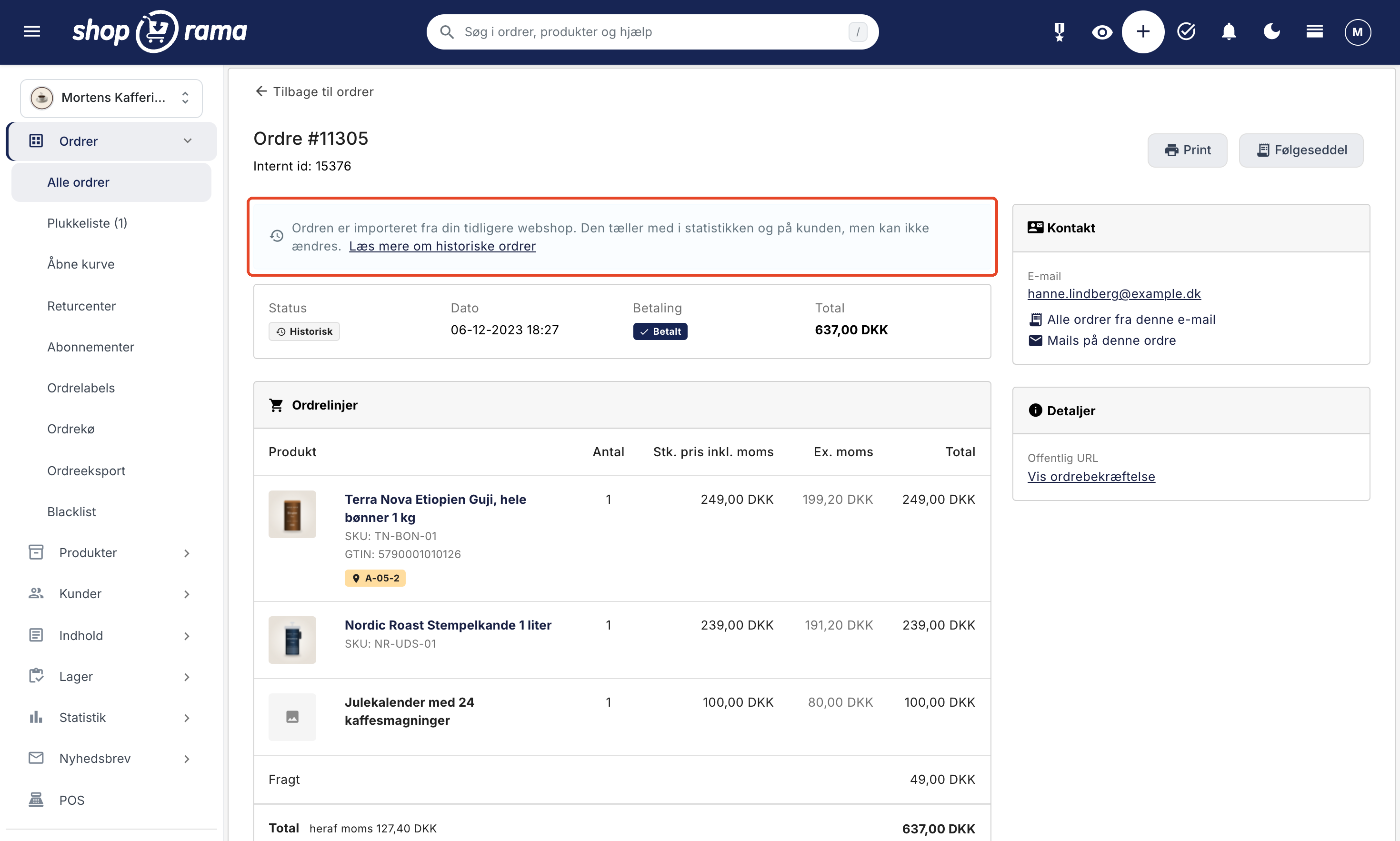
Under Orders → All Orders, historical orders are marked with the “Historical” icon in the Status column and display the old order number in the No. column . If you hover your mouse over the icon, it says “Imported from your previous online store. The order cannot be changed.”
The list is sorted by date, so the old orders appear further down than your new ones. There isn’t a filter that shows only historical orders, but if you select a time period under “Period” that predates the store’s launch on Shoporama, those are the only ones you’ll see. You can also search for an old order number in the search field. Enter the entire number.

On the order page
When you open a historical order, the status is listed as " Historical," and at the top there is a blue box: "This order was imported from your previous online store. It counts toward statistics and the customer’s record, but cannot be changed.” The Edit button is not available on a historical order, but you can still print the page and a packing slip. Using the “All Orders ” link from this email, you can view the customer’s old and new orders together.
On the customer page
If the order is linked to a customer, it counts toward the customer’s total number of orders and total revenue on the customer list under Customers → Registered Customers.
In the online store
When a customer with a profile logs in, their historical orders appear under My Orders alongside new orders, sorted by date and listed with the original order number. These are for viewing only. The customer cannot return, exchange, cancel, or reorder them, and digital files cannot be downloaded from them. In Shoporama’s built-in themes, no return link is displayed for historical orders either.
How this affects your statistics
- Customer statistics are calculated immediately. Under Statistics → Customer Statistics, historical orders are included in the average customer value, repeat customers, time between orders, and customer segments as soon as they are imported. Select a time period that covers past years to see the effect. Read more in Customer Statistics and about the concept of customer lifetime value (CLV).
- The charts on the Dashboard are updated the following night. The charts on the Dashboard—such as revenue, number of orders, and average order value—are recalculated overnight. After an import, they are recalculated for the imported dates the following night. If you import data before the store goes live, the recalculation occurs the night after it goes live. The pages under Statistics, such as Monthly Revenue, display historical orders immediately.
- No profit. Historical orders have no cost prices. They count as 0 DKK in profit on the Dashboard and are not included in Inventory Consumption & Profit.
- Sales per item. Line items linked to a product in the store are included in that product’s sales because they represent actual sales.
- Newsletter segments. Rules based on the number of orders, total purchase amount, and most recent order include historical orders. Rules regarding the purchase of a specific item, category, or product label require that the line item be linked to an item in the shop. Lines containing only a name do not count toward these criteria.
Duplicates and rerunning the import
It is safe to run the same file again, for example, when you have corrected some errors. Orders that have already been imported are skipped:
- If the row has an old order number, it is skipped if that number already exists in the store.
- If the row has no order number, it is skipped if there is a historical order with the same email, time, and total.
- Two identical rows in the same file are imported only once.
Each row is processed individually, so an error in one row does not stop the others. You’ll receive a notification for each row: imported, skipped, or error with an explanation. Correct the rows that failed and run the file again. Orders that have already been entered will not be imported twice.
Can a historical order be corrected?
No. A historical order is read-only. You cannot change the status, record a payment, issue a refund, create a return or a shipment, order a shipping label, apply order labels, or send emails or text messages from the order. If you select multiple orders in the order list and choose a bulk action, the historical orders will be skipped.
You can view the order, print a packing slip, and ask Claude to add an internal note. If there’s an error in an imported order, delete it and import it again with the correct information:
- Find the order under Orders → All Orders.
- Click the menu with the three dots (⋮) at the far right of the row, select Delete, and confirm.
- Correct the row in your file and import it again.
Deleting the order does not affect your inventory, and the old order is completely removed, so the corrected row will not be skipped as a duplicate. Orders are deleted one at a time, so always run a test import first and correct any errors before importing.
For Developers: REST API
This section is for those of you who are building the migration yourself using code. If you’re using Claude, you can skip this.
Send a POST request to /REST/order/import with a JSON body containing a list of orders and, optionally, `dry_run`. There can be up to 500 orders per call, so split larger imports into multiple calls. Setting `dry_run`: true will validate everything but save nothing. Always run a test import first. Instructions on how to create an API key and include it in your request can be found in the REST API documentation.
Fields per order:
- Required: email, time (YYYY-MM-DD or YYYY-MM-DD HH:MM:SS), and total_price (including tax and shipping).
- VAT and shipping: total_excl_vat or vat, and shipping_price (including VAT, default 0).
- The old order number: external_order_id.
- Address: order_name, order_company_name, order_address, order_address_2, order_zipcode, order_city, order_country_id, phone, vat_number, and ean_number, as well as the shipping address in the corresponding del_* fields.
- Line items: lines, up to 200 per order, each with name, amount (default 1), unit_price (including VAT, required), vat_rate, and product_id or sku.
{
  "dry_run": true,
  "orders": [
    {
      "external_order_id": "10231",
      "email": "kunde@example.dk",
      "time": "2022-03-14 09:42:00",
      "total_price": 547.00,
      "shipping_price": 49.00,
      "order_name": "Hanne Lindberg",
      "lines": [
        { "name": "Coffee Beans 1 kg", "amount": 2, "unit_price": 249.00, "sku": "TN-BON-01" }
      ]
    }
  ]
}
The response contains the counters `created`, `skipped`, and `failed `, and a `results ` list with one line per row. Each line contains the row’s index and a status: `created`, `valid ` (during a test run), `skipped`, or `error ` with an explanation in `error`. During a test run, `created ` is the number of orders that would be imported. `index` starts at 0. `customer_id ` is the customer to whom the order was linked, and ` null` if no customer with that email address exists. Skipped rows include the `reason ` and the `order_id ` of the order that already exists.
- Amounts are numbers with a period as the decimal separator and in the store’s currency. They are not converted.
- `order_country_id` and `del_country_id` must be IDs for countries in the store (see GET /country). If `order_country_id` is omitted, the store’s default country is used; if `del_country_id` is omitted, the billing country is used.
- Historical orders are read-only. Attempts to modify them result in an HTTP 409 error, except for `add_note` and `internal_comments`. Status changes via POST /order-status result in a 400 error with an explanation. In GET /order, is_historical is set, webshop_order_id is 0, and the old number is in external_order_id.
- If there are no orders, the list is empty, or there are more than 500 orders, the call returns a 400 error, and nothing is imported.
- If the API key is linked to a user with a specific role, the import requires the “Deletion and Bulk Import” option, just like bulk imports of customers and products.
Frequently Asked Questions
Will my customers receive an email when I import the old orders?
No. The import does not send any emails—neither order confirmations, shipping notifications, nor requests for reviews. No events are sent to Klaviyo either, so your automated flows will not be triggered by the old orders.
I have my old orders in a spreadsheet. Do I need to contact a developer?
No. Give the spreadsheet to Claude and ask it to import the orders as historical orders. Claude will figure out what the columns mean on its own and show you a test run before anything is saved. You just need to connect Claude to your store once, as described in “Manage Your Store with AI.”
Will the old sales be posted again in my accounting software?
No. Historical orders are not transferred to e-conomic, Dinero, Billy, or other accounting programs, and they are not assigned an invoice number or a number in your own order number sequence. The sales have already been posted from your old online store.
My export only shows the total including tax. How is the tax calculated?
In that case, Shoporama calculates the VAT based on the VAT rate in the order’s billing country—25% in Denmark. If an order has a different rate—for example, because it was sold without VAT to a business in another EU country or to a country outside the EU—include the VAT amount or the total excluding VAT in the file for those orders.
I have over 40,000 old orders. Is this possible?
Yes, but with so many orders, the REST API is the most practical option because it processes 500 orders per call. Claude imports 250 at a time, so using Claude may require multiple calls. Regardless of the method, you can pause the process and continue later, as orders that have already been imported will be skipped.
Can my customers see their old orders when they log in?
Yes, if the customer has a profile in the store and the order is linked to it. That’s why customers must be imported before the orders. The orders appear under “My Orders” with the old order number, but the customer cannot return or reorder them.
Can I use the old purchases when creating newsletters?
Yes. When segmenting by number of orders, total purchase amount, and most recent order, historical orders are included. If you want to target customers who have purchased a specific item, the product lines must be linked to the item using the product number.
I imported the orders before I imported the customers. What now?
The orders won’t be linked to the customers afterward, but the customer statistics will still include them because they’re tracked by email. If you want customers to be able to see their orders when they log in, delete the historical orders, import the customers, and then import the orders again.
If you need help moving your orders, feel free to email us at support@shoporama.dk.
Related articles
Import Customers via CSV
How to import customers into your online store using a CSV file: which columns Shoporama reads, how duplicates are handled via email, and what to...
Customer statistics - understand your customers' behavior
The Customer Statistics page in Shoporama gives you an overview of return rates, customer segments and your most valuable customers.
Manage Your Store with AI: Get Started with Claude and MCP
Connect your Shoporama store to Claude using the connector library or via MCP, and have it create orders, discount codes, and storefronts. Learn...
Extra security: Approve changes from Claude
With Extra Security, Claude won't make any changes that send emails, transfer money, or can't be undone until you've approved them. Here's how to...
REST API
Complete guide to Shoporama's REST API: authentication, all endpoints, examples and Swagger documentation.
Related features
CLV (Customer Lifetime Value)
CLV is the total value a customer generates over the entire relationship. Learn how to calculate CLV, why it's important and how to increase it in...
Customer database
Complete customer database with profiles, order history, segmentation, customer groups and exports. Identify your best customers and communicate in...