Warehouse statistics - overview of your warehouse
Stock statistics give you a complete overview of your stock situation - from tied up capital in dead stock to products that are running low.
What are inventory statistics?
A well-managed inventory is essential for a healthy e-commerce business. Too much inventory ties up capital and increases the risk of obsolete inventory. Too little inventory means lost sales and frustrated customers. Inventory statistics in Shoporama give you a comprehensive overview so you can take proactive action.
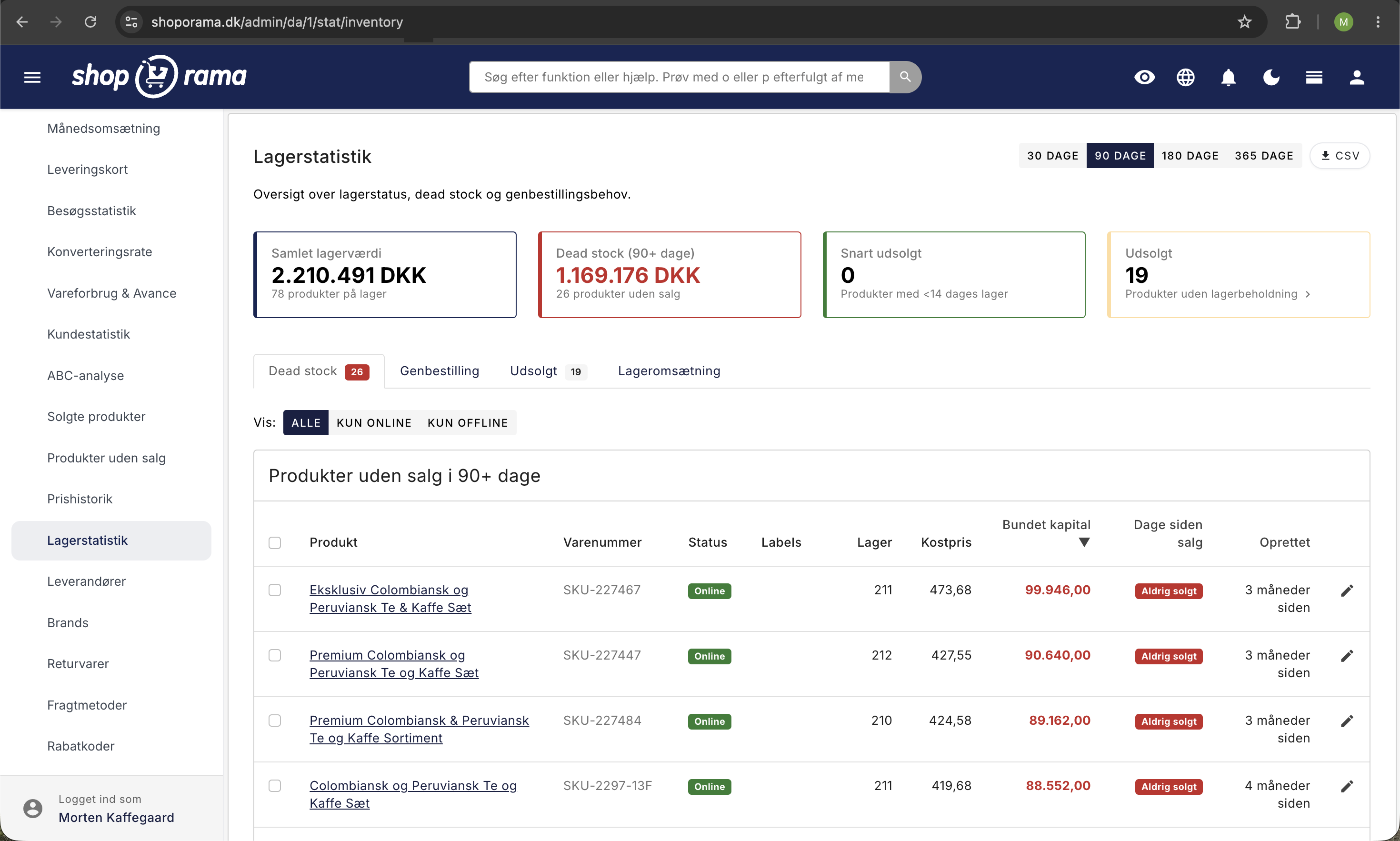
You can find this page under Statistics → Inventory Statistics in the admin panel. The page is divided into an overview card at the top and five tabs below: Dead Stock, Reorder, Sold Out, Inventory Turnover, and Inventory Value Over Time. If your store shares inventory with other stores, there is also a “Shared Inventory” tab.
Important: Many of the calculations on this page require that your products have a cost price recorded. Without a cost price, inventory value and tied-up capital cannot be calculated accurately. You can specify the cost price for each product in the “Cost Price (excl. tax ) ” field in the product editor.
Please also note that inventory value is a rolling average calculated by quantity, not a FIFO calculation. The average only includes items currently in stock, so batches that were sold long ago do not affect the figure. See Calculating Inventory Value for details on how the figure is calculated.
Overview Dashboard — Four Key Metrics
At the top of the page, you’ll find four cards that provide a quick snapshot of your inventory status:
- Total Inventory Value — the total cost value of all products in stock. Also shows the total number of products in stock. The “View Trends Over Time” link on the card takes you to the “Inventory Value Over Time” tab, where you can see how the inventory value has changed.
- Dead stock (90+ days) — the total capital tied up in products that haven’t been sold during the selected period, as well as the number of these products. The period is 90 days unless you select a different one (see the “Dead stock” tab below).
- Almost out of stock — the number of products expected to run out within 14 days based on the sales rate during the selected period.
- Out of stock — the number of products that currently have a stock level of zero.
Tab: Dead Stock
Dead stock refers to items that have remained unsold throughout the selected period. They take up warehouse space, tie up capital, and risk losing value over time.
You select the period using the 30 days, 90 days, 180 days, and 365 days buttons in the upper-right corner of the Dead Stock and Reorder tabs. The default is 90 days. Using the “All,” “Online Only,” and “Offline Only” buttons above the list, you can choose to view only products that are online or offline.
For each product, the following are displayed:
- Product name and item number —with a direct link to the product edit page.
- Status shows whether the product is online or offline.
- Stock — the current number of units in stock.
- Cost — the purchase price per unit.
- Calculated cost is the average price of the items currently in stock, weighted by quantity. This is the price used to calculate tied-up capital. This column is only displayed on wide screens.
- Tied-up capital — the inventory value the system has calculated for the product based on your goods receipts. It is not necessarily equal to the inventory multiplied by the cost price in the Cost Price column, because the value is based on the actual prices at which the items were received. If you share inventory with another store, the items count at their full value in each of the stores sharing the inventory. You can find the total value for the stores on the Shared Inventory tab. Amounts of 1,000 DKK or more are highlighted in red.
- Days since sale — colored badges: gray for under 180 days, yellow for 180+ days, red for 365+ days. Products that have never been sold receive a red badge.
- "Created " shows when the product was created.
What should you do? Consider whether the products can be put on sale, bundled with other items, returned to the supplier, or written off. The older the dead stock is, the more important it is to take action.
Apply labels to dead stock products
You can apply product labels directly to dead stock items from the list. This makes it easy to mark and group products so you can take targeted action on them.
Here’s how:
- Select the products you want to label by checking the boxes next to them. Use Cmd+A (Mac) or Ctrl+A (Windows) to select all products at once.
- Select the desired label from the dropdown menu at the bottom of the list.
- Click “Add Label” to assign the label to the selected products.
Labels appear as colored badges in the table, so you can quickly see which products are already tagged.
Use labels for targeted campaigns: Product labels can be mapped to Google Shopping custom labels via your Google Shopping feed. This means you can create targeted campaigns in Google Ads or Meta Ads specifically for your dead stock products—for example, with special discounts or promotional messages. Combined with an ABC analysis, you can prioritize which products are worth promoting and which should be written off.
The "Reorder" Tab
The Reorder tab helps you keep track of which products are about to run out. Products are sorted by “days until sold out,” with the most critical ones at the top.
For each product, the following is displayed:
- Inventory — the current number of units.
- Sold — the number of units sold during the selected period. The column shows the length of the period, e.g., Sold (90d).
- Daily Avg. — the average daily sales.
- Days until sold out — the estimated number of days until stock runs out. Less than 7 days is shown in red, less than 14 days in yellow, and more than 14 days in green.
- Supplier — so you can quickly see who to contact.
The formula for “Days Until Sold Out” is: inventory divided by the average daily sales for the selected period (by default, the last 90 days). Products with no sales during the period are not included in the list.
You can export the list as a CSV file using the “Export to Order” button. The file is ready to send directly to your supplier.
Tip: Check this tab weekly and compare “days until out of stock” with your supplier’s delivery time. Place your order well in advance—not when the inventory is already empty.
Tab: Inventory Turnover
Inventory turnover measures how quickly you turn over your inventory—that is, how many times a year you “sell your entire inventory.” A high turnover rate means your money is working quickly. A low rate means capital is tied up in slow-moving inventory.
The tab shows turnover broken down into two levels: by supplier and by brand. For each, the following is displayed:
- Inventory Value — the current cost value of the inventory.
- Cost of Goods Sold (COGS) — the cost of the goods you’ve sold over the past 12 months.
- Inventory Turnover — Cost of Goods Sold divided by inventory value, annualized. Green at 6x or higher, red at less than 2x.
- DSI (Days Sales of Inventory) — the number of days it takes to sell your inventory. Calculated as 365 divided by the inventory turnover rate. Red if over 180 days.
Example: An inventory turnover ratio of 4 and a DSI of 91 days mean that your inventory turns over an average of four times a year. For most e-commerce businesses, 6–12 is a good target.
Tab: Inventory Value Over Time
Every night, Shoporama saves your total inventory value and the inventory value per item. On the Inventory Value Over Time tab, you can track trends in a graph, view the inventory value on a specific date—such as the end of the month, quarter, or year—and see how it breaks down by main categories, suppliers, and brands. You can also access this page via the “View Trends Over Time ” link in the “Total Inventory Value” card.
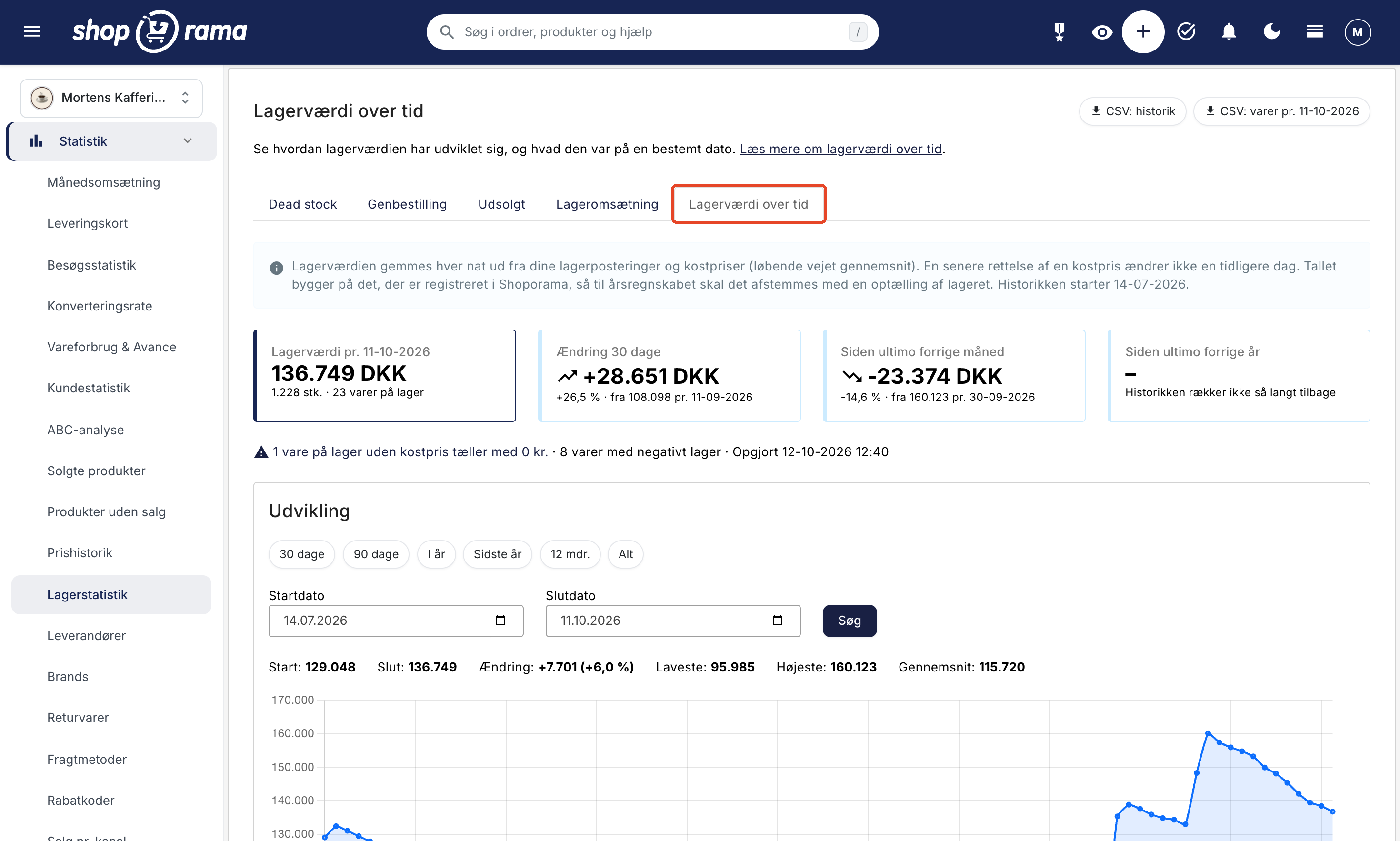
Good to know:
- This is based on the data you’ve entered. The inventory value is calculated based on your inventory entries and cost prices in Shoporama. For the annual financial statements, you should reconcile it with a physical inventory count to account for items such as shrinkage and incorrect entries.
- The history begins when the feature was activated. Dates prior to the first nightly reconciliation cannot be displayed, and they cannot be entered retroactively. The inventory value is saved only for stores that are live.
- Saved days cannot be changed. If you correct a cost price, it does not affect the days that have already been saved. The correction will appear in the next nightly report at the earliest.
The four key metrics cards at the top of Inventory Statistics are not displayed on this tab. Learn more about graphs, distribution, and export in Inventory Value Over Time.
Tab: Shared Inventory
If a shop shares inventory with other shops in the company, the Shared Inventory tab shows the total inventory value for the shops on a given date, where an item found in multiple shops is counted only once. This is the figure you need when consolidating the stores, such as for the annual financial statements. The tab also shows the inventory value in each store, how much shared inventory has been deducted, and the items where the quantity or cost price differs across the stores. Using the button with the date—for example, “CSV: Shared Inventory as of 12/31/2026”—you can retrieve all items.
This tab appears only in stores that share inventory with at least one other store. Read more about how this figure is calculated in Calculating Inventory Value.
Practical Tips for Better Inventory Management
- Keep the cost price up to date. Many calculations depend on the purchase price being recorded correctly.
- Put dead stock on sale. If a product hasn’t sold in 180+ days, it’s better to sell it at a reduced price than to let it sit unsold.
- Use the reorder list proactively. Compare “days until sold out” with your supplier’s delivery time.
- Focus on suppliers with low inventory turnover. If DSI is over 180 days, you should consider reducing your product range.
- Check the page regularly. A weekly review of the reorder tab and a monthly review of dead stock yield the best results.
CSV Export
You can export data as CSV files: the dead stock list with inventory, cost price, and tied-up capital, or the reorder list with sales velocity, ready to use as a basis for purchasing.
On the “Inventory Value Over Time” tab, the “CSV: History” button provides the inventory value day by day for the period shown in the graph, and the “CSV: Items as of” button for the displayed date lists all items in stock on that date.
On the “Shared Inventory” tab, the “CSV: Shared Inventory as of [ Date]” button lists all items with quantities and inventory value in each store, along with the count details.
If you have any questions about inventory statistics, please feel free to contact us at support@shoporama.dk.
Related articles
Conversion rate - understand and improve your stats
Understand what your conversion rate means and how to use the statistics page in Shoporama to track your progress over time.
Customer statistics - understand your customers' behavior
The Customer Statistics page in Shoporama gives you an overview of return rates, customer segments and your most valuable customers.
ABC analysis: Find out which products make you money
Learn how to use ABC analysis to prioritize your assortment, optimize your inventory and focus on the products that actually drive your business.
Statistics and analytics in Shoporama
Get an overview of Shoporama's built-in statistics tools: dashboard, revenue, profit margin, ABC analysis and much more. Learn how to use data to...
Calculating inventory value
Explanation of how the inventory value is calculated in Shoporama. Weighted average, cost price, bundles, variants and credit notes.
Suppliers in Shoporama
Guide to suppliers in Shoporama: create and manage suppliers, associate them with products, use the order list, statistics and dropshipping feature.
Order list and inventory management
Learn how to use the Shoporama order list to keep track of inventory, generate shopping lists and receive goods efficiently.
Warehouse locations
Learn how to organize your inventory across multiple locations in Shoporama.
Stock notification: Notify your customers when items are back in stock
Learn how to set up email notifications so your customers can be notified when out-of-stock products are restocked in your Shoporama online store.
Inventory Value Over Time: View the inventory value on a specific date
Shoporama saves the inventory value every night. Track the trend on a graph, look up the value for a specific date—for example, as of December...
Related features
From analytics to advertising: label products directly from statistics
Label products directly from ABC analysis and dead stock - and use them automatically in your Google Shopping feed for targeted campaigns.
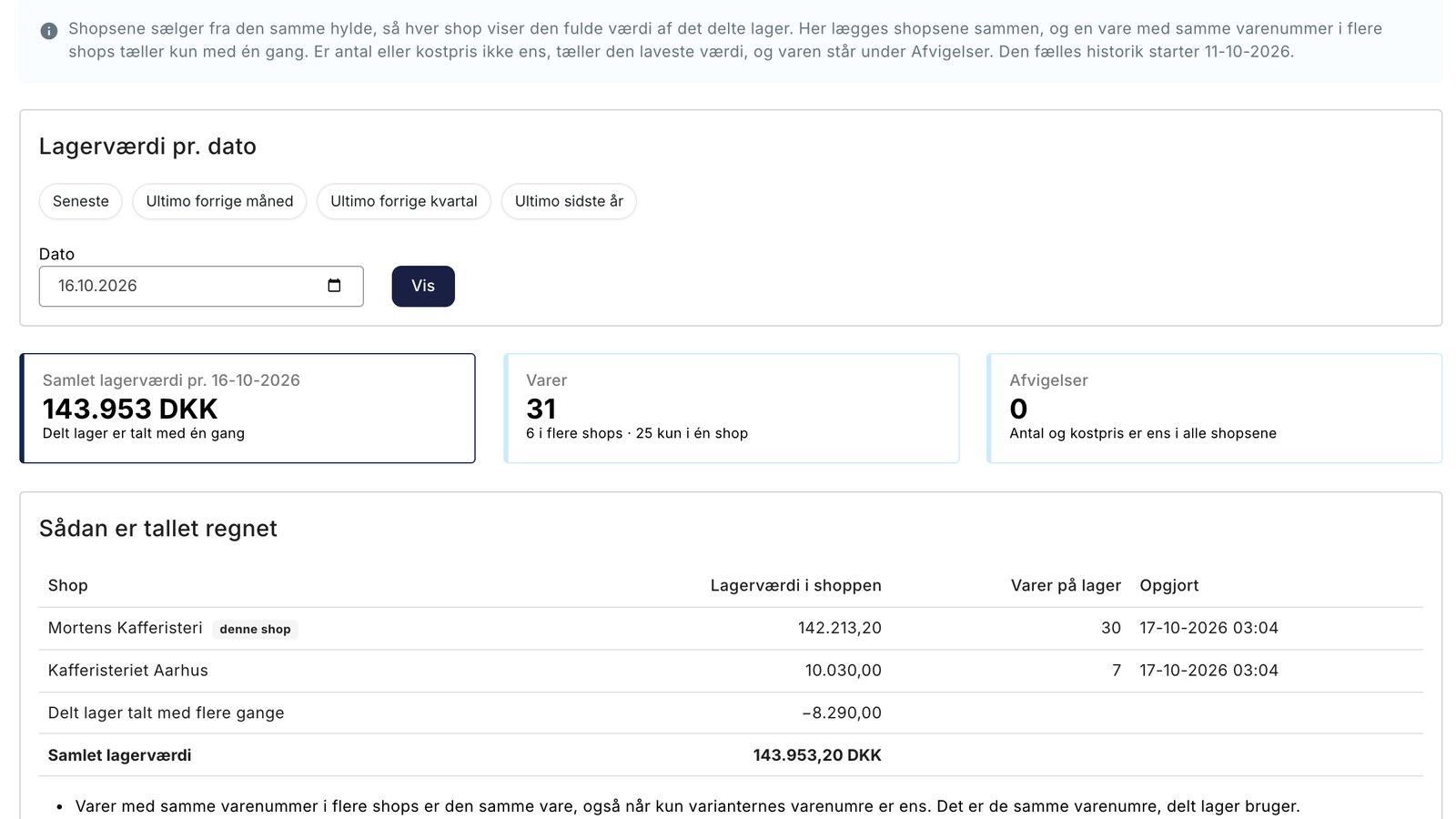
Inventory Value with Split Inventory: One Number for the Financial Statements, Without Duplicates
New in Shoporama: View the total inventory value for your online stores with shared inventory. Items listed in multiple stores are counted only...