Login and two-factor authentication (2FA)
Two-factor authentication (2FA) is optional extra security on your Shoporama login. Choose between the Authenticator app or free SMS and secure your admin against intrusion.
To-faktor-godkendelse (2FA) er en valgfri ekstra sikkerhed på dit Shoporama-login. Du kan vælge mellem en Authenticator-app eller SMS, og du kan altid slå det fra igen. Denne artikel forklarer, hvordan du sætter 2FA op, hvilke metoder der findes, og hvad du skal gøre, hvis du mister adgangen til din telefon.
Kort sagt: 2FA er valgfrit i Shoporama. Det er ikke noget, vi tvinger nogen til. Vi anbefaler det dog kraftigt, fordi det er en af de mest effektive måder at beskytte din admin på.
Hvad er to-faktor-godkendelse?
To-faktor-godkendelse (forkortet 2FA) betyder, at du udover din adgangskode også skal bekræfte dit login med noget, du har: typisk din mobiltelefon. Selv hvis nogen kender eller gætter din adgangskode, kan de ikke logge ind uden også at have din telefon.
I Shoporama bestemmer du selv, om du vil bruge 2FA på din egen bruger. Hver bruger på shoppen styrer sin egen 2FA-opsætning. Du kan derfor godt have det slået til, selvom dine kollegaer ikke har, og omvendt.
Hvilke 2FA-metoder findes der?
Shoporama tilbyder to forskellige metoder:
- Authenticator-app (anbefalet): En app på din telefon, der genererer en ny 6-cifret kode hvert 30. sekund. Bruger den åbne TOTP-standard og virker med Google Authenticator, Microsoft Authenticator, Authy, 1Password og lignende.
- SMS: Du får tilsendt en engangskode via SMS, hver gang du logger ind. Virker kun med danske mobilnumre.
Tip: Authenticator-app er sikrere end SMS og fungerer også, når du er offline eller i udlandet uden mobildækning. SMS er til gengæld nemmere at komme i gang med, hvis du ikke er vant til apps.
Slå Authenticator-app til
Før du går i gang, skal du installere en Authenticator-app på din telefon. Google Authenticator til Android eller Google Authenticator til iPhone er gode valg, men du kan bruge den app, du foretrækker.
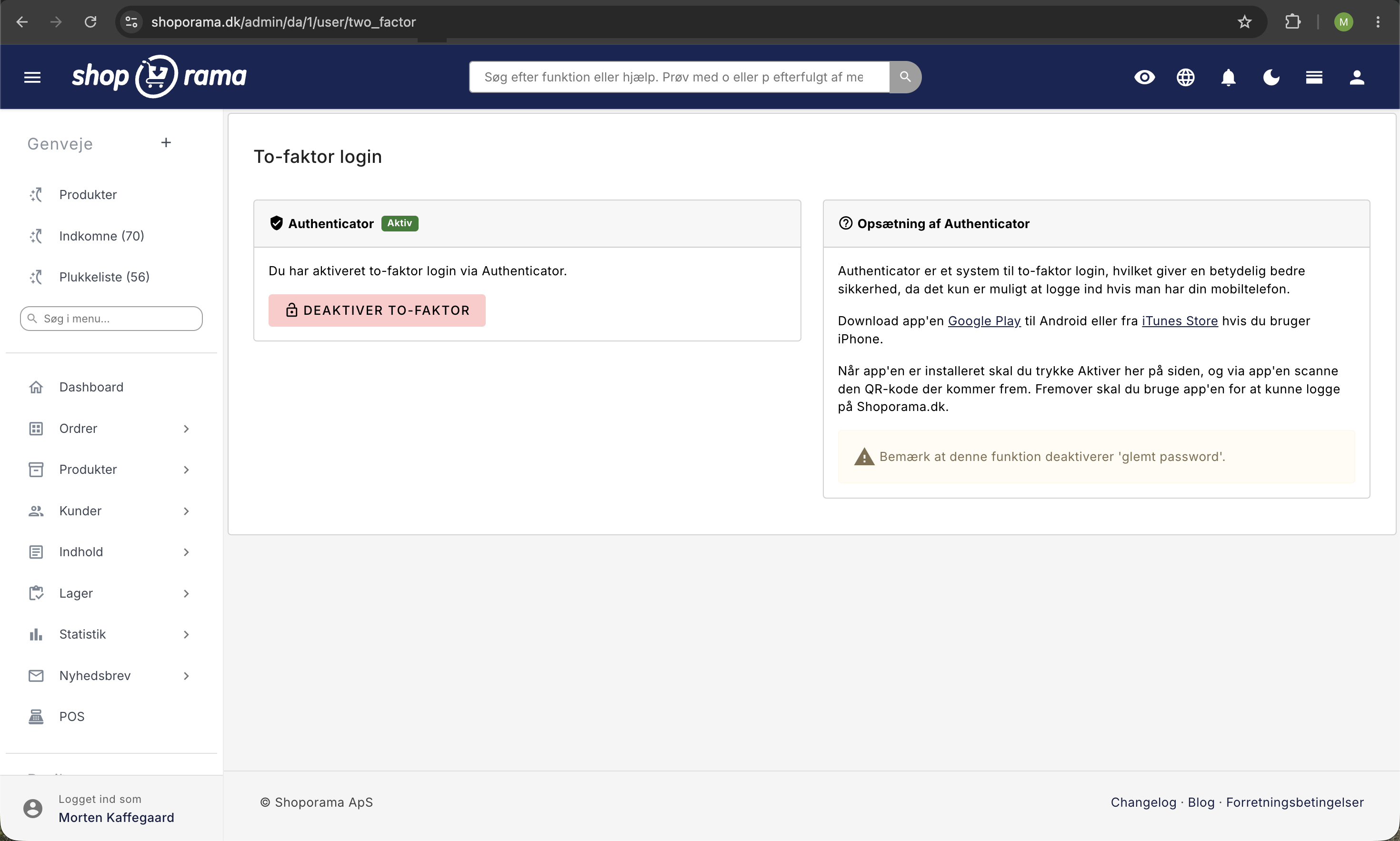
- Klik på dit navn øverst til højre i admin og vælg Authenticator.
- Klik på knappen Aktiver.
- Åbn din Authenticator-app, og scan QR-koden på skærmen.
- Indtast den 6-cifrede kode fra appen i feltet, og klik Godkend aktivering.
Fra næste gang du logger ind, bliver du bedt om en kode fra appen, efter du har indtastet din adgangskode.
Vigtigt: Når du slår Authenticator-app til, deaktiveres Glemt adgangskode-funktionen via e-mail. Mister du både telefon og adgangskode, skal du kontakte support for at få nulstillet din 2FA.
Slå SMS-godkendelse til
- Gå til /user/sms-auth i din admin. Siden hedder 2-steps login.
- Sæt flueben i Aktiver 2-steps login.
- Indtast dit danske mobilnummer (uden landekode).
- Klik Gem.
Fra næste login sender vi en kode til dit mobilnummer, som du indtaster sammen med din adgangskode.
SMS er gratis: Shoporama betaler selv for SMS-beskederne. Du skal ikke have en SMS-aftale, en CPSMS-konto eller en anden integration. Det fungerer med det samme, så snart du har gemt dit mobilnummer.
Slå 2FA fra igen
Du kan til enhver tid slå 2FA fra igen, så længe du er logget ind:
- Authenticator-app: Gå til Authenticator i din profilmenu, og klik Deaktiver to-faktor.
- SMS: Gå til 2-steps login, fjern fluebenet, og klik Gem.
Hvis du har mistet adgangen til din telefon
Hvis du ikke længere kan generere koder (mistet telefon, ny telefon uden backup, eller appen er slettet), skal du kontakte os. Skriv til support@shoporama.dk fra den e-mailadresse, der er knyttet til din konto. Så nulstiller vi din 2FA, og du kan logge ind med din adgangskode og sætte en ny enhed op.
Skal alle brugere have 2FA?
Det er op til hver enkelt bruger. Shoporama tvinger ikke 2FA på nogen, og som ejer kan du heller ikke selv slå 2FA til på dine kollegaers vegne. Du kan kun opfordre dem til at gøre det. Vi anbefaler kraftigt, at alle med adgang til admin slår 2FA til, især hvis flere personer bruger systemet, eller hvis I håndterer mange ordrer og kundedata.
Vil du læse mere om brugerstyring? Se Opret flere brugere i din shop og Opret sikkerhedsprofiler.
Adgangskoder og generel sikkerhed
2FA erstatter ikke en god adgangskode, det supplerer den. Shoporama gemmer adgangskoder krypteret med bcrypt, så heller ikke vores medarbejdere kan se din adgangskode. Ældre konti opgraderes automatisk til den nye kryptering ved næste login.
Skal du skifte din adgangskode, kan du gå direkte til Skift adgangskode i Shoporama.
Fejlfinding
- Koden afvises: Tjek at uret på din telefon er sat til automatisk tidssynkronisering. Authenticator-koder er tidsbaserede, og selv et par sekunders forskydning kan gøre koden ugyldig.
- SMS kommer ikke frem: Tjek at dit mobilnummer er rigtigt indtastet under 2-steps login, og at det er et dansk nummer. Tjek også, at telefonen har dækning og ikke blokerer SMS fra ukendte afsendere.
- QR-koden vil ikke scanne: Hold telefonen lidt længere væk fra skærmen, og sørg for god belysning. De fleste apps giver også mulighed for at indtaste hemmeligheden manuelt, hvis scanning driller.
- Mistet både telefon og backup: Skriv til support@shoporama.dk fra den e-mail, der er knyttet til kontoen, så nulstiller vi din 2FA.
Ofte stillede spørgsmål
Er 2FA påkrævet for at bruge Shoporama?
Nej. 2FA er valgfrit. Du kan bruge Shoporama uden 2FA, og du kan slå det til og fra, når som helst. Vi anbefaler det dog kraftigt af sikkerhedsgrunde.
Koster det noget at bruge SMS-2FA?
Nej. Shoporama betaler selv for SMS-beskederne. Du behøver ikke en SMS-aftale, CPSMS-konto eller anden integration. Authenticator-app er også gratis at bruge.
Jeg har mistet min telefon. Hvordan kommer jeg ind igen?
Skriv til support@shoporama.dk fra den e-mail, der er knyttet til din konto. Vi nulstiller din 2FA manuelt, så du kan logge ind med din adgangskode og sætte en ny enhed op.
Kan jeg tvinge mine kollegaer til at bruge 2FA?
Nej. Hver bruger styrer selv sin 2FA. Som ejer kan du opfordre til, at alle slår det til, men du kan ikke aktivere det på andre brugeres vegne fra admin.
Hvilken Authenticator-app skal jeg vælge?
Shoporama bruger den åbne TOTP-standard, så enhver Authenticator-app virker. Google Authenticator, Microsoft Authenticator, Authy og 1Password er alle gode valg. Vælg den, du foretrækker, eller den, dit firma allerede bruger.
Kan jeg skifte til en ny telefon uden at miste adgangen?
Ja. Inden du smider den gamle telefon væk, kan du logge ind på Shoporama, deaktivere 2FA og slå det til igen med den nye telefon. Mange Authenticator-apps (fx Authy og Google Authenticator med Google-konto) kan også selv flytte koder over til en ny telefon.
Hvad sker der med "Glemt adgangskode", hvis jeg slår 2FA til?
Når du slår 2FA til (både Authenticator og SMS), deaktiveres den almindelige Glemt adgangskode-funktion via e-mail. Det er for at undgå, at nogen kan omgå 2FA blot ved at få adgang til din e-mail. Skal du nulstilles, sker det manuelt af support.
Virker SMS-2FA i udlandet?
SMS sendes til danske mobilnumre. Hvis du roamer i udlandet, virker det normalt fint, så længe din telefon kan modtage SMS. Rejser du tit, eller har du udenlandske medarbejdere, er Authenticator-app et bedre valg, fordi den også virker uden mobildækning.
Er det sikkert nok kun at bruge en god adgangskode?
En stærk, unik adgangskode er et godt udgangspunkt, men adgangskoder lækker desværre fra andre tjenester hele tiden. 2FA er det bedste værn mod, at en lækket adgangskode kan bruges til at logge ind på din shop. Vi anbefaler det både til ejere, bogholdere, ordrebehandlere og alle andre med admin-adgang.
Har du spørgsmål eller behov for hjælp til opsætning, så skriv til support@shoporama.dk, så hjælper vi gerne.
Related articles
Change your password in Shoporama
How to change your Shoporama admin password. Step-by-step guide and tips for a secure password.
Create security profiles
Guide to creating security profiles for products in Shoporama according to EU regulations.
Create more users in your shop
Guide to creating multiple user logins for your Shoporama admin.
Remove a user from your shop
Guide to removing a user from your business in Shoporama admin.
Related features
Two-factor login - extra security for your webshop
Protect your online store with two-factor login. Easy to set up with Google Authenticator, Authy or other TOTP apps.
More users
Create unlimited users in your Shoporama online store for free. Access control, personalized settings and easy creation.