Set up demo shop: test new ideas without risk
How to create a free demo store in Shoporama, copy products from your existing store and test changes safely without disrupting operations.
En demo-shop er guld værd, når du vil prøve ting af uden at røre din levende butik. Uanset om du skal teste et nyt tema, lege med en Black Friday-opsætning, træne en ny medarbejder eller bare se, hvordan en ændring virker i praksis, så er en ekstra test-shop den nemmeste og sikreste vej dertil. I Shoporama kan du på få minutter oprette en ekstra shop under samme firma og kopiere produkter fra din eksisterende butik, så du har noget realistisk at arbejde med. En demo-shop er gratis, så længe den har status demo.
Denne guide viser dig, hvordan du opretter demo-shoppen, kopierer produkter fra din nuværende butik, tester i fred og hvordan du forlænger testperioden, når du får brug for det.
Hvorfor oprette en demo-shop?
En demo-shop er en helt almindelig Shoporama-webshop, men den lever side om side med din rigtige butik under samme firma og har status demo. Så længe shoppen er i demo-status, er den gratis. Du kan altså have et permanent eller midlertidigt legerum uden ekstra omkostninger. Typiske use cases:
- Test Black Friday-opsætning, rabatkoder, kampagne-bannere og udsalgspriser, uden risiko for at vælte den levende shop midt i højsæsonen.
- Prøv et nyt tema af med dine rigtige produkter og se, hvordan forsiden, produktsiderne og checkout kommer til at tage sig ud, før du trykker på knappen.
- Træn nye medarbejdere i at oprette produkter, opdatere tekster og administrere shoppen uden at de kan ødelægge noget for rigtige kunder.
- Gennemgå ny fragtopsætning (fx GLS, PostNord, DAO) og forbered den på forhånd, inden ændringerne flyttes til produktionen.
- Byg et rent demo-miljø til en B2B-kunde eller leverandør, der gerne vil se sortimentet præsenteret i din shop, uden at det forstyrrer din almindelige drift.
Sådan opretter du demo-shoppen
Oprettelsen tager under et minut, og der er ingen regning forbundet med selve oprettelsen. Shoppen oprettes med status demo og forbliver gratis, så længe den er i den status.
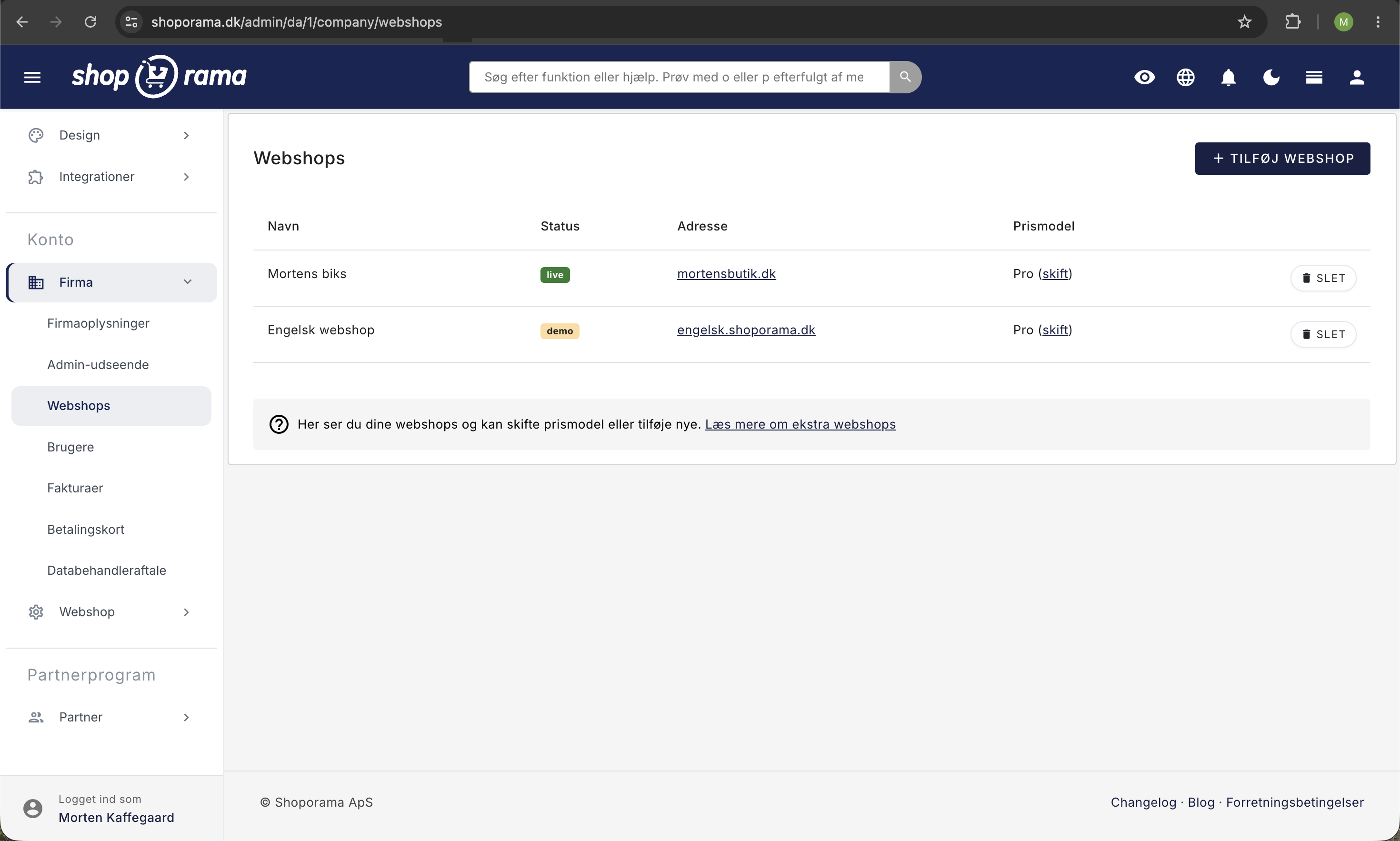
- Log ind i Shoporama-administrationen.
- Gå til menupunktet Firma → Webshops.
- Klik på Tilføj webshop.
- Angiv en webshop-adresse. Det nemmeste er at bruge en .shoporama.dk-adresse (fx test-ditbutiksnavn.shoporama.dk), så du slipper for at pille ved DNS og hurtigt er i gang.
- Gem. Din nye demo-shop er oprettet med status demo og klar til at blive konfigureret.
Tip: Demo-shoppen deler firma med din eksisterende butik, så den er tilgængelig fra din almindelige administration. Du kan skifte mellem shops i topmenuen uden at logge ind på ny.
Gratis og skjult for Google: Shops i status demo er gratis, og de leveres med en indbygget robots.txt, der forhindrer Google og andre søgemaskiner i at indeksere dem. Du behøver altså hverken bekymre dig om regning eller om at din testshop dukker op i søgeresultaterne.
Kopiér produkter fra din eksisterende shop
Den nemmeste måde at få realistisk indhold ind i demo-shoppen på er at kopiere produkter fra din eksisterende butik. Det gøres direkte fra produktoversigten som en bulk-action, og du kan kopiere så mange produkter på én gang, som du ønsker.
- Gå ind i din eksisterende shop og åbn produktoversigten.
- Marker de produkter, du vil kopiere, enten enkeltvis eller alle på siden.
- Vælg bulk-action Kopier til anden butik.
- Vælg din nye demo-shop som destination.
- Klik Kopier. Produkterne oprettes som kladder (offline) i demo-shoppen.
Bemærk: Kopiering mellem shops virker kun mellem webshops, der ligger under det samme firma. Det er netop derfor, det er smart at oprette demo-shoppen under din eksisterende konto.
Hvad kopieres og hvad gør ikke
Funktionen kopierer alt det, der er knyttet til selve produktet. Det der hører til shoppens drift, ordrer, kunder, tema osv., følger ikke med, for de to shops er helt adskilte.
Kopieres med
- Produktnavn og beskrivelser
- Pris og udsalgspris
- Billeder
- Kategorier (oprettes hvis de mangler)
- Varianter og attributter
- Brand, leverandør og producent
- Produkt-labels
- Meta-felter (title, description)
- Vægt og forsendelsesoplysninger
Kopieres ikke
- Ordrer
- Kunder og nyhedsbrevstilmeldinger
- Statistik og rapporter
- Tema og designindstillinger
- Rabatkoder
- Betalings- og fragtopsætning
- Domæneindstillinger
De kopierede produkter ankommer som kladde (offline), så de ikke er synlige for besøgende. Det betyder, at du i ro og mag kan gennemgå dem og aktivere dem manuelt, når du er klar.
Test designs og opsætninger i fred
Demo-shoppen er en rigtig Shoporama-webshop, så du kan arbejde med næsten alle funktioner, som du kender dem fra din levende butik, men uden risiko for drift eller kunder:
- Installér og tilpas et nyt tema, prøv fx Delaware-temaet eller en helt anden stil.
- Byg forsider og landingssider med Sidedesigner, uden at flytte den levende forside.
- Gennemgå fragtmetoder, kategoriopsætning, udvidede felter og tekster.
- Afprøv rabatkode-opsætning, varianter og skabeloner til automatiske e-mails.
- Lad en designer eller udvikler arbejde direkte i demo-shoppen med en begrænset brugeradgang.
Begrænsninger i en demo-shop
En demo-shop er tænkt som et trygt legerum, og der er derfor nogle bevidste begrænsninger, du skal kende:
- Betalinger virker ikke: Du kan ikke gennemføre rigtige betalinger i en demo-shop. Betalingsgateways aktiveres først, når shoppen gøres live, så du kan ikke køre en fuld checkout med kortbetaling, MobilePay eller lignende i testperioden.
- Indeksering er slået fra: Demo-shoppen har en robots.txt, der afviser søgemaskiner. Den bliver først tilgængelig for Google, når shoppen tages i drift.
- Adskilte data: Ordrer, kunder, statistik og rabatkoder deles ikke med din rigtige shop. Det er to forskellige butikker rent datamæssigt.
- Ubrugte demo-shops kan blive deaktiveret: Hvis en demo-shop ligger ubrugt hen i lang tid (typisk omkring 180 dage efter oprettelse uden at den kommer i brug), kan den blive deaktiveret automatisk. Skriv til support, hvis du vil sikre dig, at din testshop holdes aktiv. Se næste afsnit.
Forlæng testperioden
Hvis en demo-shop står ubrugt i længere tid uden at blive taget i brug, kan den blive deaktiveret automatisk, så ubrugte testshops ikke hober sig op. Har du brug for at holde en shop kørende i lang tid, eller ønsker du at bruge den som et permanent test-miljø, kan du få forlænget testperioden på ubestemt tid ved at skrive til support@shoporama.dk. Vi aftaler sammen, hvor længe den skal køre, og det koster fortsat ingenting så længe shoppen holdes i status demo.
Tips du bør huske
- Brug en .shoporama.dk-adresse: Det er den hurtigste vej til en ny shop, ingen DNS-opsætning, bare en adresse som test-ditbutiksnavn.shoporama.dk, og du er i gang.
- Ingen Google-bekymring: Demo-shops har automatisk en robots.txt, der forhindrer indeksering. Du behøver ikke selv huske at skjule den for søgemaskinerne.
- Betalinger virker først live: Du kan ikke teste en rigtig betalingsgateway i en demo-shop. Har du brug for at se det fulde checkout-flow, så skal shoppen tages i drift.
- Aktivér produkter bevidst: Kopierede produkter kommer som kladde. Gennemgå dem og aktivér dem manuelt, når du er klar. Det giver samtidig et godt overblik over, hvad der er med.
- Planlæg separat opsætning: Tema, fragtopsætning og rabatkoder skal sættes op i demo-shoppen. De følger ikke med produkterne.
Ofte stillede spørgsmål
Hvad koster det at have en ekstra demo-shop?
Ingenting. Så længe shoppen har status demo, er den helt gratis, også selv om du lader den stå i lang tid. Først den dag du vælger at tage shoppen i drift som en rigtig butik, skal der vælges en prismodel og betales for den. Er du i tvivl, så skriv til support@shoporama.dk.
Bliver min demo-shop fundet på Google?
Nej. Demo-shops leveres med en indbygget robots.txt, der beder Google og andre søgemaskiner om ikke at indeksere siden. Du behøver altså ikke selv huske at blokere den, det er sat op fra dag ét og bliver først fjernet den dag, shoppen gøres live.
Kan jeg teste rigtige betalinger i en demo-shop?
Nej. Betalingsgateways virker ikke i en shop med status demo. Skal du teste det fulde checkout-flow med kortbetaling eller MobilePay, er du nødt til at gøre shoppen live. Til at afprøve selve opsætningen og felterne i checkout fungerer demo-shoppen fint, det er kun selve betalingsgennemførelsen, der er slået fra.
Følger ordrer, kunder og rabatkoder med når jeg kopierer?
Nej. Kun produktdata kopieres (navn, pris, tekster, billeder, kategorier, varianter, brand, leverandør, meta-felter). Ordrer, kunder, statistik, rabatkoder, nyhedsbrevstilmeldinger og tema skal opsættes separat i demo-shoppen. De to shops er fuldstændigt adskilte datamæssigt.
Hvordan ved jeg om et produkt er kopieret korrekt?
Kopierede produkter lander som kladde (offline) i demo-shoppen. Gå ind under Produkter, filtrér på status kladde og tjek at billeder, varianter og priser er kommet med. Først når du aktiverer produktet, bliver det synligt for besøgende.
Kan jeg invitere en designer eller kollega til kun at arbejde i demo-shoppen?
Ja. Brugere styres pr. shop, så du kan oprette en bruger med adgang til demo-shoppen uden at give adgang til din rigtige shop. Det er praktisk, hvis fx en designer skal lege med tema og sidedesigner uden at kunne røre produktionen.
Hvordan lukker jeg demo-shoppen igen, når jeg er færdig?
Du kan bare lade den stå. Hvis demo-shoppen aldrig kommer i brug, bliver den deaktiveret automatisk efter cirka 180 dage, og den koster ikke noget imens. Vil du lukke den med det samme eller forlænge testperioden ud over den almindelige periode, så skriv til support@shoporama.dk. Vi kan både afvikle shoppen og forlænge prøveperioden ubestemt efter aftale.
Kan jeg bruge mit eget domæne på demo-shoppen?
Ja, men det nemmeste er at bruge en gratis .shoporama.dk-adresse, fx test-ditbutiksnavn.shoporama.dk. Så slipper du for at pille ved DNS, og shoppen er klar med det samme. Vil du senere flytte til dit eget domæne, kan du altid tilføje det. Se guiden til DNS-opsætning for detaljer.