Child money credit, customer credit and vouchers in Shoporama
Do you want to give customers a fixed balance or defer payment? Shoporama doesn't have a customer credit field, but there are two built-in solutions: gift cards with a fixed amount and product credit that delays the withdrawal of the money. Here's how to choose the right one.
Many store owners ask us how to give a customer “credit” in Shoporama. This term covers several very different scenarios. Some want to give a child or a grandmother a fixed amount to shop with (child allowance credit). Others want to let a B2B customer pay upon receipt. And some just want to reserve the funds on the customer’s card but not charge them until later.
Important to know: Shoporama does not have a balance or credit field on the customer profile, and there is no “pay with my credit” button at checkout. Instead, there are two built-in tools that effectively serve the same purpose: gift cards (a fixed amount linked to a code) and product credit (deferred withdrawal of funds). Choose the option that best suits your situation.
The two solutions in a nutshell
- Fixed-amount gift cards are used when the customer needs a specific amount to spend, and you don’t want to pay out of your own pocket. This is the solution for child allowance credits, credit notes after returns, compensation, and corporate accounts.
- Product credit (deferred capture) is used when the customer needs to pay by card, but you want to withdraw the funds on a specific date or after a certain number of days. The funds are reserved on the card at the time of purchase but are not debited until later.
Solution 1: Fixed-amount gift cards
A gift card in Shoporama is a code with an associated amount. When the customer redeems the code at checkout, the amount is deducted from the order. This is the easiest way to simulate a credit account with a fixed limit.
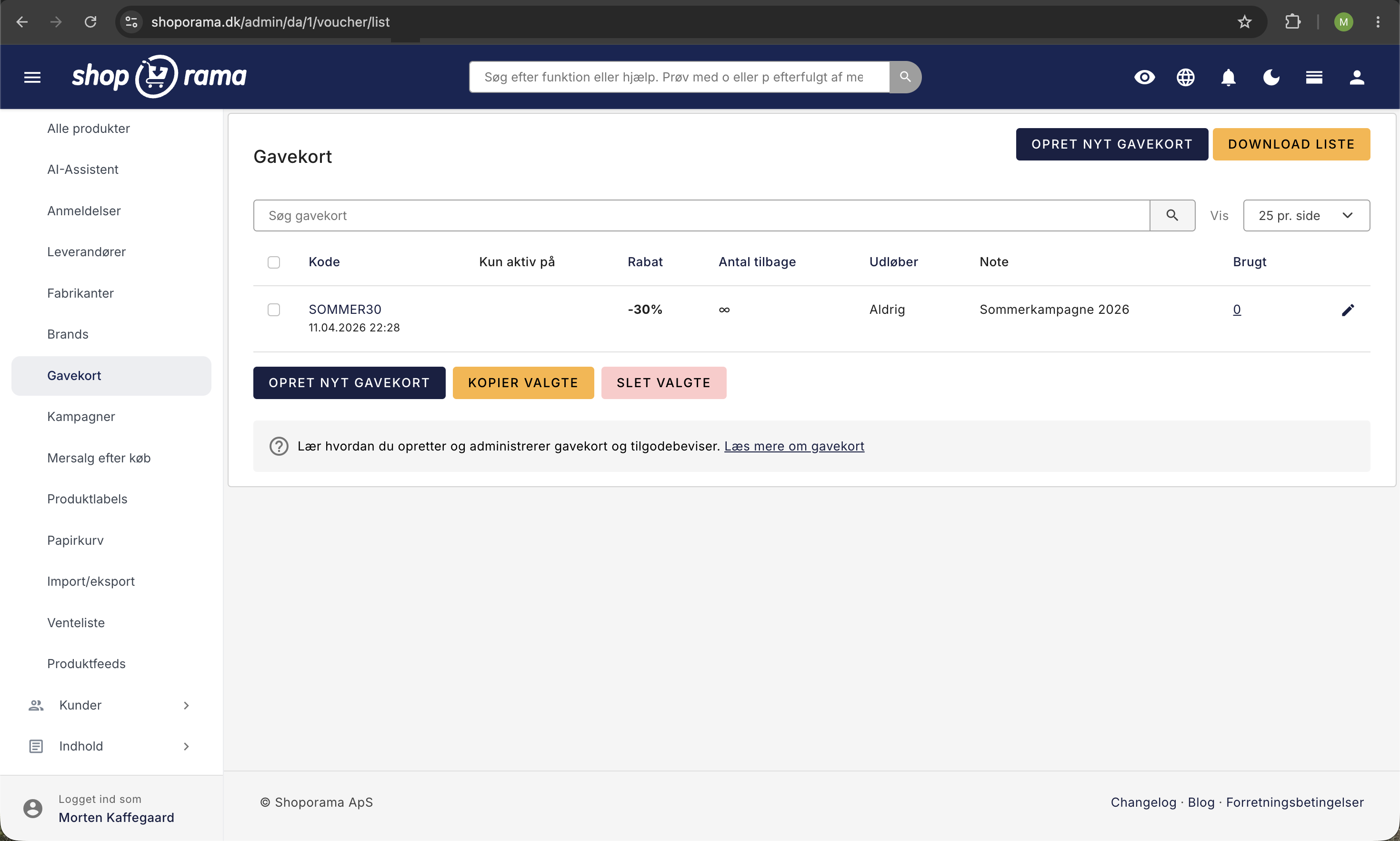
- Go to " Products " and then " Gift Cards " in the admin panel
- Click " Create New Gift Card"
- Select a code (or let the system generate one)
- Select “Discount Amount” as the discount type, and enter the credit amount, e.g., 500 kr.
- Enable “Save Remaining Balance” so the customer can use the remaining balance on their next purchase
- Check “Only once per customer ” if the code is to be used by only one specific person
- Set an expiration date if desired
- Click "Save " and send the code to the customer
How the customer uses the gift card
At checkout, the customer enters the code in the “Gift Card” or “Discount Code” field. The amount is automatically deducted from the total order price. If the order total exceeds the gift card value, the customer pays the difference by card, MobilePay, or one of the other payment methods you offer. If the order total is less than the gift card value, the remaining balance is saved for the next purchase (when “Save Remaining Balance” is enabled).
Typical use cases for the gift card solution
- Child allowance or a gift from family: create a gift card for the amount and give the code to the recipient
- Credit note after a return: Create a gift card with the remaining balance instead of refunding the card
- Compensation for a complaint: Give the customer a goodwill amount via a code
- Company account or monthly budget: Create a new gift card each month with the amount for that period
- Employee discount with a fixed cap: Assign each employee a personal annual amount
Solution 2: Product credit (deferred withdrawal)
A completely different type of credit in Shoporama is product credit. This means that the funds are reserved on the customer’s card at the time of purchase but are not debited until later. You set this up per product under the “Credit, etc.” tab on the product editing page (requires that the product be designated as a financial product).
You can choose between three types of credit for a product:
- Grant credit until the Xth of the month: e.g., always debits on the 20th (suitable for payroll-based payments)
- Offer credit for X days: e.g., the amount is charged 10 days after purchase
- Grant credit until a specific date: e.g., the amount is charged on a fixed date regardless of the purchase date
Important: The funds are reserved on the card immediately. The amount is deducted from the customer’s available balance, but the actual charge (capture) is deferred. This feature works best with standard Dankort cards. Learn more about how to manage capture yourself in the article “Capture Payments on Orders.”
Voucher feature for a product
In the same section of the admin panel, you can mark a product as a gift certificate. When a customer purchases the product, a unique gift card code is automatically generated for the amount you’ve specified, and the code is sent with the order confirmation. This is the easiest way to sell gift cards as regular products in your shop. Read the details in “Gift Cards and Gift Certificates.”
How to Choose the Right Solution
- Should the customer have a fixed amount to spend? Use gift cards.
- Does the customer need to pay by card, but later? Use product credit.
- Does a B2B customer need to pay by invoice, e.g., 30 days net? Use invoice payment or read our B2B guide.
- Do you need to refund an order that has already been paid for? See Credit Notes and Refunds.
Limit what the gift card can be used for
When you create a gift card, you can target it to specific categories (e.g., children’s clothing only), specific products, set a minimum order amount, or determine whether the code can be combined with promotions and offers. This way, you can, for example, create a 500 kr. gift card that can only be used on full-price items.
Keep track of multiple cards
If you issue many gift cards at once—for example, as part of a promotion or for all employees of a company—you can create them in a single batch. You can also upload a CSV file with codes if the customer has selected them themselves. Group them under a batch number so you can easily find them again in the overview.
Frequently Asked Questions
Can I give my daughter’s grandmother 500 kroner to spend?
Yes. Create a 500-kroner gift card and give her the code. She enters the code at checkout, and the amount is deducted from the order. If it’s to be used only by her, select “Only once per customer.” Enable “Save remaining balance,” and she can use the rest of the money across multiple orders.
Can I add a balance directly to a customer’s profile?
No. There is no balance or credit field on the customer profile in Shoporama, and the customer cannot log in to view a “My Credit” page. The closest solution is a personalized gift card with “Only once per customer” enabled. In practice, it works the same way for the customer, and you have full control in the gift card overview.
What if the customer doesn’t use the entire amount on a single order?
Enable “Save remaining balance on gift card” so the remaining balance is carried over to the next purchase. If you leave this setting disabled, the card is considered used up regardless of how small the amount spent was.
How does a gift card appear in the accounting records?
On the invoice, the gift card appears as a separate discount line with a negative amount. In e-conomic, Dinero, and Billy, it’s automatically synced as a discount. Ask your accountant how to record the actual issuance of gift cards, as the rules depend on whether the customer paid for the card or received it for free.
Can I set up a “business account” where the company can simply log in and make purchases?
The easiest approach is to create a personal gift card with the company’s monthly allowance. If, instead, the customer needs to be able to pay upon receipt without entering codes, then invoice payment combined with the B2B features is a better solution.
Where can I find an overview of all the gift cards I’ve issued?
Go to Products and then Gift Cards. Here you’ll see all gift cards with their code, amount, amount used, remaining balance, expiration date, and status. You can filter by batch number if you’ve created multiple cards at once, and export the list as a CSV file.
What’s the difference between a gift card and a discount code?
In Shoporama, it’s the same system. When you create a code, you choose whether it provides a fixed discount amount (gift card) or a percentage (typically a promotional discount code). Read more in Create a Discount Code.
Do you need help or have a specific issue we can resolve for you? Email us at support@shoporama.dk.
Related articles
Gift cards and vouchers
Guide to creating and managing gift cards and vouchers in your Shoporama online store, including gift card products and discount codes.
Create a discount code
Complete guide to creating and managing discount codes in Shoporama - percentage discount, fixed amount, free shipping, restrictions and more.
Collect payments on orders (capture)
Guide to capture payments on orders in Shoporama. Understand the difference between authorization and capture and learn how to capture manually or...
B2B sales in Shoporama
How to sell to businesses (B2B) and public institutions (B2G) in Shoporama with CVR, EAN and differentiated VAT.
Create invoice payment
Guide to setting up invoice payment as a payment method in Shoporama.
Credit notes and refunds
Complete guide to credit notes and refunds in Shoporama, including partial refunds, full credit notes and transfer to accounting systems.