Order flow and automated emails
Understand the entire flow from checkout to order confirmation. Learn when automatic emails are sent, what happens with different payment methods and how EAN orders are handled.
Denne artikel giver dig et komplet overblik over hvad der sker fra en kunde trykker "Bestil" til ordren er leveret — og hvilke automatiske emails der sendes undervejs.
Overordnet ordreflow
Når en kunde gennemfører et køb i din webshop, sker følgende:
- Godkend ordre — Kunden gennemgår sin kurv og bekræfter ordren
- Betaling — Kunden sendes til betalingsgatewayen (fx QuickPay, Stripe eller Pensopay) for at gennemføre betaling
- Bekræftelse — Når betalingen er gennemført, sendes kunden til en tak-side og modtager en ordrebekræftelse på email
- Behandling — Du behandler ordren i admin og sender varerne
- Forsendelse — Når ordren markeres som sendt, modtager kunden en forsendelsesmail
Hvornår sendes ordrebekræftelsen?
Ordrebekræftelsen (invoice-mailen) sendes automatisk, men tidspunktet afhænger af betalingsmetoden:
Kortbetaling (QuickPay, Stripe, Pensopay m.fl.)
Ved kortbetaling sendes ordrebekræftelsen først når betalingen er bekræftet af betalingsgatewayen. Flowet er:
- Kunden gennemfører betalingen hos gatewayen
- Gatewayen sender en bekræftelse tilbage til Shoporama
- Ordren markeres som betalt
- Ordrebekræftelsen sendes til kunden
Vigtigt: Hvis betalingen fejler (fx afvist kort), sendes der ingen ordrebekræftelse. Kunden ser en fejlbesked og kan prøve igen.
Betalingsgateway af typen "Andet"
Du kan oprette betalingsmetoder af typen "Andet" til betalingsformer der håndteres udenfor den normale online-betaling. Det kan fx være:
- Bankoverførsel
- Kontant ved afhentning
- Fakturabetaling
- MobilePay (manuel)
Når en kunde vælger en "Andet"-betalingsmetode, springes den normale betalingsgateway over. Ordrebekræftelsen sendes med det samme efter ordren er oprettet, og kunden sendes direkte til tak-siden.
Indstillingen "Marker automatisk nye ordrer som betalte" afgør om ordren markeres som betalt:
- Slået til — Ordren markeres som betalt med det samme. Brug dette til betalingsmetoder hvor betalingen sker ved levering (fx kontant ved afhentning)
- Slået fra — Ordren forbliver ubetalt i admin. Du skal selv markere den som betalt, når betalingen er modtaget (fx bankoverførsel)
Eksempel: Du opretter en betalingsmetode "Bankoverførsel" af typen "Andet" med "Automatisk betalt" slået fra. Når en kunde vælger denne, modtager de ordrebekræftelsen med det samme — inkl. dine bankoplysninger. Du markerer manuelt ordren som betalt, når pengene er på kontoen.
EAN-ordrer (offentlige indkøb)
Hvis en kunde angiver et EAN-nummer ved checkout, håndteres ordren anderledes. EAN bruges af offentlige institutioner og virksomheder, der betaler via det elektroniske faktureringssystem (e-faktura).
Ved EAN-ordrer:
- Ordrebekræftelsen sendes med det samme — uanset hvilken betalingsgateway du bruger
- Kunden sendes ikke til betalingsgatewayen — betalingsflowet springes helt over
- Ordren vil stå som ubetalt i admin, fordi betalingen sker separat via EAN-faktureringssystemet
- Du skal selv holde øje med at betalingen modtages via EAN
Tip: Hvis du ønsker at EAN-ordrer også skal gennemgå det normale betalingsflow (kortbetaling), kan du aktivere dette under Indstillinger → Webshop. Feltet hedder "EAN-ordre skal gennem alm. betalingsflow".
Ordrer med 0 kr.
Hvis ordren har et totalbeløb på 0 kr. (fx ved 100% rabatkode), springes betalingsgatewayen over. Ordren markeres automatisk som betalt, og ordrebekræftelsen sendes med det samme.
Tak-siden vs. ordrebekræftelse
Det er vigtigt at skelne mellem tak-siden og ordrebekræftelsen:
- Tak-siden — Den side kunden ser i browseren efter checkout. Denne vises altid, også selvom betalingen endnu ikke er bekræftet. Tak-siden er ikke en garanti for at betalingen er gået igennem
- Ordrebekræftelsen — Den email kunden modtager. Ved kortbetaling sendes denne kun når betalingen er bekræftet af gatewayen
Bemærk: En kunde kan godt se tak-siden uden at have modtaget en ordrebekræftelse på email. Det sker fx hvis betalingsbekræftelsen er forsinket. I langt de fleste tilfælde følger emailen inden for få sekunder.
Oversigt over automatiske emails
Her er en oversigt over alle automatiske emails relateret til ordrer:
| Hvornår sendes den? | Kræver betaling? | |
|---|---|---|
| Ordrebekræftelse | Når betalingen er bekræftet (eller straks for EAN/manuel betaling/0 kr.) | Ja, ved kortbetaling |
| Betalingspåmindelse | Automatisk efter X timer, hvis ordren stadig er ubetalt | Nej — sendes netop fordi der mangler betaling |
| Ordre sendt | Når du ændrer ordrestatus til "Sendt" | Nej |
| Klar til afhentning | Når du ændrer ordrestatus til "Klar til afhentning" | Nej |
| Ordre returneret | Når du ændrer ordrestatus til "Returneret" | Nej |
| Kreditnota | Når du opretter en kreditnota på en ordre | Nej |
| Mail efter køb | Automatisk efter X dage (konfigurerbart) | Ja |
| Produktanmeldelse | Automatisk efter X dage (konfigurerbart) | Ja |
Betalingspåmindelse
Hvis en kunde opretter en ordre men ikke gennemfører betalingen, kan Shoporama automatisk sende en påmindelsesmail. Du kan konfigurere dette under Indstillinger → Mails:
- Ventetid — Antal timer efter ordren er oprettet, før påmindelsen sendes
- Kun nye ordrer — Påmindelsen sendes kun til ordrer med status "Ny" der er ubetalte
- Maks. 7 dage — Der sendes ikke påmindelser til ordrer ældre end 7 dage
Tilpasning af emails
Du kan tilpasse dine automatiske emails på to måder:
- Admin-indstillinger — Under Indstillinger → Mails kan du ændre emnelinjer, afsendernavn og indledende tekst uden at redigere temaets filer
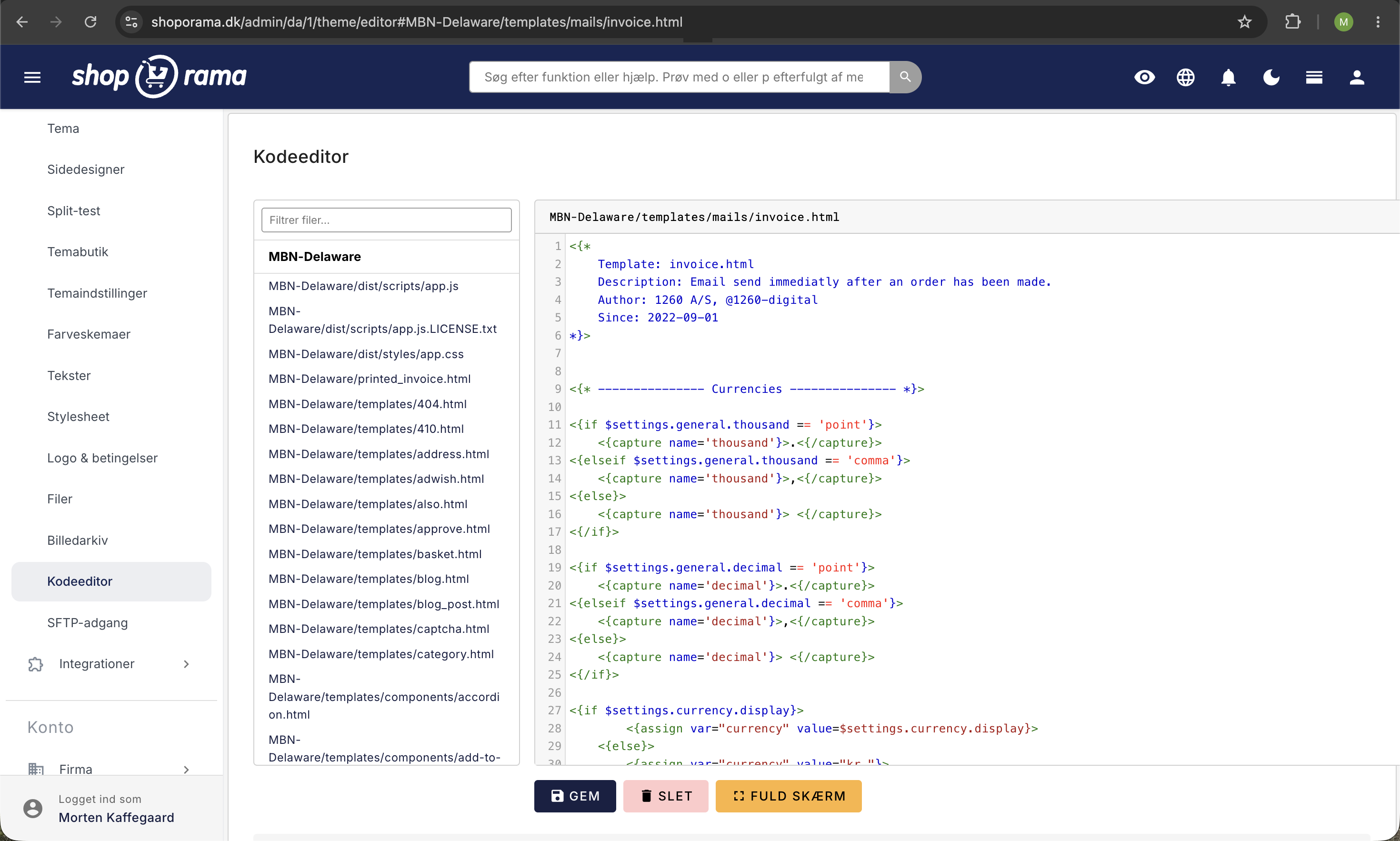
- Tema-skabeloner — For mere avanceret tilpasning kan du redigere email-skabelonerne i dit tema under templates/mails/. Se artiklen Email-skabeloner i dit tema for detaljer
Fejlsøgning
Kunden har ikke modtaget ordrebekræftelse
Hvis en kunde ikke har modtaget ordrebekræftelsen, kan det skyldes:
- Betalingen gik ikke igennem — Tjek om ordren er markeret som betalt i admin. Hvis ikke, er ordrebekræftelsen ikke sendt endnu
- Spam-filter — Bed kunden tjekke sin spam/uønsket post-mappe
- Forkert email — Tjek om kundens email-adresse er korrekt på ordren
Kunden har modtaget ordrebekræftelse, men ordren er ubetalt
Dette kan ske i følgende situationer:
- EAN-ordre — Ordren har et EAN-nummer og betales via det offentlige faktureringssystem. Ordrebekræftelsen sendes med det samme, men betalingen håndteres separat
- "Andet"-betalingsmetode uden automatisk betalt — Ordren bruger en betalingsmetode som bankoverførsel, hvor kunden selv skal overføre beløbet. Ordrebekræftelsen sendes som kvittering, men betalingen er endnu ikke modtaget
- Annulleret efter betaling — Ordren kan være blevet annulleret efter betalingen gik igennem, fx hvis betalingen blev tilbageført
Har du spørgsmål til ordreflowet eller dine automatiske emails? Kontakt os på support@shoporama.dk.
Related articles
Blacklist - Block unwanted orders
Learn how to use Shoporama's blacklist feature to block spam orders and unwanted customers by blacklisting email, phone number or IP address.
What emails does Shoporama send to my customers?
Overview of automatic emails Shoporama sends to your customers - order confirmation, abandoned baskets, track-and-trace, product reviews, and more.
Which templates are used for which emails?
Complete overview of all email templates in Shoporama - order confirmations, abandoned baskets, return labels, product reviews and much more.
Related features
Danish support from people who understand e-commerce
Danish developed, Danish support, Danish integrations. Get help via email, chat, phone and in-person events.
Return center - handle returns professionally
Manage returns, issue credit notes and refunds to the customer's card. With return statistics and automatic inventory management.