Schedule price changes for a later date
Here's how to queue price changes and bulk edits from the product overview so they run automatically at the time you choose.
Are prices set to drop at 8 a.m. on Friday morning, or is a price adjustment scheduled to take effect on the 1st of next month? If so, you don’t need to be sitting by your computer. In the product overview, you can set up the price change for the exact products it should affect and schedule it for a specific time. Shoporama will handle it automatically, and you’ll receive an email once it’s complete.
How to Schedule a Price Change
The classic mistake: The “Execute” button inside the “Price Changes” window applies the change immediately. If you want it to wait until a specific time, close the window and instead use the arrow next to the “Execute” button at the bottom of the page.
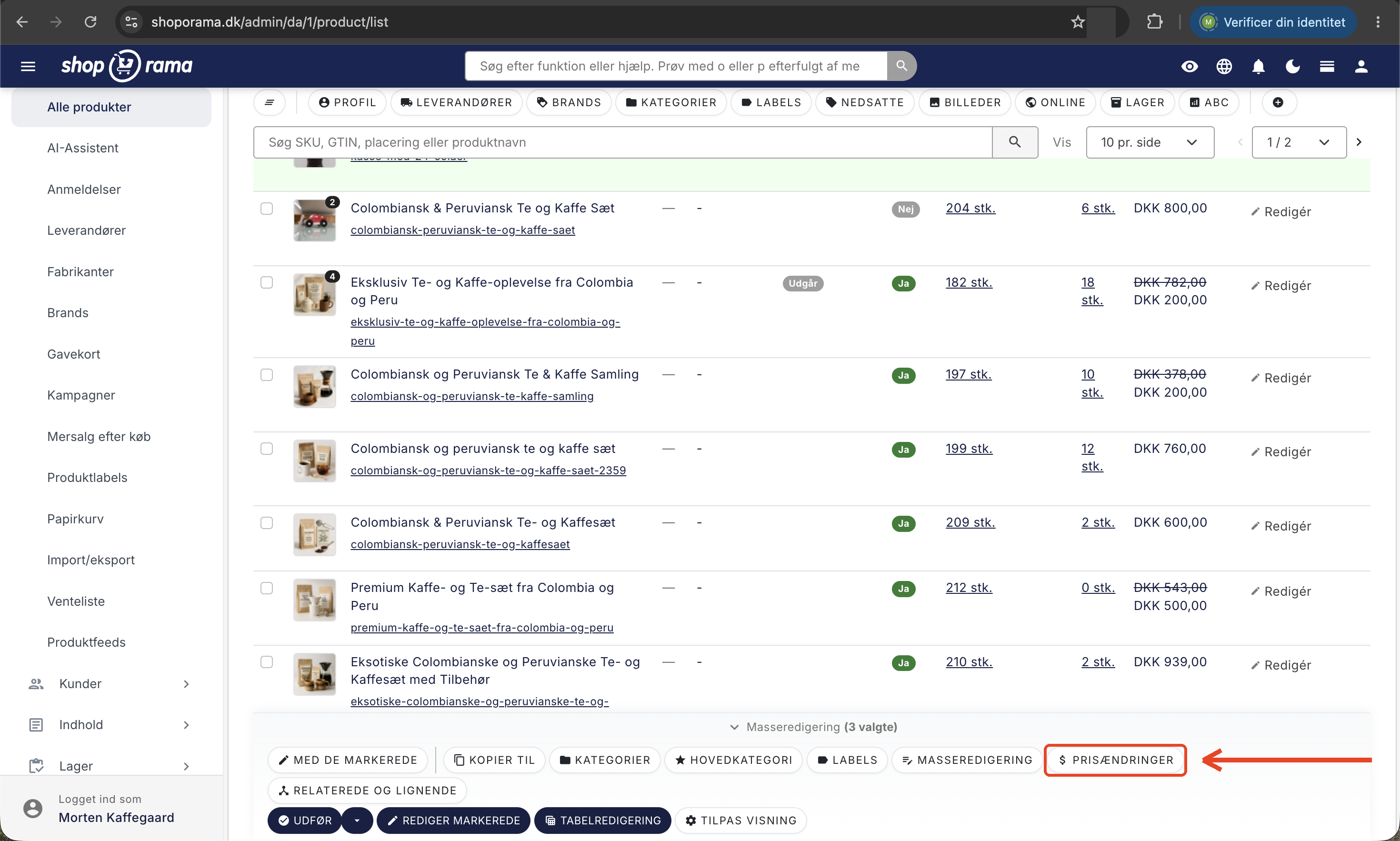
- Go to Products and find the products that need new prices. Feel free to use the search and filters first to ensure you select only the correct ones.
- Select the products. At the bottom of the page, the bulk edit bar shows how many you’ve selected.
- Click " Price Changes " and fill in the fields you want to use.
- Click Close to close the window. Your entries will be saved.
- Click the small arrow next to the blue “Execute” button at the bottom.
- Select a date and time. By default, the fields are set to today and one hour from now.
- Click " Execute Later." You’ll be redirected to the Bulk Edit Queue, where the job is now waiting.
The same applies to the fields in the Bulk Edit window. If you fill them out before clicking "Execute Later," they will also be included in the scheduled job.
The fields in Price Changes
You can change both the regular retail price and the sale price in four ways each:
- "Set Price To " gives all selected products the same fixed price.
- "Adjust price by" adds or subtracts an amount, e.g., 100 or -25.
- "Multiply price by" multiplies the price by a factor, e.g., 0.8 for a 20% reduction or 1.05 for a 5% increase. If the products have variants with their own prices, the variant prices are multiplied by the same factor.
- Round the price up or down to whole kroner based on the value shown in the product’s price field.
For the sale price, there is also a “Remove Sale Price” checkbox, which removes the sale price from both products and variants without affecting the regular price.
Good to know about the sale price:
- "Multiply the sale price by" calculates the sale price based on the product’s regular price. A factor of 0.8, for example, gives a 20% discount on each individual product, regardless of its cost.
- If you enter the factor 1 in that field, the sale price is removed instead.
The fields calculate based on the exact number shown in the product’s price field. Whether your prices are saved including or excluding VAT depends on the store’s own VAT settings, and bulk editing does not change this.
If you fill in multiple fields in the same run, they are processed in a fixed order, not in the order you enter them. We therefore recommend that you perform one operation at a time so that you always know exactly what the result will be.
Monitor the Bulk Edit Queue
All scheduled jobs are in the Bulk Edit Queue. You can find it via the “View Queue” link in the same dropdown menu from which you scheduled the job. The queue displays:
- Scheduled for, i.e., the time you selected.
- Products: a list of links to the products affected by the job.
- Action: A summary of what will be changed.
A job can be deleted as long as it hasn’t run yet. Select it and click “Delete Selected.” However, a job cannot be edited; if you want to change the time, products, or prices, you’ll need to delete the job and schedule it from scratch.
The job remembers exactly the products you selected when you scheduled it. If you later add new products to the same category or filter, they will not be included.
Once the job has run
The time is an "earliest" time. The job runs shortly after the time you selected, not exactly on the second. If you select a time that has already passed, the job will run during the next run.
Once the job is complete, it will disappear from the queue, and you’ll receive an email with the subject line “We’ve completed your bulk edit” and a list of the products that were updated. Feel free to check a random sample in the store afterward. If you still see the old price, it may be due to the cache; in that case, you can read more in the article about caching in Shoporama.
What Can Be Scheduled and What Can’t
The rule of thumb is: anything you enter into a field can be scheduled. Anything you click a button to execute happens immediately.
Can be scheduled:
- All fields in Price Changes, including sale price and rounding.
- The fields in Bulk Editing, such as supplier, brand, manufacturer, delivery time, noindex, warehouse location, tariff code, customs rate, country of origin, internal search, Google category, weight, purchase price, and custom fields.
- Main Category.
Cannot be scheduled and always runs immediately:
- Set Online and Set Offline.
- Add to or remove from categories.
- Labels.
- Copy, Copy To, Find and Replace, Reset Address, and Delete.
Scheduled price change, special offer, or promotion?
Shoporama offers several ways to manage prices, and each serves a different purpose:
- A scheduled price change (this article) changes the price itself at a specific time. Perfect for price adjustments, new supplier prices, or a sale that starts overnight.
- Date-driven promotional pricing sets start and end dates directly on the product’s promotional price, so the offer turns on and off automatically. Read more in the blog post about offers that turn on and off automatically.
- Campaigns offer rule-based discounts for a specific period, such as 20% off an entire category. Read more in the article about campaigns.
- Discount codes require the customer to enter a code in the shopping cart themselves.
Remember: A scheduled price change activates but does not deactivate automatically. If the sale is to end at a specific time, you must either schedule another job to reset the prices or use a date-driven promotional price or a campaign instead.
Tips before queuing a job
- Make a backup. Price changes cannot be undone automatically. First, export the products to CSV under “Products”; that way, you can import the old prices back if something goes wrong. See “Update Prices via CSV Import.”
- Test on a few products. First, schedule 2–3 products to update in five minutes, and check the results before queuing your entire product range.
- One operation at a time. Do not mix factors, fixed prices, and amounts in the same run.
- Enable price history if you want to be able to document your price changes afterward. Read more in the article about price history and the Omnibus Directive.
Frequently Asked Questions
I want to lower the prices on Saturday night. Do I just click “Execute” in the Price Changes window?
No, because the change will take effect immediately. Fill in the fields, click “Close,” and instead use the small arrow next to the “Execute” button at the bottom of the page. There, select the date and time and click “Execute Later.”
How do I know that the scheduled change was actually carried out?
You’ll receive an email with the subject line “We’ve completed your bulk edit” and a list of the affected products. The job will also disappear from the Bulk Edit Queue. If it doesn’t happen exactly on the minute, that’s completely normal, since the time is an “earliest possible” time.
Can I edit a job that’s waiting in the queue?
No, a scheduled job can only be deleted, not edited. Go to the Bulk Edit Queue, select the job, click “Delete Selected,” and reschedule it with the correct settings.
I’m adding more items to the category tomorrow. Will they be included in the job?
No. The job saves exactly the products you had selected when you scheduled it. New products must be selected and scheduled separately.
Can I schedule products to go online or be assigned a new category?
No. Setting products to online, setting them to offline, categories, labels, copying, and deleting always take effect immediately. Scheduling applies only to what you enter in the fields—that is, price changes, the fields in Bulk Edit, and the main category.
Can the sale end on its own?
Not with a scheduled price change, because that only activates the sale. Either schedule another job to reset the prices, or use the date-controlled special price or campaign module, which automatically ends the sale on the end date.
Does it calculate prices including or excluding VAT?
It calculates based on the exact number entered in the product’s price field. Whether that is inclusive or exclusive of VAT depends on the store’s VAT settings, and bulk editing does not change this. Rounding to whole kroner is therefore also based on that value.
Can I provide my accountant with documentation of what was changed and when?
Yes, if price history is enabled in your store. In that case, the system logs when the price was changed and the price range involved. If price history is disabled, no history is saved, so be sure to enable it before making major price adjustments.
What happens if I select a date that has already passed?
In that case, the job will run during the next scheduled run—which is essentially right away. If you want to postpone it, you’ll need to delete the job and reschedule it for a time in the future.
Need help? Contact us at support@shoporama.dk.
Related articles
Product overviews
Shoporama product overview guide: Search, filter, sort and mass edit your products efficiently from the product list.
Mass editing of products
Guide to bulk editing products in Shoporama - edit prices, inventory, SEO fields and more in a spreadsheet-like interface.
Campaigns
Learn how to create promotions in Shoporama that automatically give your customers a discount. Choose from five promotion types: fixed price,...
Update prices via CSV import
Step-by-step guide to update prices on many products at once via CSV import in Shoporama. Incl. explanation of the VAT checkbox.
Price history and the Omnibus Directive
Shoporama automatically logs price changes and calculates the correct pre-price according to the Omnibus Directive (EU 2019/2161). The default...
Related features

Now your offer can also stop at a certain number
Set a limit on the number of items sold at the sale price. When that number reaches zero, Shoporama automatically ends the sale. That's how the...
Create and edit products, and edit multiple items at once
Create products with prices, images, categories, and inventory; check why an item isn't showing up; and edit multiple prices at once using bulk...