Print PostNord parcel labels from Shoporama
Guide to setting up PostNord integration and creating parcel labels directly from the Shoporama admin.
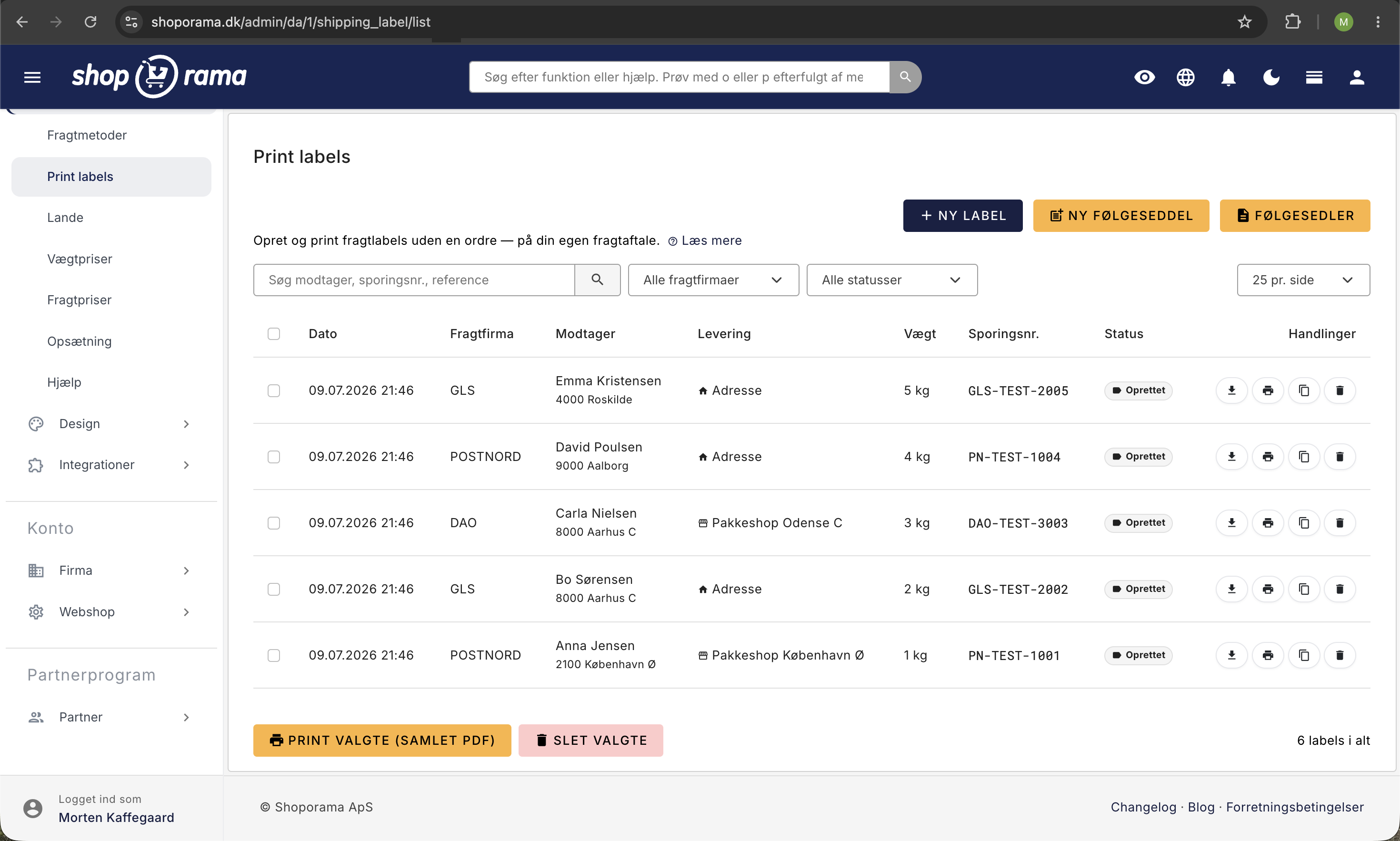
You can create PostNord shipping labels directly from the Shoporama admin panel. The labels are downloaded as PDFs, and the tracking number is automatically linked to the order.
Prerequisite
You must have an EDI agreement with PostNord. Contact PostNord to set one up, and send your production customer number to support@shoporama.dk.
Setup
The PostNord agreement itself is activated by the Shoporama team. Send an email to support@shoporama.dk with the following information:
- Your PostNord production customer number
- The PostNord country with which you have the agreement (DK, SE, NO, or FI)
We’ll set up the agreement for you. Once that’s done, you can create shipping labels directly from the orders page in your admin panel.
How to create a shipping label
- Go to Orders
- Select the order you want to ship
- Click “Send to PostNord”
- Download the shipping label from the order page
Shoporama automatically links the tracking number to the order, and the customer receives a notification with tracking information.
Frequently Asked Questions
Can I set up the PostNord agreement myself in my admin panel?
No. The actual activation is handled by Shoporama’s operations team, so we’ll set it up for you. Send your production customer number and country to support@shoporama.dk, and it’s usually ready within one business day.
Where can I find my production customer number?
It’s listed on your EDI agreement from PostNord. If you’re unsure, contact PostNord’s customer service. It’s typically an 8- to 12-digit number.
How much does it cost to ship via PostNord from Shoporama?
Pricing and products are arranged directly with PostNord. Shoporama does not charge an additional fee for creating a label.
Can I create multiple labels at once?
Yes. In the order list, you can select multiple orders and send them all to PostNord at once. Track & trace is linked to each individual order.
Is the customer automatically notified?
Yes. Once the shipping label is created and the order is marked as shipped, the customer receives the standard shipping email with a tracking link.
What should I do if the label fails?
Check that the recipient’s address is valid (zip code, country, phone number). If the error persists, please email support@shoporama.dk with the order number, and we’ll look into it.
Need help? Contact us at support@shoporama.dk.
Related articles
Set up PostNord with parcel shop
Guide to setting up PostNord with parcel shop as a shipping option in your Shoporama online shop.
Checkout flow and shipping calculation
Guide for developers to implement shipping in the checkout flow of a Shoporama theme.
PostNord tracking and parcel labels
Guide to PostNord tracking links and parcel labels in Shoporama, including troubleshooting common issues.
Print shipping labels without an order
Create and print shipping labels without first placing an order, using your own account with PostNord, GLS, or DAO. Clone multiple labels at once...
Related features
Webshop with PostNord
Create an online store with PostNord shipping: parcel shop selector in checkout, automatic label printing, tracking and international shipping...
Shipping options
Set up shipping with PostNord, GLS, DAO, DHL and Shipmondo. Parcel shops in checkout, tracking, free shipping and weight-based shipping calculation.