robots.txt: Control what search engines are allowed to crawl
Understand what robots.txt does in your Shoporama online store, what the default content is, how to add your own rules, and when to use "noindex" instead.
Din webshop bliver besøgt af langt flere end dine kunder. Google, Bing, prissammenligningstjenester, AI-robotter, og en lang række andre programmer gennemgår automatisk dine sider. Filen robots.txt er den lille seddel, du hænger på døren til dem: her står, hvilke dele af shoppen de er velkomne til at kigge på, og hvilke de skal lade være med.
Shoporama laver og vedligeholder din robots.txt automatisk, så du behøver ikke gøre noget for at komme godt fra start. Vil du have ekstra kontrol, kan du tilføje dine egne linjer. Her får du hele gennemgangen: hvad filen gør, hvad der står i den som standard, hvordan du redigerer den, og hvilke fejl du skal holde dig fra.
Hvad er robots.txt?
robots.txt er en helt almindelig tekstfil, der ligger i roden af dit domæne. Du kan se din egen ved at skrive /robots.txt efter din shops adresse i browseren, altså for eksempel https://dinshop.dk/robots.txt. Prøv det, mens du læser med, så er det nemmere at følge eksemplerne herunder.
Filen indeholder linjer i et meget simpelt format. En robot læser filen, inden den går i gang med at hente sider, og retter sig efter de instruktioner, den finder. De vigtigste ord i filen er:
- User-agent: hvem reglerne gælder for. En stjerne betyder "alle robotter".
- Disallow: en sti, robotten ikke skal hente.
- Allow: en undtagelse, altså en sti robotten gerne må hente, selvom noget bredere er blokeret.
- Sitemap: en henvisning til dit sitemap, som er listen over alle de sider, du gerne vil have fundet.
Det er vigtigt at forstå én ting med det samme: robots.txt er en høflig anmodning, ikke en lås. Filen er offentlig, og alle kan læse den. De store søgemaskiner respekterer den, men den forhindrer ikke nogen i at åbne en side manuelt. Skriv derfor aldrig noget i robots.txt, som du ikke vil have fremmede til at se, og brug den aldrig som beskyttelse af følsomt indhold.
Sådan ser din robots.txt ud som standard
Har du ikke rørt ved noget, ser din robots.txt i Shoporama sådan her ud, blot med dit eget domæne i Sitemap-linjen:
User-agent: *
Sitemap: https://dinshop.dk/sitemap.xml
Disallow: /basket$
Disallow: /address
Disallow: /payment
Disallow: /shipping
Disallow: /approve
Disallow: /thanks
Disallow: /order
Disallow: /download-file
Disallow: /product_review
Disallow: /systr
Disallow: /sysreco$
Disallow: /recommendations$

# Powered by Shoporama
Læst på almindeligt dansk siger den: "Kære alle robotter. Her er listen over mine sider. Lad være med at rode rundt i kurven, adresseformularen, fragtvalget, betalingen, godkendelsessiden, kvitteringssiden, ordresiderne, filhentning, og produktanmeldelser. Spring også de tre adresser over, som shoppen bruger i baggrunden."
De tre sidste linjer er ikke sider, men adresser, som shoppens egen kode sender data til. /systr tæller besøg til statistikken, /sysreco måler visninger og klik på anbefalingerne, og /recommendations henter selve anbefalingsboksen. Google finder adresserne i sidens kode og prøver at besøge dem. Uden linjerne kan de dukke op som fejl i Google Search Console, selvom alt virker, som det skal.
Der er to gode grunde til, at netop de sider er lukket af. For det første giver de ingen mening i et søgeresultat. Ingen har gavn af at lande direkte i en tom indkøbskurv fra Google. For det andet bruger robotter en begrænset mængde tid på din shop, det man kalder crawl budget. Hver gang en robot henter en side, der ikke skal i søgeresultaterne, er det tid, den ikke bruger på dine produkter og kategorier. Med andre ord: de linjer her hjælper med at få dine faktisk sælgende sider opdaget hurtigere.
Linjen med Sitemap peger på dit sitemap, som Shoporama genererer automatisk ud fra dine produkter, kategorier, sider, landingssider, og blogindlæg. Du skal ikke selv vedligeholde det, og du skal ikke tilføje det manuelt til robots.txt.
De linjer, Shoporama selv lægger ind, kan du ikke slette. Det er med vilje. Det er nemlig præcis den slags fejl, der er dyrest at lave, og de standardregler passer til stort set alle webshops.
Sådan redigerer du din robots.txt
- Gå til Webshop, robots.txt i menuen i admin.
- Du får siden Robots.txt med boksen Tilpas robots.txt.
- Skriv dine ekstra linjer i feltet Ekstra regler. Én regel per linje.
- Klik Gem.
- Åbn https://dinshop.dk/robots.txt i browseren, opdater siden, og kontrollér, at resultatet ser ud, som du forventer.
Ændringen slår igennem med det samme, og der er ingen cache, du skal rydde. Nederst på siden i admin ligger en lille hjælpeboks med eksempler på regler, du kan tilføje.
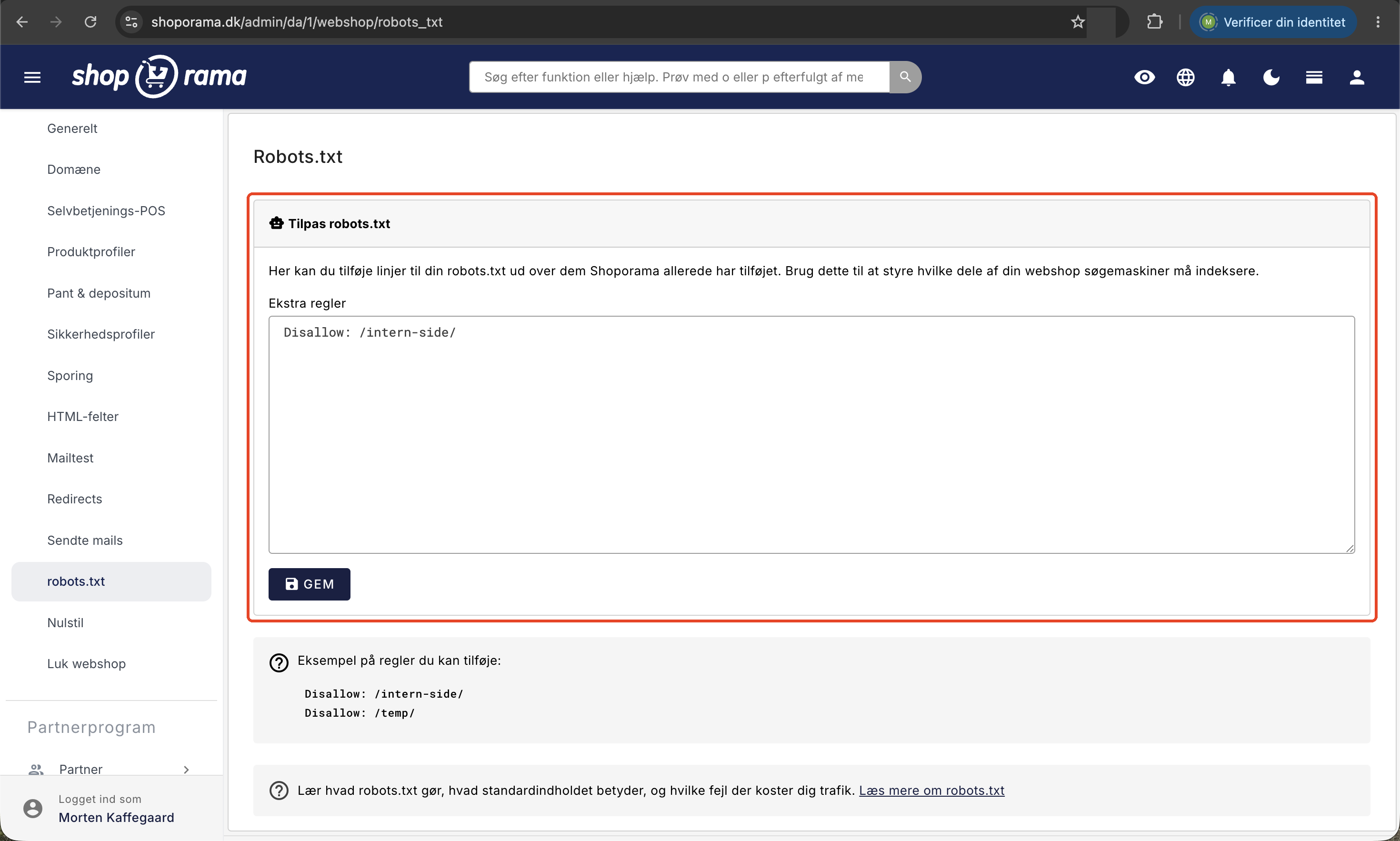
Bemærk, at feltet hedder Ekstra regler af en grund: det, du skriver, bliver lagt oveni Shoporamas egne linjer, ikke i stedet for dem. Dine linjer indsættes lige efter User-agent: * og før Sitemap-linjen og standardreglerne.
Feltet gælder for én webshop ad gangen. Har du flere shops i samme konto, skal du sætte det op i hver enkelt shop. Til gengæld følger indholdet med, hvis en shop bliver kopieret.
Regler der giver mening for en webshop
De fleste webshops har aldrig brug for at skrive noget som helst i feltet. Standardopsætningen er god. Men der er nogle situationer, hvor en ekstra linje er en god idé.
Interne sider ingen skal finde i Google
Har du sider, der kun er til intern brug, en midlertidig testside, eller en kampagneside, der kun må nås via et direkte link fra dit nyhedsbrev, kan du udelukke dem:
Disallow: /intern-side/
Disallow: /temp/
Disallow: /nyhedsbrev-kun/
En sti uden afsluttende skråstreg matcher alt, der begynder med den. Disallow: /temp udelukker altså både /temp, /temp/test, og /temperatur. Vær derfor lidt omhyggelig med, hvor du sætter skråstregen.
Filtrerede og sorterede visninger
Har dit tema filtre eller sortering, der laver mange varianter af den samme kategoriside, kan det være værd at holde varianterne ude, så robotterne bruger tiden på selve kategorien. Om det er relevant afhænger helt af, hvordan dit tema er bygget, så kig på dine egne adresser først, eller læs mere om filtrering på din webshop.
En specifik undtagelse
Vil du give adgang til noget, der ellers ligger inde under en blokeret sti, kan du bruge Allow. En mere præcis regel vinder over en mindre præcis, uanset hvilken rækkefølge de står i:
Disallow: /intern-side/
Allow: /intern-side/vejledning
Det du IKKE skal blokere
- Dine produkter og kategorier. Det er dem, du lever af at blive fundet på.
- Billeder, CSS, og JavaScript. Google gengiver dine sider som en rigtig browser. Blokerer du designfilerne, ser Google en ødelagt side og vurderer den derefter, ikke mindst på mobil.
- Dit sitemap. Det skal robotterne kunne hente.
Forskellen på robots.txt og noindex
Det her er det punkt, flest falder i, så det er værd at læse to gange. De to ting lyder ens, men gør noget helt forskelligt:
- robots.txt siger: "du må ikke hente den her side".
- noindex siger: "du må gerne hente siden, men du må ikke vise den i søgeresultaterne".
Den vigtige konsekvens: hvis du blokerer en side i robots.txt, kan Google ikke hente den, og dermed kan Google heller ikke se, at der står noindex på den. Har siden i forvejen links udefra, kan Google godt finde på at vise adressen i søgeresultaterne alligevel, bare uden titel og beskrivelse. Resultatet bliver en tom, grim linje i Google i stedet for ingenting.
Tommelfingerregel: vil du have en side ud af Google, så brug noindex, og lad være med at blokere den i robots.txt. Vil du bare spare robotterne for at bruge tid på noget, der aldrig skal i søgeresultaterne alligevel, så brug robots.txt.
I Shoporama sætter du noindex med afkrydsningsfeltet Aktiver "noindex, follow". Det findes på produkter, kategorier, sider, landingssider, og blogindlæg. Læs den fulde gennemgang i Sæt noindex på en side, produkt eller kategori.
Shoporama sætter i øvrigt selv noindex på de sider, hvor det giver sig selv, blandt andet kurv, adresse, fragt, betaling, kvitteringssiden, og siden med søgeresultater. Alle nyere temaer viser det. Har du et ældre eller specialbygget tema, er det værd at få din temaudvikler til at tjekke, at meta-taggen faktisk kommer med.
De klassiske fejl
- At skrive Disallow: /. Den ene skråstreg lukker hele shoppen for søgemaskiner. Det er den dyreste tastefejl i hele feltet. Hvis din trafik fra Google forsvinder over et par uger, er det her, du kigger først.
- At blokere en side for at få den ud af Google. Det virker ikke. Brug noindex, som beskrevet ovenfor.
- At skrive en User-agent-linje midt i feltet. Dine linjer indsættes i den gruppe, der gælder alle robotter. Starter du en ny gruppe midt i feltet, ender Shoporamas standardregler i den nye gruppe i stedet, og så gælder de pludselig ikke længere for alle. Har du brug for regler til en bestemt robot, så kontakt os på support@shoporama.dk først.
- At bruge robots.txt som sikkerhed. Filen er offentlig. Skriver du Disallow: /hemmelig-mappe/, har du netop fortalt hele verden, at mappen findes.
- At blokere designfiler. Uden CSS og JavaScript vurderer Google din side som ødelagt.
- At glemme at tjekke bagefter. Åbn altid /robots.txt i browseren efter du har gemt. Det tager fem sekunder.
- At tro, det virker med det samme i Google. Filen ændrer sig øjeblikkeligt, men der kan gå dage eller uger, før Google har hentet den igen og nået rundt i din shop.
- Store og små bogstaver. Selve ordene Disallow og Allow er ligeglade med store bogstaver, men stierne er ikke. /Tilbud og /tilbud er to forskellige ting.
Demoshops og shoporama.dk-adresser
Hvis din shop stadig er en demoshop, er lukket, eller ligger på en midlertidig adresse under shoporama.dk, leverer Shoporama automatisk en robots.txt, der siger:
User-agent: *
Disallow: /

# Powered by Shoporama
Det er med vilje, og det er en fordel for dig. En shop under opbygning skal ikke i Google, og din midlertidige adresse skal ikke ligge og konkurrere med dit rigtige domæne bagefter. I den situation har feltet Ekstra regler ingen effekt, for hele filen bliver erstattet.
Så snart shoppen er live på dit eget domæne, skifter filen automatisk til den normale version med sitemap og standardregler. Er du ikke kommet over på eget domæne endnu, så læs Flyt din shop til eget domæne. Flytter du en eksisterende shop ind på Shoporama, er Undgå at miste Google-placeringer ved flytning og Den store guide til redirects de to artikler, du skal have læst først.
Til dig der er teknisk
- Filen genereres ved hvert kald og leveres som text/plain med UTF-8. Shoporama gemmer den ikke, men sender den med en cache-tid på en time, så en browser eller et mellemled kan vise den forrige version i op til en time.
- Rækkefølgen i den færdige fil er: User-agent: *, derefter dit indhold fra feltet Ekstra regler, derefter Sitemap-linjen, og til sidst Shoporamas standardregler.
- Standardreglen Disallow: /basket$ bruger dollartegnet som "slutter her". Den rammer altså kun selve kurvesiden, ikke adresser der begynder med det samme. Det gælder også /sysreco$ og /recommendations$, så en side med adressen /recommendations-til-dig stadig kan crawles.
- Besøger en robot alligevel /systr, /sysreco, eller /recommendations, svarer de med statuskoden 405 (forkert metode), et tomt svar, og et noindex-signal. De er kun til shoppens eget script. Har du allerede en side eller en redirect på /sysreco eller /recommendations, virker den som før.
- Sælger du i flere lande med hver sin sti (fx /se/), får hvert land sin egen Sitemap-linje, og standardreglerne gentages under landets sti. Dine egne Allow- og Disallow-linjer fra Ekstra regler gentages også. Lande, der ikke er slået til endnu, blokeres helt, og der kommer en linje for /country-switch, som sprogvælgeren bruger til at skifte land. Læs mere i Sælg i flere lande og på flere sprog.
- Google og Bing afgør konflikter mellem Allow og Disallow ved at lade den mest specifikke regel vinde, ikke ved rækkefølgen i filen. Ved lige lange regler vinder Allow.
- Sitemappet ligger på /sitemap.xml og bliver automatisk delt op i flere filer med et indeks, hvis shoppen har rigtig mange adresser.
- Feltet kan også læses og skrives via Shoporamas API sammen med de øvrige webshop-indstillinger, hvis du vil styre det fra dine egne værktøjer.
Ofte stillede spørgsmål
Jeg har aldrig rørt min robots.txt. Er min shop så sat forkert op?
Nej. Shoporama laver filen for dig, og standardindholdet passer til langt de fleste webshops. Feltet Ekstra regler er til de tilfælde, hvor du har noget helt særligt, du vil holde uden for søgemaskinerne. Er du i tvivl, så lad det stå tomt.
Hvordan ved jeg, om min ændring er slået igennem?
Åbn https://dinshop.dk/robots.txt i browseren og opdater siden. Shoporama laver filen forfra ved hvert besøg, så ændringen er der med det samme. Din browser må dog gemme filen i op til en time. Ser du stadig den gamle version, så prøv med en hård genindlæsning eller et privat vindue.
Google viser stadig en side, jeg har blokeret. Hvad gør jeg?
Det er den klassiske fælde. En blokering i robots.txt forhindrer Google i at hente siden, ikke i at vise adressen. Fjern blokeringen i feltet Ekstra regler, sæt i stedet noindex på siden, og vent til Google har hentet den igen. Så forsvinder den af sig selv.
Kan jeg lave regler, der kun gælder for én bestemt søgemaskine?
Det bør du ikke gøre i feltet, for dine linjer bliver lagt ind i den gruppe, der gælder alle robotter. Skriver du din egen User-agent-linje, flytter Shoporamas standardregler med over i den nye gruppe. Har du et konkret behov, så skriv til support@shoporama.dk, så finder vi en løsning sammen.
Jeg har flere webshops. Skal jeg gøre det samme i dem alle?
Ja, feltet hører til den enkelte webshop, så du skal ind i hver shop for sig. Opretter du en ny shop ved at kopiere en eksisterende, følger indholdet af feltet med over i kopien, så der slipper du.
Kan jeg beskytte ordre- og kvitteringssider mod at havne i Google?
De er allerede holdt ude som standard. Kurv, adresse, fragt, betaling, og kvitteringssiden har en Disallow-linje, og Shoporama sætter samtidig noindex på dem. Ordresiderne har en Disallow-linje. Du behøver ikke gøre noget. Husk bare, at robots.txt aldrig i sig selv er beskyttelse af data. Filen er offentlig, og enhver kan læse den.
Kan jeg komme til at ødelægge min trafik fra Google med det her felt?
Ja, hvis du skriver Disallow: /. Så beder du alle søgemaskiner om at holde sig fra hele shoppen, og over nogle uger falder din synlighed. Derfor: kig altid på /robots.txt i browseren efter du har gemt, og se efter, at der ikke står en enkeltstående skråstreg.
Vores shop er kun for erhvervskunder og kræver login. Skal vi blokere alt?
Nej, det er sjældent nødvendigt. Indhold bag login kan robotterne alligevel ikke hente, og en blokering af hele shoppen betyder også, at forsiden og eventuelle åbne informationssider forsvinder fra Google. Vil du helt af med shoppen fra søgeresultaterne, så kontakt os, så vi kan vurdere den rigtige løsning til jeres opsætning.
Kan jeg fjerne de linjer, Shoporama selv lægger ind?
Nej, de bliver altid tilføjet. De dækker kurv, checkout, ordresider, filhentning, og produktanmeldelser, altså sider der aldrig skal i et søgeresultat, plus de adresser, som statistikken og anbefalingerne bruger i baggrunden. Har du en helt særlig grund til at få en af dem crawlet, så skriv til support@shoporama.dk.
Search Console viser /systr, /sysreco, eller /recommendations som en fejl. Skal jeg gøre noget?
Nej, og du skal ikke lave redirects for dem. Det er adresser, som shoppen bruger i baggrunden, og de står allerede i din robots.txt. Har Google besøgt dem, før linjerne kom med, kan de stå som fejl i rapporten nogle uger endnu. Bagefter står de typisk som blokeret af robots.txt, og det er helt i orden.
Skal jeg selv tilføje mit sitemap i feltet?
Nej. Shoporama indsætter automatisk en Sitemap-linje, der peger på /sitemap.xml på dit eget domæne, og sitemappet bliver holdt opdateret for dig. Tilføjer du selv en linje, får du bare det samme sitemap nævnt to gange.
Er du i tvivl om en konkret regel, eller vil du have os til at kigge din robots.txt igennem, er du meget velkommen til at skrive til support@shoporama.dk.
Related articles
Filtering on your online store
Guide to setting up filtering on your Shoporama online store so customers can filter products.
Set noindex on a page, product or category
Here's how to set "noindex" for products, categories, static pages, landing pages, and blog posts in Shoporama so they don't appear in Google...
Move your shop to your own domain
Guide to moving your Shoporama online store to your own domain with DNS setup, SSL and domain validation.
Avoid losing Google rankings when moving
Best practices to maintain your Google rankings when moving your shop to Shoporama.
The big guide to redirects
Complete guide to redirects in Shoporama. Learn when and how to create redirects and avoid losing rankings in Google.
What do the 404 errors in the backend mean?
Explanation of 404 errors that appear in the Shoporama backend and what you should do about them.
Related features
XML sitemap
An XML sitemap lists all pages on your online store for search engines. Learn what it contains, why it's important and how it works in your online...
SEO
SEO (search engine optimization) brings your online store free traffic from Google. Learn about technical SEO, on-page optimization, link building...
SEO in Shoporama - get visible in Google
Shoporama has built-in SEO features: fast speed, full control over titles and meta descriptions, dynamic tags, automatic 301 redirects, XML...