Product Categories in POS: Sell items by entering the price at the register
Here's how to create product groups that appear as buttons in the POS system, where you enter the price for each sale. For used items, flea market finds, flowers, and items sold by weight.
A product group is a product that appears as a button in the POS system, where you enter the price for each sale. For example, you create “LP – Jazz” once and sell all your jazz records using the same button, without having to create each record individually in Shoporama. Product groups are never displayed in the online store.
When does a product group make sense?
Product groups are suitable for items where it isn’t cost-effective to create each item individually, or where the price varies from time to time:
- Used books, comic books, and LPs, where each copy has its own price
- Flea market finds and secondhand items that come in small quantities
- Flowers and bouquets that are arranged and priced on the spot
- Bulk items, such as coffee, tea, or candy, where the price depends on the quantity
Items with a fixed price and a barcode should still be set up as regular items. That way, you can scan them, track inventory, and sell them online.
Create a product group
- Go to Products → All Products, and click Create Product
- On the Create New Product page, enter the text that should appear on the button in the POS in the Name field, for example, “LP - Jazz”
- Turn off " Product is online " so the item doesn’t appear in the web store, and click Create product. The item opens
- Turn on the “POS product group (price entered at point of sale)” toggle in the General tab, next to “Product is online” and “Never free shipping”
- Select the correct VAT category (see below), and save the item
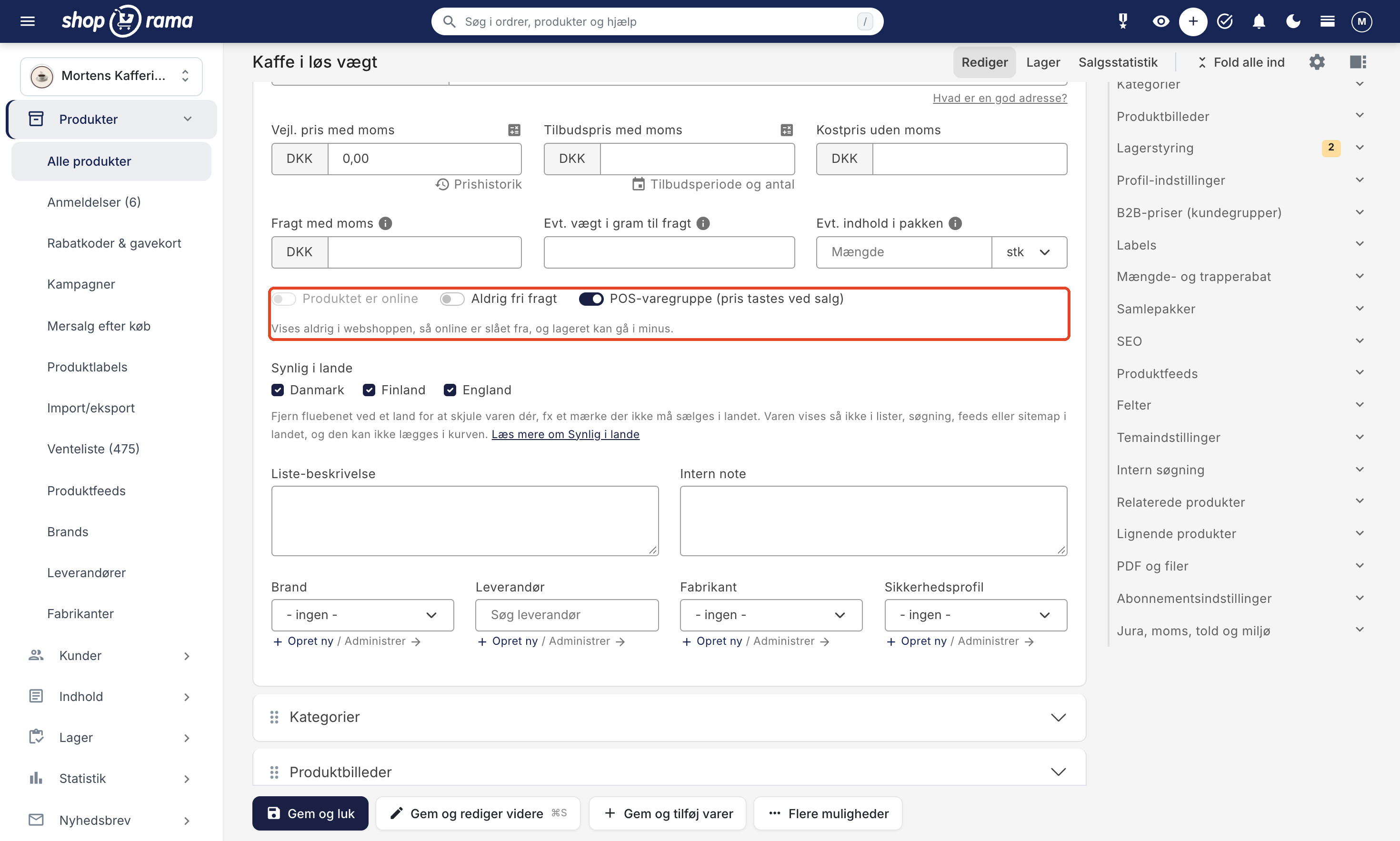
When the option is enabled, the following text appears below it: “Never displayed in the online store, so ‘Online’ is disabled, and inventory can go into the negative.” This means:
- The item is offline. The “Product is online” setting is disabled and cannot be enabled as long as the item is part of a product group. This also applies in the product list, bulk editing, and import
- Stock levels may go negative. You do not need to track stock levels for a product group
- The item’s own price is not used at checkout. The price you enter in the POS system becomes the line item price, including tax
VAT on Product Groups
The VAT follows the item’s VAT category, just like for your other items—for example, 25%. You select it in the “Legal, VAT, Customs, and Environment” tab in the “VAT Category” field. Read more in “VAT Categories.”
If you sell used items subject to used-item VAT (the profit margin scheme), select the “Used-Item VAT” VAT category. In this case, the line item will have no VAT, it will be marked with an asterisk on the receipt, and the receipt will include a note indicating that the items are used. Read more in “Used Goods VAT.”
Find Your Product Groups
All your product groups are listed together under POS → Product Groups in the left-hand menu. This is your product list, filtered by product groups. Click Show All Products to return to the full product list.
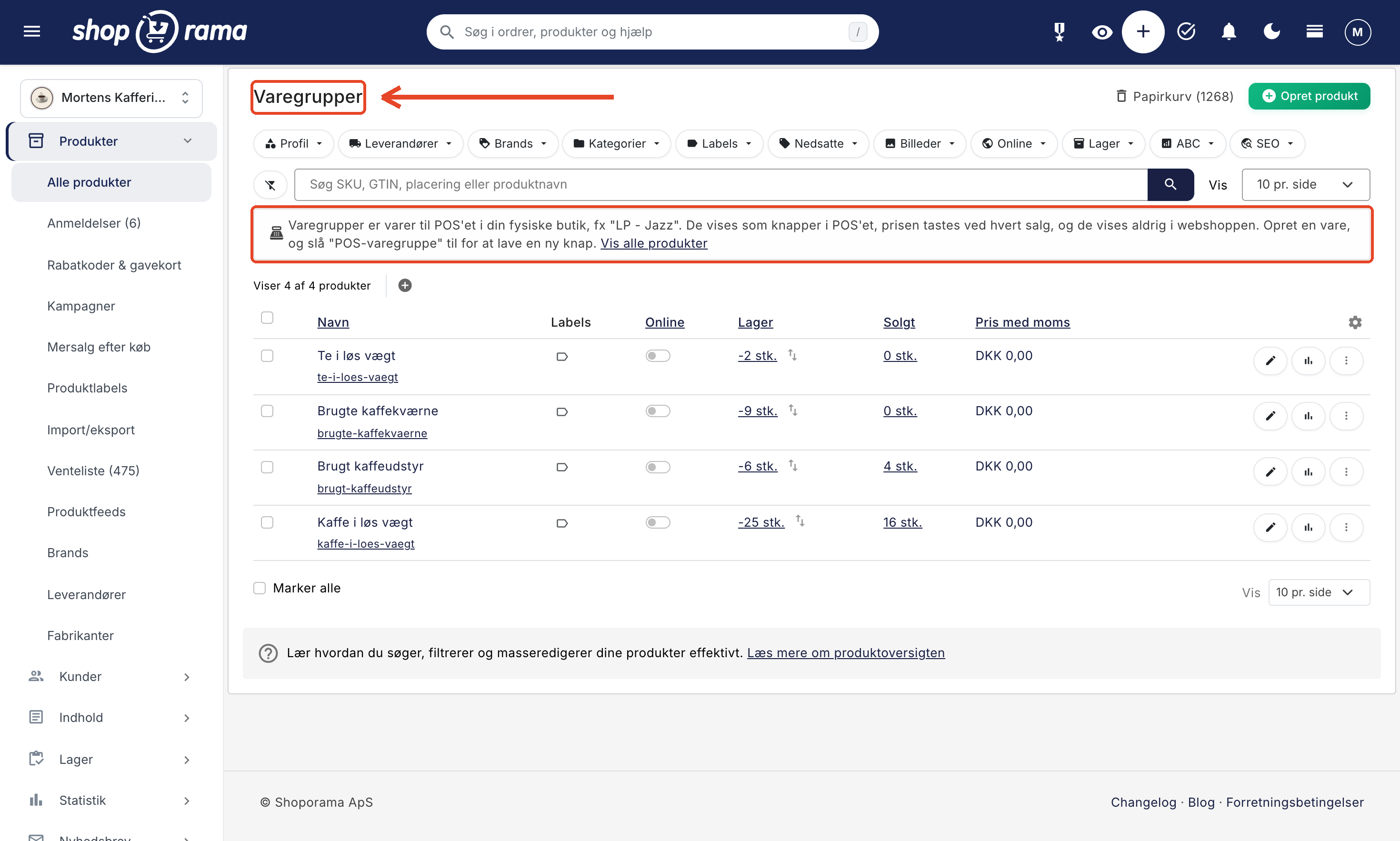
Sell a product group at the register
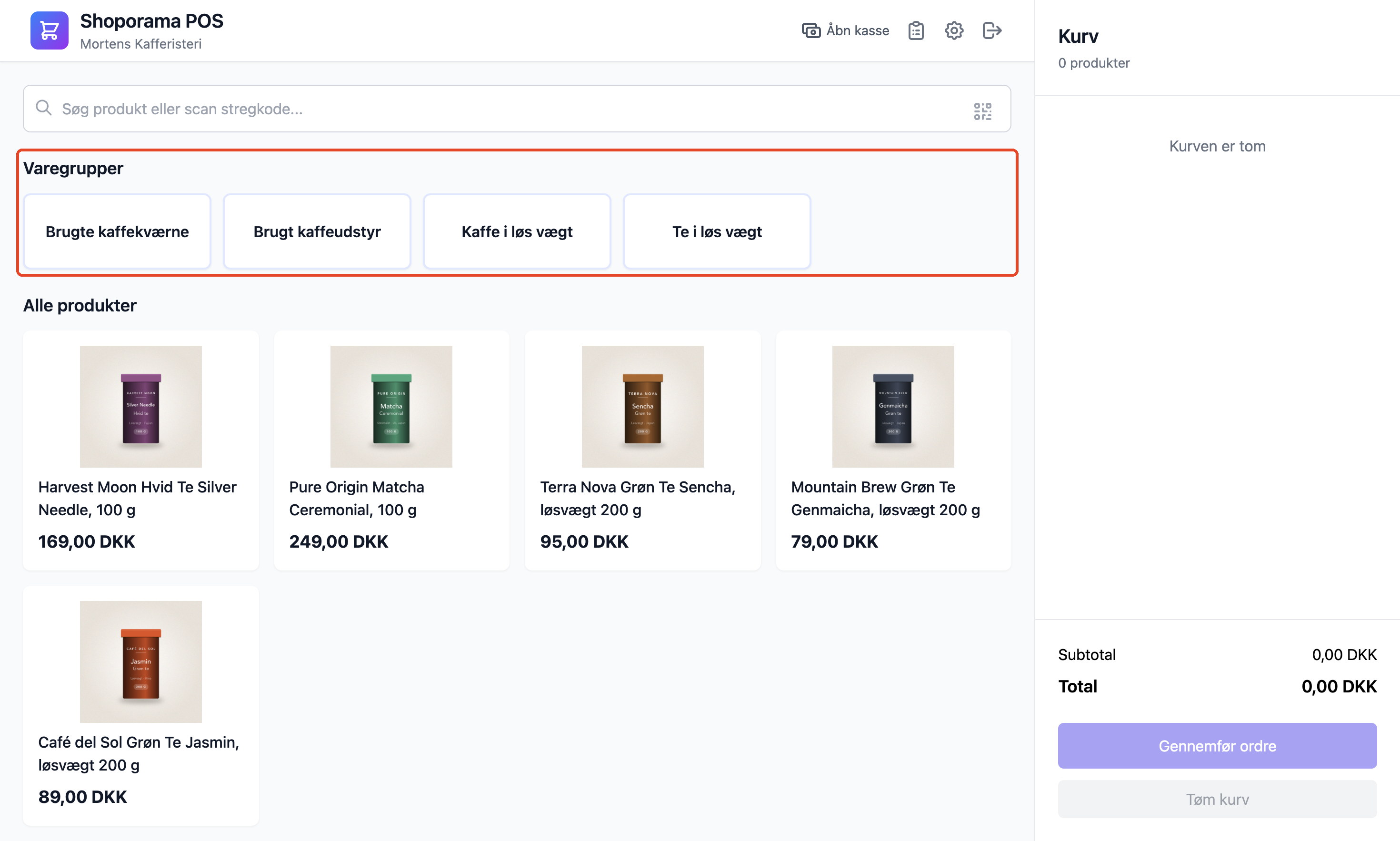
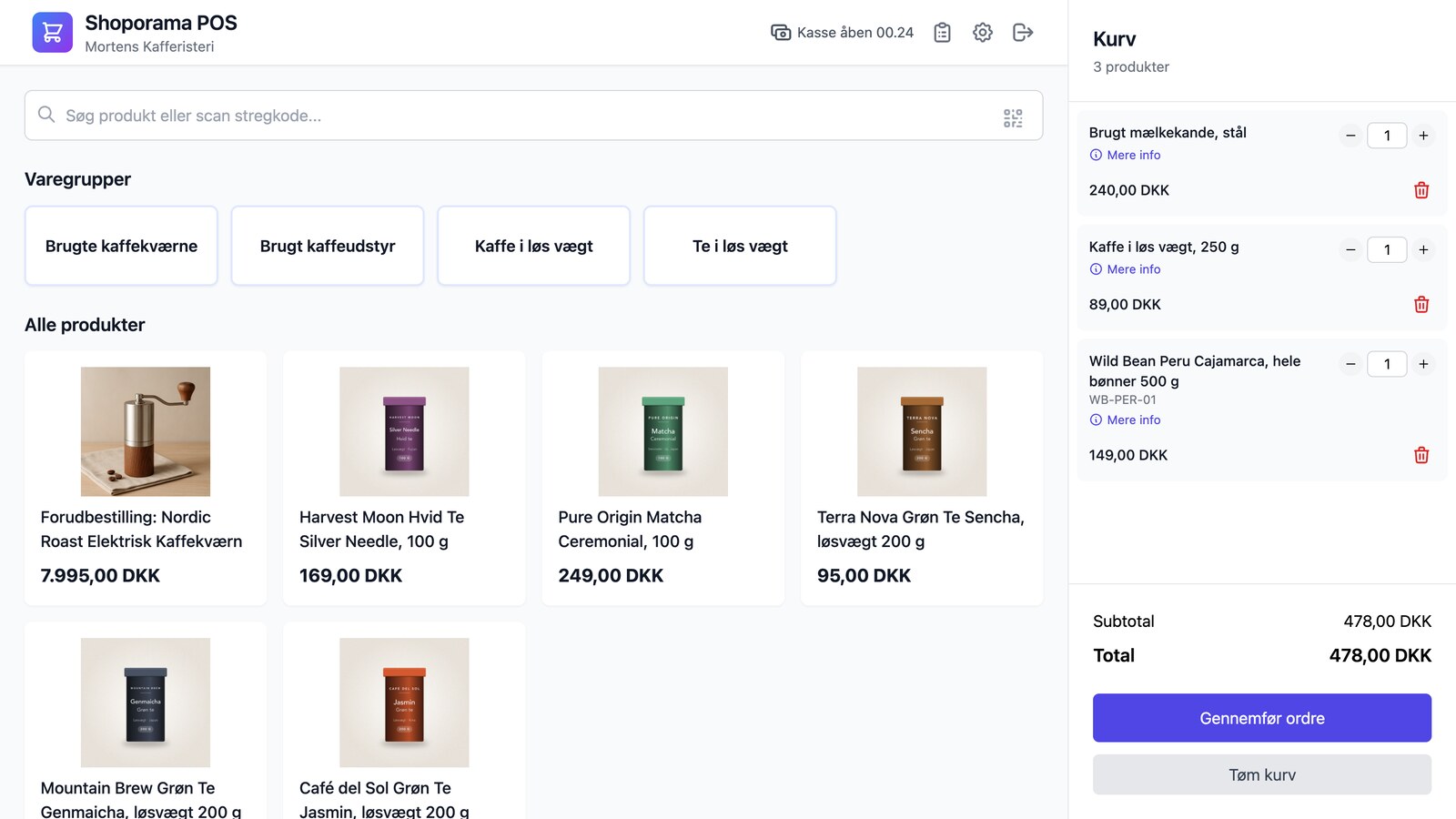
When you open the POS, your product groups appear at the top of the home screen under the heading “Product Groups,” with one button per product group sorted by name. Your other products are listed below.
- Tap the button, for example, LP - Jazz. A dialog box opens with the product group’s name at the top
- Enter the price in the “Price (incl. tax)” field. The field is ready as soon as the dialog box opens
- Adjust the “Quantity” if the customer is buying multiple items at the same price. The price is per item.
- Edit the Text on the receipt if necessary. It is pre-filled with the product group’s name, and you can make it more specific, for example, “LP – Jazz: Miles Davis.”
- Click “Add to Cart” or press Enter. “Cancel” closes the dialog box without adding anything to the cart
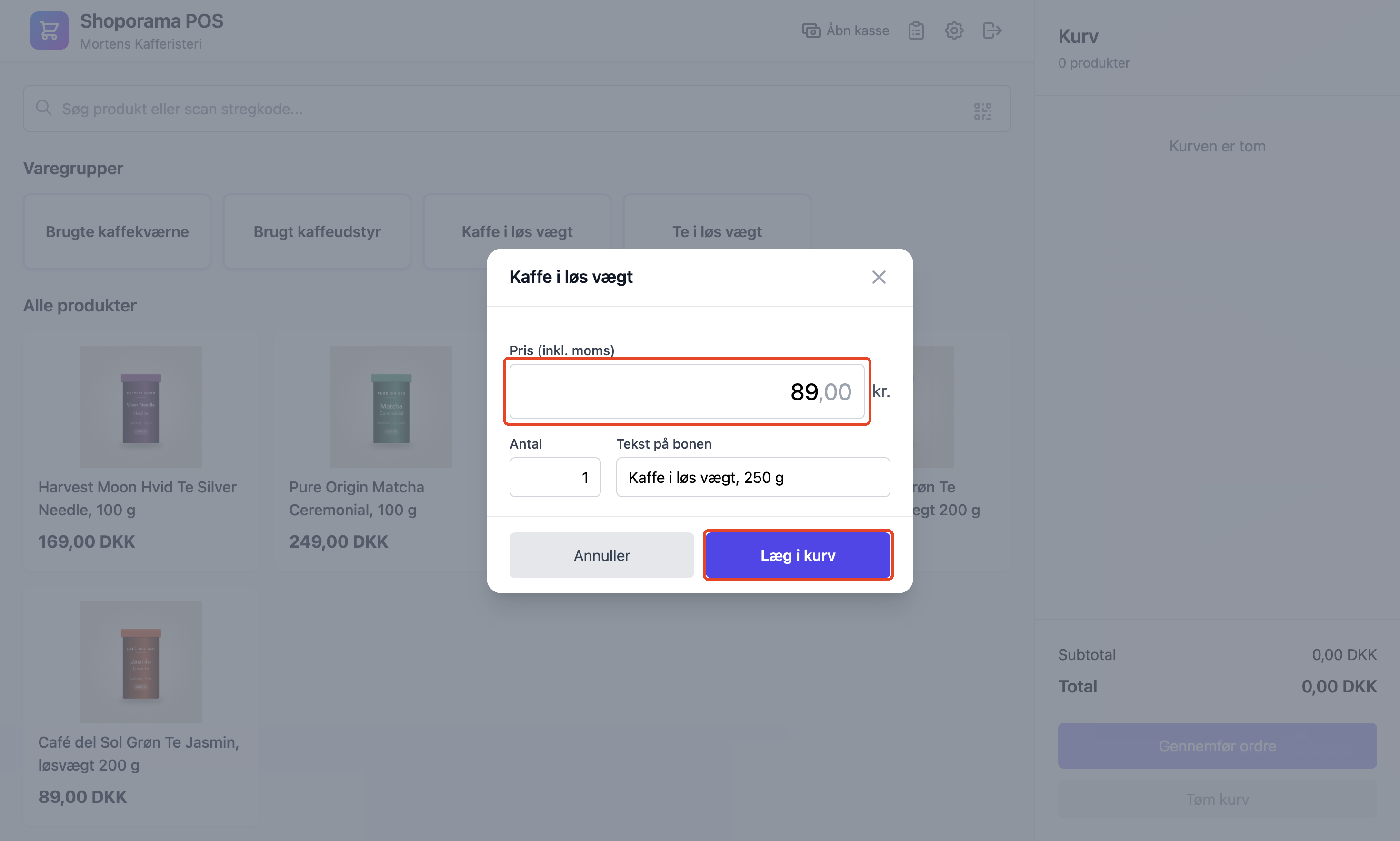
The price field is designed for quick entry:
- Enter whole kroner. If you type 300, ",00" appears in gray behind it, and the price is 300.00 kr.
- If you want to include øre, type a comma: 49.5 becomes 49.50 kr.
- A period can be used as a thousands separator: 1,250 is 1,250 kr.
Each time you tap a product category, it creates its own line in the cart. If you sell two jazz albums for 80 and 120 kr., they appear as two separate lines, each with its own price and description. The rest of the sale proceeds as usual.
The Text on the Receipt
Whatever is entered in “Text on the receipt” becomes the line name on the order, on the receipt, and on any credit memo. This way, both you and the customer can later see exactly what was sold.
Product Groups in the Cash Register Report
When you open and close the register in the POS, the report shows sales under “Product Groups”: each product group separately with quantity and amount, and the rest of the sales grouped together as “Other Items.” The product group name is listed here, so all sales from “LP - Jazz” are combined, regardless of what you wrote on the receipt. Under “VAT,” you’ll see sales broken down by VAT type, for example, 25% and “Used Goods VAT” listed separately. Read more about the cash register and the report in “Cash Register Report in POS.”
Product Groups and the Web Store
A product group is never displayed in the online store, and it cannot be purchased online. Nor can it be added to the cart in a self-service POS (POS → Self-Service POS), where the customer shops on their own phone. Product groups are sold only at the register, where a cashier enters the price.
Good to know
- It can take up to 10 minutes for a new product group to appear in a POS that’s already open. Log back into the POS if you want the button to appear immediately
- Product groups are not included in the “Best-Selling Products ”list on the home screen
- Shoporama does not calculate the used-item sales tax. Shoporama does not know your cost price, so you calculate the sales tax on the profit margin yourself, typically with the help of your accountant
- One receipt. If the customer purchases both used and new items, it’s one order and one receipt. If you set the order to “Shipped” or “Picked Up” in the admin panel, it will receive two invoice numbers, and the PDF invoice will include one invoice for the new items and one for the used items
- The receipt is printed via the browser. The POS is not connected to a receipt printer, a cash drawer, or a card terminal
If you’re new to the POS, start with the article about the POS, which covers logging in, payment, and setting up the register.
Frequently Asked Questions
Do I need to create a separate entry for each used item, or can I use just one button?
You can use just one button per type of item. For example, create the item group “Used Comics” and enter the price each time you sell a comic book. Items with a fixed price and barcode can still be created as regular items alongside this group.
I created a new product group, but the button isn’t showing up at the register. Why?
The checkout remembers the list of product groups for up to 10 minutes. Wait a moment, or log out and back into the POS, and the button will appear immediately.
I entered the wrong price. How do I correct it?
Remove the item from the cart using the trash can icon, then add the product group to the cart again with the correct price. If the order has already been completed, open the order in the admin panel and create a credit memo using the “Returns” button.
Can customers view or purchase the product group in the online store?
No. A product group is always offline and cannot be added to the cart in the online store, nor in Self-Service POS. It’s only available as a button at checkout.
What VAT rate applies to items I sell in a product group?
The VAT rate follows the product group’s VAT category, just like for other items. If you’re selling used items subject to used-item VAT, assign the product group the “Used-Item VAT” category. Read more in Used-Item VAT.
What does the credit memo say if I issue a credit for a product group line?
You create the credit memo on the order in the admin panel using the “Returned Items” button, and it will display the text from the receipt, e.g., “LP - Jazz: Miles Davis.” If you check the box in the “Create as New Item” column, the returned item will be treated as a regular item and won’t appear as a new button at checkout.
Can I see how much I’ve sold from each product group?
Yes. The cash register report shows sales by product group for each day, with the remainder grouped under “Other Items.” The report aggregates by product group name, not by the text on the receipt. Read more in “Cash Register Report” in POS.
Why is the inventory for my product groups in the negative?
Each sale is deducted from inventory, and a product category may go into the negative so that the register never rejects a transaction. The number has no significance for a product category, so you can ignore it.
Related articles
POS - Point of Sale
Learn how to use Shoporama's POS system to make sales in your brick-and-mortar store. Log in with your Shoporama account, scan barcodes, create...
Cash Register Report in POS: Open and Close the Register
Here's how to open the cash drawer in the POS system with change, record payments, and close the cash drawer with the counted amount. Under POS →...
Secondhand Goods VAT: Sell Used Goods Under the Profit Margin Scheme
Sell used items without VAT on the invoice using the "Used Goods VAT" VAT category. See what the customer sees, how to find the sale in the sales...
Related features
POS - Point of sale system for physical stores
Use Shoporama POS as a checkout system in your physical store. Barcode scanner, inventory synchronization, customer club and discount - runs in the...
New in the POS: product categories, cash register reports, and sales from multiple stores
Shoporama's point-of-sale system now includes product categories with prices entered at the time of sale, cash register reports, multiple stores...