New in the POS: product categories, cash register reports, and sales from multiple stores
Sell used items and bulk goods without having to enter each item individually; close the register with a report showing whether the cash drawer balance is correct; and use the POS system across multiple stores, each with its own inventory. The used goods tax is also included on the receipt and invoice.
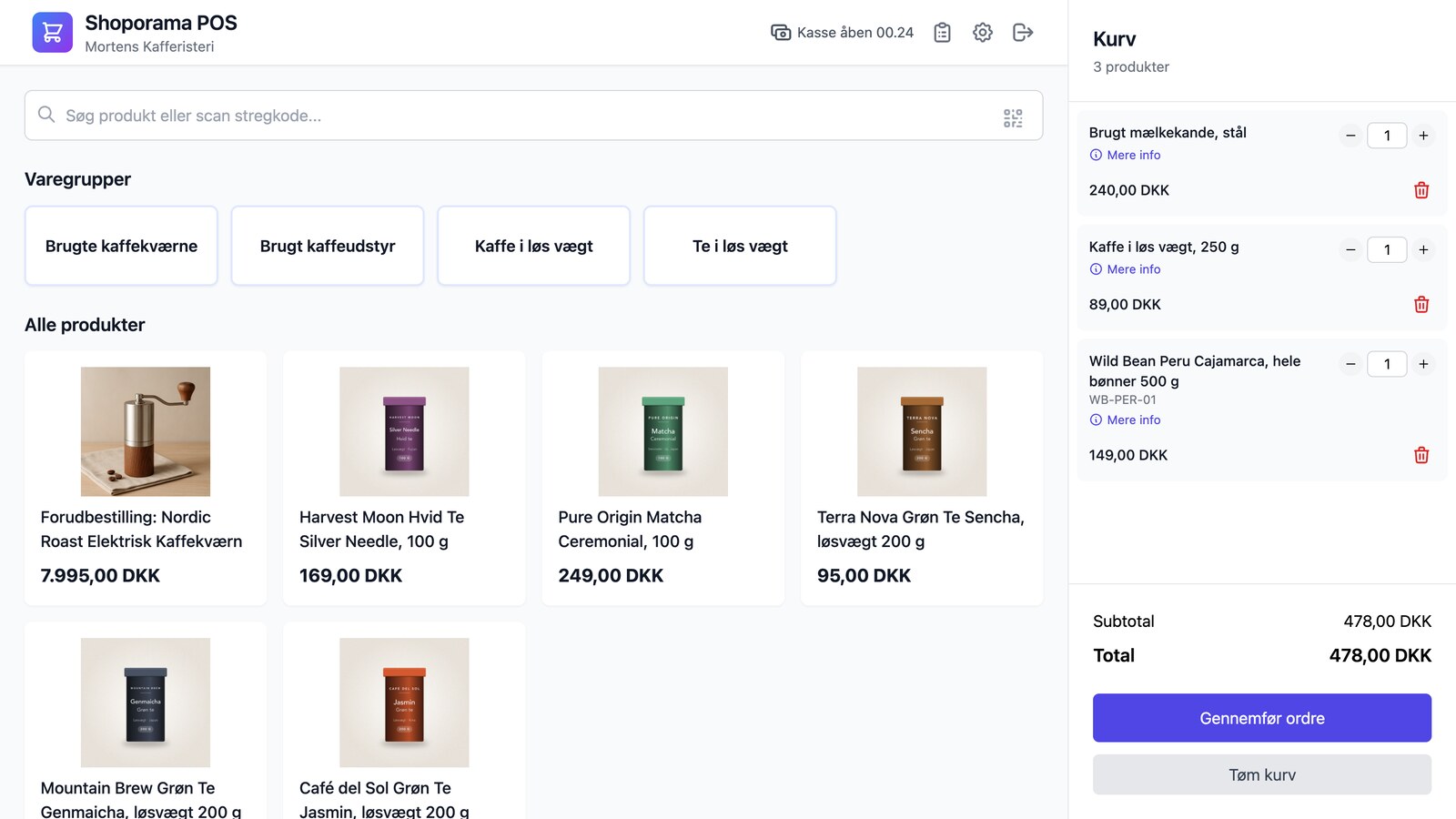
If you sell used records, loose coffee, or flea market finds in your store, it doesn’t make sense to enter every single item. Now, you just select a product category in the POS system, enter the price, and accept the payment. When the store closes, you count the cash drawer, and the register shows whether the money adds up.
The POS is Shoporama’s point-of-sale system for your brick-and-mortar store, with shared inventory and orders linked to the online store. Here’s a summary of the new features.
Product groups: the price is entered at the time of sale
A product group is a product that appears as a button in the POS, such as “Used Coffee Equipment” or “Bulk Coffee.” You create it by enabling “POS product group (price entered at time of sale) ” on the product’s General tab. The buttons are located at the top of the POS home screen under the heading “Product Groups.”
When you tap a button, enter the price including tax and, if applicable, a note for the receipt, such as “Loose coffee, 250 g.” Each sale becomes its own line item in the cart, even if you sell two items from the same product group at different prices. The sales tax follows the item’s tax category, and the text appears on the order and the receipt.
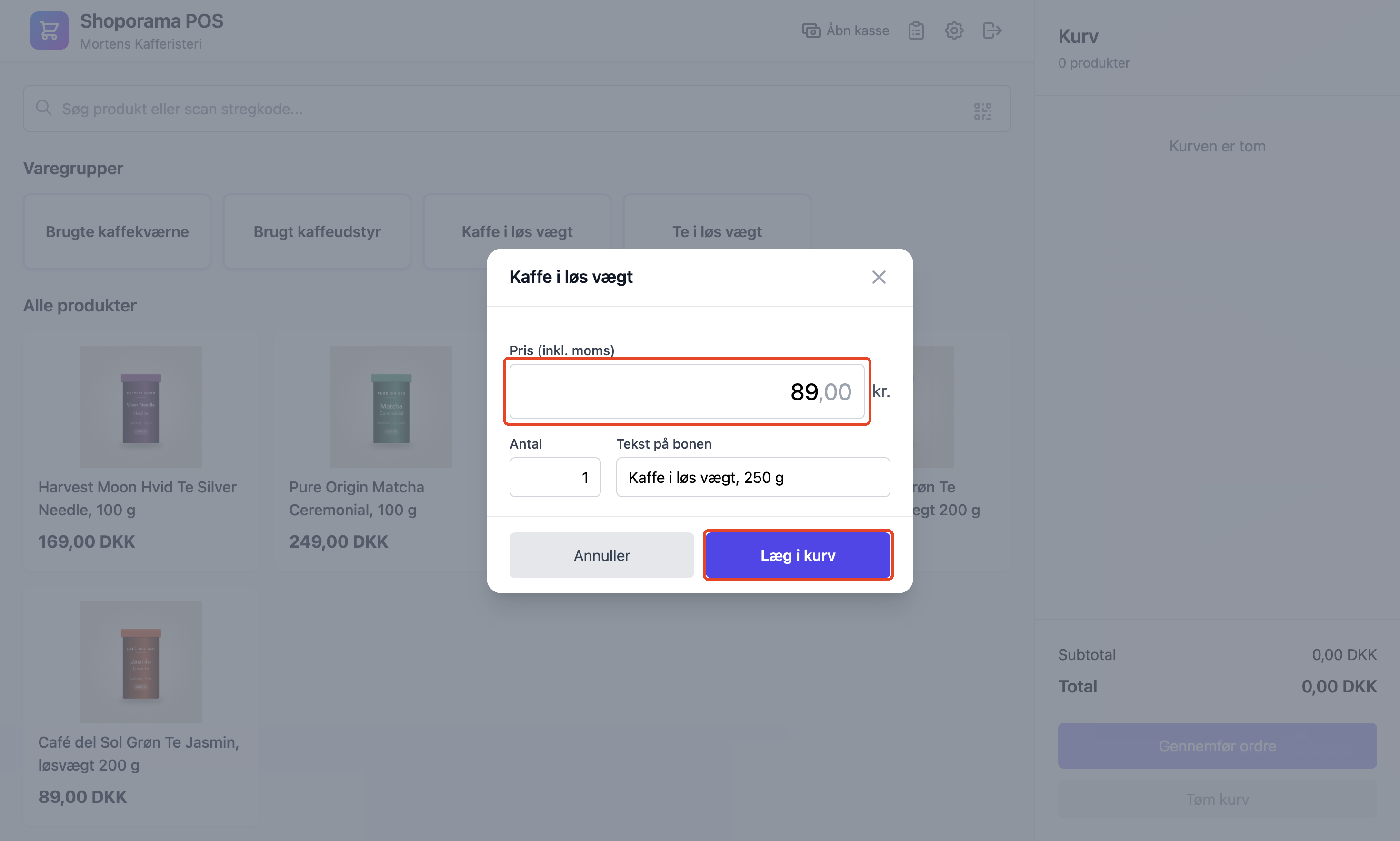
Product groups are never displayed in the online store. Online sales are disabled, and inventory can go into the negative, so you don’t have to keep track of a separate inventory count for “used items.” You’ll find all product groups under POS → Product Groups in the admin panel. Learn more about product groups.
Cash Register Settlement: Change, Payouts, and Counting
At the top of the POS, you’ll see the Open Cash Register button, and when the cash register is open, it will say, for example, “Cash Register Open 09:02.” In the morning, open the cash register with the change in the drawer. Remember: Sales made while the cash register is closed will not be included in any report. If you withdraw money during the day—for example, for postage or to buy used items from a customer—record it as a disbursement, noting the amount and what the money was used for.
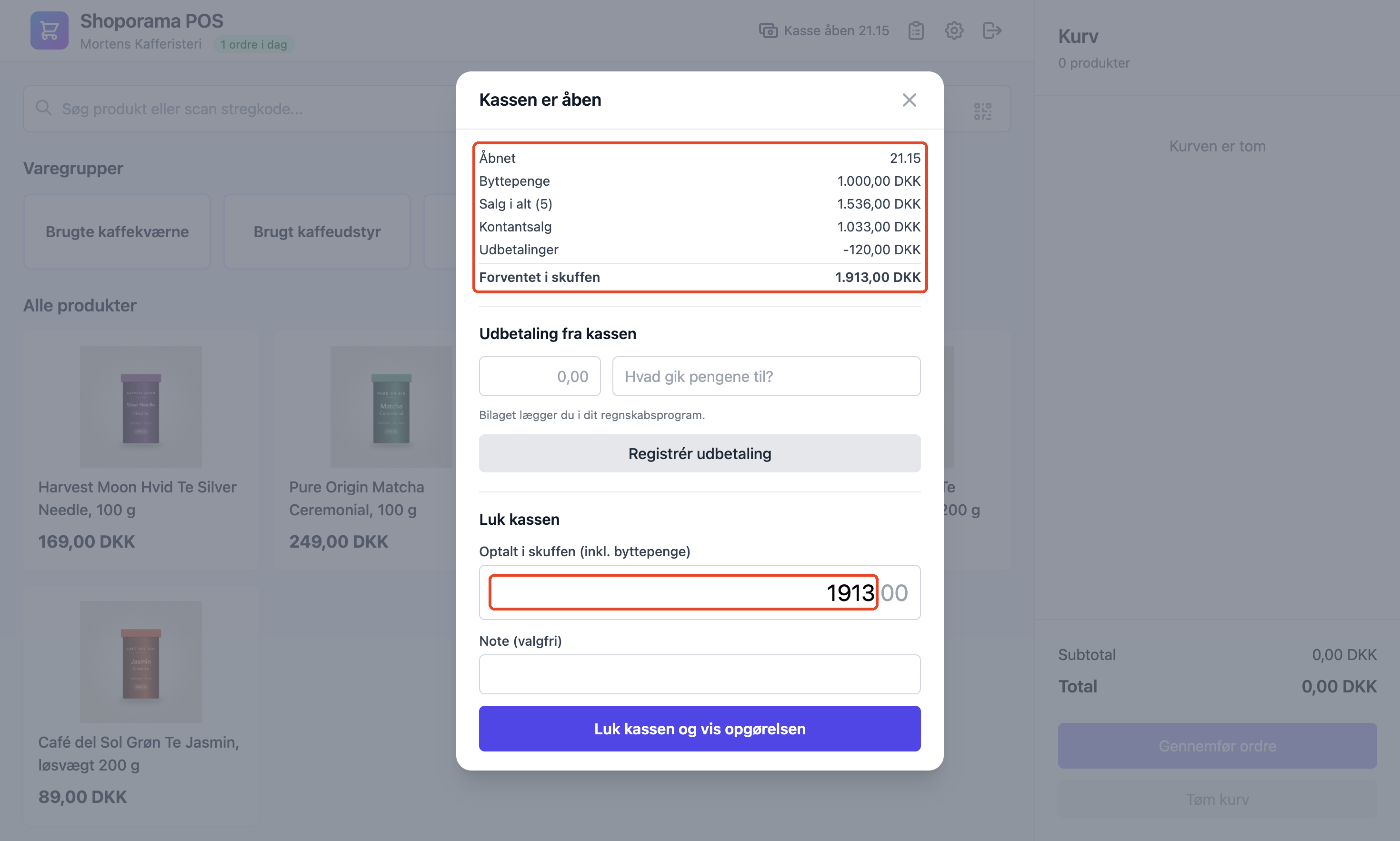
When you close up, enter the total amount. The register then displays the report showing sales by payment method, by product group, and by VAT type, as well as cash details: change, cash sales, disbursements, the expected amount, the counted amount, and the difference. The report can be printed on a single page.
If you have multiple payment methods available in the store—for example, Cash and Card at the terminal—the register will ask “How did the customer pay?” when you tap “Mark as Paid” in the “Order Created!” window. This way, the register knows what should be in the cash drawer. If you have multiple iPads in the same store, they share one register and one report.
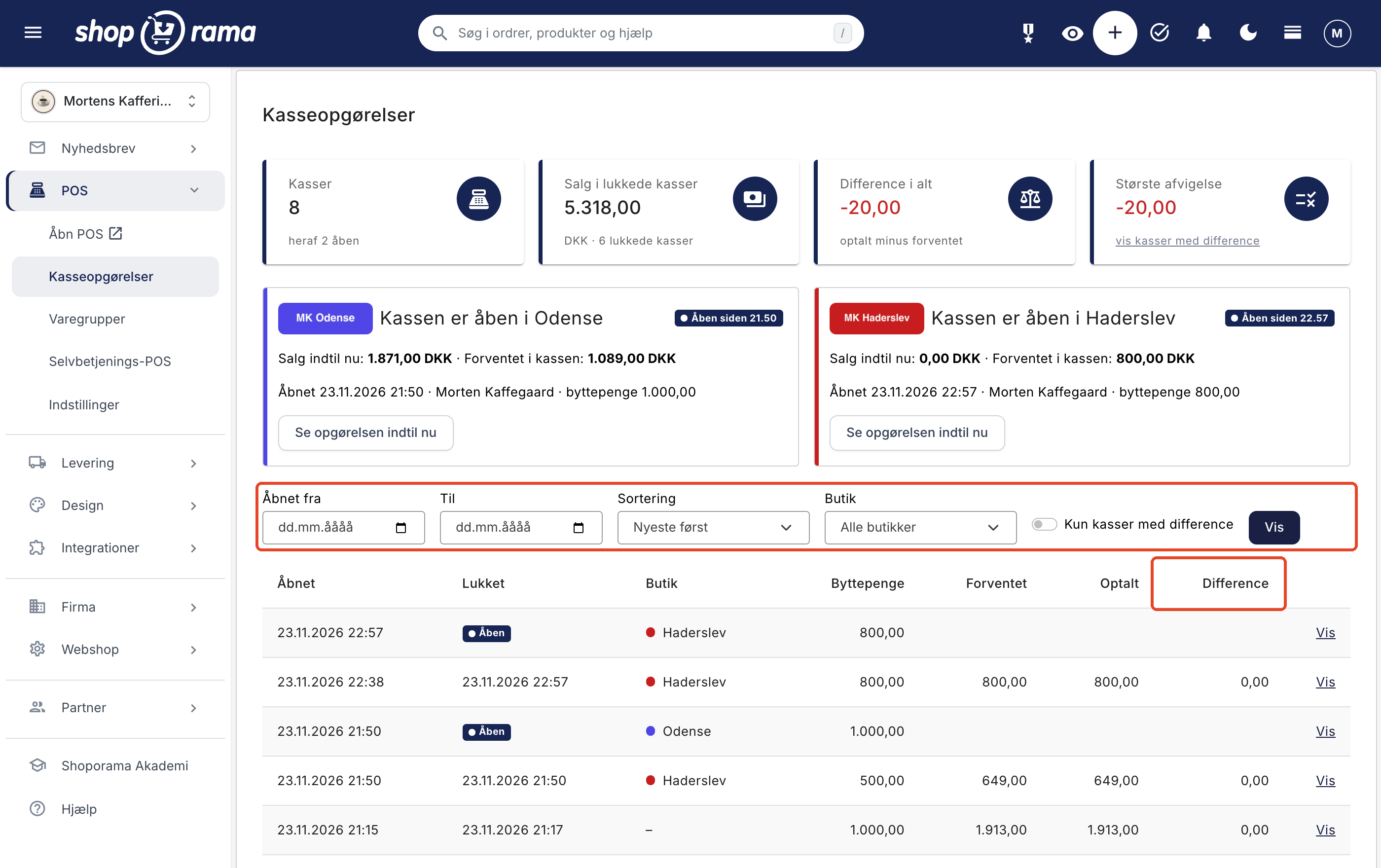
In the admin panel, all daily reports are listed under POS → Cash Register Reports. You can filter by date range and view only those registers where the count did not balance. An open register appears at the top with sales to date.
Learn more about the register and the register report.
POS across multiple stores, each with its own inventory
If you have more than one store, the POS can now keep them separate. You create one inventory location per store and check the boxes for the stores under POS → Settings. When a register logs in, it selects which store it is in.
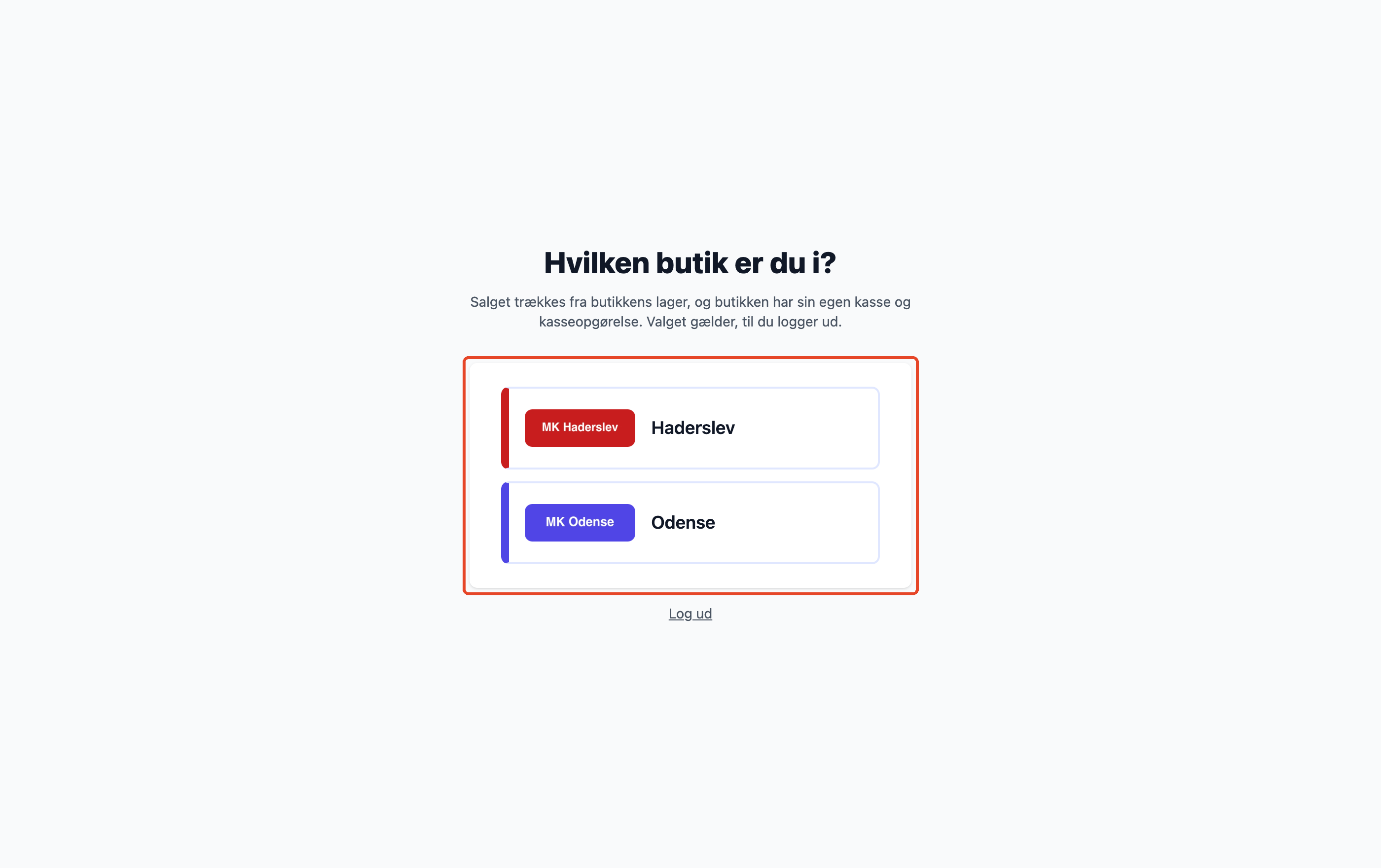
Sales are deducted from the store’s own inventory, and the register displays only items that are in stock at that store. Each store has its own register and sales report, and can have its own text on the receipt as well as a color and logo at the top of the register screen, so staff can always see where the register is located. If your inventory is stored in a shared warehouse, the items must be moved to the stores’ inventory locations; otherwise, they will not appear at the store’s register. If you have selected only one store, it will be used by default, and if you do not use stores, the POS will function as before. Learn more about POS in multiple stores.
Second-hand VAT on the receipt and invoice
If you sell used items subject to used-goods VAT (the profit margin scheme), you can now select the “Used-Goods VAT” VAT category for the item—including for an entire product group. The items will be marked with an asterisk, and the receipt and invoice will include a note regarding the profit margin scheme. If the order consists only of used items, no VAT amount will be shown.
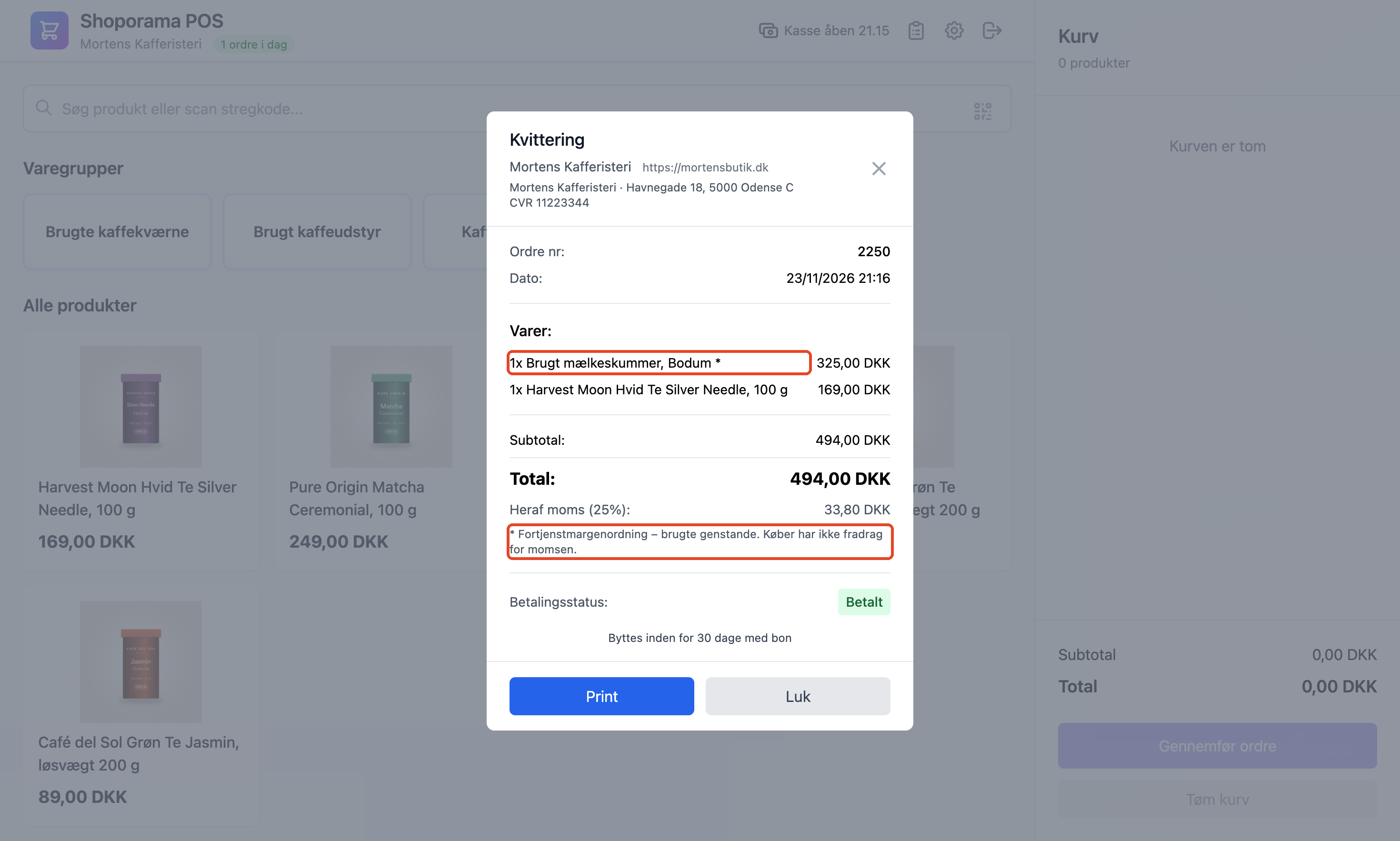
This applies to the receipt in the POS, the PDF invoice, and the order emails in Shoporama’s built-in themes. If you use your own theme, the notation must be added there. Under Webshop → VAT Categories, you’ll find a monthly sales report. Shoporama does not know your cost price, so you or your accountant must calculate the VAT on the profit margin based on the report. If you use Dinero, sales of used goods can be posted to a separate account, and with Billy or e-conomic, they are posted as sales without VAT. Read more about VAT on used goods.
POS Settings and a Consolidated POS Menu
POS now has its own group in the left-hand menu, and Self-Service POS has been moved here from the Webshop menu. Under POS → Settings, you can choose which payment methods count as cash in the report, the starting balance for a new register, and the text on the receipt—such as address, business registration number, and return period.
And a few minor details
- The receipt shows the VAT per rate, so a receipt with both 25% and used VAT is correct.
- The “More info ” section for an item in the cart now includes two small icons: “View item in the webshop” (when it’s online) and “Edit in admin.” Both open in a new tab, so the checkout window remains open.
- The “Order Created!” window has been made more compact so it fits on a laptop screen, including the QR code for Vipps MobilePay. On smaller screens, the window can be scrolled.
- Rental items and tickets are no longer displayed in the POS because they require a time period or a date.
What You’ll Need
The POS runs in a browser, such as on an iPad or a laptop, and the receipt and sales report are printed from the browser. The POS does not control a cash drawer or a card terminal, so you process the card payment on the terminal and then mark the order as paid in the POS.
Get started
The lesson “Sell in Your Physical Store with POS” in Shoporama Academy shows the entire process from login to closing the register, including a video of a sale. If you’d like an overview of the POS, read “POS: Point of Sale” or explore all the features of the point-of-sale system. If you have any questions, feel free to email support@shoporama.dk.
Related articles
POS - Point of Sale
Learn how to use Shoporama's POS system to make sales in your brick-and-mortar store. Log in with your Shoporama account, scan barcodes, create...
Product Categories in POS: Sell items by entering the price at the register
Here's how to create product groups that appear as buttons in the POS system, where you enter the price for each sale. For used items, flea market...
Cash Register Report in POS: Open and Close the Register
Here's how to open the cash drawer in the POS system with change, record payments, and close the cash drawer with the counted amount. Under POS →...
Multi-store POS: separate inventory and checkout for each store
Use the POS system in multiple physical stores. Each cashier selects their store after logging in; sales are deducted from the store’s own...
Secondhand Goods VAT: Sell Used Goods Under the Profit Margin Scheme
Sell used items without VAT on the invoice using the "Used Goods VAT" VAT category. See what the customer sees, how to find the sale in the sales...
More from the blog
Online Store → General is organized so that the settings are located where you use them
The Webshop → General page had grown to about 140 fields across 17 tabs. Now, feeds, emails and text messages, orders and invoices, and search and...
22. november 2026
Vipps MobilePay is now built directly into Shoporama
Vipps MobilePay is now built directly into Shoporama, with no payment gateway in between. Customers can make purchases directly from their...
21. november 2026
Rent out equipment through your own online store with daily rates and a calendar
Now you can rent out tents, draft beer systems, trailers, and other equipment online through your own web store, adding them to the same shopping...
15. november 2026