MobilePay Express and Buy Now: Shop without going through checkout
With Vipps MobilePay Express, customers can check out directly from their shopping cart or the product page and select their address and delivery options in the app. Fewer steps to complete a purchase on their mobile device.
30 days free with no credit card required.
- Danish e-commerce platform since 2013
- Danish support
- No binding

Page Content
With Express and "Buy Now," your customers can pay with Vipps MobilePay directly from the shopping cart or product page. Name, address, and delivery options are selected in the app, so the customer doesn't have to fill out the checkout form, and the order is sent to Shoporama as soon as the payment is approved.
Fewer steps from product to order
On a mobile device, the checkout is often where the purchase stalls. The address, email, phone number, and shipping options must be entered on a small screen, and every additional form is an opportunity for the customer to put their phone down. With Express and “Buy Now,” the customer skips all of that. The customer taps the button, selects their name, address, and delivery option in the Vipps MobilePay app—which already has this information on file—and authorizes the payment.
- No address form. The customer doesn’t have to fill out the checkout page because the information comes from the app.
- Built for mobile. The app opens directly on the phone, and the customer authorizes the payment just as they’re used to.
- Your own shipping rates. The customer chooses from your shipping methods at the same price as shown at checkout, and in Denmark, they can select a package pickup location.
- A completely standard order. The order is created in Shoporama with name, email, phone number, and address, so it can be packed and shipped just like any other order.
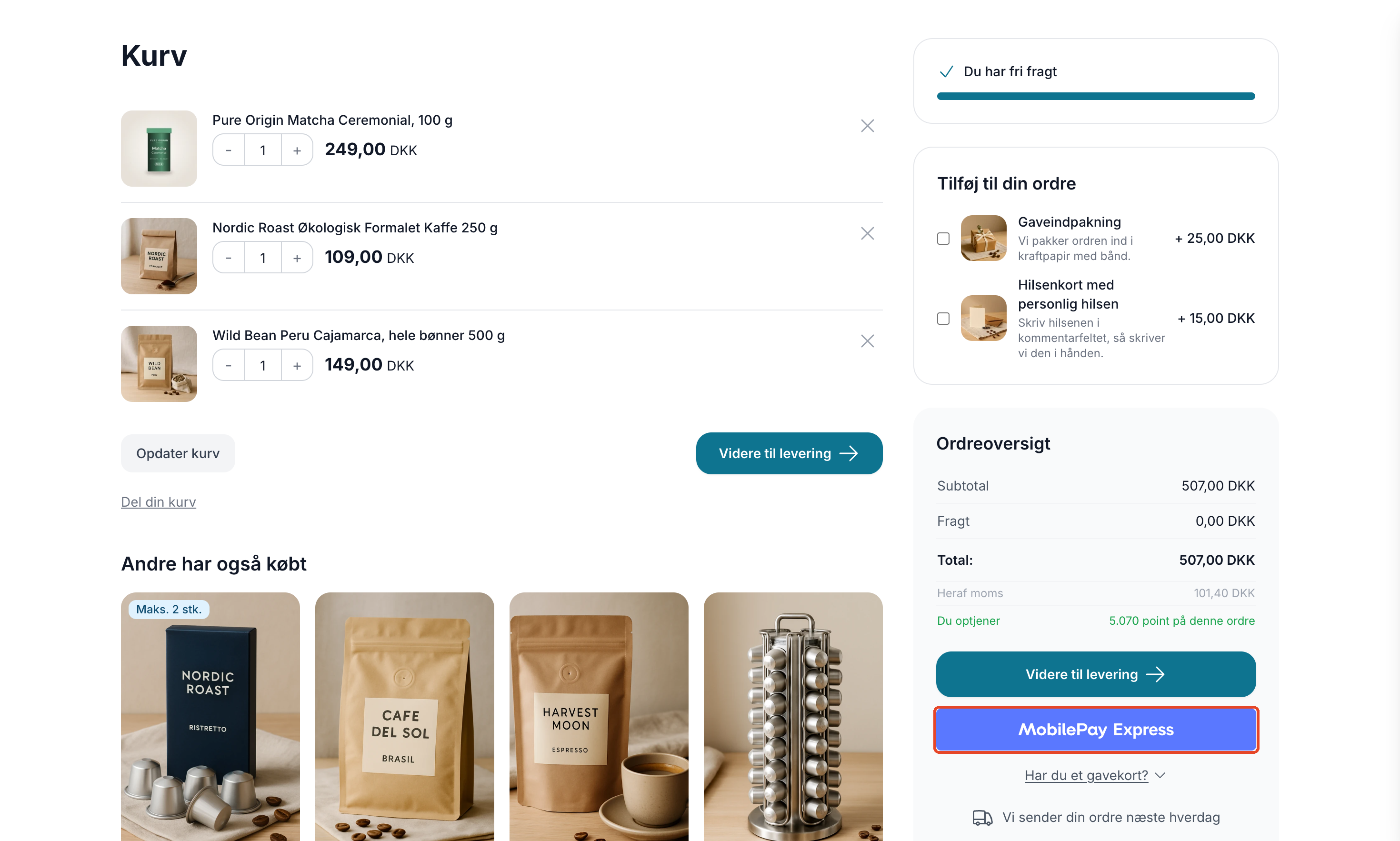
Express in the Cart
The Express button is in the cart. The customer purchases the entire cart at once and goes directly from the cart to the app. This is the quick route for customers who have found what they need and just want it shipped.
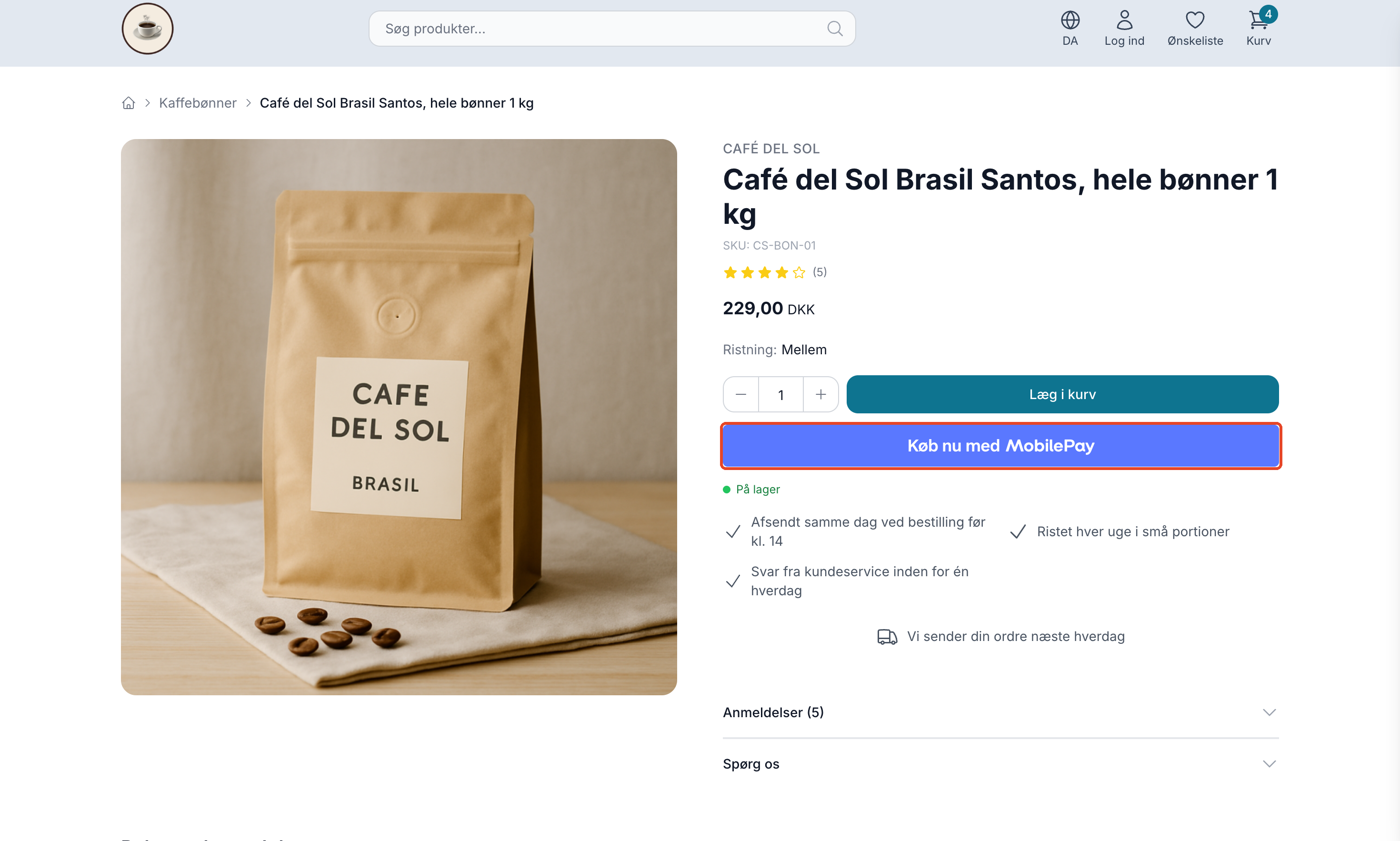
"Buy Now" on the product page
"Buy Now" appears next to the "Add to Cart" button on the product page. The customer purchases only the item shown on the page, with the selected variant and quantity. Items already in the cart remain there. This works well for impulse purchases, promotions, and customers who land on a product page from social media or an ad and want to make a purchase right away.
Try it out on your own online store
30 days free. No credit card required, and no commitment.
Shipping and Delivery in the App
Once the customer has selected an address in the app, they’ll see your shipping methods and prices for that address—at the same rates as shown at checkout. In Denmark, the customer can also choose a package pickup location, such as PostNord, GLS, DAO, and DHL. Express delivers to all the countries you already ship to. Outside of Denmark, only shipping methods without a package pickup option are displayed, and Burd cannot be selected in the app.
If you have shipping methods that your theme only displays in certain situations—such as free shipping for subscribers or free shipping on additional orders—they will also appear in the app because the app isn’t aware of your theme’s settings. Check the “Do not display in Express checkout” box for that method. That way, it cannot be selected in the app but will still appear at checkout. See how to do this in MobilePay on your online store.
The same rules as at checkout
Express and “Buy Now” are not shortcuts that bypass your settings. The rules you’ve set up in Shoporama also apply here:
- Age restriction. If a product requires age verification—such as alcohol—the age restriction is included, and the app will reject customers who are too young.
- Blacklist and minimum order value. Customers on your blacklist cannot make purchases, and your store’s minimum order value applies.
- Withdrawal. The amount is reserved at the time of payment and can be automatically withdrawn when you mark the order as shipped or picked up. With Vipps MobilePay, the amount must be withdrawn within 14 days.
- Refunds. You can refund all or part of the order amount in the admin panel, just as with other payments.
Enable it with two checkmarks
Express and “Buy Now” are part of Vipps MobilePay directly in Shoporama. Once the payment method is set up, check the boxes for “Show Express button in the cart, ” “Show ‘Buy Now’ button on the product page, ” or both, and save. There’s nothing to install.
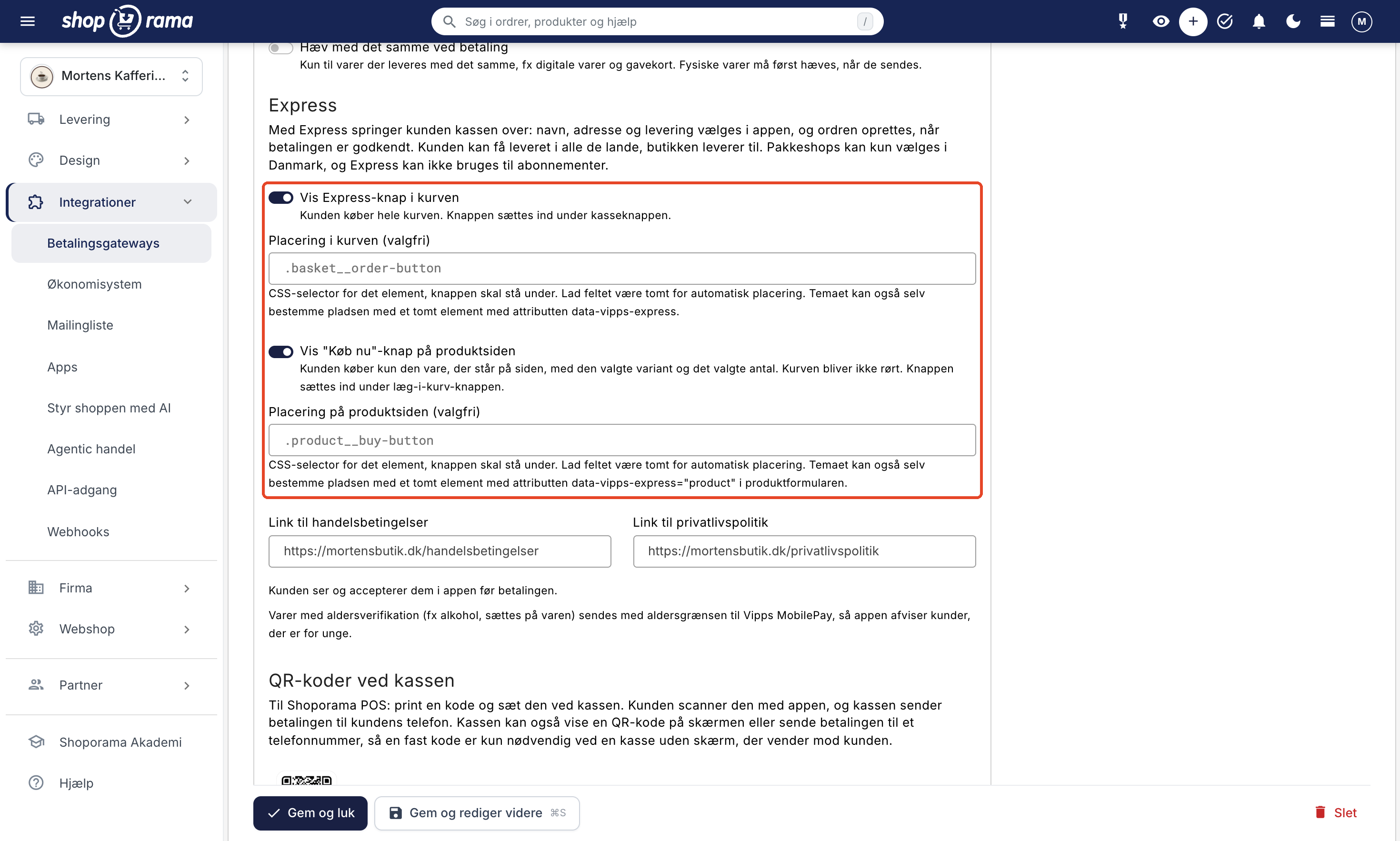
In Shoporama’s built-in themes—Montana, MontanaB2B, Delaware, DelawareDK, Alaska2, California, and Washington—the buttons have fixed positions. In other themes, the button is initially placed below the checkout button and the “Add to Cart” button, and you can move it yourself by specifying which element it should appear below. The button is Vipps MobilePay’s own, so customers will recognize it immediately.
Good to Know
- Express and “Buy Now” cannot be used for subscription products.
- The customer must select a variant and fill out any required fields before “Buy Now” works.
- "Buy Now" does not work for rental items and tickets because the period or date is selected on the product page. These must be added to the cart first.
- Items with a field where the customer uploads a file must be added to the cart first.
- The buttons are only displayed in countries with the same currency as your Vipps MobilePay agreement, e.g., DKK in Denmark.
- The customer must have the Vipps MobilePay app. Be sure to enable other payment methods at checkout as well.
Get Started
You set up the payment method under Integrations → Payment Gateways in the Shoporama admin panel and sign up for Vipps MobilePay using your CVR number via the “Sign Up via Shoporama” button. The registration form is pre-filled, so you simply sign with MitID within 14 days, and once Vipps MobilePay has approved it, Shoporama will handle the rest. The fee is 0.99% + 1.00 DKK per payment, and Shoporama does not add any additional charges. The complete guide, from registration to placing the buttons, can be found under “MobilePay” on your online store. If you’d like to learn more about MobilePay in general, see “Webshop with MobilePay.”
Starting January 12, 2027, Vipps MobilePay will be called “Vipps” in Denmark. The name and logo on the buttons will change automatically, so you don’t need to do anything. If you have any questions, feel free to email us at support@shoporama.dk.
- Express in the cart: the customer purchases the entire cart from the app
- "Buy Now" on the product page: only the item on the page is purchased; the shopping cart remains unchanged
- Name, address, and delivery are selected in the app
- Your own shipping methods and rates, with package pickup locations in Denmark
- Age restrictions, blacklists, and minimum order values also apply here
- Automatic charges and refunds from the admin panel
- Dedicated space in Shoporama’s built-in themes
Frequently Asked Questions
Do Express and "Buy Now" cost extra?
No. The buttons are part of Vipps MobilePay directly within Shoporama, and a payment made with Express costs the same as a regular Vipps MobilePay payment at checkout.
What happens to the cart when the customer uses “Buy Now”?
Nothing. “Buy Now” only purchases the item on the product page, and whatever the customer has already added to the cart remains there. Express in the cart, on the other hand, purchases the entire cart.
Can I use Express for subscriptions, rentals, and tickets?
No, not for subscriptions—neither in the cart nor with “Buy Now.” Rental items and tickets cannot be purchased with “Buy Now” because a period or date must be selected first. The customer adds these to the cart and pays through checkout as usual.
When is the payment processed?
The amount is reserved when the customer approves the purchase in the app. You can have the funds debited automatically when the order is marked as shipped or picked up, and this must happen within 14 days. If you sell only digital items or gift cards, you can instead choose to debit the funds immediately at the time of payment.
Do the buttons work in my own theme?
In Shoporama’s built-in themes, the buttons have a fixed position. In other themes, they are typically placed below the checkout button and the “Add to Cart” button. If they’re positioned incorrectly, you can specify which element they should appear below, or ask your theme developer to assign them a fixed position.
Support articles
MobilePay on Your Online Store: Setup, Express, and Buy Now Here's how to accept MobilePay directly on your Shoporama online store using Vipps MobilePay: registration with your CVR number, pricing,... Age verification on products Here's how to set an age restriction of 15, 16, or 18 for products in Shoporama so that the customer's age is verified when paying with... Collect payments on orders (capture) Guide to capture payments on orders in Shoporama. Understand the difference between authorization and capture and learn how to capture... Credit notes and refunds Complete guide to credit notes and refunds in Shoporama, including partial refunds, full credit notes and transfer to accounting systems.You'll get that with Shoporama, too
Fixed Price on Pro
No transaction fees, no app subscriptions, and no setup fee.
12 payment solutions
For example, Quickpay, OnPay, Stripe, and Flatpay—ready to take action.
Shipping and Accounting
PostNord, GLS, DAO, e-conomic, and Dinero are integrated.
Feeds for Google and Meta
Product feeds for advertising and Google Shopping are included.
Danish support
Responses from people familiar with Danish e-commerce.
No binding
30-day free trial and full data export at any time.