Image Archive: Upload, Organize, and Reuse Your Images
Collect, organize, and reuse your images all in one place with the Image Archive, and insert them directly into your texts.
Billedarkivet er ét fælles sted, hvor du samler alle dine billeder, så du kan genbruge dem på tværs af hele din webshop. I stedet for at uploade det samme billede igen og igen, uploader du det én gang og henter det frem, hvor du har brug for det. Det er især nyttigt ved sæsonskift: når forsiden skal skiftes fra sommer til vinter, finder du bare sidste års billeder frem i stedet for at lave det hele forfra.
Samtidig kan du nu sætte billeder direkte ind i dine tekster. En "indsæt billede"-knap i teksteditoren lader dig placere et billede midt i en produktbeskrivelse, en side, et blogindlæg eller en kampagnetekst, helt som du kender det fra et tekstprogram.
Sådan finder du Billedarkivet
Du finder Billedarkivet i administrationen under Design → Billedarkiv. Her ser du alle de billeder, du har lagt i arkivet, samlet i et overskueligt galleri med mapperne i menuen til venstre.
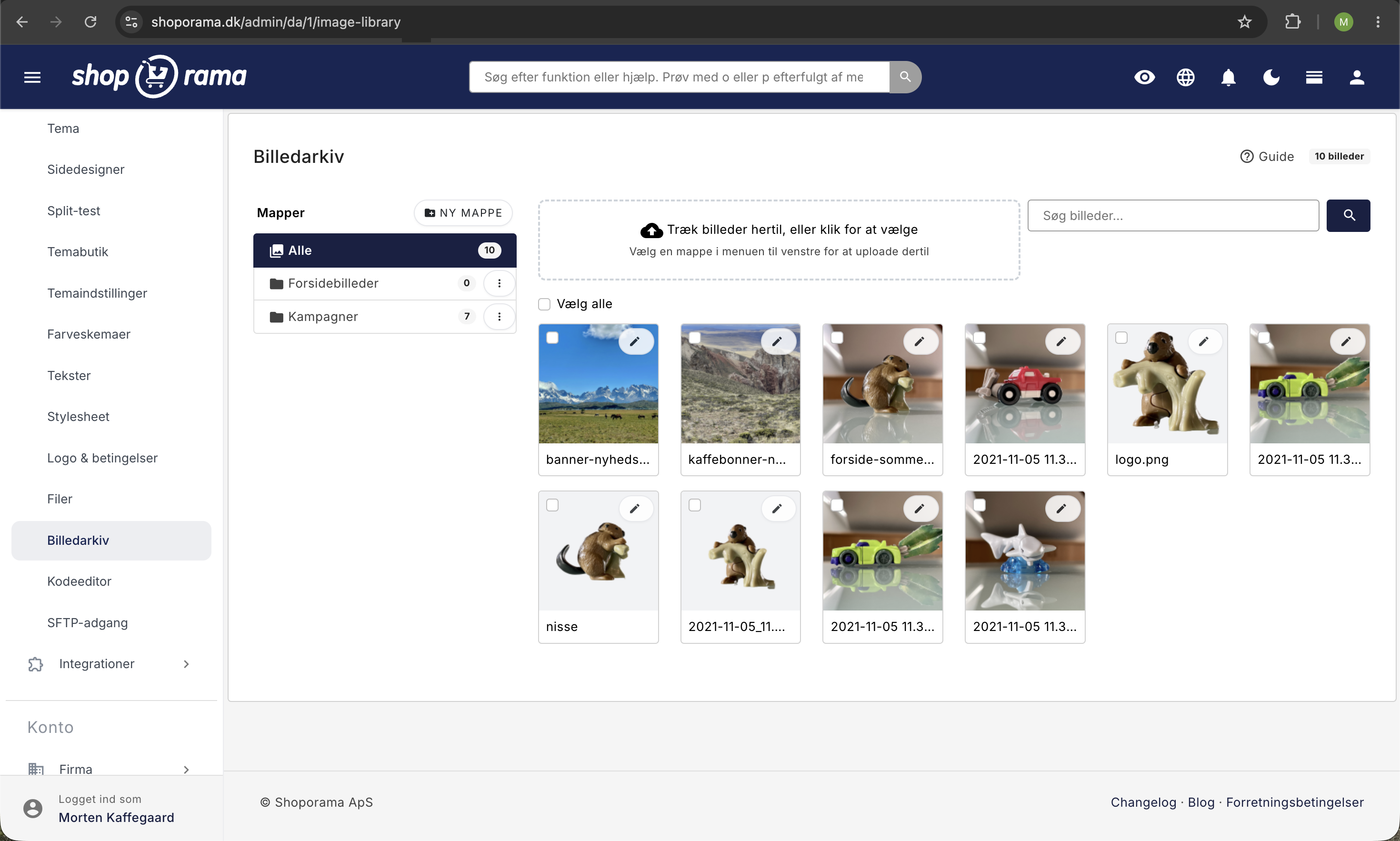
Upload dine billeder
Du uploader billeder på to måder:
- Træk og slip. Træk en eller flere billedfiler fra din computer ind i upload-feltet.
- Klik og vælg. Klik på upload-feltet og vælg billederne i filvælgeren. Du kan markere flere på én gang.
Vil du lægge billederne direkte i en bestemt mappe, så vælg mappen i menuen til venstre, før du uploader. Upload-feltet viser hvilken mappe billederne lægges i.
Filtyper og størrelse: Du kan uploade JPG, PNG, GIF, og WebP, op til 10 MB pr. fil. Store billeder skaleres automatisk ned til maks. 2000 pixels, så de fylder fornuftigt uden at du skal tænke over det.
Organisér i mapper
Mapper hjælper dig med at holde styr på billederne, fx efter sæson eller kampagne. I menuen til venstre kan du:
- Oprette en mappe med knappen "Ny mappe". Mappen bliver liggende, også selvom den er tom, så du kan oprette den først og uploade til den bagefter.
- Omdøbe eller slette en mappe via de tre prikker ud for mappen.
- Se antal billeder i hver mappe direkte i menuen.
- Søge efter et billede på navn eller beskrivelse.
Når du sletter en mappe, bliver billederne ikke slettet. De flyttes bare ud af mappen og ligger fortsat i arkivet under "Alle".
Rediger, flyt og ryd op
Klik på blyant-ikonet på et billede for at redigere det. Her kan du give billedet en alt-tekst (en beskrivelse af, hvad billedet viser), flytte det til en mappe, eller slette det. Du kan også kopiere billedets adresse, hvis du har brug for at bruge den et andet sted. Klikker du i stedet på selve billedet, bliver det markeret (se afsnittet om at håndtere flere billeder nedenfor).
Skal du håndtere mange billeder på én gang, så markér dem (klik på billederne, eller brug "Vælg alle") og brug handlingsbaren i bunden til at flytte til en mappe eller slette dem samlet.
Vær opmærksom: Hvis du sletter et billede fra arkivet, og det er indsat i en tekst et sted, forsvinder det også der. At flytte og omdøbe mapper er derimod helt sikkert, da billederne ikke slettes.
Indsæt et billede i en tekst
Når du redigerer en produktbeskrivelse, en side, et blogindlæg, en kategori-, kampagne-, eller landingssidetekst, finder du en billed-knap i teksteditorens værktøjslinje. Sådan gør du:
- Sæt markøren der, hvor billedet skal stå, og klik på billed-knappen.
- Billedarkivet åbner. Vælg et billede, eller upload et nyt direkte i vinduet.
- Vælg en størrelse (lille, medium, stor, eller meget stor) og klik "Indsæt billede".
- Vil du have billedet centreret eller placeret til venstre eller højre, så markér det i teksten og brug justerings-knapperne i værktøjslinjen.
Billedet bliver indsat som en henvisning til arkivet, så du behøver ikke uploade det igen. Det samme billede kan bruges lige så mange steder, du vil.
Billederne optimeres automatisk
Du behøver ikke bekymre dig om filstørrelser. Shoporama optimerer billederne for dig:
- Når du indsætter et billede, vælger du en størrelse (fx medium på 800px), og billedet leveres i netop den størrelse, ikke i originalens fulde opløsning.
- Billederne leveres i moderne WebP-format, der giver mindre filer.
- De skalerede billeder gemmes (caches), så de indlæses hurtigt ved efterfølgende besøg.
Det betyder, at selv et stort originalbillede ikke gør din produktbeskrivelse tung, fordi det kun er den valgte størrelse, der hentes. Vil du læse mere om, hvordan Shoporama håndterer kvalitet og format, så se billedkvalitet og billedformat og optimering af billeder til mobil.
Til udviklere: billedjustering i custom temaer
Dette afsnit er kun relevant, hvis du bygger eller tilpasser dit eget tema.
Når et billede justeres i editoren, sættes en CSS-klasse på billedet: aligncenter, alignleft, eller alignright. Shoporamas indbyggede temaer styler disse klasser, så justeringen virker ud af boksen. Bygger du dit eget tema, der renser HTML for inline styles, skal du selv tilføje CSS for klasserne, fx:
.aligncenter { display: block; margin-left: auto; margin-right: auto; }
.alignleft { float: left; margin: 0 1rem 0.5rem 0; }
.alignright { float: right; margin: 0 0 0.5rem 1rem; }
Til udviklere: styr arkivet via REST og AI (MCP)
Arkivets funktioner kan også styres programmatisk:
- REST API. Du kan liste billeder, uploade (fra en offentlig URL eller base64), give et billede en mappe eller en beskrivelse, og oprette, omdøbe, eller slette mapper. Billeder ligger under /library-image og mapper under /library-folder. Store billeder skaleres automatisk til maks. 2000px og serveres som WebP, præcis som i admin.
- AI (MCP). De samme funktioner findes som AI-værktøjer (fx library_image_create og library_folder_create), så en AI-assistent kan håndtere billeder for dig. Værktøjerne kan slås til og fra under Integrationer → Styr shoppen med AI (knappen "Tilpas værktøjer") i domænet "Billedarkiv".
Bemærk: kun arkivets egne funktioner er tilgængelige via API. Selve det at indsætte et billede i en tekst sker i teksteditoren.
Ofte stillede spørgsmål
Skal jeg uploade det samme billede igen, hver gang jeg vil bruge det?
Nej. Du uploader billedet én gang til arkivet og henter det frem, hvor du har brug for det. Det er hele pointen med arkivet. Du kan fx genbruge sidste års forårsbilleder uden at uploade dem forfra.
Skal jeg lave mappen først, eller kan jeg flytte billeder undervejs?
Begge dele virker. Du kan oprette en mappe med "Ny mappe" og uploade til den, eller du kan markere billeder bagefter og flytte dem til en mappe via handlingsbaren. Det samme felt findes også, når du redigerer et enkelt billede.
Kan jeg vælge flere billeder på én gang?
Ja. Klik på de billeder, du vil have fat i, eller brug "Vælg alle". Så dukker en handlingsbar op i bunden, hvor du kan flytte eller slette dem samlet.
Hvordan får jeg et indsat billede centreret eller mindre?
Når du indsætter billedet, vælger du en størrelse (lille, medium, stor, eller meget stor). Vil du centrere det eller placere det til siden, så markér billedet i teksten og brug justerings-knapperne i editorens værktøjslinje.
Får billederne automatisk en alt-tekst, og betyder det noget for SEO?
Du skriver selv alt-teksten på det enkelte billede, og den bruges, når billedet vises. En god alt-tekst hjælper både skærmlæsere og Googles billedsøgning, så det er værd at udfylde.
Gør store billeder min side langsom?
Nej. Du vælger billedets størrelse, når du indsætter det, og det leveres som en komprimeret WebP-fil i netop den størrelse. Vælger du "lille", henter siden kun en lille fil, så hastigheden holder, også på mobil.
Er arkivet delt mellem mine shops?
Nej. Hver webshop har sit eget private billedarkiv. Har du flere shops, ser de ikke hinandens billeder eller mapper.
Hvad sker der, hvis jeg sletter et billede fra arkivet?
Billedet fjernes. Hvis det var indsat i en tekst et sted, forsvinder det også der, så slet kun billeder, du er sikker på ikke er i brug. At flytte eller omdøbe mapper er til gengæld helt sikkert, da billederne aldrig slettes ved den slags.
Virker billedjusteringen i mit eget custom tema?
I Shoporamas indbyggede temaer virker justeringen ud af boksen. Bygger du dit eget tema, kan du skulle tilføje CSS for de tre justerings-klasser (se afsnittet "Til udviklere" ovenfor).
Har du spørgsmål til Billedarkivet, er du velkommen til at skrive til support@shoporama.dk.