Secondhand Goods VAT: Sell Used Goods Under the Profit Margin Scheme
Sell used items without VAT on the invoice using the "Used Goods VAT" VAT category. See what the customer sees, how to find the sale in the sales report, and how it is recorded in the books.
If you sell used items—such as books, records, clothing, or furniture—you can use the “used goods” VAT category. This means no VAT will appear on the customer’s invoice, and you’ll only pay VAT on your profit. In Shoporama, select the “Secondhand VAT” VAT category for the item, and Shoporama will add the notation to the invoice and compile the sales into a report.
In short: Select “Secondhand VAT” in the “VAT Category” field on the “Law, VAT, Customs, and Environment” tab for the item. You’ll find the sales under “Webshop” → “VAT Categories” → “Sales Report,” and you’ll calculate the VAT on the profit yourself with your accountant.
What is the profit margin VAT scheme?
In a standard sale, VAT is charged on the entire sales price. With used goods VAT—also known as the profit margin scheme—VAT is charged only on the profit margin: the price you sell the item for, minus what you paid for it. If you bought a used jacket for 200 kr. and sell it for 500 kr., VAT is charged on the 300 kr. and not on the 500 kr. The VAT is 20% of 300 kr., or 60 kr., compared to 100 kr. for a regular sale.
The customer must not see a VAT amount listed for used items, and a customer purchasing as a business cannot deduct the VAT. Instead, the invoice must include a note stating that the item was sold under this scheme.
Consult your accountant before proceeding
There are rules regarding who is eligible to use the secondhand VAT scheme and which items the scheme applies to. Shoporama does not provide advice on these rules, so ask your accountant or the Danish Tax Agency whether you and your items qualify for the scheme. As a store owner, you are responsible for the VAT you collect and remit.
Apply the second-hand VAT to your items
- Open the product and expand the “Legal, VAT, Customs, and Environment ” tab.
- Select “Secondhand VAT” in the “VAT Category” field. Below the field, it says “No VAT on the invoice (profit margin scheme).”
- Save the item.

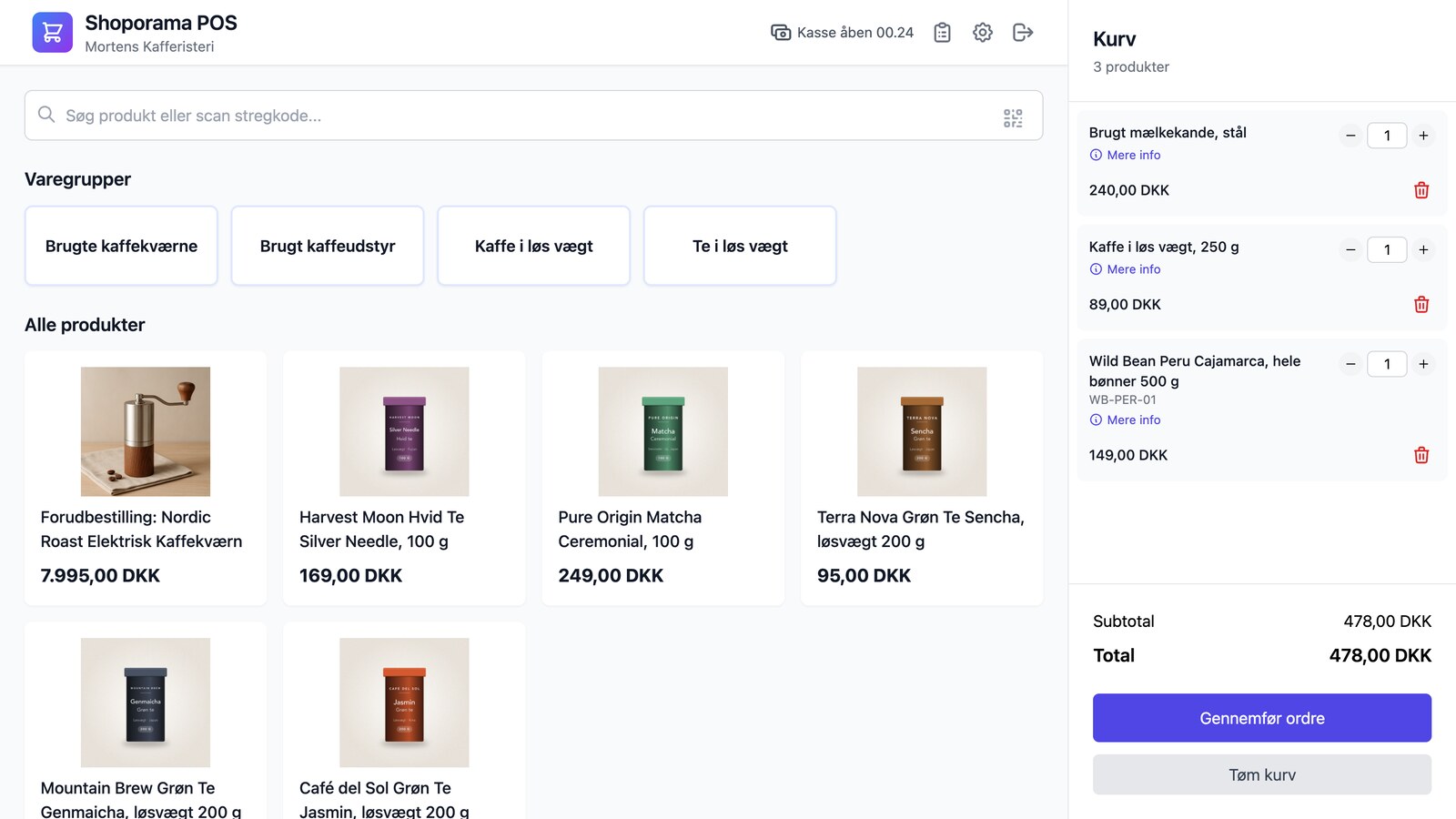
"Used VAT" applies to both regular items in the online store and to POS product groups where the price is entered at checkout for each sale, such as a product group called "Used Comics." Read more in "Product Groups in POS."
You can apply "Used VAT" to multiple items at once in Table Editor or during import by entering "Used VAT" in the "VAT Category" column. If you previously entered 0% directly for your used items, you can move them using “Move Items,” but this will move all items with the same percentage. If you sell almost exclusively used items, you can select “Used VAT” as the default category for the store. Then, all items without their own VAT category or VAT rate will be assigned “Used Goods VAT,” including any new items you create. Gift cards are not included. Therefore, assign items with standard VAT the “Standard” rate (the country’s normal VAT rate) in the “VAT Category” field. See “VAT Categories.”
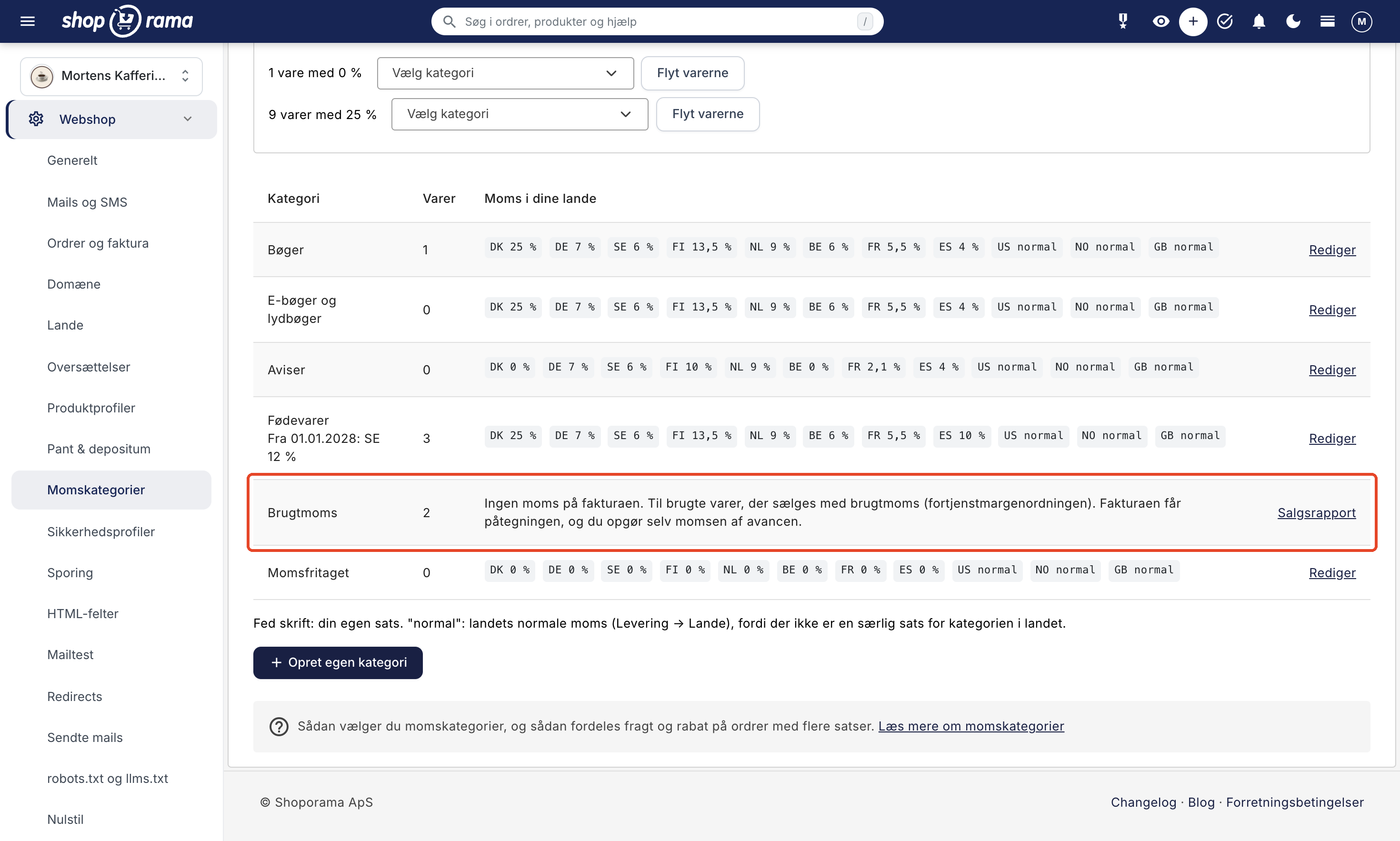
Under Webshop → VAT Categories, “Used Goods VAT” appears alongside the other categories. It has no rates to edit because it applies 0% in all countries, and you cannot create your own “Used Goods VAT” category.
What the customer sees
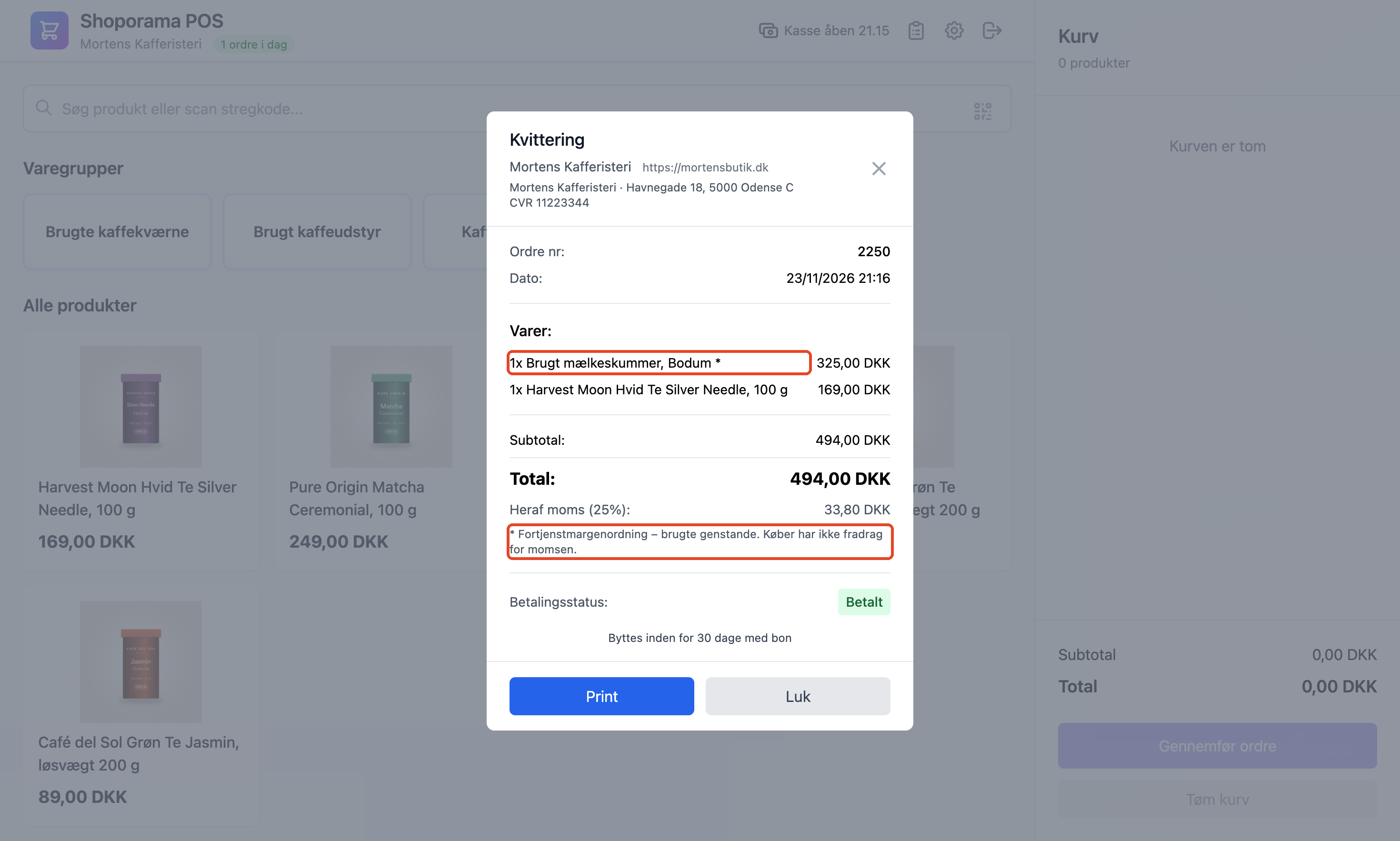
- Used goods are subject to 0% VAT in all countries, and the line items are marked with an asterisk (*).
- The invoice includes the note: “Profit margin scheme—used items. The buyer is not entitled to a VAT deduction.”
- If the order contains only used items, no VAT amount is shown, not even 0.00. Shipping is also VAT-exempt because it follows the VAT type of the items.
- If the order contains both used and new items, it will receive two invoices: one for the new items with VAT, and one for the used items without a VAT amount and with the note. See “Used and New Items in the Same Order ” below.
The asterisk and the note appear on the receipt in the POS and on the PDF invoice, regardless of the theme. The customer receives the PDF invoice if you have enabled it (see PDF Invoice). The PDF invoice lists the used items, as well as shipping and discounts excluding VAT, without the VAT amount, and the note appears below the table. In Shoporama’s built-in themes (Alaska2, California, Washington, Delaware, DelawareDK, Montana, and MontanaB2B), this information also appears in order emails (order confirmation, shipped, ready for pickup, picked up, and credit memo; in Washington, the “shipped” email does not show any prices), on the order page in Alaska2, Montana, and MontanaB2B, and on the packing slip you print using “Print Packing Slip.” Washington does not have a packing slip. On the customer’s order page, Alaska2, Delaware, DelawareDK, Montana, and MontanaB2B also display both invoice numbers when the order has two invoices. A theme created for your store must be customized before the customer sees the asterisk and the note in emails and on the packing slip, as well as both invoice numbers on the order page. Contact the person who created the theme, or email support@shoporama.dk.
Used and New Items in the Same Order
Used items that you sell with used-item VAT must be listed on their own invoice. If the customer purchases both used and new items, it is still a single order with a single payment and a single package, but the order will have two invoices, each with its own invoice number:
- One invoice for the new items, including VAT.
- One invoice for the used items without a VAT amount and with the note.
Shipping, discount codes, promotional discounts, and points are distributed across the two invoices based on the value of the items, and together they add up to the exact total of the order. This distribution happens automatically. The customer receives the two invoices as a single PDF containing both when the PDF invoice feature is enabled via “Automatically add invoices and credit memos as PDFs to emails” under Webshop → Orders and Invoices. The PDF is included in the same emails as before. Order emails in the theme still show the entire order as a single summary. On the order in the admin panel, both numbers appear under the title, e.g., “Invoice Numbers 1043 and 1044 (used items).”
Invoice numbers are assigned when the order is shipped or picked up. The two invoices receive consecutive numbers from the “Next Invoice Number” field under Webshop → Orders and Invoices. If you haven’t filled in the field, the order number becomes the invoice number. For the first order containing both used and new items, the invoice for the new items retains the order number, and the invoice for the used items receives the first number in the sequence of all your order and invoice numbers. At the same time, the online store will have a sequential invoice number series, and going forward, all orders will receive their invoice numbers from that series. The invoice number and order number will therefore no longer correspond. You’ll receive a notification about this next to the clock at the top of the admin panel.
If you issue credit memos for both used and new items, this will result in two credit memos, each referencing its own invoice. If you issue a credit memo only for the used item, there will be a single credit memo referencing the invoice for the used items.
Sales Report: The Numbers for Your VAT Return
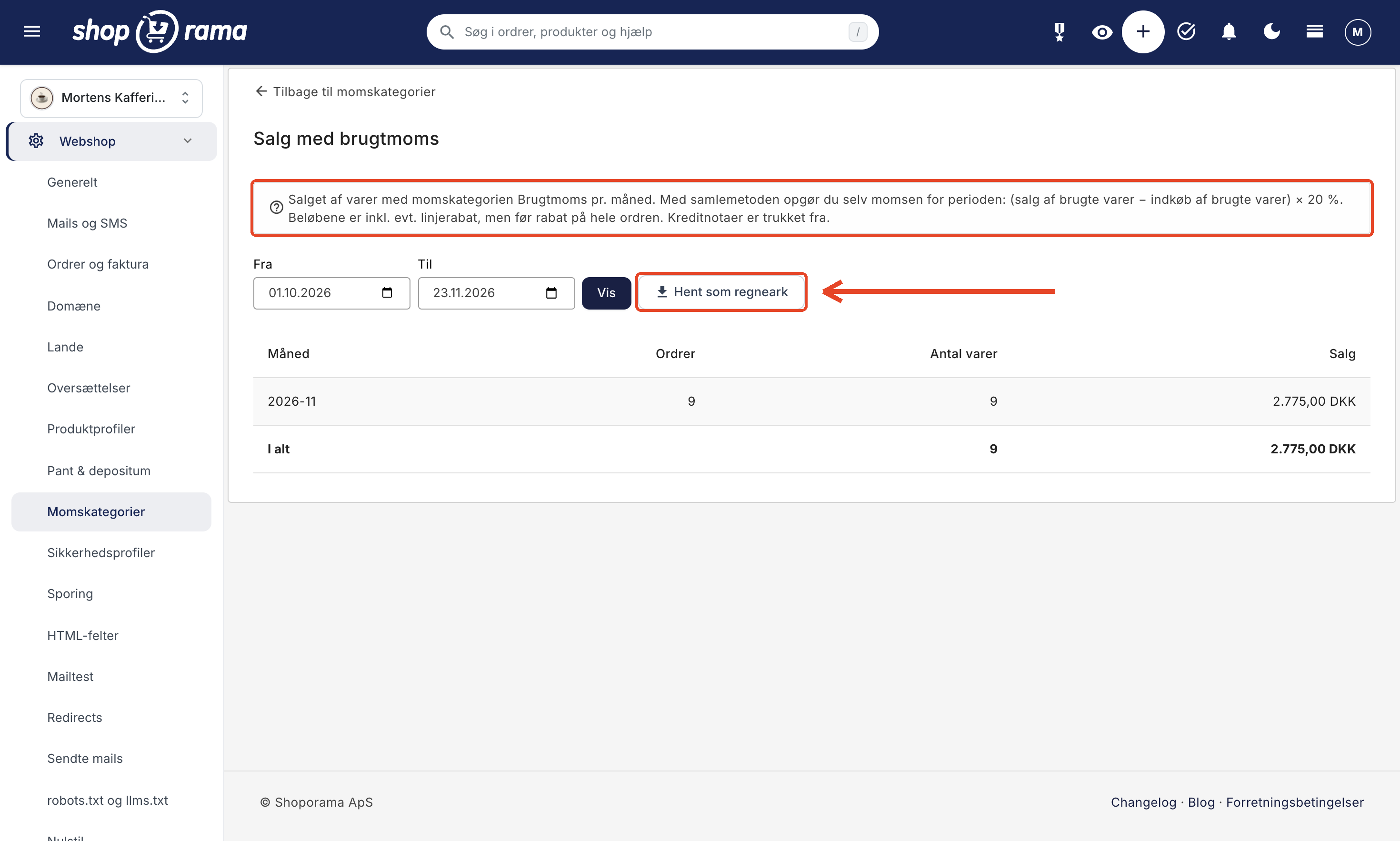
Go to Webshop → VAT Categories, and click Sales Report next to Used Goods VAT. The Sales with Used Goods VAT page shows sales by month in the columns Month, Orders, Number of Items, and Sales, with Total at the bottom.
- Paid orders from both the online store and the POS are included; canceled orders are not. Credit memos are deducted in the month the credit memo is created.
- The amounts are the prices of the items sold, including any line discounts, but before any discount applied to the entire order. Shipping is not included.
- An order is counted in the month it was placed, and the amounts are in the store’s currency.
Select the period in “From” and “To,” then click “Show.” If no selection is made, the report displays the current quarter. “Download as Spreadsheet ” provides the figures as a file you can open in Excel or send to your accountant.
How to Use the Numbers
The report is designed for the aggregate method, where you calculate the VAT for the entire period all at once. The formula is at the top of the page: (sales of used goods − purchases of used goods) × 20%. If you sold used goods for 40,000 DKK and purchased used goods for 25,000 DKK during the quarter, the VAT is (40,000 − 25,000) × 20% = 3,000 DKK. The 20% is the 25% VAT calculated on an amount that already includes VAT.
Shoporama does not know the purchase price of your used goods and therefore does not calculate the VAT. The report also does not use the cost price of the item. You calculate the VAT yourself together with your accountant.
The report requires the “Revenue and Statistics” add-on, and the spreadsheet also requires “Data Export.” See “Roles and Permissions.”
Posting Secondhand VAT
Dinero: Select an account in the “Sales of Used Goods (Used Goods VAT)” field in the Dinero app. Items with “Used Goods VAT” are then posted without VAT to that account, regardless of the country of delivery, whether the order is transferred as an invoice or as a financial document. Shipping and discounts excluding VAT are posted to the account in proportion to the used goods’ share of the total goods excluding VAT (the full amount if all goods are used). If the field is empty, the used goods are posted like your other goods, excluding VAT. If the app transfers the orders as invoices, an order containing both used and new items will result in two invoices in Dinero, and the invoice for the used items will include the note in the comment field. An order containing only used items will result in a single invoice in Dinero without the note. The note always appears on the online store’s own PDF invoice, to which the app can also attach a financial document. Read more in the guide to the Dinero app.
Billy, e-conomic, and other accounting apps do not have a separate account for used-goods VAT and record used goods like other goods without VAT (0%). An order containing both used and new items is transferred as a single invoice or a single document. Consult with your accountant on how to keep used-goods sales separate, for example, based on the sales report.
Second-hand VAT in the POS
The receipt in the POS system shows the VAT by rate, e.g., “Of which VAT (25%)”; used goods are marked with an asterisk (*), and the note appears on the receipt. If the receipt contains only used goods, there is no VAT line. When you close the register, secondhand VAT appears separately in the VAT section of the register report with the text “Calculated from the profit margin” instead of a VAT amount. Read more in Register Report in the POS.
If you purchase used items in cash at the counter, you can record the amount as a cash disbursement from the register so that the register balance is correct. The disbursement is not included in the sales report, so the purchase must still be included in your accounting records.
Second-hand VAT or VAT-Exempt?
Both result in 0% VAT on the invoice, but “VAT-Exempt” is for items that must have 0% VAT in all EU countries. The invoice may show a VAT amount of 0.00; there is no note, and the sale does not appear in the sales report. Therefore, do not use “VAT-Exempt” for used items that you sell with “Used Goods VAT.” Read more in VAT Categories.
Here’s what “Used Goods VAT” in Shoporama cannot do
- Calculate the VAT on the profit margin or record your purchases of used goods.
- Split the receipt in the POS. A receipt containing both used and new items is considered a single receipt.
- Transfer two invoices to accounting software other than the Dinero app.
- Apply a theme designed for your shop to emails and packing slips before the theme has been customized. The PDF invoice is formatted regardless of the theme.
Frequently Asked Questions
Does Shoporama calculate the sales tax on my profit margin?
No. Shoporama does not know your purchase price for used items and does not calculate the VAT. The sales report shows your monthly sales, and you calculate the VAT yourself, typically with the help of your accountant.
What does the invoice show when a customer buys both used and new items?
The PDF invoice contains two separate invoices: one for the new items, including VAT, and one for the used items, which does not include VAT but includes a note. The customer receives it once PDF invoicing is enabled. It’s still a single order and a single payment, and shipping and discounts are allocated based on the value of the items.
Why has my online store suddenly been assigned a new invoice number series?
Because you’ve shipped or had the first order picked up that included both used and new items, and it requires two invoice numbers. Going forward, all orders will receive their invoice number from the sequence when they’re shipped or picked up. You can see the next number under Web Store → Orders and Invoices.
A customer asks why there’s no sales tax listed on the receipt. What should I say?
That the item was sold under the used goods VAT scheme, where VAT is paid on the store’s profit margin and does not appear on the receipt. This is also stated in the note: Profit Margin Scheme – Used Items. The buyer is not entitled to a VAT deduction.
I’ve issued a credit memo for a used item. When will it be deducted from the sales report?
In the month you issue the credit memo, not in the month the item was sold. If you sell an item in March and issue a credit memo for it in April, the sale will be recorded in March and the deduction in April. Keep this in mind when the credit memo falls in a new quarter.
How is the sale recorded in Dinero and other accounting programs?
The Dinero app has a field labeled “Sales of Used Items (Used VAT),” where you select an account without VAT. If the field is left blank, the used items are recorded like your other items—without VAT. If the app transfers the transaction as an invoice, an order containing both used and new goods will be split into two invoices in Dinero. Billy, e-conomic, and other accounting apps record them as other goods without VAT and transfer the order as a single invoice.
Can I get the sales figures as a spreadsheet for my accountant?
Yes. Tap “Download as Spreadsheet” in the sales report. This requires that your user has access to data export.
Do I need to enter the cost price for my used items?
Not for the purpose of used-goods VAT. The sales report does not use the cost price, and Shoporama does not calculate VAT based on the profit margin. Your purchases of used goods must be included in your accounting so you can calculate the VAT. You can still enter the cost price if you want to view profit and inventory value in Shoporama.
Does the stamp also work in my own theme?
The note and the star are included in Shoporama’s built-in themes, and the PDF invoice includes them regardless of the theme. If you have a custom theme, it must display them in emails and on the packing slip; please contact the person who created your theme.
Related articles
VAT Categories: The Correct VAT Rates for Books, Food, and Other Goods
Here's how to apply the correct VAT rate to books, newspapers, food, and other items in each country using VAT categories, and how to allocate...
Product Categories in POS: Sell items by entering the price at the register
Here's how to create product groups that appear as buttons in the POS system, where you enter the price for each sale. For used items, flea market...
Set up Dinero integration
Here's how to install and connect the free Dinero app, select accounts, VAT, and payment accounts, and have your online store's orders imported as...