General Online Store Settings
A complete overview of the "General" page under "Webshop": VAT and currency, order numbers, invoices, SMS, feeds, automated emails, SMTP, search, returns center, and the three "Save" buttons.
Siden Generelt er den mest brugte indstillingsside i Shoporama. Her bestemmer du, hvad din butik hedder, hvilken valuta og moms den regner i, hvilke mails der sendes automatisk, hvilke produktfeeds der er åbne udadtil, og hvordan søgningen opfører sig. Mange af de andre sider i admin bygger videre på de valg, du træffer her.
Siden er lang, så denne guide går den igennem afsnit for afsnit i samme rækkefølge som i admin. Brug den som opslagsværk.
Indhold
- Sådan finder du siden
- Generelt: navn, sprog, moms, og B2B
- Til brug i dit tema
- Ordrer
- Faktura
- SMS-indstillinger
- Feeds
- Mails
- Egen SMTP og Heysender
- Økonomi- og lagersystem
- Returcenter
- ChatGPT og Morningscore SEO
- Søgning
- Relaterede produkter og dashboard
- Hvad skal du sætte først?
- Til dig der er teknisk
- Ofte stillede spørgsmål
Sådan finder du siden
Menuen: Webshop → Generelt. Siden består af 16 kort, og i højre side ligger en menu kaldet Overblik, der følger med, når du ruller. Klik på et punkt for at hoppe direkte ned til kortet: Generelt, Tema, Ordrer, Faktura, SMS, Feeds, Mails, SMTP, Heysender, Økonomi- og lagersystem, Returcenter, ChatGPT, Morningscore SEO, Søgning, Relaterede produkter, og Dashboard. Har du flere butikker på kontoen, kommer der desuden et kort med Firmaoplysninger lige efter Generelt. Her kan du give netop denne butik andre firmaoplysninger end kontoens på følgesedler, mails, fakturaer, og i temaet.
Siden kan kun åbnes af brugere med rollerne Fuld adgang og Udvikler. Har du en anden rolle, kan du hverken se eller rette indstillingerne her. Læs mere i Roller og rettigheder.
De tre gemme-knapper
- Gem gemmer og sender dig tilbage til admin-forsiden.
- Gem og rediger videre gemmer og bliver på siden. Det er også det, tastaturgenvejen Cmd+S (Ctrl+S på Windows) gør.
- Gem og nulstil cache gemmer, rydder cachen ekstra grundigt og bliver på siden.
Butikkens cache ryddes hver gang du gemmer. Forskellen ved Gem og nulstil cache er, at den også nulstiller de beregnede lagertal, så de bygges helt forfra. Det er den knap, du skal bruge, hvis lagertal eller priser i butikken hænger fast i noget gammelt. Se også artiklen om at nulstille cache.
Generelt: navn, sprog, moms, og B2B
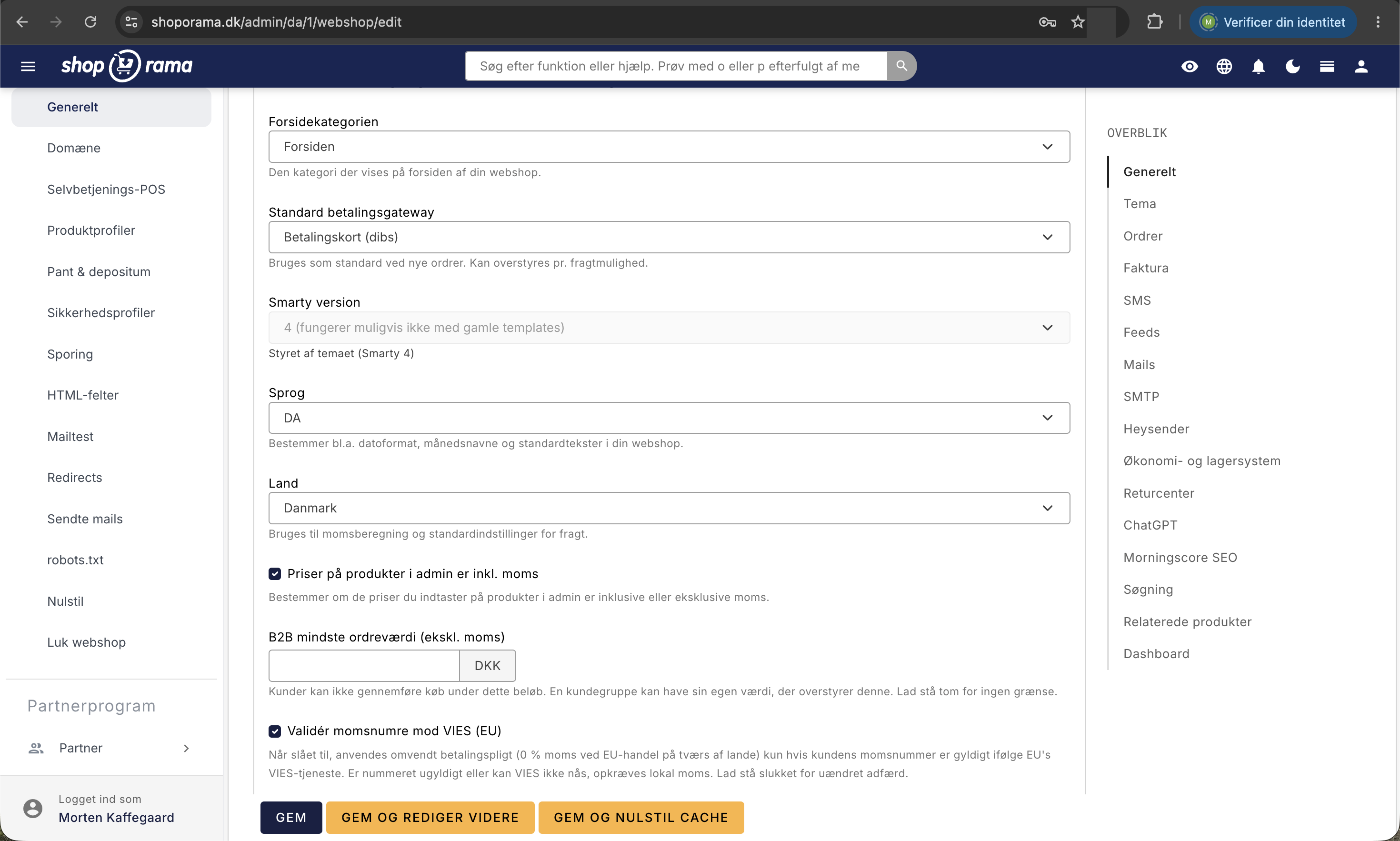
- Navn på webshop. Vises i admin og bruges som standard i e-mails, feeds, og ordrebekræftelser.
- Forsidekategorien. Den kategori, der vises på forsiden af din webshop.
- Standard betalingsgateway. Bruges ved nye ordrer, men kan overstyres pr. fragtmulighed.
- Smarty version. Skabelonmotoren dit tema kører på. Angiver temaet selv sin version, er feltet låst, og der står Styret af temaet under det.
- Sprog. Bestemmer blandt andet datoformat, månedsnavne, og standardtekster i butikken.
- Land. Det land, butikken hører hjemme i. Momssatserne kommer ikke herfra, men fra dine lande under Levering → Lande og for varer med en momskategori fra Webshop → Momskategorier.
- Aktiver besøgsstatistik. Registrerer besøg, så du kan se trafiktal i dashboardet. Det er Shoporamas egen måling.
Priser på produkter i admin er inkl. moms
Denne ene afkrydsning afgør, om de priser du taster ind på produkterne forstås som med eller uden moms. Sæt den, før du opretter dine produkter. Ændrer du den bagefter, ændrer du reelt betydningen af alle de tal, der allerede ligger i systemet. B2B-butikker taster typisk uden moms, butikker der sælger til private taster med. Se artiklen om priser inkl. moms.
Tilpas priser til leveringslandets moms
Med priser inkl. moms betaler kunden som standard den samme pris i alle lande, og momsen regnes baglæns ud efter leveringslandets sats. Har du sat Norge til 0 % moms, betaler en kunde i Norge altså 125 kr. for en vare til 125 kr., selvom ordren har 0 kr. i moms. Sætter du flueben her, trækkes din egen moms fra prisen, og leveringslandets moms lægges til. Er din egen moms 25 %, betaler kunden i Norge så 100 kr., og i et land med 19 % moms betaler kunden 119 kr.
Afkrydsningen er slået fra som standard og virker kun, når Priser på produkter i admin er inkl. moms er slået til. Taster du priser uden moms, får kunden allerede leveringslandets moms lagt oven i prisen. I modsætning til afkrydsningen ovenfor ændrer den ikke betydningen af dine tastede priser, og kunderne i dit standardland betaler det samme. Du kan altså slå den til og fra uden at rette priserne.
Din egen moms er satsen i B2C Moms på det land, der er markeret som Default land under Levering → Lande. Det er ikke feltet Land ovenfor, der afgør den. Nye lande får 0 % moms, indtil du retter satserne. Står et land til 0 %, betaler kunderne i landet prisen uden din moms. Tjek derfor satserne på alle dine lande, før du slår afkrydsningen til. Varer med en momskategori, fx bøger, tilpasses med kategoriens satser i stedet for landenes normale moms. Hvilke priser der tilpasses, og hvilke der ikke gør (fx på produkter med en gammel momsprocent og i produktfeeds), står i artiklen om priser inkl. moms.
B2B mindste ordreværdi
Et minimumsbeløb for, hvad kunden skal handle for, før ordren kan gennemføres. Beløbet måles ekskl. moms og kun på varerne, ikke fragten. En kundegruppe kan have sin egen værdi, der overstyrer butikkens. Tomt felt betyder ingen grænse. Små ordrer koster ofte mere at pakke og sende, end de tjener ind, så det er et effektivt værktøj i en B2B-butik.
Validér momsnumre mod VIES
Sælger du til en virksomhed i et andet EU-land, kan du sælge uden moms, hvis kunden har et gyldigt momsnummer. Slår du denne til, tjekkes nummeret mod EU's VIES-tjeneste, og momsen fjernes kun, hvis nummeret faktisk er gyldigt. Er nummeret ugyldigt, eller kan VIES ikke nås, opkræves lokal moms. Lader du den være slukket, opfører butikken sig som hidtil. Bruger du også Tilpas priser til leveringslandets moms, følger prisen kun landets B2B Moms, når kundens momsnummer er bekræftet via VIES. Står B2B Moms til 0 %, betaler kunden så 100 kr. for en vare til 125 kr. Er valideringen slået fra, betaler et firma med momsnummer samme pris som en privatkunde i landet, selvom momsen på ordren regnes med B2B Moms. Detaljerne står i Reverse charge og VIES-validering.
Til brug i dit tema
- Resultater pr. kategorioversigt. Hvor mange produkter der vises pr. side i kategorioversigterne. Højt tal giver færre klik, men tungere sider.
- Send fejlbeskeder fra dit tema til nedenstående adresser. Sker der en fejl i temaet, sendes beskeden hertil. Adskil flere med komma. En billig forsikring: du opdager fejlen, før kunderne ringer.
Ordrer
Sidens største kort. Her styrer du nummerserier, mailtekster, lager, og hvordan checkout opfører sig.
Numre, valuta, og mailtekster
- Næste ordrenummer. Nummeret den næste ordre får. Du kan ikke bruge et nummer, der allerede er taget: forsøger du det, beholdes det gamle. Bruger du QuickPay, skal tallet være mindst 1000.
- Valuta. Koden der bruges i ordrer, feeds, og priser, fx DKK, SEK, EUR, eller NOK.
- Emne på ordrebekræftelse/faktura og Ordreafsendelses emne. Begge felter forstår #ID# for ordrenummeret og #SHOP# for butikkens navn. Tomt felt betyder, at emnet hentes fra mailskabelonen i dit tema.
- Afsender på e-mails. Skrives som butikkens navn efterfulgt af din mailadresse i spidse parenteser, fx Butikken <din mailadresse>.
- BCC på 'Ordre sendt' email. En eller flere skjulte kopimodtagere, adskilt med komma. Mailen sendes kun én gang pr. ordre.
- Upload fil til invoice.html. To faste filer, der vedhæftes ordrebekræftelsen, fx handelsbetingelser eller en returseddel. Maksimal filstørrelse står på siden.
Vægt og fragtomkostning
- Default emballagevægt (gram). Vejer kasse, fyld, og tape 120 gram, så skriv 120. Tallet lægges oveni varernes vægt, når forsendelsesvægten beregnes. Vigtigt hvis du bruger vægtbaseret fragt.
- Default fragtomkostning ex. moms på forsendelser. Bruges udelukkende til den vejledende fortjeneste på en ordre: totalpris minus moms minus denne fragtomkostning minus indkøbspris.
Lager og notifikationer
- Tillad som standard at lagerbeholdningen går i negativ. Gør det muligt at sælge, selvom lageret står på 0. Kan også sættes pr. produkt.
- Modtag besked via e-mail når der kommer en ny ordre? plus Send ordrebesked til. Sæt flueben og skriv adresserne, adskilt med komma, så får du besked hver gang der lander en ordre.
- Sæt automatisk produkterne offline når de ikke er på lager?. Produkter tages automatisk offline, når lageret rammer 0.
- Sæt automatisk produkterne online når de kommer på lager igen?. De produkter kommer selv online igen, når du fylder op.
Checkout-flowet
- Spring "Godkend ordre" over?. Kunden går direkte fra adresse til betaling, og betingelserne vises på adressesiden i stedet. Færre trin giver som regel færre frafald.
- Samme levering- og faktureringsadresse?. Kunden bedes ikke om en separat leveringsadresse. Godt hvis du næsten aldrig sender til en anden adresse.
- EAN-ordre skal gennem alm. betalingsflow?. Normalt behandles en ordre med EAN-nummer som en offentlig faktura og springer betalingen over. Med flueben skal den gennem det almindelige betalingsflow.
- Når kunden har lagt en vare i kurven skal de gå til. Vælg mellem Produktet, Kurven, Mersalg, eller Tilbage til forrige side. Mersalg viser relaterede varer, mens Tilbage til forrige side holder kunden i gang med at bladre.
- Hold kurven åben indtil ordren er betalt?, også kaldet åben kurv. Det kræver ofte en tilpasning i temaet, og admin advarer dig, når du sætter flueben. Tjek altid at betalingen stadig virker bagefter. Se Åben og lukket kurv.
Faktura
- Næste fakturanummer. Nummeret tildeles, når ordren skifter status til sendt, eller når der oprettes en kreditnota. Er feltet tomt, tildeles der slet ingen fakturanumre.
- Tilføj automatisk faktura og kreditnota som pdf til mails. Vedhæfter automatisk en PDF til ordrebekræftelser og relaterede mails. Bogholdere foretrækker det, fordi bilaget så ligger som en rigtig fil i indbakken.
- Tekst til pdf-fakturaen. Fritekst nederst på fakturaen, maks. 1000 tegn. Brug den fx til returoplysninger.
- Betalingsbetingelser til pdf-faktura. Fx "Netto 8 dage" eller "Betalt ved levering".
- Betalingsfrist i dage. Bruges til forfaldsdatoen på PDF-fakturaen: fakturadato plus antal dage. Skriv fx 8, hvis dine betalingsbetingelser er "Netto 8 dage". Tomt felt betyder forfald samme dag, og betalte ordrer får ingen forfaldsdato.
SMS-indstillinger
Har du en konto hos cpsms, kan du sende sms til kunderne, når pakken afsendes. Du udfylder brugernavn, password, og et afsendernavn på højst 11 tegn. I standardbeskeden kan du bruge [URL] og [NAME], som bliver til henholdsvis et link til ordren og kundens navn. Sætter du flueben i Send sms når ordren markeres som sendt, bliver du automatisk tilbudt at sende beskeden, når du sætter ordrer til sendt. Ordrebekræftelser på sms sættes op under de enkelte fragtmuligheder.
Feeds
Et feed er en fil med alle dine varer, som en samarbejdspartner henter automatisk. Kortet samler de indbyggede feeds og har en genvej til Egne feeds, hvor du bygger dine egne.
Feed-nøgler
Dine feeds ligger på faste adresser og kan derfor hentes af alle, der gætter dem. Sætter du flueben i Aktiver feed-nøgler, får hvert feed sin egen hemmelige nøgle, som bliver en del af adressen. Uden den rigtige nøgle får man ikke filen. Du kan lave nøglerne enkeltvis eller trykke Generer alle nøgler, og tabellen viser den færdige adresse med et kopi-ikon.
To ting er værd at vide: feeds uden nøgle forbliver frit tilgængelige, og de feeds du ikke har aktiveret står gråtonede i tabellen. Husk at opdatere adressen hos modtageren, hvis du skifter en nøgle, ellers holder deres import op med at virke.
Google Shopping og produktanmeldelser
Slå Aktiver Google Shopping Feed til, så vises adressen på feedet under indstillingerne. Du kan finjustere:
- Marker de mest sælgende produkter som bestsellers. Skriv et antal. Beregnes ud fra ikke-annullerede ordrer de seneste 24 måneder, uanset varianter.
- Medtag kun produkter, hvor avancen er mindst. Beregnes ud fra indkøbsprisen på produktet, ikke på variantniveau, og det er beløbet uden moms. Bruges til at undgå at annoncere for varer, der ikke kan bære annoncekronerne.
- Send kostpris (cost_of_goods_sold) i feedet. Sender varernes kostpris uden moms til Google. Sammen med Google Merchant Center ID under Webshop → Sporing kan Google Ads så vise bruttofortjeneste pr. kampagne og produkt. Slå en feed-nøgle til for Google Shopping, når du bruger det, ellers kan alle, der kender feedets adresse, se dine kostpriser. Fluebenet vises kun for brugere med tilvalget Kostpriser og avance, så rollen Udvikler ser det ikke. Læs mere i Opsæt Google Shopping Feed.
- Inkluder produkter der ikke er på lager. Som standard springes udsolgte varer over.
- Aktiver lands- og sprogfeeds. Vises kun hvis du har mere end én webshop på kontoen. Bemærk at SKU-nummeret så bruges som id, og at feedet skal være aktiveret på de andre butikker også.
Google produktanmeldelser sender dine godkendte anmeldelser til Google, så stjernerne kan vises på dine Shopping-annoncer. Feedet følger Googles Product Reviews-format og virker uanset tema. Adressen indsendes i Google Merchant Center under Product reviews. Google kræver mindst 50 anmeldelser på tværs af dine produkter, før stjernerne vises.
Kelkoo, Pricerunner, Klaviyo, og Tradetracker
De fire feeds slås til hver for sig, og adressen vises under afkrydsningen. Kelkoo bruger dine egne kategorier, men kan overstyres pr. produkt med ekstra-feltet merchant-category. Pricerunner styres tilsvarende med pricerunner-category, pricerunner-description (maks 30 ord), og pricerunner-condition (new, refurbished, eller used). Der er desuden en afkrydsning til at ekskludere udsolgte varer, og en Skjul i Pricerunner feed på det enkelte produkt.
Partner-Ads
Partner-Ads er et affiliate-netværk, hvor andre sider henviser kunder til dig mod provision. Du kan slå både feedet og trackingen til, og under trackingen udfylder du program-id, nøgle, programtype (Salg eller Lead), og land (Danmark, Sverige, eller Norge). Med Annuller automatisk annullerede ordrer i Partner-ads og Annuller automatisk returnerede ordrer i Partner-ads undgår du at betale provision for salg, der aldrig blev til noget. Slår du Brug differentierede satsgrupper til, angiver du satserne under dine brands, og Default satsgruppe bruges for alt det øvrige.
Bemærk at Partner-Ads tracking sætter to cookies med 40 dages levetid: partnerens id og et klik-id. Når ordren gennemføres, sendes de videre til Partner-Ads sammen med ordrenummer og beløb. Det skal fremgå af din cookiepolitik.
Endelig ligger afkrydsningen Skjul lagerstatus i ajax-feeds her. Den skjuler lagerantallet i de ajax-baserede produktfeeds, som temaets filtrering bruger, så konkurrenter ikke kan aflæse, hvor mange stk. du har på hylden.
Mails
Her sætter du de automatiske mails op. De fleste styres med et antal timer: 24 er et døgn, 168 er en uge, og 336 er 14 dage. Tomt felt betyder, at mailen ikke sendes.
- Mail efter køb. Sendes et antal timer efter købet. Bruges typisk til at bede om en anmeldelse eller foreslå tilbehør.
- Mail ved inaktiv kurv. Sendes til kunder, der lagde noget i kurven uden at gennemføre. Husk tilladelse fra kunden, før du sender markedsføring.
- Mail ved ubetalt ordre. En betalingspåmindelse til kunder, der ikke fik betalt.
- Mail ved annullering. En afkrydsning. Slået til sendes både en kvittering til kunden og en besked til dig selv, når du annullerer. Den er slukket som standard, så automatiske annulleringer ikke sender uventede mails ud. Kunde-kvitteringen kræver mailskabelonen order_cancelled.html, som alle Shoporamas indbyggede temaer har.
- Mail ved lagerstatus. Skriv et antal, så får du en mail, når et produkt eller en variant når ned på eller under det niveau. Mailen sendes til standardbrugeren.
- Produktanmeldelser. Sender kunden et link til at anmelde de købte varer. Tælles i timer fra ordren blev markeret som sendt.
- Default bruger. Modtager systemmails fra Shoporama, blandt andet lageradvarsler og ordrenotifikationer. Vælg en bruger, der kan se ordrer og lager, fx med rollen Fuld adgang eller Medarbejder.
Vil du have det fulde overblik over, hvad butikken sender af sig selv, så se Hvilke mails sender Shoporama til mine kunder?.
Egen SMTP og Heysender
De to kort handler om, hvilken mailserver dine mails sendes fra. Det har direkte betydning for, om ordrebekræftelserne lander i indbakken eller i spamfilteret.
Egen SMTP lader dig bruge din egen mailserver. Du udfylder server, port, brugernavn, og password. Porten er typisk 587 (TLS) eller 465 (SSL), og oplysningerne får du hos den, der hoster din mail.
Heysender er et dansk system til transaktionelle mails. Det øger leveringssikkerheden og hjælper med at leve op til krav fra blandt andet e-mærket. Når du slår det til, viser siden den TXT-record, du skal oprette på dit domæne, plus en linje du skal tilføje til din SPF. Skifter du domæne senere, skal opsætningen laves igen. Er Heysender slået til, bruges Heysender, også selvom SMTP-felterne er udfyldt.
Økonomi- og lagersystem
- Dansk e-Logistik. Har du en aftale med Dansk e-Logistik, indsætter du nøglen her, så ordrer og forsendelser synkroniseres. Har du flere butikker, kommer der en ekstra afkrydsning, hvor du kan markere, at netop denne butik ikke skal synkronisere produkter og lager.
- Automatisk lagerstatus. Peger du på en adresse med en fil i formatet SKU-nummer;antal;lokations-tag, hentes den én gang i timen, og lageret opdateres. Linjer med et ukendt SKU-nummer springes over.
- Auto-annuller ordre. Skriv et antal minutter, så annulleres ordrer, der er afgivet men ikke betalt. Minimum er 30 minutter, og tomt felt betyder, at der ikke annulleres. Se Automatisk annullering af ikke betalte ordrer.
Returcenter
Returcentret er den selvbetjening, hvor kunden selv opretter sin returnering. Her slår du det til og bestemmer reglerne:
- Aktiver returcenter. Bruger du et egenudviklet tema, skal du selv sørge for implementeringen.
- Fragtpris med en Momsfri-afkrydsning. Er prisen tom, bruges prisen fra fragtmetoden.
- Fragtmulighed til returneringer. Vælg en fast metode, eller lad stå på Ingen - kunden vælger.
- Læg automatisk returnerede varer på lager, og under den Læg først varen på lager når returen er markeret som modtaget. Den sidste sikrer, at varen ikke ser ud til at være på hylden, mens den er på vej retur, og kræver at den første er slået til.
- Brug beregnet stykpris i stedet for oprindelig stykpris. Den beregnede pris fordeler eventuelle rabatter ud over ordrens produkter, så kunden får det tilbage, der faktisk blev betalt for varen. Prisen er vejledende.
ChatGPT og Morningscore SEO
Under ChatGPT kan du indsætte din egen API-nøgle. Som udgangspunkt bruger du Shoporamas, så feltet er kun relevant, hvis du vil køre AI-funktionerne på din egen konto. Morningscore SEO er et SEO-værktøj. Sæt flueben for at aktivere integrationen, hvorefter der kommer en knap til selve konfigurationen. Slår du den fra igen, slettes de data, der er hentet ind.
Søgning
Søgefeltet er ofte det sted, de købeklare kunder starter, så det betaler sig at bruge ti minutter her:
- Tillad at shoppen er i Shoporamas globale søgning. Din butik vises i Shoporamas globale søgning.
- Wildcard-søgning. Søger på ord, der starter med søgeordet, i stedet for kun komplette ord.
- Præcise søgninger. Slår fra, at søgningen forsøger at matche lignende ord, fx ved stavefejl. Brug den, hvis du får for mange irrelevante træf.
- Søg i alle felter (inkl. SKU). Ud over navn, beskrivelse, og søgefelt medtages også leverandør, listebeskrivelse, og meta-beskrivelse.
- Søg i navn, SKU-nummer og GTIN. Begrænser søgningen og er hurtigere end at søge i alle felter.
- Søg i statiske sider. Inkluderer indhold fra sider som "Om os" og "Betingelser" i resultaterne.
- Vis produkter på lager først. Varer på lager lægges øverst, udsolgte nederst. En lille ændring med god effekt på konverteringen.
- Inkluder kategorinavne i søgning. Produkter matches også på navnene af deres kategorier. Godt hvis kategorierne er forfattere, brands, eller serier. Til gengæld vil generiske kategorier som "Tilbud" og "Nyheder" så også dumpe hele deres indhold ud. Kræver en genindeksering, før det slår igennem.
Der er meget mere om emnet i artiklen om søgefunktionen.
Relaterede produkter og dashboard
Skriver du fx 8 i Hvor mange produkter skal der som minimum vises, og et produkt kun har 2 relaterede varer, finder Shoporama selv de sidste 6. I Træk de relaterede produkter fra vælger du kilden: Samme brand, Samme kategorier, eller Hvad andre kunder har købt. Lader du antals-feltet stå tomt, bruges funktionen ikke. Er der ingen varer på brandet eller i kategorien, eller ingen købshistorik at regne på, kan Shoporama ikke fylde op. Derfor ser en helt ny butik ofte færre relaterede varer end en veletableret.
Sidste kort er Dashboard med afkrydsningen Vis ikke statistik på mit dashboard. Den slår statistik og grafer fra på forsiden af admin. I store butikker med mange ordrer kan det gøre admin hurtigere at indlæse.
Hvad skal du sætte først?
Er du ny, og virker siden unødvendigt lang, så tag den i denne rækkefølge:
- Navn, sprog, land, valuta, og Priser på produkter i admin er inkl. moms. Det er fundamentet, og det er svært at ændre bagefter. Taster du priserne med moms og sælger til kunder i andre lande, så tag samtidig stilling til Tilpas priser til leveringslandets moms, og tjek momssatserne under Levering → Lande.
- Afsender på e-mails og emnelinjer, så kunderne kan se, hvem der skriver til dem.
- Ordrebesked til dig selv, så du opdager de første ordrer med det samme.
- Standard betalingsgateway og forsidekategori.
- Søgningen, især Vis produkter på lager først.
- Feeds og de automatiske mails. Dem kan du roligt komme tilbage til, når butikken kører.
Til dig der er teknisk
- Angiver temaet selv sin Smarty-version i sine indstillinger, er dropdownen låst, og temaets valg vinder over dit.
- Feed-nøgler tilføjes som suffiks i filnavnet, fx /google-shopping-DIN-NOEGLE.xml. Er der sat en nøgle på et feed, afvises kald uden nøgle.
- Emnefelterne til ordrebekræftelse og forsendelse overstyrer det emne, mailskabelonen selv sætter. Vil du styre emnet fra temaet, skal felterne være tomme.
- Prisomregningen fra Tilpas priser til leveringslandets moms sker i Shoporama og ikke i temaet, så den virker også i egne temaer, når de bruger de almindelige prisfunktioner. Temaet bestemmer derimod, hvor kunden vælger leveringsland.
Ofte stillede spørgsmål
Jeg har rettet noget, men kan ikke se ændringen i butikken
Tryk Gem og nulstil cache nederst på siden. Cachen ryddes ganske vist hver gang du gemmer, men den knap nulstiller også de beregnede lagertal, så alt bygges forfra. Hjælper det ikke, så prøv i et privat browservindue, for din egen browser kan også ligge inde med en gammel version.
Kan jeg ændre ordrenummeret, så det starter forfra hvert år?
Du kan sætte Næste ordrenummer til hvad du vil, så længe nummeret ikke allerede er brugt i butikken. Forsøger du at bruge et optaget nummer, sker der ingenting, og det gamle bliver stående. Vil du starte forfra hvert år, er det almindeligt at lægge årstallet ind i serien, fx 260001. Bruger du QuickPay, skal nummeret være mindst 1000.
Hvorfor får min revisor ikke fakturanumre på ordrerne?
Fordi Næste fakturanummer er tomt. Uden et startnummer tildeles der ingen fakturanumre. Skriver du et tal ind, får ordrer et nummer, når de skifter status til sendt, eller når du opretter en kreditnota. Sæt gerne også flueben i PDF-fakturaen, så bilaget følger med i mailen.
Hvad er forskellen på "Søg i alle felter" og "Søg i navn, SKU-nummer og GTIN"?
Søg i alle felter udvider søgningen med blandt andet leverandør, listebeskrivelse, og meta-beskrivelse, så du får flere træf. Søg i navn, SKU-nummer og GTIN gør det modsatte og holder søgningen snæver, hvilket er hurtigere og mere præcist. Har du mange tekniske varenumre, er den sidste ofte den bedste.
Hvordan ved jeg, om mine feeds er beskyttede?
Slå Aktiver feed-nøgler til og se i tabellen. Der hvor der står en nøgle, indgår den i adressen, og feedet kan kun hentes med den nøjagtige adresse. Er feltet tomt, er feedet frit tilgængeligt. Tryk på kopi-ikonet for at få den færdige adresse, du skal give videre.
Jeg har sat en mindste ordreværdi, men kunderne køber stadig for mindre
Tjek to ting. Beløbet måles ekskl. moms og uden fragt, så en kurv til 500 kr. inkl. moms tæller kun 400 kr. Og en kundegruppe kan have sin egen mindste ordreværdi, som overstyrer butikkens. Kunden kan altså være i en gruppe med en lavere grænse.
Mine kunder i Norge betaler dansk moms. Kan jeg undgå det?
Som regel er det prisen og ikke momsen, der er dansk. Står Norge til 0 % under Levering → Lande, har ordren 0 kr. i moms, men kunden betaler din danske pris. Slå Tilpas priser til leveringslandets moms til, så trækkes din danske moms fra (se afsnittet ovenfor). Prisen skifter, når kunden vælger Norge i kassen (i nogle temaer allerede i kurven), eller når kunden er logget ind med en adresse i Norge. Indtil da ser kunden dine danske priser, for landet gættes ikke ud fra, hvor kunden befinder sig.
Hvorfor passer den viste fortjeneste på mine ordrer ikke?
Fortjenesten er vejledende og regnes som totalpris minus moms minus din Default fragtomkostning ex. moms på forsendelser minus indkøbspris. Er feltet tomt, regnes fragten som 0, og fortjenesten ser for høj ud. Skriv et realistisk gennemsnit ind uden moms, så kommer tallet tættere på virkeligheden.
Skal jeg bruge egen SMTP eller Heysender?
Heysender er det enkleste valg for de fleste, fordi det er bygget til transaktionelle mails og kun kræver en TXT-record og en linje i din SPF. Egen SMTP giver mening, hvis du har særlige krav eller allerede har en mailserver, du vil bruge. Har du slået Heysender til, bruges den under alle omstændigheder.
Hvad sker der, hvis jeg slår "Hold kurven åben indtil ordren er betalt" til?
Så bliver varerne i kurven, indtil betalingen faktisk er gennemført, i stedet for at kurven tømmes ved bestilling. Det kræver som regel en tilpasning i temaet, og admin advarer dig, når du sætter fluebenet. Test altid en rigtig bestilling bagefter, og slå funktionen fra igen, hvis betalingssiden ikke opfører sig, som den skal.
Vi er flere om at rette i indstillingerne. Kan vi overskrive hinanden?
Ja. Siden gemmer alle felter på én gang, så sidder to personer med siden åben samtidig, vinder den, der gemmer sidst. Aftal hvem der retter i indstillingerne, eller genindlæs siden lige inden du gemmer. Vil du begrænse, hvem der kan rette her, kan en firmaadministrator give de øvrige brugere en rolle uden adgang til webshoppens indstillinger, fx Medarbejder, under Firma → Brugere. Er du i tvivl om en indstilling, så skriv til support@shoporama.dk frem for at gætte: moms, valuta, og åben kurv har konsekvenser for de ordrer, der allerede ligger i systemet.
Related articles
How do you reset cache?
Guide to resetting the cache on your Shoporama online store so that changes take effect immediately.
Prices include VAT and are adjusted to the VAT rate of the country of delivery
Here's how to choose whether your product prices include or exclude VAT, and how to adjust the price based on the destination country's VAT...
Reverse charge og VIES-validering: sælg uden moms til erhverv i EU
What is the difference between open basket and closed basket?
Understand the difference between open and closed baskets in Shoporama - stock reservation, customer experience and which type is right for your...
What emails does Shoporama send to my customers?
Overview of automatic emails Shoporama sends to your customers - order confirmation, abandoned baskets, track-and-trace, product reviews, and more.
Automatic cancellation of unpaid orders
Set Shoporama to automatically cancel unpaid orders after a number of minutes. Frees up inventory and keeps the order list clean. The value is in...
The search function in Shoporama
Everything you need to know about Shoporama's search function - how it works, what is searched and how to optimize it.