Prepare your theme for multiple languages and countries
Step-by-Step Guide for Developers: How to Make Your Own Shoporama Theme Work with Countries, Including Translated Texts, the Country's Currency and Number Format, a Language Selector, and Shipping Countries.
With Lande, a Shoporama store can sell in multiple countries from the same admin panel, using each country’s language, currency, and local address. Shoporama handles most of this automatically: products, categories, and pages are displayed in the translated language, prices are converted, and links, hreflang attributes, and sitemaps are updated with the country’s address. However, a theme often has text, currency, and number formats hard-coded directly into the code, and Shoporama cannot translate those for you.
This article is intended for developers and agencies that have built a custom theme for an online store. It takes you step by step from an existing online store to a country-specific version that’s ready to be activated. For information on how store owners create and configure countries, see “Sell in Multiple Countries with Countries,” and for information on how to translate text, see “Translate Your Online Store.”
In short: Place all visible text within <{t}>, display amounts in the country’s currency and number format, and show order amounts in the order’s currency; add a language selector; display only the country’s available shipping destinations at checkout; and specify in theme_settings.json that the theme is ready. Test the country as an admin before activating it.
Shoporama’s own themes—Montana, MontanaB2B, Delaware, DelawareDK, California, Washington, Alaska2, and Alaska—are already set up for specific countries. The Massachusetts themes are not. If your store uses one of the pre-configured themes without any customizations, you don’t need to do any of this.
Before you begin
- Create the country under Webshop → Countries before you start working on the theme. That way, the theme’s text will be translated as you work, and you’ll be able to view the country as you go. The shipping country must be added under Shipping → Countries first, since that’s where VAT and shipping rates for that country are set up.
- A new country is not active. Customers cannot see it, so you can work on the theme and test the country at your own pace.
- If the country runs on its own theme, it must be on the Pro pricing plan. This also applies when the country uses the store’s own theme. The Flex plan cannot be selected when the country uses its own theme.
- Only users with full access can create, edit, and activate countries.
- Countries are located either on a path within the store’s domain (e.g., dinshop.dk/se) or on their own domain (e.g., dinshop.se). The theme does not need to know which one. Shoporama handles the addresses.
Shoporama handles this without any changes to the theme
- Links. All links in the generated HTML (href, action, and formaction on elements such as a, form, link, and button), as well as the “url” and addresses in JSON-LD, will be updated to the country’s address. This also applies to links you’ve written directly, such as /basket or https://dinshop.dk/kontakt. Images, CSS, JavaScript, files, and feeds remain unchanged, and redirects from the server stay within the country.
- Ajax. Calls from a page within the country—for example, to `/ajax`—will retain the country’s settings because Shoporama detects which page made the call.
- Language and SEO in the head section. The `<html lang>` tag sets the page’s language, and `:locale` becomes the country code (e.g., `sv_SE`) if the theme includes that tag; hreflang links are inserted for all language versions of the page, and `x-default` is set to the primary country. A page that has not yet been translated is displayed in Danish, is marked as noindex in that country, and is not included in hreflang or the country’s sitemap.
- Content. Products, categories, landing pages, pages, blog posts, menus, filters, shipping and payment methods, countries, customer fields, and the text fields in the theme settings are displayed in the country’s language using the methods the theme currently employs, such as $product->getName() and $product->getUrl(). The URLs are also translated. If a translation is missing, the Danish text is displayed.
- Prices. Product prices from the theme’s objects (price, sale price, variants, promotions, volume discounts, and shipping) are already in the local currency: converted using the exchange rate and adjusted for the country’s price adjustments, sales tax, and rounding.
- Currency. $webshop->getCurrency() returns the country’s currency when the store sells in its own currency.
- Dates. Days of the week and month names from `date_format ` (`%A` and `%B`) are displayed in the country’s language.
- Checkout. Only the country’s shipping and payment methods are included in, for example, $webshop->getShippings() and $webshop->getPaymentGateways(), and the server rejects delivery countries to which the country does not ship.
- Emails. Order emails are generated in the order’s country. Text, currency, number formatting, and links in the email therefore follow the order’s country in the same way as on the pages, provided the email templates have been set up like the rest of the theme.
- Cache. The store’s page cache and fragments in <{cache}> are stored per country, so a Danish menu is not displayed in the Swedish country.
This must be handled by the theme itself
- Text written directly in HTML or JavaScript remains in Danish (Step 1).
- Countries display the warning “Check the theme before activating a country” until the theme indicates that it is ready (step 2).
- "kr." or "DKK" written directly remains as is, and fixed thousands separators and decimal points result in the Danish number format (step 3).
- Amounts from orders displayed using $webshop->getCurrency() may show the wrong currency, e.g., in the order history, where the customer may have orders from multiple countries (Step 3).
- There is no language selector (step 4).
- The list of shipping countries shows all the countries supported by the store, and a customer who selects a country to which the store does not ship is redirected to the address page without an explanation (step 5).
- Addresses that JavaScript builds and navigates to do not include the country path (step 3).
- Hreflang links generated by the theme itself remain alongside those inserted by Shoporama. Remove them.
Step 1: Place all text within <{t}>
Everything the customer can read must be enclosed in <{t}>...<{/t}> or formatted as "..."|t. Also remember attributes such as placeholder, title, and aria-label, as well as error messages, the checkout page, the returns center, and email templates. Order emails are sent in the language of the order, so their text must be translated just like the pages.
<h2><{t}>Your Cart<{/t}></h2>
<input type="search" name="search" placeholder="<{t}>Search for products<{/t}>">
<button type="submit"><{t}>Add to Cart<{/t}></button>

<{include file="components/alert.html" text="Your profile has been updated."|t}>
Use placeholders, not variables, in the text
The text between the tags is key to the translation. If a Smarty variable appears within the text, each value becomes its own text and cannot be translated in advance. Instead, pass the value as a parameter and use it as {x} in the text. The placeholders are preserved when the text is translated.
<{if $customer}>
    <{* Incorrect: each point value becomes a new piece of text *}>
    <{t}>You have <{$customer->getActivePoints()}> active points.<{/t}>

    <{* Correct *}>
    <{t x=$customer->getActivePoints()|number_format:0:$webshop->getDecimalSeparator():$webshop->getThousandSeparator()}>You have {x} active points.<{/t}>
<{/if}>
- If you change any text in the theme—even just a space or a line break within the text—it becomes a new piece of text that must be translated again. Spaces before and after the text do not count. Therefore, write each piece of text on a single line.
- A translation may only contain the HTML tags present in the Danish text. Please keep markup outside of <{t}>.
- Text in JavaScript files cannot be translated. Place it in the HTML, for example in a data attribute: data-added-text="<{"Added to cart"|t|escape}>".
Where the text is translated
Shoporama scans the theme’s .html files and wraps the text in <{t}> and "..."|t so that it can be translated before a customer sees it. This happens when a country is activated, when Webshop → Translations is opened, and when automatic translation is running. Text containing a variable within the text itself cannot be parsed in advance.
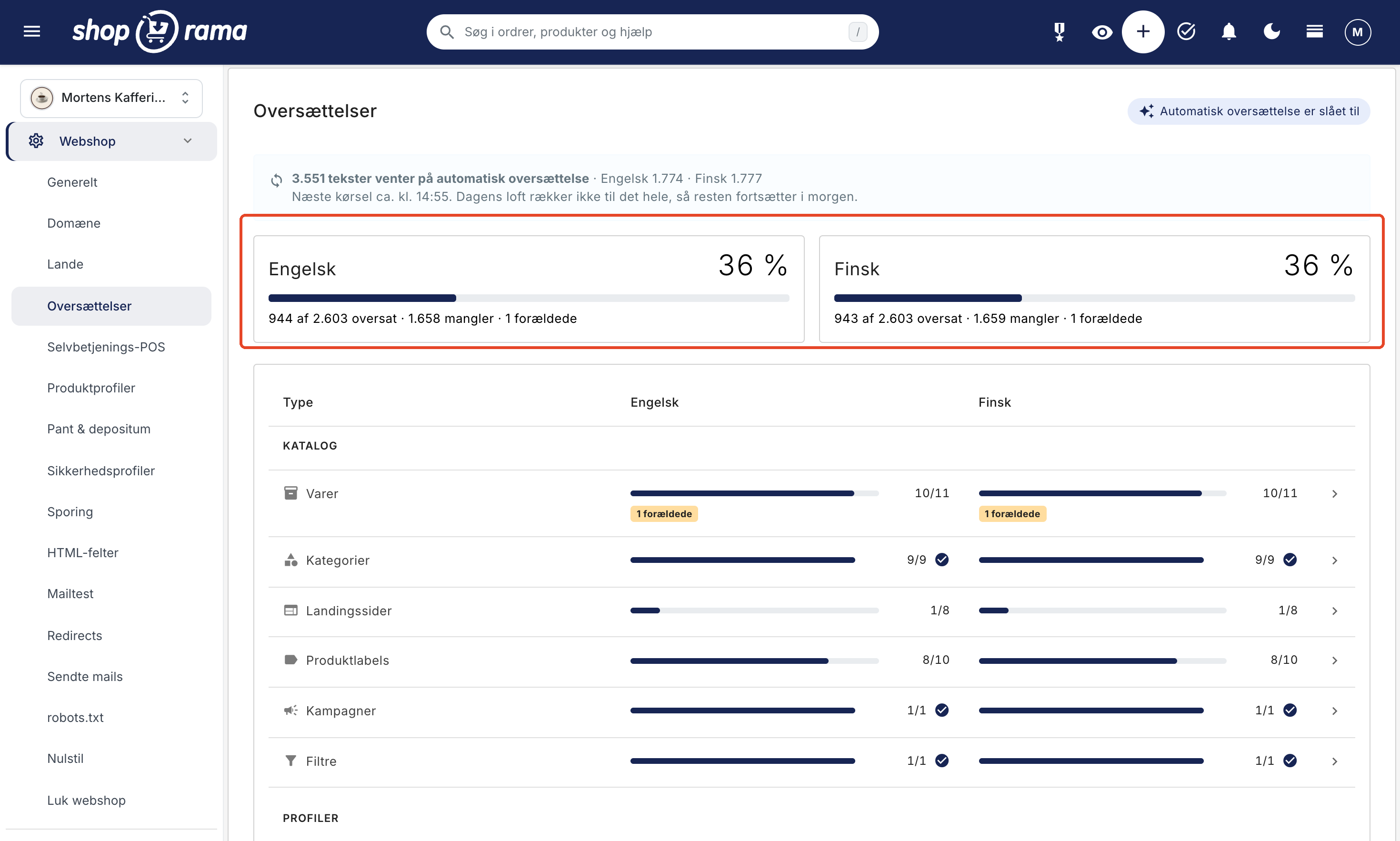
If automatic translation is enabled (which is the default), the theme’s texts are translated first, within a few minutes, even for countries that aren’t active yet. You or the store owner can edit them under Webshop → Translations → Theme Texts, and any edits made by a user will not be overwritten. The store’s own texts under Design → Texts are still those of the primary country, and the translations are based on them.
Step 2: Specify in theme_settings.json that the theme is ready
Two keys in `theme_settings.json` in the theme’s root directory tell Shoporama how the theme handles languages. They are located at the top level, next to ` info ` and `settings`:
{
    "info": "My Theme",
    "countries": true,
    "text_language": "da",
    "settings": [
        ...
    ]
}
| Key and Value | Meaning |
|---|---|
| "countries": true | The theme is ready for multiple countries: all text is enclosed in <{t}>, and amounts are displayed in the country’s currency and number format. Countries do not display any warnings about the theme. |
| "countries": false | The theme is not ready. Countries display "The theme is not ready for countries" along with the theme's name. |
| Key missing | For a custom theme, Countries displays "Check the theme before activating a country" along with the theme's name. One of Shoporama's own themes without the key is considered not ready. |
| "text_language": "da" | The language in which the theme’s <{t}> texts are written. The default is Danish. |
"countries" does not affect how the store functions. It is the theme’s commitment to the store owner, so set it to "true" only after the theme passes the checklist at the bottom of the article.
If you write the theme’s texts in English, as Delaware does, set "text_language": "en". Then, for an English-speaking country, the theme will display its own English text, even if the shop has set the text to Danish under Design → Texts. An English translation under “Translations” still takes precedence. Use the same language code as the country, e.g., “en,” “de,” “sv,” or “nb” for Norwegian.
Theme Settings Texts
Fields in settings of the types string, text, and wysiwyg can be translated under Webshop → Translations → Theme Settings, and the theme will adopt the translated value without any changes. Fields with names such as url, link_1, email, phone, color, or usp1_icon are not considered text, and the same applies to groups such as design, integrations, and custom_code. Therefore, give fields containing links, codes, and colors appropriate names so they are not sent for translation.
Step 3: Display amounts in the local currency and number format
Prices in the store
Prices from the theme’s objects are already converted, so the theme should never calculate an exchange rate itself. It just needs to display the currency and format the number correctly:
<{$currency = $webshop->getCurrency()}>
<{$decimal = $webshop->getDecimalSeparator()}>
<{$thousand = $webshop->getThousandSeparator()}>

<{$product->getPrice()|number_format:2:$decimal:$thousand}> <{$currency|escape}>
If the theme currently displays a fixed currency text such as "kr.", use $webshop->getCountryCurrency(). This returns the country’s currency when the customer is shopping in a country with its own currency, and is empty otherwise:
<{$currency = "kr."}>
<{if $webshop->getCountryCurrency()}><{$currency = $webshop->getCountryCurrency()}><{/if}>
Amounts from Orders
An order is in the currency of the country where it was purchased. Therefore, use $order->getCurrency() wherever amounts from an order are displayed: the thank-you page, the order page, the order history, the returns center, order emails, and the printed invoice. In the order history, each order must have its own currency, as the customer may have made purchases in multiple countries.
<{if $order}><{$currency = $order->getCurrency()}><{/if}>

<{foreach $my_orders as $my_order}>
    <{$my_order->getTotalPrice()|number_format:2:$webshop->getDecimalSeparator():$webshop->getThousandSeparator()}>
    <{$my_order->getCurrency()|escape}>
<{/foreach}>
Number Format
getDecimalSeparator() and getThousandSeparator() return the number format for the country where the page or email is displayed. On the main site, they return whatever you pass as an argument (default: comma and period), so the theme’s current format remains in effect there. The format follows the country, not the language:
| Countries | Example |
|---|---|
| United Kingdom, Ireland, United States, Canada, Australia, New Zealand, Malta, and Cyprus | 1,234.50 |
| Switzerland | 1,234.50 |
| Finland, Sweden, Norway, France, Poland, the Czech Republic, Slovakia, Estonia, Latvia, Lithuania, Hungary, Bulgaria, Portugal, and Ukraine | 1,234.50 (hard space) |
| All other countries, e.g., Germany and the Netherlands | 1,234.50 |
JavaScript
- Formats your JavaScript prices; retrieve the characters from the HTML. Montana adds them to the `body` element: `data-decimal="<{$webshop->getDecimalSeparator(",")|escape}>"` and `data-thousand="<{$webshop->getThousandSeparator(".")|escape}>"`.
- $webshop->getLocale() returns the language and country, such as en-GB for a country and da-DK for a Danish main store. Use this for Intl and widgets.
- URLs that JavaScript constructs and navigates to on its own (e .g., ` location.href = "/basket"`) do not include the country path. Instead, read the URL from a link in the HTML, as Shoporama has already corrected this.
Step 4: Add a language selector
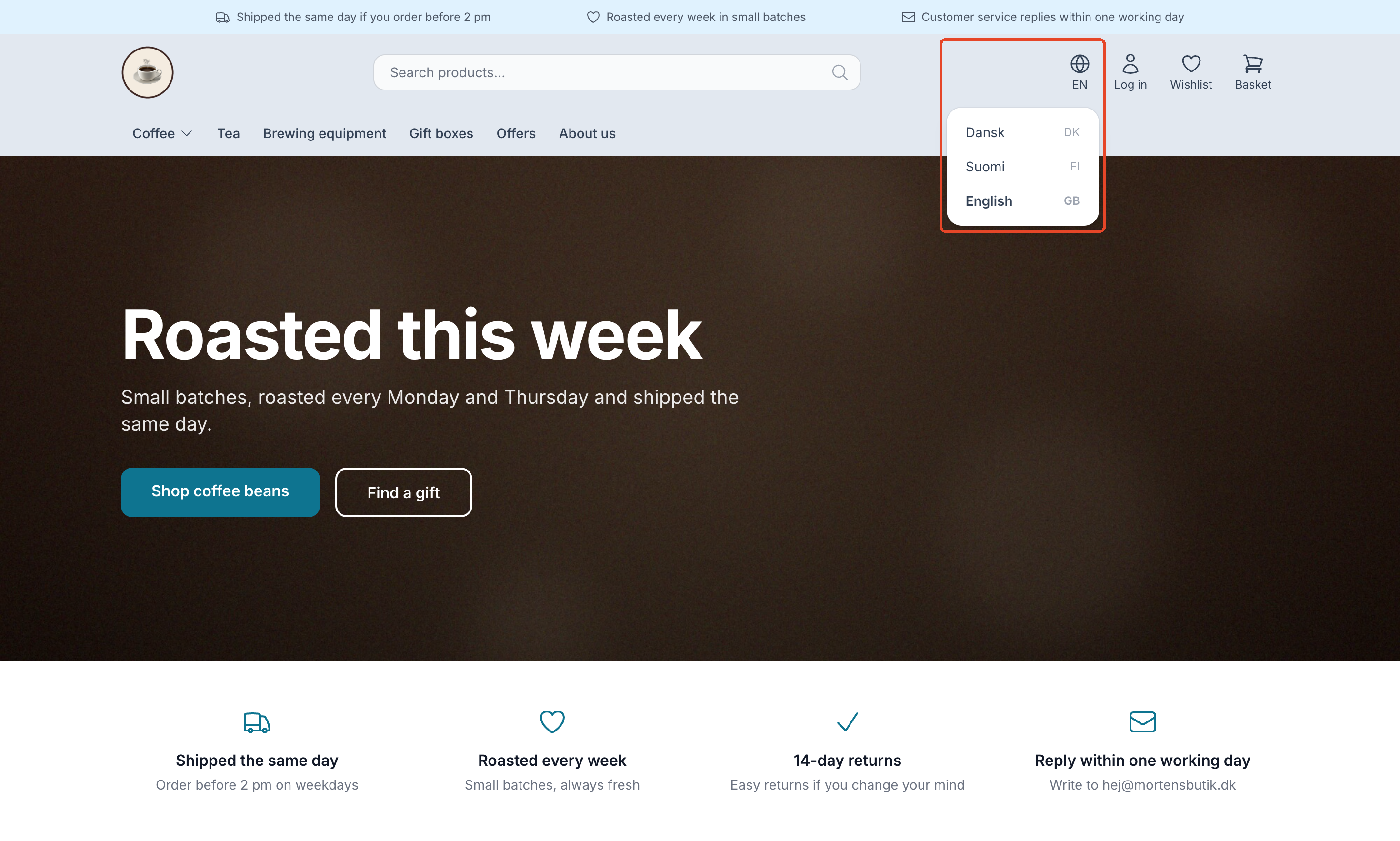
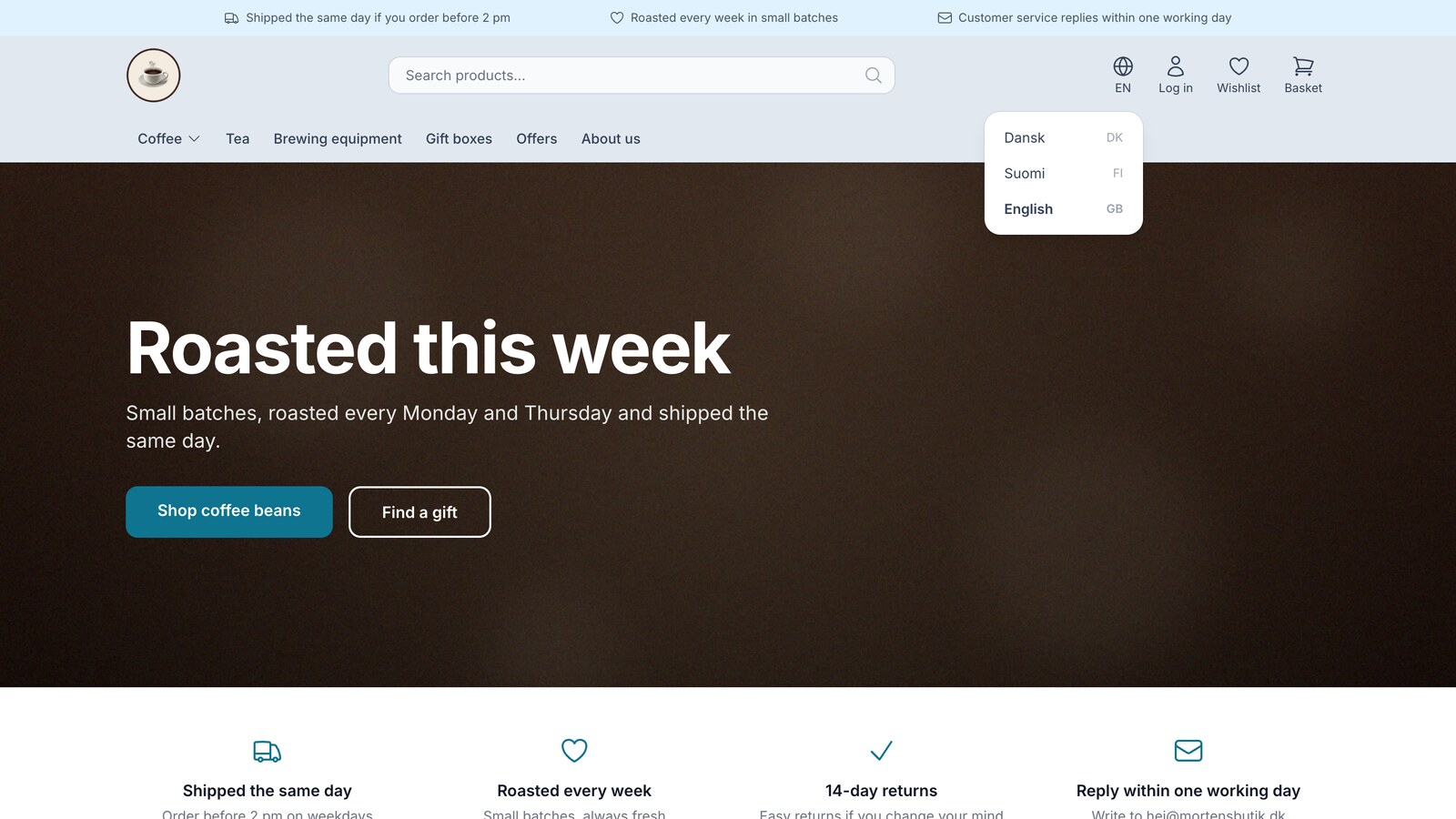
`$webshop->getCountrySites()` returns the main country and the active countries, each with a link to the page the customer is currently viewing in that country. The list is empty when there are fewer than two versions of the store, so the selector is only displayed when at least one country is active. The example is Montana’s selector in the footer (components/country-selector.html) without styling:
<{$country_sites = $webshop->getCountrySites()}>
<{if $country_sites}>
    <nav class="country-selector" aria-label="<{t}>Select Language<{/t}>">
        <{foreach $country_sites as $country_site}>
            <a href="<{$country_site.url|escape}>" hreflang="<{$country_site.hreflang|escape}>" lang="<{$country_site.language|escape}>"<{if $country_site.current}> aria-current="true"<{/if}>><{$country_site.label|escape}></a>
        <{/foreach}>
    </nav>
<{/if}>
The examples in this article are written for Smarty 4. In Smarty 2, assignments are written using `assign` and loops using `foreach from`, so here the two lines are<{assign var="country_sites" value=$webshop->getCountrySites()}> and <{foreach from=$country_sites item="country_site"}>, as in Alaska’s ` country-selector.html`.
- The `hreflang` attribute on the link is required. Without it, Shoporama will redirect the link to the country where the customer is located, just like all other links. A link with `hreflang` or `data-country-keep` remains unchanged.
- Use `url`, not `address`. If the country is on a different domain, `url` goes through a redirect page that carries the cart over. `address` is the country’s own URL for the page.
- The fields: label (the name of the language in that language, e.g., Svenska or Suomi, with the country code if two countries share the same language), language (e.g., sv), hreflang (e.g., sv-SE), code (e.g., SE), country (the country’s name), current (the page the customer is on), main (the primary country), and translated (whether the page is translated into that language).
- Montana also has a selector in the header (components/country-switch.html) that is hidden on small screens, where the languages appear in the mobile menu.
Step 5: Show only the country’s shipping destinations at checkout
A country may restrict where products are shipped. Only the shipping address is restricted. The billing address may be in any of the store’s countries, so customers from across the EU can shop. Therefore, use two lists:
- Invoice address country (order_country_id): $webshop->getCountries(), all countries supported by the store.
- Delivery address country (del_country_id): $webshop->getDeliveryCountries(), only the countries the country ships to. For the main country, this includes all countries in the store, so you can use it everywhere, including, for example, in a shipping calculator in the cart.
If the customer does not enter a shipping address, the billing country is also the shipping country. If the store does not ship to that country, Shoporama redirects the customer back to /address?delivery_country=1. Display a message and show the fields for the shipping address so the customer can select a different country:
<{if $get.delivery_country}>
    <p class="alert"><{t}>We do not ship to the selected country. Please select a shipping address in one of the countries we ship to.<{/t}></p>
<{/if}>

<select name="del_country_id">
    <option value=""><{t}>Select a country<{/t}></option>
    <{foreach $webshop->getDeliveryCountries() as $country}>
        <option value="<{$country->getCountryId()}>"<{if $session_del.country_id == $country->getCountryId()}> selected<{/if}>><{$country->getName()|escape}></option>
    <{/foreach}>
</select>
Use $get instead of $smarty.get, which is blocked in the store’s templates. The message is the same as the one displayed by Shoporama’s own themes.
Step 6: Test the country before activating it
An admin who can edit the store can view a country that isn’t active. Everyone else will see an error page or be redirected to the default country if the country has its own domain. Here’s how:
- Log in to the admin panel and click the eye icon “View Webshop” at the top. You’ll then be logged into the store.
- Open the country’s URL, e.g., https://dinshop.dk/se/. The pages are set to “noindex” so they won’t appear in search engines while you’re testing.
- Go through the store: homepage, categories, products, search, shopping cart, checkout, and customer account. Check for Danish text, currency, number formatting, and whether you remain in that country as you navigate.
- Open /se/address?delivery_country=1 to view the message about the delivery country.
- View the page source: <html lang> and, if applicable, :locale must match the country, and there must be no hreflang links from the theme itself.
- If everything is in order, set "countries": true in theme_settings.json, and ask the store owner to activate the country by setting it to "Active" under Webstore → Countries.
Note: The language selector and hreflang only display active countries, even when you view a country that is not active. Therefore, the selector will be empty until the first country is activated. Test it on a country that is already active, or immediately after activation. You’ll only see order emails once an order has been placed in that country, so review the email templates in the code for <{t}> and $order->getCurrency().
If the countries are hosted on their own domain, the country’s domain must point to Shoporama and have SSL (the shop owner enters the domain and orders a free SSL certificate on the country’s page), and you must be logged in to that domain to view the country before it becomes active.
Checklist
- All visible text is enclosed in <{t}> or "..."|t, including in attributes, the checkout, error messages, the returns center, and emails.
- No variables inside <{t}>. Values are passed as placeholders.
- No "kr." or "DKK" written directly. The store uses $webshop->getCurrency() or getCountryCurrency().
- Amounts from orders use $order->getCurrency(): thank-you page, order page, order history, returns center, emails, and invoices.
- All number_format uses getDecimalSeparator() and getThousandSeparator().
- JavaScript retrieves text, number formats, and addresses from the HTML and the locale from getLocale().
- The language selector uses ` getCountrySites()` with the URL, `hreflang`, and `lang` attributes on the links.
- The delivery country is selected from ` getDeliveryCountries()`, and the message is displayed using `$get.delivery_country`.
- The theme’s own hreflang links have been removed.
- "countries": true and, if applicable, "text_language" are specified in theme_settings.json.
- The country was reviewed as an admin before it was activated.
Frequently Asked Questions
My store uses one of Shoporama’s themes. Do I need to do anything?
No, not if the theme is Montana, MontanaB2B, Delaware, DelawareDK, California, Washington, Alaska2, or Alaska, and you haven’t made any custom changes. Once you’ve added a country, Webshop → Countries will display a warning if the theme isn’t ready.
My theme is a copy of Montana. Is it ready for countries?
Only if the copy was created after Montana gained support for countries. An older copy is missing the language selector, the shipping countries, and the “countries” key in theme_settings.json. Compare it with the latest version of Montana and copy the changes over, or follow the steps in the article.
Do I need to create a copy of the theme for each language?
No. The same theme can be used in all countries, and the texts are translated for each language. The shop owner can select a separate theme for each country under Webshop → Countries, but a country with its own theme must be on the Pro plan.
Why is a text still in Danish in that country?
Either it isn’t in <{t}>, it contains a variable within the text, or it hasn’t been translated yet. Automatic translation typically takes a few minutes, but pauses for the rest of the month once the quota of 2,000,000 characters per language has been used up. You can always edit the text yourself under Webshop → Translations → Theme Texts.
Why isn’t my language selector showing up?
getCountrySites() is empty until the store has at least two versions: the main country and an active country. Countries that aren’t active aren’t included, not even when you view them as an admin.
What should I do about the hreflang tags the theme currently has?
Remove them. Shoporama automatically inserts `hreflang` for all active countries and `x-default` for the main country, but does not remove the ones added by the theme. If both are present, the page will have duplicate and potentially conflicting `hreflang` links. Read more in “Hreflang and alternate tags for multilingual online stores.”
I want to link to the main country from a page within that country. How do I prevent the link from being moved?
Add the `data-country-keep` attribute or an `hreflang` attribute to the link. Then Shoporama will keep the URL exactly as you’ve written it.
Does the theme need to convert prices to the country’s currency?
No. The prices from the theme’s objects are already in the country’s currency, including the country’s exchange rate, price adjustments, sales tax, and rounding. If the theme converts them itself, the amount will be incorrect. Amounts from an order are in the order’s currency, so display them using `$order->getCurrency()`.
Can I provide translations with the theme in a `langs` folder?
Only for the store’s own language. The files in the `langs/` folder populate Design → Texts when the theme is activated. Other countries’ languages are translated under Webshop → Translations: automatically, manually, via CSV export and import, or through the REST API’s translations.
Related articles
Email templates in your theme
Overview of all email templates in Shoporama themes. Learn what each template does, when it's sent, and what variables you can use to customize...
Hreflang and Multilingual Online Stores
How Shoporama sets `hreflang`, `x-default`, and `html lang` for your countries, what happens to untranslated pages, and how to manage your own...
Translate your online store into other languages
How to translate your online store when selling in multiple countries: automatic translation, status by language, corrections, addresses in the...
Sell in multiple countries and in multiple languages
Here's how to sell in other countries in your customers' languages and currencies using "Countries": Add a country, set up the address, language,...
Language support in themes
Here's how to mark up text in your Shoporama theme using t-tags so that it can be edited in the admin panel and translated into the language of...
Theme Settings: How to Customize Your Theme
Theme settings are the theme's own control panel in Shoporama. Here, you can change colors, text, images, and enable or disable features without...
Related features
Sell in multiple countries through the online store you already have
New on Shoporama: Sell in Sweden, Finland, or Germany using each country's language, currency, and prices. Translation is included in the price,...
Countries: Sell in multiple countries from the same online store
Sell in multiple countries from the same online store, with your own language, currency, and prices for each country. Automatic translation of your...