Cash Register Report in POS: Open and Close the Register
Here's how to open the cash drawer in the POS system with change, record payments, and close the cash drawer with the counted amount. Under POS → Cash Register Reports, you can view sales by payment method and the balance in the cash drawer.
With the cash drawer in the POS system, you close out your physical store every day, just like on a regular cash register. You open the cash drawer in the morning with the change, record the money you take out of the drawer, and close the cash drawer in the evening with the amount you’ve counted. The POS system then displays a cash register report (a Z-report) showing the day’s sales and whether the cash in the drawer matches.
Here’s what you get from the register
- You can see if the cash register balances. The report calculates what should be in the drawer and shows the difference from the amount you counted
- You can view sales by payment method, such as cash, card at the terminal, and Vipps MobilePay
- Payouts are recorded with the amount and a description
- You can monitor this from the admin panel. Under POS → Cash Register Reports, you can view sales while the register is open, as well as all previous reports
Before you begin: POS settings
Go to POS → Settings in the admin panel. The cash settings and receipt text apply to all registers, while the default options are only used on an iPad that hasn’t been configured otherwise. This page requires that your user has permission to edit orders. If you’re completely new to the POS, start with POS (Point of Sale).
Payment Methods for the Store
The report breaks down sales by the order’s payment method. Therefore, create a payment method of the type “Other Payment ” for each way a customer can pay in the store, such as “Cash” and “Card at Terminal”:
- Go to Integrations → Payment Gateways, and click Add New Payment Gateway
- Click the “Other Payment” tab. The payment method is created immediately
- For example, enter “Cash” in the Name field, turn Off “Online” so that online store customers cannot select it, and click Save and Close
- Repeat for “Card at terminal”
Cash
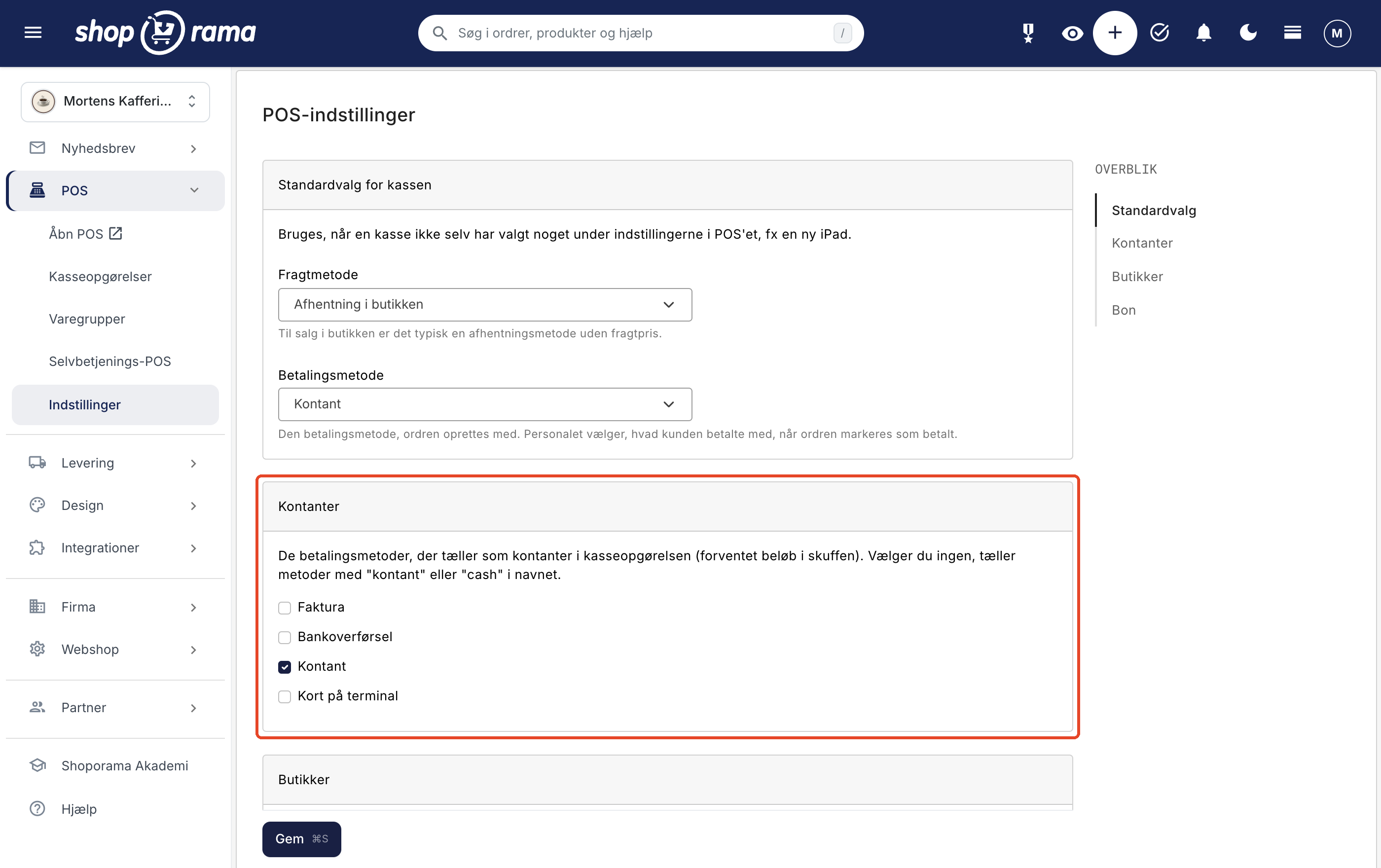
In the Cash tab, check the payment methods that involve cash—typically only “Cash” and not “Card at Terminal.” Only the selected options are included in the expected cash amount in the drawer. If you select none, payment methods with “cash” in the name are included.
Default Settings for the Register
Under "Default Settings for the Register," you select the Shipping Method and Payment Method that a register uses when it hasn’t selected anything itself—for example, a new iPad. The shipping method is typically a pickup option with no shipping cost. If an iPad has its own options in the POS settings, those take precedence.
Multiple Stores
If you use the POS in multiple stores, check the boxes for the stores on the Stores map. The stores are the store’s warehouse locations, which you create under Inventory → Warehouse Locations. The register will then ask for a login and which store it is in, and each store will have its own register and register report. If you select none, there will be one shared register for the entire online store. Read more in POS in Multiple Stores.
Text on the Receipt
In the Receipt tab, you can enter text in the “Top of Receipt” and “Bottom of Receipt” fields—for example, address, business registration number, and hours of operation at the top, and the return period at the bottom. Each text field can contain a maximum of 500 characters. If you have multiple stores, each store can have its own text in the “Stores” tab.
Click Save. Cash amounts take effect immediately in the cash register report, and changes to store settings take effect the next time a cash register logs in. Default settings and receipt text are retrieved by the cash register when the POS is reloaded, but no more frequently than once every 10 minutes. If you want to use them immediately, tap the logout icon in the top-right corner of the cash register and log in again.
Open the cash drawer in the morning
- Count the change in the drawer
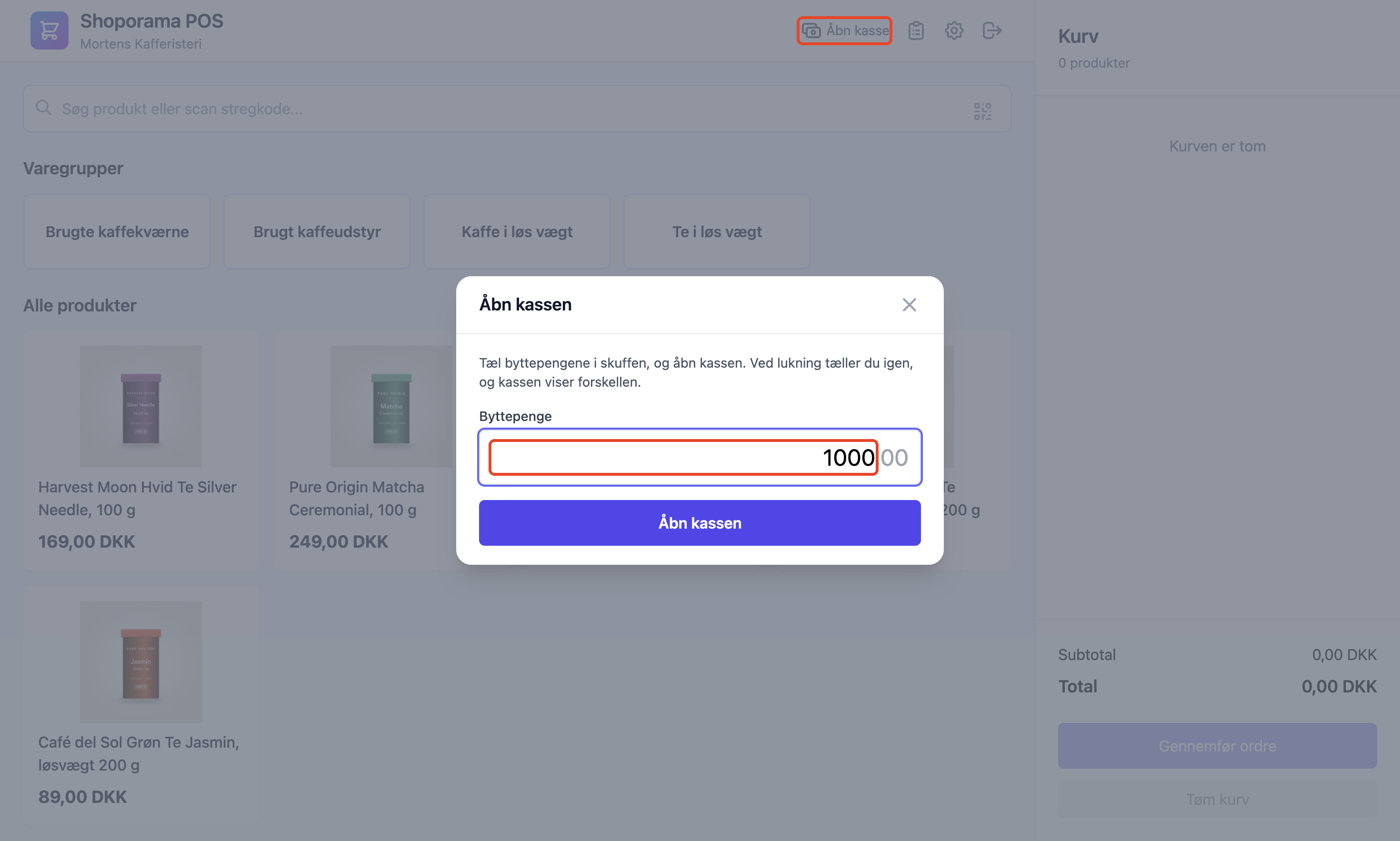
- Open the POS and tap the "Cash Register " button at the top. If the cash register is closed, the button will say " Open Cash Register." On a narrow screen, you’ll only see the icon
- Enter the amount in the “Change” field. Enter whole kroner, and “,"00” appears in gray behind the amount. If the amount includes øre, enter a comma, for example, “512.50”
- Tap “Open Cash Register”
Now, for example, the button will say “Cash Register Open 09.02.” Multiple iPads in the same store use the same cash register, so it only needs to be opened once. If you use the POS system in multiple stores, each store has its own register, which is opened and closed separately, and the report only includes that store’s sales. You select the store when you log in to the POS system.
Tip: The “Change” field is pre-filled with the amount that was counted at the last closing. If you’ve removed today’s sales from the cash drawer after closing, adjust the amount to reflect what’s actually in the drawer now.
You can make sales even if the register isn’t open, but those sales won’t be included in any reports. Therefore, open the register before making the first sale of the day.
During the day
Mark the sale as paid
Once the order has been created and the customer has paid, tap “Mark as Paid.” If the store has multiple payment methods of the “Other Payment” type—for example, “Cash” and “Card at Terminal”—the register will ask, “How did the customer pay?” Tap the one the customer used so the report breaks down the sale correctly. If the store has only one option, the checkout won’t ask, and the order will retain the checkout’s payment method.
If the customer pays with Vipps MobilePay in the app, the order is paid automatically. Read more in Vipps MobilePay in the store.
If you mark an order as paid later under “Orders” in the POS, the register won’t ask for the payment method, and the order will retain the one it was created with.
Withdrawals from the cash register
If you take money out of the cash drawer—for example, to purchase used items, coffee, or postage—record it immediately:
- Tap the Cash Register button
- Under “Cash Disbursement, ” enter the amount and, in the field next to it, what the money was used for
- Click “Record Payment”
The disbursement is deducted from the expected amount in the cash drawer and appears on the report with the time and description. You should enter the receipt itself into your accounting software.
Close the register at the end of the day
- Count all the money in the cash drawer, including the change
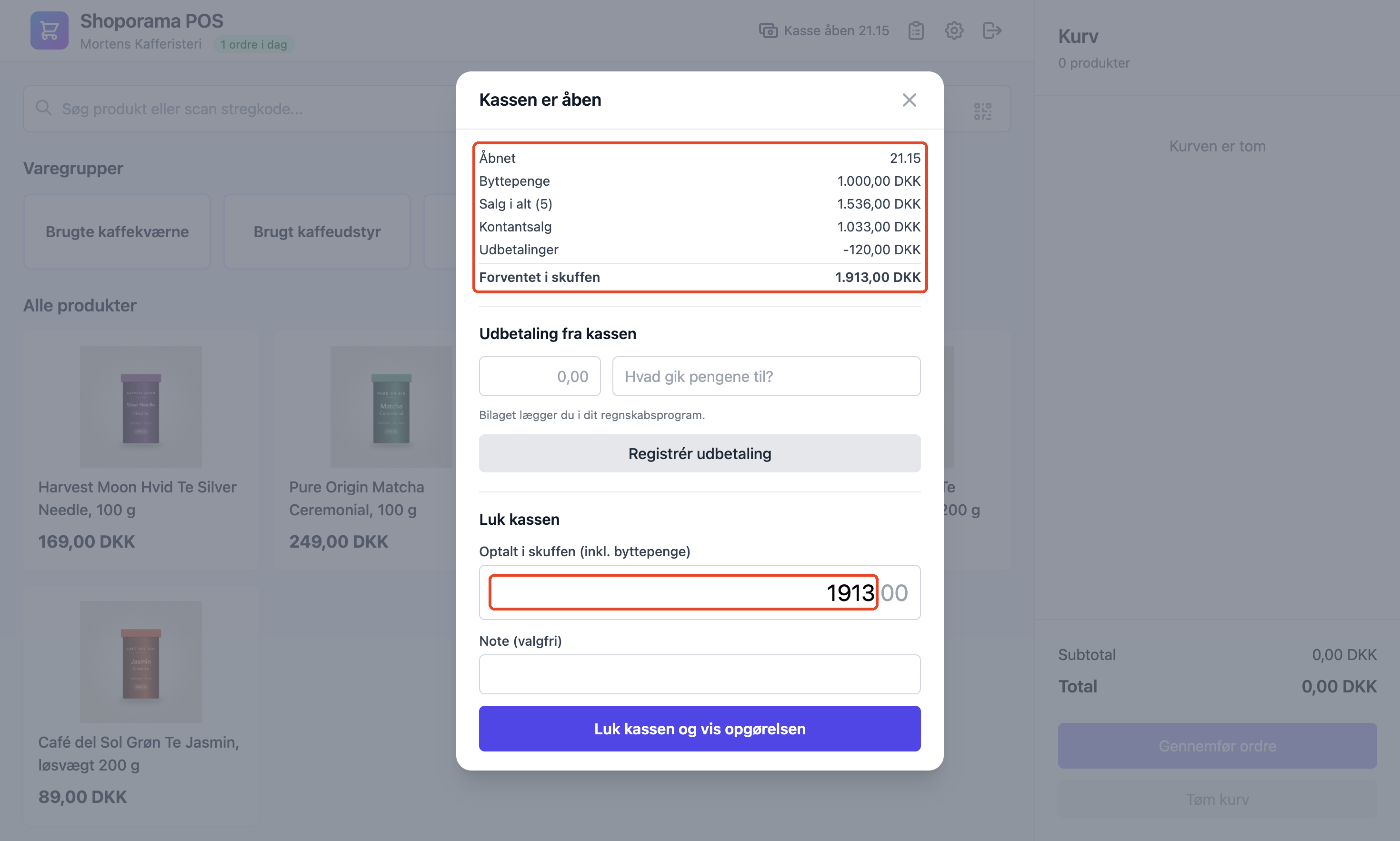
- Tap the “Cash Register” button. At the top, you’ll see today’s sales so far and “Expected in the cash drawer”
- Enter the counted amount in “Counted in Cash Drawer” (including change)
- If necessary, enter an explanation in “Note” (optional), for example, if you know the reason for a discrepancy
- Tap “Close Cash Register and View Report,” then confirm the amount
If it says that some orders aren’t marked as paid, find them under “Orders” in the POS and tap “Mark as Paid” before closing. Otherwise, they won’t be included in the count. The report is saved when you close and does not change afterward, even if you correct an order.
This displays the report
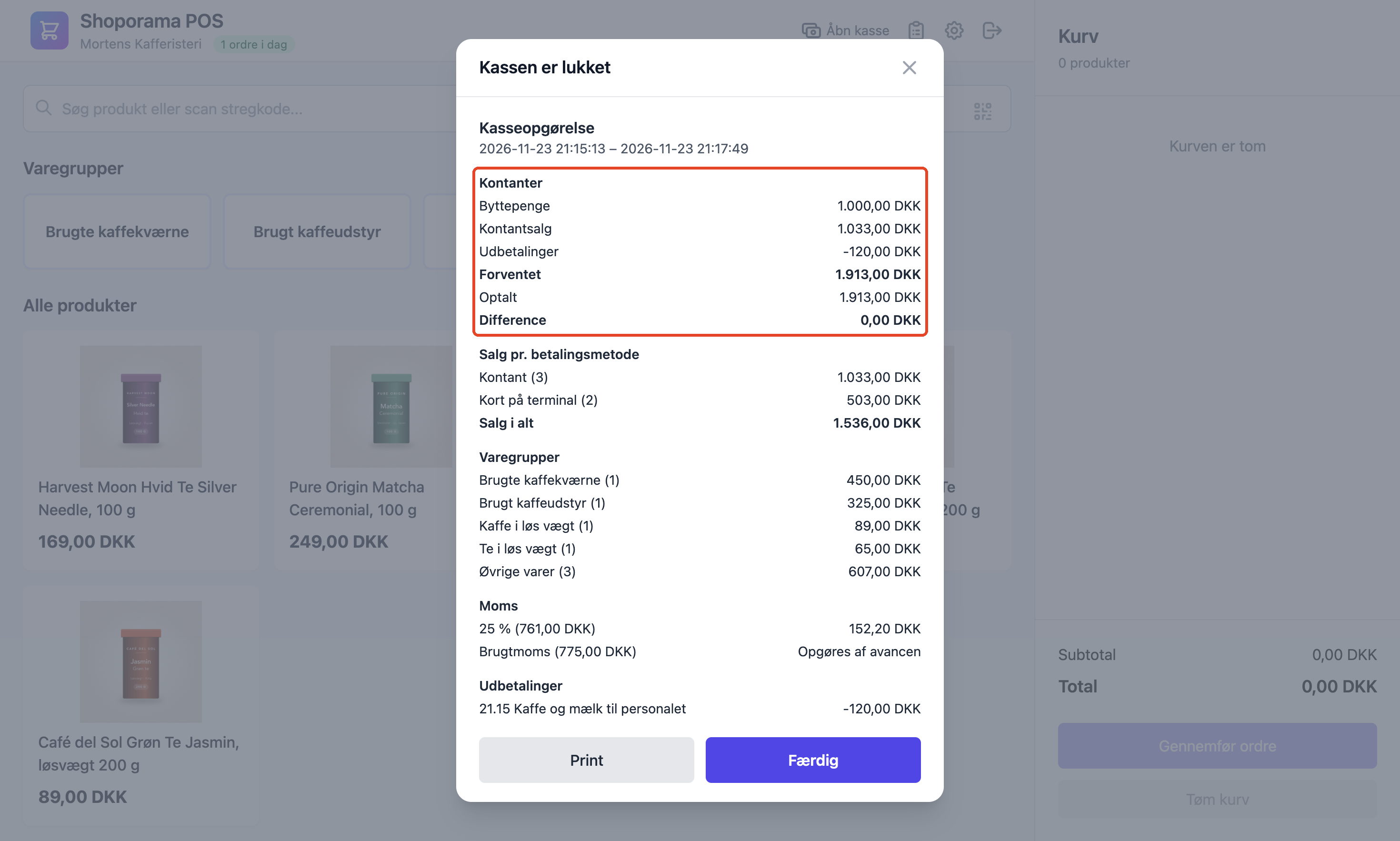
- Cash: change, cash sales, cash out, expected, counted, and difference
- Sales by payment method: number of orders and amount for each payment method, plus total sales
- Product groups: sales for each product group separately and the rest combined as “Other items.” Read more in Product Groups in POS
- VAT: Sales and VAT for each VAT type, for example, 25%. Items with second-hand VAT are listed separately as “Calculated from profit” because you calculate the VAT on your profit yourself. See Second-Hand VAT
- Payments: Each payment with date, description, and amount
Product groups and VAT are calculated based on the item line prices before discounts on the entire order, while sales per payment method are the order totals including any shipping costs. If you apply a discount to the entire order or if an order includes shipping, the figures may therefore vary slightly.
Click Print to print the summary as a receipt, or Done to close the window.
How “Expected” and “Difference” Are Calculated
"Expected " is change plus cash sales minus disbursements. "Difference " is the total amount counted minus the expected amount.
An example: You open with 500 kr. in change, make 1,840 kr. in cash sales, and take out 120 kr. for coffee. So, 2,220 kr. is expected to be in the cash drawer. If you count 2,200 DKK, the difference is −20 DKK, meaning 20 DKK is missing. A positive difference means there is too much money in the cash drawer.
The report includes orders created in the POS system from the time the register was opened until it was closed. Paid orders count toward sales regardless of payment method. Unpaid and canceled orders do not count. Unpaid orders are listed separately in the report, and the report in the admin panel also shows canceled orders.
Cash Register Reports in Admin
Go to POS → Cash Register Reports. This page requires that your user has permission to view orders.
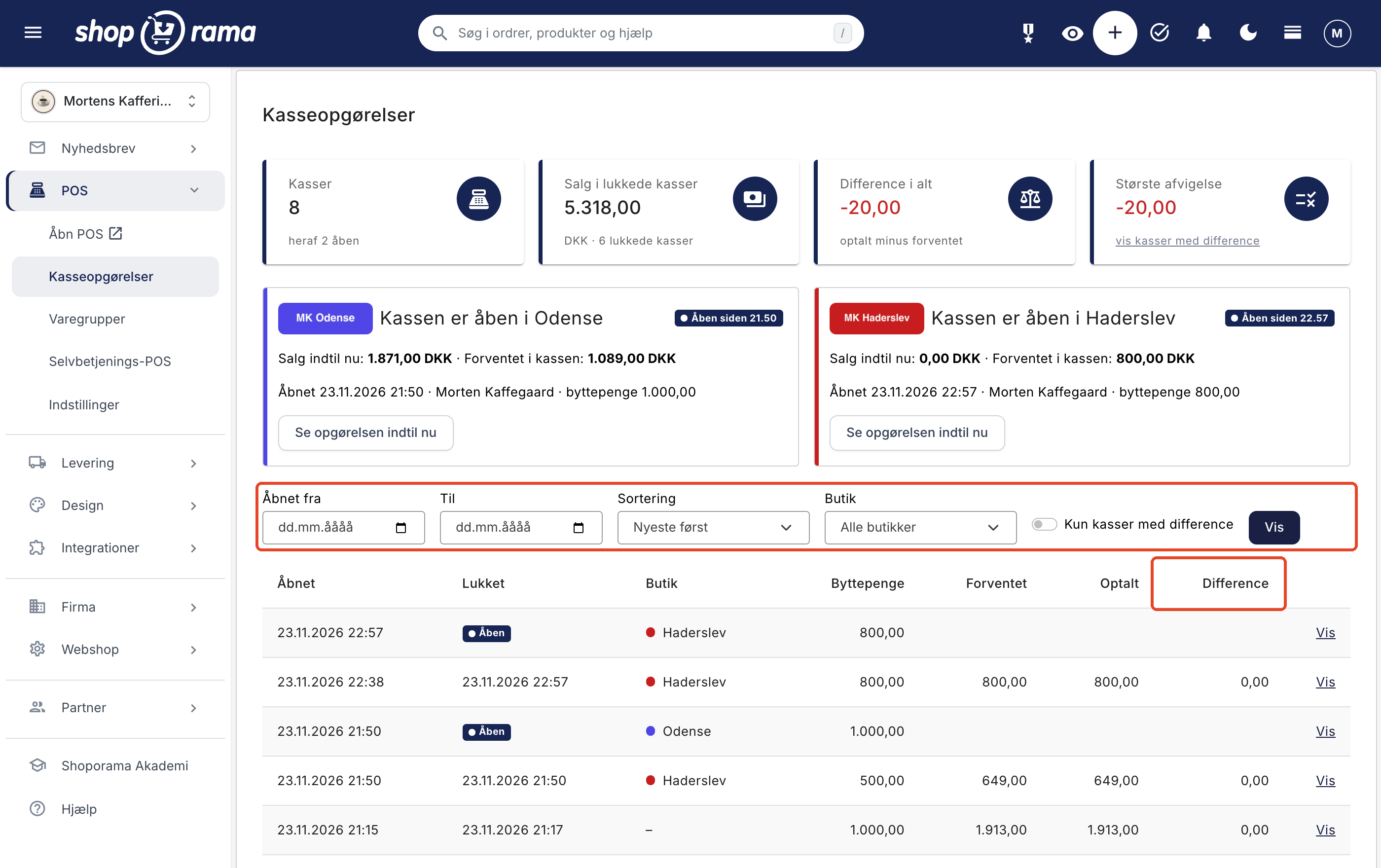
At the top are four key figures for the registers that match the filters: Registers (and how many are open), Sales in Closed Registers, Total Difference, and Largest Variance. If you select a time period, you’ll see the sales and difference for the entire period. The “Show registers with difference” link sorts the list so that the largest discrepancies appear at the top.
If the cash drawer is open, it appears at the top of the “Cash Drawer Open” card with the “Open since” label and the time, Sales so far, and Expected in the cash drawer. Click “View the report so far” to see the full report for the time the store has been open.
The table has one row for each time the register is opened and closed, with “Opened,” “Closed” (or labeled “Open”), “Change,” “Expected,” “Tổng,” and “Difference.” If money is missing, the difference is shown in red; if there is too much, it is shown in blue. Above the table, you can filter by:
- Opened From and To: registers that were opened during the period
- Sorting: Newest First, Oldest First, or Largest Difference, which displays the largest discrepancies at the top, both positive and negative
- Only boxes with a difference: only closed boxes where the total amount did not match
Click Show to apply the filters. When a filter is applied, you can remove it by clicking Reset.
Click Show (or the row) to open the report. At the top are Total Sales, Expected in Cash Register, Total Counted, and Difference, and below them are the sections. It shows the same information as in the POS system, including the receipt, as well as who opened and closed the register, who recorded each payment, the numbers of unpaid orders, and how many orders have been canceled. Click “Print ” at the top to print it.
With multiple stores
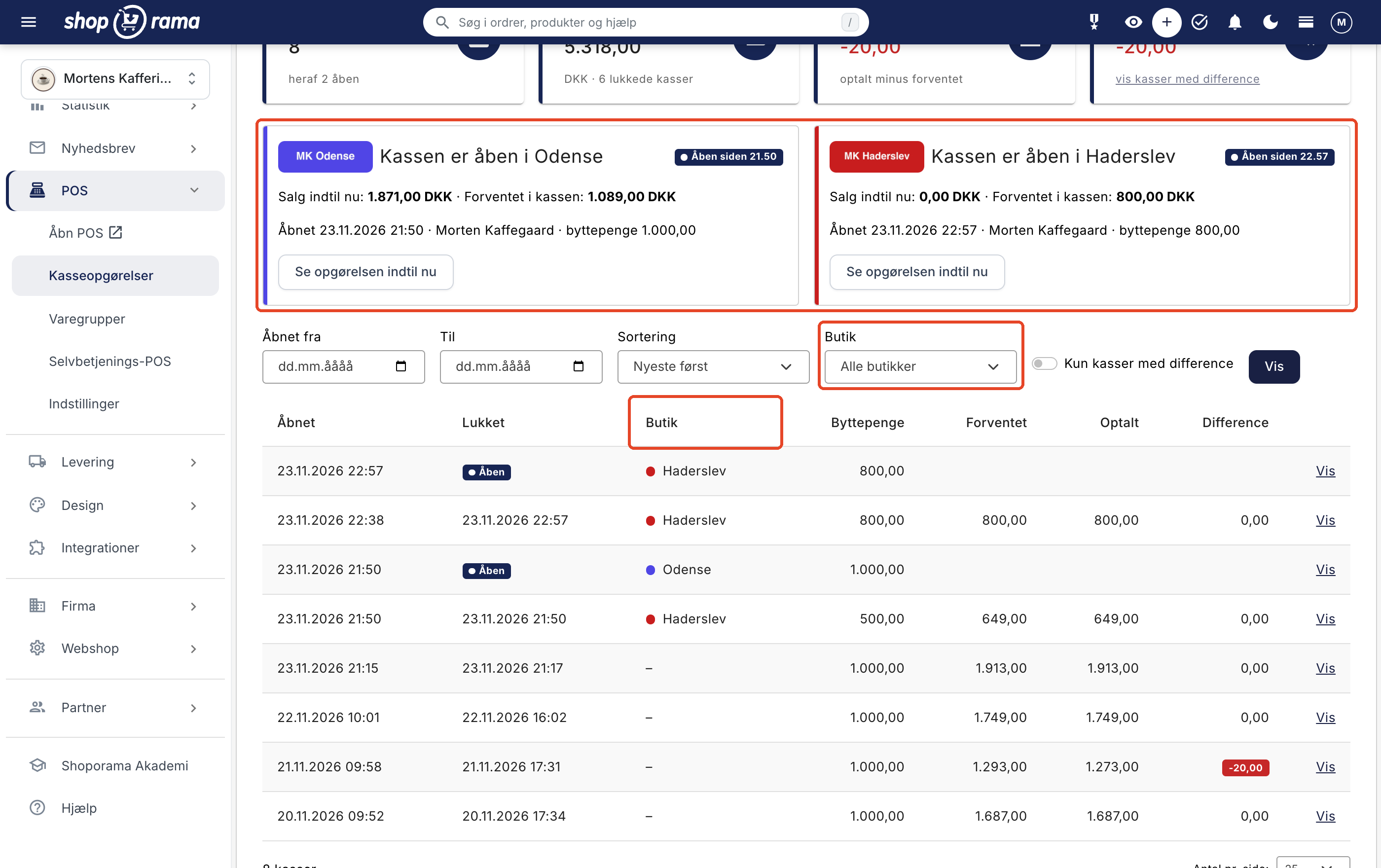
If you use the POS system in multiple stores, each open register gets its own card with the store’s color and logo, e.g., “The register is open in Odense.” The table includes a “Store” column, and using the “Store” filter, you can choose to view reports for a single store. The default is “All Stores.” At the top of the report, you’ll see which store it belongs to.
What the cash register cannot do
- The cash register does not control a cash drawer and is not connected to a receipt printer or a card terminal. You print receipts via the browser, and card payments are processed on your own terminal
- You do not count coins one by one in the cash register. You enter the total amount you have counted
- A disbursement consists of an amount and a text description, without an attachment or image of the receipt
- You cannot record deposits into the cash drawer in the POS; only withdrawals
- There is one cash register per store, or one shared cash register for the entire online store if you do not use physical stores. You cannot have multiple cash registers open in the same store—for example, one per iPad
Frequently Asked Questions
What should I enter in “Change” when I open the cash drawer?
The amount in the cash drawer when you start. The cash register suggests the amount you counted at the last closing. If you’ve taken money out of the cash drawer since then, correct the amount before you press “Open Cash Register.”
I’ve taken money out of the cash register to buy used items. How do I record that?
Use “Cash Register Disbursement”: enter the amount and what the money was used for, then tap “Record Disbursement.” The disbursement is deducted from the expected amount so the cash register still balances. You’ll need to enter the receipt into your accounting software yourself.
I forgot to open the cash register this morning. Will the sales still be counted?
No. Sales made while the cash register is closed won’t be included in any report. Open the cash register as soon as you notice this, and make a note of it when you close up in the evening, if necessary.
The cash register doesn’t balance. Can I correct the report afterward?
No, the report is saved when the register is closed, and it cannot be changed afterward. Write an explanation in the Notes section (optional) when you close. Under POS → Register Reports, you can select “Only registers with discrepancies,” click “Show,” and view all the days when the cash drawer didn’t balance.
We have two iPads in the store. Can they each have their own register?
No, iPads in the same store share a single cash register, and sales from both are included in the same report. If you have multiple stores, each store can have its own cash register; see “POS in Multiple Stores.”
Can I count coins and bills separately, or open the cash drawer automatically?
No. You enter the total amount you’ve counted. The cash register doesn’t control the cash drawer or receipt printer, and the report is printed through the browser as the receipt.
Can I add money to the cash register, such as extra change, during the day?
No, only disbursements can be recorded in the cash register. You enter change when the cash drawer is opened.
How do I find the reports for my accountant?
Go to POS → Cash Register Reports, select the period in “Opened From” and “To,” tap “Show,” and click “Show” next to the date. The report can be printed using “Print,” and it shows sales by payment method, sales tax, and cash.
Related articles
POS - Point of Sale
Learn how to use Shoporama's POS system to make sales in your brick-and-mortar store. Log in with your Shoporama account, scan barcodes, create...
Product Categories in POS: Sell items by entering the price at the register
Here's how to create product groups that appear as buttons in the POS system, where you enter the price for each sale. For used items, flea market...
Vipps MobilePay in-store: Payment at the register using a POS terminal
Here’s how to accept Vipps MobilePay in your brick-and-mortar store using Shoporama POS: QR code on the screen, payment sent to the customer’s...
Multi-store POS: separate inventory and checkout for each store
Use the POS system in multiple physical stores. Each cashier selects their store after logging in; sales are deducted from the store’s own...
Related features
POS - Point of sale system for physical stores
Use Shoporama POS as a checkout system in your physical store. Barcode scanner, inventory synchronization, customer club and discount - runs in the...
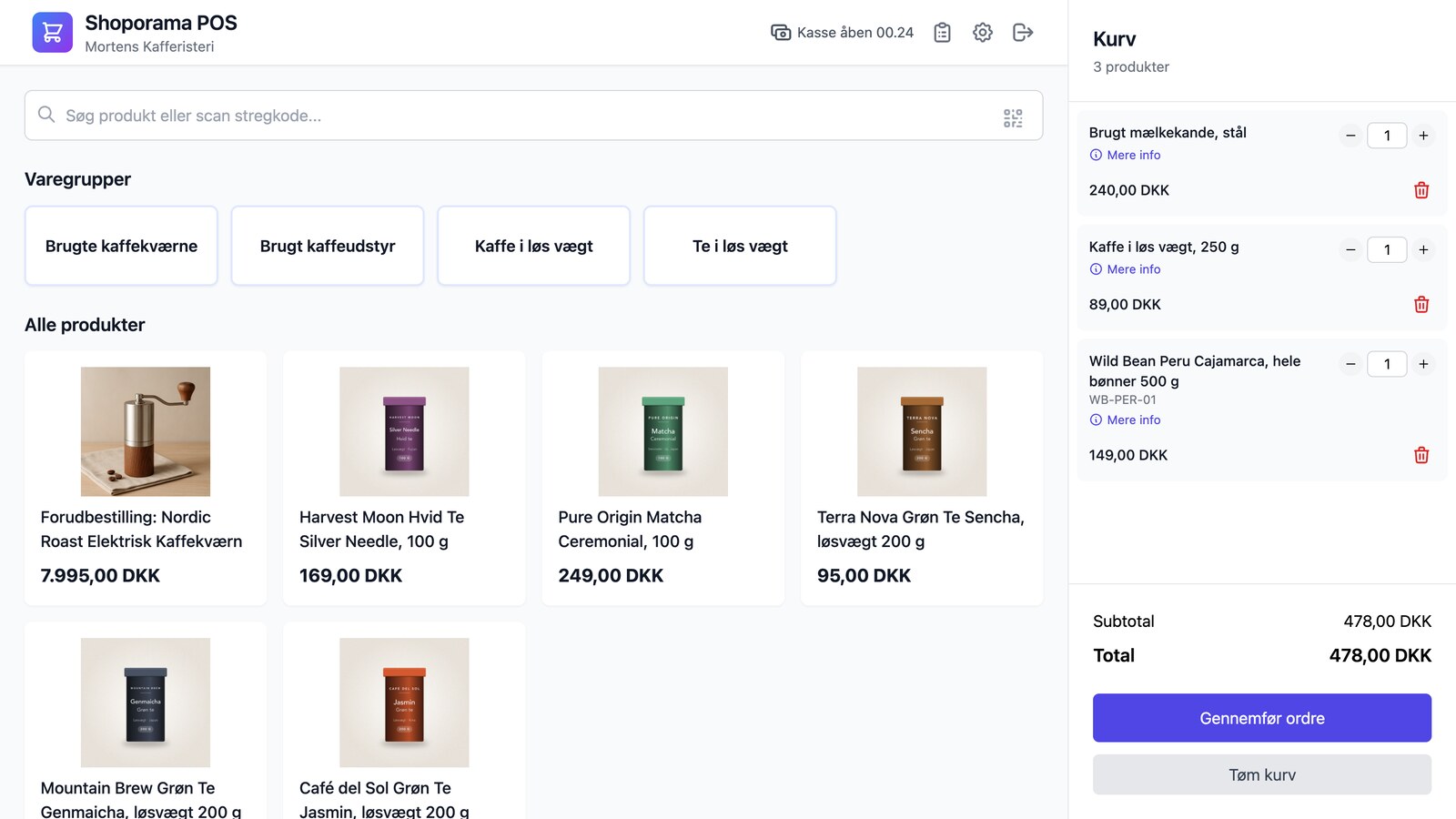
New in the POS: product categories, cash register reports, and sales from multiple stores
Shoporama's point-of-sale system now includes product categories with prices entered at the time of sale, cash register reports, multiple stores...