Notifications: What the Admin Warns You About
Shoporama collects messages from all background processes on the notifications page. Find out where to locate it, what the messages regarding payment, shipping, the financial system, and themes mean, and what you need to do.
A great deal of what your online store does happens without you having to watch it. Orders are transferred to your accounting system, shipping labels are retrieved from the carrier, payments are processed, emails are sent out, and webhooks trigger actions in other systems. When something goes wrong, you’re rarely sitting in front of the screen at that exact moment. That’s why Shoporama collects all notifications in one place, on the Notifications page.
The page explains it itself: “Many of the processes in Shoporama happen in the background, so we aren’t always able to provide feedback immediately.” This is the store’s list of errors and warnings, and it’s worth checking once a week. A single notification can be the difference between an order you get paid for and one where the funds were never collected.
Items that require you to take action—such as labels that weren’t generated, payments that couldn’t be processed, and paid orders that haven’t been shipped—are also grouped as tasks under “Action Required.” Notifications are the complete log of everything that has happened in the background.
How to Find Notifications
Notifications aren’t listed as a menu item on the left side. You can access them in three ways:
- The bell icon in the top right corner. The bell turns yellow and displays a red number when new messages have arrived since you last checked. The number indicates the number of new messages of each type; technical errors are not included. Click the bell, and a small list will expand with the heading “Notifications” and the five most recent messages. Messages from the same source are grouped on a single line with the source (e.g., “GLS”), a “×3” if it has appeared multiple times, a brief summary, and how long ago it was (e.g., “3 hours ago”). If you click on a line, you’ll be taken to the overview filtered by that source. At the bottom, there are two options: “Clear All” and “Show All.” "Show All" takes you to the full overview. As soon as you open the notification, the number and the yellow color disappear until something new comes in. This applies to you as a user, so your colleagues will still see their own new messages.
- Directly via the URL. Type /webshop/notices after your admin URL—that is, right after the shop number in the address bar.
- On mobile and small screens. Open the menu, scroll down to the “Your Account” heading, and select “Notifications.”
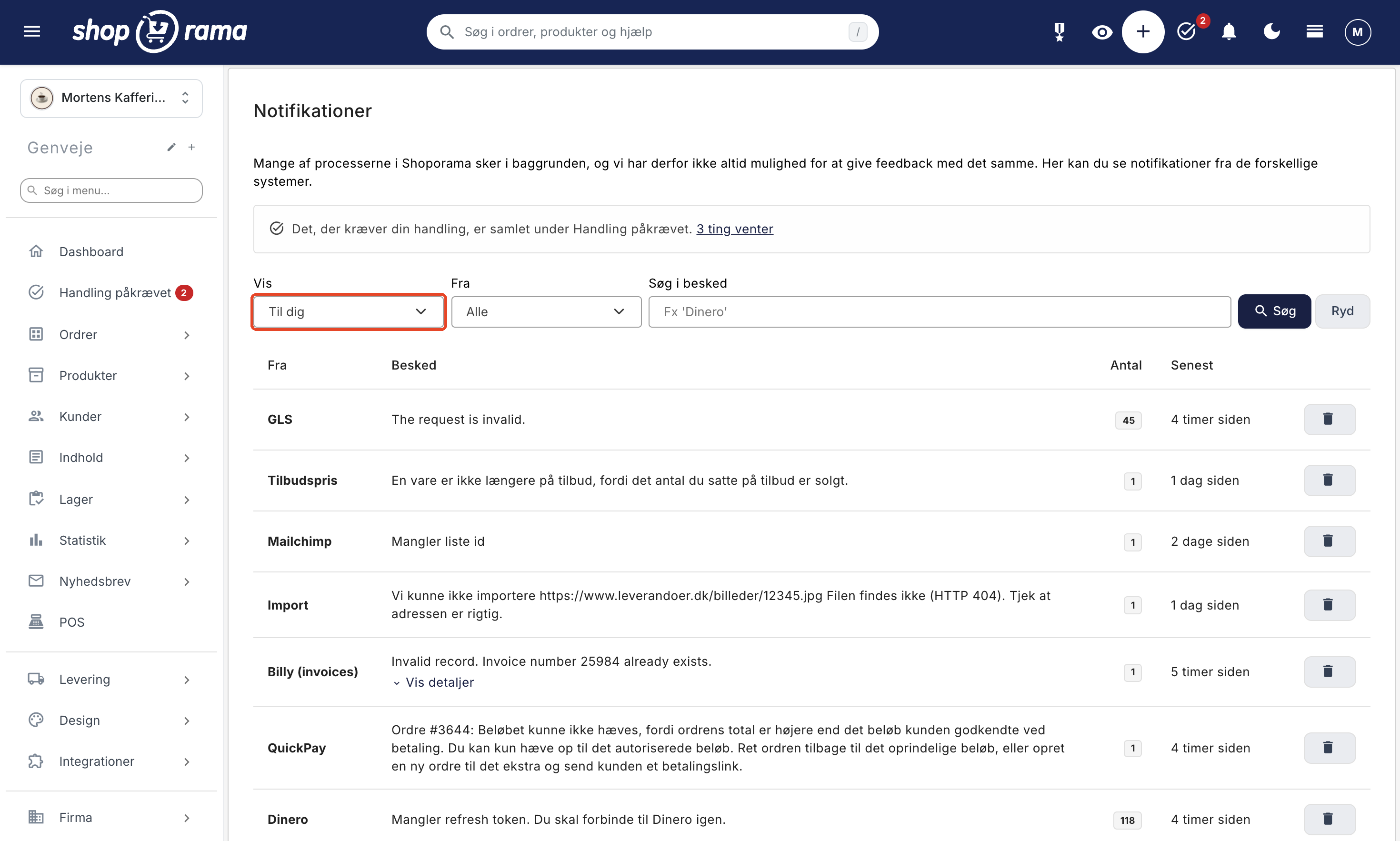
Opening the Notifications page also counts as having viewed the messages. When there are tasks under "Action Required," a box appears at the top of the page with the text "Items requiring your action are grouped under 'Action Required'" and a link showing the number, e.g., "3 items waiting."
If you use this page often, you can add it as a shortcut. Go to the page and click the plus sign next to the “Shortcuts” heading in the left-hand menu (if you’re using the top menu, click the star icon labeled “Shortcuts,” then “Create Shortcut”). Give the shortcut a name and click Save. The shortcut will then appear under the “Shortcuts” heading in the left-hand menu.
How to Read the Overview
The page itself is a table with four columns. The “From” column shows which system the message comes from, for example, “QuickPay,” “E-conomic,” “PostNord,” “Tema,” or “Webhook.” "Message" is the text itself, often written by the system that encountered the error, so some messages are in English. If a long, technical response is received from another system, the row displays only the error message itself, and below it is the "View Details" link, which expands the full text. "Count " indicates exactly how many times that specific message has been received from that specific source. Hover your mouse over the number to see when the message first appeared. " Last " shows how long ago the most recent instance occurred, e.g., "2 days ago." Hover over it to see the exact time. On the far right is a trash can icon that removes all instances of that specific message from that specific source.
Because your messages are grouped on a single line, duplicates don’t clutter up the list. If you receive the same configuration error from your financial system 40 times in a day, it appears as a single line with the number 40. This makes it easy to see whether something is a one-time glitch or an ongoing problem.
Filter, search, and clean up
There are three filters above the table. In the “View” field, you can choose between “All,” “To You,” and “Theme and Developer.” "Theme and Developer" groups the technical errors in your theme—that is, messages from the "Theme" and "Template Error" sources, as well as "Missing Method" messages from the "Shoporama" source. If the filter is set to “Theme and Developer,” the page displays: “Errors in your online store’s theme. You can forward them to the person who created your theme.” "For You" shows everything else—that is, messages related to payment, shipping, accounting, and other integrations. In the "From" field, you select one source at a time, and the list shows only the sources that have actually sent something to your store. The “Search in message” field searches for your text within the messages, so you can enter an order number, a product name, or a portion of the error message. If a filter is active, a “Clear” button appears that resets all filters. If you have many notifications, 25 lines are displayed at a time with a page navigation button at the bottom.
The “Remove All” button at the bottom deletes all notifications in the shop, not just the ones you’ve filtered. The same button is available in the bell menu. In both places, Shoporama first asks, “All notifications will be deleted. Continue?” There’s no undo option, so it’s better to clear them line by line using the trash can icon in each row. If the list is empty, the page simply says “No notifications.” If you have a filter enabled, it will say instead, “No notifications match the filter.”
What the individual notifications mean
The source in the “From” column tells you where to look. Here are the groups you’ll encounter most often.
Payments and payment gateways
Sources such as QuickPay, Nets Easy, OnPay, Mollie, ePay, PensoPay, Flatpay, Stripe, Payson, and PayPal. This is the most important group, because it involves money.
- "The amount was NOT debited. The payment provider rejected the transaction, so the order has not been paid." The order is there, but the money hasn’t come through. The message includes the order number and the gateway’s own explanation, and the order is also marked in the order list. See the article on processing payments.
- "The amount could not be debited because the order total is higher than the amount the customer authorized at the time of payment." You added something to the order after the customer’s authorization. Reset the order to the original amount, or create a new order for the difference and send the customer a payment link.
- "You need to specify an API key to create a payment link" and similar messages regarding a missing private key, checkout key, or Agent ID. The gateway has not been fully configured. Correct this under Integrations → Payment Gateways.
- "Checksum did not match—check merchant secret." Your ePay gateway is missing a valid merchant secret, so Shoporama cannot verify that the response comes from the gateway. Fix this immediately. If the merchant secret is missing entirely, it will also appear as a high-priority task under "Action Required."
- Fraud messages preceded by an order number mean that the gateway has flagged the payment as suspicious. Check the order before packing.
Shipping, labels, and return slips
Sources such as PostNord, GLS, DAO, DHL, DPD, Burd, and “Shipping.” These messages typically appear when a shipping label could not be generated.
- "Production customer number missing," "Shipping method missing," "DPD login failed," and "DHL returns not set up (username, password, or receiverID missing)" all indicate that an agreement has not been fully completed in the shipping setup.
- "You cannot create return labels for orders without tracking numbers" means that a package must have been shipped before the return label can be generated.
- Messages containing an order number and the carrier’s own error message come directly from the carrier. Most often, this is due to an address, a ZIP code, or a weight that they do not accept. Correct the order and resend it.
- The “Shipping” source may warn that a shipping method is still displayed at checkout even though the cart exceeds the method’s maximum weight. The built-in Shoporama themes handle this automatically, but a custom-built theme must mark the method as unavailable itself. The warning is displayed no more than once a week, so it doesn’t clutter the list.
If you’re experiencing many errors with GLS, there’s an article specifically about that: Errors when transferring to GLS.
Accounting Software and Bookkeeping
Sources such as E-conomic, Dinero, and Billy. The messages here are usually very specific:
- “SKU number missing for ...” indicates that a product is missing an item number. The E-conomic integration automatically adds one, but it’s easier to get it right from the start than to correct it later.
- Messages about missing IDs for discount codes and missing IDs for the shipment mean that the discount or shipping costs cannot be posted because a reference is missing from the setup.
- "No API key," "Missing account ID," and "The connection to Dinero has expired. You must reconnect" mean that the integration needs to be set up or renewed under Integrations → Accounting System. Otherwise, the orders will remain pending.
- "We are not transferring the order because it was already transferred" is a warning about double-posting. Transfer it manually if the order is actually supposed to be included.
The most common errors and their solutions are listed in " Common Errors in the E-conomic Integration."
Theme, shopping cart, and email templates
This group most often results in lost sales because it concerns what the customer sees.
- "Theme" with the text "Error in your theme at the address ..." means that a page in the store crashed. The address is included in the message, so you can go there directly. "Possible error at the address ... The page was empty" means that the page returned no content at all.
- "Shoporama" with the text "Missing method..." means that your theme is calling something that doesn't exist or isn't allowed in themes. The message specifies which template the error occurred in. The same error is logged at most once per hour, so it appears as a single line, regardless of how many pages it affects. This is a task for your theme developer or for you to handle in the code editor.
- A “Template error” with the text “It is possible to add items to the cart without a variant” is a serious issue for inventory management. Customers can place orders without selecting a size or color, and then you won’t know what to pack. The page address is included in the message.
- "Cancellation" indicates that a customer did not receive a confirmation of their cancellation because the email template mails/withdrawal_received.html is missing from the theme. The confirmation is required by law, so contact the customer manually and make sure the template is in place.
- "Return Center" alerts you if the template for the return label is missing (return_label.html or mails/return_label.html), and "out_of_stock_mail" indicates that in_stock_mail.html is missing, so customers on the waiting list won’t be notified when the item is back in stock.
Emails, SMS, and Mailing Lists
The “Mail” source reports “An email could not be delivered” with the reason in Danish, e.g., that the address is invalid or that the recipient’s address is blocked by the email provider. All errors are grouped on a single line. You can see which emails are affected under “Action Required” or by using the “Only undeliverable emails” filter in the sent emails overview. The sources Mailchimp, Klaviyo, Brevo, and Campaign Monitor report when sign-ups cannot be forwarded. "Missing API key," "Missing list ID," and "You must specify a list in the settings" mean that the integration is only partially set up—for example, with an API key but without a list. You can fix this under Integrations → Mailing List. If you haven’t set up Mailchimp at all, no message will appear. A partially set up Mailchimp or Klaviyo will also appear under “Action Required.” The source “cpsms” shows the response from the SMS provider when an SMS didn’t go through.
Webhooks, imports, subscriptions, and miscellaneous
- "Webhook" shows the address that was called and the HTTP status it returned. A notification is generated for any status other than a 2xx status, meaning the recipient system is either down, rejected the call, or responded with a redirect. See the article on webhooks.
- "Import" notifies you if an image or file could not be retrieved, for example, "Incorrect file type. Only jpg and png allowed." or "We were unable to import...".
- "Subscription" notifies you when a subscription is missing a customer or when a subscription order was created with products that were out of stock. The products are listed in the message so you can reorder them.
- "Card Change" notifies you when a customer has changed the payment card on their subscription, but the change could not be saved. Either the store’s payment connection could not be found, or the confirmation from the payment gateway could not be approved. Check that the store has an active payment connection and that the subscription is linked to the correct one, as described in the article on subscriptions. Then ask the customer to change their card again.
- "Split Test" notifies you when a test is complete and which variant won, and warns you if the distribution between variants appears skewed.
- "Offer Price" alerts you if an end date is in the past or if the start date is after the end date. The date will be ignored, so check the campaign. “Automatic Inventory Status” alerts you if the path to your inventory file is invalid. And “AI” alerts you if your OpenAI key was rejected. Correct it or remove it, and Shoporama will use its own.
What should you address first?
Start under “Action Required.” This is where you’ll find items that require your attention: labels and pickups that failed in the order queue, payments that couldn’t be processed, paid orders that haven’t been shipped, and missing setup information. The tasks are sorted with the most important ones first, and they disappear on their own once the problem is resolved. You can find the page via the checkmark icon next to the clock.
If you’re reviewing the list of notifications yourself and it’s long, tackle them in this order: first, anything indicating that a payment wasn’t processed, because that’s costing you revenue right now. Next, the message about a missing cancellation receipt, which is required by law. Then errors on the storefront itself—such as “Error in your theme” and “It’s possible to add items to the cart without a variant”—which affect all customers, not just one. Finally, missing keys and configuration issues, which cause the same errors to appear again and again until they are fixed. Accounting and other integrations are important, but can usually be caught up on retroactively.
Get theme errors sent directly to your email
Notifications are not automatically sent via email. However, there is one exception that you can enable yourself: errors from your theme. Go to Webshop → General, select the “Theme” tab, and fill in the field “Send error messages from your theme to the addresses below (separate with commas).” Then those addresses will be notified immediately when a page in the store crashes. This is especially useful if you have an external theme developer who needs to respond quickly.
Notifications clean up after themselves
The list doesn’t grow indefinitely. Notifications older than 14 days are automatically deleted. However, this means the page isn’t an archive. If you need to save a message for documentation, copy the text into the order notes while it’s still there.
For the tech-savvy
- The lines are grouped based on the combination of the source and the exact message text. Two messages that differ by only one character—such as an order number—therefore count as two separate lines.
- The “Theme and Developer” filter groups together the “Theme” and “Template Error” sources, as well as messages from the “Shoporama” source that begin with “Missing method.” "For You" contains the rest. The messages under "Theme and Developer" are not included in the count displayed next to the clock and do not appear in the clock menu.
- "Missing method" is logged at most once per hour per error, and the page address is not included in the message—only the template and the method. Therefore, identical errors are grouped on a single line.
- The search field looks for your text as a substring within the message itself. It does not search the source name; use the “From” filter for that.
- The "Delete" button on a line removes all instances with the same source and the same message text, not just the most recent one. "Remove All" clears the entire store’s list regardless of the filter. Notifications are specific to a single online store, so if you have multiple stores, you’ll need to switch stores to view their messages.
Frequently Asked Questions
Why can’t I find “Notifications” in the menu?
Because the page isn’t listed as a menu item. You can access it via the bell icon in the top right corner and the “Show All” option, or by typing /webshop/notices after your admin address. If you want to pin it to the menu, create a shortcut by clicking the plus sign next to “Shortcuts” in the left-hand menu (or the star icon “Shortcuts” if you’re using the top menu).
Is it dangerous to click “Remove All”?
No, it doesn’t affect orders, products, or customers. But the messages are gone for good, and there’s no undo option. If there’s a message you haven’t understood yet, leave it as is. If you only want to clear a single type of message, use the trash can icon in the message line instead.
How do I know if a notification is serious?
Look at the source and the wording of the message. Anything regarding amounts that weren’t withdrawn, receipts that weren’t sent, or errors with the store itself should be addressed immediately. Messages that begin with “You need to specify…” indicate that a setup isn’t complete. Messages stating that something “had already been transferred” are typically just informational.
Can I receive notifications via email or in another system?
Only theme errors can be forwarded automatically. You can enable this under Webshop → General, on the “Theme” tab, in the field “Send error messages from your theme to the addresses below.” For the rest, you’ll need to check inside the admin panel, but the clock turns yellow and displays a red number as soon as something new has come in since you last checked.
Should I save the notifications for my accountant or bookkeeping?
The notifications are not accounting records, and they are automatically deleted after 14 days. However, messages from your accounting system are a good indication that something has been omitted from the books. Correct the setup and check the affected orders in the financial system while you still remember.
I’ve received the same message 200 times. What does the number in “Count” mean?
The number indicates exactly how many times that specific message has come from that exact source. Hover your mouse over the number to see when it first appeared. A high number almost always indicates a single recurring configuration issue, not 200 separate incidents. Fix the cause, and the count will stop increasing.
What does “Missing method” from the Shoporama source mean?
It means that your theme is calling a function that doesn’t exist or isn’t available to themes. The message includes which template the issue occurred in, and the same error is logged no more than once per hour. The customer typically sees a blank field where the value should have appeared. Forward the message to your theme developer, or fix it yourself in the code editor.
I’m getting shipping errors on orders I’ve already shipped. How do I find them?
Select the carrier in the “From” field and enter the order number in “Search in message.” Shipping notifications almost always include the order number, so you can go directly to the correct order. If the error message is from the carrier itself, it’s usually related to the address, ZIP code, or weight.
When does the number next to the clock disappear?
As soon as you open the clock menu or the Notifications page. The number only shows new messages since you last checked, and this applies per user. The messages themselves remain until you delete them or they are 14 days old. If a new message arrives, the clock turns yellow again.
What’s the difference between “Notifications” and “Action Required”?
Notifications are a log of everything that has happened in the background, including items that are purely for informational purposes. Action Required is a short list of items that require your attention, such as failed labels and payments that could not be processed. The tasks there disappear on their own once the problem is resolved, while a notification remains until you remove it or it is 14 days old.
Why can’t I see the errors from my theme?
Check the “View” field. If it’s set to “For You,” theme errors are hidden. Select “Theme and Developer” or “All.” Theme errors also don’t appear in the bell menu, so they don’t clutter the messages you need to respond to yourself.
If you’re unsure about a message you can’t figure out, email support@shoporama.dk with the text from the “Message” column and the source it came from. Then we can quickly see what went wrong.
Related articles
Collect payments on orders (capture)
Guide to capture payments on orders in Shoporama. Understand the difference between authorization and capture and learn how to capture manually or...
Error when transferring to GLS
Overview of typical GLS transfer errors in Shoporama and solutions for them.
Typical errors in the E-conomic integration
Overview of common errors in the e-conomic app and how to fix them.
Code Editor: Edit theme files directly in the admin panel
The code editor lets you edit your theme's HTML, CSS, and JavaScript files directly in the admin panel. See what you can edit, how to save your...
See which emails Shoporama has sent
Guide to view a log of all emails Shoporama has sent from your online store.
Webhooks in Shoporama
Complete guide to webhooks in Shoporama. Get automatically notified on a URL when something happens in your online store. List of all events,...
What do the 404 errors in the backend mean?
Explanation of 404 errors that appear in the Shoporama backend and what you should do about them.
Action Required
"Action Required" lists the items in your store that require your attention, such as errors in the order queue, payments that weren't processed,...
Related features
A Tour of the Admin Panel: Finding Your Way Around Shoporama
Navigate through Shoporama's admin area: the menu, search bar, notifications, dashboard, "Customize View," and the difference between Webstore and...
Your first order: pack, ship, and collect payment
Manage your first order in Shoporama: order status, picking list, partial shipments, shipping labels, payment refunds, and unpaid orders.