Trash: Restore Deleted Items
Deleted products go to the trash and can be restored within 30 days. Find out where to locate them, how to restore them, what gets restored along with them, and what you need to keep in mind afterward.
Did you delete a product by mistake? Don't worry. On Shoporama, a deleted product isn't thrown away right away. It’s moved to the store’s trash bin, where it stays for 30 days, and during that entire time, you can restore it with just two clicks. Here’s the full story: what happens when you delete a product, how to restore it, what comes back with it, and what you need to remember afterward.
What happens when you delete a product?
You can delete a product in two places in the admin panel: using “Delete Product” on the product’s edit page, or using “Delete Selected” in the product overview. On the edit page, click “More options ” at the bottom of the page; “Delete product” is at the very bottom of the menu, below a line. In the product overview, select the products, and then you’ll find “Delete selected” under the “More actions” button in the bar with the selected products. In both places, you must confirm that you mean to do this. If you have a role other than Full Access, deletion requires the “Deletion and Bulk Import” add-on. Without this add-on, the deletion will be rejected. Read more in Roles and Permissions.
Three things happen immediately:
- The product is taken offline. It disappears from categories, search results, filters, product feeds, and everything else your customers can see.
- The product is moved to the trash. The date and time of the deletion are saved, and this is the point from which the 30-day period begins.
- You’ll be redirected to the Set Up Redirects page. Here, you can redirect the product’s old URL to a relevant page—typically the category where the item was listed. If you don’t want to do this, simply click “Skip.”
A redirect is a message to browsers and search engines that the content has been moved. Without it, customers and Google will encounter an error page. Learn more about this in The Complete Guide to Redirects.
The key point is that nothing is deleted at this stage. Images, text, prices, cost prices, inventory entries, variants, and category associations remain exactly as they were. The product is simply hidden and marked as deleted.
How to Find the Trash
You can open the Recycle Bin from the product overview under Products, All Products. In the top right corner, next to the Create Product button, you’ll see the Recycle Bin link with the number of deleted products in parentheses. The link only appears when there’s something in the Recycle Bin. The page is called “Deleted Products,” and at the top it says: “Products can be restored within 30 days. After that, they are permanently deleted.” Next to that is a search field, and below it is a table listing all the products waiting to be restored.
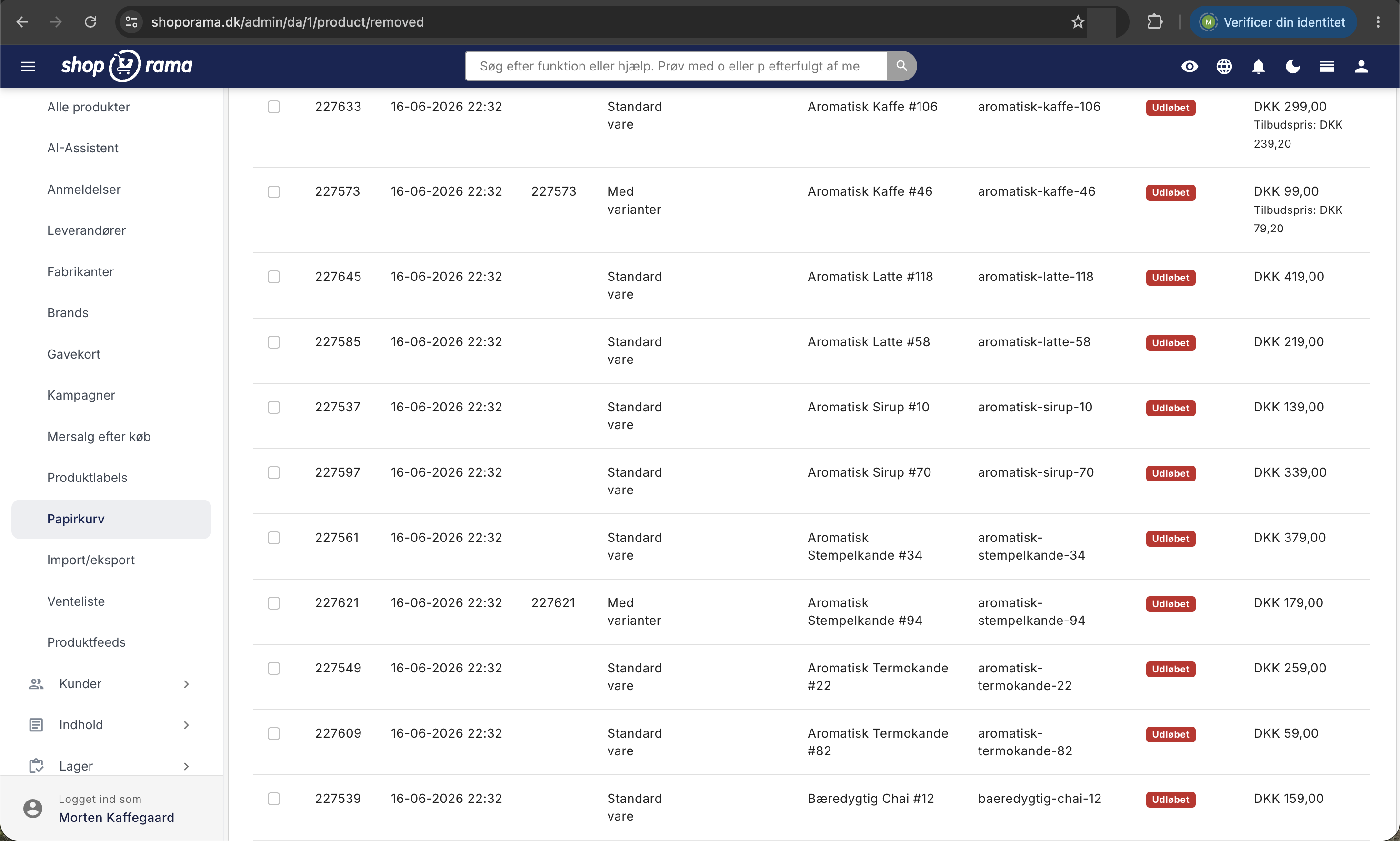
The table displays a small image of each product and the following columns: Product (the name, followed by a row with SKU, ID, and supplier), Deleted (how long ago, with the exact date and time when you hover over it), Deletes in (the days remaining), and Price (excl. tax) with any sale price below. At the far right of each row is the Restore button.
You can sort by Product, Deleted, and Price by clicking on the column header, and click again to reverse the order. By default, the most recently deleted items appear at the top. The search field searches for SKU, GTIN, location, or product name. Name and location also accept partial matches, while SKU and GTIN must be entered in full. The page displays 25 products at a time.
How to restore a product
- Go to Products, All Products, and click the Trash link in the top right corner.
- Find the product. Search by name or SKU, or sort by “Deleted” if you know roughly when the mistake occurred.
- Check the box next to each product you want to restore. The checkbox at the top of the table selects all products on the current page. The shortcut Cmd + A on Mac or Ctrl + A on Windows does the same thing, as long as the cursor isn’t in the search field.
- Click the blue “Restore Selected” button below the table. If you only want to restore one product, you can instead click “Restore” at the far right of the product’s row without checking any boxes.
- The product is now back in the product overview. Note that it is marked as offline. Open it, set it to online, and save when you’re ready to display it to customers again.
No confirmation dialog appears when you restore a product. This is a risk-free action, as you can always delete the product again.
What is restored?
Everything. Since deleting the product only hid it, you’ll get the entire item back exactly as it was:
- The same product ID and the same URL as before.
- Name, descriptions, meta title, and meta description.
- Price, sale price, cost price, and any customer group prices.
- SKU, GTIN, MPN, and stock location.
- Images, attached PDF files, and downloadable files.
- Categories, main category, brand, and supplier.
- Product profile and all variants, including the variants’ own item numbers.
- Inventory levels and the complete history of inventory entries, so that the inventory value remains the same as before.
- Product labels, related products, custom fields, reviews, and the wish lists the item was on.
What is not automatically restored?
1. The product returns to an offline status
This is intentional, so you don’t accidentally publish a half-finished product while rummaging through the trash. Open the product, set it to online, and save. See “Edit Product” if you’re unsure where the button is located.
2. The redirect remains in place
If you created a redirect when you deleted the product, it will still be listed under Webshop > Redirects. As long as the product is offline, it will redirect your visitors. As soon as you put the product back online, the product page will display normally, and the redirect will no longer take effect. If you want to remove it completely, delete it under Webshop > Redirects.
3. Changes you’ve made in the meantime
As soon as a product is in the trash, Shoporama considers its URL and SKU to be available. If you’ve created a new product with the same URL or SKU in the meantime, you’ll end up with two products competing for the same spot after a restore. Correct one of them before putting anything back online. Also, keep in mind that a product that has been gone for several weeks typically needs to be reindexed by Google.
Delete Permanently Right Away
If you need to remove a product permanently without delay, select the products and click the red “Permanently Delete” button. A dialog box will open with the text “Are you sure? Permanent deletion cannot be undone” and a list of the selected products’ names. Review the list, then click “Permanently Delete” to proceed or “Cancel” to back out. If you have a role other than “Full Access,” “Permanently Delete”—just like regular deletion—requires the “Deletion and Bulk Import” permission.
This will remove the product itself along with everything associated with it: images, PDF and download files, inventory entries, category associations, variants and their SKUs, price history, customer group prices, minimum stock rules, and the wish lists the item was on. This action cannot be undone, so be sure to back up your store if you’re doing a major cleanup.
Your old orders, however, will not be affected. Each order line stores the product name, SKU, quantity, and price as they were at the time of purchase, so order history, invoices, and accounting figures remain unchanged.
What happens after 30 days?
Shoporama automatically clears out the trash every night. Products that have been there for more than 30 days are permanently deleted, just as if you had clicked the button yourself. The “Deleted in” column counts down and turns yellow during the final week. When the countdown reaches zero, the field changes to a red label with the text “Expired.”
An “Expired” item can still be restored until the night the cleanup reaches it, and the cleanup runs in batches, so a very large cleanup may span several nights. Don’t count on that extra time. Restore it well in advance.
Good habits that save you trouble
- Set items to “Offline” instead of deleting them if the product might come back. Seasonal items and items you’re waiting to be restocked belong in the “Offline” status, not the trash. That way, no countdown will start.
- Don’t skip the redirect. A dead product page costs you both traffic from Google and customers who click on an old link from a newsletter or a price comparison site.
- Check the trash before recreating a deleted product from scratch. Restoring it takes two clicks, while recreating it from scratch means losing images, text, reviews, and sales history. If you need a variant of an existing product, copying a product is often a better option.
- Use the trash bin as a safety net when doing a mass cleanup. Clean up extensively, review the store over a couple of days, and remove any products you accidentally included.
For those with technical expertise
- Deletion via Shoporama’s REST API or an integration is also a soft delete. The product ends up in the trash just as it does when deleted in the admin panel and can be restored from there.
- The product ID is preserved, so external systems that reference the ID will work again immediately after restoration.
- Under Statistics, Sold Products, deleted items are marked with a red “Removed” label, so you can see that a historical sale comes from an item that is no longer in the product lineup.
- Permissions for the Recycle Bin depend on your role’s access to products. If your role allows you to edit products, you can restore them. If your role only allows you to view products—such as Marketing or Bookkeeper—you can view the Recycle Bin but cannot restore or permanently delete items. With the “Supplier” role, you do not have access to the Recycle Bin, so ask a colleague with a role that allows them to edit products to restore a product you deleted by mistake.
Frequently Asked Questions
I accidentally deleted a product yesterday. Is it gone for good?
No. It’s in the Recycle Bin, which you can open using the “Recycle Bin” link in the top-right corner under “Products,” “All Products,” and you have 30 days from the time of deletion to restore it. Click “Restore” next to the product. Everything is included: images, descriptions, prices, inventory, and variants.
Can I see who deleted a product?
Yes, if you’re a company administrator. Go to Company → Users, click the “Activity Log” button in the top right corner, select “Product Deleted” under “Action,” and click “Filter.” The log shows who deleted it, when, and the product’s name. If multiple products were deleted at once using “Delete Selected,” a single line will appear showing the number. If someone permanently deletes a product from the trash, this is also noted in the log, marked as “permanent.” Deletions made via the API, an app, or Claude are not included, and the log only shows deletions made after it was introduced. Read more in the Activity Log.
I’ve restored the product, but customers still can’t see it. Why?
Because a restored product always returns to an “offline” status. This is a built-in security measure. Open the product in the product overview, set it to “online,” and save—it will then be visible in the store again.
How do I know how much time I have left?
The “Deleted in” column counts down for each product. If there’s a red “Expired” label, the 30 days have passed, and the item may be permanently removed during the next nightly cleanup. Take action immediately if you want to keep it.
I accidentally deleted 800 products during a bulk edit. Can I restore them all?
Yes, but the trash can displays 25 at a time, and the checkbox at the top only selects the items on the current page, so you’ll need to restore them page by page. Sort by “Deleted” with the most recent at the top so you don’t accidentally restore older deletions.
What happens to my old orders if I permanently delete a product?
Nothing. Each order line stores the product name, item number, quantity, and price as they were at the time of purchase, so orders, invoices, and accounting figures remain unchanged. You only lose the link to the product page itself.
Do items in the trash count toward my inventory value?
No. A deleted product isn’t included in the store’s inventory value, even though the inventory entries are still stored. The total inventory value is recalculated overnight, so the figure will be corrected the next day. If you restore the product, it will be counted again. If you have the items physically in stock, set them to “offline” instead of deleting them.
What does a customer see when they click on an old link to the item?
If you set up a redirect when deleting the item, the customer will be sent to the page you selected—typically the category page. Otherwise, the customer will see a “page not found” error. That’s why it’s almost always a good idea to use “Set Up Redirects,” which is automatically offered to you after deletion.
Can I restore a deleted category in the same way?
No, the trash can only applies to products. Categories do not have the same undo button in the admin panel. Read more in “Restore a Deleted Category,” and be extra careful when deleting categories.
Has a product disappeared without ending up in the trash? Email us at support@shoporama.dk, and we’ll look into it.
Related articles
The big guide to redirects
Complete guide to redirects in Shoporama. Learn when and how to create redirects and avoid losing rankings in Google.
Edit product
Guide til produktredigeringssiden i Shoporama: toppen med Rediger, Lager, og Salgsstatistik, hvordan du tilpasser siden med faner og skjulte kort,...
Backup your shop
Guide to backing up your Shoporama online store - products, categories, themes and data.
Copy a product
Guide to copying a product in Shoporama - including variants, images and descriptions.
Restore a deleted category
Information about restoring deleted categories in Shoporama - what is possible and what is not.
Reset orders, inventory and more.
Guide to reset order numbers, inventory and other data in your Shoporama online store.