A/B Testing of Shipping Rates: Find the Shipping Rate That Generates the Most Revenue
How to Use A/B Testing for Shipping Rates in Shoporama: Show two shipping rates to two separate groups of your visitors, and see which one yields the best bottom-line results.
Most online stores set the shipping price once, when the store was first set up, and then it stays that way: 39 kroner. Or free shipping on orders over 499. The amount is usually an educated guess, perhaps influenced by a look at what the competition is doing, and afterward, no one ever measures whether it was actually the right choice.
That’s a shame, because the shipping rate is one of the few figures in an online store that affects everything at once. It influences how many people complete their purchase, how large an order they place, and how much you yourself have to pay to ship the package. A wrongly set amount costs money every single day, without ever showing up as an entry in the books.
With A/B testing of shipping rates, you can replace guesswork with experimentation. You show two different shipping rates to two separate groups of your visitors and let the numbers determine which one generates the most revenue. This guide shows you how to set up a test, how to interpret the results, and what you should test first.
What a shipping rate split test does
A split test, also known as an A/B test, divides your visitors into two equal groups. One half sees the store’s current shipping rates. The other half sees the new price you want to test. Everything else in the store is exactly the same for both groups, so any difference in the results can only be attributed to the shipping price.
Once the test has run for a while, Shoporama compares the two groups and tells you which one generated the most revenue per visitor. Not which one sold the most, nor which one had the best conversion rate, but which one generated the highest contribution margin—that is, what’s left after the cost of goods and your shipping expenses have been deducted. This is an important distinction, and we’ll explain why later on.
You’ll find this feature under Delivery > A/B Test Shipping Rates. There’s also a shortcut on the Delivery > Shipping Methods page, where the button is labeled “A/B Test Shipping Rates.” Shoporama already has an A/B test for designs under the Design menu. That’s a different feature. The shipping test is located under Delivery because you’re thinking in terms of shipping methods when you set it up.
How to set up a test
Go to Delivery > A/B Test Shipping Rates and create a new test. You must have at least one shipping method in your store before you can get started. If you don’t have any, the page will prompt you to create a shipping method first. The screen has four steps:
- Which shipping method do you want to test? The test affects only that one method. All your other shipping methods will function exactly as usual while the test is running.
- Variant B: the new price. You have three options: increase or decrease the price by a specific amount (for example, minus 20 DKK), set a fixed price regardless of country and weight (for example, 0 DKK), or change the price by a percentage (for example, minus 15%). Here, you also decide whether to include the free shipping threshold: you can keep the threshold as it is today, test a different threshold, or omit free shipping entirely in Variant B. You can also choose to test only the threshold and leave the shipping price itself unchanged. Finally, the “Ignore shipping prices” checkbox is located here for each individual product. It is turned off by default, and that’s the right choice for most people. Only check this box if the products’ own shipping prices would otherwise override what you want to test.
- Your finances. Enter your cost per shipment—that is, what you pay the shipping company to send a package, excluding sales tax. Shoporama saves this amount for the shipping method and automatically suggests it next time. Then enter your average profit margin on items. The profit margin is the portion of the selling price that remains after the item’s cost price has been deducted. If you sell an item for 100 kroner that you paid 60 for, the gross margin is 40%. The field is set to 40% by default, and the number is saved in the store, so you only need to enter it once.
- Duration. You can choose 2, 4, 6, or 8 weeks. The test also has a checkbox labeled “Stop automatically when the result is reliable enough,” which is enabled by default.
There is no name field on the creation screen. The test is automatically named after the shipping method you’ve selected. If you want to name it something else, you can edit the name later under “Settings” on the test’s own page.
All amounts are listed without tax, just as on the page with shipping rates by country. The adjustment applies to all prices for the selected method—that is, all countries and all weight ranges. This is worth keeping an eye on if your heavy packages are already close to your own cost price.
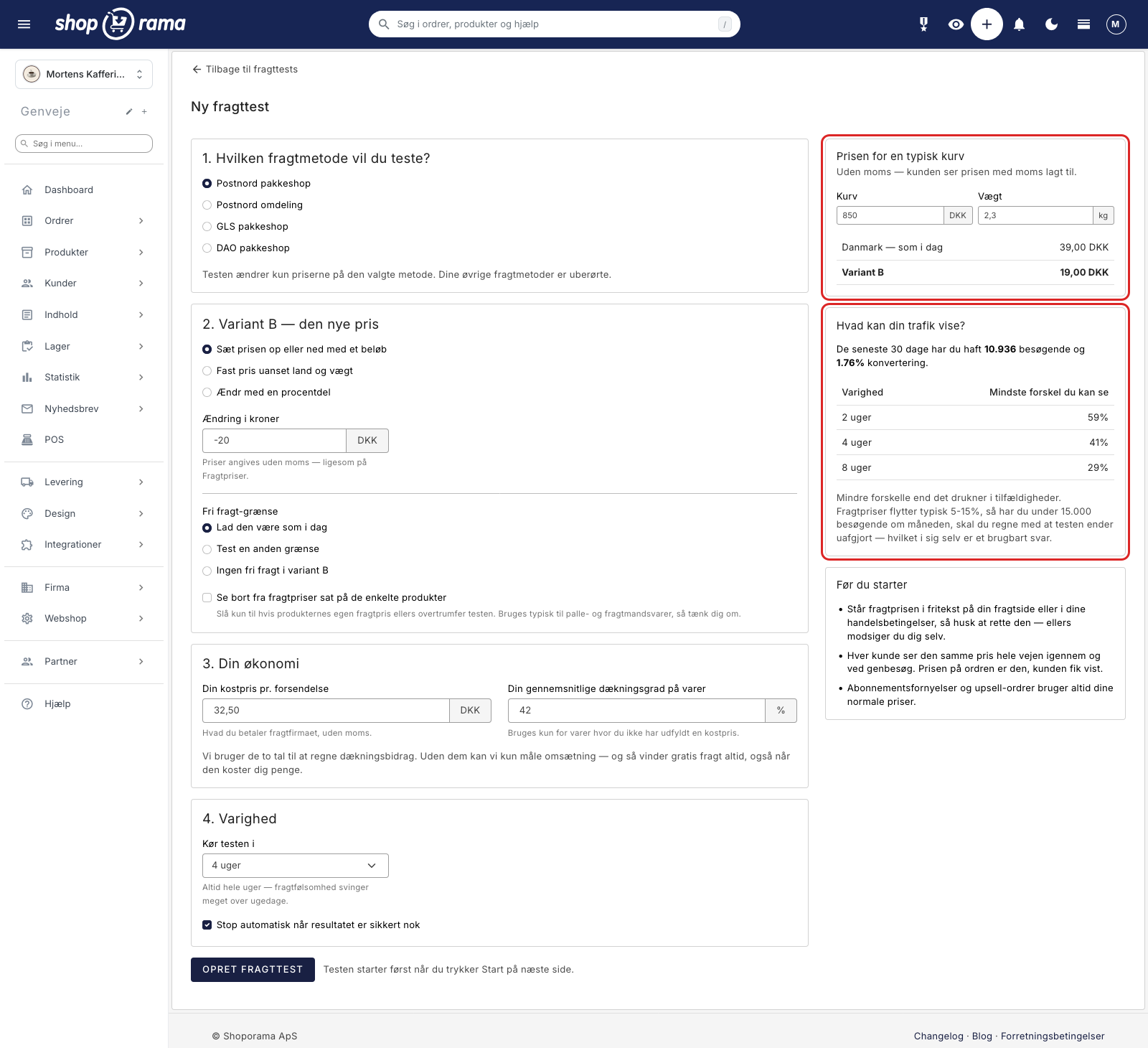
Live preview: see the price before your customers do
As you set up the test, the screen instantly calculates what a typical cart will cost in both variants. You enter a cart total and a weight, and then it shows, for example, Denmark at 39.00 DKK today versus Variant B at 19.00 DKK. It’s an inexpensive way to catch a typo before half your customers see it.
Honest preliminary calculation: Can your traffic even show a difference?
During setup, the screen shows what your own traffic can realistically demonstrate. For example, it states that over the past 30 days you’ve had 10,936 visitors and a 1.76% conversion rate, and below that is a small table showing the earliest you can detect a difference after 2, 4, and 8 weeks, respectively. In the example, the figures are 59%, 41%, and 29%.
These figures should be interpreted as an indication of how sensitive the results might be given your current traffic levels. Shipping rates typically vary by around 5 to 15%. If you have fewer than approximately 15,000 visitors per month, you should therefore expect the test to end in a tie. This isn’t a waste of time, because a tie is also an answer: the difference between the two prices is so small that you can confidently choose the solution that best suits your store.
Start the test and keep an eye on it in the overview
A new test is always created as a draft. It does nothing until you click Start yourself. After creation, you’ll be taken to the test’s own page, and the Start button there will launch the test immediately. If you click the Start icon in the overview instead, you’ll be asked one more time: Start the test? Half of your visitors will see the new shipping price from now on.
The overview shows your tests with their status (Draft, Running, or Completed), which shipping method the test applies to, when it started, and a series of action icons: Start or Stop, View Results (which only becomes active once the test has run), Settings, and Delete. If a test is already running in the store, the start button on your other drafts will be grayed out. This means you can still prepare the next test in the meantime; you just can’t run two at the same time.
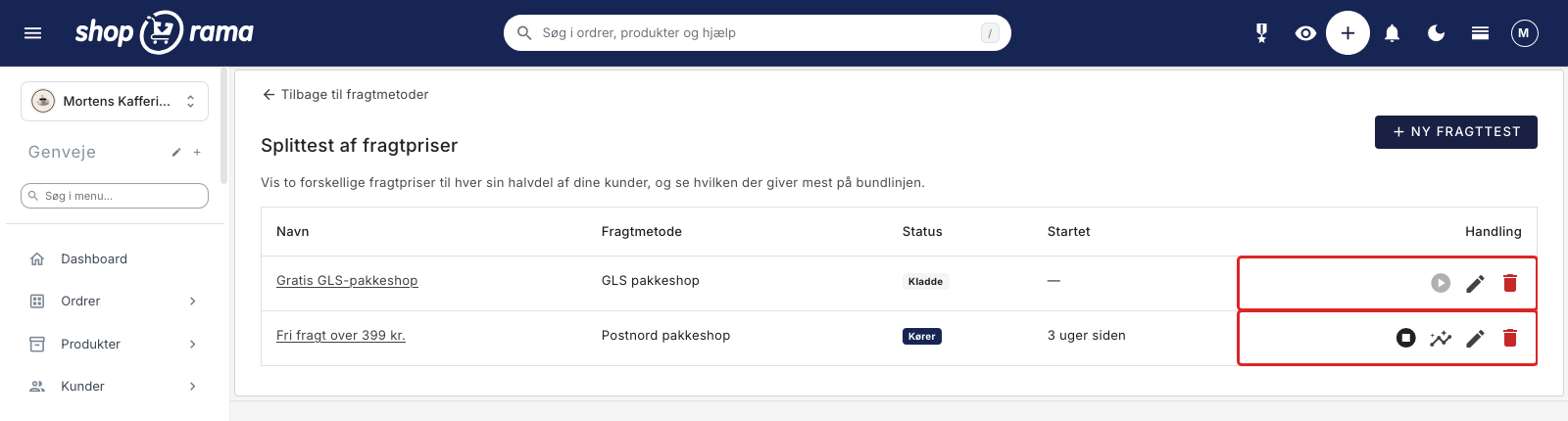
The checkbox “Stop automatically when the result is reliable enough” is enabled by default. This means the test will stop on its own when a reliable result is obtained or when the end date is reached. Prices do not change when the test stops. You’ll receive a notification in the admin panel to open the test and make a decision yourself.
You can stop the test at any time. Stopping the test never changes your prices.
What the customer experiences
- Each visitor is assigned a single variant and sees the same price throughout the entire process: on the product page, in the cart, at checkout, and on return visits. This assignment typically lasts up to 30 days.
- The price of the order is exactly what the customer saw. There are no surprises in the final step.
- The free shipping bar in the cart—the one that says “Spend 120 kr. more and get free shipping”—follows the variant’s own threshold. This means the customer is never promised one threshold and charged based on another.
- Subscription renewals and upsell orders always use the store’s regular prices, never the test prices.
- Search engines and bots are not assigned a variant. They always see your current prices, and they are not included in the statistics.
- While the test is running, the store’s static page cache is disabled, so pages load slightly slower than usual. This will return to normal once the test is stopped.
If you’ve listed the shipping price as plain text on your shipping page, in an FAQ, or in the terms of service, correct it before you start. Otherwise, it will say 39 kr. in one place in the store, while half of your customers pay 19 kr. in the cart, causing the store to contradict itself. Instead, write something along the lines of “The shipping cost is shown in the cart and at checkout.”
How to Read the Results
The results page displays a conclusion at the top and a table with the numbers below. The table has one row per variant and shows visitors, orders, conversion rate, average order size, shipping revenue, shipping costs, product contribution margin, contribution margin per 100 visitors, and the probability that this particular variant is the best. The leading variant is marked with a “Leader” badge, even before the test is finalized. The badge indicates which variant is currently in the lead; it is not a recommendation to stop the test.
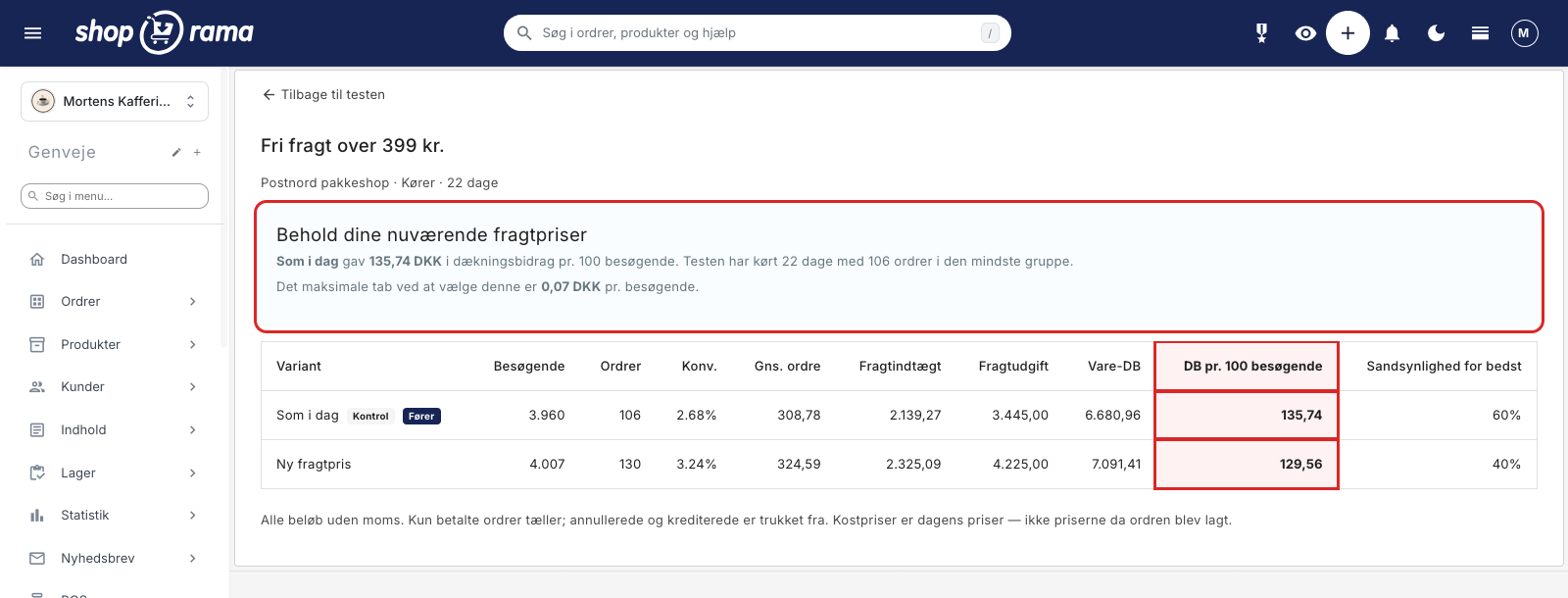
The example in the image is a test of free shipping on orders over 399 kr. at a PostNord parcel shop. The test is still listed as “Running,” but the report already has a clear recommendation: keep your current shipping rates. The smallest group has 106 orders, and the shown loss is 0.07 DKK per visitor. The numbers illustrate the whole point of the feature:
- The “As Is” variant had a 2.68% conversion rate and a contribution margin of 135.74 DKK per 100 visitors.
- The “New Shipping Rate” variant had a 3.24% conversion rate—about 21% better—but only 129.56 DKK in contribution margin per 100 visitors.
- The probability of being the best is 60% for the current price and 40% for the new one.
So the new price sold to more people but still earned less money. If you had only looked at the conversion rate, you would have switched to the new price and believed you had improved the store. That’s exactly the trap this feature is designed to help you avoid.
That’s why we measure contribution margin, not conversion rate
Contribution margin is what’s left from a sale after the cost of goods and shipping expenses have been deducted. It’s the money that pays for salaries, rent, marketing, and ultimately generates a profit.
The reason the test is based on contribution margin per visitor is simple: free shipping almost always wins in terms of conversion but almost always loses money. If you lower the shipping cost, more people will buy. That’s no surprise. The question is whether those extra orders cover the shipping costs you’re now left to pay yourself—and the answer lies solely in the contribution margin.
If you measure revenue instead, you’re fooling yourself in a different way: you’re counting the shipping fee the customer pays as revenue, even though the money goes directly to the shipping company. Conversion rate and average order size are still shown in the table because they’re interesting to look at, but they don’t determine the outcome of the test.
Only paid orders are included. Canceled and credited orders are excluded. The cost of goods is based on today’s prices, not those in effect when the order was placed, and this is also noted in the report itself. If cost prices are missing for more than 20% of revenue, the report displays a warning and uses your estimated contribution margin for the remainder.
When is the test considered complete, and when is it not?
The feature never promises you a statistical verdict. Instead, it provides a result in kroner, with a statement like this: “The maximum loss from choosing this option is 0.07 kr per visitor.” Here’s how to interpret that number: if you choose this option and it turns out not to be the best one, it will cost you about 7 øre per visitor. This is the average expected loss from making the wrong choice—not a guaranteed upper limit—and it’s a figure you can multiply by your own traffic.
A winner will only be declared once all three requirements are met:
- The test has run for at least 14 days—that is, two full weeks—so both weekdays and weekends are included.
- There are at least 100 orders in each variant.
- The expected loss from making the wrong choice is no more than 10 øre per visitor.
If the test is inconclusive, you’ll be told how far along it is, for example: The test has run for 12 out of at least 14 days. The smallest group has 63 orders (target: 100). Then you’ll know whether you should just wait or if the traffic isn’t sufficient.
If the test has run for more than 56 days without reaching a conclusive result, the report states it plainly: with the current traffic, the test is unlikely to reach a conclusive result, and the difference between the two prices is therefore small enough that you can safely choose the option that best suits your store.
Don’t declare a winner prematurely. If you check the test every day and stop it as soon as the numbers look good, you’ll find a winner almost every time—even when there isn’t one at all. The numbers fluctuate a lot at the beginning. The report warns you about this, and it’s worth taking seriously. Let the test run for the period you’ve selected.
The report also warns you if traffic is unevenly distributed between the two variants. If that happens, the numbers can’t be used as is, and the reason is usually cache or bot traffic. Email support@shoporama.dk if you see that warning.
Activate a winner or cancel
The system never changes your prices on its own—not even when the test stops automatically, nor when a clear winner has been found. Prices will only change the moment you click “Activate Permanently” on the results page.
If the test ended without a clear result, you can still choose the new price. The “Choose Yourself” box will then appear on the results page with an “Activate” button, so you can make a decision based on the information you have now—for example, because the new price is easier to communicate. The box only appears in this specific situation—that is, when the test has stopped without a definitive result.
The old prices are saved when you activate them. There is therefore a “Cancel” button that reverts everything: the price per country, the prices for the weight ranges, and the free shipping threshold.
Once you’ve activated the prices, the test can neither be restarted nor deleted. It cannot be restarted because the adjustments would then be applied on top of the new prices. And it cannot be deleted because the test is the only place where the old prices are saved, so the “Undo” option would disappear along with it. Shoporama explains both of these points when you encounter the situation: the start button is grayed out with an explanation, and any attempt to delete the test is rejected with a message explaining why.
What can be changed along the way?
As long as the test has never run, you can change everything in it. Once it’s started, the pricing setup—including the shipping method, the new price, the free shipping threshold, the cost price, and the coverage ratio—is locked. The collected data is specific to that particular setup, so it must not be changed in the middle of the test.
You can still change the name, duration, and the “auto-stop” checkbox while the test is running. If you want to give the test more time, you can extend it by 2, 4, 6, or 8 weeks from now.
What You Should Test First
Start with what makes the biggest difference, and stick to one thing at a time:
- The free shipping threshold. This is usually the most insightful test. For example, try changing the free shipping threshold from 499 to 399 kr., or the other way around. You can test the threshold on its own and leave the shipping price itself unchanged.
- Your most commonly used shipping method. Choose the method most customers actually select—typically a package pickup location. That way, you’ll accumulate enough orders quickly enough to get an answer. If you’re unsure which one it is, you can check the shipping statistics.
- A moderate change rather than an extreme one. A reduction of 20 DKK or 15% is a good place to start. Free shipping for everyone is rarely the first thing you should try, because it often costs more than it’s worth.
- A price increase. This is the test most people skip, and it’s often the most profitable. Many online stores can raise shipping by a few kroner without anyone even noticing.
If you have multiple stores, test the largest one first. If the smaller store is roughly comparable in terms of product selection and customer type, it’s more worthwhile to apply the results from there than to spend two months on a test that will almost certainly end in a draw.
Limitations and things to know before you start
- Only one shipping test can run at a time per store. You can, however, prepare the next one as a draft in the meantime.
- Each test covers one shipping method. Your other shipping methods remain unaffected.
- A test always has two variants—“As Is” and “New Shipping Price”—with half of the visitors assigned to each.
- The price adjustment applies to all prices for the selected method—that is, all countries and all weight ranges. See also Countries and Currencies if you sell to multiple countries.
- All amounts are listed excluding tax.
- If you delete the shipping method being tested in the middle of a test, the prices revert to the store’s normal rates, and the overview shows the shipping method as deleted. The test cannot be restarted.
- The cost per shipment is locked in the moment the test begins. If you adjust it later, it will not change the figures in a test that has already run.
Frequently Asked Questions
Where can I find this feature, and is it the same as the split test under Design?
No, these are two different features. The split test under Design tests appearance and layout. The shipping test is located under Delivery > Split Test Shipping Rates, and there is also a button labeled Split Test Shipping Rates on the Delivery > Shipping Methods page. If you want to test a price, use the one under Delivery.
What if the customer browses on their phone and then makes a purchase on their computer?
The assignment follows the browser the customer is using, so if she switches devices, she could, in principle, end up in the other variant. This is quite rare in practice, but it can happen. If that happens and the customer asks, give her the lower of the two prices. It costs just a few kroner and is far cheaper than having a dissatisfied customer.
Does the price adjustment also apply to my heavy weight ranges?
Yes. If you choose a reduction of 20 kroner, that amount will be deducted from all prices for that shipping method, including heavy packages. If you’re already close to your own cost price for heavy shipments, use a percentage change instead, or test a shipping method that’s only used for light packages. You can’t select individual weight ranges within the test.
What happens to products that have their own shipping price?
They retain their own shipping price as long as you leave the “Ignore shipping prices set on individual products” checkbox unchecked, which is the default setting. If you have palletized items or large, bulky items with a fixed shipping rate listed on the product itself, you should not check that box. This feature is only intended for stores where the products’ shipping rates would otherwise override what you want to measure.
Should the cost per shipment be listed with or without VAT?
Excluding VAT, just like all other amounts in the test and on the shipping rates page. Use the amount from your shipping invoice before VAT. The report’s shipping revenue and shipping expenses are calculated in the same unit—that is, excluding VAT—so the figures can be compared with your pre-VAT accounting records. If you’re unsure when reconciling your records, please contact us.
What cost price should I use when my shipping agreement varies?
Use the average amount you actually pay per shipment for the specific shipping method you’re testing, including any surcharges that are typically added. Since both variants are calculated using the same figure, a small inaccuracy rarely skews the outcome, but it does affect the exact amount in kroner. It’s better to take ten minutes to calculate the average based on a full month’s invoices than to guess.
My cost prices aren’t up to date for all items, and I have quite a few returns. Can I trust the result?
Returns are taken into account as long as you credit them in Shoporama, since credited and canceled orders are subtracted. Note that an order with a credit memo is completely excluded from the figures, even if you’ve only credited a single item on it. If you have many partial returns, fewer orders will be included in the statistics. If the cost of goods sold is missing for more than 20% of your revenue, you’ll receive a warning in the report, and your estimated gross margin will be applied to the remainder. It’s a good idea to have the cost of goods sold for your best-selling items set up before you start.
Will the results be adjusted retroactively if I correct cost prices or issue a credit memo for an order?
Yes, for the products. The report calculates using today’s cost prices and the orders currently marked as paid, so both a price increase from your supplier and a credit issued after the test ends can shift the numbers slightly. The cost price per shipment, however, is fixed as of the day the test began. Make a note of or save the figures on the day you make your decision.
Could the test cause problems with my Google Shopping feed?
Bots and crawlers aren’t assigned a variant, so Google always sees your current prices—the same ones listed in the feed. If you want to be on the safe side, test a lower shipping price rather than a higher one. In that case, half of your customers will experience lower shipping costs than expected, and that’s the right way to err.
Will the store run slower while the test is running?
A little. The static page cache is disabled while the test is running because the pages need to show each visitor the correct price. As a result, the pages are rebuilt for each visit instead of being served pre-rendered. Performance returns to normal as soon as the test is stopped. If page speed is a major concern for you, choose a shorter test period or run the test outside of your busiest season.
Good luck!
If you haven’t set up your shipping methods yet, start by creating a shipping option and setting shipping rates by country. If shipping costs should depend on the package’s weight, you can read about weight-based rates, and if you want to see which delivery options your customers are already choosing, check the shipping statistics.
If you have any questions or would like a second pair of eyes on your setup before you hit “Start,” please email us at support@shoporama.dk. We’re happy to help.
Related articles
Free shipping over a certain amount
Here's how to set up free shipping for orders over a certain amount in Shoporama. The threshold is set per country under Shipping → Countries or...
Shipping Rates: How to Set Rates by Country and Amount
How to use the pricing matrix under "Shipping Rates": one price per country and shipping method, empty fields that default to 0 DKK, free shipping...
Create a new shipping option
Guide to creating new shipping options and assigning them to countries in Shoporama.
Countries and Currency: Delivery Countries, Sales Tax, and Shipping
Set up delivery countries under Delivery → Countries with VAT rates, VAT zones, shipping options, and free shipping, and see how they relate to...
Weight-Based Rates: Shipping costs based on weight
How to set up weight-based shipping in Shoporama. Create weight ranges in grams, set prices by country and shipping method, and see what happens...
Shipping Statistics: Which delivery options do your customers choose?
See which shipping methods your customers choose, how many orders each method receives, and how much they pay for shipping. Here’s how to use these...
Checkout flow and shipping calculation
Guide for developers to implement shipping in the checkout flow of a Shoporama theme.
Related features
A/B Testing of Shipping Rates
Compare two shipping rates in your own store. Shoporama measures the contribution margin per visitor, so you can see how the shipping rate actually...
How much should shipping cost? Here's how to find the answer in your own store
A new shipping rate can improve conversion by 21% and still generate less revenue. That’s why A/B tests of shipping rates are determined by the...