Customize which tools Claude can use in your shop
På siden Styr shoppen med AI i Shoporama kan du nu bestemme præcis hvilke områder af din shop Claude må arbejde med. Du kan slå hele områder fra, for eksempel tema og sidedesigner, hvis du ved du aldrig bruger AI'en til den slags opgaver. Det giver hurtigere samtaler, færre misforståelser, og det undgår at Claude løber tør for plads midt i en opgave.

Hvorfor skulle jeg fravælge værktøjer?
Forestil dig at du sender en ny medarbejder ind i din butik med en stak manualer under armen. Én manual for varekataloget, én for ordrerne, én for kampagner, én for hjemmesidens udseende, og så videre. Inden medarbejderen overhovedet kan svare på dit første spørgsmål, skal hun bladre igennem hele stakken. Lige som at have for mange åbne faner i en browser bliver alt langsommere, og pladsen til den egentlige samtale skrumper.
Sådan fungerer det også med Claude. Hver gang Claude forbinder til din shop, henter den listen over alle tilgængelige AI-værktøjer. Med over 100 værktøjer fylder den liste rigtig meget i Claudes hukommelse for samtalen. I praksis betyder det at lange samtaler kan ramme loftet for hvor meget Claude kan have i hovedet på én gang, og du kan blive mødt af beskeden om at samtalen er for lang til at fortsætte. Det sker selv på Anthropics dyre abonnementer.
Hvis du ved at du fx aldrig bruger Claude til at redigere blogindlæg eller til at pille ved temafiler, kan du fravælge de områder. Så får Claude mere plads til den faktiske samtale med dig, og du undgår at hun bruger tid og hukommelse på funktioner du alligevel ikke skal bruge.
Sådan tilpasser du værktøjerne
- Gå ind i din Shoporama-administration og vælg Styr shoppen med AI i venstremenuen.
- Klik på knappen Tilpas værktøjer.
- Du ser nu en liste over ti områder. Hvert område har en kontakt du kan slå til eller fra. Under hvert område kan du klikke på Vis alle værktøjer hvis du vil se præcis hvilke handlinger der ligger i det område.
- Slå de områder fra du ikke bruger. Tælleren øverst viser løbende hvor mange værktøjer der er aktive.
- Klik på Gem.
Ændringerne træder i kraft næste gang Claude genforbinder til din shop. Hvis du har en samtale kørende lige nu, kan du være nødt til at starte en ny chat for at se forskellen.
De ti områder
Områderne svarer til de samme kategorier du kender fra forsiden af "Styr shoppen med AI". Her er en kort gennemgang med eksempler fra hverdagen:
- Katalog: produkter, varianter, kategorier, brands, lager, og leverandører. Brug det når du vil have Claude til at oprette nye produkter, justere priser, opdatere lager, eller skrive kategoritekster. Slå det fra hvis du udelukkende bruger Claude til marketing eller statistik.
- Ordrer: ordrer, statusopdateringer, fragtlabels, og ordre-labels. Brug det hvis Claude skal hjælpe med at finde ordrer, markere dem som afsendt, eller udskrive fragtlabels. Slå det fra hvis du holder ordrehåndteringen helt udenfor AI.
- Marketing: rabatkoder og kampagner. Brug det når du vil lave en Black Friday-rabat eller fødselsdagskode med Claude. Slå det fra hvis du ikke kører den slags via AI.
- Nyhedsbrev: nyhedsbreve, moduler, lister, og abonnenter. Brug det når Claude skal bygge et nyhedsbrev eller holde dine lister opdaterede. Vær opmærksom på at Claude kan bygge nyhedsbreve, men aldrig selv sende dem. Slå det fra hvis du ikke bruger nyhedsbreve.
- Sidedesigner: forsiden, moduler, og den visuelle sidedesigner. Brug det når Claude skal bygge en kampagne-forside eller rykke moduler rundt på en landingsside. Slå det fra hvis dit design er låst fast og kun må røres af et bureau.
- Tema og CSS: temafiler, custom CSS, indstillinger, og stylesheet. Brug det hvis du vil have Claude til at tilpasse udseendet på din shop, fx skifte farver eller fonte. Slå det fra hvis du har en designer der ejer temaet.
- Indhold: blogindlæg, statiske sider, landingssider, og hjælpeartikler. Brug det hvis du vil have Claude til at skrive et nyt blogindlæg eller opdatere "Om os". Slå det fra hvis du aldrig bruger blog eller statiske sider.
- Billedarkiv: billeder og mapper i shoppens centrale billedarkiv. Brug det når Claude skal finde, uploade, eller rydde op i billeder og mapper. Slå det fra hvis du selv styrer billedarkivet.
- Navigation: menuer, URL-omdirigeringer, og 404-fejl. Brug det hvis Claude skal rydde op i menuen eller oprette omdirigeringer for døde links. Slå det fra hvis menuen sjældent ændrer sig.
- Indsigt: salgsstatistik, bestsellere, og søgninger uden resultater. Brug det hvis du vil spørge Claude "hvad var min topseller sidste måned?". Slå det fra hvis du primært bruger andre rapporterings-værktøjer.
Ud over de ti områder ligger der altid en grundlæggende informationspakke aktiveret, som ikke kan slås fra. Den indeholder basisoplysninger om din shop såsom navn, sprog, valuta, og om dine priser er med eller uden moms. Uden den ville Claude ikke vide hvilken shop hun talte med, så den er låst aktiv.
Hvad sker der hvis Claude prøver et fravalgt værktøj?
Det er helt sikkert at fravælge områder. Hvis Claude alligevel prøver at bruge et værktøj du har slået fra, for eksempel fordi en igangværende samtale stadig kender de gamle indstillinger, så blokerer Shoporama kaldet på serveren. Claude får en klar fejlbesked tilbage om at værktøjet ikke er tilladt, og forsøget bliver noteret i din audit-log under Styr shoppen med AI. Du kan altid kigge i loggen og se hvad Claude har prøvet, hvornår, og om det lykkedes.
Det betyder at indstillingen virker som en ekstra sikkerhedslinje oven på dine almindelige adgangsindstillinger. Hvis du bruger API-nøgler med read-only-adgang, fungerer det helt uafhængigt af hvilke områder du har slået til her. Du kan altså kombinere de to: en read-only-nøgle der kun må læse data, og samtidig fravælge tema og sidedesigner helt, så Claude hverken kan eller må røre den slags.
Gode kombinationer at starte med
Her er nogle typiske opsætninger der virker godt i praksis. Du kan altid justere senere.
- Marketing-fokus: kun Katalog, Marketing, og Indsigt slået til. Bruges af butikker hvor Claude primært skal lave kampagner, skrive produkttekster, og svare på "hvordan går det med salget?". Antallet af aktive værktøjer falder typisk fra over hundrede til omkring halvtreds.
- Lager- og ordre-fokus: kun Katalog og Ordrer slået til. Bruges af butikker hvor Claude er en hjælper på lageret, der skal opdatere lagerantal, finde ordrer, og udskrive fragtlabels.
- Indholds-fokus: kun Indhold og Navigation slået til. Bruges hvis Claude primært er din skribent, der skal skrive blogindlæg, opdatere "Om os", lave landingssider, og holde styr på URL-omdirigeringer.
Husk inden du går videre
- Som standard er alle ti områder slået til. Hvis du aldrig besøger denne side, ændrer ingenting sig for din shop.
- Grundinfo om webshoppen er altid aktivt og kan ikke slås fra.
- Ændringer slår igennem næste gang Claude genforbinder. En igangværende chat kan stadig forsøge at bruge fravalgte værktøjer, men forsøgene blokeres serverside.
- Audit-loggen er din ven. Her kan du se hvad Claude har prøvet at gøre, og om det blev tilladt eller blokeret.
- Adgang via Model Context Protocol og almindelige API-nøgler er to forskellige lag. Du kan kombinere dem som det passer din butik.
Ofte stillede spørgsmål
Skal jeg ændre noget, hvis jeg ikke aner det med AI?
Nej, du behøver ikke gøre noget. Som standard er alle værktøjer slået til, så Claude kan hjælpe dig med alt det, du plejer. Du kan trygt lade siden være, indtil du selv får lyst til at justere noget.
Hvad sker der, hvis jeg slår noget fra ved et uheld?
Der sker ikke noget alvorligt. Du kan altid gå ind på samme side og slå det til igen. Dine produkter, ordrer, og indstillinger forsvinder ikke. Det er kun Claudes adgang til at hjælpe med det område, der bliver påvirket.
Hvornår træder ændringerne i kraft?
Først når Claude genforbinder til din shop. En igangværende samtale fortsætter med den værktøjsliste, den startede med. Lukker du samtalen og starter en ny, eller genindlæser klienten forbindelsen, bliver dine nye valg aktive.
Hvad sker der, hvis Claude forsøger at kalde et fravalgt værktøj?
Kaldet bliver blokeret på serversiden og registreret i audit-loggen. Claude får en fejl retur og må vælge en anden fremgangsmåde. Det betyder, at fravalg er en reel sikkerhedsspærring og ikke kun en visuel skjulning af værktøjer.
Hjælper det virkelig på "This conversation is too long"-fejlen?
Ja. Klienten henter alle aktive værktøjer ved opstart, og hver definition fylder i kontekstvinduet via Model Context Protocol. Slår du de domæner fra, du ikke bruger i hverdagen, frigør du plads til selve samtalen og længere arbejdsforløb.
Skal jeg sætte det op separat på hver af mine shops?
Ja. Indstillingen er knyttet til den enkelte webshop, så du kan finjustere efter hvad hver shop reelt bruger AI til. En lagershop kan nøjes med Ordrer og Katalog, mens en marketingdrevet shop måske vil have Marketing og Indhold aktive.
Bliver det dokumenteret, hvad Claude forsøger at lave?
Ja. Alle kald, både udførte og blokerede, bliver skrevet til audit-loggen med tidspunkt, værktøj, og resultat. Du har dermed et revisionsspor over, hvad AI har rørt ved, og hvad den blev forhindret i at gøre.
Er det her det samme som read/write-rettigheder på mit API-token?
Nej, det er to forskellige lag. API-tokenets read/write-scope styrer, om der overhovedet må skrives til shoppen. Værktøjsvalget her styrer, hvilke områder Claude må arbejde med. De to indstillinger virker sammen, og den mest restriktive vinder altid.
Hvad er forskellen på de 10 domæner i praksis?
Katalog dækker produkter, kategorier, og brands. Ordrer dækker ordrebehandling. Marketing handler om kampagner og vouchers. Sidedesigner styrer sidelayouts og blokke. Tema og CSS dækker udseendet. Indhold er sider og blog. Navigation er menuer. Indsigt er statistik og rapporter. Nyhedsbrev dækker nyhedsbreve, lister, og abonnenter, hvor Claude kan bygge, men ikke sende. Billedarkiv dækker billeder og mapper i shoppens billedarkiv.
Mister jeg "Grundinfo om webshoppen", hvis jeg slår alt fra?
Nej. Grundinfo er altid aktivt og kan ikke fravælges. Det sikrer, at Claude altid kender din shops navn, sprog, valuta, og basale rammer, så svarene giver mening i din kontekst, uanset hvilke domæner du ellers har slået fra.
Related articles
Find or create an API key
Guide to finding your API key in Shoporama, which is used for integrations with e.g. Shipmondo.
OAuth - give apps access to your webshop
Learn how OAuth works in Shoporama. Give third-party apps secure access to your online store without sharing your password.
REST API
Complete guide to Shoporama's REST API: authentication, all endpoints, examples and Swagger documentation.
AI assistant in the text editor
Learn how to use Shoporama's built-in AI assistant to generate product texts, image descriptions and text suggestions.
Related features
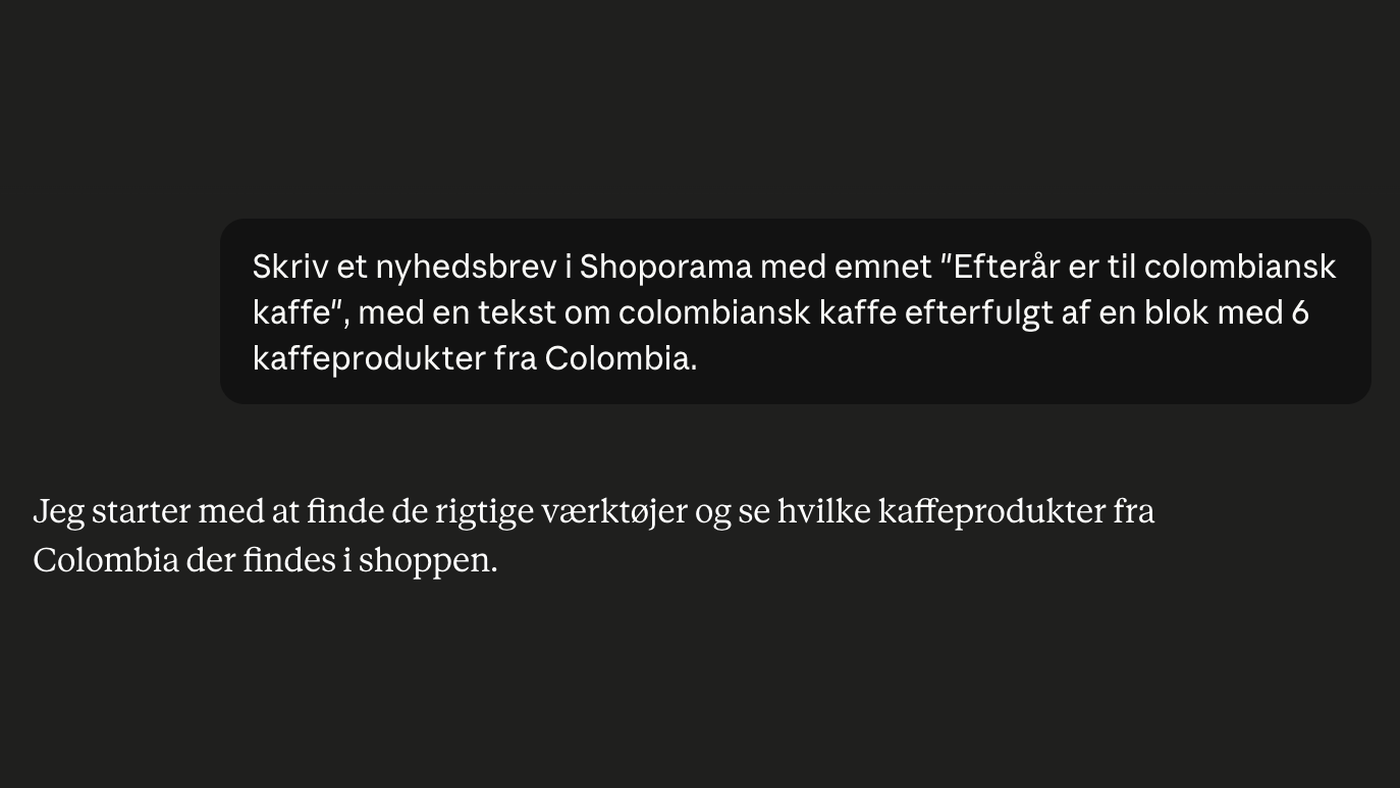
Build your newsletters with AI: you describe, the AI compiles, you send
Describe your newsletter in plain Danish, and the AI will put together the entire draft, including text and products. The AI can do everything...
Webshop med AI
Webshop med AI bygget ind: skriv produkttekster, byg nyhedsbreve, og styr hele butikken ved at skrive på dansk. Kunstig intelligens i Shoporama,...