Build your newsletters with AI: you describe, the AI compiles, you send
Just type in what you want, and the AI will put together the entire newsletter—including the logo, text, and products—as a finished draft. The best part is what it can’t do: send it. You do that yourself, manually, after you’ve reviewed the draft.
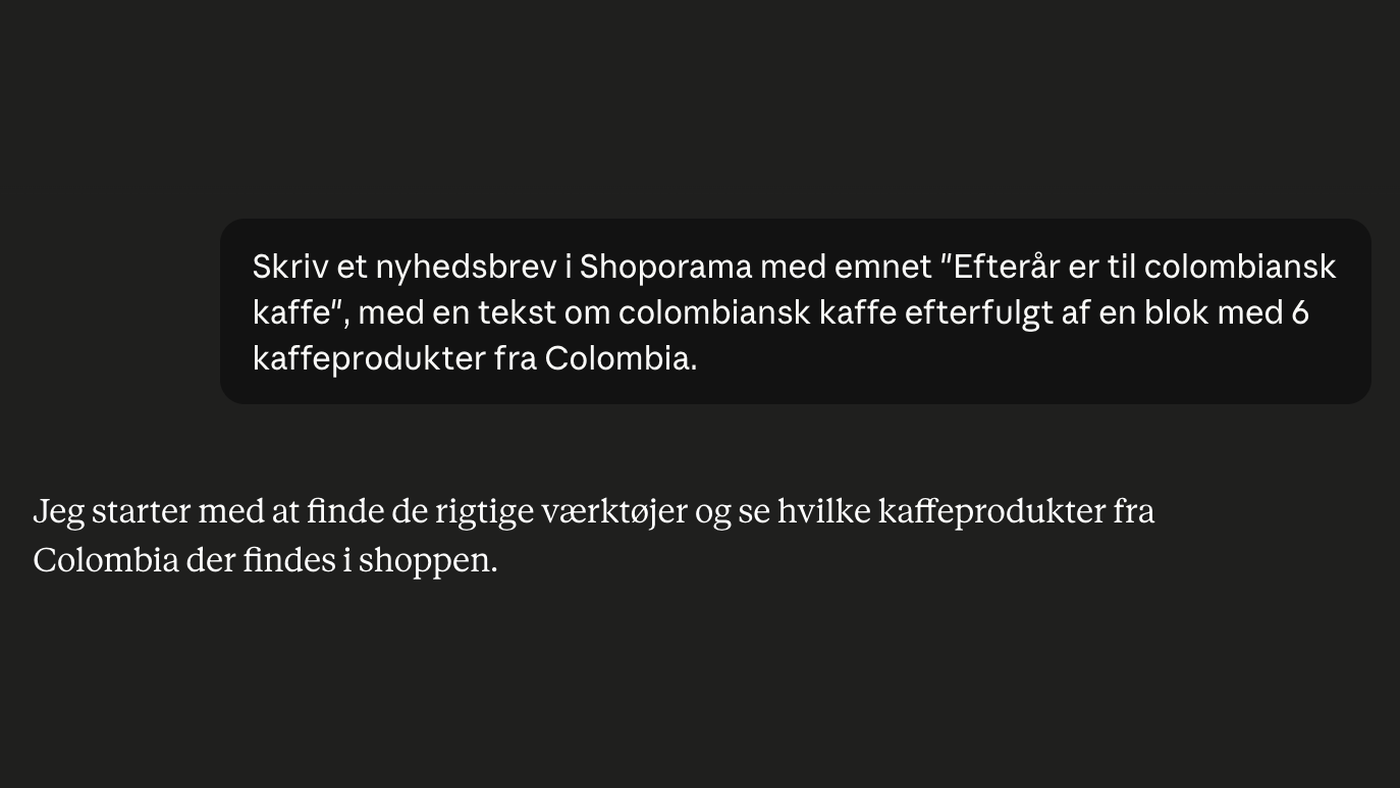
Write a newsletter in Shoporama with the subject line “Fall is for Colombian Coffee,” featuring a text about Colombian coffee followed by a block showcasing six coffee products from Colombia.
This is what it looked like when we sat down and tried out the new feature. One sentence in plain Danish, typed into a chat. No drag-and-drop, no menus, and no copying of product links. Just a description of what we wanted. A moment later, the newsletter was ready as a draft, fully laid out with a logo, a well-written intro, and six Colombian coffees in a colorful grid. This is the new way to build newsletters in Shoporama, and in this post, we’ll show you exactly how it worked.
You describe it. The AI builds it.
Once you’ve connected an AI client to your Shoporama, you can build newsletters simply by writing what you want. You use plain Danish, just as you would explain it to a colleague. The AI finds the right products in your shop on its own, compiles the content, and puts it all together into a finished newsletter.
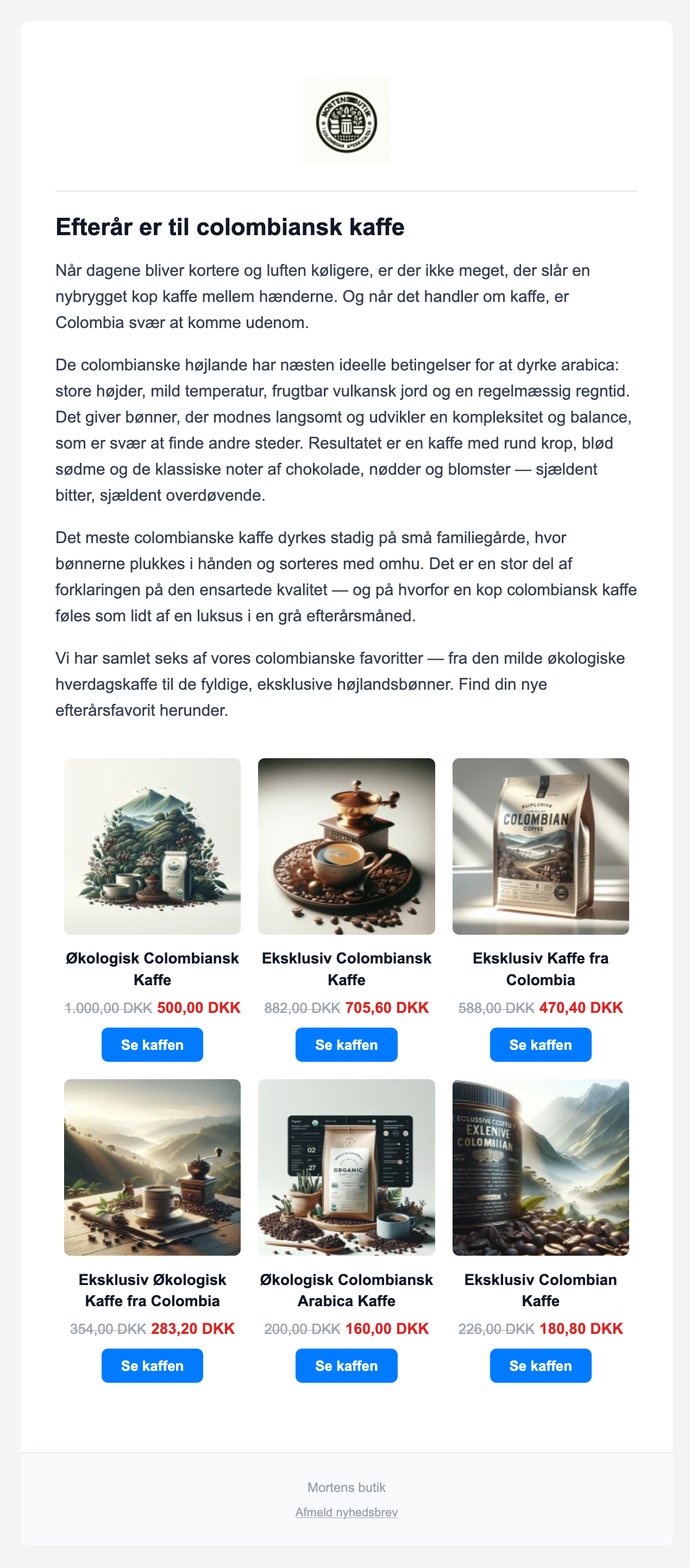
In our example, the AI got to work right away. It looked up which Colombian coffee products are actually available in the shop, and then built the newsletter using three modules: a header module with the logo, a text block about Colombian coffee, and a product block featuring six coffees from Colombia displayed three per row, each with a price and a “View Coffee” button.
It can do much more than that. The AI can create new draft campaigns, and it can add, edit, rearrange, and delete the modules that make up a newsletter. You have the following building blocks at your disposal:
- Header with logo and store name
- Text for headlines and body copy
- Products retrieved from a category, a landing page, or selected products
- Image, button, and separator
- Raw HTML, if you want full control over a section
It can also help you manage your lists and subscribers, and it can show you a preview of the finished newsletter as an actual HTML email, so you can see exactly what your customers will receive in their inboxes.
The AI builds it. You send it.
Here’s the most important part—and the one that makes the whole feature safe to use. The AI can do everything listed above, but it can’t send emails. There is intentionally no way for it to send an email, schedule a mailing, set a send time, or even send a test email. It builds it, shows you the result, and then stops.
This is a deliberate choice. A poorly worded message should never accidentally end up being sent to your entire list. Instead, you always have the final say. The newsletter is saved as a draft; you open it, read through it, make any necessary corrections, and press “Send” yourself when you’re ready. You’re the one with your finger on the button, every single time.
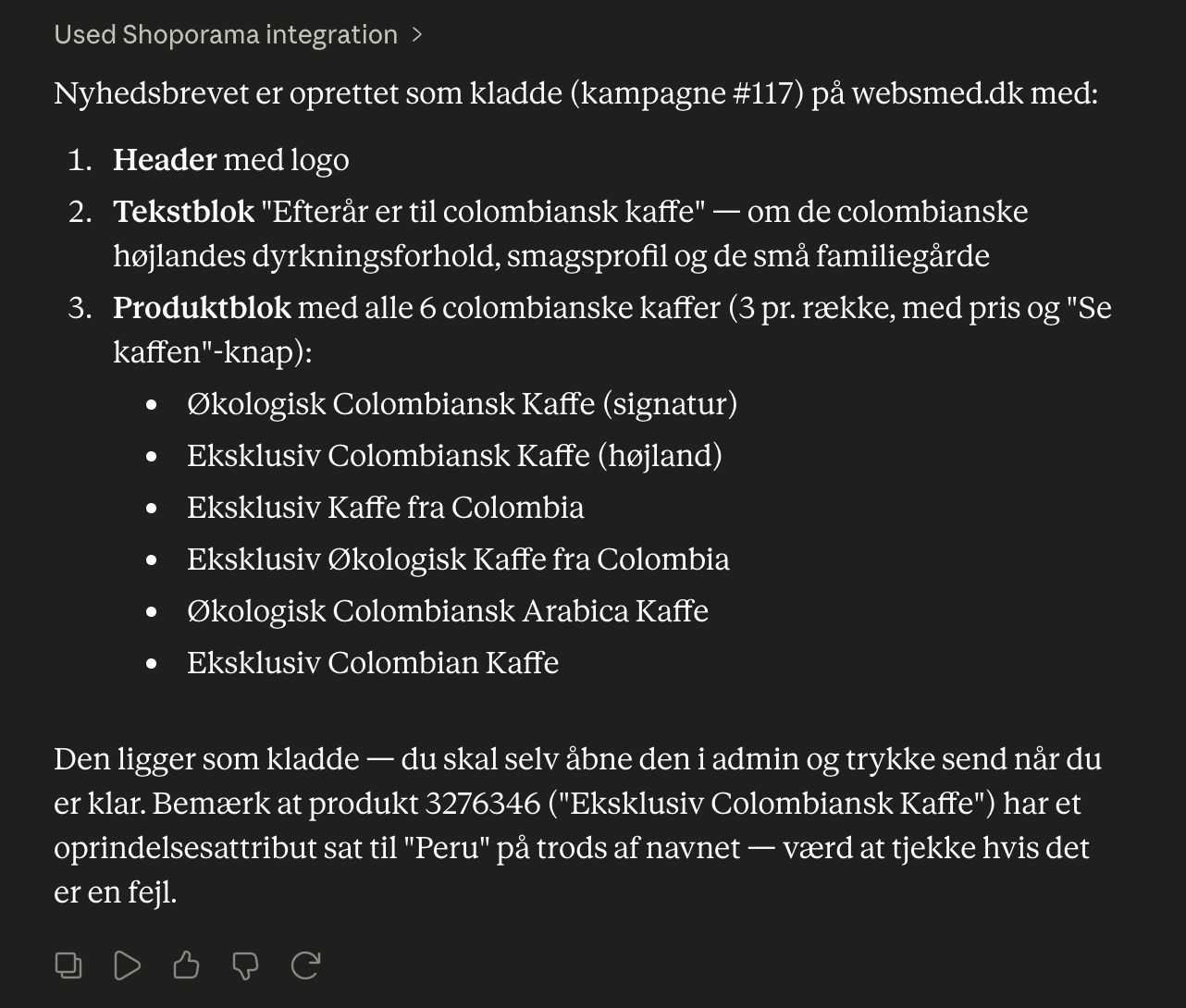
In our coffee example, the AI reported exactly this. The newsletter had been created as a draft, and we were supposed to open it ourselves in the admin panel and click “Send” when we were ready. But it had also noticed something along the way. One of the products was called “Exclusive Colombian Coffee,” but its origin attribute was set to “Peru” despite the name. It flagged this as something we should look into further.
This is a good example of a bonus benefit of letting AI work on your data. While it was building the newsletter, it caught an inconsistency that a human could easily overlook. It doesn’t correct anything on its own, but it brings it to your attention so you can decide what to do.
The result is a completely ordinary draft
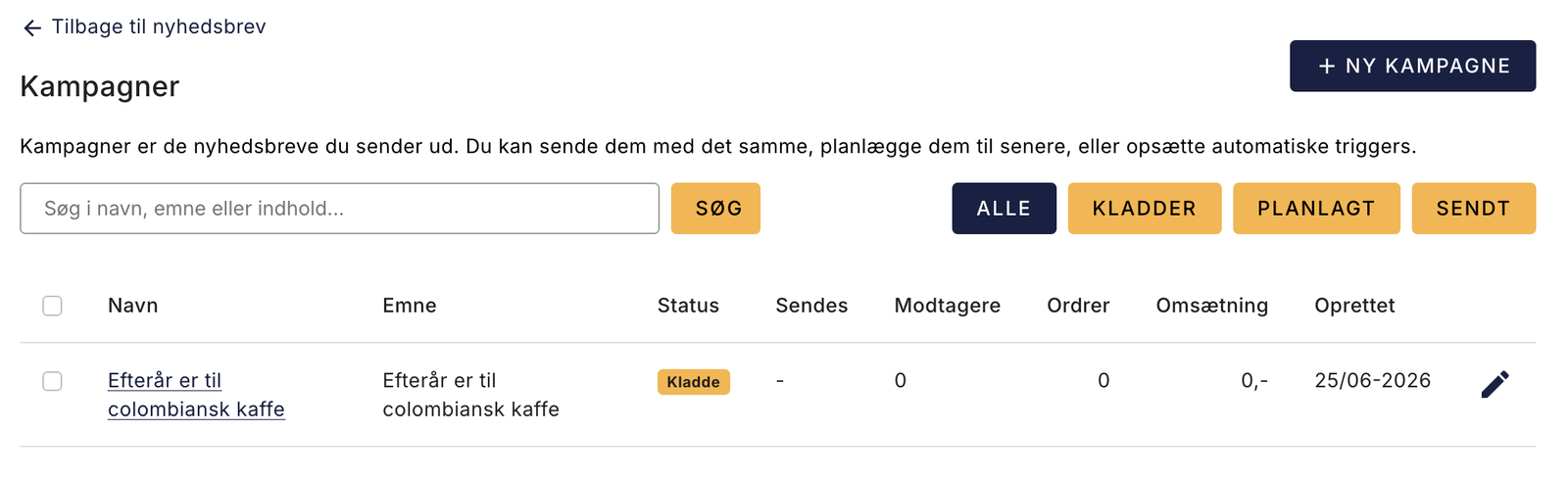
The newsletter the AI creates isn’t a specific format you’re stuck with. It appears as a completely ordinary draft under “Newsletter” and “Campaigns,” and you can edit it in the usual editor, just like a newsletter you’d built from scratch yourself.
So you can use the AI to do the heavy lifting—to get the structure, products, and a good opening paragraph in place—and then fine-tune everything manually. If you want to move a block, replace an image, or tighten up the headline, you can just do it yourself afterward. The AI gives you a solid starting point, not a straitjacket.
And the result looks great. Our finished coffee newsletter had a nice logo at the top, a headline, a well-written intro about the Colombian highlands, and a colorful grid of coffee products with prices and buttons. It looked like a newsletter that had taken a long time to put together, but it took us less than a minute to get there.
How to Get Started
There are two things you need to set up before you can create newsletters with AI. First, you need to connect an AI client to your shop—this could be Claude from Anthropic or Shoporama’s own Cowork. We have a guide that walks you through the setup step by step in the AI integration guide.
Next, make sure the Newsletter tool is enabled under AI and Tools. It’s enabled by default and displays a small “Cannot send” badge, so you can always tell that the AI currently doesn’t have permission to send anything.
If you want the full procedure in detail, you’ll find it in our support article on building newsletters with AI. If you’re unsure about the building blocks themselves, you can read more in the newsletter module guide.
The fast track to a newsletter you’re still in control of
The beauty of this workflow is the balance. The AI takes the time-consuming tasks off your hands—finding products, writing an intro, and laying everything out nicely—but it never touches the actual sending process. You describe, it builds, and you send. This gives you the speed of letting the AI do the prep work and the peace of mind that comes from having the final say. Try it with your next newsletter and see how far a single sentence can take you.
Related articles
More from the blog
Din webshop er hurtig. Er din kundeservice?
En webshop kan være teknisk hurtig og stadig føles langsom, hvis kunden venter på svar. Se hvordan Shoporama data, kundekanaler, AI og mennesker...
25. september 2026
SEO på produktsider: Sådan finder og retter du de svage produkter
Med den nye SEO-status i produktoversigten kan du se, hvilke produkter der mangler søgeord, alt-tekst, eller en god Google title. Filtrér, sortér,...
15. september 2026
The picking list has been redesigned: scan the items, print the picking slip
The picking list has been completely redesigned. You can now scan items with a standard barcode scanner, print both a picking slip per order and a...
08. september 2026