Categories in your webshop
Learn how to create and manage categories in your Shoporama online store. Guide to hierarchical structure, SEO settings, importing via CSV, sorting and tips for good category structure.
Categories are the backbone of your online store’s navigation. They give your customers an overview of your product selection and help them quickly find what they’re looking for. A well-organized category structure improves both the user experience and your visibility in search engines.
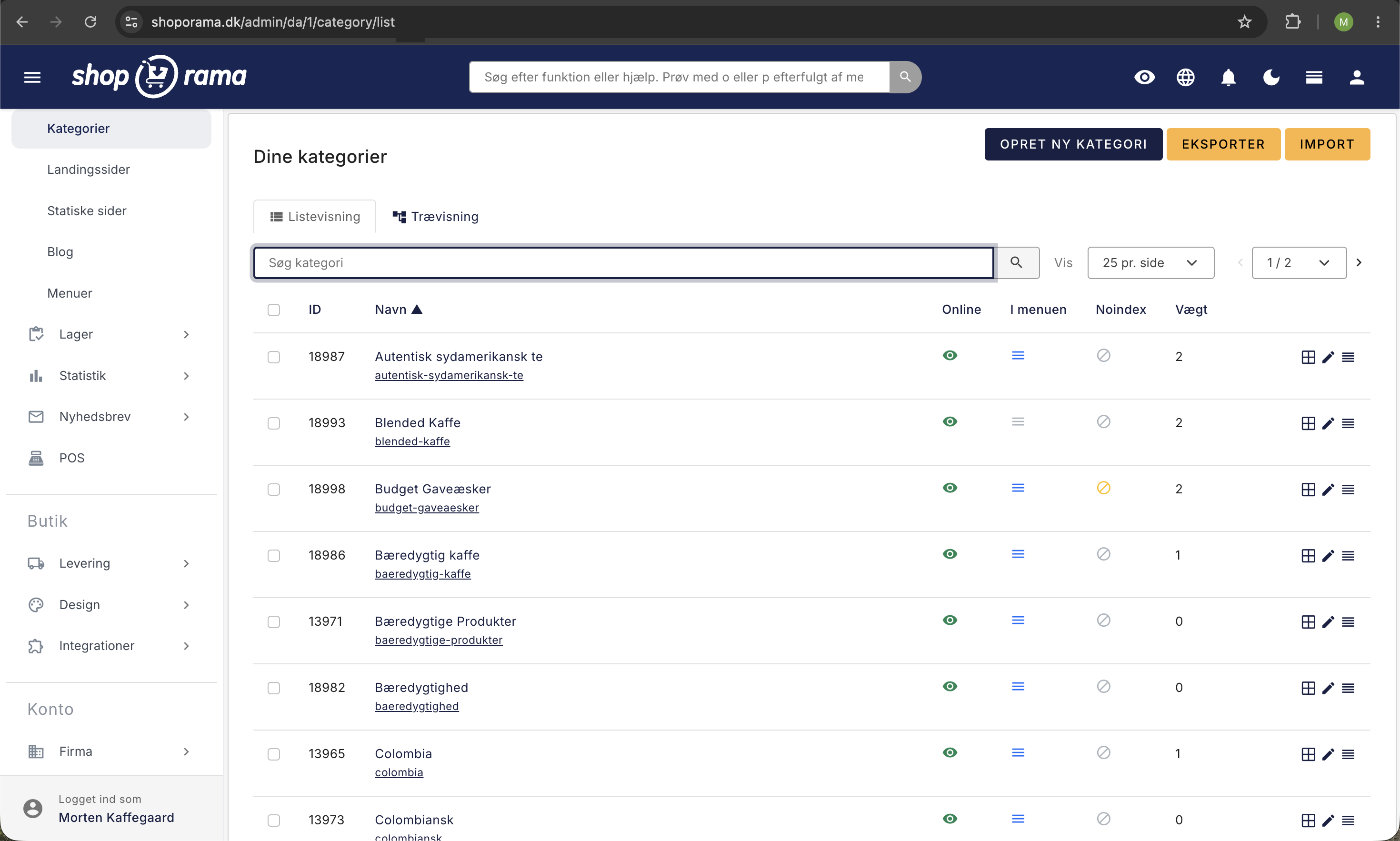
Create a New Category
- Go to Content → Categories in the left-hand menu in the admin panel.
- Click Create New Category.
- Enter a name for the category.
- If desired, select a parent category if the new category is to be a subcategory.
- Click Create.
The category is created with an automatically generated URL based on its name. You can always change the URL later.
Hierarchical Category Structure
Shoporama supports multi-level categories. You can create main categories and associate subcategories with them. This allows you to build a logical tree structure, for example:
- Clothing (main category)
- T-shirts
- Pants
- Jackets
- Shoes (main category)
- Sneakers
- Boots
You can change a category’s position in the hierarchy using the “Subcategory” field on the edit page. Note that a category cannot be set as a subcategory of itself or of one of its own subcategories.
List View and Tree View
At the top of the category page, you can switch between List View and Tree View. Shoporama remembers your selection for the next time you open the page.
List View
List view is a standard table displaying all your categories. It’s best when you have many categories and need to find a specific one.
- Click a column header to sort by ID, name, online, in the menu, noindex, or weight. Click again to reverse the order.
- The search field filters the list as you type.
- You can choose whether to display 10, 25, 50, or 100 categories per page.
- The checkbox in the upper-left corner of the table selects all categories on the current page at once.
Tree View
The tree view displays the entire hierarchy, allowing you to see which subcategories belong to which main categories. This is the view you should use when working with structure and order.
- Click the arrow next to a category to expand or collapse its subcategories.
- The shortcuts “Expand to Level 1,” “Expand to Level 2,” and “Expand to Level 3” expand the entire tree to that specific level. “Expand All” and “Collapse All” do the same for the entire tree at once.
- The search field hides everything except the categories that match and their parent categories, so you can see where they are located in the structure.
- The counter shows how many categories you have selected, and “Show Only Selected” hides the rest. This is a good final check before you copy or delete anything.
If you have more than 50 categories, the tree opens collapsed so you don’t get lost in rows. Your browser remembers which branches you had expanded, so you’ll land in the same place next time. The Home category is marked with the “Home” label and is always at the top.
Move a category to another parent category
If you just need to move a single category to another location in the structure, you don’t need to open the edit page. In the tree view, each category has a move icon on the far right labeled “Move to….”
- Switch to Tree View.
- Click the move icon next to the category you want to move.
- Select the new parent category in the “Move Category” window. If you have many categories, you can search for the name in the field at the top.
- If you want the category to be a top-level category instead, select Root Level (no parent) at the top of the list.
- Click Move. The page refreshes, and the category appears in its new location.
The category’s own subcategories are included, so the entire branch moves as a single unit. The current parent category is highlighted in the list, and the category itself and its subcategories are hidden so you don’t accidentally move it into itself.
Three types of moves are not allowed, and you’ll see a message instead:
- The front page category cannot be moved under another category.
- A category cannot be its own parent.
- A category cannot be moved into its own subcategory, as this would create a circular structure.
The category’s address (URL) does not change when you move it. It is based on the category’s own URL field and not on the path through the hierarchy, so old links, ads, and bookmarks will still work after a reorganization.
Edit a Category
Click a category in the list to edit it. The edit page is divided into the sections General, Theme Settings (only if your theme has fields for categories), Images, Search Engine Fields, and Advanced. The Overview menu on the right lets you jump directly to a section.
Under General, you’ll find the following fields and settings:
- Name: The category’s name, which appears in the menu and on the page.
- Address: The SEO-friendly URL for the category. It’s automatically generated from the name but can be customized.
- Subcategory of: Select a parent category, or select “None” for a top-level category.
- Description A and B: two text fields for category descriptions. Typically, Description A appears at the top and Description B at the bottom of the category page. Read more in The Difference Between Description A and B.
- In the menu, determines whether the category appears in the online store’s navigation.
- "Online" controls whether the category is available as a page in the store. A category that is not online cannot be accessed by customers.
- "Visible in Countries" is only displayed when the store has countries listed under Web Store → Countries and has a checkmark for each country. Uncheck a country to hide the category there. It will then not appear in menus, category lists, or filters in that country, and if a customer opens the category’s URL in that country, they’ll see an error page or your redirect (if you’ve set one up under Web Store → Redirects), just as with an offline category. The products in the category are not automatically hidden, so they can still be found via search and your other categories. The homepage category cannot be hidden, so the field does not appear on it. Read more in Visible in Countries.
Theme Settings for Categories
The Theme Settings section (formerly “Extensions”) contains the additional fields your theme offers for categories. In Delaware, for example, you can select an image for the top of the category page under “Archive Header.” Which fields are available depends entirely on the theme.
This section only appears when the theme actually has fields for categories. Montana and MontanaB2B have none, so you won’t see this section there. Montana previously had some fields for categories that the theme didn’t use for anything. They have been removed, but any data you saved in them has not been deleted. Read more in Theme Settings for Products and Pages.
Images for Categories
You can upload one or more images to each category. The images can be used for category banners, menu icons, or visual overviews. You upload images in the Images section on the edit page.
You can reorder the images using drag-and-drop, and you can add a caption (alt text) to each image. With “Share Image,” you can select the image to be displayed when the category is shared on social media. Whether this feature is used depends on the theme: Montana and Delaware instead use the share image you’ve selected for the entire store in the theme settings under Open Graph.
SEO Settings
In the “Search Engine Fields” section, you’ll find a number of options for optimizing the category for Google and other search engines. For a complete overview, see SEO in Shoporama.
- Title (meta title)—the title that appears in search results. Keep it to about 50–60 characters, because Google truncates titles that are wider than about 600 pixels. The AI Suggestions button generates a suggestion of up to 60 characters.
- Description (meta description): the text below the title in search results. Recommended length: 120–160 characters. The AI Suggestions button generates a suggestion of up to 155 characters.
- Canonical: Specify the category that is the “correct” version if you have the same content in multiple places.
- Open Graph: Title and description for social media (Facebook, LinkedIn, etc.). Whether these fields are used depends on the theme. Montana and Delaware use the category’s Title and Description when the category is shared.
- Primary keyword: the most important keyword for the category. It’s used by AI suggestions for the title and description.
- Google Category: The category from Google’s product category list used in your Google Shopping feed. See the next section.
- Noindex: The “Enable ‘noindex, follow’” option instructs search engines not to display the category in search results. Read more in “Set noindex on a page, product, or category.”
Categories do not have the keyword analysis, character counters, or the Google preview with Mobile and Desktop that products have in the SEO card. To the right of Title and Description, you’ll see a simple preview of the title, URL, and description.
You can use dynamic variables in the Name, Description A and B, meta title, meta description, and Open Graph fields: [YEAR] (year), [MONTH] (month), [SEASON] (season), and [FREESHIPPING] (free shipping threshold). The month and season are displayed in the store’s language, and [SEASON] now also works in Swedish stores.
Google Category in the category
The Google Category field is a search field, just like on product pages. It no longer opens in a new window.
- Type what the category contains, e.g., “coffee” or “dresses.”
- Select the correct one from the list. Each result shows the name, the category path, and the Google ID.
- The selected category appears, for example, as “Coffee” with “Food, Beverages, and Tobacco › Beverages · ID 1868” below it. Click on it to select a different one, or on the checkmark to remove it.
- Click Save.
The Google category is used in the Google Shopping feed for products that have this category as their main category and do not have their own Google category. Subcategories do not inherit from their parent category. Categories you have selected previously are retained. Read more in Google Shopping Category IDs for Products.

Sorting Products
You can determine how products are sorted within a category. Under “Advanced,” you’ll find the “Sorting” field with the following options:
- Normal: Standard sorting based on the order you set manually.
- In-stock items first: Products in stock are displayed before sold-out items.
- Alphabetical: Sorts products by name from A to Z.
- Product Score: Sorts products by their score, which is based on factors such as sales, inventory status, reviews, and how new the product is.
- Newest, displays the most recently added products first. Suitable for categories with frequent updates or new arrivals lists.
- In-Stock Items and Image First: Items in stock with an image are displayed first, followed by items in stock without an image, then sold-out items with an image, and finally sold-out items without an image.
- Random: Displays products in random order.
You can also sort products manually using drag-and-drop via the “Product Order” link on the category page. See Sorting Products in Categories for a detailed guide.
Category Order
In the Tree View, each category has a small number field on the far right. The number represents the category’s weight—that is, its order—and lower numbers appear first. Adjust the numbers and click Save Order. In the list view, you can see the weight in the “Weight” column and sort by it, but you edit the number itself in the tree view.
Toggle "Online," "In Menu," and "noindex" on and off directly in the list
You don’t need to open a category to change the three most commonly used settings. In both the list view and the tree view, each category has three icons you can click:
- Online, shown as an eye. A green eye means the category is online. A gray, crossed-out eye means it’s been taken offline.
- In the menu, shown as a menu icon. Blue means the category is included in the online store’s navigation. Gray means it is hidden in the menu.
- Noindex, shown as a “no entry” icon. Yellow means search engines are instructed not to index the category. Gray means it may be indexed.
The change is saved immediately, so you don’t need to click Save afterward. This makes it quick to go through the entire list when, for example, you need to clean up the menu before a campaign.
The three settings are independent of one another, and that’s precisely the point. A category can easily be online without appearing in the menu if you only link to it from a newsletter or an ad. And a category can be in the menu with “noindex” enabled if it’s useful to customers but has no place in search results.
Import Categories via CSV
If you have many categories, you can import them from a CSV file. Go to Categories → Import. You can import the following fields:
- Name, Description A and B, Meta Title, Meta Description
- URL (address), Image URLs, Tags
- Parent Category (by name or ID)
- Order, In the Menu, Online, Noindex
- Google Category, Sorting, Additional Fields
The CSV file must have a header row, and you can select the separator and encoding during upload. Shoporama automatically matches the fields from the file to the correct columns. See Import Categories via CSV for a detailed guide.
You can also export all your categories as a CSV file via Categories → Export. This is useful for backup purposes or for editing many categories in a spreadsheet.
Advanced Settings
In the Advanced section, you’ll find additional settings:
- Tag: An internal tag for use in your templates, e.g., to style specific categories differently.
- Redirect to URL if no products are found: Specify an absolute URL to which the customer is automatically redirected if the category contains no products.
- Ignore in Webshop Search: Exclude the category from the shop’s internal search function.
- Extra Fields: Add additional key-value pairs to the category (e.g., for use in your theme).
- Optional words for internal store search: Add additional keywords so that the category also appears in search results for terms not included in its name.
Copy and delete categories
In the category list, you can select one or more categories and choose “Copy Selected” to create copies. If you’ve hidden the original in a specific country, check “Visible in Countries” on the copy, as the copy won’t inherit the checkmarks and will be visible in all countries. You can also delete categories using “Delete Selected.” If you’ve accidentally deleted a category, see “Restore a Deleted Category.”
Delete Multiple Categories at Once
If you’re cleaning up after a season or need to reorganize an old structure, you can delete multiple categories in a single step:
- Check the boxes next to the categories you want to remove. In the tree view, you can use “Show Selected Only” to review your selection first.
- Click “ Delete Selected.”
- A window will open listing the names of all the categories that will be deleted. Review the list.
- Click " Delete " to confirm, or " Cancel " if something looks wrong.
If you haven’t selected any categories, you’ll see the message “Select at least one category,” and nothing will happen.
What happens to products and subcategories?
- The products will not be deleted. They will simply lose their association with the deleted category. If a product was in only one category, you should move it to another; otherwise, customers will only be able to find it via search or a direct link.
- Subcategories are not deleted either. They move up and become main categories. If you want to remove the entire branch, you must therefore select both the main category and its subcategories.
- The deletion can be undone. The category disappears from the store and from the overview, but it is not gone forever. See Restore a Deleted Category.
Redirect URLs from Deleted Categories
A category you’ve had online typically has links from Google, newsletters, social media, and perhaps other websites. If you delete the category without taking further action, all those links will lead to an error page. That’s why Shoporama automatically redirects you to the “Set up redirects for deleted categories” step as soon as you’ve deleted one or more categories with a URL.
- For each deleted category, the name and the old URL are listed on the left.
- In the field on the right, select where the old URL should send visitors. You can search among your categories, pages, landing pages, blog posts, and products, and the homepage is at the top of the list.
- If you want it to point to a location not listed here, click “Or enter a different URL” and type the address yourself.
- Click “Save Redirects.”
If you’ve deleted multiple categories at once, you’ll see the “Set all to the top” field. Select a destination, click “Apply,” and all fields will be filled with the same page. You can then edit the individual entries that should go somewhere else. This saves a lot of time when you merge ten subcategories into one.
If you leave a field blank, no redirect will be created for that specific category. If you want to skip this entire step, click “Skip.”
Redirects are created as permanent 301 redirects. This type tells search engines that the page has been permanently moved, so some of the earned ranking carries over to the new page. You can always view, edit, and add redirects under Webshop → Redirects in the admin menu. Read more in The Complete Guide to Redirects.
The homepage category is not included in this step because it does not have a separate URL that can be redirected.
Tips for a Good Category Structure
- Keep it simple; avoid too many levels. 2–3 levels are usually enough.
- Think like the customer; use names your customers understand and search for.
- Avoid empty categories; a category with no products provides a poor user experience. Use “Redirect to URL if no more items” or set it to offline.
- Always fill in the meta title and meta description; this helps with visibility on Google.
- Use descriptions; category descriptions give Google more context and improve your SEO.
- Use landing pages for cross-category selections; if you need to display products across categories (e.g., “New Arrivals” or “Special Offers”), use landing pages instead.
Frequently Asked Questions
I accidentally deleted a category. Are my products gone too?
No. The products will remain in your store and will only lose their association with the category you deleted. You can still find them under Products, and you can place them in a different category. The category itself can also be restored; see Restore a Deleted Category.
I clicked “Skip” on the redirect page. Can I still set it up?
Yes. Go to Webshop → Redirects in the admin menu, and click Create New. The old URL is the address the category used to have, and you point it to where you want visitors to end up instead. See The Complete Guide to Redirects.
What’s the difference between taking a category offline and deleting it?
A category that you take offline retains all its content, products, and settings, but customers cannot visit the page. This is the right solution for something that will be brought back later, such as a seasonal category. If you delete the category, the link between the category and the products is removed, and the subcategories are promoted to main categories. Note that Shoporama only offers redirects when you delete a category. If you take a category permanently offline, you should set up a redirect yourself under Webshop → Redirects.
Can I remove a category from the menu without taking it offline?
Yes. Click the menu icon next to the category in the list so that it turns gray. The category will disappear from the navigation, but the page will still function, and you can link to it from campaigns, banners, and newsletters.
I’ve hidden a category in Germany. Why can German customers still find the products?
Because only the category is hidden. The products in that category will still appear in search results, in your other categories, and in feeds. If you don’t want the products to appear in that country either, uncheck the box under “Visible in Countries ” for each product, or for the product’s brand if it’s an entire brand that can’t be sold in that country. See “Visible in Countries.”
I need to reorganize an entire store. What’s the fastest way to do this?
Work in the tree view. Use the search field to find the branches, the move icon to place them under the correct parent categories, and select the rest for deletion all at once. Use “Show Only Selected” as a final check before deleting, and then use “Set All To” on the redirect page so that all the deleted categories point to the new parent category. Remember that subcategories under a deleted category move up to the top level, so include the entire branch if you want to remove it.
Are redirects really worth the trouble?
Yes, and it takes less than a minute. A category page that’s been online for a while almost always gets traffic from search engines, old newsletters, social media posts, and ads. Without a redirect, that traffic ends up on an error page, and visitors you’ve already paid to attract disappear again. With a redirect, they land on a relevant page and can still make a purchase.
Does deleting a category affect my orders or my accounting?
No. A category is a navigation element—in other words, a way to display products. Your orders, invoices, customers, and inventory levels remain unaffected when you delete a category.
I can’t find the move icon next to my categories
The move icon is only available in tree view. Click the Tree View tab at the top of the categories page, and it will appear on the far right of each row, along with the icons for editing and product order.
I can’t see the “Theme Settings” section on my categories. Is something wrong?
No. The section only appears if your theme has fields for categories. Montana and MontanaB2B don’t have any, so there’s nothing to fill out. If you’re using a theme with fields, such as Delaware, the section appears right below “General.”
Should I assign a Google category to the category or to each product?
Start with the category. Then it applies to all products that have that category as their parent category and do not have their own Google category. A product with its own Google category retains it. Subcategories do not inherit from the parent category, so set the field on each category used as a parent category.
If you have any questions about category setup, feel free to contact us at support@shoporama.dk.
Related articles
Sorting products into categories
Learn how to control the order of products in categories with manual sorting, alphabetical view or other sorting methods.
Import categories via CSV
Guide to importing categories as a CSV file in Shoporama.
Filtering on your online store
Guide to setting up filtering on your Shoporama online store so customers can filter products.
Menus and navigation
Learn how to create and edit menus in your online store. This guide covers menu item types, hierarchy, placements, drag-and-drop sorting, and how...
SEO in Shoporama
Complete guide to the SEO features in Shoporama - from meta tags and sitemap to Google Shopping and AI Assistant.
Restore a deleted category
Information about restoring deleted categories in Shoporama - what is possible and what is not.
Visible in countries: Hide products, pages, and brands in specific countries
Here's how to display products, categories, static pages, and brands only in specific countries using "Visible in Countries"—for example, a brand...
Related features
Categories, menu, and pages: give the store structure
Create categories and subcategories, build the menu with a dropdown and footer, edit the "About Us" and "Contact Us" pages, and learn when a...
Product catalog
A product catalog is the complete overview of your products with titles, images, prices and variants. Learn about elements, SEO optimization and...
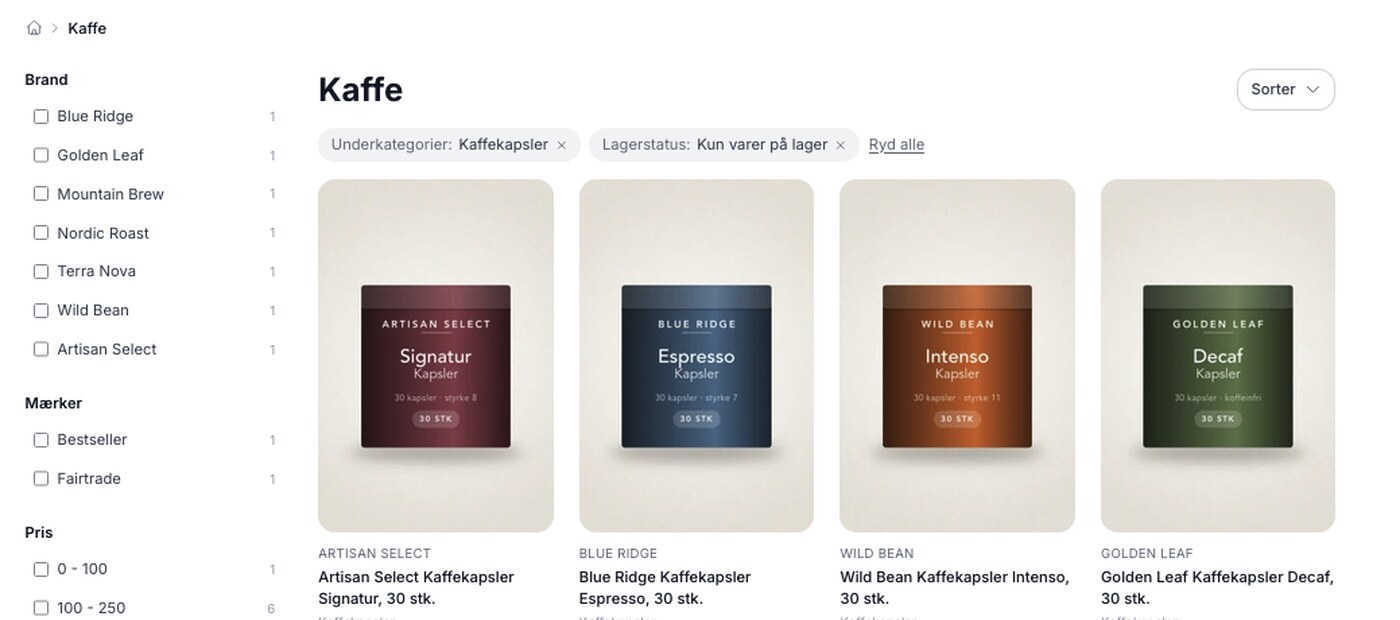
Product filtering is here, and you build the filter yourself
Product filtering is currently available in the Montana and MontanaB2B themes and can be added to your own theme. You can set up the filter...
Product filtering: Customers can find the item without having to scroll
Narrow down a large selection to the relevant items using filters for brand, price, inventory, profile attributes, and categories. Requires Montana...
SEO in Shoporama - get visible in Google
Shoporama has built-in SEO features: fast speed, full control over titles and meta descriptions, dynamic tags, automatic 301 redirects, XML...
Build your homepage in the page builder
The Shoporama homepage is a category. Build it using sections in the page designer, display the right products, and make sure the layout doesn't...