Product filtering is here, and you build the filter yourself
Product filtering is currently available in the Montana and MontanaB2B themes and can be added to your own theme. You can set up the filter yourself under Design → Filter and decide both which facets to include and what they will be called for the customer.
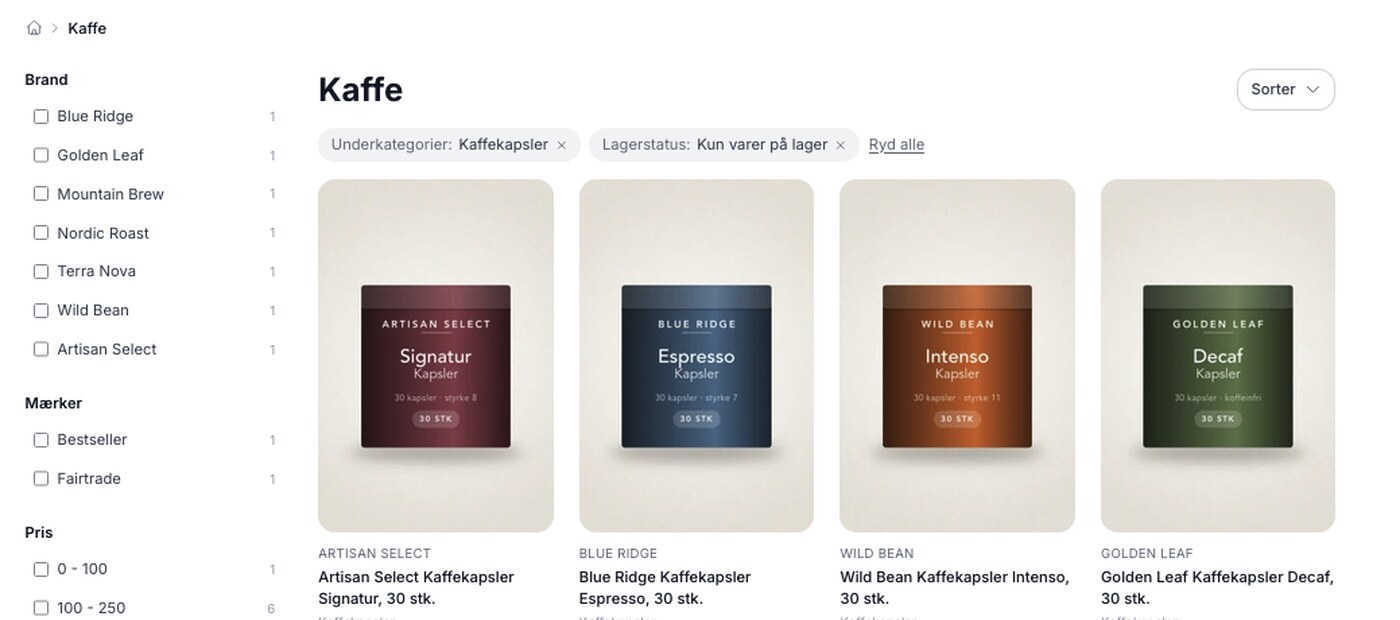
Product filtering has long been at the top of the wish list, and almost always for the same reason: customers land on a category with 400 items and don’t want to scroll through them all. Now it’s here—for now, in the Montana and MontanaB2B themes. There, you can set up the filter yourself under Design → Filter, and your customers can narrow down a category or search result to exactly what they’re looking for. If you’re using a different theme, the menu item won’t be there, but you can add the filtering feature to your own theme. More on that below.

The hard part was never the checkboxes
The reason it’s taken so long isn’t that it’s difficult to display a row of checkboxes on the left side. It’s that no two stores need the same filter. A clothing store will filter by size and color. A bookstore will filter by author and publisher. A home improvement store will filter by supplier and price, and doesn’t care about variants. If you build a single fixed filter, it suits one type of store and annoys everyone else.
So we’ve done the opposite: there’s no standard filter you have to live with. There’s a filter builder where you choose which facets to include, the order they appear in, and what to name them. A facet is a single filter, such as Brand, Price, or Size.
You name the facets yourself
Each facet gets a name that the customer sees, and that name has nothing to do with our fields. The fields in Shoporama are called “Brand” and “Supplier, ” but many stores use them for something other than what the names suggest. If a bookstore has placed the author in the “Brand” field and the publisher in the “Supplier” field, it simply calls the facets “Author” and “Publisher.” The customer doesn’t give a second thought to what the fields are actually called behind the scenes.
The same applies to the “Profile Attribute” facet type. If two values are essentially the same—for example, “S” and “Small,” because two suppliers use different terminology—simply give them the same name in the filter, and they’ll be merged into a single option.
If new values are added to an attribute you’ve already selected, they’ll appear automatically—so a new color will show up in the filter without you having to do anything. However, if you create a completely new product label or a completely new profile attribute, you’ll need to manually add it to the filter.

What you can filter by
- In-stock status—that is, only items currently in stock
- Brand
- Supplier
- Subcategories—that is, the categories below the one the customer is currently viewing
- Product labels—you choose which ones to include
- Profile attributes, such as size, color, or language
- Price, either with ranges you specify yourself or rounded ranges we automatically calculate based on the prices in the store
You also decide where the filter appears: on category pages, in search results, or both. If you limit it to selected categories, it applies only to those. If you select none, it applies to all category pages. And if you need a completely separate entry point, the filter can have its own page at /filter/<name>, where you can customize the product selection based on categories, product labels, brands, or only in-stock items.
Numbers for each option and no empty facets
Each option shows how many products are available for that selection, and the number is calculated based on the settings of the other facets. If the customer selects a size, the numbers for the colors are recalculated the next time the page is loaded. If a filter has no results for the current selection, it won’t be displayed at all instead of appearing empty, and a single option with no products will also be omitted. This means the customer isn’t led down a dead end by a selection that shows zero items. However, if the customer combines multiple filters, the results page may still end up empty.
The customer’s selections are included in the URL, so a filtered page can be bookmarked and shared with others. The selected filters appear above the results as small buttons with a checkmark, allowing the customer to deselect one option at a time, and there’s a button to clear all selections. On mobile, a “Filter” button opens the filter in a full-screen panel. Pagination and sorting are preserved when filtering, and the filtered pages are excluded from Google, while the plain category page is indexed. This prevents your store from flooding search results with hundreds of nearly identical filter combinations.
It currently works in Montana and MontanaB2B and can be added to your own theme
Filtering currently works in two themes: Montana and MontanaB2B. Delaware, California, Washington, Alaska2, and customer and custom themes do not have this feature out of the box, but it can easily be added to your own theme.
The reason is that a filter isn’t just data. It’s also a left-hand column, a full-screen panel on mobile, and small buttons above the product list—all of which the theme must accommodate. A theme must therefore actively support filtering, and only when it does will the Design → Filter menu item appear in the admin panel at all. If your store uses a client-provided or custom theme, your theme developer can enable it by setting ` supports_filters: true` in the theme’s ` theme_settings.json ` file and adding the filter to the templates that display products. Read the details in our article on product filtering, or email us at support@shoporama.dk.
Montana has also added a theme setting called “Hide the category menu when a filter is active” under Design → Theme Settings → Category Pages. This setting is there because, otherwise, the category menu and the filter would compete for space in the same left-hand column.
One thing the price facet can’t do
The price facet calculates the product’s price—that is, the sale price when the item is on sale. However, promotional prices are not included because they are not calculated until the page is displayed. If you’re running a promotion that moves items from one price range to another, the promotional price will appear next to the product, while the filter will calculate based on the price that would otherwise be listed for the item. This is a limitation we’re aware of, and we’d rather be upfront about it.
Get Started
If you’re using Montana or MontanaB2B, go to Design → Filter and create your first filter. Start small with two or three facets in the categories with the most products. The customer’s selection is included in the URL, so you can track the filtered pages in your web analytics and expand from there. We also have an older article about filtering in your online store, which describes the options available before the filter builder was introduced, and if you’re a developer, you can look into AJAX filtering. Requests for additional facet types are welcome at support@shoporama.dk.
Related articles
Product Filtering in Your Online Store
Guide to Product Filtering in Shoporama. You build the filter yourself under Design → Filter, select which facets customers will see (brand,...
Categories in your webshop
Learn how to create and manage categories in your Shoporama online store. Guide to hierarchical structure, SEO settings, importing via CSV, sorting...
Brands and brands in Shoporama
Guide to brands and brands in Shoporama: create brands, upload logos, link to brand pages, use in filtering, Google Shopping and statistics.
The search function in Shoporama
Everything you need to know about Shoporama's search function - how it works, what is searched and how to optimize it.
What themes are there on Shoporama?
Complete overview of all free themes on Shoporama: Delaware, DelawareDK, California, Alaska 2, Washington, Montana, and the classic Smarty 2 themes...
More from the blog
Reviews with photos: Let customers show the product as it is
Now your customers can attach photos when they leave a review of their purchase. A photo of the product in use at a real customer’s home shows...
19. oktober 2026
Inventory Value with Split Inventory: One Number for the Financial Statements, Without Duplicates
If your shops sell from the same inventory, each shop displays the full value of the shared inventory, and if you combine the shops, the items are...
17. oktober 2026
Customer Club Newsletter: Sell More to Returning Customers
Your regular customers are the ones most likely to make repeat purchases. Now you can send the newsletter only to the customer club, to a specific...
14. oktober 2026