Setting up QuickPay
Guide to setting up QuickPay as a payment gateway on your Shoporama online shop. Supports Dankort, MobilePay, Visa, Mastercard and many more.
QuickPay is one of the most popular Danish payment gateways and is used by thousands of online stores. Shoporama is deeply integrated with QuickPay, which supports most payment methods, subscriptions, capture, refunds, and much more.
Create a QuickPay account
- Go to quickpay.net and create an account
- You’ll also need a merchant agreement with, for example, Clearhaus to accept card payments
- Link your acquirer in QuickPay under Settings » Acquirers
Find your keys in QuickPay
You’ll need two keys from QuickPay:
- Log in to QuickPay and go to Settings » Account (for the private key) and Settings » Users (for the API key)
- Private key. Click the key icon next to 'Private key' to view the key
- API key. Select the user “Payment Window” and click the key icon to view the key
Setup in Shoporama
- Log in to Shoporama and go to Integrations » Payment Gateways
- Click Create New Payment Gateway and select Quickpay
- Give your gateway a name, such as "Card Payment" or "MobilePay"
- Click Save
Configuration
Fill in the following fields:
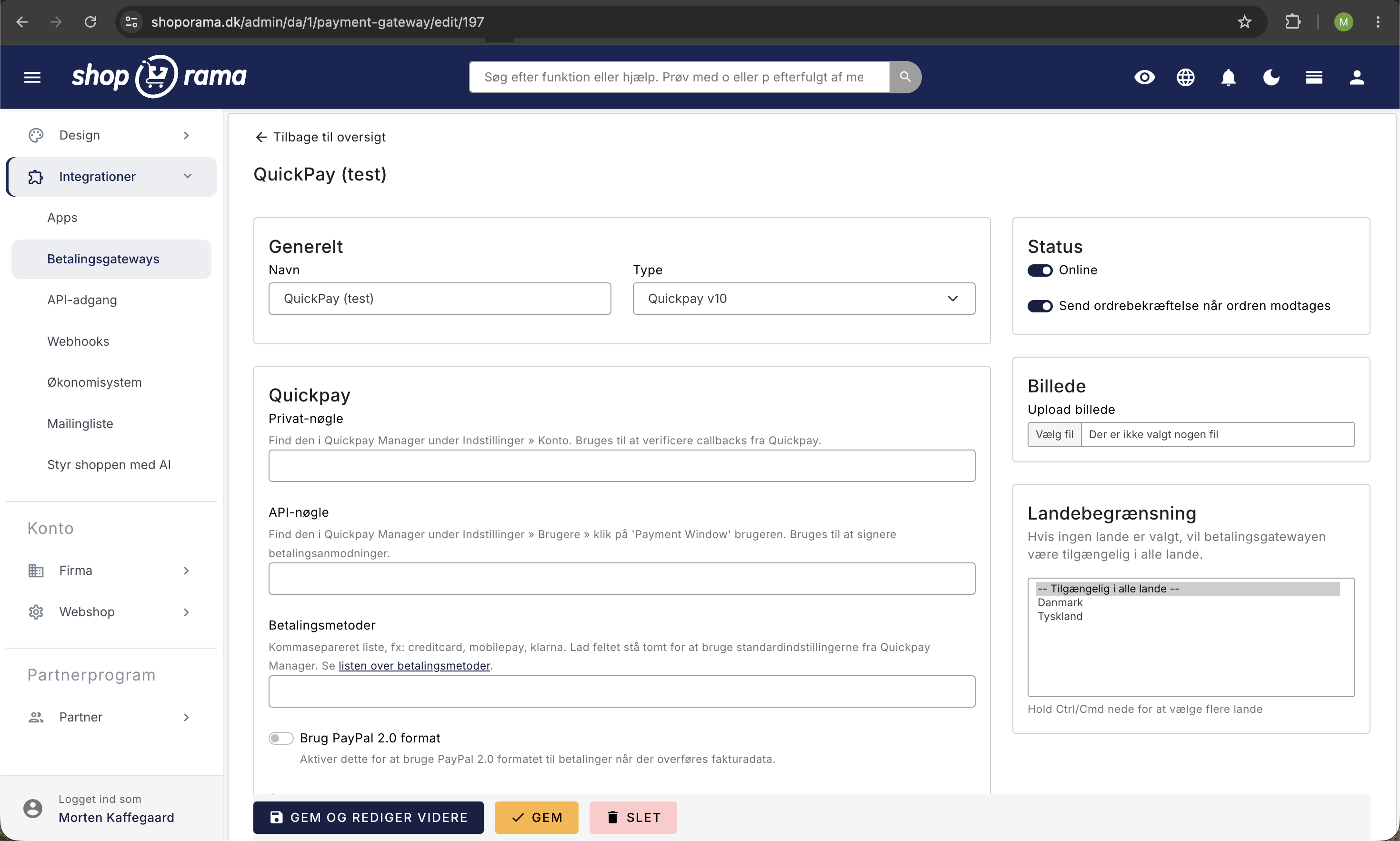
- Private key. Your private key from QuickPay (used to verify callbacks)
- API key. Your API user key from QuickPay (used for capture, refunds, etc.)
- Payment methods. A comma-separated list of methods, e.g., creditcard, mobilepay, apple-pay, klarna-payments, etc. See QuickPay’s list of payment methods
- Language. The language of the payment page, e.g., "da " for Danish or "en " for English
- Branding. Optional branding ID from QuickPay, if you have created a branding theme
- Text on statement. Text that appears on the customer’s bank statement (Clearhaus only, max 22 characters)
Settings
- Automatically charge upon shipment. The amount is automatically charged when the order is marked as shipped or picked up
- Add invoice data. Sends order data to the payment window (required for Klarna and PayPal)
- Add mobile number. Pre-fills the customer’s mobile number in the MobilePay window
- Retrieve customer address from MobilePay/PayPal. Allows the customer to select an address directly in MobilePay or PayPal, so the address is returned to Shoporama after payment. Note that this setting applies to both MobilePay and PayPal simultaneously
Multiple Payment Methods
If you want to offer multiple payment options (e.g., both card payments and MobilePay), simply create multiple payment gateways in Shoporama—one for each type. All use the same QuickPay account but with different payment methods.
Example:
- Gateway 1: "Card payment" with the creditcard method
- Gateway 2: "MobilePay" with the method " mobilepay"
- Gateway 3: "Apple Pay" using the apple-pay method
PayPal via QuickPay
PayPal is phasing out its old checkout and moving all merchants to PayPal Payments (PPCP). If you accept PayPal via QuickPay, you do not need to switch to a new gateway in Shoporama. Instead, upgrade the agreement itself with QuickPay so that future payments are routed through PPCP. PayPal customers are often loyal repeat customers with a higher average cart value, so a disabled PayPal button means lost revenue from day one. This transition is a time-sensitive task.
Here’s how to get started
- Log in to QuickPay Manager and create a PayPal Payments agreement under the acquirers settings. Follow QuickPay’s on-screen instructions.
- PayPal must approve the agreement before it becomes active. Contact PayPal if approval is delayed.
- In Shoporama, create a separate QuickPay gateway dedicated to PayPal. Set “Payment Methods” to “PayPal” exactly. The routing to PPCP is handled by QuickPay, so there is no separate “ppcp” value to set in Shoporama.
- Enable “Add Invoice Data” on the PayPal gateway. Without this, order lines and addresses won’t be sent, and PayPal will often reject the payment.
- Enable “Retrieve Customer Address from MobilePay/PayPal” so that Shoporama receives the shipping and billing addresses from PayPal after payment. Note that this setting also enables address retrieval for MobilePay.
Tip: Do not mix PayPal with other payment methods (e.g. , credit card, PayPal) in the same QuickPay gateway. Set up PayPal as a standalone gateway. Otherwise, discounts for PayPal will not be handled correctly, and you risk having payments rejected.
Toggle: Use PayPal 2.0 format
The “Use PayPal 2.0 format” setting becomes active only if you have also enabled “Add invoice data ” and have PayPal as the sole payment method on the gateway. When enabled, Shoporama does not send the individual order lines to PayPal. Instead, PayPal simply debits the total order amount. This avoids a known error in PayPal’s newer PPCP integration, where payments with discount codes or vouchers are rejected (status 422, “Rejected by acquirer”), because PayPal no longer accepts negative discount lines or line splits that do not balance exactly.
Recommendation: If you receive PayPal payments via QuickPay and use discount codes, vouchers, or promotional discounts, enable this setting. This is currently the only way to prevent discounted PayPal orders from being rejected. The only difference is that PayPal’s receipt shows the order’s total amount instead of the individual item lines. The order itself in Shoporama remains unchanged, with full item details.
Checklist when switching from legacy PayPal to PPCP
- The PayPal Payments agreement has been set up in QuickPay and approved by PayPal.
- PayPal has been set up as a standalone QuickPay gateway in Shoporama with PayPal as the only payment method.
- "Add Invoice Data " and " Retrieve Customer Address from MobilePay/PayPal " are enabled.
- Make a real minimum payment using your own PayPal login (not just the sandbox) and confirm that the order is correctly processed in Shoporama, including the address from PayPal.
- Refund the test payment from the order and verify that the refund goes through on PayPal.
- Verify that the order confirmation email lists PayPal as the payment method.
- Verify that the transaction is posted correctly in e-conomic, Dinero, or Billy if you’re using an accounting integration.
- Test the entire flow on a mobile device. The PayPal conversion rate is typically highest there.
- Do not disable the old PayPal integration until the new one has been confirmed as live.
Tip: If you receive error status 40003 on PPCP payments, we’ve seen in one instance that it helped to use the API key from the “API User” in QuickPay instead of the “Payment Window” user. This is an observation, not a hard-and-fast rule. Email support@shoporama.dk if you’re experiencing this error, and we’ll look into it.
3D Secure
If you want to enable 3D Secure, add “3d-” before the payment method. For example, change “creditcard” to “3d-creditcard.” 3D Secure is a requirement from most card issuers and helps reduce fraud.
Supported Payment Methods
- Card payments: Visa, Mastercard, Dankort, JCB, Diners, and more
- MobilePay. Includes MobilePay Checkout with address retrieval
- Apple Pay. Requires activation in QuickPay and Clearhaus
- PayPal Payments (PPCP). The new PayPal solution routed through QuickPay
- Klarna. Requires invoice data to be included
- Payment links. Send payment links to customers from the order page
- Capture. Collect payment manually or automatically upon shipment
- Refund. Issue a full or partial refund directly from Shoporama
- Cancel. Cancel a payment that has not yet been collected
- Subscriptions. Supports recurring payments
- REST API. Create payment links via Shoporama’s REST API
Security
All callbacks from QuickPay are verified using a checksum based on your private key. The amount in the callback is compared to the order amount to prevent fraud involving payment amounts.
Frequently Asked Questions
Will PayPal stop working in my store if I don’t do anything?
Yes, eventually. PayPal is phasing out the old checkout. If you accept PayPal via QuickPay, QuickPay will handle the transition to PayPal Payments (PPCP) for you. You’ll need to contact QuickPay yourself to confirm that your agreement is being upgraded. In the Shoporama admin panel, you don’t need to change anything in your current setup.
How do I know if we’ve already switched to PPCP?
Log in to quickpay.net and go to the acquirers settings. There, you can see whether the PayPal agreement is listed as PayPal Payments (the new version) or the old type. If you’re unsure, contact QuickPay support. Customers won’t notice any difference at checkout, so you can’t tell from the outside of the store.
Do I need to change the “Payment Methods” field to paypal, ppcp, or something similar?
No. Leave the field exactly as “PayPal.” There is no “ppcp” value in Shoporama. Routing to PPCP is handled entirely on the QuickPay side as soon as your PayPal Payments agreement is activated. So you don’t need to change anything in that field.
What does “Use PayPal 2.0 format” actually do, and should I enable it?
This setting controls how the order is sent to PayPal. When enabled, Shoporama does not include the individual item lines, and PayPal only charges the total order amount. This is necessary because PayPal’s newer PPCP integration rejects payments with discount codes or vouchers if item-level breakdowns are included (PayPal no longer allows negative discount line items). This feature is only active if “Add Invoice Data” is enabled AND you only have PayPal as a payment method on the gateway. Recommendation: If you use discount codes or vouchers on your PayPal orders, enable this feature.
Can I combine PayPal with card payments in the same QuickPay gateway?
Don’t do that. Create a separate QuickPay gateway for PayPal with PayPal as the only payment method. If you mix them, discounts for PayPal won’t be handled correctly, and you risk rejected payments. It’s also easier to troubleshoot when PayPal is set up separately.
Does switching to PPCP affect my bookkeeping or VAT handling?
No. The cash flow remains the same as before: QuickPay settles payments with your store as a whole, not directly with PayPal. VAT, chart of accounts, and bookkeeping remain unchanged. If you use e-conomic, Dinero, or Billy, orders will be posted automatically as before. The change is purely technical.
Will the customer see anything different at checkout after the switch?
No, not in the Shoporama checkout itself. The customer selects PayPal as before and sees the same PayPal button. The difference occurs on the PayPal page, where the customer can now see additional payment options via PayPal’s “smart payment buttons.” This is managed by QuickPay and PayPal, so you don’t need to update anything in your theme or marketing.
What should I do if a customer reports that PayPal isn’t working?
First, check the order list in the Shoporama admin for failed orders from that customer. Then make a test payment for a small amount using your own PayPal account, and refund it afterward. If the test works, the issue is likely on the customer’s end. If the test fails as well, please email support@shoporama.dk with the order number and error message.
Help
If you need help with setup, feel free to contact us at support@shoporama.dk.
Related articles
3D Secure error in QuickPay
Solution to the '3D secure enrollment failed' error in QuickPay and what you can do.
3D Secure on QuickPay
Guide to enabling 3D Secure (SCA) on your QuickPay integration in Shoporama.
Setting up Nets Easy
Guide to setting up Nets Easy (Nexi) as a payment gateway on your Shoporama online shop.
How do I receive payment online?
What does it take to accept credit card or MobilePay payments online? Read about acquiring agreements, payment gateways and alternative payment...
Mollie payment gateway
Learn how to set up Mollie as a payment gateway in Shoporama. Mollie supports iDEAL, credit cards, Klarna, PayPal, Apple Pay, Bancontact and many...
Set up Klarna as payment method
Learn how to set up Klarna as a payment method in your Shoporama webshop.
Related features
Webshop with Dankort
Create a webshop with Dankort as a payment method. How to get started on Shoporama via QuickPay, ePay, Mollie or Stripe - fees and setup explained.
Webshop with Anyday
Offer Anyday in your online shop and let customers pay in 4 free installments. How to set up Anyday on Shoporama via QuickPay.
Webshop with ViaBill
Offer ViaBill in your online shop and let customers pay in installments without fees. How to set up ViaBill on Shoporama via QuickPay.
Subscription webshop
Create a subscription online store on Shoporama. Offer monthly or weekly deliveries, let the customer take control and get stable revenue every month.
Webshop with MobilePay
Create a webshop with MobilePay and give customers a faster checkout. How to set up MobilePay and MobilePay Checkout on Shoporama via QuickPay.
13+ payment gateways for your webshop
Choose from OnPay, Quickpay, Stripe, Mollie, Nets Easy, ePay and many more. Automatic capture, country restrictions and partial payment.