Warehouse Placement: Assign a shelf location to your items
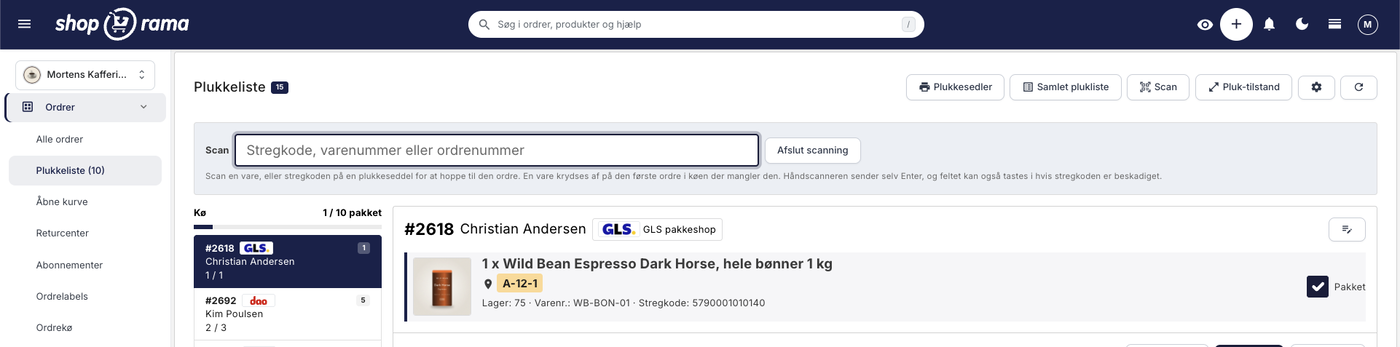
The "Warehouse Location" field indicates where the item is physically located. The picking list and both print documents are sorted by this field, so you can follow a single route through the warehouse instead of having to search for the item.
The "Warehouse Location " field indicates where the item is physically located: a rack, a shelf, a box, or an area. It’s free-form text—you decide the format—and this single change yields the greatest benefit during packing. The picking list and both of its print documents sort by location, so you can follow a single route through the warehouse instead of searching around.
Where do you find it?
Open the product and expand the Inventory Management section. The field is called “Warehouse Location” and is in the same row as the stock keeping unit (SKU). The GTIN is in the row directly below. Enter, for example, “A-02-1” or “Shelving Unit 3, Shelf 2.”
If the product has variants, each variant gets its own location in the “Location” column of the variant table further down in the same section. This is often what you need: size S and size XL are rarely stored in the same place.
The system warns you about duplicates
If you enter a location that’s already being used by another item, a small note will appear next to the field with a link to the other items in that location. Two items can share a shelf, but it’s good to know when that happens.
Choose a format and stick to it
The field is free-form text, so you can enter anything. This also means you’ll need to stay organized yourself. A system that works well in practice has three components:
- Aisle or area · e.g., A, B, C
- Shelf unit · e.g., 02, 03, 12
- Shelf · e.g., 1, 2, 3, from the bottom up
This results in A-02-1, and a packer can read it without having been in the warehouse before. Write the rack number with two digits. The sorting system handles it just fine—2 comes before 10—but it’s easier to scan a list where all locations are the same length.
Here’s how to do it for many items at once
You don’t need to open 800 products one by one. There are three faster ways:
- Table editing in the product overview · enable the “Warehouse Location” column and type directly into the cells, just like in a spreadsheet. Confusingly, the column is labeled “Warehouse Location,” but this refers to this specific field and not actual warehouse locations
- Bulk editing · Select the products stored in the same location and set the location for all of them at once. See Bulk Editing of Products
- CSV import · In the export file, the column is named “location,” and during import, both this column and the actual warehouse location are recognized. Export your products, fill in the column in a spreadsheet, and import them again. See Import Products via CSV
The most practical method is to walk through the warehouse with a tablet, shelf by shelf, and enter the location for the products on each shelf. You’ll be done in a couple of hours, and you don’t have to do all the products at once: start with the ones you ship the most.
How does this benefit you?
- The picking list · Items are sorted by location, and the location is highlighted on each item line
- The Picking Slip and the Combined Picking List · Items are sorted by location, so you follow a single route
- Order List · When orders are expanded, the location is listed next to each item along with the item number (SKU) and barcode (GTIN), so you can pack directly from the list
- Product Overview · You can search by location and display all items on a shelf, e.g., when the shelf needs to be cleared
- Inventory Overview · The location is displayed in the “Location” column
Not the same as warehouse locations
A warehouse location is a label on the product that indicates where the item is stored. Warehouse locations are something else: they’re used to distribute inventory across multiple physical warehouses, such as a main warehouse and a store. The two concepts can be used together, but they each address a different need.
Frequently Asked Questions
Can the customer see the location?
No. The warehouse location is an internal field. It appears in the admin panel, on the picking list, and on the picking slip, which is your own working document. It does not appear in the online store, in the order confirmation, or on the invoice in Shoporama’s default themes. A custom-built theme may be able to access this field, so ask your theme developer if you’re unsure.
What if an item is listed in two places?
The field holds a single text entry, so you can enter both locations in it, e.g., A-02-1 (also B-07). Please note that the sorting will then follow what you enter first. If the inventory is actually split between two warehouses, you should use warehouse locations instead.
Should I use numbers or words?
Whatever you can read aloud to a new employee. “Rack 3, shelf 2” works fine in a small store, while a short “A-02-1” is quicker to scan when there are 40 lines on a picking list. Most importantly, all items should use the same format.
What happens to items without a location?
They’re included as usual, but they appear at the bottom of the sort order—both on the screen and on the printout—instead of being assigned a specific spot on the route. This is actually a useful tool in itself: if there are many items at the bottom of your pick lists, you know where to start.
Can I move all items from one shelf to another?
Yes. Search for the old location in the product overview, select all the results, and set the new location using bulk editing. It takes less than a minute, and it’s worth doing right away on the day the warehouse layout is rearranged.
Related articles
Pick list
How to use the picking list in Shoporama: the queue, shelf location for each item, scanning with a barcode scanner, printing picking slips, and the...
Print the picking slip and the consolidated picking list
The two printed documents from the picking list: one picking slip per order with a barcode, and a consolidated picking list where the items from...
Product overviews
Shoporama product overview guide: Search, filter, sort and mass edit your products efficiently from the product list.
Mass editing of products
Guide to bulk editing products in Shoporama - edit prices, inventory, SEO fields and more in a spreadsheet-like interface.
Related features
The picking list has been redesigned: scan the items, print the picking slip
The picking list can now scan items, print picking slips and a consolidated picking list, and it remembers what you've checked off. The orders are...
Pick list
Print picking lists directly from Shoporama. Streamline your warehouse work with an overview of orders, products and batch numbers in one clear view.