Create newsletters with AI
Imagine being able to describe your next newsletter in plain language, and then having the draft ready in an instant. That’s exactly what this feature does. Once you’ve connected an AI assistant to your store (Claude or Claude Cowork, both from Anthropic), you can ask it to create an entire newsletter for you. Just write in Danish what you’d like, and the AI will put it all together: campaign, subject line, text, products, images, and buttons. It’s email marketing, made as simple as possible.
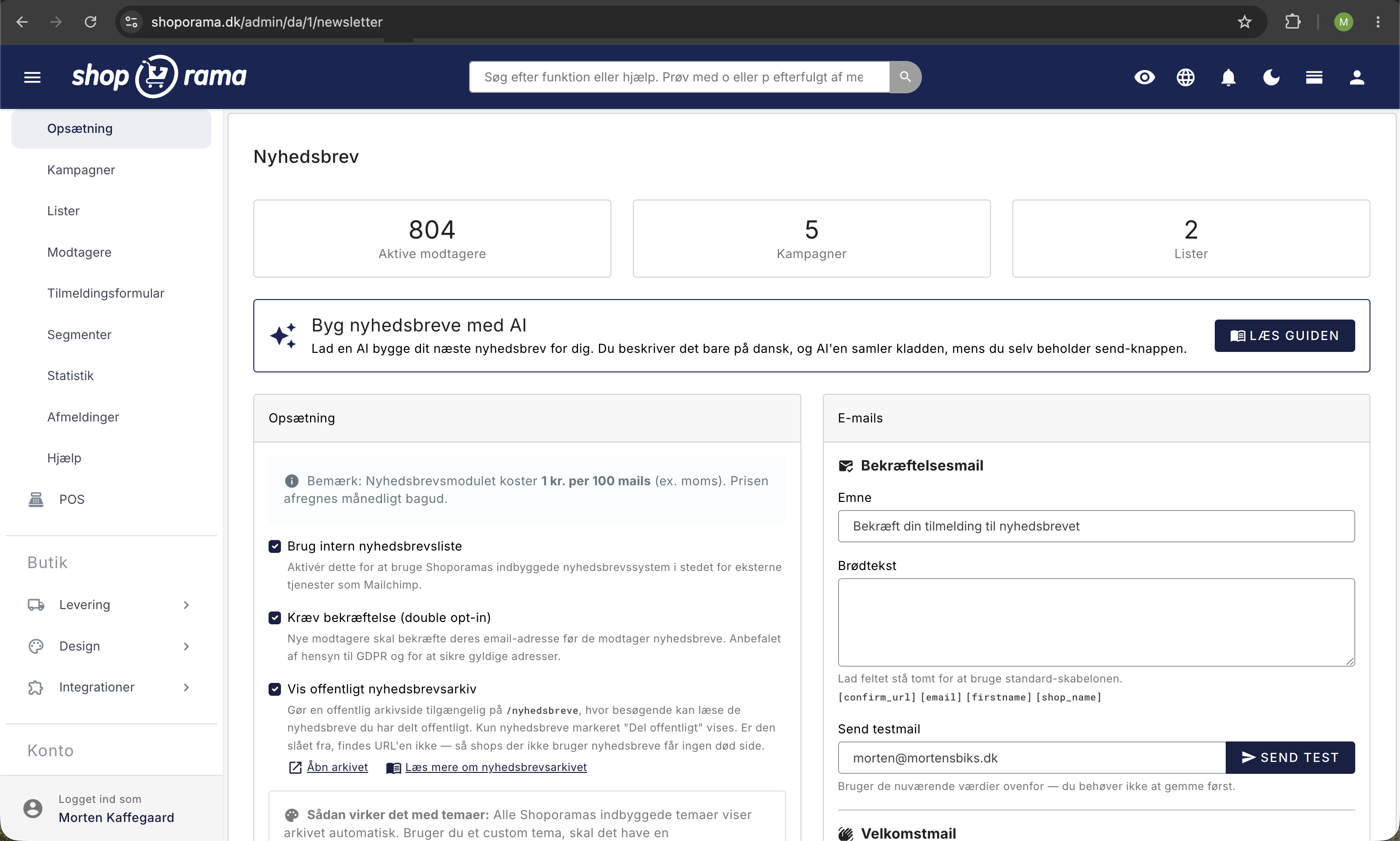
The big benefit in your day-to-day work is simple: the AI handles the time-consuming prep work, while you retain full control. The finished newsletter appears as a draft under “Newsletter” and “Campaigns,” and you can continue editing it in the standard editor. That’s because you and the AI are working on the same newsletter. Once you’re satisfied, review the draft and click “Send” yourself. The AI can create anything, but it can never send it. We’ll come back to this, because that’s the whole point—to ensure the feature is safe to use.
The AI can’t send it. You always do that yourself
This is the most important sentence in the entire article: The AI can create everything, but it can never send it. We’re addressing this right away because that’s what makes the feature safe to use.
There is intentionally no way for the AI to send a newsletter, schedule a mailing, set a send time, or send a test. No matter how you phrase it, the AI cannot accidentally send your email. Every single newsletter it creates remains as a draft until you open it yourself in the admin panel and click “Send” manually.
This is a deliberate choice on our part. It means that an unfortunate or misunderstood message to the AI can never result in your entire subscriber list suddenly receiving a half-finished email. You’re always the final step—you review the draft and approve it. Even the preview, which shows the finished email, doesn’t actually send anything. It just shows you what the result will look like.
This clear boundary is also visible in the admin panel. On the AI Tools page under “Manage the Store with AI,” there’s a small label that says “Cannot send” next to “Newsletter,” so you can always see it for yourself.
Prerequisites: How to Get Started
Before you can create newsletters with AI, three things need to be in place.
1. Connect an AI client to your store. This is done via Shoporama’s AI integration, and there’s a step-by-step setup guide available. Check out “Manage Your Store with AI,” and you’ll be ready in just a few minutes. You can connect Claude or Claude Cowork, both from Anthropic.
2. Give the AI access to newsletters. Go to Admin, “Manage Your Store with AI,” and click “Customize Tools.” Here, each section has three levels: “Read and Edit,” “Read Only,” and “Off.” The “Newsletter” section must be set to “Read and Edit” for the AI to create newsletters, and this is the default setting. So you usually don’t need to do anything. If it’s set to “Read Only,” the AI can view your newsletters, lists, and subscribers, but cannot make any changes. Next to the section is a small label that says “Cannot send,” and the description clearly states that the AI can create newsletters, modules, lists, and subscribers, but can never send them. If someone previously set the section to “Off” or “Read-only,” select “Read and Edit” in the same place and click “Save.” If you’d like to learn more about how to manage the AI’s tools, read “Customize which tools the AI can use in your store.”
3. Use the newsletter module. Your shop needs the newsletter module to have something to build with. If you’re new to this, you can read more about the newsletter module, which walks you through the entire module from start to finish.
How to Create a Newsletter with AI
The great thing is that you don’t need to know a single technical term. You just talk to the AI as if it were a colleague sitting at the keyboard. Here’s an example of the process, from a blank page to a finished draft.
Start by telling it what the newsletter should be about:
“Create a newsletter on the topic ‘Freshly Harvested Coffee Has Arrived.’ Add a header with our logo at the top, and write a short, friendly text about how our new coffee is now on the shelves.”
The AI creates a new draft with a name and subject line and adds the first building blocks. Now you can keep building, one request at a time:
"Add three products from the Coffee category below the text and display the prices."
"Insert a separator, and finish with a large 'Shop Now' button that links to the coffee page."
If you want to make adjustments along the way, just say so in plain language:
"Make the headline a little shorter, and move the button up above the products."
When you think it looks good, ask to see the result:
"Show me what the newsletter will look like."
The AI will show you a preview of the finished email, formatted in your shop’s own email design, exactly as the recipient would see it. The preview is for viewing only. It doesn’t send anything. Once you’re satisfied, open the draft under “Newsletter” and “Campaigns” and make any final manual tweaks, if you wish, before hitting “Send” yourself.
What building blocks can the AI use?
A newsletter is built from building blocks that we call modules. You can ask the AI to add, edit, move around, and remove them, just as you can yourself in the editor. There are eight types to choose from:
- Header (logo). The top block that displays your store’s logo and, optionally, your store name as a heading. You can choose whether to display the logo and name.
- Text. A free-form text block with an optional heading and body text, where you can include paragraphs, bold text, and links, just like in the standard text editor. Perfect for telling a story or introducing a campaign.
- Products. A neat grid of products that are automatically fetched. You decide the source: an entire category, a landing page, or a handpicked list of products. You can also control how many products are displayed (the default is five), how many appear per row (between two and four), whether the price should be shown, and whether there should be a “Buy” or “View” button with your own text and colors.
- Image. A single image that you can optionally make clickable with a link. Be sure to include good alt text so the image makes sense to screen readers—and thus to all your audience members.
- Images in a row. Multiple images side by side in the same horizontal row, where each image can have its own link and its own alt text. Perfect for banners or category shortcuts. You can have up to four images in a row, and the width adjusts automatically based on how many you use.
- Button. A centered call-to-action button, such as “Shop Now” or “Read More.” You choose the text, the link, and the style: blue (primary), gray (secondary), or completely your own with custom background and text colors.
- Separator. A separator between blocks. It can be either a horizontal line or simply an empty space that adds breathing room to the design.
- HTML. For more experienced users. Here you can insert your own HTML code, which will be used exactly as specified. This is only necessary for special customizations, and most users will never need it.
If you want to dive deeper into the individual blocks and their options, you can read more about the newsletter module, where each block type is described in detail.
Lists and Subscribers
The AI can also help with your newsletter lists and subscribers. It can create and rename lists, change the description, select or remove the default list, and delete a list. It can also add subscribers, edit names and list membership, and unsubscribe people. When a subscriber unsubscribes, the record is not deleted. The status is set to “unsubscribed,” and the information is retained for documentation and GDPR compliance. If you delete an entire list, only the list membership itself is removed—not the subscribers.
There are two things worth noting. First, when the AI adds a subscriber, the person is set to “active” immediately, and no confirmation email is sent. If you do not specify a list, the subscriber is added to the store’s default list. The responsibility for ensuring that people have consented to marketing therefore lies with you. Only add people who have given their consent so that you’re on the safe side with regard to GDPR. Second, if you ask the AI to select which lists a newsletter should be sent to, that selection overrides any lists that may have been selected previously. In other words, it isn’t added on top. The same applies to a subscriber’s list membership when you edit it. So be sure to review the list selection if you’ve set it up previously. If you want to work with your recipients in a more structured way, you can read about customer groups and segmentation.
If you want additional control over your recipients, you can enable Extra Security on the AI Tools page. This means three actions won’t be carried out immediately when the AI requests them: adding a subscriber, changing which lists a subscriber is on, and unsubscribing a subscriber. The same applies to deleting a newsletter, a module, or a list. Instead, the change will wait for you to approve it in the admin panel. Creating and editing drafts still happens immediately. Read more in “Extra Security: Approve Changes from Claude.”
Where can I find the finished newsletter?
The newsletter that the AI builds is saved as a draft under “Newsletter” and “Campaigns” in the admin panel. You can open it just like any other newsletter. The modules can be edited in the standard block editor, so you can edit text, images, and products yourself before sending.
The key thing to understand is that the AI and the manual editor are working on the same newsletter. This means you can freely switch between asking the AI to make adjustments and tweaking it yourself manually. You never lose control, and you can always manually refine the draft before hitting “Send.” Note that the modules can only be changed while the newsletter is in draft mode.
How much does it cost?
The fact that the AI builds the newsletter doesn’t cost extra. It’s part of the AI integration. You only pay the standard newsletter price when you send the newsletter yourself. If the AI creates a draft that you never send, there’s no email cost at all.
The price for sending the newsletter is the same, regardless of whether it’s generated by the AI or created manually. You can view the current pricing details and confirm the amount in the article about the newsletter module.
Is this the same as the AI assistant in the text editor?
No. It’s not the same as the AI assistant in the text editor, which helps you write product texts and descriptions directly in the editor. That feature is about crafting text.
This feature, on the other hand, is about building entire newsletters by chatting with a connected AI client such as Claude or Claude Cowork. One writes the text for you, while the other compiles the entire draft. The two AI features complement each other, but they are two different things.
Tips for the Best Results
The more specific you are, the better the result will be. Here are some tips to help you get started:
- Build in small steps. You don’t need to describe the entire newsletter in one long message. Start with a header and some text, review it, and build from there. It’s easy to make adjustments as you go.
- Be specific about products. State exactly which category, landing page, or products the AI should pull from, and how many should be displayed. That way, it’ll get it right the first time.
- Ask for a preview at the end. Before you proceed to send, always ask the AI to show you the finished email. That way, you’ll see exactly what the recipient will receive.
- Remember to obtain consent when adding subscribers. When the AI adds a subscriber, that person is automatically marked as active, and no confirmation email is sent. Only add people who have given their consent so you’re on the safe side regarding GDPR.
- The regular editor is still at your disposal. The AI and the manual editor work on the same newsletter. You can always fine-tune the draft manually afterward before sending it.
If you have any questions about the setup, feel free to email support@shoporama.dk.
Frequently Asked Questions
Can the AI accidentally send out a newsletter?
No. The AI can build, edit, and display a preview, but it has absolutely no ability to send, schedule, or set a send time. Everything it creates ends up as a draft under “Newsletter” and “Campaigns.” You must open the draft in the admin panel and click “Send” manually, so an inaccurate message can never be emailed to the entire list.
I’m not very tech-savvy. Do I need to learn any commands or codes?
No, you just write in plain Danish, as if you were talking to a staff member. For example: “Create a newsletter with our logo, a short text about the new spring collection, and three products from the Dresses category.” You don’t need to know any technical terms. Afterward, you can edit everything yourself in the regular newsletter editor, just as you usually do.
Does it cost extra to have the AI create the newsletter?
No. The fact that the AI puts the newsletter together is part of the AI integration and doesn’t cost anything extra. You only pay the standard newsletter price, and only when you send it yourself. If the AI creates a draft that you never send, there’s no email cost. Check the current price in the article about the newsletter module if you’re unsure.
Which AI clients can I use?
You can use Claude or Claude Cowork, both from Anthropic. Both connect to the store via Shoporama’s AI integration. Once the client is connected, just speak in plain Danish and ask it to create the newsletter. Read the guide “Manage Your Store with AI.”
How precisely can I control the layout?
Quite precisely. You work with eight block types: header, text, products, image, images in a row, button, separator, and raw HTML. For the product block, you can control the source (category, landing page, or selected products), the maximum number of products per row (two to four), whether the price is displayed, and whether there’s a buy button. Buttons can have their own background and text colors, and the HTML block inserts your code exactly as specified. When you ask the assistant for “Images in a Row,” you select images that are already online, and you can give each image its own link. Stick to four images per row so they don’t appear too narrow to the recipient.
Do subscribers receive a confirmation email when the AI adds them?
No. When the AI adds a subscriber, the person is set to “active” immediately, and no confirmation or double-opt-in email is sent. If you don’t specify a list, the person is added to the shop’s default list. You are therefore responsible for obtaining marketing consent. Only add people who have actually given their consent, and keep your own documentation of this so you can comply with the GDPR. If you’ve enabled Extra Security, the subscriber won’t be added until you’ve approved it in the admin panel.
How do I preview the newsletter before sending it?
You can ask the AI to show you a preview, for example, “Show me what it looks like.” It displays the newsletter as the finished email in the shop’s own email design, exactly as the customer would receive it. The preview is for viewing only and does not send anything. You can also always open the draft in the admin panel and view it there.
Can I edit what the AI has created?
Yes, absolutely. The AI and the regular editor work on the same newsletter, so what the AI creates is saved as a draft where you can add, edit, move around, and delete modules in the standard block editor. You can also simply ask the AI to make adjustments. Remember that modules can only be edited while the newsletter is in draft mode.
Can the AI create a newsletter featuring our campaign products?
Yes. The Products module automatically retrieves products from a source you choose: a category, a landing page, or a selected list of products. For example, if you have a campaign category or a campaign landing page, you can ask the AI to pull the products from there. You can also control the number of products, products per row, whether the price is displayed, and whether there’s a buy button.
Related articles
The newsletter module
Complete guide to Shoporama's built-in newsletter module. Learn how to create campaigns, segment recipients, use A/B testing, set up automatic...
Customize which tools Claude can use in your shop
AI assistant in the text editor
Learn how to use Shoporama's built-in AI assistant to generate product texts, image descriptions and text suggestions.
Customer groups and segmentation
How to create customer groups and segments in Shoporama for targeted marketing and newsletters.
Related features
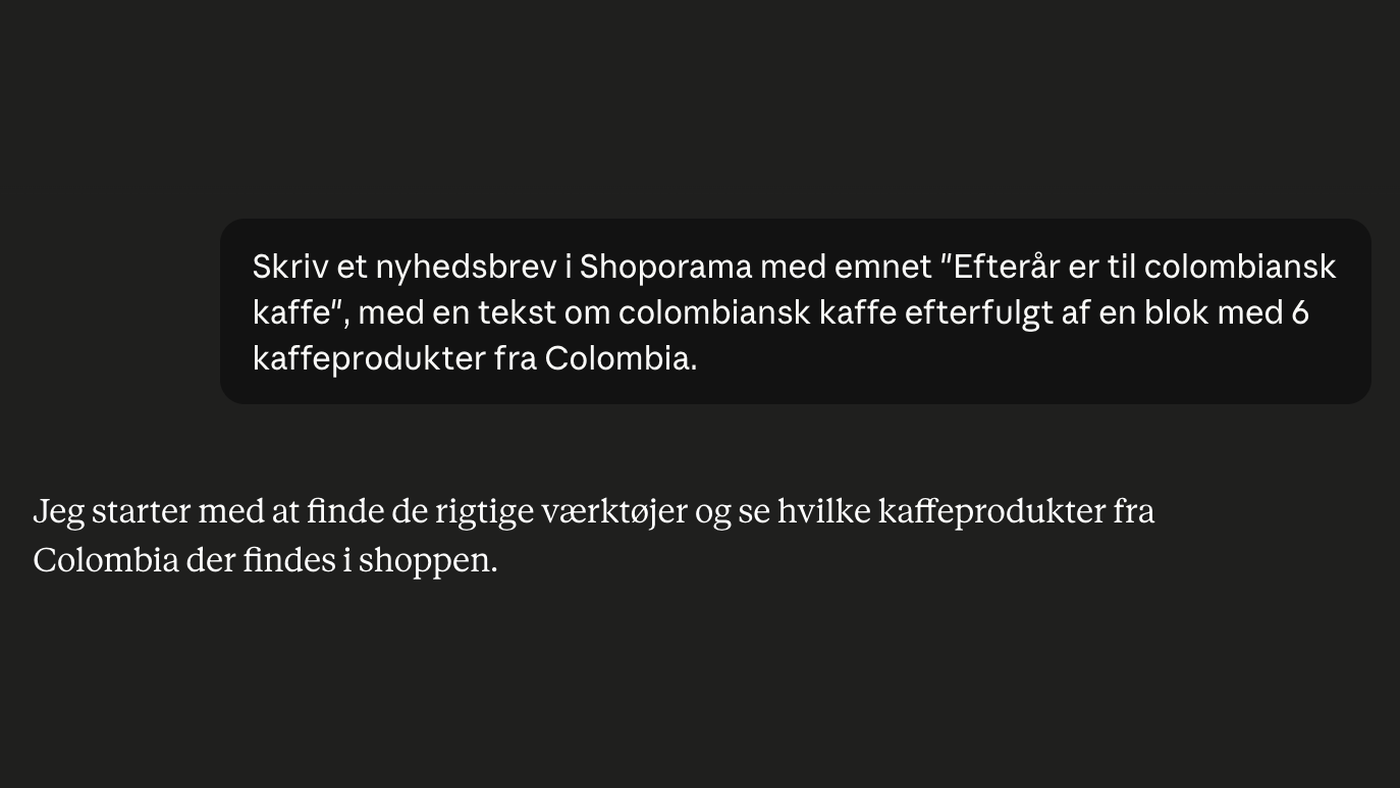
Build your newsletters with AI: you describe, the AI compiles, you send
Describe your newsletter in plain Danish, and the AI will put together the entire draft, including text and products. The AI can do everything...
Webshop med AI
Webshop med AI bygget ind: skriv produkttekster, byg nyhedsbreve, og styr hele butikken ved at skrive på dansk. Kunstig intelligens i Shoporama,...
AI in the webshop
AI is used in eCommerce for product copywriting, SEO, customer support and chat operations. Shoporama has AI built in on multiple levels.