Protect your webshop against card fraud with QuickPay's Fraud Filter
Fraudsters from abroad regularly test stolen cards in Danish webshops. QuickPay's free Fraud Filter lets you block suspicious payments or require extra verification - and it only takes two minutes to set up.
Fraudsters test cards in your webshop
A growing problem for Danish webshops is that fraudsters from abroad use stolen card numbers to test if the cards still work. They typically make small payments in random webshops - and your store could be one of them. Although the payments are often reversed, this can cause problems with your acquirer and, in the worst case, lead to extra fees.
The good news is that you can stop most of this with a few simple rules in QuickPay's Fraud Filter - a free tool included in all QuickPay accounts.
Where can I find Fraud Filter?
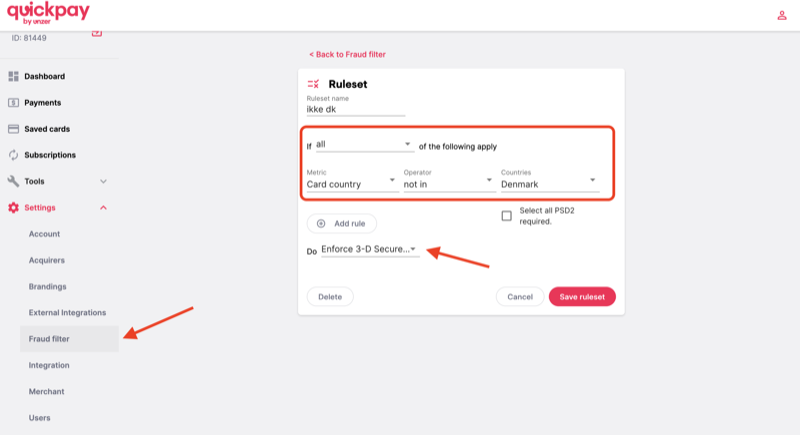
Log in to QuickPay Manager and go to Settings → Fraud filter in the left menu. Here you can create one or more rulesets that automatically handle suspicious payments.
QuickPay recommendation: Block cards from countries you do not sell to
We asked QuickPay support directly about the best strategy. Their recommendation is clear: Block payments from cards issued in countries you don't normally sell to anyway.
For example, if your fraud payments typically come from cards issued in the US, you can create a rule set that blocks all payments from US cards:
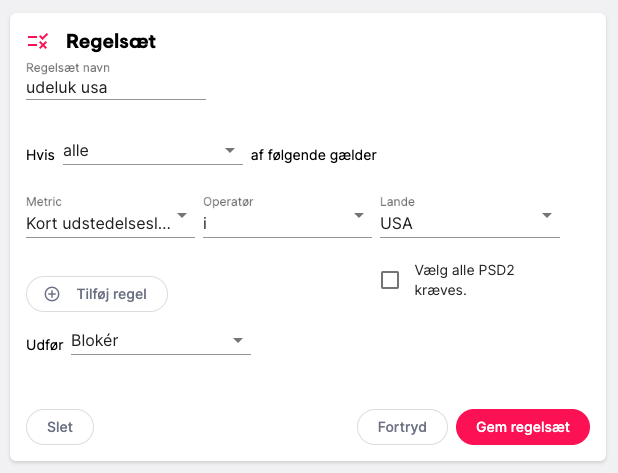
Click to enlarge. Example from QuickPay: A rule set that blocks all payments from US-issued cards.
If you only sell to Danish customers, consider blocking all countries except Denmark - or except the Nordics if you also sell to Sweden and Norway.
Alternative: Require 3-D Secure for foreign cards
If you don't want to block payments completely, there is a good alternative: Require 3-D Secure (MitID, Verified by Visa, Mastercard SecureCode) for all cards not issued in Denmark.
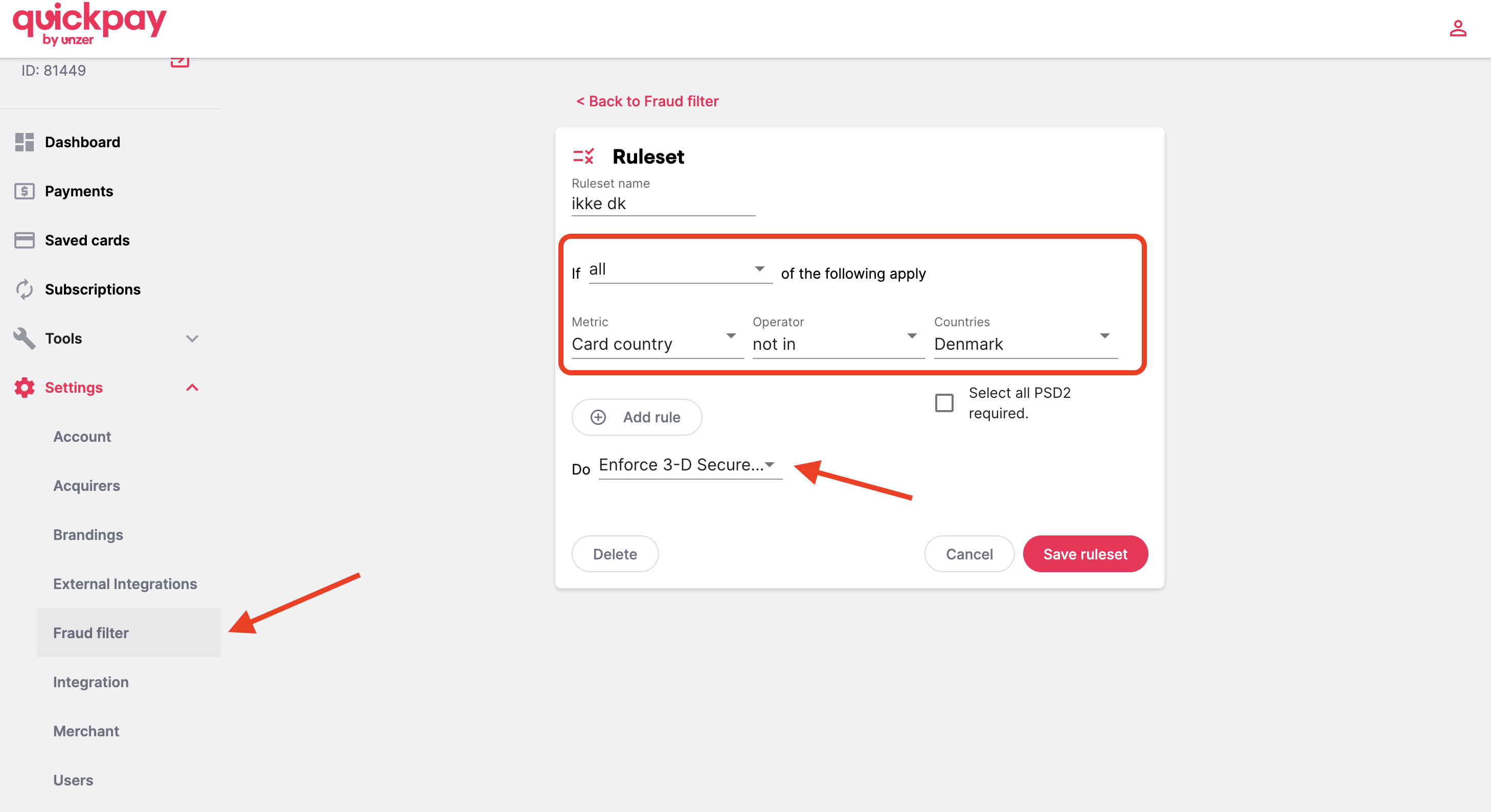
Click to enlarge. A set of rules that requires 3-D Secure for all cards issued outside Denmark.
With this rule, foreign customers can still pay, but they must verify their identity. Fraudsters typically don't have access to the cardholder's phone or NemID, so most fraud attempts are stopped here.
Shoporama's blacklist feature
In addition to QuickPay's Fraud Filter, Shoporama has a built-in blacklist feature that gives you another layer of protection. With the blacklist, you can block specific customers based on email, phone number or IP address.
This is especially useful if you've already experienced fraud attempts and want to make sure the same people can't try again. When a blocked customer tries to complete a purchase, they are quietly sent back to the cart - without getting an error message revealing that they are blacklisted.
You can find the blacklist under Orders → Blacklist in your Shoporama administration. Read more in our guide to the blacklist feature.
The four conditions you can use
Each set of rules is made up of conditions. QuickPay gives you four to choose from:
- Fraud Score - A score from 0-100 based on QuickPay's analysis. Takes into account amount, card activity, transaction frequency and comparison with known fraud patterns. Note: Payments above approximately SEK 2,200 (EUR 300) automatically receive a score of 100.
- Amount - The amount of the transaction.
- Card country - The country where the payment card is issued.
- IP country - The country where the cardholder is located (based on IP address).
The four actions
When a payment matches your conditions, you can choose between:
- Block payment - Reject the transaction. Most effective against fraud from countries you don't sell to.
- Require 3-D Secure - The customer must verify their identity. Good balance between security and customer experience.
- Flag as possible fraud - The payment goes through but is flagged for review. Useful for monitoring.
- No action - Temporarily disables the ruleset.
Get started in two minutes
- Log in to QuickPay Manager
- Go to Settings → Fraud filter
- Create a new rule set and select your conditions
- Choose the action that fits your situation
- Save - and your store is instantly better protected
If you need help with the setup, feel free to contact us at support@shoporama.dk.
Related articles
Blacklist - Block unwanted orders
Learn how to use Shoporama's blacklist feature to block spam orders and unwanted customers by blacklisting email, phone number or IP address.
Protect your webshop from spam orders
Guide to protecting your Shoporama webshop from spam orders and fraud using blacklist, captcha and 3D Secure.
3D Secure on QuickPay
Guide to enabling 3D Secure (SCA) on your QuickPay integration in Shoporama.
3D Secure error in QuickPay
Solution to the '3D secure enrollment failed' error in QuickPay and what you can do.
More from the blog
Recommendations are now built into Shoporama
"Others also viewed" and "Others also bought" are now part of Shoporama. No external service, no extra cost, and setup in the Page Designer takes...
31. juli 2026
Nyt: Se med det samme hvilke pakkeshop-pakker der snart udløber
En ikke-afhentet pakkeshop-pakke koster dig returfragt, ekstra håndtering og en ærgerlig kunde. Nu viser Shoporama direkte i ordrelisten om en...
06. juli 2026
Nu klarer din webshop panten helt af sig selv
Sælger du øl, sodavand, eller andre drikkevarer med pant? Efter reglerne skal panten opkræves, og varens pris skal samtidig vises uden pant. Det...
04. juli 2026