Many customers are familiar with the brand before they know about your store. They search for it on Google, see it on a product, or just want to see what else you carry from that brand.
Customers are looking for brands
Anyone searching for a specific coffee brand, clothing brand, or author already knows what they want. That search should ideally land on a page dedicated to that specific brand, rather than on a single product or in a broad category where the brand gets lost. A brand page is exactly that: the brand’s name in the title and headline, a description of the brand, and all the products listed below.
The idea came from an antiquarian bookstore that wanted customers to be able to click on an author’s name and see all of that author’s books. Large stores have a page per brand for the same reason. Now it’s built into Shoporama, and it works just as well with ten brands as it does with several thousand.
No separate landing page per brand
Until now, you had to create a landing page for each brand and link it to the brand under “Link to.” With 40 brands, that’s 40 pages you have to create and maintain. With brand pages, you simply set up a single entry under “Products → Brands,” and then all your brands have a page. The URL is generated based on the name, e.g., dinbutik.dk/brands/nordic-roast, and a new brand gets its own page as soon as you create it.
If you already have landing pages for some of your brands, they’ll continue to work. A brand that links to a category or a landing page redirects customers and Google there, so the brand still only has one page.
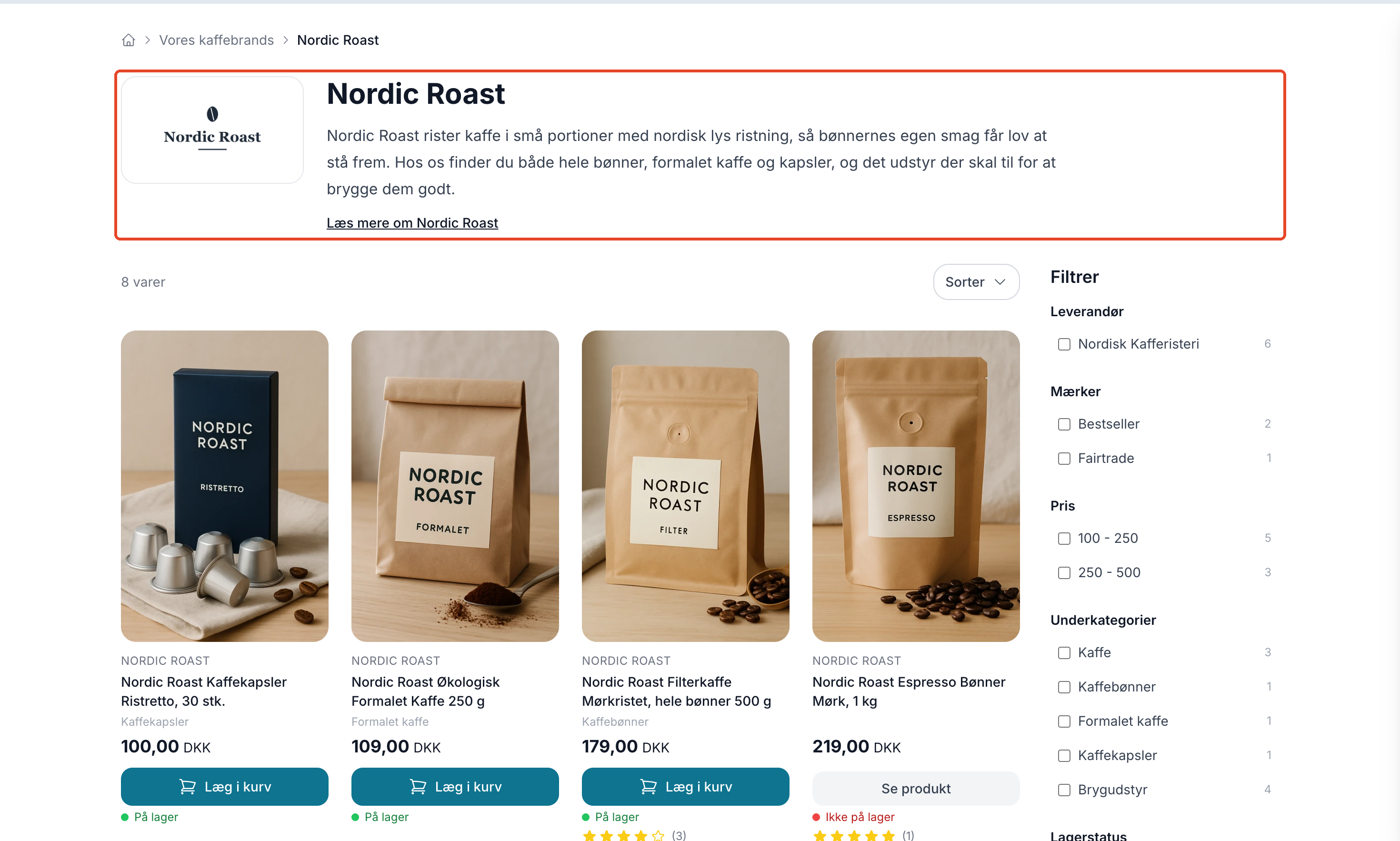
Here’s what appears on a brand page
- Logo, name, and intro at the top. The intro consists of a few short paragraphs about the brand, which you write for the brand in the admin panel.
- The brand’s products with sorting and page navigation, just like on a category page.
- The filter from Design → Filter in Montana and Montana B2B, so the customer can narrow down the brand’s products by, for example, price or stock status. The brand filter has been removed, since the page features only one brand.
- A longer body text below the products with space for the brand’s history, collections, and frequently asked questions.
The brand name on the product page also serves as a link to the brand page. Customers who like a product can navigate to the rest of the brand’s offerings with a single click, and every product in the shop links to its brand’s page. This is internal linking that you don’t have to set up yourself.
An overview of all brands
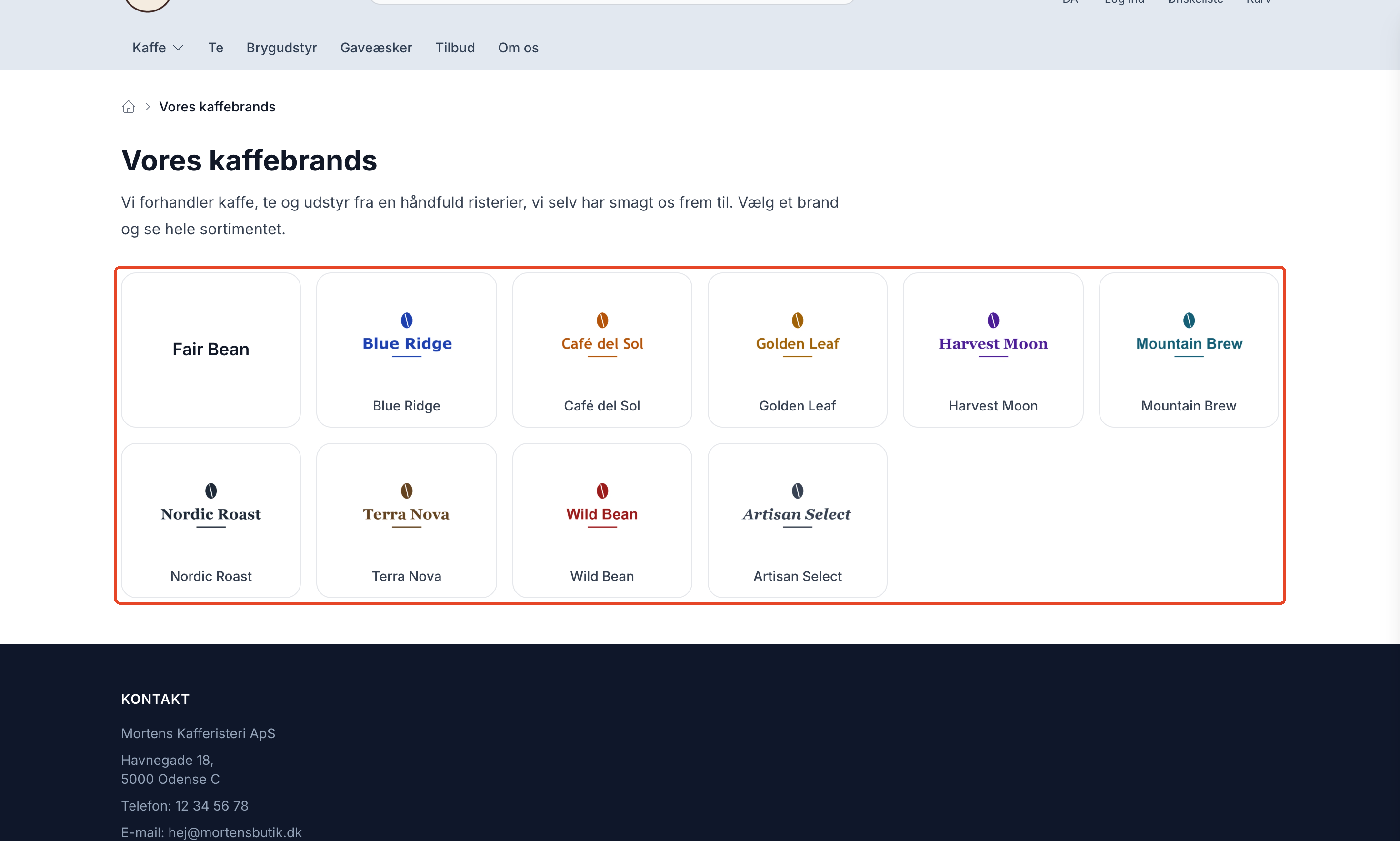
The /brands page lists all the brands whose products customers can view. The layout adapts to the number of brands you have:
- Up to 24 brands are displayed in a single grid with their logo and name—or just the name if the brand doesn’t have a logo.
- If you have more, up to 12 logos appear at the top, and below them, all brands are sorted by first letter, with a list of letters to navigate through.
- If you have over 300—such as a used bookstore with many authors—only one letter is displayed at a time so the page doesn’t become endlessly long.
You control which logos appear at the top by setting the order in the list of brands. You choose the heading yourself, so a bookstore could call the overview “Authors.”
SEO, which the store handles on its own
The brand pages are designed to be found without you needing to know the technical details:
- Title and description: If you don’t write one yourself, the page uses the brand’s name and the store’s name as the title and the beginning of the introduction as the meta description.
- One URL per brand: If someone types the URL in all caps or with a slash at the end, or if you’ve changed it, they’ll be redirected to the correct URL via a permanent redirect (301).
- No duplicates: Each page has a canonical URL, so sorting and filters don’t result in multiple versions of the same page appearing in Google.
- Thin pages are excluded: a brand with fewer products than the threshold you set (the default is 3) is marked “noindex” and won’t appear in your sitemap. The page still exists and appears in the overview.
- Sitemap: The list and the brand pages that are allowed to be indexed are automatically included in your XML sitemap.
- Structured data: In Montana, Delaware, and California, the page tells search engines which brand it’s about, including the logo, breadcrumbs, and the list of products.
- Sharing: The logo is used as the image when the page is shared on platforms such as Facebook and LinkedIn.
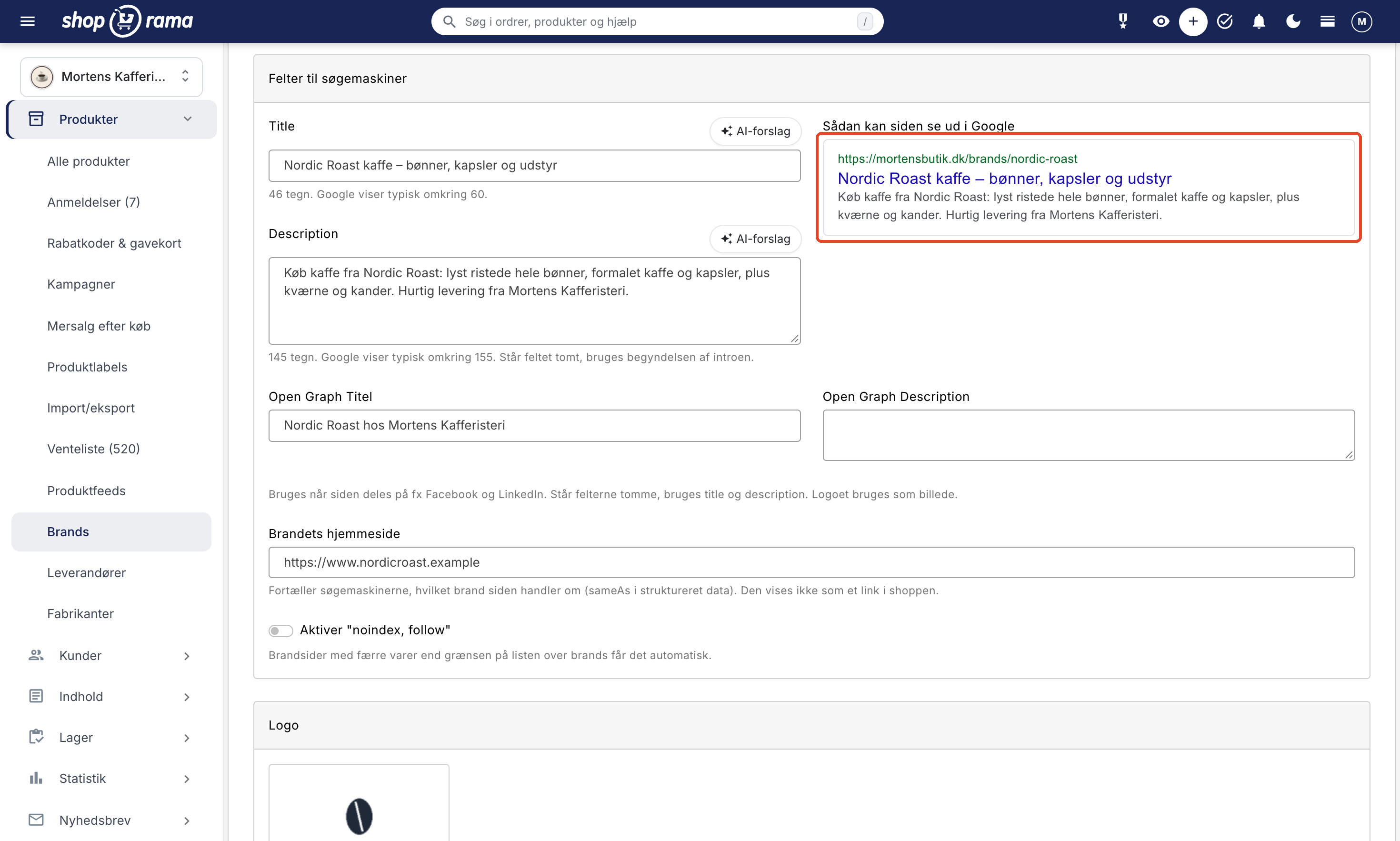
If you want to manage this yourself, each brand has fields for Title and Description with AI suggestions, a preview of how the page might look in Google, fields for sharing on social media, and a field for the brand’s own website, which is included in the structured data.
Countries and Customer Groups
If you sell in multiple countries, the brand pages have the same address in each country, e.g., dinbutik.dk/se/brands/nordic-roast, and the brand’s text can be translated. A brand that you’ve hidden in a country won’t have a page there. A brand that is exclusive to a customer group can only be viewed by customers in that group and is excluded from the overview and your sitemap for everyone else.
Works with Shoporama’s own themes
Brand pages work in Montana, Montana B2B, Delaware (including the Danish version), California, Alaska 2, and Washington. The filter on the brand page is available in Montana and Montana B2B, which are the themes that support product filtering. In Delaware, California, and Alaska 2, the brand page displays products, sorting options, and page navigation, but no filter; in Washington, products are loaded dynamically as the customer scrolls. In all themes except Alaska 2, the brand name on the product page becomes a link to the brand page, and in Montana B2B, the brand pages are behind the login, just like the rest of the store.
If you’re using a custom theme, brand pages will only work if the theme is built to support them. Otherwise, the option will be grayed out in the admin panel, and your theme developer can add it.
Get Started
Go to Products → Brands, click the Brand Pages button in the top right corner, enable “Show brand pages in the store,” and click Save settings. Start with the descriptions for the brands you sell the most of. You can read about how to write the introduction, set up the SEO fields, and choose the filter in the article on brand pages.