Active variants: Select which variants each product uses
Select which profile variants each product uses so that empty variants are excluded from Google Shopping and the other product feeds. Edit one product at a time, or multiple products at once from the product overview.
If you use a single shared product profile for many different items, each product will include all of the profile’s variants—even those that aren’t sold at all. With active variants, you can select which variants are in use for each product, so that the inactive variants disappear from the variant selector and from your product feeds. Here you can see what happens to the variants you disable and how to select active variants for a single product or for multiple products at once.
Why do variants priced at 0 DKK appear in Google Shopping?
A product profile determines the attributes of your products. An attribute can be a variant—for example, “Packaging”—with a list of values such as 100 g, 250 g, 500 g, 1 kg, 10 pcs., and 30 pcs. You can read more about profiles in the article “Product Profiles and Variants.”
By default, all products in a profile inherit all of the profile’s variant values. This works fine when the profile is used for only one type of product. But if you use the same broad profile for, say, coffee beans, tea, and capsules, each product will end up with a number of variants that aren’t actually sold. Your capsules will suddenly have a 1 kg variant, and your coffee beans will have a 30-count variant.
These empty variants aren’t just a mess on the product page. If you also send out-of-stock items to Google Shopping—or if the product is sold on a “sell out of stock” basis—they’ll be included in the feed, where each variant is sent as a separate product. If the variants use variant prices, a variant without a variant price will be listed at 0 kr, and Google rejects those types of products. They’ll be marked as “Not approved” in Merchant Center.
What are active variants?
With active variants, you select for each product which of the profile’s values the product actually uses. The remaining values become inactive for that specific product. Other products in the same profile are not affected.
If you haven’t selected active variants for a product, all variants in the profile are active. This is the default setting, so you don’t need to take any action for products where all variants are applicable. There must always be at least one active variant for a product.
What happens to an inactive variant?
- It does not appear when the customer selects a variant in Shoporama’s default themes— neither on the product page, in the subscription selection, nor in post-purchase upsells.
- It is omitted from product feeds to Google Shopping (including Google’s country and language feeds), Pricerunner, Partner Ads, and Miinto, as well as from the feeds you create yourself under Product Feeds.
- Nothing is deleted. The variant price, inventory, and item number/GTIN are saved, so you can always reactivate the variant without having to set anything up from scratch.
Tip: If you’re using a custom theme or your own theme, the theme itself must support active variants before the inactive variants disappear from the product page. Check with your developer. The feeds are affected regardless of which theme you use.
When you add new values
If you’ve selected a subset of the variants for a product, new values you later add to the profile won’t automatically appear on that product. You’ll need to activate them manually if you want the product to use them. If, instead, you add a value using the “Add Variant” button on the product page itself, it will immediately be added to the product’s active variants. The value is also created on the profile at the same time, so it will appear on products where all variants are active.
Select active variants for a single product
If you only need to edit a single product, do so directly on the product:
- Go to Products and select All Products.
- Click on the product you want to edit.
- Expand the Inventory Management section. The Variant table is located under the heading "Settings for," followed by the variant’s name, e.g., "Packing Settings."
- Click the Select Active Variants button above the table.
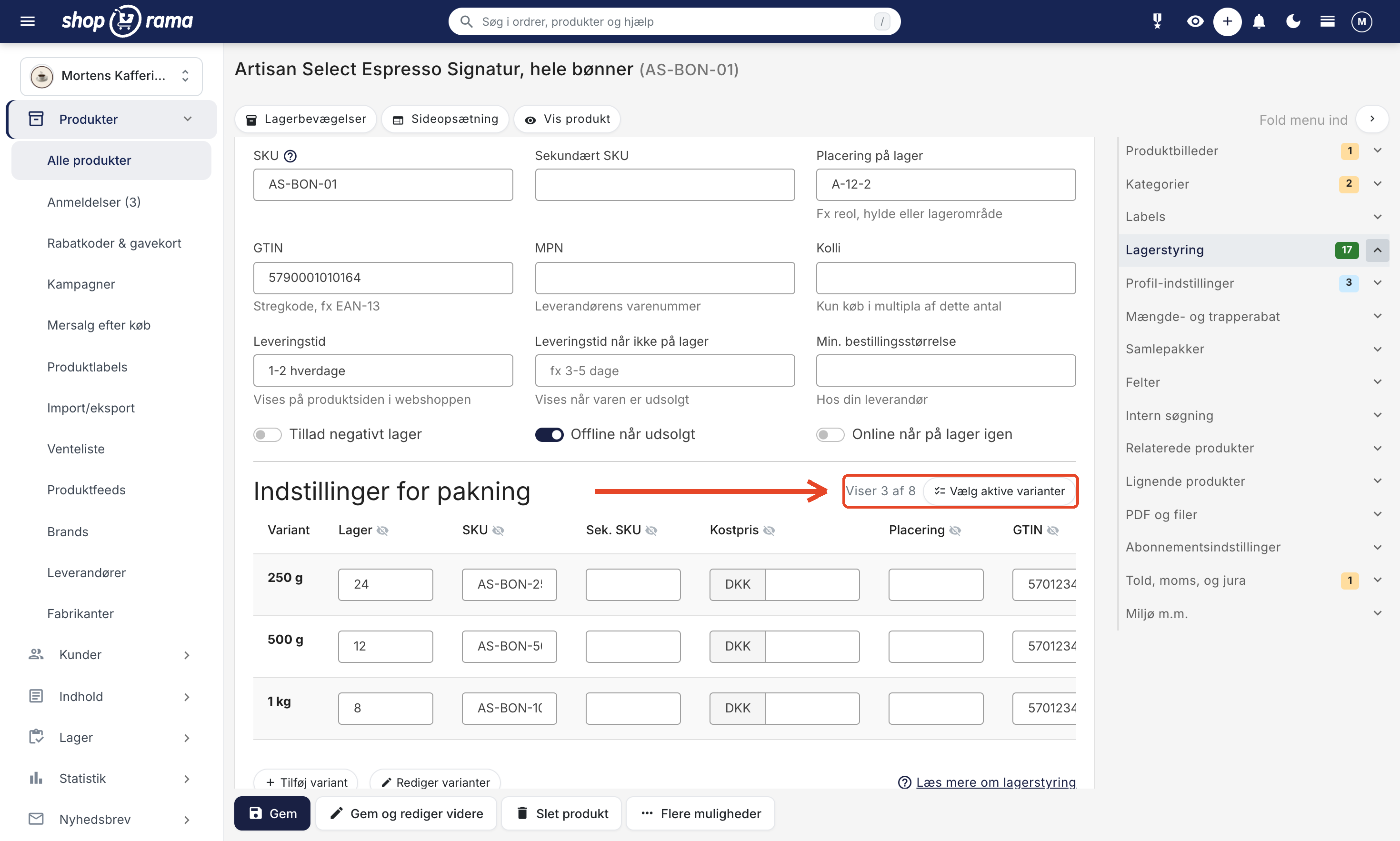
- The "Select Active Variants " window opens with a checkbox for each variant value in the profile. If the product has stock for a variant, the quantity is displayed next to it.
- Check the boxes next to the variants the product should use, and uncheck those it shouldn’t. If the profile has many values, you can use the search field to quickly find the right one.
- If necessary, use “Select All” or “Deselect All” if it’s faster to start from there. If you’ve entered text in the search field, the buttons will only apply to the variants you can see.
- Click Save. If you’ve unchecked all the boxes, you won’t be able to save because at least one variant must be active. The product page will reload, so save any other changes to the product first. If you click Cancel, the window will close without saving.
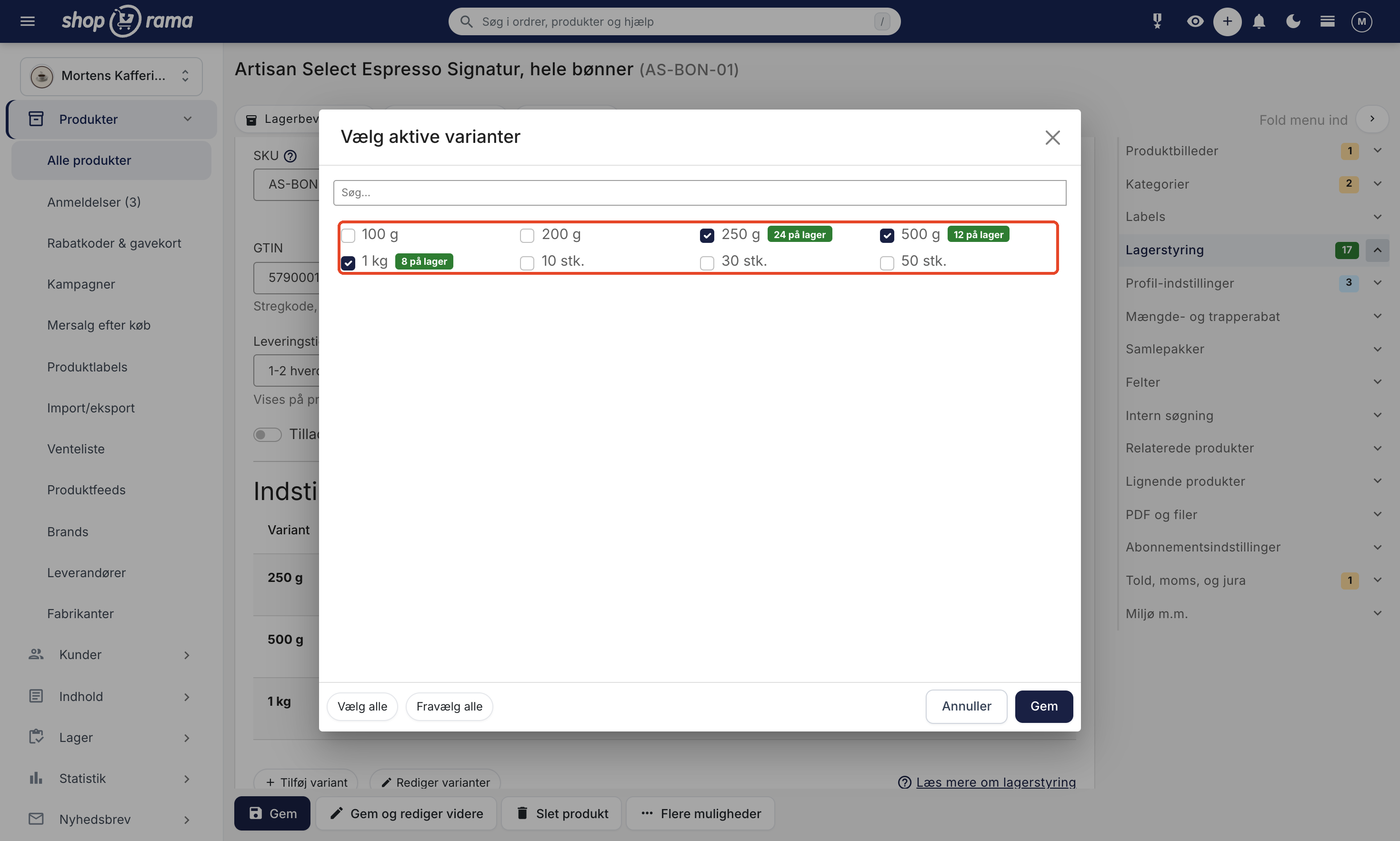
Afterward, the variant table for the product will show only the active variants, and next to the button it will say, for example, “Showing 3 of 8.”
If your role is limited to viewing products only—such as Marketing or Bookkeeper—you can open the “Select Active Variants” window but cannot save your selection.
Shortcut from the product overview
You can also open the Active Variants page for a single product directly from the product overview. Click the menu with the three dots at the far right of the product’s row, and select Active Variants. If you use this often, you can turn it into an icon in the row: click the gear icon at the far right of the table’s header row to open “Customize View,” enable “Active Variants ” under “Buttons in the Product Row,” and click “Save.” This option appears only on products with variants. If your role can only view products, the shortcut will display the “No Access” page.
The page works as described under “Active Variants” further down, but with just one product. When you’re done, the “Back to Products” link takes you back to the same search and page in the product overview.
Edit active variants for multiple products at once
If you have many products in a broad product profile, it’s faster to make changes from the product overview. Here, you select the products and edit them all at once on the “Active Variants” page.
Find and select the products
- Go to Products and select All Products. This opens the product overview.
- If necessary, filter by Profile in the filter bar so you only see products with the broad profile.
- Select the products you want to edit using the checkboxes. A bulk editing bar will then appear at the bottom of the list.
- Click " More Actions " in the bar.
- Select Active variants.
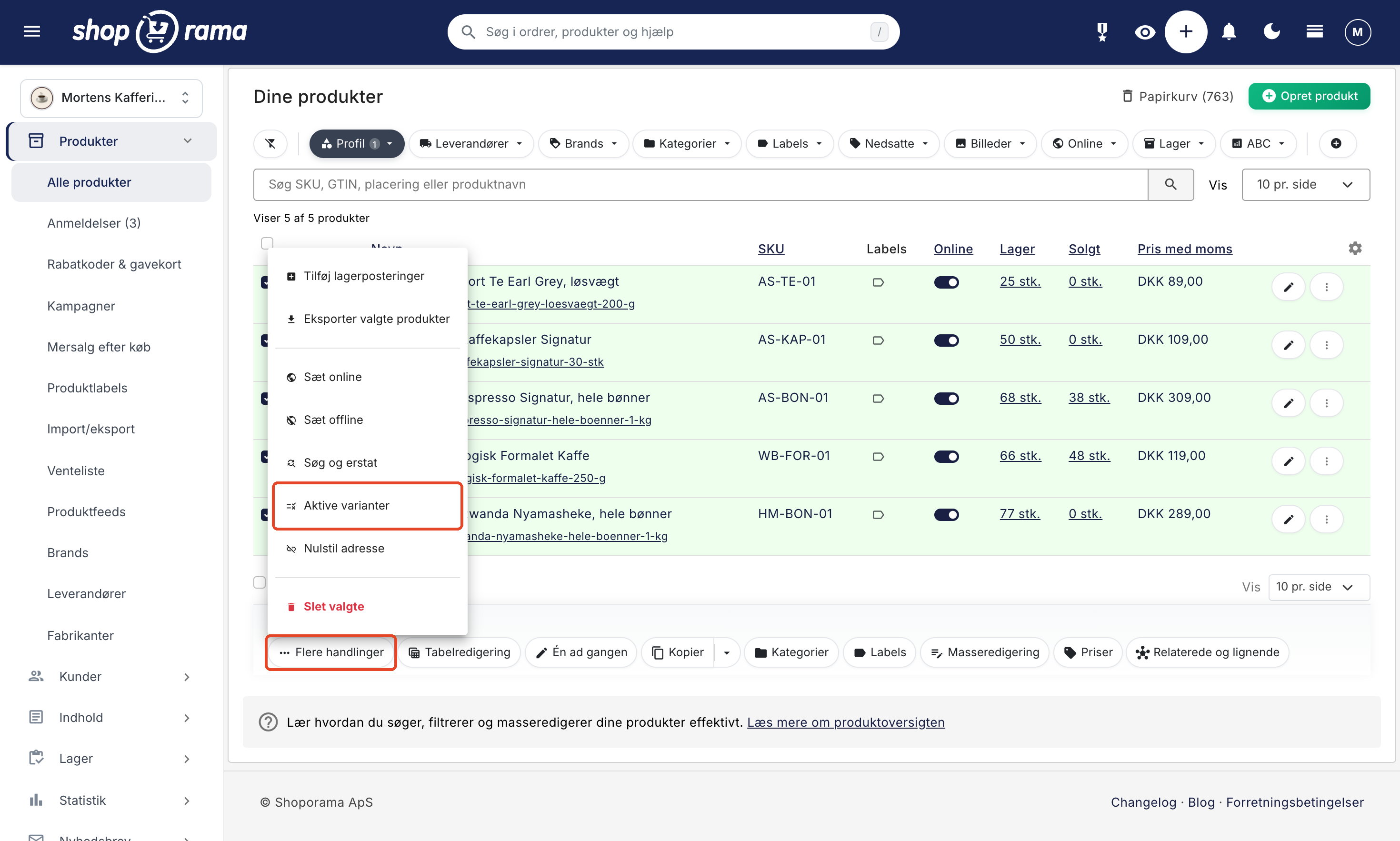
The selection applies to the products you’ve selected on the page you’re viewing. If you have many products, you can increase the number of products per page to 250 and work through them in batches. Read more about filters and views in the article “Product Overview.” This action is not displayed for users with the Supplier role. If your role is limited to viewing products only—such as Marketing or Accountant—you’ll see the “No Access” page when you select this action. Read more in Roles and Permissions.
The Active Variants Page
On this page, products are grouped into a card for each variant attribute, such as Packaging. At the top of the card, you’ll see the attribute’s name, the profile’s name, and how many products the card contains.
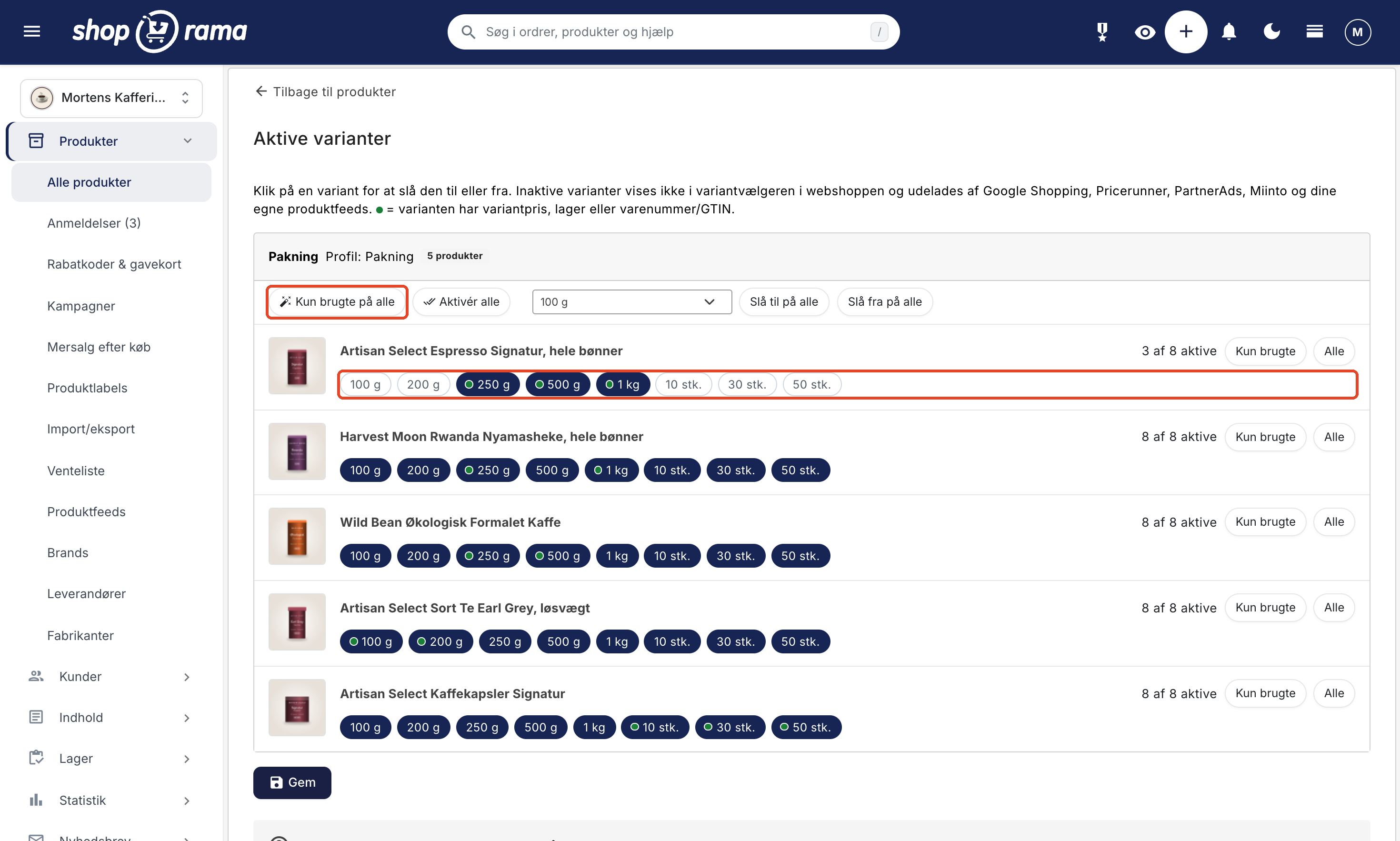
Each product has its own row with:
- Product image and product name. The name is a link to the product.
- A counter, e.g., “3 of 8 active.”
- The “Used Only ” and “All” buttons.
- All of the profile’s variant values as small, clickable buttons. A filled, colored button means the variant is active, and an uncolored button means it is inactive. Click to toggle.
Products on profiles without variants are displayed in a box labeled “No variants.” They cannot be modified. At the top of the page, the “Back to products” link takes you back to the product overview with the same search and filters.
The green dot indicates variants in use
Some of the buttons have a small green dot. This means the variant is in use on the product because it has at least one of the following:
- A variant price
- Inventory movements
- An item number/GTIN
If you hover your mouse over the button, you can see the details, such as "Variant price · 12 in stock · Item number/GTIN."
"Used Only" and "All"
- "Used only " activates the variants marked with a green dot and deactivates the rest. If the product has no active variants, you cannot click the button.
- "All " activates all variants of the product in the profile.
Enable or disable a variant value for all products
Each card has a toolbar that changes all products on the card at once:
- "Only in Use" for all does the same thing as "Only in Use," but for all products in the card. Products without active variants are not changed.
- "Enable All " enables all variants on all products in the card.
- A drop-down menu where you select a specific value and click “Enable for All ” or “Disable for All.” For example, if you don’t sell any products in quantities of 50, select “50 pcs.” and disable it for all products with a single click.
Save your changes
Nothing is saved while you’re clicking around the page, so feel free to experiment.
- Make sure no rows are marked in red. If you disable all variants for a product, the row will be marked in red and display the text “At least one variant must be active.” The page cannot be saved until this is corrected, and if you click Save, the page will scroll down to that row.
- Click Save. You can also press Cmd+S on a Mac or Ctrl+S on Windows.
- You’ll remain on the page and see a message indicating how many products were changed, e.g., “3 products saved.” If you haven’t made any changes, it will say “There were no changes to save.”
Products you haven’t changed remain unchanged. If you’ve enabled all variants for a product, it will be saved as “all active,” so that any new values you later add to the profile will also become active for that product. Your feeds will be updated automatically for the products you’ve modified. It may take up to a couple of hours for the changes to appear in all feeds.
Tips
Check the rows for “Used only on all”
"Only used on all " is a quick way to clean things up. However, the button can only see variants that already have a variant price, inventory movements, or an item number/GTIN. A variant you plan to sell but haven’t set up yet won’t have a green dot and will be disabled.
Tip: Click “Only used on all,” then go through the rows before clicking “Save.” If a variant is missing, just click the button to reactivate it.
Active variants or a new product profile?
You can also split a very broad profile into several specific profiles, such as one for coffee beans, one for tea, and one for capsules. This makes sense when you’re creating new products. However, if you change the profile for existing products, the variants’ price, inventory, and item number/GTIN will generally need to be set up again. Only variants that use the same shared values in both profiles will be transferred. See “Can I change a product’s profile?” That’s why active variants are usually the easiest solution for products you’ve already created.
Frequently Asked Questions
Are price, inventory, and SKU deleted when I deactivate a variant?
No. The variant’s price, inventory, and SKU/GTIN remain intact. The variant is simply inactive for that product, and you can reactivate it at any time, either on the product page using “Select Active Variants” or on the “Active Variants” page.
When do the rejected variants disappear from Merchant Center?
Shoporama updates the Google Shopping feed for the modified products in the background shortly after you save. The variants will disappear from Merchant Center the next time Google fetches your feed. You can control how often this happens in the feed settings in Merchant Center. Read more in Set Up Google Shopping Feed.
Does this also apply to Pricerunner, Partner Ads, my Meta catalog, and my own feeds?
Inactive variants are excluded from feeds to Google Shopping, Pricerunner, Partner Ads, and Miinto. If you use the Google Shopping feed as a product catalog on Meta, this also applies there. The same applies to feeds you create yourself under “Product Feeds” using “Expand Variants.”
I have over 1,000 products on my profile. What’s the fastest way to get through them?
Filter the product overview on your profile, set the number per page to 250, and select all products on the page. Select “Active Variants” under “More Actions,” click “Apply to All,” check the boxes, and save. Go back to the product overview, scroll to the next page, and repeat.
I can’t find “Active Variants” under “More Actions.” What should I do?
The “More Actions” bar only appears once you’ve selected at least one product in the product overview. If you still can’t see the option, you may have the “Supplier” role. This action isn’t visible to suppliers, so ask a colleague with the “Full Access” or “Employee” role for help.
I clicked to deselect the variants, but nothing happened. Why?
Changes aren’t saved until you click Save or press Cmd+S / Ctrl+S. Once saved, you’ll stay on the page and see a message, such as “3 products saved.” If you go back to the product overview before that, the changes won’t be saved.
Will a new size automatically be added to my products in the profile?
It depends on the product. If all variants are active, the new size will be added automatically. If you’ve selected a subset, you’ll need to activate it. If you want to apply it to multiple products, you can use the drop-down menu and select “Apply to all” on the Active Variants page.
Can customers still buy an inactive variant via an old link?
An old link or ad leads to the product page. In Shoporama’s default themes, the inactive variant isn’t displayed in the variant selector there. The variant is hidden but not blocked from purchase, so if you have a variant that must not be sold at all, it should also have zero stock. If you’re using a custom theme, check with your developer to ensure that the variant selector also hides inactive variants.
We use our own theme. What should the developer do?
The feeds work regardless of the theme. Whenever a customer selects a variant, the theme must retrieve the variant values using the product as a parameter, so that only the active values are included. Shoporama’s default themes already do this, so your developer can use them as an example.
Related articles
Product Profiles and Variants
Guide to product profiles and variants in Shoporama. Understand how profiles, attributes and variants are related.
Set Up a Google Shopping Feed
Guide to Setting Up a Google Shopping Feed in Shoporama: categories, custom labels, product IDs, and catalog matching; feeds by country with the...
Product overviews
Shoporama product overview guide: Search, filter, sort and mass edit your products efficiently from the product list.
Can I change the product profile of a product?
Explanation of why you can't switch product profiles and what you can do instead.
Opsæt Pricerunner-produktfeed i Shoporama
Guide til at aktivere og tilpasse Pricerunner-produktfeedet i Shoporama, så Pricerunner kan hente dine varer.
Set up Partner Ads in Shoporama: getting started
Introduction to Partner Ads in Shoporama. Understand what it is, what you get out of it, and get started quickly with product feed and tracking.