Activity Log: See who has done what in the admin panel
The activity log shows who has refunded, exported, deleted, imported, or changed access permissions in the administration system, and when. See what the log captures, what it doesn't capture, and how to use it in your day-to-day work.
When several people are managing the online store, questions are bound to come up sooner or later. Who issued the refund for that order? Who exported the customer list? Who deleted the product, and who granted access to the new colleague? The activity log provides the answers. It automatically records sensitive actions in the admin panel, including the time, user, online store, and the IP address from which the action originated.
You don’t need to enable anything, and the log cannot be disabled. It runs automatically and is the natural complement to roles and permissions: roles determine what each user is allowed to do, and the log shows what actually happened.
In short: You open the activity log using the Activity Log button at the top of Company → Users. It aggregates actions from all of the company’s online stores; only company administrators can view it, and each entry is stored for 365 days.
How to find the activity log
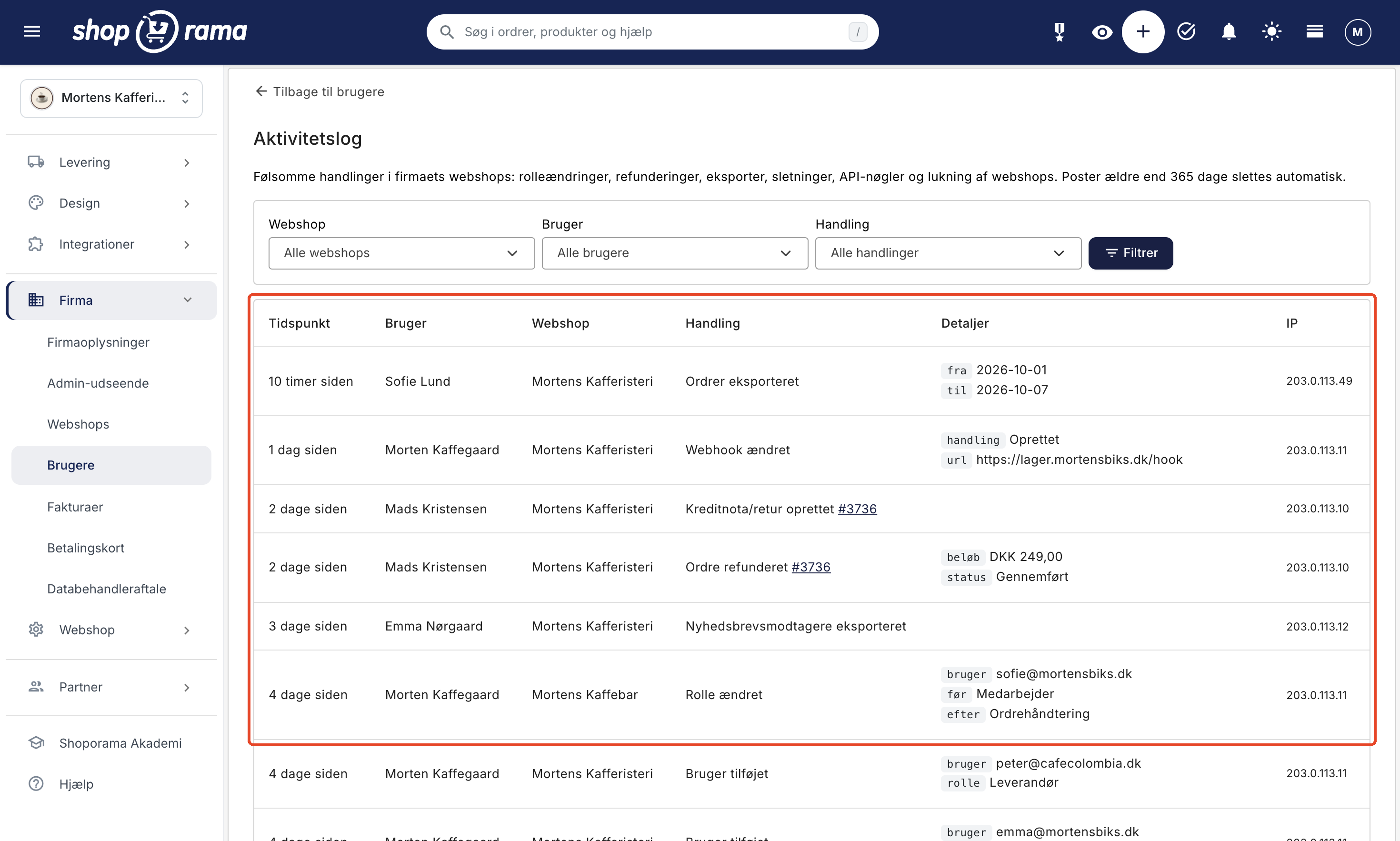
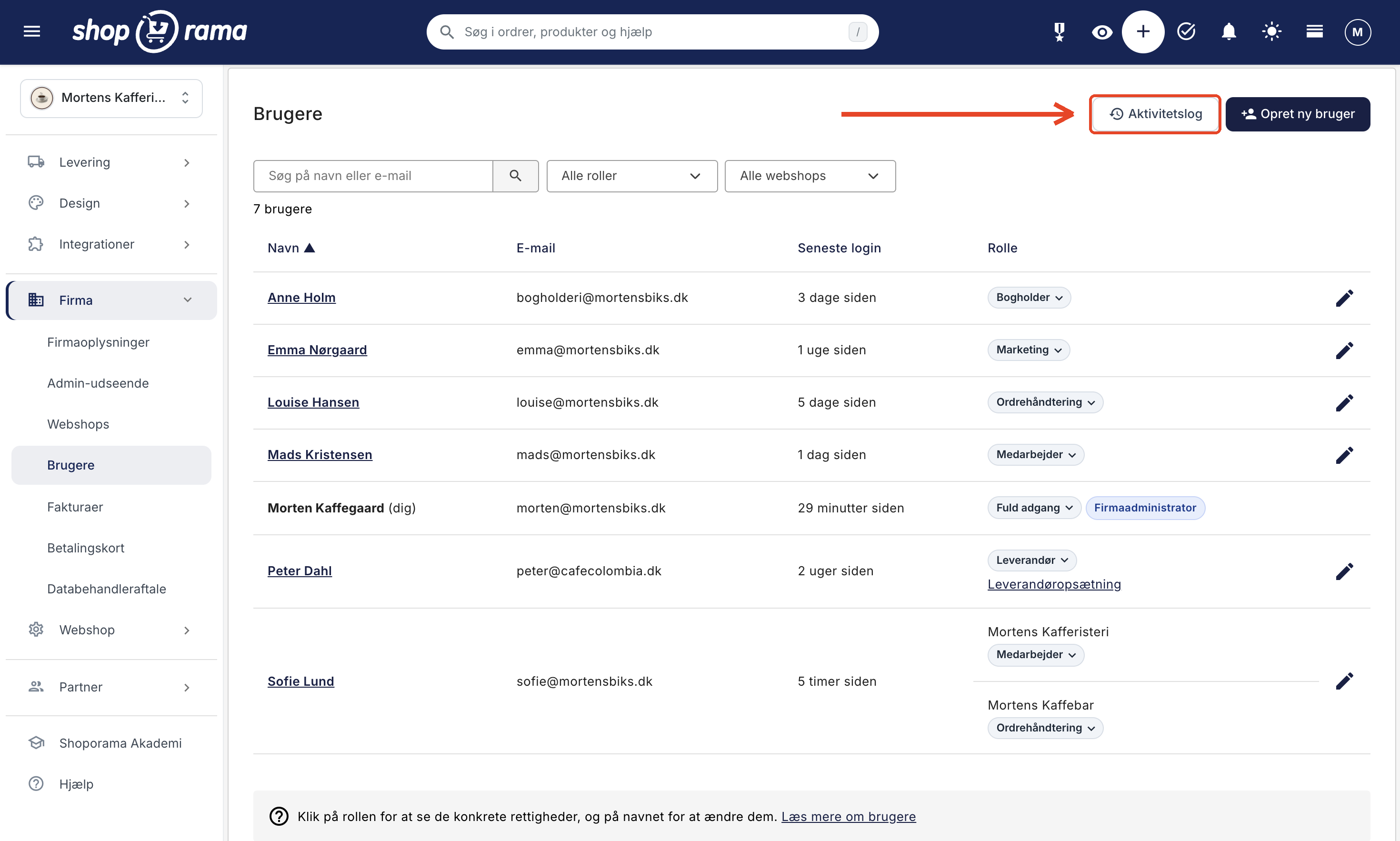
Go to Company → Users, and click the Activity Log button next to Create New User. At the top of the Activity Log page, you’ll see what types of actions the log tracks and that old entries are automatically deleted. The log covers the entire company, so if you have multiple online stores, you’ll see actions from all of them on the same page.
If you want to see what a specific user has done, click the user’s name under Company → Users. On the Edit User page, the “View user’s actions” link is located next to “Activity Log” in the “Login and Security” section. This opens the log filtered by that user.
Who can view the log?
Only company administrators can open the activity log. Other users do not have access to it, not even users with the “Full Access” role. The log shows what users have done, so it belongs with those responsible for the users and their access.
If a colleague also needs to be able to view the log, make them a company administrator:
- Go to Company → Users, and click on the user’s name.
- Enable Company Administrator in the Role and Permissions tab.
- Click Save.
Think carefully before doing this. When you make a user a company administrator, that user gains full access. A company administrator can also manage users and online stores, change the payment card, view the activity log, and close or reset the online store. Learn more about user roles and company administrators in Roles and Permissions.
Here’s what the log shows
The log displays the most recent actions at the top, 50 at a time. If there are more, use the page numbers at the bottom to scroll through them. Each line has the same columns:
- Time. How long ago the action occurred, e.g., “3 hours ago.” Hover over the text to see the date and time.
- User. The name of the user who performed the action, or the email address if the user does not have a name. If “via Shoporama Support” appears below the name, Shoporama Support performed the action while logged in as that user. This allows you to distinguish between actions we’ve taken and those you’ve taken yourselves. If the user no longer exists in Shoporama, it will say “Deleted user.”
- Webstore: The webstore where the action took place. This column appears only when the company has multiple webstores.
- Action. What happened, e.g., “Order Refunded ” or “Role Changed.” For orders, the order number from the order list appears after the action; for products, the product number appears. Click the number to open the order or product, even if it’s located in one of the company’s other online stores, as long as it still exists.
- Details. Small labels showing the information needed to understand the action, such as the user’s email, the role before and after, or the refunded amount.
- IP. The IP address from which the action originated. For example, it can show whether it happened from your office or from a completely different location.
This is recorded in the log
The log monitors actions that could cost money, data, or access if performed by mistake. Each action gets its own line:
| Action in the log | Recorded when | Details |
|---|---|---|
| Users and access | ||
| User added | A new user is created, or a user is granted access to an additional online store under "Edit User." | The user’s email address. When creating a user, the role is also specified. |
| User removed | Someone clicks " Remove User" or unchecks the box next to a web store under "Edit User." | The user’s email address. |
| Role changed | A user’s role or permissions are changed in a web store, Company Administrator is enabled or disabled, or someone changes the supplier or categories under Supplier Setup. | Role before and after. For “Company Administrator,” it says “Yes” or “No,” and for “Vendor Setup,” it shows the vendor’s name and the number of categories. |
| Invitation resent | Someone clicks “Resend Invitation” in the “Login and Security ” tab under “Edit User.” | User’s email. |
| Link to new password sent | Someone clicks “Send Link to New Password ” in the “Login and Security ” tab under “Edit User.” | User's email. |
| Admin View as User | Someone clicks "View as Admin" under "Edit User," and again when the view is closed. | User's email and Started or Completed. |
| Orders and Payment | ||
| Order Refunded | Someone refunds an amount on the "Refund Amount" page, even if the refund fails, or clicks "Mark as Refunded " in the Return Center. This also applies when a return is approved in the Return Center and the money is automatically refunded to the card. | The amount and whether the refund was completed or failed. For automatic refunds from the Returns Center, the amount is listed as “via Returns Center.” For “Mark as Refunded,” no amount is listed—only a return number. |
| Credit Memo/Return Created | An order receives the status “Credit” or “Credit Memo” on the order or from the order list, or a return is approved by selecting “Approve and Create Credit Memo” in the Returns Center. | None. For a return from the Return Center, a return number is displayed. |
| Order Canceled | An order is given the status “Canceled” on the order itself, from the order list, or via “Blacklist” in the order list. | None. For "Blacklist," it says "Blacklist Yes." |
| Order Marked as Paid | An unpaid order is marked as paid from the order list, or “Paid” is selected on the order. | None. |
| Payment Withdrawn | Someone selects Finance → Withdraw Funds (capture) for selected orders in the order list. | None. The line is generated when the capture is initiated. You can see whether it was successful by checking the order and the order queue. |
| Order Deleted | An order is deleted from within the order or from the order list; you can also delete multiple orders at once using Delete. | None. When using "Delete" for multiple orders, the order number is displayed. |
| Data export | ||
| Orders Exported | Click Download CSV under Orders → Order Export or select Export → CSV File (all in the search) in the order list. This also applies to Export Selected Subscriptions under Orders → Subscriptions. | From and to (dates or order numbers), or the current view in the order list. For subscriptions, the type and quantity are displayed. |
| Exported customers | Someone clicks “Download All Customers” under Customers → Registered Customers. This also applies to “Download All Recipients on a Waiting List” under Products → Waiting List, “Export” under Products → Reviews, “CSV” under Statistics → Customer Statistics, and “Download Customers” under Customers → Downloads. | None for “Download All Customers.” Otherwise, whatever was exported, e.g., “Waiting List” or “Reviews.” For “Download Customers,” the number is also included. |
| Newsletter Recipients Exported | Users click “Export” under “Newsletter” → “Subscribers,” “Export List ” on a list, or “Export CSV ” next to the subscriber list in a campaign’s statistics. This also applies to “Download Newsletter Subscriptions ” under “Customers” → “Downloads.” | None for “Export” and “Export List.” For a campaign, the campaign name and the number of recipients are displayed; for “Download Newsletter Subscriptions,” the number is displayed. |
| Deletion and Import | ||
| Customer Deleted | A customer is deleted from the customer list or from the customer’s profile. | None. |
| Product Deleted | A product is deleted using " Delete Product" from the product list or in bulk editing. This also applies to "Delete Permanently " in the Recycle Bin. "Delete Selected " results in a single consolidated line. | Product name. With “Delete Selected,” only the quantity is shown, and with “Delete Permanently,” “Permanently Yes” is also displayed. |
| Imported products | Some users import products from a CSV file or a Shopping Feed under Products → Import/Export. | The type (CSV or Product Feed) and the URL, if the feed is retrieved from a specific address. The line is generated when the import is initiated. |
| Imported customers | Some users import customers using “Import Customers” under Customers → Registered Customers or newsletter subscribers using “Import” under Newsletter → Recipients. | The number of rows in the file. For newsletter subscribers, the type is also listed. |
| Online Store | ||
| Online Store Closed | Someone clicks “Close Online Store and Delete Data” under Online Store → Close Online Store, or closes an expired demo store. | None. |
| Online Store set to "Storage" | Someone clicks "Switch to Storage " under Online Store → Close Online Store, or changes the pricing plan to Storage under Company → Online Stores. | None. When switching under Company → Online Stores, the previous pricing model is displayed. |
| Webshop reset | Someone clicks " Delete Selected " under " Online Store" → "Reset." | The sections that were reset, with the same names as on the page, e.g., Orders and Products. |
| Webshop removed from the company | Someone deletes a web store by clicking " Delete Web Store " under Company → Web Stores. | The online store’s name. |
| API keys and integrations | ||
| API key created | Someone creates a key under Integrations → API Access, or grants an app or Claude access using "Sign in with Shoporama." | The key’s name and access level (All, Read-only, or Write-only). Next to “Sign in with Shoporama,” it also says “via OAuth.” |
| API key changed | Someone saves a key on the Edit Access page, even if nothing was changed. | Name, access level, and whether “Access to theme files” is enabled. |
| API key revoked | You can remove a key on the " Edit Access" page or delete it from the list under " Integrations" → "API Access," even multiple keys at a time. | The key’s name. If you delete multiple keys at once, each key will appear on its own line. |
| App Installed | Someone clicks Install next to an app under Integrations → Apps. | App name. |
| App uninstalled | Someone removes an app using " Remove App," either under Integrations → Apps or on the app's own page. | App name. |
| Webhook changed | Someone creates or deletes a webhook under Integrations → Webhooks, or saves it—even if nothing was changed. | Whether the webhook was created, modified, or deleted, and the address it sends to. If modified, also whether it is active. |
| Payment Setup Changed | Someone creates or deletes a payment gateway under Integrations → Payment Gateways, or saves it—even if nothing was changed. | Whether the gateway was created, modified, or deleted, and its name. Keys and other secrets are never included in the log. |
If you create a new user, multiple lines will appear at once. The user is added and assigned a role in each of the selected online stores, and a single line shows the role you selected. That’s how it’s supposed to work.
If you only change a user’s options—for example , “Data Export”—it will show as “Role changed” with the same role listed before and after. The log does not show which options were enabled or disabled. You can always view the user’s current options under Company → Users.
It’s not in the log
The log is designed for sensitive actions in the table and does not capture everything that happens in the administration. If there is nothing in the log, this is not proof that no one has done anything. The following is not recorded in the log:
- Day-to-day tasks, such as when someone edits products, prices, inventory, customers, settings, or design. This also applies to routine status changes on orders, such as to “Shipped.”
- Logins, and when a user requests a new password via the “Forgot Password” feature.
- Actions by Claude, apps, and integrations that use an API key. Claude’s actions are recorded in the AI audit log, and you can track API key calls using the “Log by Key” button under Integrations → API Access.
- Imports other than those listed in the table, such as products from JSON or Shopify, inventory, categories, and reviews.
- Exports other than those listed in the table, such as the anonymous order export, environmental data, and shipping files in the Export menu of the order list. Exports of products and discount codes are also not included in the log.
- Returned items on an order and the automatic refund if the store refunds the payment when an order is marked as Shipped.
- Keys and connections that are automatically closed when a user is removed. This entry simply reads “User removed.”
How to filter the log
- Webshop. Show only actions from a single webshop. This field is only available when the company has multiple webshops and is set to “All webshops” by default.
- User. Show only the actions performed by a specific user. The list displays the company’s current users.
- Action. Show only one type of action, e.g., “Order Refunded ” or “Product Deleted.”
Click “Filter” to apply your selection. The filters work together, so you can, for example, view the refunds a specific user has processed in a specific online store. The Reset button appears when a filter is in use and displays the entire log again. Your filters remain active as you scroll. If no actions match your selection, the message “No actions match your filter” appears . Click Reset to view the entire log again.
How to Use the Log in Your Daily Work
Who refunded the order?
A customer writes that only part of the money has been refunded. Select “Order Refunded” under “Action,” then click “Filter.” You’ll now see the refunds from the “Refund Amount ” page, along with the amounts, who processed them, and when. You’ll also see returns marked as refunded in the Returns Center but without an amount. The order number appears after the action, so you can find the customer’s order directly; clicking the number opens the order. If “Failed” appears in the details, the refund did not go through, so check the order. If the money was automatically refunded to the card when a return was approved in the Returns Center, this will also be noted here, along with the amount and the notation “via Returns Center.” Read more in Credit Memos and Refunds.
Who has extracted customer data from the store?
Customer lists, order exports, and lists of newsletter subscribers contain names, email addresses, and often physical addresses—that is, personal data. Select “Exported Customers,” “Exported Orders,” or “Exported Newsletter Subscribers” under “Action,” and you’ll see who downloaded them and when. This is useful if you need to account for who has accessed customer data outside the store, for example, in connection with GDPR.
Keep in mind that the log does not cover all exports. For example, shipping files from the Export menu in the order list do not appear in the log. If you want to restrict who can export orders, customers, and newsletter subscribers, grant the “Data Export” permission only to the users who need it. Users with the “Full Access” role always have all permissions.
Where did the product go?
A product has suddenly disappeared from the store. Select “Product Deleted” under “Action.” The details show the product’s name, and the “User” column shows who deleted it. If the product was deleted along with others using the “Delete” option, it will only show how many were deleted. Deleted products remain in the Recycle Bin for 30 days, so you can usually restore them. If “Permanent” is listed as “Yes” in the details, the product has also been deleted from the Recycle Bin and cannot be restored. See Recycle Bin: Restore Deleted Products.
Who granted access to the store?
If the company has multiple company administrators, under “User Added” and “Role Changed,” you can see which of you created a user, changed a role, or made someone a company administrator. Also check for “API Key Created ” and “App Installed.” An API key or an app grants access to the store’s data, so you should be aware of every single one of them. The same applies to “Webhook Changed,” because a webhook forwards data from the store to another address.
When a colleague leaves, you’ll see “User removed” in the log afterward, confirming that the colleague no longer has access to the company’s online stores. The colleague’s connections via “Sign in with Shoporama”—for example, to Claude—are closed at the same time. API keys that the colleague created with the “Full Access” role, however, belong to the store and will still work, so review the list under Integrations → API Access. See also Remove a user from your store.
The log is stored for 365 days
Entries older than 365 days are automatically deleted. The cleanup runs automatically every night. The log began recording actions when it became part of Shoporama, so there are no entries from before that time.
Frequently Asked Questions
Can a colleague delete or edit entries in the log?
No. There is no button to delete or edit entries, not even for the company administrator. An entry is only deleted once it is more than 365 days old. Users who are not company administrators cannot access the log at all.
Do the entries disappear when I remove a user?
No. The entries remain with the user’s name, and the removal itself is recorded in the log as “User removed.” However, the “User” filter only shows the company’s current users. If you want to see what a former colleague has done, filter by the action instead and look for the name in the list.
Can I see if a user has tried to access something they don’t have permission to access?
No. The log only shows actions that were successfully performed. If the user’s role does not grant access, the attempt is rejected, and no entry is made in the log.
Will I be notified when something happens in the log?
No. The log does not send any emails or notifications. It is a reference tool that you consult when needed, such as when a customer asks about a refund or when a product is missing.
Can I use the log as documentation, for example, for my accountant?
It can be used as supporting evidence because it shows who, what, when, and from which IP address. It does not replace orders, credit memos, and accounting records, which remain the actual documentation. There is no export button, and entries are deleted after 365 days. If you need to save something for longer, take a screenshot of the relevant lines.
What should I do if I see a transaction I don’t recognize?
First, check the user and IP address, and speak with the colleague in question. If you suspect that a user’s login has been compromised, click the user’s name under Company → Users, then click Remove User, or ask the user to change their password immediately and enable two-factor authentication. If you don’t recognize an API key, delete it under Integrations → API Access. This will also be recorded in the log. You can remove an app you don’t recognize under Integrations → Apps. Email support@shoporama.dk with the time stamp if you’d like help investigating the issue.
If you have any questions about the activity log, feel free to email support@shoporama.dk.
Related articles
Roles and Permissions: Give Each User the Right Access
See what the seven roles and five optional features provide access to, which role is best suited for whom, and what only the company administrator...
Create more users in your shop
A guide to creating multiple user logins for your Shoporama admin panel and assigning each user a role that determines what they can do.
Remove a user from your shop
Guide to removing a user from your business in Shoporama admin.
AI Audit Log: See What the AI Has Been Up To in Your Store
The audit log shows every action an AI assistant has performed in your online store. See what’s logged, how to filter the log, and how to use it...
Credit notes and refunds
Complete guide to credit notes and refunds in Shoporama, including partial refunds, full credit notes and transfer to accounting systems.
Trash: Restore Deleted Items
Deleted products go to the trash and can be restored within 30 days. Find out where to locate them, how to restore them, what gets restored along...
Find or create an API key
Guide to finding your API key in Shoporama, which is used for integrations with e.g. Shipmondo.
Related features
User Roles
User roles group permissions under a single name, so each user has only the access required for their tasks. See what the seven standard roles in...
More users
Assign each employee their own user account and a fixed role so they have only the access required for their tasks. Unlimited users on Pro and...

Roles for your team: Decide who has what permissions in the admin panel
New in Shoporama: Assign the packer, the bookkeeper, and the web agency their own roles in the admin panel, and decide who is allowed to issue...