Roles for your team: Decide who has what permissions in the admin panel
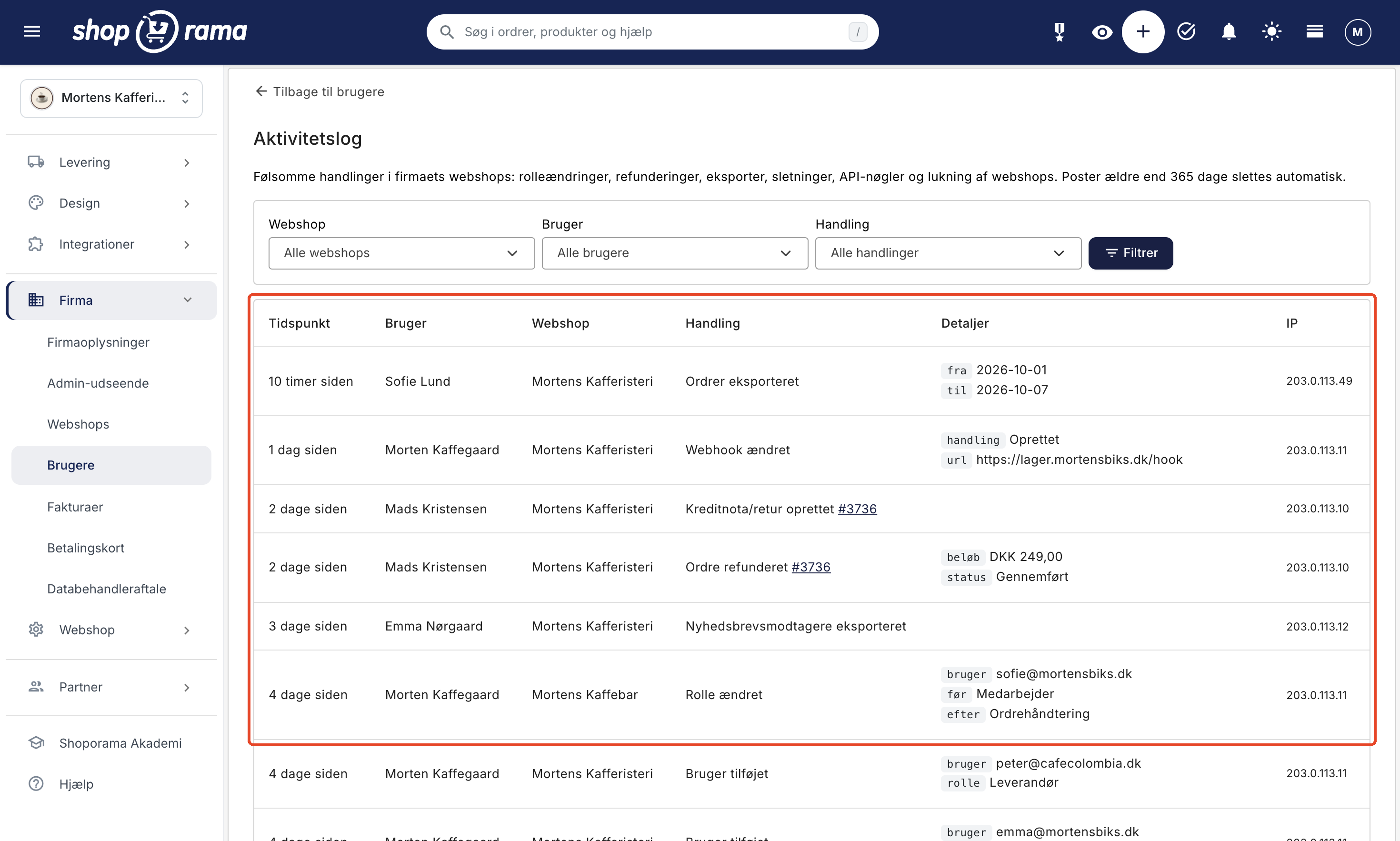
Now the packer, the bookkeeper, and the web agency can each have their own role in the admin panel. You can choose from seven predefined roles and grant access to refunds, customer data exports, and sales figures only when needed. In the new activity log, you can see, for example, who has issued a refund for an order, exported the customer list, or deleted a product.

Try counting how many people on your team can issue a refund for an order. Many online stores start with a single login, so the bookkeeper needs the numbers for tax purposes, the web agency needs to make changes to the theme, and a student needs to pack orders. Suddenly, four people know the password, and everyone can do everything. It works fine—until someone refunds the wrong order, and no one knows who did it.
Even with separate logins, until now you could only restrict a user to orders or products. Everyone else had full access to the online store, including payment setup, API keys for your integrations, and the button that shuts down the online store.
Now you assign each user one of seven fixed roles and customize the most sensitive settings with five options. The principle is “least privilege,” and all the details are in the article on roles and permissions.
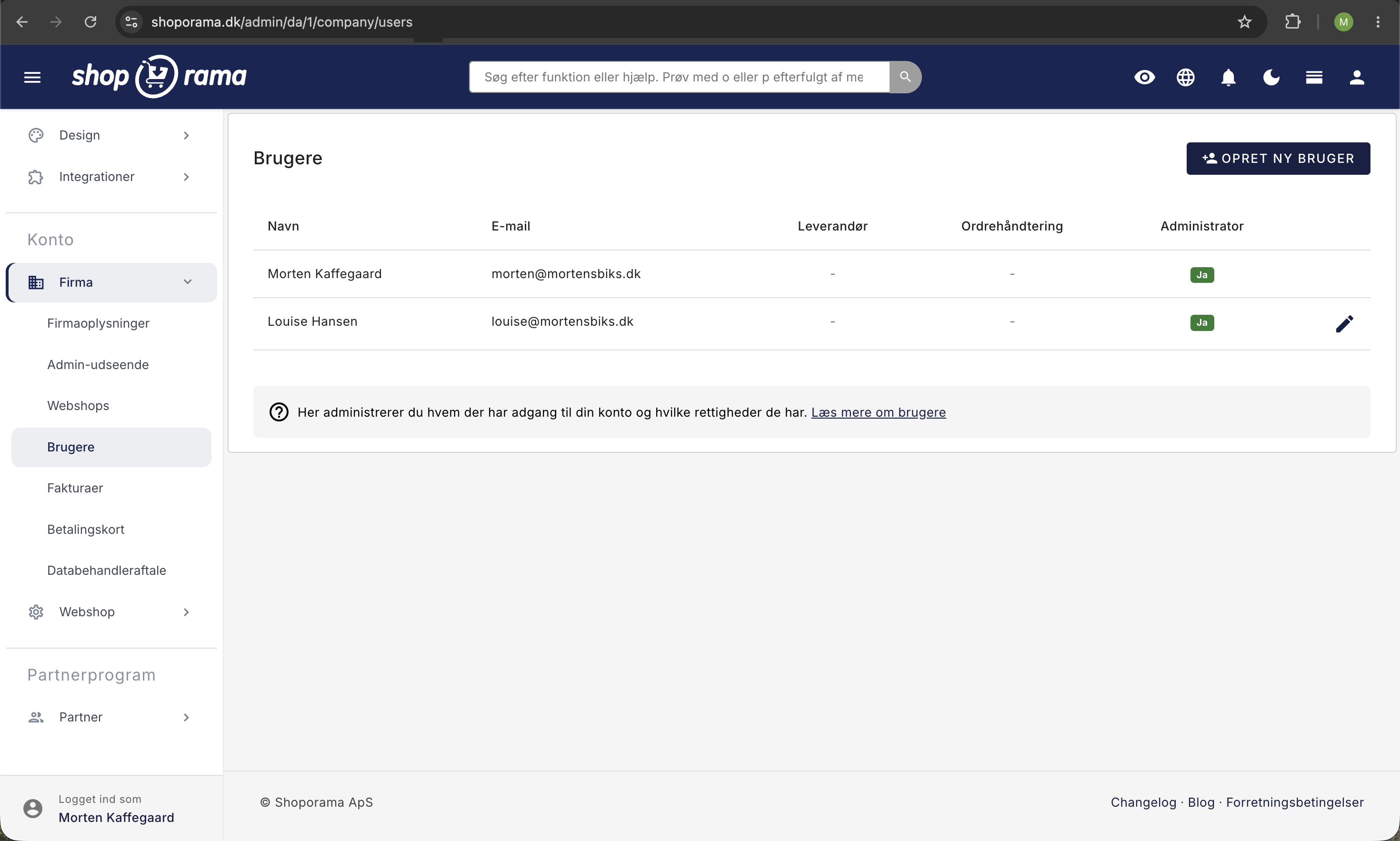
A role for every task in your team
You select the role in the “Role and Permissions” card for the user under Company → Users. With roles, the team from the introduction could look like this:
- The student is assigned “Order Management” and can process orders, but can only look up products, customers, and inventory.
- The bookkeeper is assigned the “Bookkeeper” role and can view orders, customers, inventory, and revenue without being able to save anything.
- The web agency is assigned the “Developer” role and works with themes, code, and setup without access to orders or customers in the admin panel. This role can also change the domain and tracking settings and create webhooks to forward order and customer data. It therefore belongs to an agency with which you have a standing agreement.
- You retain Full Access, as does any co-owner. Onlyusers with Full Access can access the payment setup.
The “Employee” role is suitable for customer service and day-to-day operations, and the “Marketing” role is for campaigns and newsletters without access to orders. "Supplier " is for a supplier who adds their own products and can only view their own products once you’ve selected the supplier on the "Supplier Setup" page. You’ll be taken directly to that page when you create the user. The roles are fixed, but most can be expanded with optional features.
Sensitive data requires an add-on
The five optional features are Refunds and Cancellations, Data Export, Cost Prices and Markup, Sales and Statistics, and Deletion and Bulk Import. These are actions that can cost money if done incorrectly, and data and figures that should ideally remain internal. The “Full Access” role always has these options, and the “Developer” role cannot access any of them. For the other roles, the role matrix shows which options can be selected.
Without any additional permissions, the student can pack orders according to the modified picking list, create shipping labels, and mark orders as “Shipped,” but cannot issue refunds, view revenue, or export the customer list. If the student is also responsible for receiving goods, the “Employee” role is more appropriate.
Customer Service can use the “Employee” role with the “Refunds and Cancellations” add-on. This allows customer service to process refunds for returns, even when you’re off duty. Without the “Deletion” and “Bulk Import” add-ons, the employee still cannot delete products or use “Search and Replace,” which can modify hundreds of items at once.
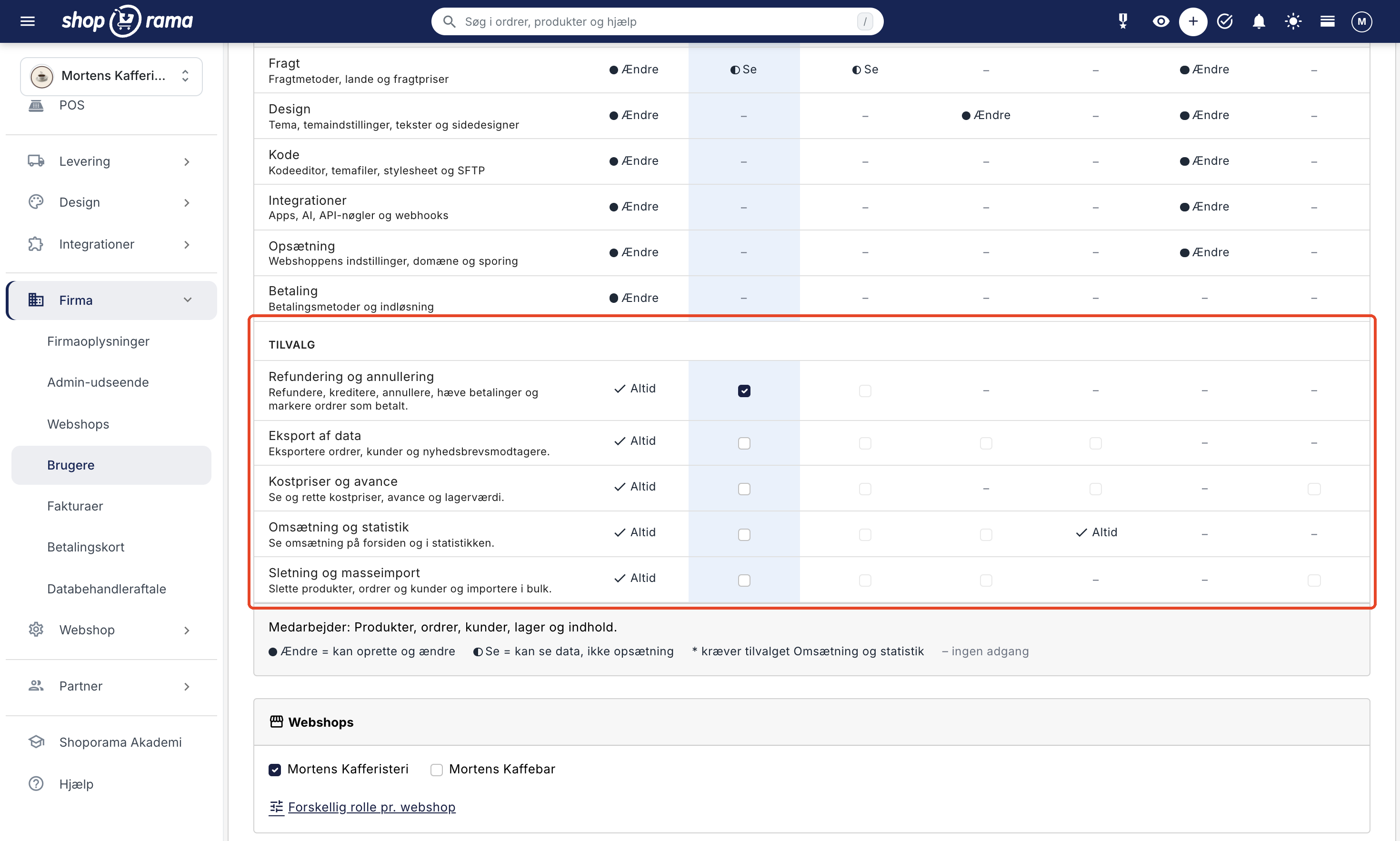
If an add-on is missing, most buttons are still there, but a single click reveals what’s missing. However, without “Sales and Statistics,” the sales figures on the front page and in the statistics are hidden, and without “Cost Prices and Markup,” the cost prices are hidden. If an employee saves a product, it does not affect your saved cost price.
Admin shows only what the role can access
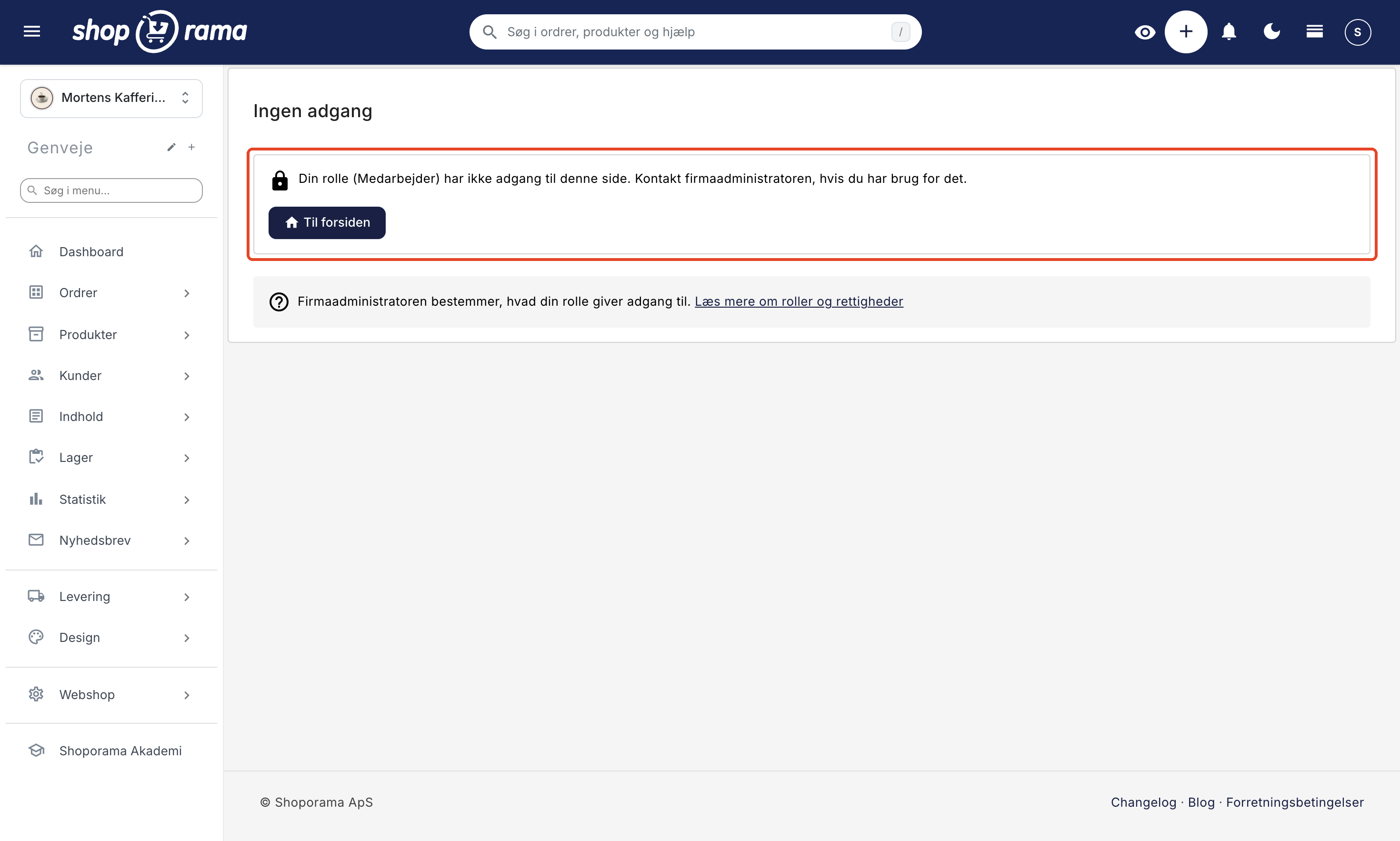
Once you’ve assigned a role to a user, Admin only displays the menu items and figures on the front page that the role grants access to. If the user nevertheless opens a page outside their role—for example, from an old bookmark—the “No Access” page appears.
If the role can only view a specific area, the user sees that area’s data but not its settings. For example, the bookkeeper can review orders but won’t see “Blacklist” or “Picking List” in the menu, and Marketing can view products but not “Deposits & Refunds.”
If you want to view the admin interface from a user’s perspective, open the user under Company → Users, and click “View Admin as User.” You’ll see the menu and pages corresponding to the user’s role without logging in as that user. This view is for demonstration purposes only, and you can close it by clicking “Exit View.”
The role also applies outside the admin panel. The POS and other tools that the user connects via “Log in with Shoporama” are limited to the capabilities of the selected role. This also applies to the API keys that the web agency creates with the “Developer” role. A key created by a user with “Full Access,” on the other hand, belongs to the online store and remains active even if the user is assigned a different role or is removed. Connecting Claude, installing apps, and purchasing paid themes requires “Full Access.”
The role may vary from one online store to another
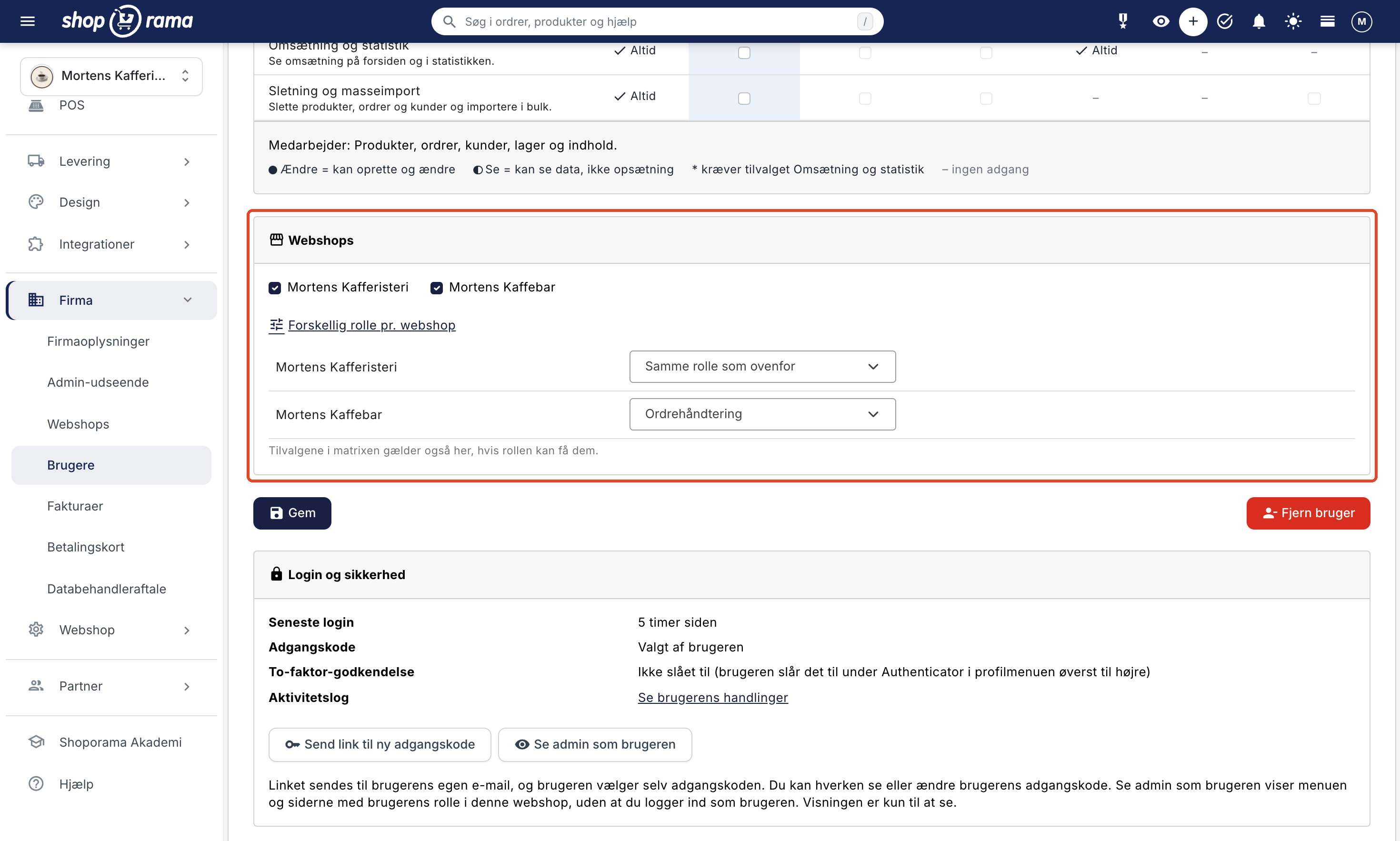
If your company has multiple online stores, the same person can be an “Employee” in one and an “Order Handler” in another. You select this under “Different Roles per Online Store” for the user, and the associated permissions remain active as long as the role is eligible for them.
The Company Administrator is in charge, and the activity log keeps track
Above the role options is the “Company Administrator” contact, which replaces the old “Administrator” checkbox. Only the company administrator can create and remove users, assign roles, manage the company’s online stores and payment cards, and view the activity log. If you make a user a company administrator, that user gains full access.
New users receive an invitation by email and choose their own password, so you don’t have to come up with one or forward it. If a user has forgotten their password, you can send a link to reset it from the user’s page. Here, you can also see when the user last logged in and whether two-factor authentication is enabled. If the user is also part of another company, you cannot send the link or view that information. In that case, the user can choose a new password themselves using the “Forgot your password? ” option on the login page.
The roles help prevent errors, and the activity log shows any sensitive actions that did occur. It compiles these from all of the company’s online stores—such as role changes, refunds, exports, and deletions—along with the time, user, and IP address. If our support team has logged in as one of your users to assist you, it will be noted as “via Shoporama Support” under the user’s name. No one can edit the log, and entries are stored for 365 days.
Do you remember that incorrect refund? If so, click the Activity Log button at the top of Company → Users, select “Order Refunded” under Action, and click Filter. You’ll then see who issued the refund and when. The log is new, so it only shows actions from now on.
The log is designed to handle sensitive information. Product and price corrections, standard status changes, and logins aren’t included, nor are actions performed by Claude, apps, or API keys.
Your current users retain their access
You don’t need to activate anything. Your current users have been assigned the role that matches the access they currently have, and users without restrictions have Full Access. If a user previously had access only to orders, that user will now have the “Order Management” role and all five add-ons, and can therefore still issue refunds. If the packer shouldn’t be able to do this, review all five add-ons, keep only the ones the packer needs, and click “Save.” In the “Order Management” role, the add-ons provide access to more than just orders. For example, “Data Export” grants access to the entire customer list. If you save without making any changes, nothing will change.
No one loses access in the admin panel, except for one thing. Only the company administrator can now close the online store, reset it, and put it into “Storage” mode, where it is closed to customers while your data is saved. Until now, anyone with full access could do this. You can see who the company administrator is by looking for the “Company Administrator” label in the user list.
Get Started
- See who can do what. Open Company → Users, and click on the role next to each user.
- It’s better to give too little than too much. Click on the name, select the role required for the tasks, and click Save. Also, remember to select the role when you create a new user, since “Full Access” is selected by default.
- If there are two of you running the store, make both of you company administrators. That way, one can take over when the other is off.
- Stop sharing logins. That way, the log will show the correct person. Remove users who leave, and ask everyone to enable two-factor authentication.
There’s no limit on the number of users on the Pro plan. On the Flex plan, one user is included in the price, and each additional user costs 49 DKK per month, excluding tax.
Roles aren’t a sign of mistrust. In a physical store, seasonal help gets a key to the warehouse but not the code to the safe. Now you can do the same in your online store. In the support article , you can see exactly what each role can do in each area. If you need help choosing, please email support@shoporama.dk.
Related articles
Roles and Permissions: Give Each User the Right Access
See what the seven roles and five optional features provide access to, which role is best suited for whom, and what only the company administrator...
Create more users in your shop
A guide to creating multiple user logins for your Shoporama admin panel and assigning each user a role that determines what they can do.
Activity Log: See who has done what in the admin panel
The activity log shows who has refunded, exported, deleted, imported, or changed access permissions in the administration system, and when. See...
Remove a user from your shop
Guide to removing a user from your business in Shoporama admin.
Login and two-factor authentication (2FA)
Two-factor authentication (2FA) is optional extra security on your Shoporama login. Choose between the Authenticator app or free SMS and secure...
More from the blog
Customer Club Newsletter: Sell More to Returning Customers
Your regular customers are the ones most likely to make repeat purchases. Now you can send the newsletter only to the customer club, to a specific...
14. oktober 2026
Sell in multiple countries through the online store you already have
Now you can sell in other countries through the online store you already have. Under Online Store → Countries, you can set a unique address,...
11. oktober 2026
Gift wrapping and add-ons in the cart: a little extra for Christmas
Black Friday and the holiday shopping season are just around the corner, and many orders are meant as gifts. Now you can offer gift wrapping,...
29. september 2026