GLS settings on shipping options
Explanation of the GLS-specific settings per shipping option in Shoporama: shipping module, DepositService, PrivateDelivery, FlexDelivery and default comment.
When you have a shipping option that uses GLS, you can adjust a number of GLS-specific settings for each shipping method. These settings are located directly within each shipping option and control how the package is delivered and what options the customer sees at checkout. Here’s an overview of all the fields so you can choose the right configuration.
In short: There isn’t a single “GLS type” you can select. Instead, you combine a shipping module (whether the customer should choose a package pickup location) with three checkboxes that enable additional GLS services.
Where can I find the settings?
- Go to Settings → Shipping
- Click Edit on the shipping option you want to customize
- Select Shipping Module at the top (important for pickup locations)
- Scroll down to the GLS Settings tab
- Check the boxes next to the options you want to enable
- Click Save
Shipping Module (Pickup Location or Home Delivery)
At the top of the shipping options, you’ll find the “Shipping Module” dropdown. This determines whether the customer can choose a GLS pickup location at checkout or if the package is delivered directly to the address.
- Selecting“GLS Package Shop ” activates the package shop selector. The customer selects a specific GLS shop based on their address, and the package is delivered there.
- "None " means the module is disabled. The package is shipped directly to the customer’s address (home delivery).
If you want to offer both a pickup location AND home delivery, create two shipping options: one with the shipping module set to “GLS Pickup Location” and one without the module.
The three GLS checkboxes
Under GLS settings, you’ll find three checkboxes, each of which activates a service with GLS. They operate independently of the shipping module, and you can combine them as needed, with one exception (see the “Note” box).
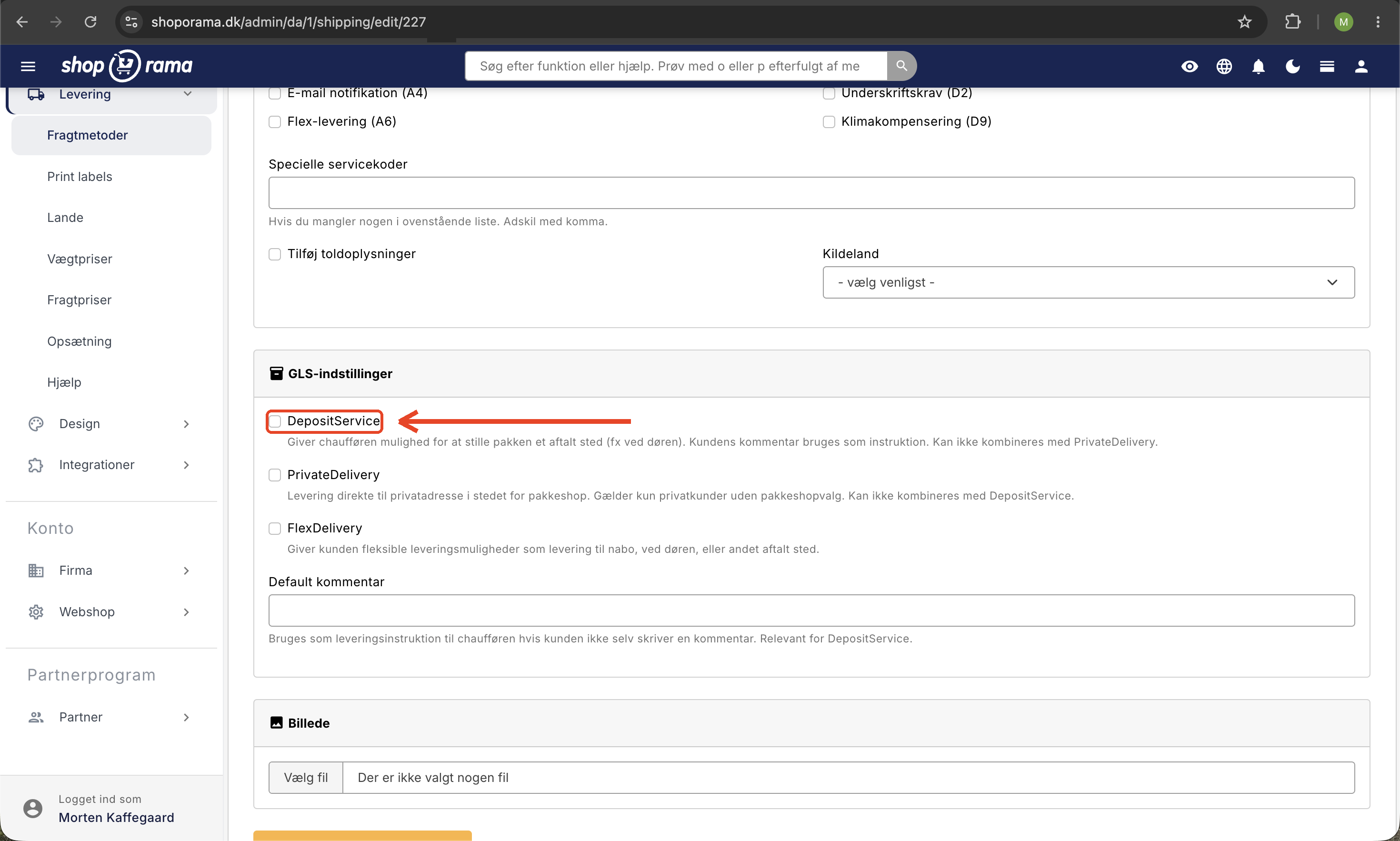
DepositService gls_deposit_service
Enables a service where the driver may leave the package at an agreed-upon location, such as at the front door, in the carport, or in a sunroom. The customer’s comment from checkout is included as a delivery instruction. If the customer hasn’t written anything, your default comment is used (see below).
Note: DepositService cannot be combined with PrivateDelivery for the same shipping option. Choose one or the other.
PrivateDelivery gls_private_delivery
Ensures that the package is delivered directly to a private address. Typically used for pure B2C shipping options where the customer does not have to select a pickup location themselves. Cannot be combined with DepositService.
FlexDelivery gls_flex_delivery
Provides the customer with flexible delivery options via GLS’s own system. The customer receives a notification from GLS and can choose to have the package delivered at home, to a neighbor’s house, at the door, or to another agreed-upon location. This reduces delivery errors and gives the customer control over the delivery. FlexDelivery can be freely combined with both DepositService and PrivateDelivery.
Default comment
A text field where you can specify a standard instruction for the driver if the customer does not write a comment during checkout. Primarily used in conjunction with DepositService. A typical example is the text “Leave at the front door.” If the customer writes a comment during checkout, that comment always takes precedence.
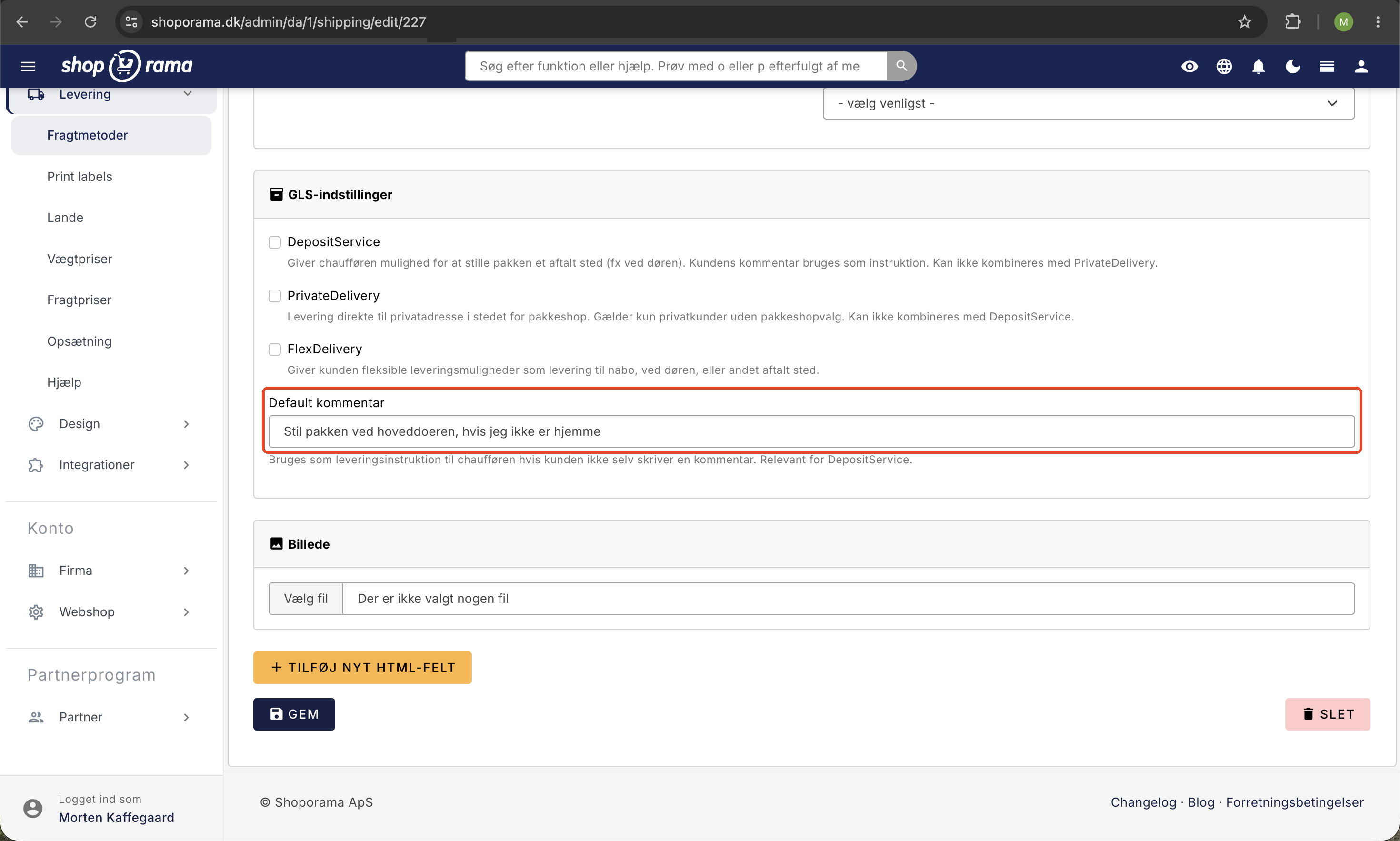
Typical setup in an online store
Most stores set up two GLS shipping options side by side so the customer can choose:
- GLS Package Shop: Select “GLS Package Shop ” as the shipping module. Leave the GLS checkboxes blank. The package shop determines the delivery.
- GLS Home Delivery: Set the shipping module to “None.” Enable FlexDelivery so the customer can manage the delivery themselves via GLS notifications. You may also want to enable DepositService if you want to allow driver drop-off.
If you sell exclusively to businesses, you can limit yourself to a single shipping option without additional services.
Tip: Make sure to enter your GLS login credentials under Settings → General before creating shipping options. If this information is missing, orders cannot be transferred to GLS. See Set Up GLS Integration for the full setup process.
Frequently Asked Questions
Is there a “GLS type” I need to select from a dropdown menu?
No. There isn’t a single type dropdown. Instead, you select a shipping module (package shop or none) and combine it yourself using the three checkboxes. This provides more flexibility but requires you to set the correct combination. See the “Typical Setup” section above for the most common configurations.
What’s the difference between DepositService and FlexDelivery?
DepositService is your store’s standard instruction to leave the package at an agreed-upon location, based on the customer’s checkout comment or your default text. FlexDelivery lets the customer choose their own option in GLS’s notification system after the order has been shipped, such as “deliver to a neighbor” or “leave at the front door.” Both options can be enabled at the same time.
Should I check all three boxes?
No. DepositService and PrivateDelivery are mutually exclusive. FlexDelivery can be combined with both. Start by enabling only the options you actually need to avoid confusion for the customer and the driver.
How do I add a package shop as a delivery option?
Create a new shipping option under Settings → Shipping and set the Shipping Module to GLS Package Shop. When the customer reaches checkout, a package shop selector will automatically appear, allowing the customer to choose their preferred shop based on the delivery address.
Where does the customer enter their instructions for the driver? (Sofie, new hire)
In the comment field at checkout. If the customer leaves the field blank and you’ve set a default comment, that will be used instead. Check your theme to make sure the comment field is visible to the customer.
Will I incur additional costs by enabling these services? (Gitte, store owner)
You’ll need to discuss this with your GLS contact person. Some services, such as FlexDelivery, are included in the standard agreement, while others may incur an additional fee. Ask GLS what’s included in your customer agreement before enabling all features.
My packages aren’t being transferred to GLS—what should I do?
First, check that the GLS login information under Settings → General is correct. See also “Errors When Transferring to GLS” for typical error messages and solutions.
Can I have different settings for different shipping options? (Lars, Warehouse Manager)
Yes. The settings are configured per shipping option. For example, you can have one GLS parcel shop shipping option without extra services, one GLS home delivery option with FlexDelivery and DepositService, and a separate B2B shipping option without any of those. This makes it easy to manage the warehouse and picking workflow.
Do these settings also apply to business customers?
PrivateDelivery is intended for residential customers and should not be enabled for B2B shipping. DepositService and FlexDelivery are not limited to residential customers. If you have separate shipping options for business customers, keep PrivateDelivery disabled for those.
What happens if I change the settings for a shipping option in the middle of a busy day?
The change takes effect immediately for new orders. Orders that have already been shipped are not affected, and packages that have already been transferred to GLS retain the services that were selected at the time of shipment.
See also Comments on GLS Orders for more details on how the default comment and the customer’s checkout comment work together.
Need help? Contact us at support@shoporama.dk.
Related articles
Følg levering og pakkeshop-afhentning i Shoporama
Shoporama viser leveringsstatus direkte i ordrelisten, både for pakkeshop og levering til adressen. Se om pakken er undervejs, klar til afhentning,...
GLS QR Returns: Set up return labels and send them automatically
Guide to GLS QR Returns in Shoporama: Choose the format for return labels (PDF, QR, or both), automatically send the label to the customer, test...
Related features
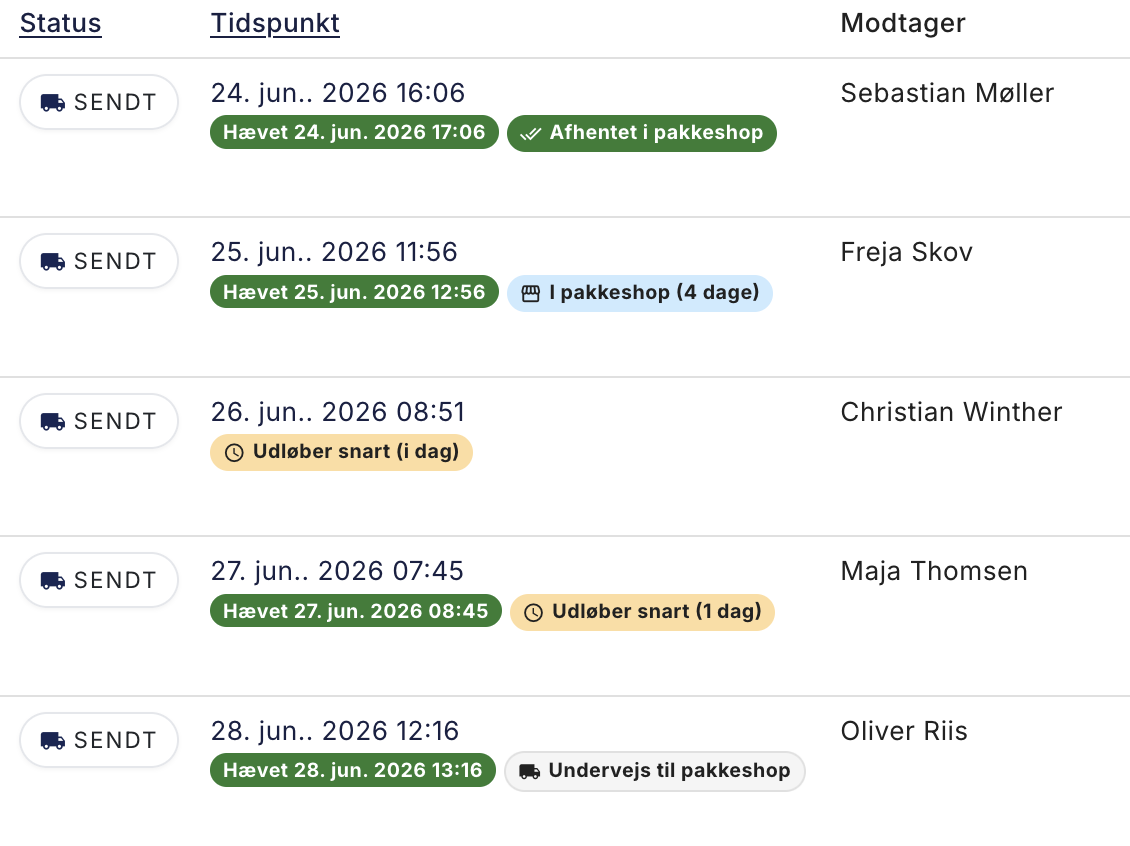
Nyt: Se med det samme hvilke pakkeshop-pakker der snart udløber
Shoporama now shows directly in the order list whether a ParcelShop package is ready for pickup, is about to expire, has been picked up, or has...
Package Shop Overview: See Which Packages Are About to Expire
Webshop with GLS
Create a webshop with GLS shipping and print parcel labels in one click. Parcel selector, tracking, returns and batch printing from Shoporama.