HTML fields: Insert Cookiebot, GTM and other scripts in your online store
How to use Shoporama HTML fields to insert Cookiebot, Google Tag Manager, Facebook Pixel, chat widgets and other custom HTML/JavaScript on your online store.
Skal du have Cookiebot, Google Tag Manager, Facebook Pixel, en chat-widget eller en verifikationskode fra Google Search Console på din webshop? Det gør du via HTML-felter i Shoporama. Her kan du selv indsætte den kode, du har fået af tredjepart, og vælge om den skal indsættes automatisk i sidens <head> eller <body>.
Sådan finder du HTML-felter
- I venstre sidebar finder du Webshop-sektionen (markeret med et tandhjul-ikon)
- Klik på HTML-felter
Sådan opretter du et HTML-felt
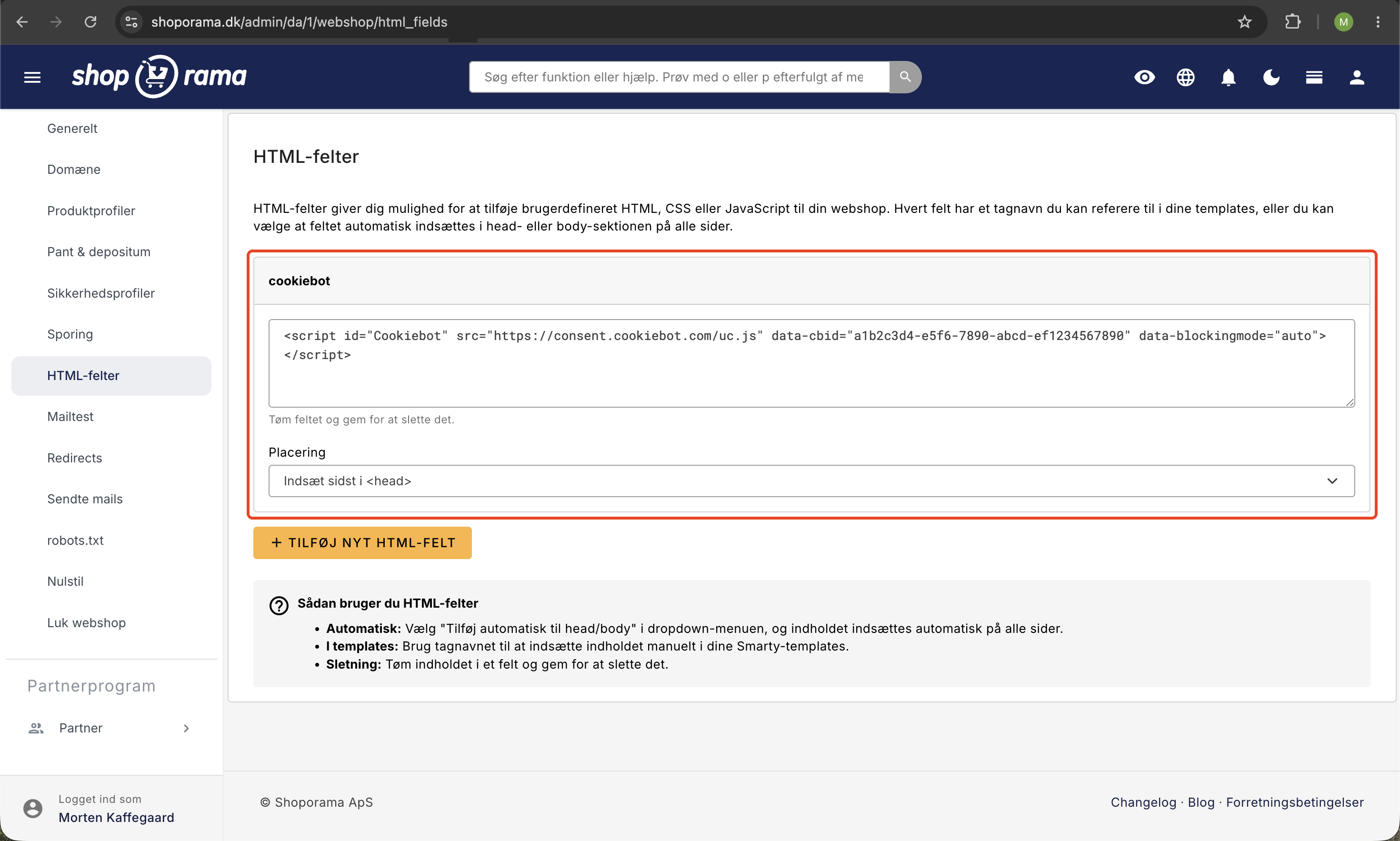
- Klik på Tilføj nyt HTML-felt
- Giv feltet et beskrivende navn uden mellemrum, fx cookiebot, chat_widget eller gsc_verify. Navnet bruges som tagnavn, hvis du senere vil kalde feltet manuelt i et tema
- Indsæt din kode i tekstfeltet
- Vælg Placering:
- Indsæt sidst i <head> til verifikations-tags, Cookiebot og scripts der skal loade tidligt
- Indsæt sidst i <body> til chat-widgets og scripts der gerne må vente
- Tilføj ikke automatisk hvis du selv vil styre placeringen i et privat tema
- Klik Gem
Tip: Du kan slette et felt ved at tømme indholdet og klikke Gem.
Hvor havner koden i sidens HTML?
Valget under Placering afgør præcis, hvor din kode ender. Det er værd at kende, når en tredjepart har en klar anvisning om, hvor deres script skal ligge:
- Indsæt sidst i <head> – koden lægges allersidst i sidens <head>, altså efter temaets egne meta-tags, sidetitel, og stylesheets, men før Shoporamas eget sporingsscript og før kode fra apps. Derfor når et cookiebanner herfra at loade, inden sporingen går i gang
- Indsæt sidst i <body> – koden lægges nederst på siden, lige efter temaets eget indhold og JavaScript. Siden er tegnet færdig, inden dit script går i gang
- Tilføj ikke automatisk – koden bliver ikke sat ind af sig selv. Den vises først, når du kalder feltets tagnavn i et tema
Et HTML-felt, du opretter under Webshop → HTML-felter, kommer med på alle sider i shoppen, også kurven, kassen, og kvitteringssiden. Har du flere felter med samme placering, indsættes de i alfabetisk rækkefølge efter feltnavn. Skal to scripts loade i en bestemt rækkefølge, kan du derfor styre det med navngivningen, fx 1_cookiebot og 2_chat.
Indholdet indsættes præcis, som du har skrevet det. Shoporama retter ikke i din kode, og eventuelle Smarty-koder i feltet bliver ikke afviklet – feltet er ren HTML.
Typiske anvendelser
- Cookiebot – cookie-samtykkebanner. Indsætter du den i <head>, kan den blokere andre tracking-scripts, indtil kunden har givet samtykke
- Google Search Console / Bing Webmaster Tools – verifikations-metatags der bekræfter at du ejer domænet
- Hotjar, Microsoft Clarity, Mouseflow – heatmaps og session-recordings
- Chat-widgets – Tidio, Zendesk Chat, Intercom, Drift og lignende
- Custom HTML, CSS eller JavaScript – smarte ekstra funktioner i dit eget design
Eksempel: verifikationskoder til søgemaskiner og annoncenetværk
Google Search Console, Bing Webmaster Tools, Pinterest, og Metas Business Manager kræver alle bevis for, at du ejer domænet, før de giver dig adgang til data om din shop. De udleverer et lille meta-tag, som skal stå på din forside. Et meta-tag virker kun, hvis det står i sidens <head>, så her skal placeringen altid være Indsæt sidst i <head>.
Opret ét felt, fx verifikation, og saml alle dine verifikationskoder i det. Et felt må gerne indeholde flere linjer:
<meta name="google-site-verification" content="DIN-KODE-FRA-SEARCH-CONSOLE">
<meta name="msvalidate.01" content="DIN-KODE-FRA-BING">
<meta name="p:domain_verify" content="DIN-KODE-FRA-PINTEREST">
<meta name="facebook-domain-verification" content="DIN-KODE-FRA-META">
Udskift værdierne i content="..." med dem, du har fået af den enkelte udbyder, og tag kun de linjer med, du rent faktisk skal bruge. Tilbyder udbyderen flere metoder, skal du vælge den, der hedder HTML-tag eller meta-tag. Så slipper du for at lægge en fil på domænet.
Slet ikke feltet bagefter. Søgemaskinerne og annoncenetværkene tjekker koden igen med jævne mellemrum. Forsvinder den, mister du adgangen til dataene og skal verificere forfra.
Et Google Ads-konverterings-ID, et GA4 Measurement ID, eller et Facebook Pixel ID skal derimod ikke ind i et HTML-felt. Dem indtaster du under Webshop → Sporing, hvor Shoporama selv kobler dem op med e-commerce-events. Se afsnittet HTML-felter eller Sporing længere nede.
Eksempel: chat-widget og live chat
Tidio, Zendesk, Intercom, Crisp, Smartsupp, og de fleste andre chatværktøjer giver dig en færdig kodestump, du blot skal kopiere ind. En chatboble skal ikke være det første, kunden ser, og den må gerne loade efter resten af siden. Derfor hører den til i bunden:
- Klik Tilføj nyt HTML-felt, og kald feltet fx chat_widget
- Indsæt hele kodestumpen fra chatudbyderen, inklusive <script> og </script>
- Sæt Placering til Indsæt sidst i <body>
- Klik Gem
Kodestumpen ser typisk sådan ud, hvor id'et er din konto hos udbyderen:
<script src="https://widget.dit-chatvaerktoej.dk/DIN-KONTO-ID.js" async></script>Heatmaps og sessionsoptagelser fra fx Hotjar, Microsoft Clarity, eller Mouseflow sættes op på samme måde, men de vil gerne loade tidligt for at nå at optage hele besøget. Følg altid udbyderens egen anvisning: står der head i deres vejledning, skal du vælge Indsæt sidst i <head>.
Bruger du et cookiebanner, så husk, at chat, heatmaps, og lignende værktøjer ofte sætter cookies. De skal derfor mærkes op efter cookiebannerets vejledning, så de først går i gang, når kunden har givet samtykke. Læs mere i vores guide til cookie-samtykke og Consent Mode.
Eksempel: egen CSS, JavaScript, og widgets
En lille rettelse i designet
Skal du bare rette en enkelt detalje uden at åbne temaet, kan du lægge din CSS i et HTML-felt med placeringen Indsæt sidst i <head>. Fordi feltet indsættes efter temaets stylesheets, vinder dine regler som udgangspunkt over temaets egne:
<style>
/* Erstat .din-klasse med den klasse du finder i browserens inspektør */
.din-klasse { background: #f5f5f5; }
</style>
Har du omvendt et lille stykke JavaScript, der skal køre, når siden er indlæst, så læg det i et felt med placeringen Indsæt sidst i <body>. Hold det til småting: større ændringer i designet hører hjemme i temaet, hvor de er nemmere at holde styr på.
En widget der skal vises et bestemt sted
Nogle widgets, fx anmeldelsesvisninger og prisberegnere, består af to dele: et script, der loader værktøjet, og et stykke HTML, der bestemmer, hvor på siden widgetten tegnes. Del dem op i to felter:
- Selve scriptet lægger du i et felt med placeringen Indsæt sidst i <head> eller Indsæt sidst i <body>, alt efter hvad udbyderen anbefaler
- Widget-koden lægger du i et felt med placeringen Tilføj ikke automatisk og kalder tagnavnet det sted i temaet, hvor widgetten skal vises
Længere nede i afsnittet Brug HTML-felter manuelt i et tema kan du se, hvordan du kalder tagnavnet.
HTML-felter eller Sporing – hvad bruger jeg?
Shoporama har også en side under Webshop → Sporing med færdige felter til de mest brugte værktøjer:
- Microsoft Ads (Bing)
- Google Analytics 4 (Measurement ID)
- Google Ads Conversion ID
- Pinterest, Snapchat, TikTok, og LinkedIn
- Facebook Pixel ID og Conversion API
Har du blot et ID til et af disse værktøjer, så indtast det under Sporing. Shoporama sørger automatisk for korrekt opsætning og e-commerce-events. Brug først HTML-felter, når du har en kodestump der ikke passer ind under et af de faste felter, fx Cookiebots fulde script eller et verifikations-tag.
Indbygget server-side tracking: Shoporama har sin egen server-side tracking-løsning (sGTM via Stape). Du behøver ikke selv at opsætte en Tag Manager – aktivér blot server-side tracking under Sporing, indtast dine ID'er for GA4, Facebook og Google Ads, og Shoporama sender e-commerce-events server-side. Du får også cookieløse signaler ved manglende samtykke. Tilvalg fra 89 kr/md ex. moms.
Egen GTM: Foretrækker du at styre alt selv i din egen Google Tag Manager-container, kan du indsætte GTM-snippeten som et HTML-felt (placeret sidst i <head>) og styre Cookiebot, Pixel, Hotjar osv. inde i GTM. De to løsninger bør ikke køre samtidig.
Brug HTML-felter manuelt i et tema
Hvis du har et privat tema og vil placere et HTML-felt et bestemt sted i din skabelon, sæt feltet til Tilføj ikke automatisk og kald tagnavnet i din Smarty-template:
<{$webshop->getHtmlField('cookiebot')}>Indholdet renderes råt, så <script>-tags virker som forventet. Husk at slå auto-indsættelse fra, ellers kommer feltet med to gange.
HTML-felter andre steder end på webshoppen
Det HTML-felt, du opretter under Webshop, gælder hele webshoppen. Hvis du kun vil have et script på enkelte produkter, kategorier, sider, blogindlæg, eller landingssider, kan du oprette HTML-felter direkte på disse objekter under deres respektive redigeringssider. Det er praktisk til fx schema markup eller en kampagne-pixel der kun skal fyres af på én landingsside.
Vigtigt om sikkerhed og hastighed
- Indsæt kun kode fra kilder du stoler på. Skadelig eller fejlbehæftet JavaScript kan påvirke hele shoppen, herunder kassen
- Hvert ekstra script koster i sidehastighed. Brug async eller defer, hvis tredjeparten anbefaler det
- Test altid på din shop bagefter, fx ved at højreklikke i browseren og vælge Vis kildekode for at se, at koden er kommet med
Ofte stillede spørgsmål
Hvor finder jeg HTML-felter henne i admin?
Gå til Webshop → HTML-felter. Hvis menupunktet ikke er synligt, mangler din bruger måske rettigheder – spørg den der har sat dig op.
Kan jeg ødelægge min shop ved at rode med HTML-felter?
Dine produkter, ordrer, og kunder rører du ikke. I værste fald kan en forkert kodestump få sider til at se mærkelige ud, eller påvirke ydelsen. Tøm feltet og gem, så er det væk igen.
Hvordan tester jeg om mit HTML-felt virker?
Åbn shoppen i en privat browser-fane, højreklik og vælg Vis kildekode. Slå op på et stykke af din kode (fx en kommentar eller et tag-id). For tracking-scripts kan du installere browser-udvidelser som Tag Assistant (GTM/GA4) eller Pixel Helper (Facebook).
Hvordan sletter jeg et HTML-felt jeg ikke bruger længere?
Tøm hele indholdet i feltet og klik Gem. Feltet forsvinder. Tjek først at tagnavnet ikke kaldes manuelt et sted i et privat tema, ellers kan du få en tom plet eller en fejl.
Hvad er forskellen på Webshop → Sporing og HTML-felter?
Sporing har færdige felter til de mest brugte værktøjer (GA4, Facebook Pixel, Google Ads, Microsoft Ads osv.) hvor du blot indsætter dit ID. Samme sted aktiverer du Shoporamas indbyggede server-side tracking, så du slipper for selv at vedligeholde en Tag Manager-container. HTML-felter er den frie løsning til alt det andet – fx Cookiebot, verifikationskoder og chat-widgets. Har du valget, så brug Sporing – Shoporama kobler de officielle integrationer korrekt op.
Skal Cookiebot lægges i <head> eller <body>?
Cookiebot skal i <head>, så den når at blokere tracking-scripts, indtil kunden har givet samtykke. Vælg derfor Indsæt sidst i <head> i HTML-feltet. Følg derefter Cookiebots egen vejledning til at mærke andre scripts med samtykke-attributter.
Påvirker HTML-felter sidehastigheden?
Ja – hvert ekstra script koster i load-tid og kan påvirke Core Web Vitals. Hold antallet nede, brug async eller defer hvor det er muligt, og overvej at samle flere scripts i Google Tag Manager, så de loader styret ét sted.
Skal jeg sætte det op på ny i hver af mine webshops?
Ja – HTML-felter er pr. webshop. Vil du holde det ensartet på tværs af flere shops, er den nemmeste vej at lægge alt i én GTM-container og indsætte GTM-snippeten som HTML-felt i hver shop.
Jeg har gemt mit HTML-felt, men koden dukker ikke op på shoppen
Tjek først, at Placering ikke står på Tilføj ikke automatisk – så bliver koden kun vist, hvis den kaldes fra temaet. Er placeringen rigtig, skyldes det som regel, at siderne på en live-shop gemmes i en HTML-cache i op til fire timer. Du ser altid den nyeste udgave, hvis du er logget ind i admin i samme browser, har noget i kurven, eller sætter en tilfældig parameter i adressen, fx ?test=1. Senest efter fire timer er cachen fornyet af sig selv, og alle besøgende ser koden.
Skal min chat-widget i head eller body?
Body. En chatboble behøver ikke være klar, før siden er tegnet, og et script i <head> udskyder, at indholdet vises. Vælg derfor Indsæt sidst i <body>. Undtagelserne er værktøjer, der selv beder om head: cookiebannere, der skal nå at blokere andre scripts, og heatmap-værktøjer, der skal nå at optage hele besøget.
Kan jeg lægge et script kun på én kampagneside eller ét produkt?
Ja. De samme HTML-felter findes på det enkelte produkt, kategori, side, blogindlæg, og landingsside. Et felt, der ligger på fx en landingsside, indsættes kun, når præcis den side vises, og det placeres efter det felt, der gælder hele shoppen. Det er praktisk, hvis en annoncepartner kræver en pixel på én kampagneside, uden at den fyrer af på resten af shoppen.
Udbyderen beder mig lægge en HTML-fil på mit domæne. Hvad gør jeg?
Vælg en anden metode. Næsten alle søgemaskiner og annoncenetværk tilbyder også verifikation med et meta-tag, og det er den metode, der passer til HTML-felter. Du kopierer blot tagget ind i et felt med placeringen Indsæt sidst i <head> og klikker Gem. Kan du kun bruge fil-metoden, så skriv til support@shoporama.dk, så finder vi en løsning.
Har du spørgsmål, er du velkommen til at skrive til os på support@shoporama.dk.
Related articles
Server-side tracking in Shoporama
A Complete Guide to Server-Side Tracking in Shoporama. Better data quality, fewer ad-blocker losses, product IDs that match your feed, and...
Cookie consent and Consent Mode v2
How to set up Shoporama's free cookie consent app: categories, automatic blocking, consent revocation, and Google Consent Mode v2.
GDPR and Cookie Policies for Your Online Store
Overview of the GDPR and cookie regulations for online stores: consent before tracking, documentation, and cookie policies, and how Shoporama meets...
Data Processor Agreement
Guide to approving the data processing agreement with Shoporama under the GDPR.