Unclaimed Transactions: Find Payments You Haven't Claimed
See which OnPay payments have been authorized but never withdrawn, and withdraw or cancel them directly. Explains the difference between authorization and withdrawal, and what it costs to forget.
You’ve packed the order, shipped it, and seen the payment go through at checkout. Yet the money may never have reached your account. The reason is almost always the same: the payment was authorized but never debited. The “Undebited Transactions” page shows you exactly which payments are still pending and lets you debit or cancel them right away.
Authorization and settlement: two steps, not one
When a customer pays with a debit or credit card, two separate processes occur—and that’s exactly where the money can get stuck.
- Authorization, also known as a hold: The customer’s bank verifies that there are sufficient funds and sets the amount aside. The money doesn’t leave the customer’s account yet—it’s just locked.
- Capture: You actively request that the reserved amount be released. Only now does the money move from the customer to your acquirer and on to your bank account.
Think of it like a table reservation: the reservation secures the table, but the restaurant doesn’t receive any money until the guest has eaten and paid. These steps are separated for the sake of consumers, because, as a general rule, you may not withdraw the funds until the item has been shipped. The problem only arises if the second step is never completed.
Why forgetting to settle a transaction costs real money
An uncollected transaction is an order you’ve packed, paid shipping for, and shipped out without receiving payment for it.
- Hold requests expire. An authorization doesn’t last forever. After a certain period—which depends on the card type and your acquiring agreement—it expires, and the funds are released to the customer. After that, you can’t process the payment, and you’ll have to ask the customer to pay again.
- The books don’t balance. The store shows the sale, but the bank doesn’t show the funds. This creates a discrepancy that needs to be identified and explained—typically right when the auditor asks about it.
- The customer’s money is locked up. As long as the hold is in place, the customer can’t use the funds, and this results in inquiries in your inbox.
- It adds up quickly. Ten overlooked orders at 800 kroner each is 8,000 kroner you’ve given away, and during a busy peak season, ten orders is nothing.
Here’s how to find the page in Shoporama
- Go to Store, Integrations, Payment Gateways in the menu.
- Find the row with your OnPay gateway.
- To the right of the row, just before the edit icon, there’s a small button with a crossed-out money symbol. If you hover your mouse over it, it says “Uncollected Transactions.” Click on it.
If there’s an outstanding amount, a yellow label with the amount will also appear next to the button. The number is a cached total that’s updated in the background several times an hour. This is a quick indicator, not a final figure: the label is missing for some shops, and if you have sales in multiple currencies, the amounts are added together without conversion. Open the list when you want to know what’s actually outstanding.
Which payment gateways does the page work with?
The site is built for OnPay, and OnPay only. The button appears only in the row for OnPay gateways, and if you open the URL for another gateway type, you’ll be redirected back to the overview. This is because the list is retrieved directly from your OnPay account via the connection you authorized during setup. If the gateway isn’t connected, the list will be empty, and on the gateway’s own page, you can check if it says “Connected to OnPay” along with a date. See “Setting Up OnPay” if the connection is missing.
If you use Quickpay, Nets Easy, ePay, PensoPay, Flatpay, or Stripe, there is no corresponding list. Instead, use the order list, which is described further down.
How to Read the List
Each line represents a single reservation that is still open in OnPay. The columns mean:
- Order: Your order number in Shoporama, which serves as a link to the order. If it says “Unknown,” the payment does not match an order number or cart number in your online store. This typically happens if you share the OnPay agreement with another platform.
- OnPay Reference: the number used to create the payment, which you’ll see in OnPay. If your online store uses a closed cart, this is the order number. If it uses an open cart, this is the cart number; see “Open and Closed Carts.”
- Date: When the payment was created, including the time. The older a line is, the more urgent it is.
- Amount: The total reserved amount, with the currency prefix.
- Refunded: The amount that has been refunded to the customer.
- Withdrawn: How much has already been withdrawn. If it says 0.00, no funds have ever been withdrawn from the transaction.
- Card Type: The type of card the customer used to pay, as reported by OnPay.
- Status: The transaction’s status with OnPay. It’s usually “Active” here, because the list only shows reservations that can still be withdrawn.
- Transaction number: OnPay’s own number for the payment. Use this when searching in OnPay or contacting support.
Currency is displayed as DKK, SEK, NOK, GBP, USD, or EUR. If you use a different currency, it will say “Unknown (#208)” with the currency code in parentheses, but the amount is still correct. An empty table is good news: it usually means there’s nothing to withdraw.
How to Withdraw an Amount
- Find the row you want to withdraw from.
- On the far right is an amount field. It’s pre-filled with exactly what’s left to withdraw—that is, the reserved amount minus what’s already been withdrawn and refunded.
- If you only want to withdraw a portion, enter a smaller amount. You cannot enter more than what’s shown; the field has a limit.
- Click the “Withdraw” button. The page will reload, and the list will be fetched again from OnPay.
If the entire amount has been withdrawn, the row disappears because the reservation is no longer open in OnPay. If you withdrew only a portion, the row remains with a higher number in the “Withdrawn” column and a lower amount ready in the field, which is convenient for partial deliveries.
How to cancel a reservation
If the order is not to be delivered at all, there’s no reason to let the reservation tie up the customer’s funds. Click “Cancel” on the line and confirm when prompted with “Are you sure?”. The reservation is released by OnPay immediately, and this action cannot be undone. If the customer still needs to pay, a new payment must be created.
Note the difference: “Cancel” is used for funds that have never been withdrawn. If the funds have already been withdrawn, you must instead issue a refund from the order itself. See “How do you create a credit memo?”
How to Avoid Accumulating a Pile
This page is your safety net. Daily withdrawals belong in the order list, where you can also see what has actually been shipped.
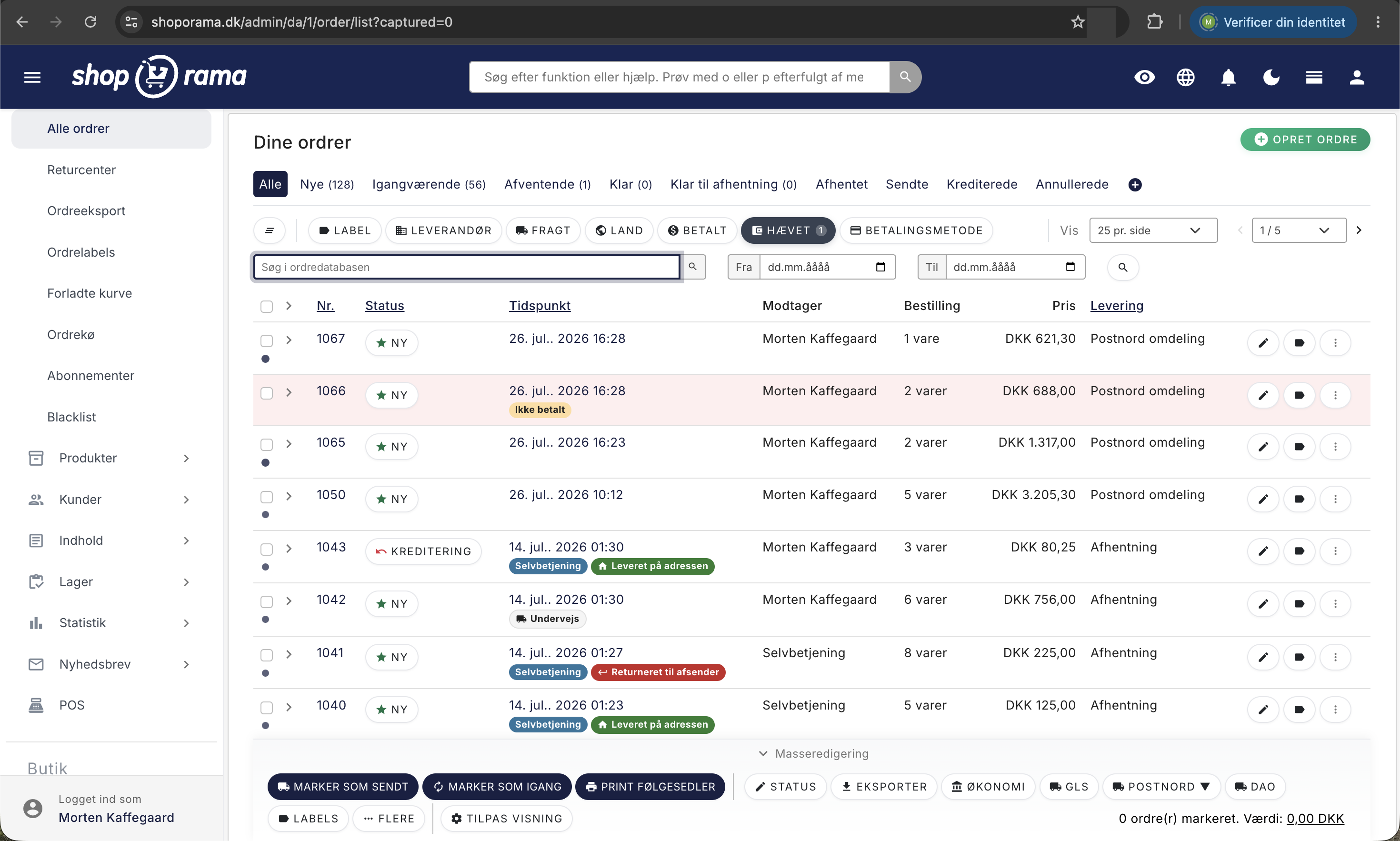
- Filter by capture status. The order list includes the “Captured” filter, where you can choose “All,” “Captured,” or “Not Captured.” Combine “Not Captured ” with a status filter so you only see orders that have been shipped.
- Capture multiple orders at once. Select the orders, click “Finance,” and choose “Capture Funds.” The orders are queued and captured shortly thereafter, and this action updates the order’s capture status in Shoporama. This menu option is available for ePay, Quickpay, Nets Easy, OnPay, and Stripe. Please note that the bulk action always captures the entire order amount, so it cannot be used to resolve issues after a partial capture.
- Automatic withdrawal. Several payment gateways offer the option to “Automatically withdraw funds when the item is shipped or picked up ” on the gateway’s own page. This option is available for Nets Easy, ePay, QuickPay, PensoPay, FlatPay, and Stripe; for PensoPay and FlatPay, this is the only way to do it, since they do not have the bulk action on the order list. OnPay doesn’t have that checkbox, so with OnPay, you process payments from the order list or from this page.
- Establish a regular routine. For example, open the list every Monday and clear out any outstanding items. This typically takes less than five minutes.
Read more about the overall order flow in “How do I manage my orders?” and about payments in “Where and when do I get my money?”.
For the tech-savvy
- The list is fetched live from OnPay every time you open the page, and all aspects of the results are retrieved. If you have many open reservations, the page may take a moment to load, but it’s always in sync with OnPay.
- The amount field is calculated as the reserved amount minus the amount withdrawn and the amount refunded, and this is also the field’s maximum value.
- The yellow total amount on the overview is a cached figure that is updated in the background, so it may be slightly behind. It also adds up amounts in different currencies without conversion. In case of a discrepancy, the list is correct.
- Withdrawals and cancellations from here are processed directly through OnPay. The order’s own “Withdrawn” label in Shoporama is only set when you withdraw via the order, for example, using the bulk action “Withdraw funds” (capture). If you also want the order to show the “Withdrawn” status, withdraw from the order list.
Frequently Asked Questions
I can’t find the button for my payment gateway. What should I do?
The button only appears in the row for OnPay-type gateways. If you use Quickpay, Nets Easy, or Stripe, for example, there is no button, and if you open the link anyway, you’ll be redirected back to the overview. Instead, use the “Captured” filter in the order list.
How do I know if an amount has already been debited?
Check the “Withdrawn” column. If the number matches the “Amount,” the full amount has been withdrawn, and the amount field will always show only the remaining balance. On the order itself, “Withdrawn” will appear along with the date when the funds were withdrawn. If nothing is shown, the funds haven’t been withdrawn yet.
Should a reservation be posted as a deposit?
No. As long as the amount is only reserved, no funds have been transferred. The funds are only on their way to your account once the transaction has been withdrawn. Use the “Withdrawn” column when reconciling, and coordinate the bookkeeping with your accountant.
Can I withdraw multiple transactions at once?
Not here, because you need to be able to control the amount on each individual line. If you need to process many transactions, use the order list: filter by “Withdrawn,” select “Not Withdrawn,” highlight the orders, and click “Finance” and then “Withdraw Funds” (capture).
What happens if I never capture the payment?
The hold will expire at some point, and the funds will be released to the customer. Then you’ll have shipped the item without receiving payment, and you’ll need to contact the customer and request payment again. How long a hold lasts depends on the card type and the acquiring agreement, so don’t wait.
Can I withdraw more than the reserved amount if the customer has ordered additional items?
No. The amount field is capped at the remaining balance of the reservation. If the customer needs to pay more, a new payment must be created for the additional amount.
We often ship only part of the order. Can I just process the amount for what was shipped?
Yes. Enter the smaller amount in the field and click “Withdraw.” The line will remain in the “Withdrawn” column, and the field will then only show the remaining amount, which you’ll withdraw when the backorder is shipped.
The list is empty. Is something wrong?
Most often, an empty list simply means there’s nothing to charge. If you’re unsure, check the gateway’s page to see if it says “Connected to OnPay” with a date. If the connection is missing, the list will be empty no matter what.
Why does the yellow amount show something different from the list?
The yellow amount is a cached total that’s updated in the background, while the list is fetched live from OnPay every time you open the page. If there’s a difference, the list is correct. The label is just a quick indicator that there’s something to check.
If the numbers do not match what you see on OnPay, please email support@shoporama.dk with the order number and transaction number from the list. If “unknown” appears instead of an order number, please include the reference number from OnPay.
Related articles
Setting up OnPay
Step-by-step guide to setting up OnPay as a payment gateway on your Shoporama online store. Supports payment links, capture, refund and cancel.
Create a credit note
Guide to creating a credit note in Shoporama when you receive returns or need to refund an order.
Manage your orders in Shoporama
Guide to managing orders in Shoporama - from receiving to shipping and status updates.
When will I get my money paid out?
Find out when you get paid from your sales through the payment gateway.
How do I receive payment online?
What does it take to accept credit card or MobilePay payments online? Read about acquiring agreements, payment gateways and alternative payment...
Handle returns
Guide to Shoporama's returns center - handle returns, create credit notes, and manage customer return requests.
What is the difference between open basket and closed basket?
Understand the difference between open and closed baskets in Shoporama - stock reservation, customer experience and which type is right for your...
Related features
Payment window
A payment window is where the customer pays in the online shop. Read about payment windows, types and payment gateways for webshops.
13+ payment gateways for your webshop
Choose from OnPay, Quickpay, Stripe, Mollie, Nets Easy, ePay and many more. Automatic capture, country restrictions and partial payment.