Mail Test: Send a test of your automated emails
Preview the 23 automated emails you can test, and send a test email to yourself so you can catch errors in order confirmations and return emails before your customers do.
Most emails from your online store are sent automatically. The order confirmation, the shipping notification, the return receipt, and the reminder about the abandoned cart are all sent out without you having to lift a finger. That’s exactly why they’re so easy to forget—until a customer writes to say the logo is missing, the price looks wrong, or the link isn’t working. With the Mailtest site, you can preview the 23 emails it covers and send a real test to yourself before your customers receive them.
Why is it worth the time?
The order confirmation is typically the email in your store that gets opened the most, and for many customers, it’s also their first experience with the store after making a purchase. If there’s something wrong with it, you usually don’t notice until the customer calls—and by then, the email has already been sent to all your other customers as well. Mailtest eliminates that risk: you can check and fix an issue in five minutes instead of waiting for the next actual order.
How to Find Mailtest
In the menu on the left, click Webshop and then Mailtest. The page itself is titled Test Emails. On the left is the “Email Templates” panel, which lists all the emails you can test. On the right, the preview appears as soon as you select a template. Mailtest can be used by users with the roles Full Access, Marketing, and Developer. Note that the preview shows real orders and customers from the store, even for users with the Marketing or Developer roles, who otherwise do not have access to orders. Read more in Roles and Permissions.
How to use the page step by step
- Select a template from the list on the left. There is no Save button. The page updates automatically as soon as you check the box next to a template.
- Look at the “Subject” field at the top of the preview. This is the subject line the customer will see in their inbox.
- Read the email preview below. It appears exactly as it’s coded in your theme, with actual product lines, prices, and names.
- Enter an email address in the “Send test to” field on the “Send Test Email” card, and click the “Send Test Email” button.
- Open the email in your own email program and check it on both your computer and your phone.
Below the "Send" field, it says: "We automatically assign random data to your templates. Reload the page to see different data." Take that literally. If you reload a few times, a new order, customer, or product will appear in the template each time.
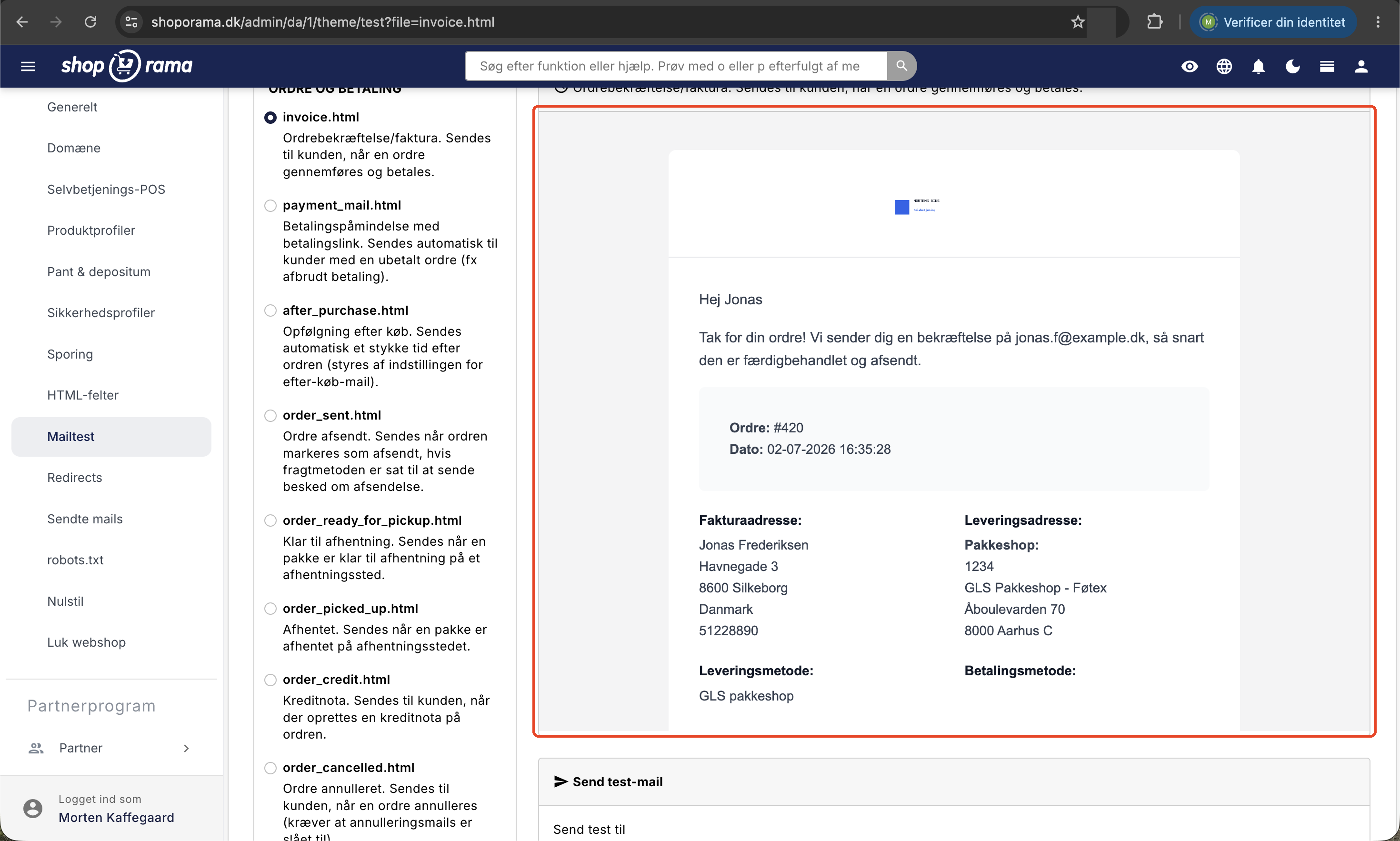
Which emails can you test?
There are 23 templates divided into four groups. Under each filename is a brief explanation of when the email is sent, so you don’t have to guess.
Order and Payment
- invoice.html: order confirmation and invoice when an order is completed and paid.
- payment_mail.html: payment reminder with a payment link for customers with an unpaid order, for example, after an interrupted payment.
- after_purchase.html: a follow-up email sent some time after the purchase, triggered by the post-purchase email setting.
- order_sent.html: Order shipped, if the shipping method is set to send a shipping notification.
- order_ready_for_pickup.html: The package is ready for pickup at a pickup location.
- order_picked_up.html: The package has been picked up at the pickup location.
- order_credit.html: credit memo, when a credit memo is created for the order.
- order_cancelled.html: Order canceled. Requires that cancellation emails be enabled.
- invoice_dropshipping.html: Dropshipping invoice for your supplier listing the items to be shipped directly to the customer.
Returns and Exchanges
- return_received.html: Receipt generated as soon as a return is created in the returns center.
- return_label.html: Return label for the customer when automatic return labels are enabled.
- return_refund.html: Refund confirmation when a return is approved and the amount is refunded.
- return_voucher.html: store credit, when the customer receives the value as store credit instead of a refund.
- return_exchange_received.html: receipt when an exchange is created in the returns center.
- return_exchange_payment.html: payment link, when the customer exchanges for a more expensive item and must pay the price difference.
- return_exchange_voucher.html: credit note, when the customer exchanges for a less expensive item and receives a refund for the difference.
- withdrawal_received.html: receipt when a customer cancels a purchase using the digital cancellation feature.
Customer and Account
- user-welcome-mail.html: welcome message when a customer creates an account in the online store.
- user-reset-password-mail.html: password reset.
- user-points-expires-mail.html: notification that earned loyalty points are about to expire.
Marketing and Product
- basket_mail.html: abandoned cart email for customers who have added items to their cart without completing the purchase.
- product_review_mail.html: Request for a product review some time after the order has been shipped.
- in_stock_mail.html: Back in stock, for customers who have requested a notification when a sold-out item becomes available again.
If you want a complete overview of when each email is triggered and which ones you can enable or disable yourself, see also “What emails does Shoporama send to my customers?” and “Settings for transactional emails.”
How to Select the Recipient
You enter the recipient yourself in an email field. There is no list of users to choose from, and the field is empty at first, displaying the text “Enter email address.” You enter the address yourself, and it can be any address: your work email, your personal email, or a colleague’s address. The address remains in the field as you click through the templates, so you can test multiple emails in a row.
However, you cannot choose the sender here. The test email is sent from the same sender as the store’s actual emails—that is, the one listed in the “Sender” field for emails under “Web Store,” “General.” This is an advantage because it allows you to check at the same time whether the sender’s information looks correct. Nothing is sent to the customer associated with the order.
What data does the preview use?
The short answer: real data from your own store, selected at random. You’ll see the email with your own product names, your own prices, and your own shipping method—not made-up examples.
- The order-based emails—that is, order confirmation, payment reminder, follow-up, shipped, ready for pickup, "Picked Up," "Credit Memo," "Canceled," "Dropshipping Invoice," and "Review Request," use a random order from your store.
- Most emails regarding returns and exchanges use a random return from your returns center. However, the return label and the receipt for a canceled purchase use a random order.
- The abandoned cart email uses a random cart, and the email notifying that an item is back in stock uses a random product that is currently available online.
- Customer emails—such as welcome emails, password reset emails, and “points are about to expire” emails—use a random customer.
In a few places, the data is fictional because it doesn’t make sense to use real data. The welcome email shows the password as 123, and the email about expiring points shows a random number of points between 1,000 and 10,000 with an expiration date within the next month. The return and cancellation emails display the reasons “Returned purchase (test data)” and “Cancelled (test data)” along with the current time. If the store has no credit notes, a fictitious note with the code TEST-VOUCHER is used, and if the store has no customers yet, a test customer named Test Test is created.
If data is completely missing, we state this clearly instead of displaying an empty email. A box will then appear with the heading “No preview available” and a message explaining what is missing—for example, at least one order, one return, one active shopping cart, or one online product. This typically only affects brand-new stores: create a test order or a test product, and try again.
How to Use Mailtest After Making a Change to a Template
If you’ve made changes to an email template—whether it’s new text, a new logo, or a color change—follow this procedure:
- Edit the template. If you have your own theme, you’ll find the files under Design, Code Editor, or you can upload them via SFTP. The Code Editor and the SFTP Access page require the Full Access or Developer role. Instructions on how to do this are in “How do I change the content of my emails?”.
- Go to Webshop, Email Test, and select the template you’ve edited.
- Review the preview. If there’s an error in the code, you’ll see it here, not on the customer’s end.
- Reload the page two or three times so that different orders and customers are processed through the template. This way, you’ll catch cases where something only goes wrong with, for example, an order that includes a discount, has multiple variants, or has no shipping charges.
- Send a test to yourself and open it in your own email program. A preview in the browser isn’t the same as an email in Outlook or Gmail. Check it on your phone, too.
- If there’s still something wrong, make the corrections and repeat the process. You don’t need to wait for a real order to test it.
Pay special attention to five things in the test email: that the logo loads and isn’t just displayed as a blank space, that all links work and point to your own domain, that prices, tax, and totals are correct; that there are no empty fields where something should have been; and that the subject line makes sense in an inbox.
Good to know before you send
- There’s no confirmation on the page once the email is sent. The page just looks the same as before. If you want confirmation in black and white, you’ll find the email under “Webshop,” “Sent Emails,” provided your role has access to orders.
- A test email isn’t linked to the order it was created from. So it won’t appear under the emails for that order, and the customer won’t see anything.
- The test email is sent through the same system as the store’s actual emails, so it may take a moment to arrive. Wait a bit before sending again.
- There is a limit of three test emails per minute and twenty per hour per user. If you reach that limit, you’ll be redirected to a page explaining why.
- If a template is missing from your theme, the page will indicate that the file does not exist, rather than displaying a preview.
- The subject line, the preview, and the test email itself each have their own random order. The order number in the subject line is therefore rarely the same as the one in the email below. This is not an error.
- Once you’ve sent a test, the send time is included in the page’s URL. If you refresh the page afterward, the email is sent again. So be sure to refresh before you send, not after.
For those with a technical background
The preview renders the template using the same template engine and virtually the same variables as the actual email. If it looks correct in Mailtest, it will also look correct to the customer, provided the data is similar. However, two things are not included: attachments and the additional line item data that the dropshipping invoice receives during an actual send.
The subject line is retrieved by rendering the same template one more time with the $subject variable set. Therefore, the subject is typically located at the top of the template in a block that starts with <{if $subject}> and has the rest of the email following <{else}>. If you edit the subject, you’ll need to make the change in the template file itself.
Three templates are exceptions. If you’ve filled in the “Subject” field for the order confirmation/invoice under “Webshop,” “General,” it’s used as the subject for the order confirmation and the dropshipping invoice instead of the template’s own subject block. Similarly, the Order Shipment subject is used for the email about the shipped order. In both fields, you can use #ID#, which is replaced by the order number, and #SHOP#, which is replaced by the store’s name.
If you’re using a Smarty 4 theme, the template file is searched for first in `templates/mails/` and then directly in `templates/`. All of Shoporama’s built-in Smarty 4 themes have their files in `templates/mails/`. For a Smarty 2 theme, the search is limited to the theme’s root directory. See “Which templates are used for which emails? ” for an overview of the file names.
Frequently Asked Questions
Will the test email be sent to my customers by mistake?
No. The email is sent exclusively to the address you enter in the “Send test to” field. Even though the preview uses a real order from the store, the customer associated with that order receives nothing, and the email is not logged on the order either.
How do I know if the email was actually sent? Nothing happens on the screen
The page doesn’t show any confirmation. Go to Webshop> Sent Emails; the test email will be at the top, showing the recipient, sender, subject, and time. You can click on it to view the actual content, exactly as the recipient received it. “Sent Emails” requires a role with access to orders. If you have the “Marketing” or “Developer” role, you can instead check the inbox at the address you sent the test email to.
It says the template doesn’t exist. What should I do?
That means your active theme doesn’t contain that specific file. This typically happens with older themes that are missing the newer templates, such as those for exchanges, returns, or cancellations. If you add the file to the theme, both the preview and the actual email will work. If you have a custom-built theme, your theme developer will need to add the file.
Can I choose the order the preview should use?
No, the order is selected randomly each time the page loads. This is actually an advantage when you’re looking for errors: reload a few times, and you’ll cycle through different order types and spot the emails that only look incorrect in specific cases.
I want to test twenty emails at once. Can I do that?
Not exactly. There’s a limit of three test emails per minute and twenty per hour per user. If you hit the limit, you’ll be redirected to a page explaining this, and then you’ll have to wait a bit. If you have multiple users in the store, each user has their own limit.
Does a test email count toward the limit or in the statistics?
No. No order is created, nothing is posted to the books, and nothing’s status is changed. Only an email is sent, and it’s recorded in the overview of sent emails. The order used as an example remains completely unaffected.
Why is the subject line different from the one in the template?
Because two fields in the store settings take precedence. If you’ve filled in “Subject on Order Confirmation/Invoice” or “Order Shipment Subject” under Web Store, General, those are used instead of the template’s own subject line. Clear the field if you’d rather control the subject from the template.
Can I use the page to check if my emails are ending up in spam?
Yes, to a certain extent. The test email is sent using the store’s actual sender address through the same system as the real emails, so it provides a realistic picture. Send it to several different providers—for example, Gmail, Outlook, and your own company email—and see where they end up.
Can I resend a real order confirmation from this page?
No. MailTest only sends test emails to the address you enter and uses a random order as an example. If a real customer needs to receive their order confirmation again, you’ll need to do so from the order itself. The procedure is described in “How do I resend the order confirmation?”
If you have any questions, or if one of your emails looks incorrect even though the template looks right, please email support@shoporama.dk. Please let us know which template you’re using so we can help you more quickly.
Related articles
What emails does Shoporama send to my customers?
Overview of automatic emails Shoporama sends to your customers - order confirmation, abandoned baskets, track-and-trace, product reviews, and more.
Settings for transactional emails
How to set when Shoporama automatically sends transactional emails like abandoned baskets, payment reminders and product reviews.
Change the content of your emails
Guide to customize the content of the automatic emails your Shoporama webshop sends, either via admin or theme templates.
Which templates are used for which emails?
Complete overview of all email templates in Shoporama - order confirmations, abandoned baskets, return labels, product reviews and much more.
Resend the order confirmation
Guide to resend the order confirmation to a customer in Shoporama.
See which emails Shoporama has sent
Guide to view a log of all emails Shoporama has sent from your online store.
Related features
Email marketing
Integrate with Klaviyo, Brevo, Mailchimp, Ubivox or Campaign Monitor, or use Shoporama's own newsletter system. Automatic synchronization and event...
Emails to Your Customers: Sender, Content, and Email Testing
See what emails Shoporama sends to your customers, how to edit the sender and text, how to use Mailtest, and what to do about spam.
Point of Sale, Email, and Integrations in Delaware
All fields in Delaware's theme settings for the checkout, emails, terms of service, integrations, and error pages explained with tags, examples,...