Upselling After Purchase: Sell More on the Receipt Page
Post-purchase upsells display suggested products on the receipt page, allowing customers to add more items with a single click. Here’s how to set it up, select products, and use countdowns, variants, and free shipping.
Post-purchase upselling is one of the easiest ways to increase your average order value. Once a customer has completed their purchase, the receipt page displays a selection of suggested products. The customer can add one or more products with a single click and pay immediately, without having to re-enter their address and shipping information. The result is more sales, without disrupting the original purchase at all.
The clever part is that the customer has just demonstrated a willingness to buy and has already entered their information. The friction is therefore very low. In this article, we’ll show you how to set up the feature, choose the right products, and customize the text to fit your store.
How to Get Started
You’ll find the feature in your admin panel under Products → Post-Purchase Upsells. Here’s how to get started:
- Check the box next to “Enable post-purchase upsells.” Once the feature is enabled, the other settings will expand.
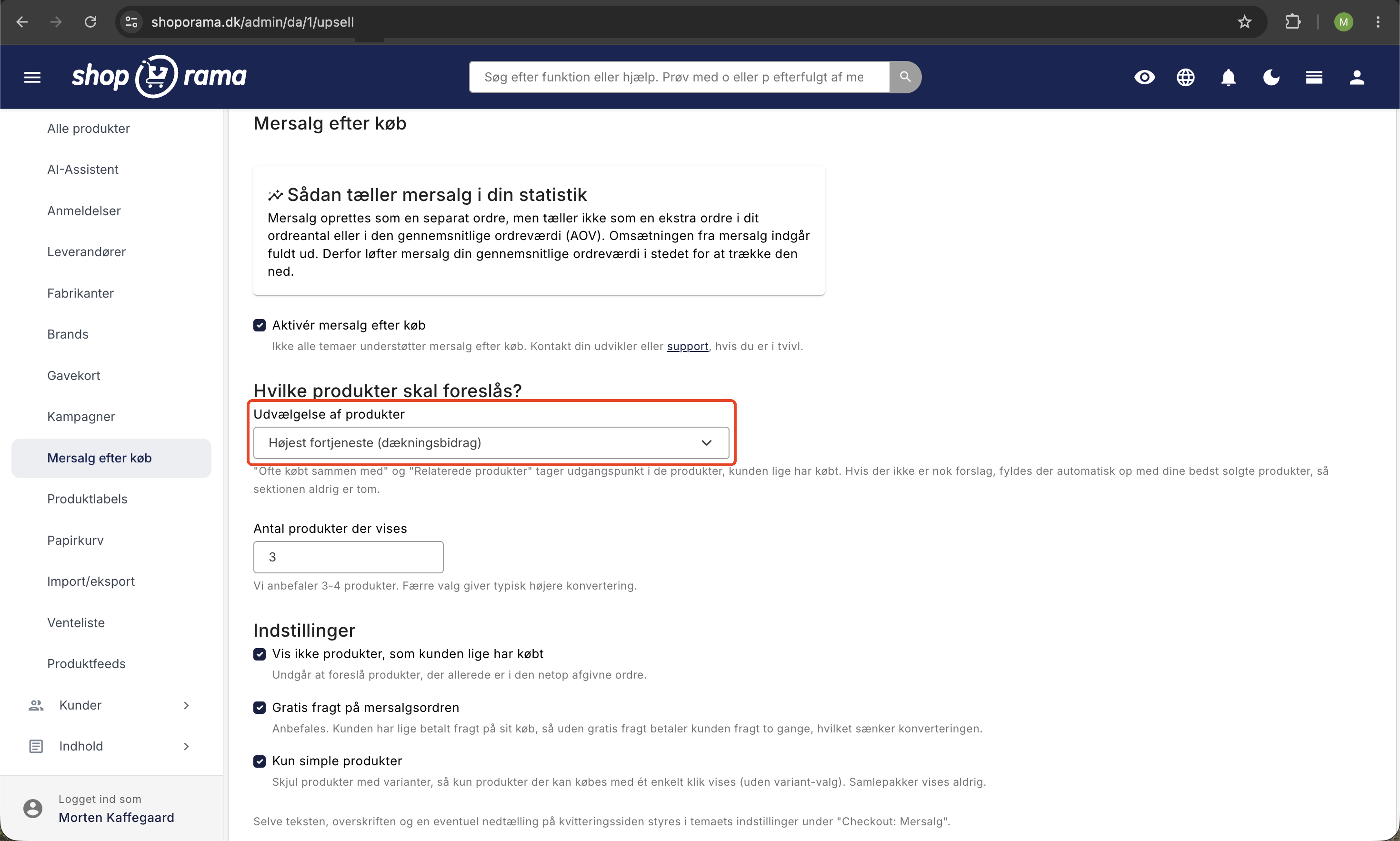
- Select which products to suggest under “Product Selection.” Choose one source (see the next section).
- Choose how many products to display. The default is 3, and we recommend 3 to 4. Fewer options typically result in higher conversion rates.
- Review the three settings further down (free shipping, simple products only, and hide recently purchased products).
- Click Save.
Once the feature is set up, it runs completely on its own. You don’t need to do anything for each order. The actual text and any countdown on the receipt page are controlled in the theme settings, which we’ll cover further down.
Choose the Right Products
You select a single source for the products to be suggested. Here are the seven options and when they make the most sense:
- Frequently Bought Together (Recommended): Based on the products the customer just purchased, this feature suggests items that other customers have often bought together with them. It feels relevant to the customer and typically converts well.
- Related products: Suggests the products you’ve manually linked as related to the purchased items. Good if you’ve already done the work of linking products together.
- Best Sellers: Displays your most popular products. A safe choice, because these are items you know sell well.
- Highest Profit (Contribution Margin): Displays the products where you earn the most per sale. Contribution margin is the difference between the selling price and your cost price—in other words, what you have left to cover your other costs and your profit. Choose this source if you want to give an extra push to the items that provide you with the best earnings.
- From specific categories: Suggests products from the categories you select. Useful if, for example, you always want to upsell accessories or a specific product group.
- From specific landing pages: Suggests products from selected landing pages. Handy if you have themes or campaigns grouped on specific pages.
- Selected products: Here, you choose exactly which products to suggest using the product search. This gives you full control if you want to manage exactly what the customer sees.
If the selected source provides too few products to fill the section, Shoporama automatically fills it in with your best-selling products. That way, the section is never empty, and the customer always has relevant options to choose from.
Settings
Under the product selection, you’ll find three settings that let you fine-tune the experience:
- Do not show products the customer has just purchased (enabled by default): Ensures you don’t suggest anything the customer already has in their order. This makes the experience seem more thoughtful and avoids frustration.
- Free shipping on the add-on order (enabled by default, recommended): The customer has just paid for shipping on their purchase. By offering free shipping on the add-on order, you prevent the customer from having to pay for shipping twice, which would otherwise reduce their desire to add something. We strongly recommend leaving this option enabled.
- Simple products only: Hides products with variants so that only products that can be purchased with a single click—without selecting a size or color—are displayed. Bundles are never displayed in upsells, regardless of whether this option is enabled.
Heading, intro, and countdown (theme settings)
What the customer sees on the receipt page is controlled in your theme’s settings under Checkout: Upsells. This applies to the built-in themes Montana, Delaware, and DelawareDK. Here you can customize:
- Heading: The text that appears above the suggested products, e.g., “Did you forget something?”.
- Intro text: A short text below the heading. When free shipping is enabled, the text automatically mentions that items added here qualify for free shipping.
- Show Countdown: Turns a small countdown on or off. A countdown can create a friendly sense that the offer is valid right now.
- Countdown in minutes: How many minutes the countdown runs for.
- Countdown text: The text displayed alongside the countdown. Use the placeholder {time} where the remaining time should appear, e.g., “Add within {time} to include it in your order.”
The countdown is tied to the time the customer places their order. It therefore does not reset if the customer reloads the page or returns later. The clock continues to run so the customer cannot cheat their way into a new countdown by refreshing the page.
Here’s how it looks to the customer
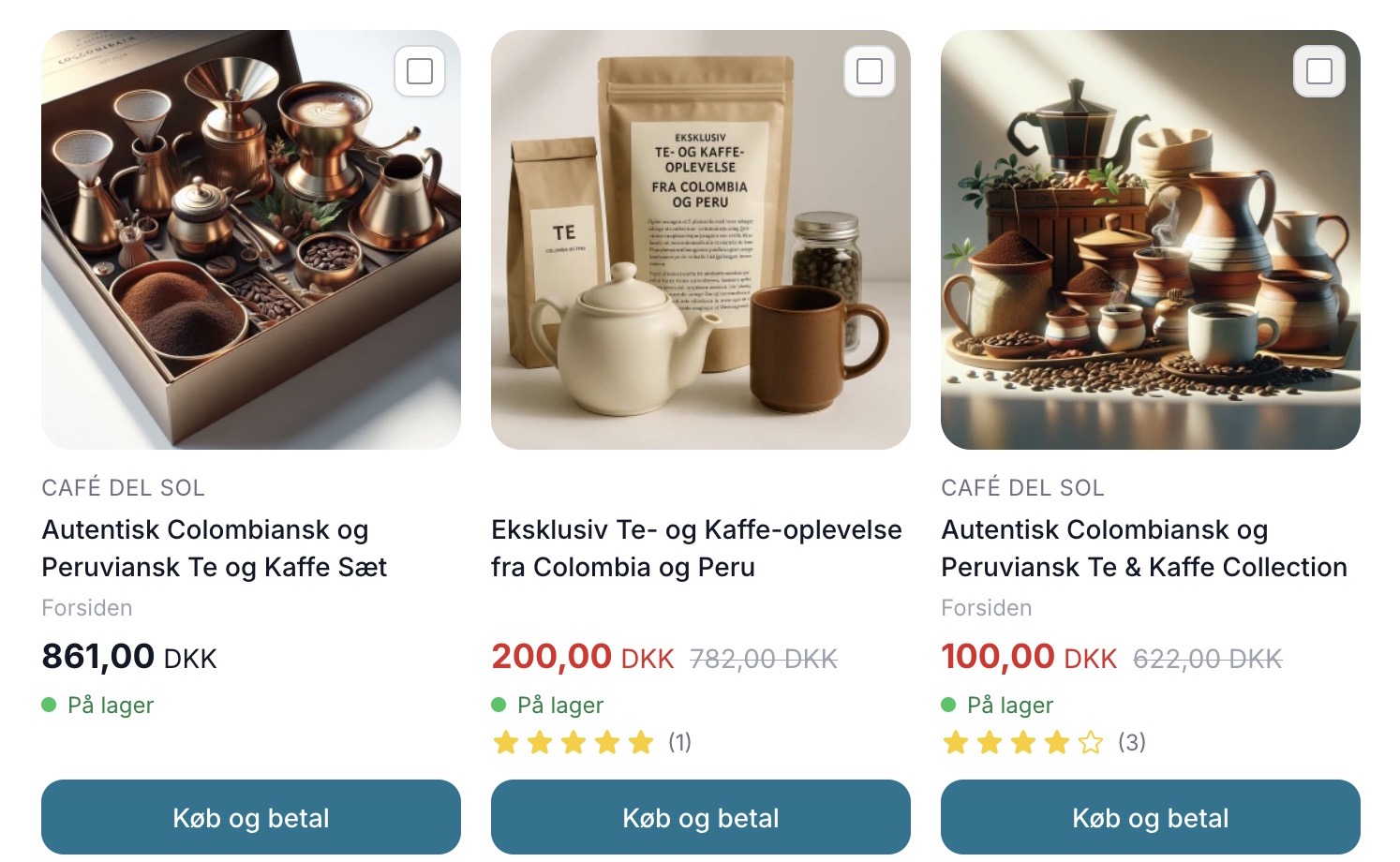
On the receipt page, right after the customer has completed their purchase, the suggested products appear. The experience adapts depending on whether there is one or more suggestions:
- One product: The customer clicks the “Buy and Pay” button, and a new order is created immediately.
- Multiple products: The customer checks the boxes next to the desired products and clicks “Buy and Pay Selected.” This combines the selected items into a single new order.
- Products with variants: If a suggested product is available in multiple variants (e.g., size or color), the customer selects the variant from a small menu directly next to the product before clicking. Bundles cannot be purchased with a single click and are therefore never suggested.
The new order automatically inherits the shipping address, shipping method, and payment method from the purchase just completed. The customer is taken directly to checkout and does not need to re-enter their address or select a shipping method. Next to each upsell button, there is a small required field where the customer must accept your terms and conditions before the purchase can be completed.
It’s important to know that no money is deducted automatically or secretly. The customer confirms the payment themselves through the same payment gateway, just as with a regular purchase. If the customer pays by invoice or another manual payment method, the order is completed immediately.
Separate Orders and Shipping
An upsell purchase becomes a completely separate, new order. It is therefore not an addition to the first order. This means that the customer receives their own order confirmation for the new purchase and has the standard right to cancel it, just as with any other order.
Since these are two separate orders, they will also appear as two orders in your system, and as a general rule, they must be packed and shipped separately. With free shipping enabled (standard), the customer does not pay for shipping twice. If you’re handling the shipping, you can, of course, choose to place the two orders in the same package if they were placed shortly after each other by the same customer to the same address. This is a manual decision made in the warehouse and does not affect the orders themselves in the system.
Upsells in Your Statistics
Even though an upsell purchase is created as a separate order, it does not count as an additional order in your order count or in your average order value (AOV). However, the revenue from the upsell is fully included. Therefore, upsells raise your average order value rather than lowering it, and your order count continues to reflect the number of customers who have made a purchase.
This applies to both the dashboard overview and the statistics pages, such as order count, average order value, conversion rate, and your top customers. Revenue, product sales, and inventory figures, on the other hand, include upsells as the actual sales they represent.
Frequently Asked Questions
Does add-on sales lower my average order value because it’s a new order?
No. Even though the add-on sale is created as a separate order, it does not count as an additional order in the order count or in the average order value (AOV). The revenue is fully included, so upsells actually increase your average order value rather than lowering it.
Will I then have two packages to ship if the customer adds something later?
Yes, an upsell purchase becomes a new, separate order, so you’ll have two orders in the system that are typically packed separately. If it’s the same customer at the same address, you can choose to pack the items into the same package in the warehouse. It’s entirely up to you and doesn’t affect the orders in the system.
Won’t the customer be confused about having to pay again?
No, it’s a clear and voluntary action. The customer sees some suggested products, actively chooses to add something, and clicks “Buy and Pay.” The button clearly indicates that a new purchase is being created. The customer doesn’t have to re-enter their address or shipping information, so it feels like a quick and convenient extra option, not like an error in the first purchase.
Does the customer pay for shipping twice?
No, not when “Free shipping on add-on orders” is enabled, which is the default setting. The customer has already paid for shipping on their original purchase, and with free shipping on the add-on order, you avoid double shipping charges. We recommend leaving this setting enabled, as having to pay shipping twice typically causes the customer to abandon the add-on purchase.
Which product source converts best?
"Frequently bought together with" is our recommendation because the suggestions are based on what the customer has just purchased and therefore feel relevant. If you’d rather boost your revenue, you can choose “Highest Profit (Contribution Margin).” It makes the most sense to test one source at a time and see what works best for your specific store.
How many products should I show?
The default is 3, and we recommend 3 to 4. Too many options make it harder for the customer to decide, and many will simply scroll past them. It’s better to have a few well-chosen suggestions than a long list. Feel free to test with your own numbers, but start with 3.
How do the two orders appear in the accounting records?
The upsell order is posted as a standard, standalone order with its own order confirmation, and sales tax is calculated exactly as it would be for a regular sale. The fact that shipping is free does not change how sales tax is handled for the items themselves. If the customer cancels the upsell purchase, it is treated as a separate order with the standard right of cancellation.
How does the customer choose size or color?
If a suggested product is available in multiple variants, the customer selects the variant from a small menu directly next to the product on the checkout page before clicking “Buy and Pay.” If you want to keep it simple, you can enable “Simple Products Only” so that only products that can be purchased with a single click—without selecting a variant—are displayed.
Does the countdown reset if the customer reloads the page?
No. The countdown is tied to the time the customer placed their order, so the timer continues to run even if the customer refreshes the page or returns later. This means the customer cannot start a new countdown by refreshing the page.
Does the post-purchase upsell feature work in my theme?
This feature works in the built-in themes Montana, Delaware, and DelawareDK, where you can also customize the headline, intro text, and countdown under the theme setting “Checkout: Upselling.” If you’re using a custom-developed theme, it must be customized to support this feature. If you have any questions, please contact your developer or email us at support@shoporama.dk.
Related articles
Bought Together: Find Products That Sell Better When Sold Side by Side
The "Bought Together" statistics page shows which products are most often ordered together. Use this data to add related products, remove them, and...
Reverse related products
Understand the difference between related and unrelated products and how to set them up.
Bundles (Bundles)
Learn how to create bundles in Shoporama so you can sell multiple products as one package with automatic inventory tracking.
Product Profiles and Variants
Guide to product profiles and variants in Shoporama. Understand how profiles, attributes and variants are related.
ABC analysis: Find out which products make you money
Learn how to use ABC analysis to prioritize your assortment, optimize your inventory and focus on the products that actually drive your business.
Free shipping over a certain amount
How to set up free shipping above a certain amount in Shoporama. The amount limit is set per country under Store, Shipping, Countries, and applies...
Send product recommendation emails manually
Shoporama does not have a dedicated 'Send product recommendation email' button. Learn what's actually in the platform and how to send targeted...
Related features
Upselling after purchase
Display product recommendations on the receipt page and let customers continue shopping with a single click. Higher order amounts, no need to...
Upselling step
Upselling offers customers upgrades and accessories to increase order value. Learn about types, placement and best practices for upselling steps in...
Sælg mere med Mersalg efter køb
Display suggested products on the receipt page that customers can add with a single click. Shoporama's built-in post-purchase upsell feature. No...
AOV - Average Order Value
AOV is the average order value of your online store. Learn what AOV is, why it's important and concrete strategies to increase your average order...
Add-ons
Add-ons are accessories that customers can add to their cart with a single checkmark directly on the product page. See how add-ons work in...
Add-ons on the product page can now have variants
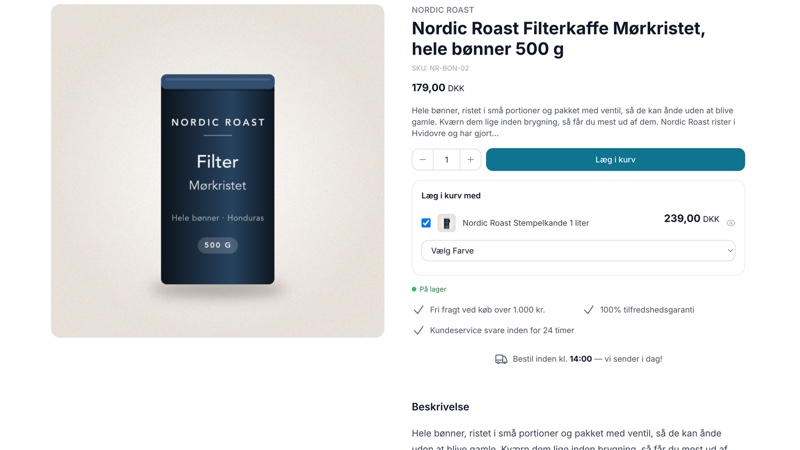
Now, add-ons on the product page can have variants. The customer selects a color or size in the "Add to Cart" box, and the item is included in the...
Point of Sale, Email, and Integrations in Delaware
All fields in Delaware's theme settings for the checkout, emails, terms of service, integrations, and error pages explained with tags, examples,...
Theme Settings in Montana: An Explanation of All Fields
All groups and fields in Montana's theme settings explained with screenshots: colors, top bar, USPs, product page, checkout, and integrations.