Translate your online store into other languages
How to translate your online store when selling in multiple countries: automatic translation, status by language, corrections, addresses in the local language, and CSV import and export.
If you sell in other countries using Lande, your customers need to be able to read your online store in their own language. This applies to products and categories, as well as menus, checkout buttons, shipping methods, emails, and terms and conditions. Shoporama translates everything automatically, and under Web Store → Translations, you can see how far along the translation is, edit anything you’d like to rephrase, and send texts to a translation agency as a CSV file.
In short: Let the automatic translation do the heavy lifting. It’s included for up to 2,000,000 characters per language per month and never touches anything you’ve written yourself. Use Translations to review and edit your most important texts, such as your best-selling products, the homepage, and the checkout page.
Where can you find “Translations”?
The Translations menu item is located under Web Store, right below Countries. It appears when at least one of your countries has a language other than the main country’s. This also applies to a country you haven’t activated yet, so you can have the store translated and review it before customers can shop there. If your countries share the same language as the main country—for example, if you’re only selling in a different currency—there’s nothing to translate, and the menu item won’t appear.
Translations are saved by language, not by country. If you sell in both Germany and Austria in German, you only need to translate once, and both countries will use the same texts.
Overview: How far along are you?
At the top of the page, there’s a card for each language showing a percentage and, for example, “944 of 2,603 translated · 1,658 missing · 1 outdated.” Below the cards, everything that can be translated is listed in a single table with one row per type and one column per language. The types are divided into six areas:
- Catalog: Products, Categories, Landing Pages, Product Labels, Campaigns, and Filters.
- Profiles: Profiles, Attributes, Values, and Shared Values, e.g., colors and sizes.
- Content: Pages, Blog Posts, Content Types, Content, Newsletter Pop-ups, and Page Builder.
- Navigation and Theme: Menu Names, Menus, Theme Texts, and Theme Settings.
- Checkout: Shipping Methods, Payment Methods, Customer Fields, Delivery Countries, Security Deposits, and Warehouse Locations.
- The Store: Store text, such as the store description, terms of service, and the blog’s title and description.
A progress bar shows how much of each type has been translated into each language. A checkmark means everything is translated, and a yellow marker indicates how many entries are outdated. Click on a row to open the section. Next to the title, you’ll see whether automatic translation is enabled; clicking there takes you to the setting under Web Store → Countries.
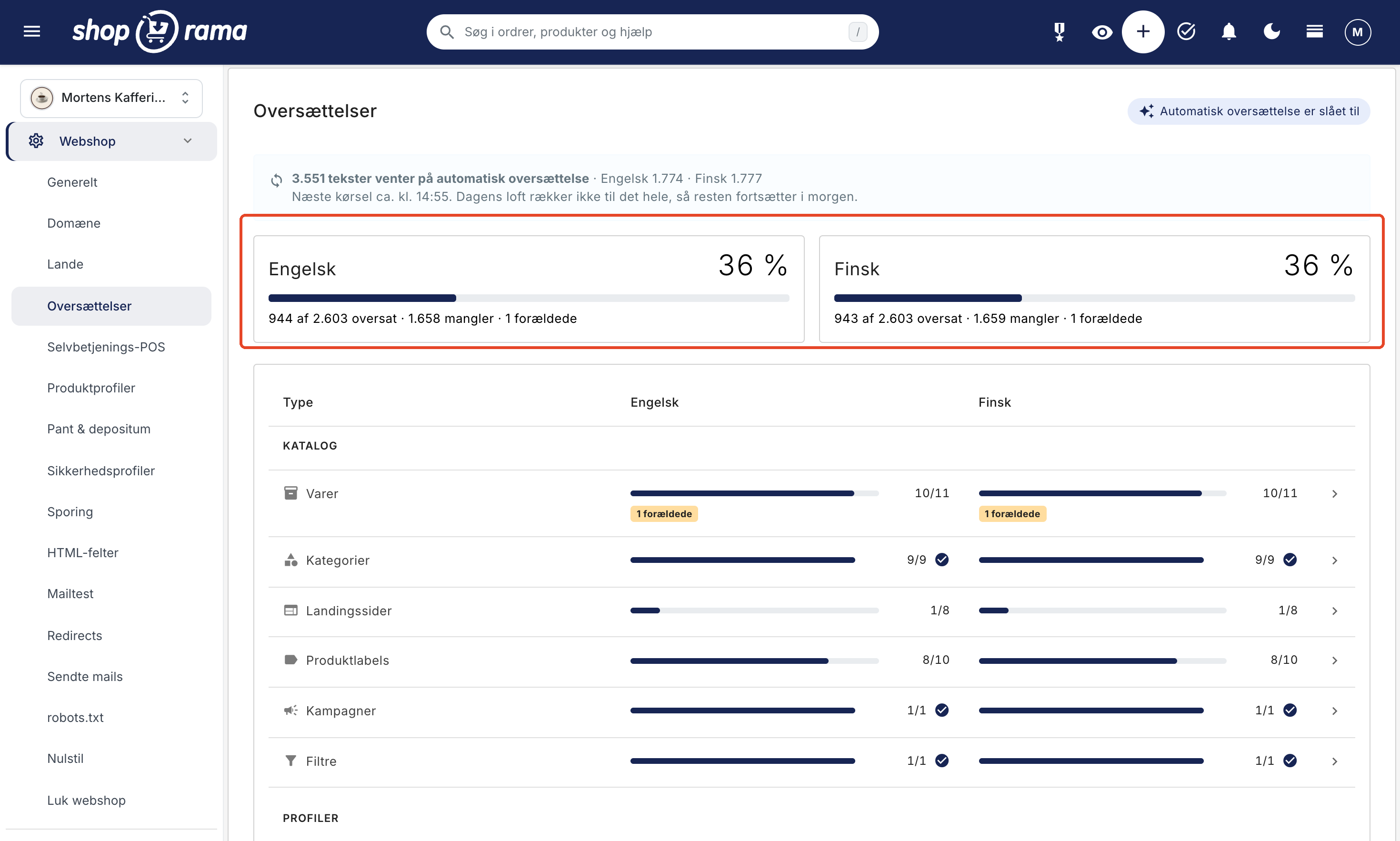
The numbers in the overview are cached for up to 15 minutes, so the page loads quickly. If you save a translation, the numbers are updated immediately. If you change a Danish text elsewhere in the admin panel, it may take up to 15 minutes for the overview to reflect the change.
Missing, Outdated, and Translated
- Missing: At least one text has no translation. Customers see the Danish text until it is translated.
- Out of date: The Danish text has been changed since it was translated. Customers will still see the old translation until it is updated.
- Translated: All texts have been translated and match the Danish text.
Fields without Danish text and fields that contain only a number—such as size 42—do not count. There is nothing to translate in them.
Find what’s missing
When you click on a category, such as Products, you’ll see a list with the Danish text and one column per language. At the top, you can:
- search the Danish texts in the “Search in Danish Texts” field
- display All, only items that are Missing a translation, only items that are Outdated, or only items that are Translated
- limit the filter to a single language when you have more than one language. By default, it is set to “All languages”
- select how many items to display per page
The “Missing Translation” filter shows everything that is missing in at least one language, and “Translated” shows what has been translated into all languages. If you have three languages or fewer, they appear side by side. If you have more, they appear one below the other.
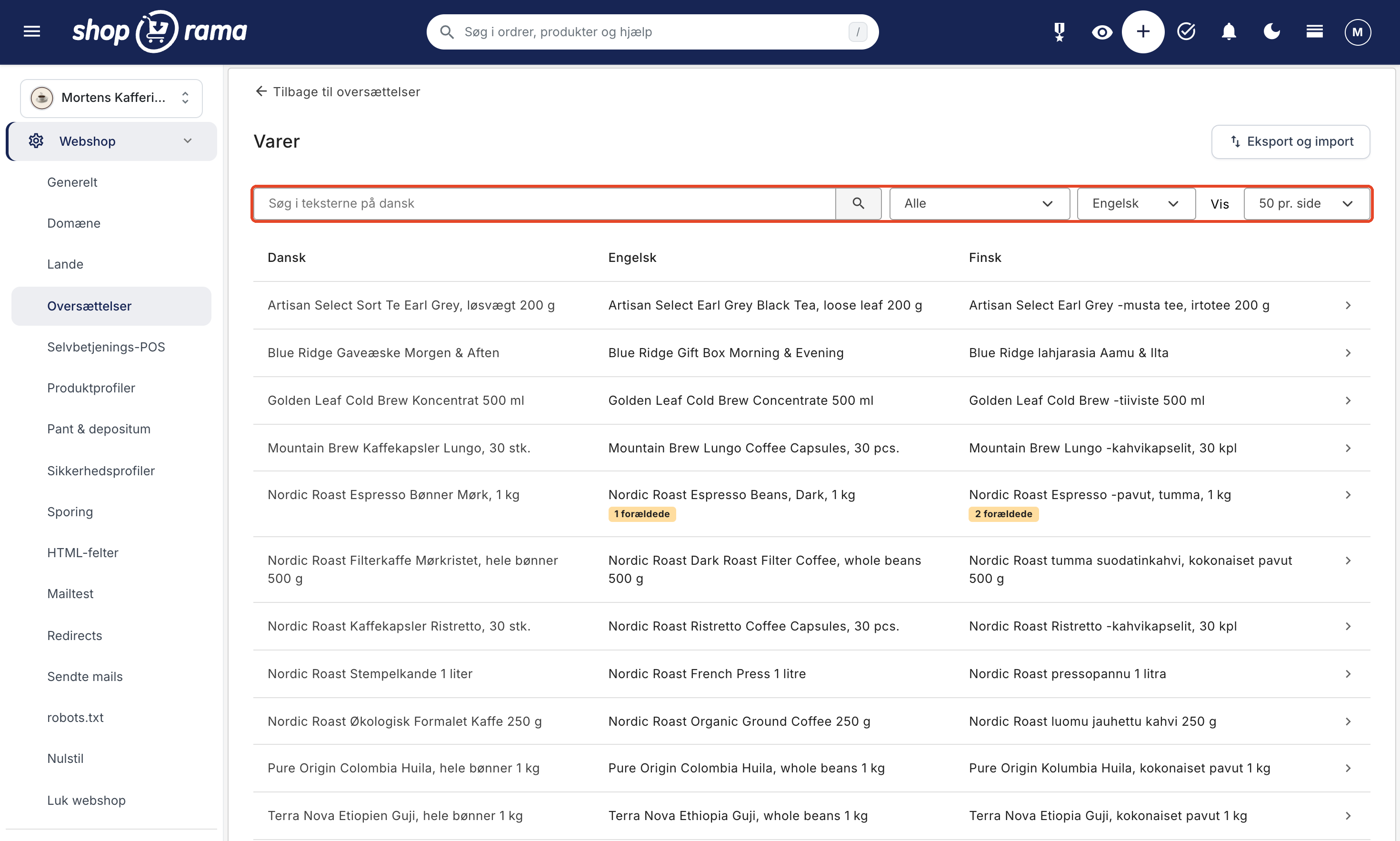
Short texts—such as shipping method names, menu items, product labels, and theme texts—can be edited directly in the list and saved using “Save and Close ” or “Save and Continue Editing.” Larger items, such as products, categories, pages, and blog posts, open on their own page when you click on the row.
Translate a product, a category, or a page
On a product page, the Danish text appears on the left and one field per language on the right, field by field. For a product, these include, for example, Name, Address, Listing Description, Description, Delivery Time, the fields for Google and social media, Google Shopping Title, Keywords for internal search, and image captions. If a long Danish text has been abbreviated, you can expand it by clicking “Show All.”
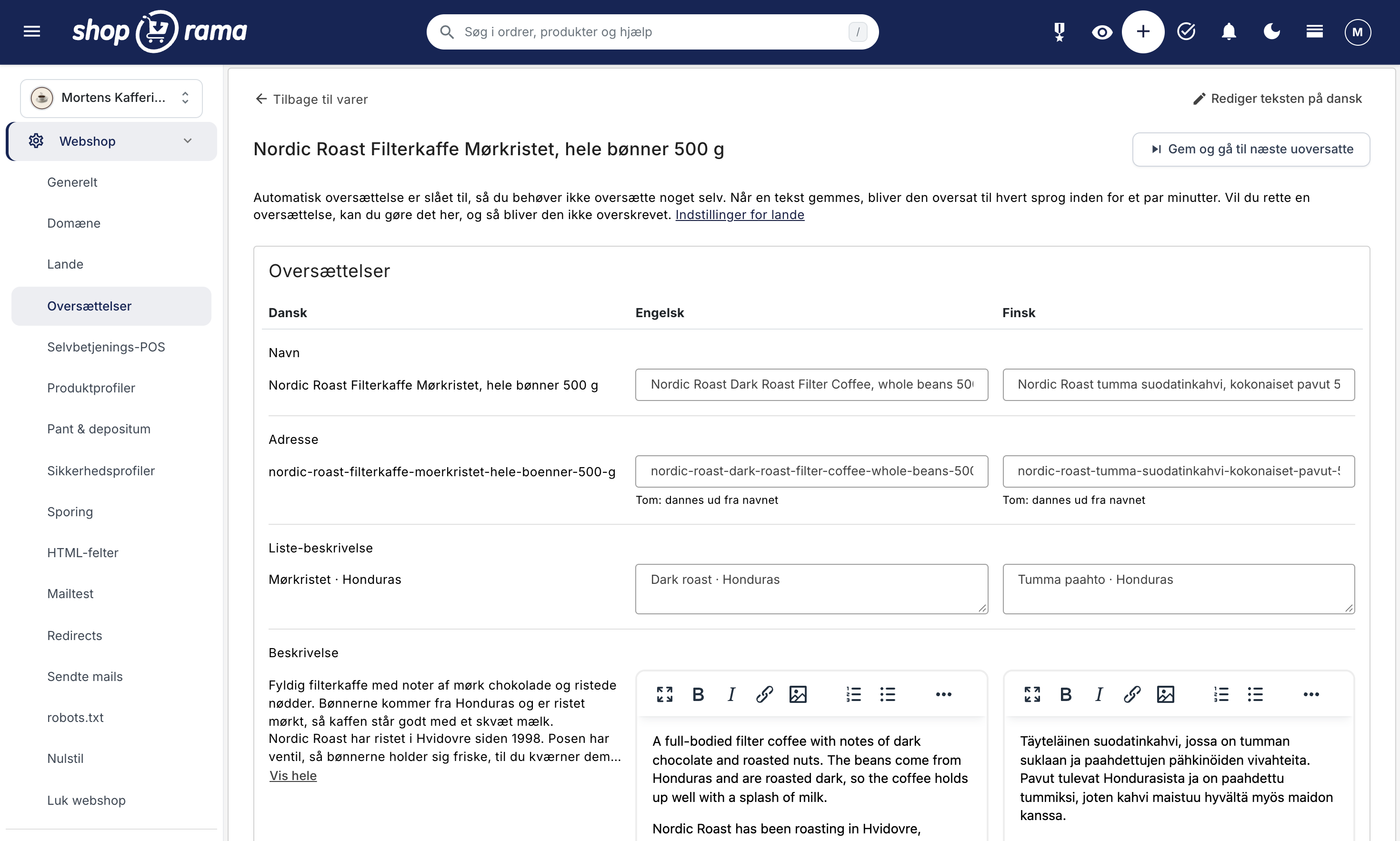
If the Danish text has been changed since the field was translated, “Danish changed ” will appear next to the field. Click “See what’s changed” to view the text before and after the change. Correct the translation, or check the “Still accurate” box if the translation is still correct—for example, if only a spelling error in Danish was corrected.
You can save using one of three buttons:
- "Save and Close " saves and returns you to the list.
- "Save and continue editing " saves and keeps you on the page.
- "Save and Go to Next Untranslated " saves and opens the next item of the same type that is missing a translation or is outdated in one of the languages. When there are no more, you’ll return to the list with the message “There are no more texts missing a translation or that are out of date.”
If you clear a field and save, the translation is deleted, and customers will see the Danish text again. The “Edit the text in Danish” link in the top right opens the product’s, category’s, or page’s own page if you’d rather edit the Danish text there. If there are a large number of texts on a single page—for example, in the theme settings—the page is divided into sections, which you save individually.
You can also access the translation directly from the product, category, landing page, page, blog post, filter, menu, content type, content, newsletter pop-up, or theme settings. At the top of each of these, you’ll see the “Translations” link, and a yellow number indicates how many languages are missing content or have outdated content. If a country uses a different currency, the product page under “Translations” also includes a “Prices” tab where you can set a fixed price for the product in that country’s currency. You can read more about this in “Sell in Multiple Countries with Countries.”
URLs in the Local Language
Products, categories, landing pages, pages, and blog posts get their own URL in the local language, e.g., /en/dark-roast-filter-coffee instead of /en/filterkaffe-moerkristet. This is good for customers and for Google. If you leave the “Address” field blank, the URL will be generated based on the translated name when you save. The automatic translation works the same way: it translates the name and creates the URL based on that.
Two things happen automatically:
- No duplicates. If the address is already in use in that language, a number is added to the end, e.g., -2.
- Old links still work. If you change a translated address, visitors coming from the old address are redirected to the new one. If a customer opens the page with the Danish address within the country, they’re also redirected to the translated version.
Automatic Translation
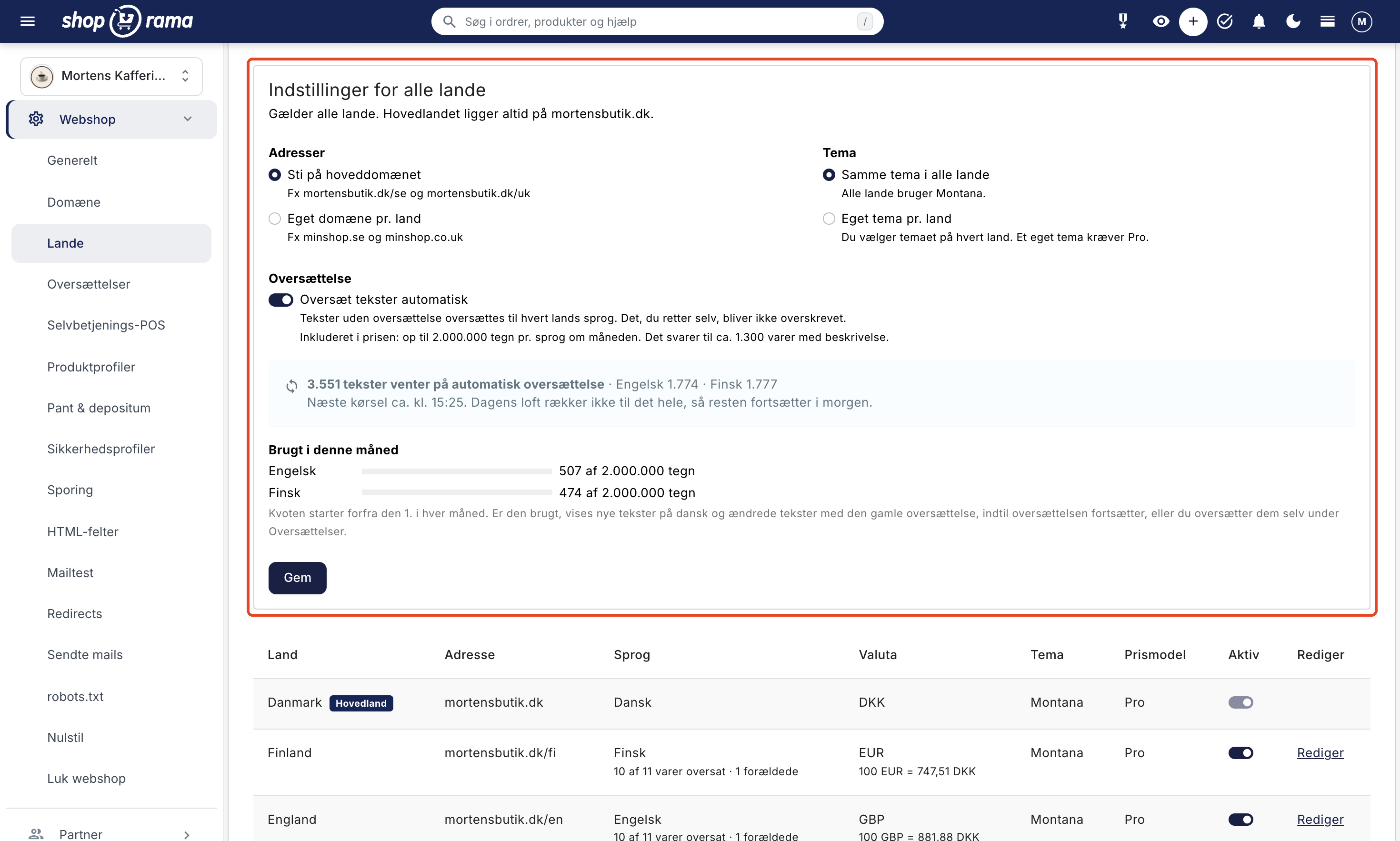
Automatic translation is enabled by default. You’ll find the “Automatically translate texts” setting in the “Settings for all countries” tab under Webshop → Countries. It applies to all countries because the translations are tied to the language, not the country.
What gets translated?
Everything you can see under “Translations” that is missing a translation or is out of date. The content customers see most often is prioritized first: the theme’s text, menus, theme settings, categories, and products, followed by the rest. Addresses aren’t translated word for word but are generated based on the translated name. Placeholders like {x} remain in place so that order numbers and names still appear correctly.
Text you’ve written yourself is never overwritten. This applies to text you’ve saved under “Translations,” text you’ve imported from a CSV file, and text that Claude has written for you. The automatic translations, on the other hand, are updated when you change the Danish text. Numbers, empty fields, and very long texts exceeding 30,000 characters are skipped.
When does this happen?
The translation runs every five minutes. If you create or edit a product, it’s typically translated within a few minutes after you save it. The first time you add a country, there’s a lot to translate, and there’s a limit on how much can be translated per day. A large store will therefore take a few days to complete. In the meantime, customers will see the Danish text where the translation is missing.
At the top of the Translations page and under Web Store → Countries, you can keep track:
- When there’s something in the queue, it will say, for example, “3,551 texts are waiting for automatic translation,” along with the number per language, when the next run is scheduled, and when it’s expected to be finished. If today’s quota isn’t enough, it will say, “Today’s quota isn’t enough for everything, so the rest will continue tomorrow.”
- When everything has been translated, it says “Everything has been translated” and when the translation last ran.
2,000,000 characters per language per month
Automatic translation is included in the price for your countries, up to 2,000,000 characters per language per month. This corresponds to approximately 1,300 products with descriptions. The quota resets on the 1st of each month, and you can view usage per language under "Used this month" in Webshop → Countries.
If the quota for a language is used up, translation for that language will pause for the rest of the month. There is no extra charge. In the meantime, new texts will appear in Danish, and texts you’ve edited will retain the old translation. You’ll receive a message under “Notifications” (the clock at the top of the admin panel), and under “Translations” and “Countries,” you’ll see when translation will resume. If you don’t want to wait, you can translate the most important texts yourself or import a CSV file.
Turn off automatic translation
If you’d rather translate everything yourself or through an agency, turn off “Translate texts automatically” and click Save. The translations that have already been done will remain. New and edited texts won’t be translated until you do it yourself.
Export and Import as CSV
If a translation agency or a colleague needs to review the texts, you can download them as a CSV file and reimport them afterward. This is done by type and by language:
- Open the type under Webshop → Translations, e.g., Products, and click Export and Import.
- Under Export, select Language, and under Texts, choose whether you want All texts, Missing or Outdated, only Missing, or only Outdated. Click Download CSV.
- Edit only the “Translation” column. The file contains the columns “Type,” “ID,” “Field,” “Danish,” and “Translation.”
- Open Export and Import again, select the same Language under Import, select the file under CSV File, and click Import.
The file is saved as UTF-8, so Excel displays æ, ø, and å correctly, and the import process automatically determines whether the file uses semicolons, commas, or tabs between columns. After the import, you can see how many translations have been saved, how many rows have been skipped, and why:
- If the Danish text has changed since the export, the row is skipped so that an old translation doesn’t end up next to new text.
- Rows without a translation are skipped. An empty cell does not delete a translation.
- Texts that have been deleted since the export and rows from a different type are also skipped.
Imported texts are considered to have been written by a person, so the automatic translation does not overwrite them. A file may be no larger than 20 MB and contain no more than 100,000 rows. If it is larger, split it into multiple files. Exporting requires the “Data Export” option, and importing requires the “Deletion and Bulk Import” option. Read more in Roles and Permissions.
Theme Texts
Theme texts include the buttons, checkout box, shopping cart, customer account, error messages, and emails. You’ll find them under Navigation and Theme → Theme Texts in Translations. The Danish text is what you see under Design → Texts: your own customized text if you’ve edited it, or the theme’s default text otherwise. If you edit a text under Design → Texts, the translations of that text will become outdated and will be translated again if automatic translation is enabled. Instructions on how to customize the Danish texts can be found in “Translate and Customize Texts in Your Webshop.”
Normally, a text only appears on the list after a customer has viewed it in the store. If you have multiple countries, Shoporama also scans the theme’s files when you activate a country, when you open Translations, and when automatic translation is running. This means that rare texts—such as those in an email about a return—can be translated before the first customer in that country sees them.
A translation of the theme’s texts may only use the HTML tags present in the Danish text, such as bold text or a link. Any other code is removed when you save. Text that appears directly in the theme’s files instead of in translatable text cannot be translated and will be displayed in Danish in all countries. Webshop → Countries will warn you if your theme isn’t ready for countries or if the theme hasn’t specified this. If you have your own theme, your developer can read more in “Make Your Theme Ready for Countries.”
What do customers see before a text is translated?
If a translation is missing, the Danish text is displayed. This happens field by field, so a product with a translated name but no translated description will show the name in the local language and the description in Danish. This means customers will never see an empty field, but rather a mix of languages until the translation is complete.
For Google, a page should ideally not appear in Danish under the country’s URL, because then you’ll have the same text in two places. That’s why Shoporama does three things with a product, category, landing page, page, or blog post that doesn’t yet have a URL in the country’s language:
- The page is marked as “noindex” in that country, so Google doesn’t display it there. Google can still follow the links on the page.
- The page is not included in the country’s sitemap.
- The page is not included in the page’s hreflang references to the other languages.
A product without a description in the local language is also excluded from the country’s product feeds to Google Shopping, PriceRunner, Kelkoo, and Partner Ads, so that the ads do not display Danish text. You can submit the country’s feed even before everything is translated, as the products will be included as they are translated. The main country’s feeds are not affected by this.
As soon as a page has an address in the country’s language—for example, because the name has been translated—it will automatically appear everywhere, including in the country’s feeds. Pages without their own URL, such as the homepage and the search page, are always considered translated. Read more about how Shoporama notifies Google of your language versions in Hreflang and Multilingual Web Stores.
When you save a translation, the store’s cached pages are cleared so that customers see the correction immediately.
Frequently Asked Questions
Do I have to translate all my products myself?
No. Automatic translation is enabled by default and translates products, categories, menus, theme texts, and everything else on its own. You only need to go to Translations if you want to review the translations or rephrase something. Start with your best-selling products, the homepage, and the checkout page.
I’ve corrected an automatic translation. Will it be overwritten again?
No. What you save is considered to have been written by a person, and the automatic translation will never alter it. If you later change the Danish text, your translation will be marked as outdated with “Danish changed.” Then you can correct it yourself or check the “Still accurate” box.
We have 8,000 products. How long will this take, and is 2,000,000 characters enough?
2,000,000 characters per language corresponds to approximately 1,300 products with descriptions, so a large store won’t be finished in the first month. There’s also a daily limit, so the first translation will be spread out over several days, and the rest will continue when the quota resets on the 1st. The items customers view most often will be translated first. If you want to finish faster, you can export the remaining products and have an agency translate them.
Does the automatic translation cost extra?
No. Up to 2,000,000 characters per language per month are included in the price for your countries, and there will be no extra line item on the invoice. Once the quota is used up, translation pauses until the 1st of the next month.
We sell in both Germany and Austria. Do the texts need to be translated twice?
No. The translations are language-specific, so both countries use the same German texts, and the 2,000,000-character quota applies to German. Prices, currencies, and shipping costs may still vary between the two countries.
Why does it say “out of date” next to a product I haven’t touched?
This means the Danish text has been changed—for example, on the product page itself using “Find and Replace,” or during an import. If the translation is automatic, it will be updated within a few minutes. If a person wrote it, it must be corrected or approved by clicking “Still Correct.” Customers will see the old translation until that happens.
Is there anything that isn’t translated?
Yes. On products, “Extra Fields,” “HTML Fields,” and the fields in the “Theme Settings” tab are not translated. If your theme displays them, customers will see them in Danish. The same applies to text that appears directly within a custom theme rather than in translatable text fields.
What happens to the translations if I remove a country?
They remain because they are associated with the language, not the country. If you add the country back or add another country with the same language, the texts will still be there. As long as another one of your countries has that language, you can still view and edit them under “Translations.”
I can’t find “Translations” in the menu. Why?
The menu item only appears when at least one of your countries has a language other than the main country’s. Check the country’s language under Webshop → Countries. Your role must also grant access to Content, which is the case for Full Access, Employee, Marketing, and Developer.
Can I ask Claude to translate or edit the texts?
Yes. If you’ve connected Claude to the store, Claude can read the texts and their status and write translations in the same way you do under “Translations.” What Claude writes is considered to have been written by a person, so the automatic translation won’t overwrite it. Read more in Manage Your Store with AI.
Do you need help with the translations? Contact us at support@shoporama.dk.
Related articles
Prepare your theme for multiple languages and countries
Step-by-Step Guide for Developers: How to Make Your Own Shoporama Theme Work with Countries, Including Translated Texts, the Country's Currency and...
Hreflang and Multilingual Online Stores
How Shoporama sets `hreflang`, `x-default`, and `html lang` for your countries, what happens to untranslated pages, and how to manage your own...
Countries and Currency: Delivery Countries, Sales Tax, and Shipping
Set up delivery countries under Delivery → Countries with VAT rates, VAT zones, shipping options, and free shipping, and see how they relate to...
Translate and customize texts in your webshop
Customize all text in your online store's theme—from buttons to checkout and emails—under Design → Text, and see how it aligns with the...
Roles and Permissions: Give Each User the Right Access
See what the seven roles and five optional features provide access to, which role is best suited for whom, and what only the company administrator...
Sell in multiple countries and in multiple languages
Here's how to sell in other countries in your customers' languages and currencies using "Countries": Add a country, set up the address, language,...
Set noindex on a page, product or category
Here's how to set "noindex" for products, categories, static pages, landing pages, and blog posts in Shoporama so they don't appear in Google...
Manage Your Store with AI: Get Started with Claude and MCP
Connect your Shoporama store to Claude using the connector library or via MCP, and have it create orders, discount codes, and storefronts. Learn...
Related features
Hreflang
Hreflang tells Google that a page is available in multiple languages, so the customer sees their own language in the search results. See how...
Countries: Sell in multiple countries from the same online store
Sell in multiple countries from the same online store, with your own language, currency, and prices for each country. Automatic translation of your...
Sell in multiple countries through the online store you already have
New on Shoporama: Sell in Sweden, Finland, or Germany using each country's language, currency, and prices. Translation is included in the price,...