Why sell tickets through your own online store?
If you’re hosting a beer tasting, a class, or a concert, it makes sense to list the tickets on a ticketing portal. It’s quick to get started, but the portal typically charges a fee per ticket sold, and the customer leaves your store to make the purchase. On the portal, the customer doesn’t see your other products, and the money and customer information are stored separately from the rest of your business.
If you already have an online store, you can sell the tickets there instead. Customers buy tickets right where they already shop with you, and can add a case of beer or a bag of coffee to the same cart. The order comes in just like your other orders, and you have dates, attendees, and payments all in one place.
How ticket sales work in Shoporama
You enable “Tickets” on a product profile, and the products in that profile become tickets. Each product gets its own dates—such as Friday tastings, class start times, or departure times—and each date has its own number of seats. Inventory isn’t used. Seats are counted directly from the tickets sold, and if you cancel an order, the seats become available again.
The profile’s variants are used for ticket types, such as Adult and Child or Standard and VIP, and each ticket type can have its own price. All ticket types share the seats available for that date. A date may also have a surcharge or discount per ticket, such as a higher price for a show during peak season, a sales cap, or a minimum number of attendees.
A ticket is a regular order in your store. The payment goes through your own payment solution, and there is no separate fee per ticket sold. Your subscription and the fees charged by your payment solution are the same as for everything else you sell.
Who is this for?
Ticket sales in Shoporama are designed for events on fixed dates with a limited number of seats. It’s suitable, for example, for these types of businesses:
Tastings
Beer, wine, gin, and coffee tastings in-store. With “Repeat…,” you can set up a whole series of dates at once—for example, every Friday for the rest of the year—and customers can add both the ticket and the bottles to the same cart.
Courses and workshops
Knitting classes, cooking classes, pottery, or lectures with a fixed number of seats per session. Ask for each participant’s name, and add fields such as allergies or company name if you need them.
Concerts and events
Each guest receives a ticket with a QR code, and at the entrance, you check guests in using your phone. Ticket types such as Standard and VIP allocate seats, so you never sell more tickets than there are seats available.
Travel and Retreats
Includes flight times, the name, and date of birth for each traveler, along with a deposit at the time of booking and automatic payment of the balance before departure. QR tickets can be disabled so that the customer receives a booking confirmation instead, and the participant list can be downloaded to Excel and forwarded to the hotel or tour operator.
How the customer buys a ticket
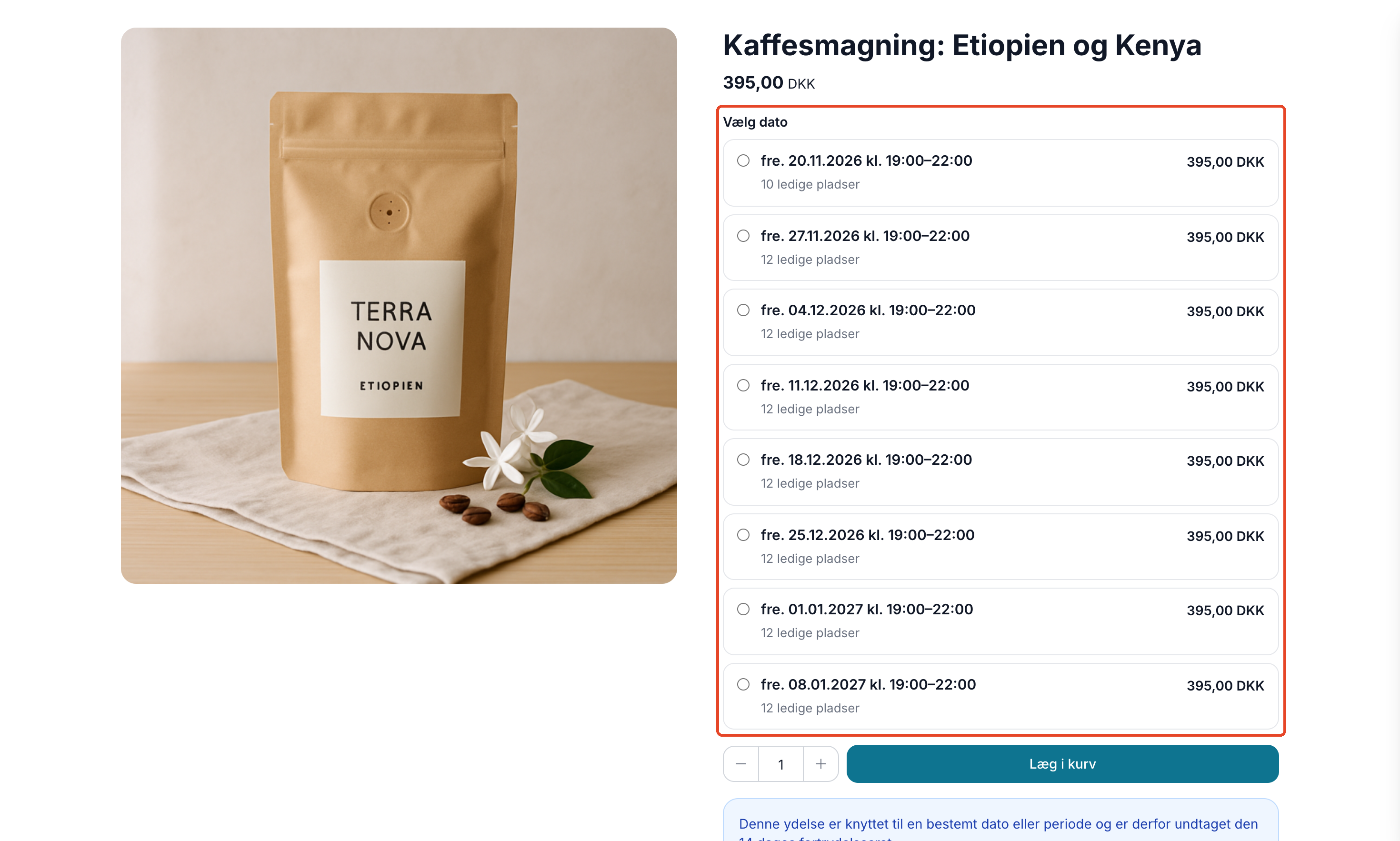
- The customer selects a date. The date picker displays the price and available seats for each date. Seat availability is refreshed in real time, so the customer sees the correct number. If a date is sold out, the customer can add their name to the waitlist by clicking “Add me to the waitlist.”
- The customer adds the tickets to the cart. Tickets and regular items can be placed in the same cart and combined into a single order.
- The customer enters the attendees’ information. At checkout, the customer fills in the name of each attendee, as well as their date of birth and any other fields you’ve requested.
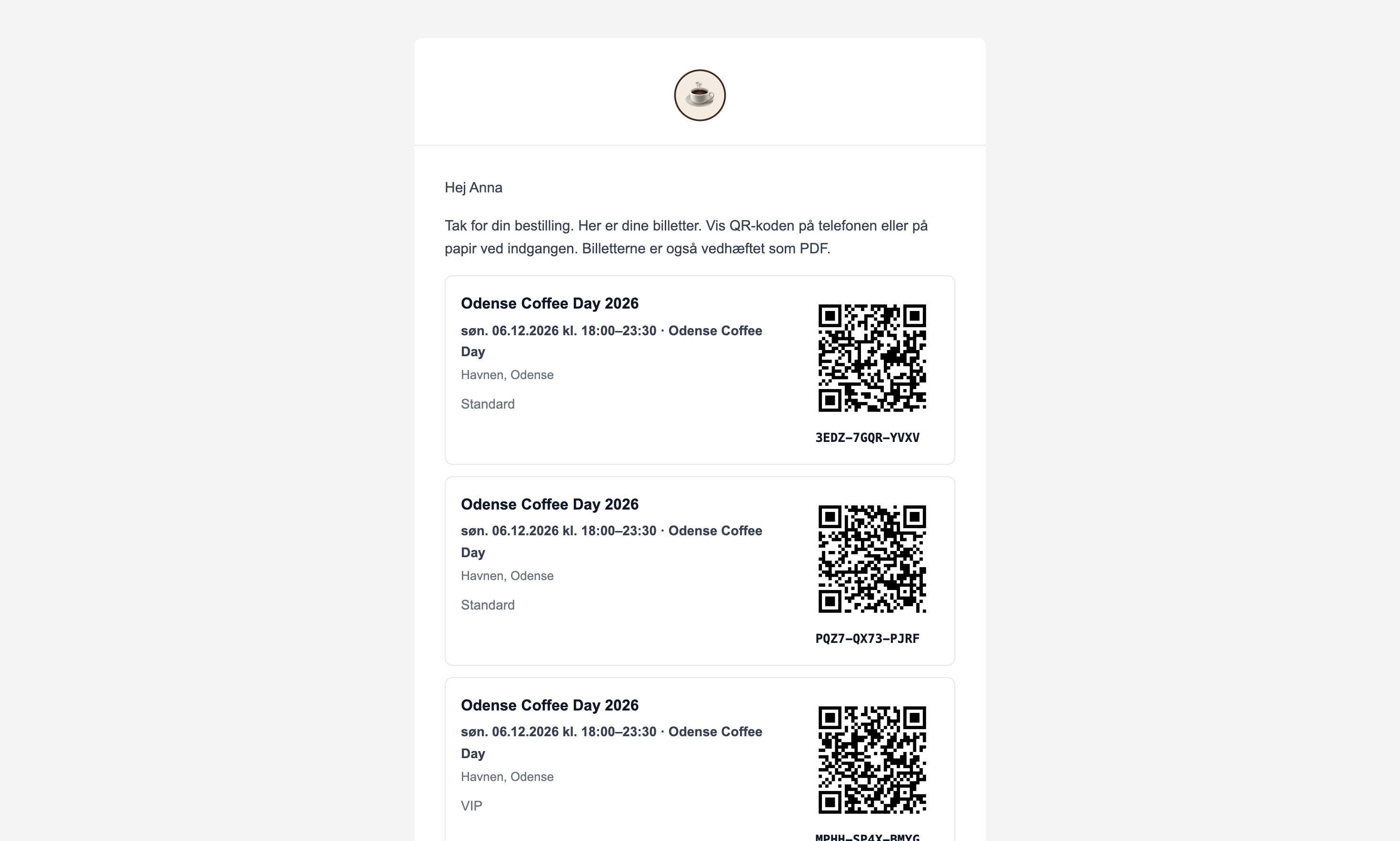
- The customer pays and receives the tickets. Once the order is paid for, the tickets are sent via email with a QR code for each ticket and as a mobile-friendly PDF that works even without an internet connection at the entrance. From the email, the customer can open their ticket page, edit the participants’ names until sales close, and add the date to their calendar. 48 hours before the event, the customer receives a reminder with the time and location.
Check-in at the door using a phone
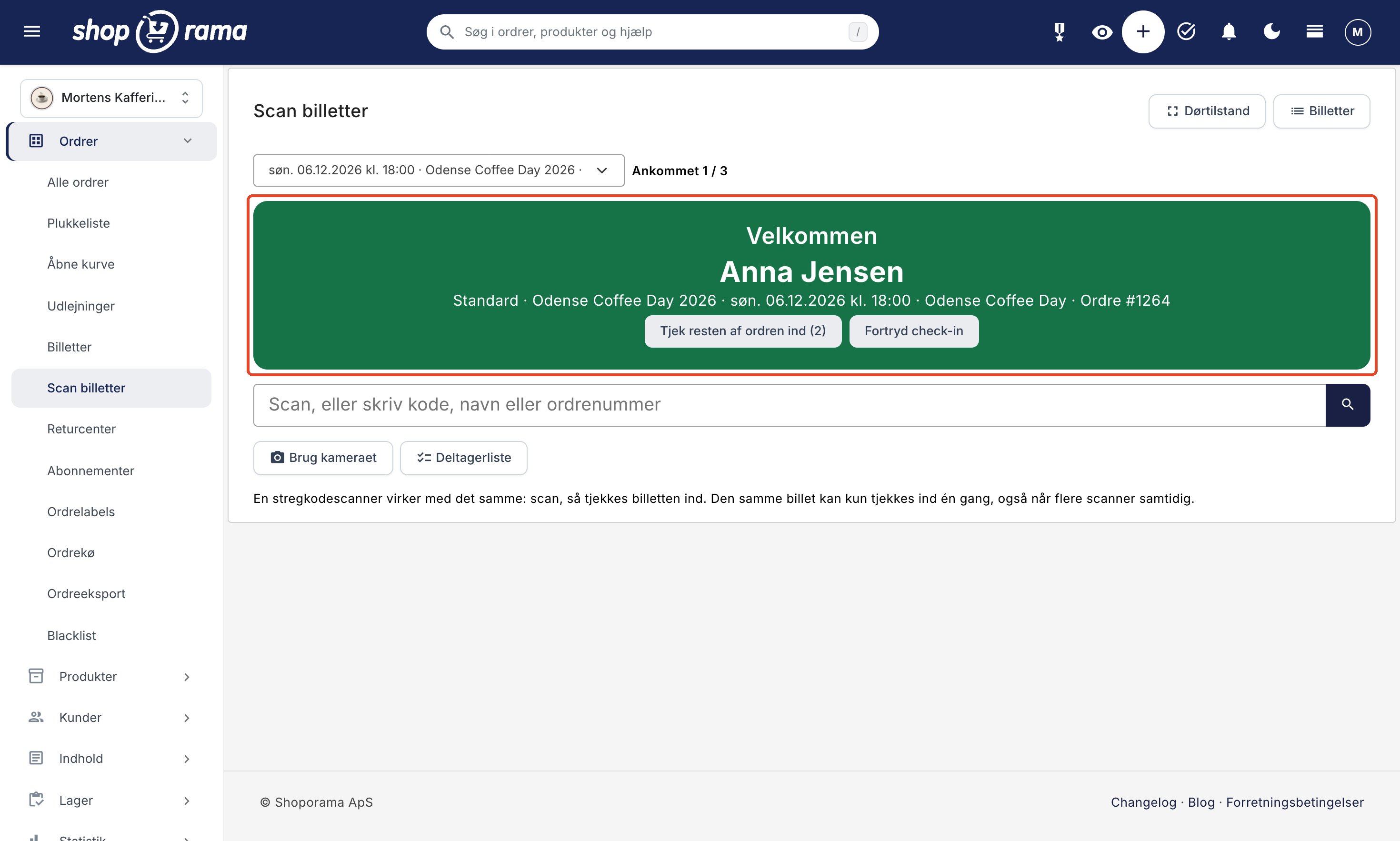
Under Orders → Scan Tickets, you can check guests in. You can scan the QR code with your phone’s camera, use a barcode scanner, or search by name or order number if a guest has forgotten their ticket. The screen turns green for a valid ticket, orange if the ticket has already been checked in, and red if the ticket is for a different date or has been canceled. The same ticket can only be checked in once, even if multiple people are scanning at the same time.
Assign your volunteers or staff the “Door Staff” role, so they can only scan tickets and view the attendee list, but not your orders. In door mode, the scanner fills the entire screen and can be pinned to your phone’s home screen. If you prefer paper, you can print the guest list and check people off. Learn more about scanning tickets at the door.
Pay a deposit now and the rest later
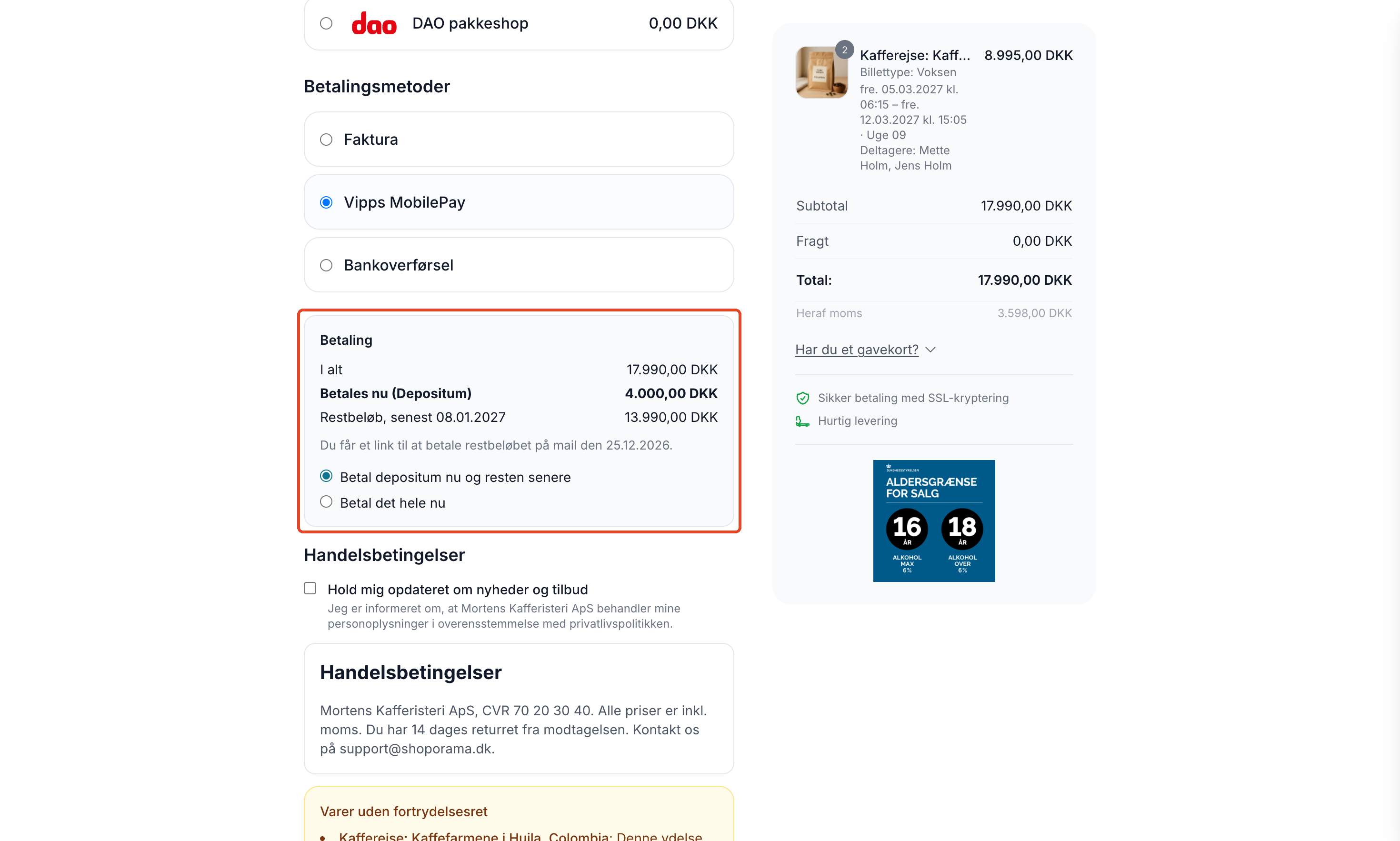
For courses and trips booked well in advance, you can enable installment payments in your profile. For example, the customer pays 2,000 DKK per person at the time of booking, and a certain number of days before the date, the customer automatically receives a payment link for the remaining balance, along with a deadline and a reminder. If the deadline is missed, you’ll receive a notification under “Action Required.” The customer can also choose to pay the entire amount right away.
Overview of Dates and Participants
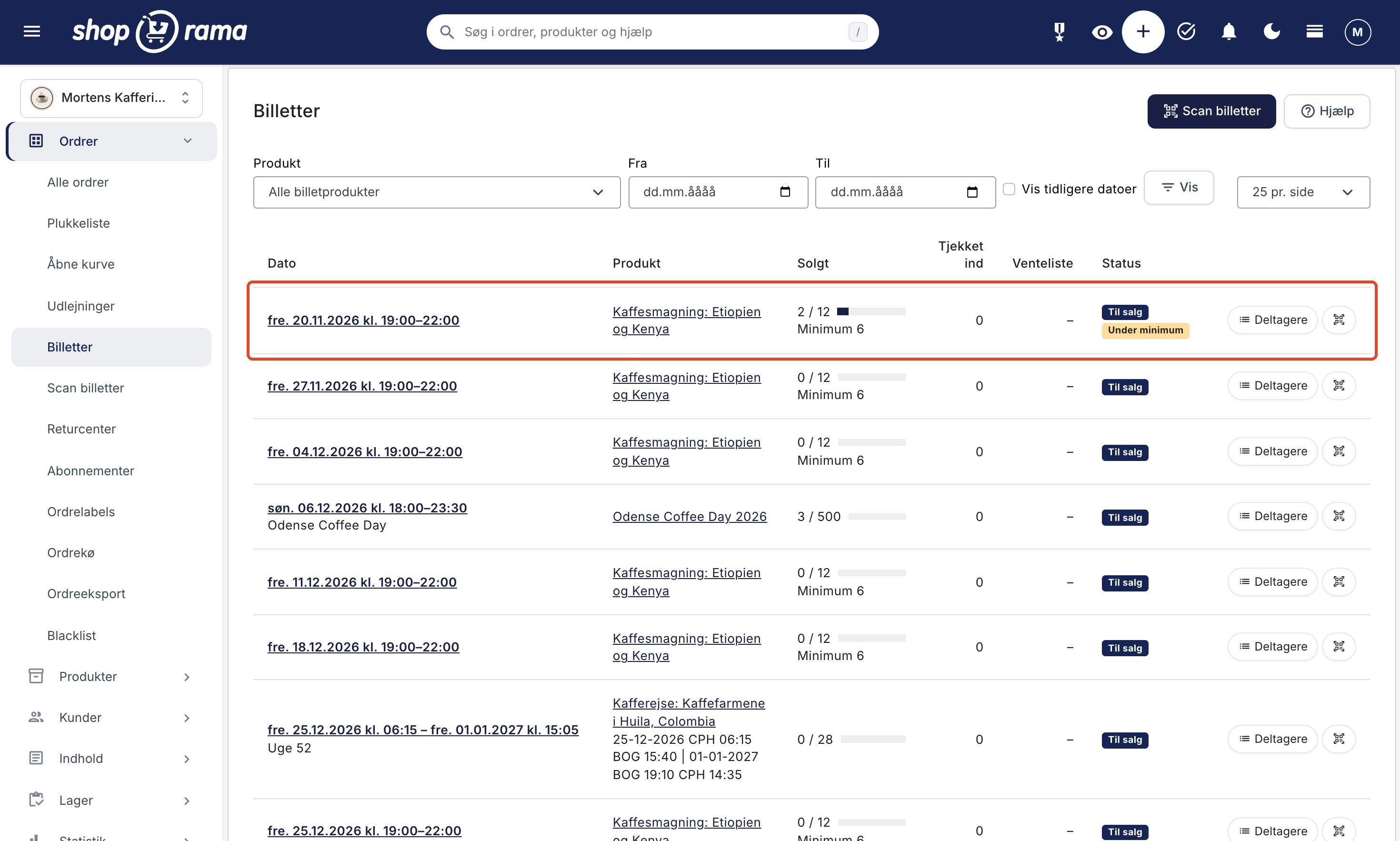
Under Orders → Tickets, you’ll see all upcoming dates with sold tickets, seats, how many have checked in, and how many are on the waitlist. Labels such as “Sold Out,” “Overbooked,” and “Below Minimum” indicate where you need to take action. If you click on a date, you’ll see the participant list, which you can print or export to Excel. The admin dashboard features the Upcoming Events module, so you’ll see the next dates as soon as you log in.
If you need to cancel a date, Shoporama will send an email to all participants, and the tickets will no longer grant access. You can refund the money yourself by crediting the orders.
How to set up ticket sales
- Enable Tickets on a product profile. Under Webshop → Product Profiles, create or open a profile and check the Tickets box. If you need ticket types such as Adult and Child, assign one variant to the profile.
- Create the tickets as products. The price is the price per ticket. On the Tickets and Dates tab, choose whether the customer must enter the name and date of birth for each participant, and enter the venue and terms and conditions.
- Enter the dates. Each date has a start and end time, number of seats, and, if applicable, a surcharge, a sales cutoff, and a minimum.
- Enable installment payments if you require a deposit. You can do this on the same profile.
- Check your theme. The date picker and participant fields are available in the Montana, MontanaB2B, Delaware, and DelawareDK themes.
The full guide is available in the article on tickets and the article on installment payments. You can find a brief overview of the feature on the ticket sales page.
Ticket portal or ticket system in your own online store?
A ticket portal has its strengths. It attracts its own traffic of people looking for things to do, and it can handle large events with numbered seats and thousands of guests. On the other hand, you typically pay a fee per ticket, and the customer makes their purchase through the portal instead of directly from you.
In Shoporama, ticket sales are part of your online store. The customer stays on your site, tickets and products are in the same cart, payments go through your own payment solution, and there’s no per-ticket fee beyond your subscription and the payment solution’s fees. If you sell tickets for your own tastings, courses, or trips, and you want them in the same place as the rest of your business, Shoporama is a great place to start. If you need a seating chart or a marketplace featuring other people’s events, a ticket portal might be the right choice.
What You Need to Know Before You Start
- No seat assignments. Tickets are valid for a specific date, not a specific seat.
- The scanner requires an internet connection. There’s no offline mode at the door.
- No Apple Wallet or Google Wallet. Customers receive their tickets via email as a PDF and on the ticket page.
- No automatic refunds. If you cancel a date, you must issue refunds for the orders yourself.
- Add-ons are part of the order. An add-on, such as a single room, applies to the entire order, not to individual participants.
- Available only in the web store. Tickets cannot be sold at the POS or through the Headless API.
- Not included in product feeds. Tickets are not included in Google Shopping or Shoporama’s other regular feeds.
- A discount means full payment. If the customer uses a discount code, a gift card, or points, the entire amount is paid immediately instead of a deposit.
- Available only in four themes. The date picker is available in Montana, MontanaB2B, Delaware, and DelawareDK. If you have your own theme, please email support@shoporama.dk.
Frequently Asked Questions About the Ticket System in the Web Store
Is there a fee per ticket sold?
No. There is no separate fee per ticket sold. Tickets are treated as regular orders in your online store, so your subscription and the fees charged by your payment provider are the same as for everything else you sell.
Can customers buy tickets and merchandise in the same cart?
Yes. Tickets and regular products can be added to the same cart and combined into a single order, so a customer can, for example, buy a ticket to a beer tasting and a case of beer at the same time.
Can I scan the tickets with my phone?
Yes. Under Orders → Scan Tickets, you can scan the QR code with your phone’s camera or use a barcode scanner. You can also search by name or order number. The scanner requires an internet connection.
Can I sell adult and child tickets?
Yes. The “Profile” variant is used for ticket types such as Adult and Child or Standard and VIP, and each type can have its own price. All ticket types share the seats available for that date.
What happens when a date is sold out?
The customer can add their name to the waitlist by clicking “Add me to the waitlist.” If a seat becomes available—for example, because an order is canceled—the first people on the list will automatically receive an email. The seat goes to the person who books first.
Can I accept a deposit?
Yes. Enable “Installment Payments” in your profile, and the customer will pay, for example, 2,000 DKK per person at the time of booking, with the remainder automatically charged via a payment link before the event date. If the customer uses a discount code, a gift card, or points, the entire amount is paid immediately.
What happens if I have to cancel?
Click “Cancel Date” on the event page. All participants will receive an email, and the tickets will no longer grant access. You’ll need to issue refunds yourself by crediting the orders.
Can the customer edit the participants’ names?
Yes. From the email containing the tickets, the customer can access their ticket page and edit the names until the sales deadline. A ticket that has been checked in cannot be edited. You can also edit the names on the order in the admin panel.
Can I have numbered seats?
No. Tickets are valid for a specific date and a number of seats, not a specific seat. If guests need their own numbered seats, a ticketing portal with seating charts is a better choice.
Does ticket sales work with my theme?
The date picker and attendee fields are available in the Montana, MontanaB2B, Delaware, and DelawareDK themes. If an event has only one date, it can also be purchased in other themes. If you have your own theme, please email support@shoporama.dk.
Get started with ticket sales
If you want to sell tickets for your own events without a per-ticket fee, and have tickets, products, and participants all in one place in your online store, try ticket sales in Shoporama. If you already have a Shoporama online store, you can enable this feature on a product profile. If you’re not a customer yet, you can create an online store and try it out for yourself. If you have questions about the setup, please email support@shoporama.dk.