Brand Pages: Each brand gets its own page in your online store
Now, every brand in your online store can have its own page with a logo, custom text, and all of the brand’s products, and customers can see an overview of all your brands at /brands. You can enable this with a single click under Products → Brands, and the store handles most of the SEO on its own.
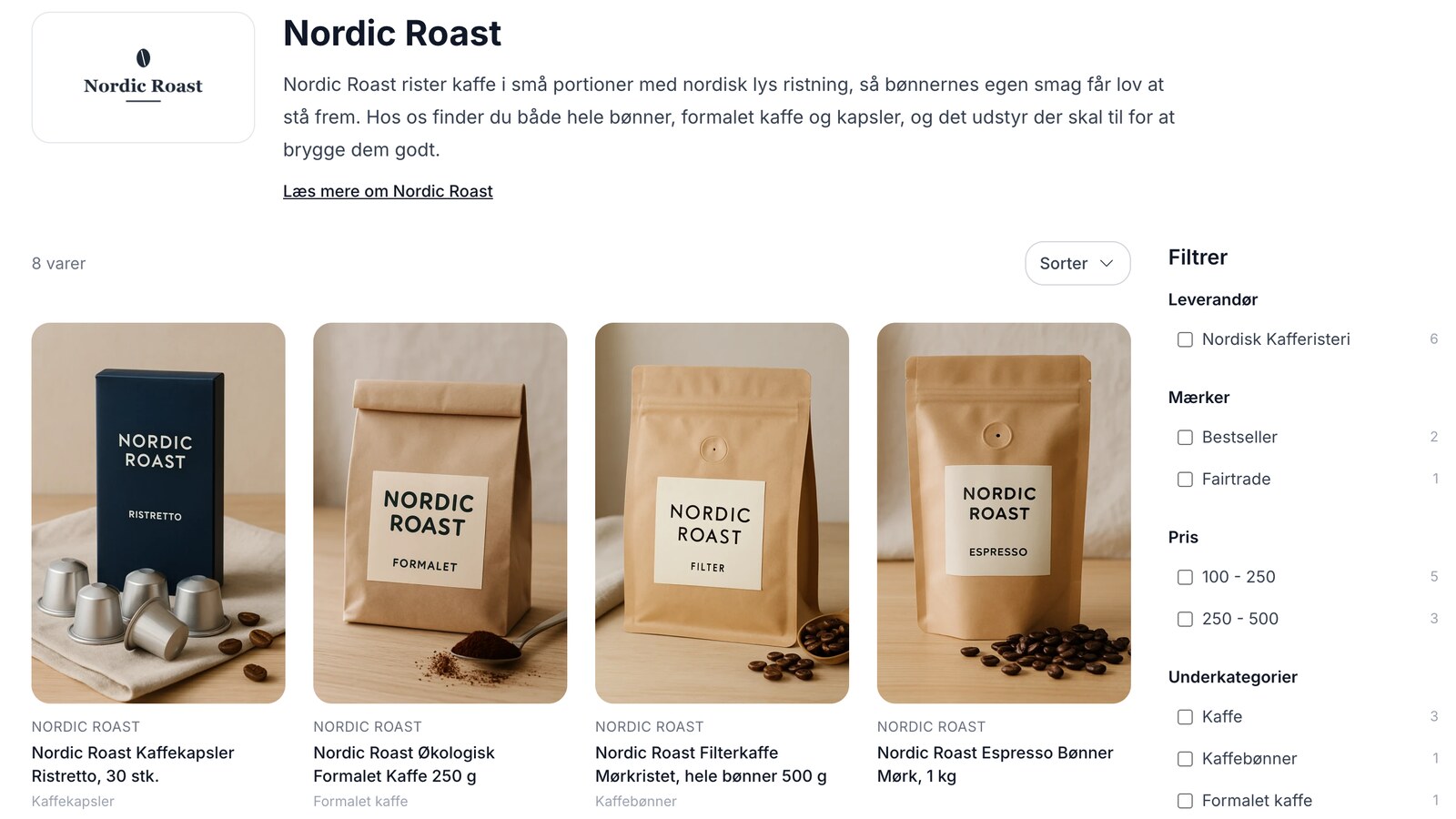
It all started with an antiquarian bookstore. The goal was simple: customers should be able to click on an author’s name and see all of that author’s books. Large online stores have long had one page per brand, and in Shoporama, you could get close to that with a landing page for each brand. But that was something you had to build yourself, one brand at a time. Now it’s built right in. If you enable brand pages, each brand gets its own page at, for example, dinbutik.dk/brands/nordic-roast, and an overview of all your brands appears at /brands.
Why one page per brand?
Many customers know the brand before they know your store. They search for the brand on Google, often along with a product, such as “Nordic Roast espresso,” and those kinds of searches are close to a purchase. If the search lands on a page dedicated to that specific brand—with the brand name in the title, a description of the brand, and all related products listed together—the customer has found exactly what she was looking for. If it lands on a random product page, she’ll have to keep searching on her own.
A brand page is also a place for information that doesn’t fit on a product page or in a category: who’s behind the brand, what collections it offers, and why you carry it. Both customers and Google can benefit from this information, and other retailers of the same brand don’t have it.
And then there are the links. The brand’s name on the product page becomes a link to the brand page, so every item in the store points to its brand. A customer who likes an item can move on to the rest of the brand with just one click.
Here’s how to get started
- Go to Products → Brands, and click the Brand Pages button in the top right corner. Turn on “Show brand pages in the shop,” give the overview a title and an intro if you’d like, and click “Save settings.” All your brands now have a page, created based on their name.
- Open one of the brands you sell the most of. Write a short Introduction and a longer Body Text in the Brand Page card, and upload the brand’s logo under Logo.
- Fill in the “Title” and “Description” fields under “Search Engine Fields,” or click “AI Suggestions.” If you leave these fields blank, the page will use the brand’s name and the beginning of the introduction.
- Click “Save” and continue editing, then view the result by clicking “View in Shop” at the top of the page.
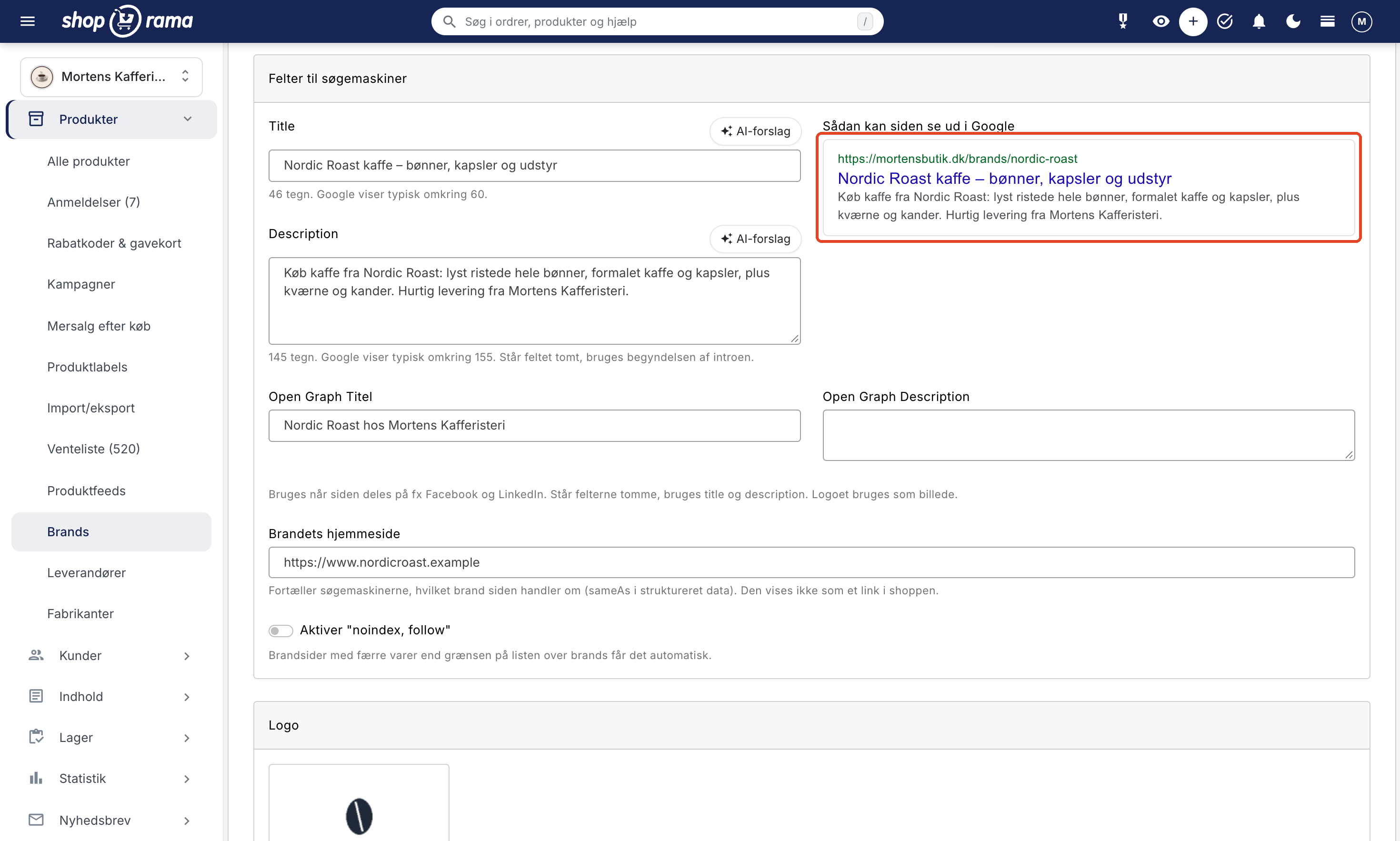
You don’t need to write descriptions for all brands at once. A brand without a description still has a page with a logo and products, so you can tackle them in whatever order makes sense. Statistics by brand show which brands are selling best, and those are the obvious ones to start with.
The store handles this automatically
Much of what makes a page search engine-friendly happens automatically once the brand pages are enabled:
- URLs: Each brand gets a URL based on its name. The characters “æ,” “ø,” and “å” are converted to “ae,” “oe,” and “aa,” respectively, and accents are removed, so “Café del Sol” becomes “cafe-del-sol.” If you update the URL, the old one is automatically redirected to the new one.
- Title and description: Without dedicated SEO fields, the title becomes the brand name and the store name, and the meta description becomes the first approximately 155 characters of the introduction.
- Canonical: Each brand page has a canonical URL that points to the clean URL, so that sorting and filters don’t create duplicates in Google.
- Noindex for thin brands: A brand with fewer products than the threshold receives a “noindex, follow” tag. The page still exists and appears in the list, but Google is instructed not to display it. The threshold is 3 products, and you can change it yourself in the “Brand Pages” window in the list of brands.
- Sitemap: The list and all brand pages that are allowed to be indexed are included in your sitemap.
- Structured data: In Montana, Delaware, and California, the page receives structured data that tells search engines which brand the page is about, including the logo, breadcrumbs, and the list of products. If you enter the brand’s own website URL in the “Brand” field, that URL is also included.
- Redirects (301): /brand/name (in uppercase, with a slash at the end) is redirected to the correct address. A brand that, under “Link To,” points to a category or landing page will direct the customer and Google there.
- The brand name on the product page becomes a link to the brand page, and in the product’s structured data, the brand also points there.
- Sharing: The logo is used as the image when the page is shared on, for example, Facebook.
The overview adapts automatically to the number of brands
A store with ten brands and an antiquarian bookstore with three thousand authors don’t need the same overview. That’s why /brands changes its format depending on how many brands you have:
- Up to 24: a single grid with the logo and name, or just the name if the brand doesn’t have a logo.
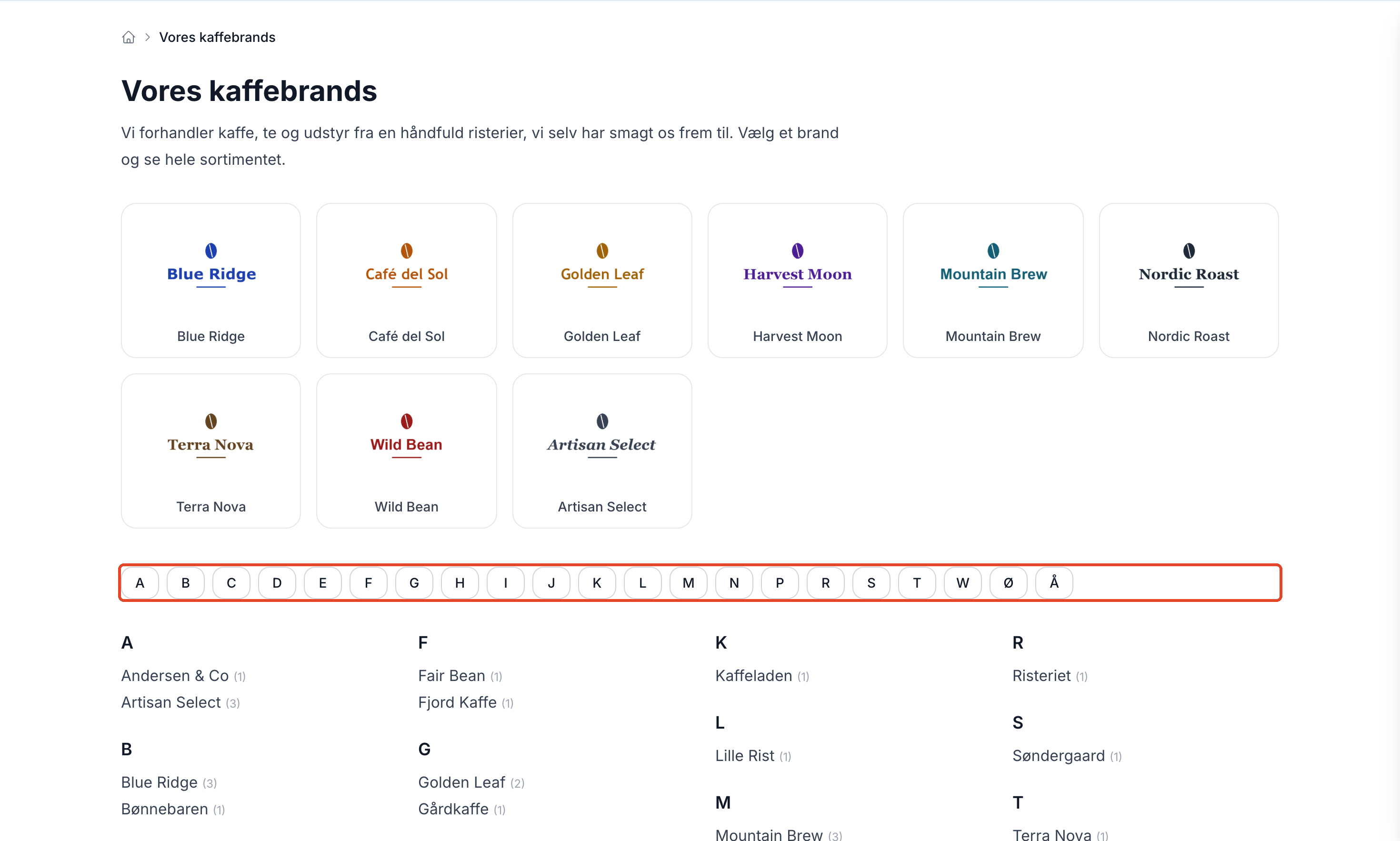
- More than 24: up to 12 logos at the top, a row with the initial letters, and all brands sorted by initial letter with the number of items listed next to each.
- More than 300: one letter at a time, so the page doesn’t become endlessly long.
The overview shows only brands for which the customer can view at least one item. The logos at the top are the first brands with logos in the order they appear on the list of brands, so you control those using the “Order” column. You choose the heading yourself. If a bookstore has entered the author’s name in the “Brand” field, the overview can be titled “Authors,” and “Authors” will also appear in the breadcrumbs on each author’s page. The URL remains /brands.
The filter is included
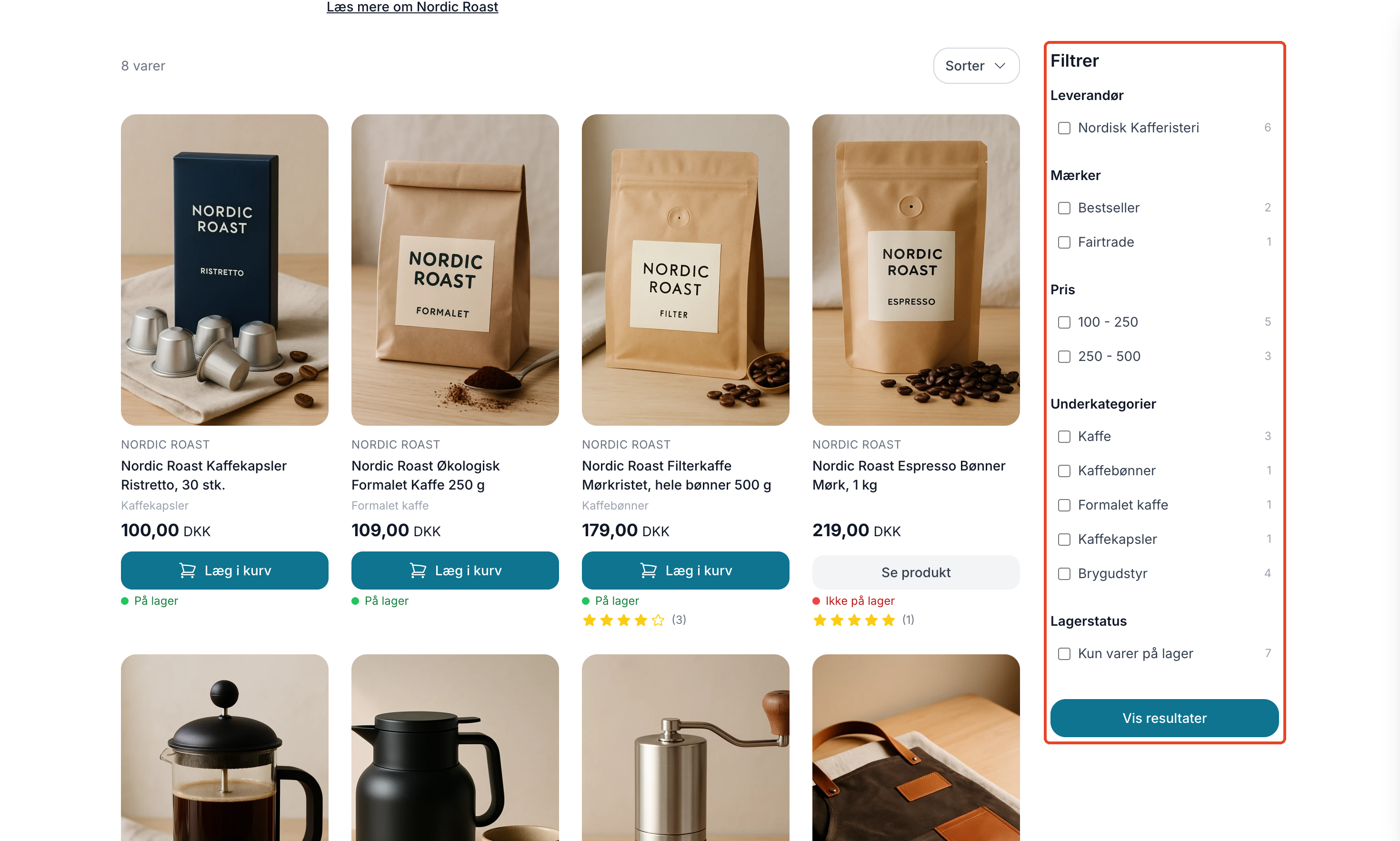
In Montana and Montana B2B, the brand page can display the same product filter as the category pages. Under Design → Filter, each filter has the “Brand Pages” checkbox selected under “Show filter on,” and this is enabled for all filters by default. So if you already have a filter, it will appear on the brand pages without you having to do anything.
The brand filter has been removed from the brand page, since that page features only one brand. The rest—such as price, stock status, or a profile attribute like size—work the same way as on the category pages, and the filter is located in the same place. If you have multiple filters, the one that applies to all categories is used. If the customer selects a filter, the filtered page is marked “noindex,” and Google is redirected to the plain brand page.
In Delaware, California, and Alaska 2, the brand page features products, sorting, and page navigation, but no filter. In Washington, products are loaded continuously as the customer scrolls.
Tips for the text on a brand page
The brand page has two text fields, each with its own purpose.
- The intro appears above the products. Keep it short—a couple of sentences or two short paragraphs: what the brand is, what you carry from it, and why the customer should buy it from you. The customer is there for the products, so don’t push them too far down the page. The introduction is also the text that Google uses as the description if you don’t write one yourself.
- The main text appears below the products. This is where you can go into detail: the brand’s history, its main collections, how the sizes fit, and the questions you’re frequently asked about the brand. Use subheadings to make the text easy to skim. If the brand has body text, there’s a link below the introduction that jumps down to it.
- The logo appears on the brand page, in the overview, and as an image when the page is shared. Write a short alt text in the field below the image. If no alt text is provided, the brand’s name will be used.
- Write it yourself. The supplier’s text about the brand is often copied verbatim by all the other retailers. Your own text, based on your experience with the brand, is what makes your page stand out.
- Title and Description: Google typically displays about 60 characters of the title and 155 of the description. Use the brand name and what you sell from it, e.g., “Nordic Roast coffee and espresso.”
If you carry many brands, Claude can help draft the text and SEO fields once you’ve connected Claude to your store. Always proofread them to make sure they sound like you.
Do you already have landing pages for your brands?
They’ll continue to work. A brand that, under “Link to,” points to a category or a landing page will redirect customers and Google there from the brand page, so the brand has only one page. The brand name on the product page and the brand in the overview also link to that page.
If you’d rather use the automatic brand page, select “Brand Page (Automatic)” under “Link To.” If you delete the old landing page afterward, set up a redirect from its URL to the brand page so that links and rankings in Google aren’t lost.
Themes, Countries, and Customer Groups
Brand pages work in Shoporama’s own themes: Montana, Montana B2B, Delaware (including the Danish version), California, Alaska 2, and Washington. In all themes except Alaska 2, the brand name on the product page becomes a link to the brand page. In Montana B2B, brand pages are behind the login, just like the rest of the store. If you’re running your own theme, brand pages will only work if the theme is built to support them; otherwise, the link will be grayed out.
If you’re using Delaware and have a page at /brands with the Brands page template, it will remain and be displayed instead of the new overview. The logos on that page now link to the brand pages, and the brands’ own pages work as usual.
If you sell in multiple countries, the brand pages will also work in your other countries, for example at dinbutik.dk/se/brands/nordic-roast. If you’ve hidden a brand in a country under “Visible in Countries,” it won’t have a page there, and a brand that’s exclusive to a customer group can only be seen by customers in that group.
Read more
All details about setup, SEO fields, filters, and countries are in the article on brand pages, and you’ll find a brief overview on the brand pages feature page. If you have any questions or requests regarding brand pages, please email support@shoporama.dk.
Related articles
Brand Pages: Give each brand its own page in the online store
Give each brand its own page with a logo, text, and products, and include an overview of all brands at /brands. Here's how to set up brand pages,...
Brands and brands in Shoporama
Guide to brands and brands in Shoporama: create brands, upload logos, link to brand pages, use in filtering, Google Shopping and statistics.
More from the blog
Reviews with photos: Let customers show the product as it is
Now your customers can attach photos when they leave a review of their purchase. A photo of the product in use at a real customer’s home shows...
19. oktober 2026
Inventory Value with Split Inventory: One Number for the Financial Statements, Without Duplicates
If your shops sell from the same inventory, each shop displays the full value of the shared inventory, and if you combine the shops, the items are...
17. oktober 2026
Customer Club Newsletter: Sell More to Returning Customers
Your regular customers are the ones most likely to make repeat purchases. Now you can send the newsletter only to the customer club, to a specific...
14. oktober 2026