Brand Pages: Give each brand its own page in the online store
Give each brand its own page with a logo, text, and products, and include an overview of all brands at /brands. Here's how to set up brand pages, write the text, and get the pages to appear in Google.
A brand page is a page in your online store that features all products from a single brand, such as /brands/nordic-roast. At the top, you’ll find the brand’s logo, name, and a brief introduction. Below that are the brand’s products, sorted and with page navigation, and below the products there’s space for a longer description of the brand. At the same time, the store gets an overview of all your brands at /brands. You list the brand pages in one place, and then Shoporama creates a page for each brand. All you have to do is write the text.
Many customers shop by brand. Someone searching for “Nordic Roast coffee beans” wants to land on a page featuring that specific brand—not a category page with 300 products. The brand page has its own URL, title, and description, so Google has a page to display for that search. When brand pages are enabled, the brand name on the product page in most of Shoporama’s themes also becomes a link to the brand page. A customer who likes one item can view the rest of the brand’s products with a single click, and Google receives a link to the brand page from each of the brand’s products.
Brand pages aren’t just for brand-name products. An antique bookstore can use the brand field for authors, so customers can click on an author to see all of that author’s books. If you haven’t created your brands yet, start with “Brands and Labels” in Shoporama.
Enable brand pages
Brand pages are turned off until you turn them on yourself. Here’s how:
- Go to Products → Brands.
- Click the “Brand Pages” button in the top right corner, next to “Create New Brand.” The label on the button indicates whether brand pages are On or Off.
- Enable “Show Brand Pages in the Shop ” in the window that opens.
- Fill in the fields for the overview, if desired. They are described below.
- Click Save Settings.
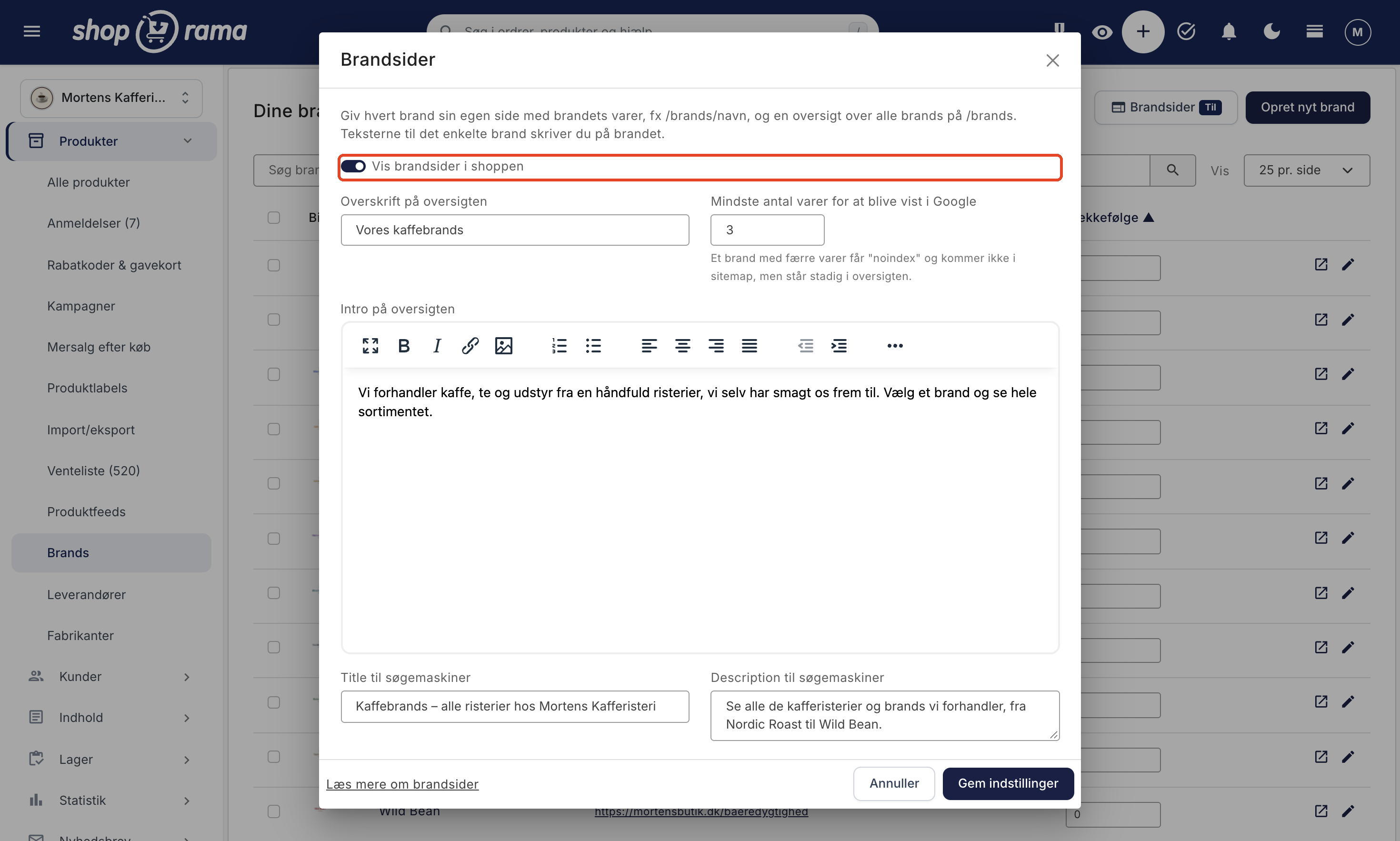
When brand pages are enabled, the “View the overview in the store” link appears at the top of the page, so you can see the result immediately. In the list of brands, the column is now labeled “Page in the store” and displays the URL for each brand’s page; the icon next to the pencil opens the page in the store.
The fields in the “Brand Pages” window apply to the overview at /brands:
- Overview title. The title on /brands and in the breadcrumbs on the brand pages. If you leave the field blank, the overview is titled “Brands.” For example, a coffee shop might write “Our Coffee Brands,” and an antique bookstore might write “Authors.”
- Minimum number of items required to appear in Google. The default is 3. A brand with fewer items is marked “noindex,” so Google won’t display the page, and it won’t be included in your sitemap. The brand will still appear in the overview, and customers can still view the page. This limit exists because a page with a single product is rarely a good search result.
- Overview intro. A short text that appears above the brands in the overview.
- Title for search engines and Description for search engines. The title and description that Google can display for the overview. If the Description field is left blank, the beginning of the intro is used.
The URLs are generated automatically
When you enable brand pages, all your brands are assigned an address based on their name. The letters “æ,” “ø,” and “å” are converted to “ae,” “oe,” and “aa,” and accents are removed, so the brand Café del Sol gets the address /brands/cafe-del-sol. If the URL is already taken by another brand, -2, -3, and so on are added. You can edit the URL for each individual brand afterward.
If the button is grayed out or a warning appears
If the button is grayed out and the message “Your theme cannot display brand pages. They are available in Shoporama’s own themes” appears, then your current theme cannot display brand pages. Read more under “Which themes can display brand pages ” further down.
If you already have a page or category at the address /brands, the window will display a warning. In that case, your own page is displayed at /brands, not the new overview. The brands’ own pages still work. If you want to use the new overview, you’ll need to move or remove whatever is located at /brands. If you have a redirect from /brands, the opposite is true: the overview will be displayed, and the window will indicate that the redirect is no longer in use.
Create the brand’s own page
You write the text for each brand page on the brand page itself. Click on a brand in the list under Products → Brands. The page is divided into sections, just like a category: General, Brand Page, Search Engine Fields, and Logo. Once brand pages are enabled, open the brand’s page in the shop by clicking “View in Shop” in the top-right corner.
You don’t need to write text for all brands at once. A brand without text will still have a page with its name and products. Start with the brands that sell the most or that customers search for. If you have many brands, you can also ask Claude to write the descriptions and fill out the search engine fields for you. Read more in Manage Your Store with AI.
The Brands Page
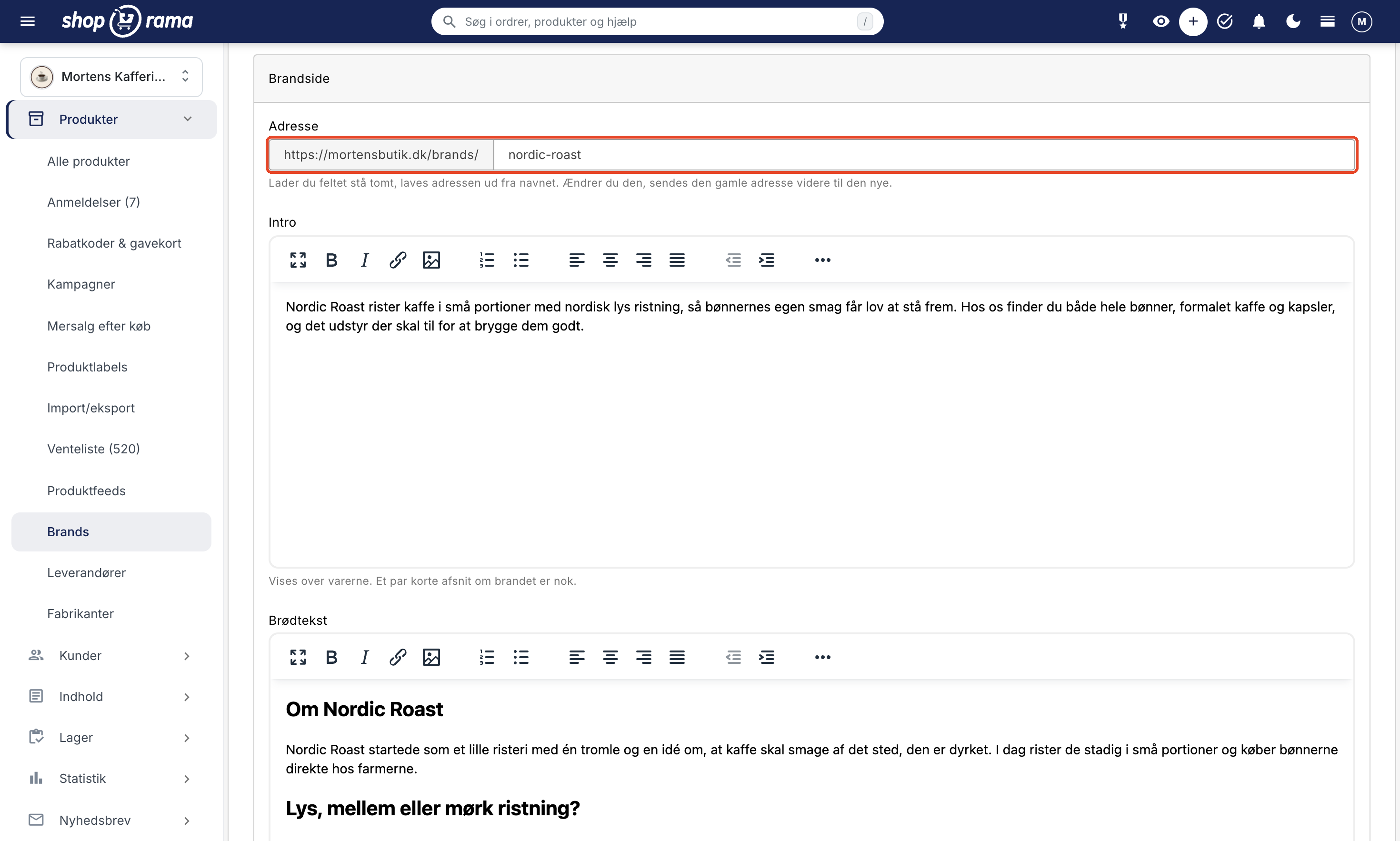
- Address. The part of the address that comes after /brands/. If you leave the field blank, the address is generated based on the name. If you change it, the old address is automatically redirected to the new one, so that old links and listings in Google aren’t lost.
- Intro. Displays above the products. A few short paragraphs about the brand are sufficient—for example, what the brand stands for and who the products are intended for. Keep the intro brief so customers can quickly get to the products.
- Body text. Displays below the products. Here’s space for the brand’s history, product lines, and frequently asked questions with subheadings. A longer text here helps Google understand what the page is about without pushing the products down the page.
If brand pages aren’t enabled yet, a message will appear at the top of the card. You can still write the text first. It will be displayed once you enable brand pages.
Fields for Search Engines
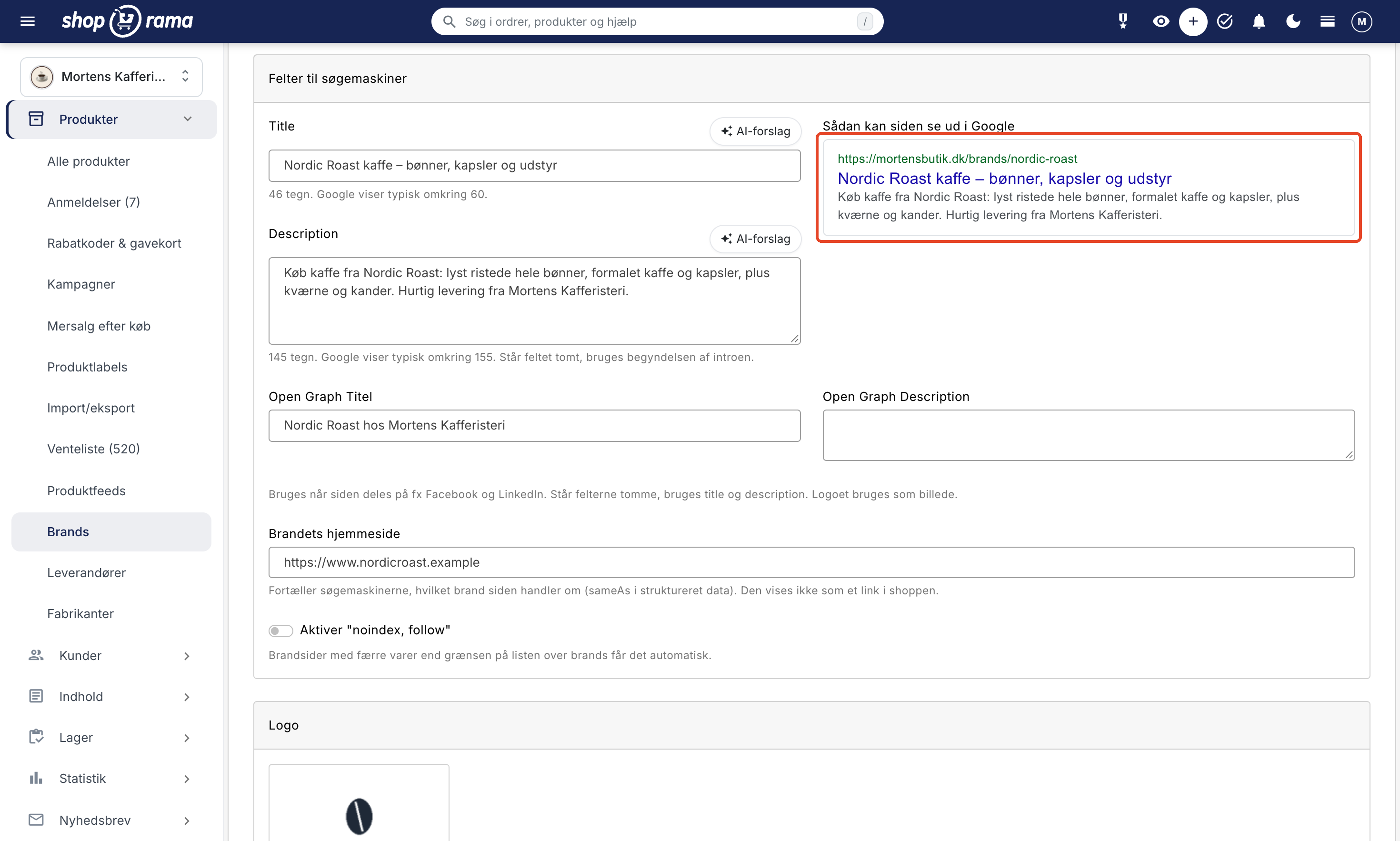
- Title. The page’s title in Google and in the browser tab. Google typically displays about 60 characters, and the counter below the field shows how many you’ve used. If the field is left blank, the theme generates the title based on the brand name, followed by the store name in most themes.
- Description. The text below the title in Google. Google typically displays about 155 characters. If the field is left blank, the beginning of the introduction is used. Read more about meta descriptions.
- AI Suggestions. For both the Title and Description, you can get a suggestion that you can edit.
- This is how the page might appear in Google. A preview showing the URL, title, and description that appears as you type.
- Open Graph Title and Open Graph Description. Used when the page is shared on platforms such as Facebook and LinkedIn. If the fields are left blank, the title and description are used, and the logo is used as the image. See also Open Graph.
- The brand’s website. The address of the brand’s own website. It tells search engines which brand the page is about, and it does not appear as a link in the store.
- Enable "noindex, follow". This instructs Google not to display the page in search results but to still follow the links to the products. Brand pages with fewer products than the limit specified in the Brand Pages window have this setting enabled automatically, so you only need to turn it on if a page with many products should also not appear in Google.
Logo
In the Logo tab, upload the brand’s logo. It appears on the brand page and in the brand overview, and it’s used as the image when the page is shared. Enter a description for the image, and it will be used as alt text. If no description is provided, the brand’s name will be used. If a brand does not have a logo, only the name will appear in the overview.
Link to: the brand page or your own page
The “Link to” field is located in the “General” tab. When brand pages are enabled, the default option is “Brand Page” (automatic), which is the correct choice for most brands. This creates an automatic brand page for the brand.
If you’ve already created a category or a landing page for a brand that you want to keep, you can select that instead. Customers and search engines will then be redirected from the brand page to your page via a permanent redirect (301), and the brand name on the product page and the logo in the list will also link there. This way, the brand has only one page, so Google doesn’t have to choose between two pages about the same thing. Read more about landing pages in “How to Create the Most Common Types of Landing Pages.”
Translate the brand pages
If you sell in multiple languages, the brand’s text can be translated. Click “Translations” in the top-right corner of the brand page, or find the “Brands” category under “Webshop” → “Translations.” Only brands for which you’ve written text appear on the list, and the brand name itself is not translated. The overview’s heading, intro, title, and description can be found under “Store Texts ” in the same location. The brand page has the same URL in all countries, e.g., /se/brands/nordic-roast. Read more in “Translate Your Web Store into Other Languages.”
This is what the brand pages look like in the store
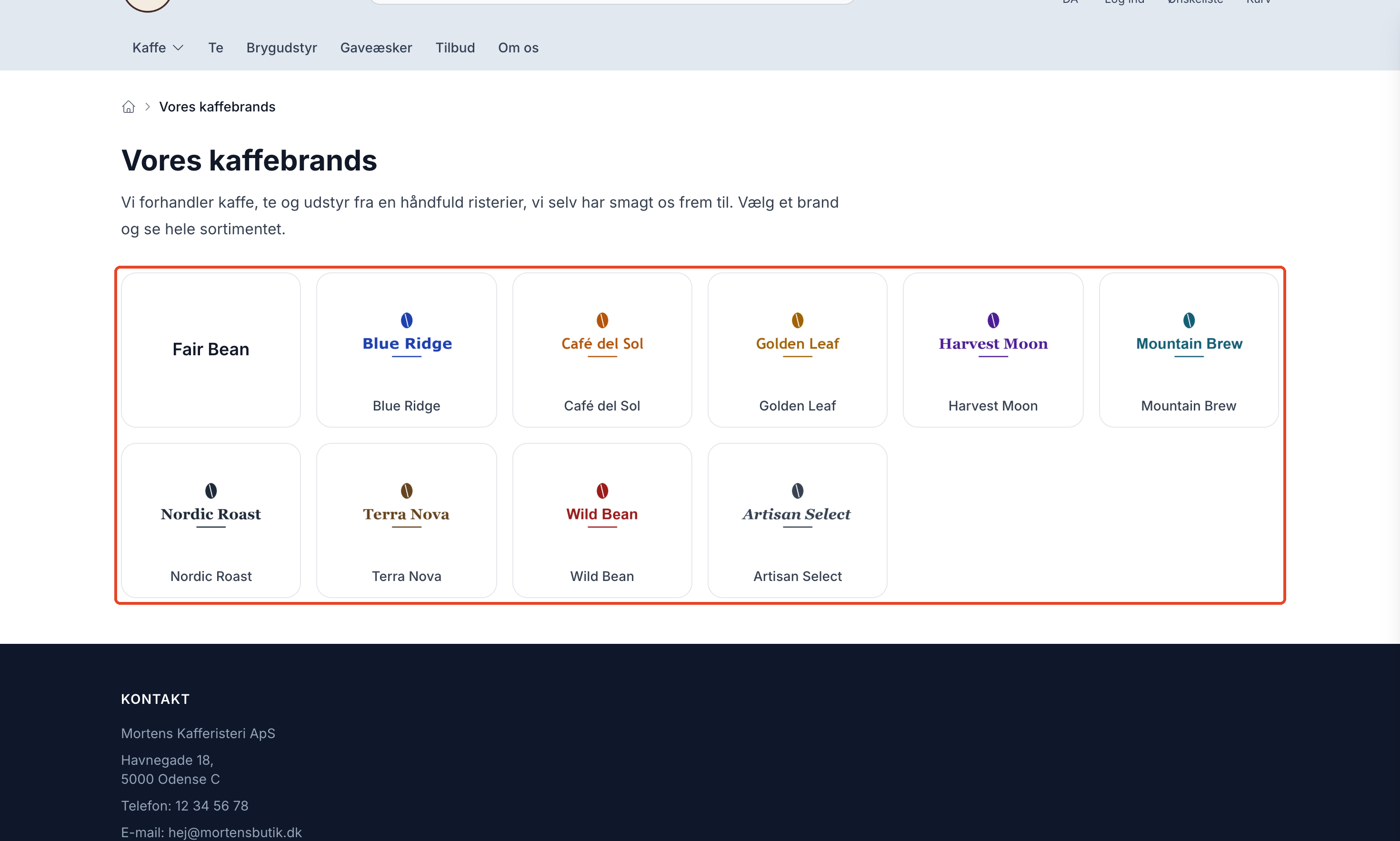
The brand overview
The overview is located at /brands and adapts to the number of brands you have. This is how it’s structured in Montana. The other themes display the brands in their own design.
- Up to 24 brands. All brands are displayed in a single grid with their logo and name, or just the name if the brand doesn’t have a logo.
- More than 24 brands. At the top, up to 12 brands are displayed with their logos. Below that is a row showing the initial letters your brands start with, followed by all brands sorted by initial letter, with the number of items listed next to each brand.
- More than 300 brands. The overview displays one letter at a time, e.g., /brands?letter=a, so the page doesn’t become unmanageably long. This is designed for, for example, used bookstores with thousands of authors.
If you have up to 24 brands, they appear in the order you specified in the list under Products → Brands. If you have more than 24, the order determines which logos appear at the top (the first brands with a logo), while the list under the letters is alphabetical. The overview shows only brands for which the customer can view at least one item. A brand with no visible items does not appear in the overview, but its page still exists.
The Brand’s Own Page
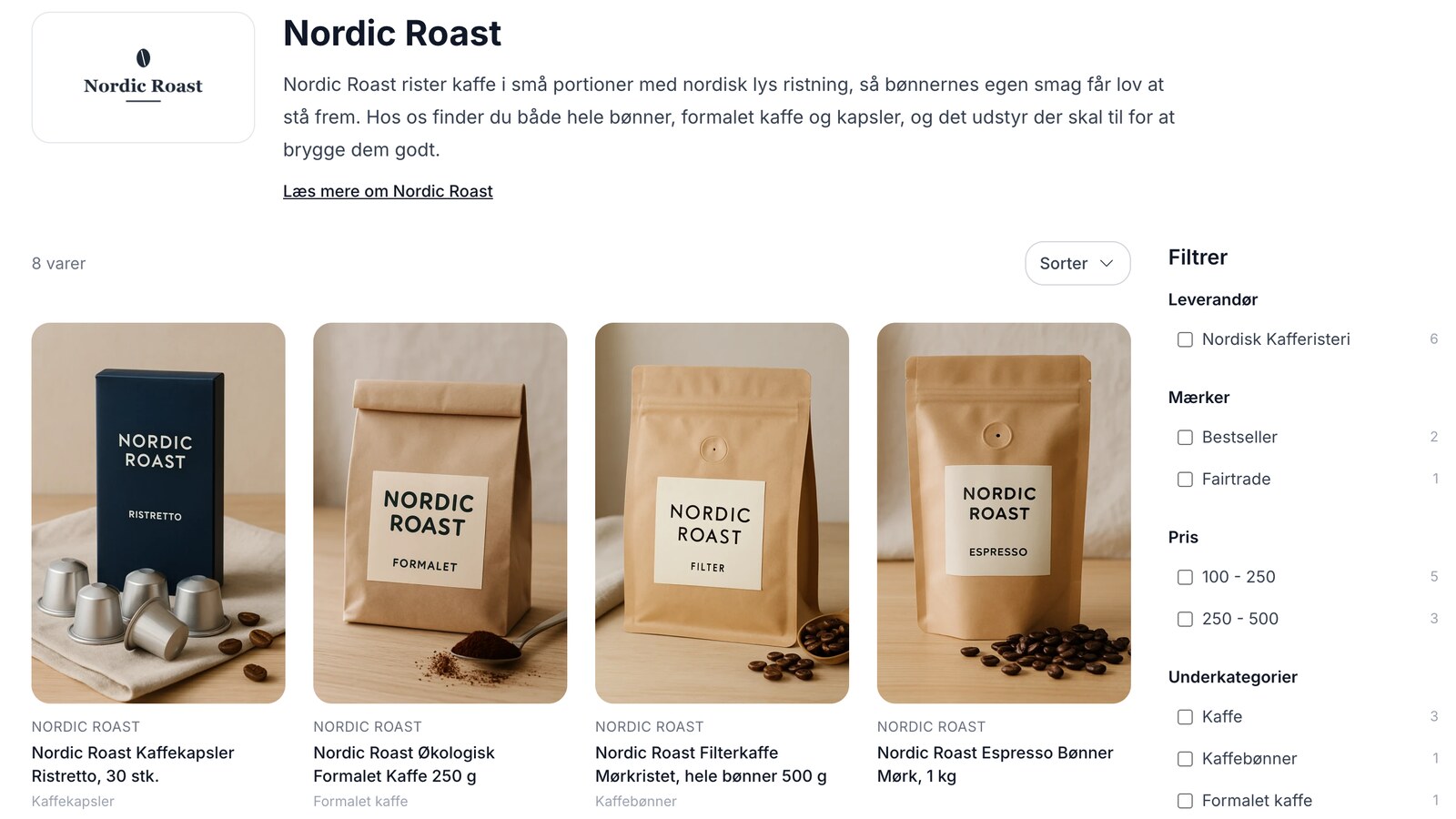
Each brand has its own page at /brands/ followed by the brand’s address, e.g., /brands/nordic-roast. At the top are the logo, name, and introduction. Below that are the brand’s products with sorting and page navigation, and below the products is the body text. In Montana and Montana B2B, there is also a row displaying the brand’s best-selling products at the bottom when the brand has more products than can fit on a single page. The breadcrumb trail shows Home › Brands › Nordic Roast, where “Brands” is the heading you’ve given the overview.
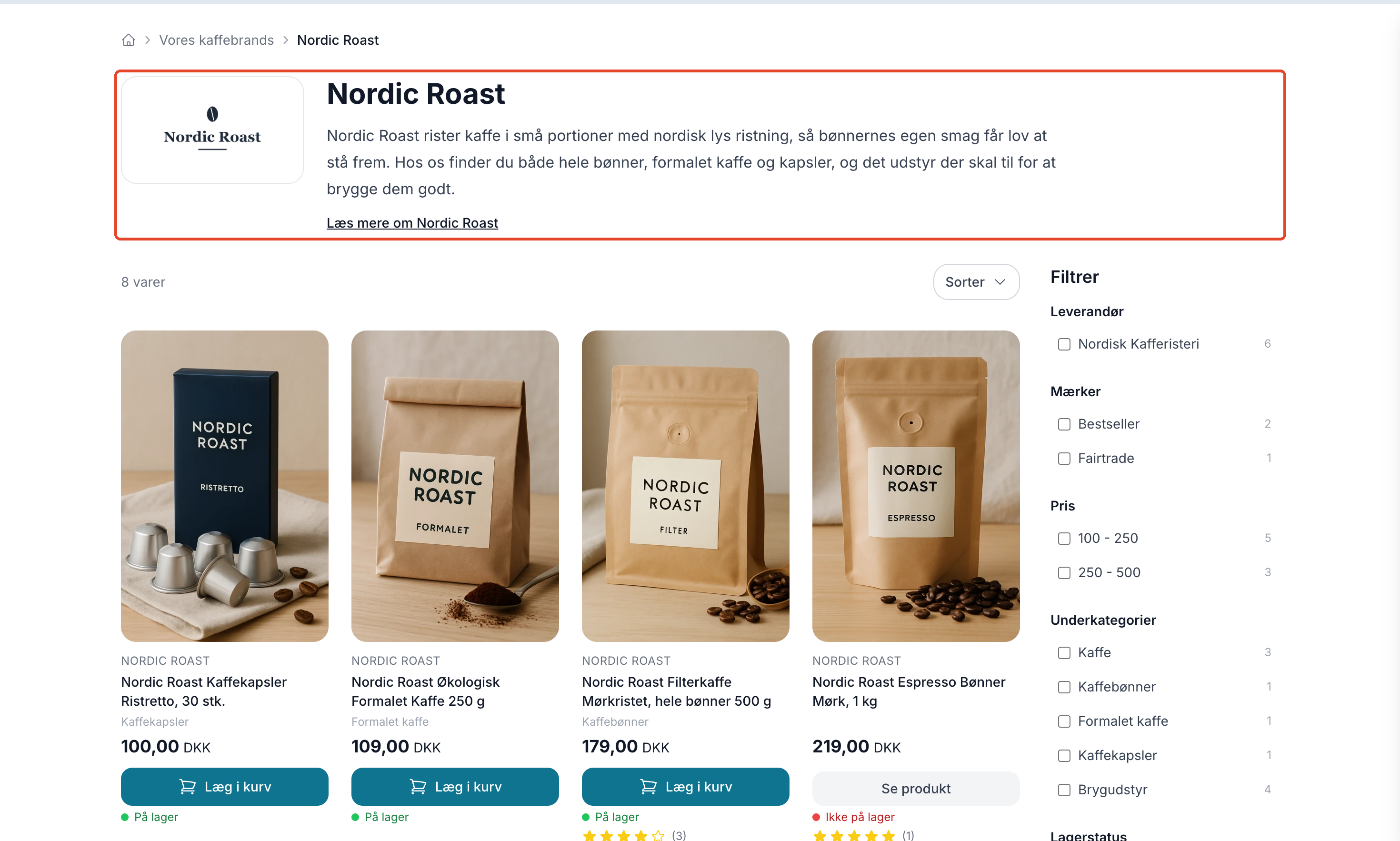
In Montana, Montana B2B, Delaware, California, and Washington, the brand name on the product page becomes a link to the brand page when brand pages are enabled.
Filter on the brand page
If you use Montana or Montana B2B, the brand page can display the same product filter as your category pages. This allows customers to select, for example, size, color, or price from among the brand’s products. You can set up the filter under Design → Filter, as described in Product Filtering in Your Webshop.
- Go to Design → Filter and open your filter.
- Check the box next to Brand Pages under Show the filter on.
- Save the filter.
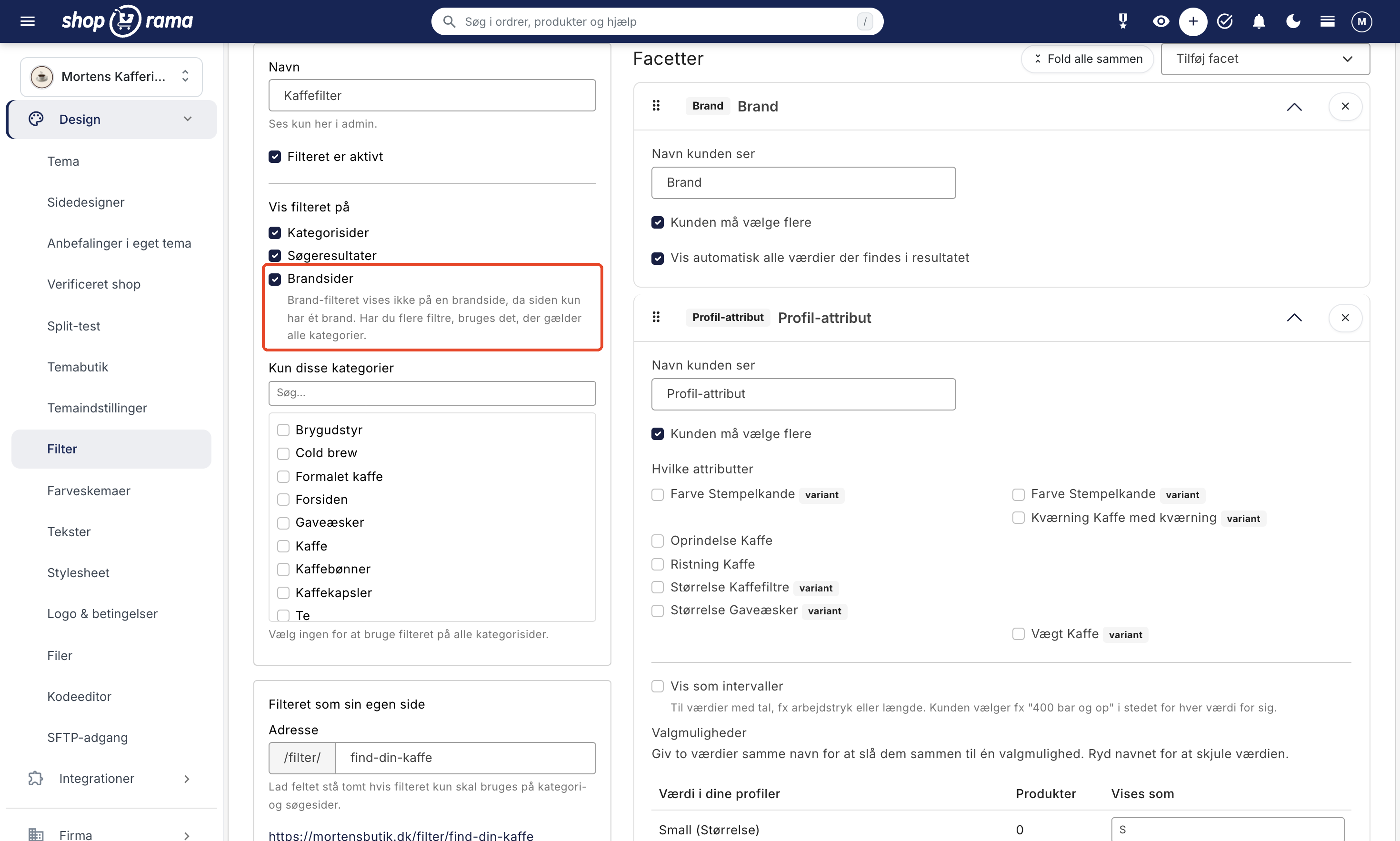
This checkbox is selected by default on all filters, so if you already have an active filter, it will appear on brand pages without you having to do anything. The Brand filter does not appear on a brand page, since that page features only one brand. If you have multiple filters with the “Brand Pages” checkbox selected, the top one—which applies to all categories—is used. The “Subcategories” facet shows the categories in which the brand’s products are located. The filter is positioned in the same place as on the category pages, and you can control this via “Filter Placement” under Design → Theme Settings.
In Delaware, California, and Alaska 2, the brand page has sorting and page navigation, but no filters. In Washington, products are loaded continuously as the customer scrolls, and there is neither sorting nor filtering.
SEO, which the store handles on its own
The brand pages are structured so that Google sees one distinct page per brand. Most of this happens automatically:
- One URL per brand. URLs with capital letters or a trailing slash, such as /brand/nordic-roast without an “s,” and any URLs you’ve modified are redirected to the correct URL via a permanent redirect (301).
- Title and description. The brand’s own fields are used. If they’re empty, the title is generated from the brand’s name, and the description becomes the beginning of the introduction.
- Canonical. Each page points to itself, including page 2 and beyond. If the customer sorts the products, this does not change the canonical URL. See Canonical URL.
- Noindex for filters and few products. The page receives "noindex, follow" when the customer has selected a filter (the canonical then points to the plain URL), when the brand has fewer products than the threshold, or when you have enabled it for the brand yourself. The page still appears in the overview.
- Sitemap. The overview and all brand pages that are allowed to appear in Google are included in the store’s sitemap. Brand pages with too few products, with “noindex,” with a different page listed under “Link to,” or that are hidden are not included. The date in the sitemap is the time the brand page was last saved.
- Structured data. In Montana, Delaware, and California, the brand page includes structured data with breadcrumbs, the brand (name, logo, address, and website), and the list of products. On the product page, the brand in the product’s data links to the brand page.
- Sharing. The brand’s Open Graph fields are used when the page is shared, and the logo becomes the share image.
Who can view brand pages
- Exclusive brands. If a brand is set to “Exclusive” for a customer group, only customers in that group can view the brand page. Everyone else—including visitors who aren’t logged in—will see a “Page Not Found” (404) error, and the brand will not appear in the overview or the sitemap.
- Brands hidden in a country. If you’ve unchecked a country under “Visible in Countries” for the brand, the brand page returns a 404 error in that country, and the brand does not appear in that country’s list. In your other countries, the page appears as usual.
- Add-on products. Products set up as add-ons do not appear on the brand page, just as they do not appear on your category pages.
- Montana B2B. Brand pages are accessible only after logging in, just like the rest of the store. Read more in “B2B Sales in Shoporama.”
Which themes can display brand pages
Brand pages work in these Shoporama-specific themes:
- Montana and Montana B2B: overview, brand pages with filters, and links from the product page. Montana also supports structured data.
- Delaware (including the Danish version) and California: overview, brand pages with sorting and side navigation, links from the product page, and structured data.
- Washington: overview, brand pages where products are fetched on an ongoing basis, and a link from the product page.
- Alaska 2: overview and brand pages with sorting and page navigation.
If you’re using Delaware and have a page with the “Brands” page template located at /brands, it will work as before and be displayed instead of the new overview. The logos on the page now link to the brand pages. If you’d rather use the new overview, move or delete that page.
If you have a theme custom-built for your store, it can only display brand pages if the theme itself supports this feature. Otherwise, the button will be grayed out. Ask the person who created your theme and feel free to forward them the section below. If you’re unsure which theme you’re using, see “What themes are available on Shoporama?”
For developers: brand pages in a custom theme
This section is for developers who create or maintain themes. If you’re using one of Shoporama’s built-in themes, you can skip this section.
A theme must declare that it can display brand pages. It does this by setting "supports_brand_pages": true in the theme’s theme_settings.json file, and the theme must also include two templates: brands.html for the overview and brand.html for the individual brand page. Without this declaration, the checkbox is grayed out, ensuring a theme never receives pages it cannot display. If the theme declares it can display brand pages but is missing one of the templates, the URL will display an error page, and the store owner will receive a notification in the admin panel.
The templates work with the brand, products, page navigation, filter groups, breadcrumbs, and SEO fields. A headless theme, on the other hand, fetches the pages via the headless API. You can find variables and examples in the developer documentation.
Frequently Asked Questions
I already have a category for each brand, and the brands link to them. Do I need to redo everything?
No. A brand that, under “Link to,” points to a category or a landing page will continue to do so, and the brand page will redirect customers and Google there. You can switch the brands one at a time by selecting “Brand Page (Automatic)” when you’re ready.
Do brands with only one or two products also appear in the overview?
Yes. The list shows all brands where the customer can view at least one product. If a brand has fewer products than the threshold in the Brand Pages window, the page is marked “noindex” so it doesn’t appear in Google, but customers can still find it. Brands with no products visible to the customer do not appear in the list.
How do I know if a brand page can appear in Google?
The page can appear in Google when the brand has at least as many products as the threshold in the Brand Pages window, when “Enable ‘noindex, follow" is not enabled for the brand, when the brand does not link to another page under "Link to," and when the brand is not exclusive to a customer group or hidden in the country. The page will then also be included in your sitemap.
I have landing pages for my main brands. Will I now have two pages competing in Google?
No, not if the brand points to the landing page under “Link to.” In that case, the brand page redirects to the landing page, and only the landing page will appear in your sitemap. If you’d rather use the brand page, copy the text into the brand’s “Intro” and “Body Text” sections, and select “Brand Page” (automatic). Then uncheck the “Online” box on the landing page and set up a redirect from the landing page’s URL to the brand page under Webshop → Redirects. The redirect will only take effect once the landing page is no longer online.
Can I decide which brands appear at the top of the list?
Yes. The brands appear in the order you specify in the “Order” column of the brand list when you click “Save Order.” The lowest number appears first. If you have more than 24 brands, the first brands with a logo will appear at the top.
We have thousands of authors listed as brands. Do we need to write a description for each one?
No. The pages work without text, and with over 300 brands, the list displays one letter at a time. If you want to populate the text on a large scale, you can do so via the REST API or with Claude.
We’ve created our own theme based on Montana. Why is the contact button grayed out?
The contact button is gray when the theme doesn’t indicate that it can display brand pages. A theme copied from Montana before the brand pages were introduced doesn’t have the new templates. Ask the person who maintains the theme to add them. The section for developers above explains what’s needed.
Can I see how much traffic and sales the brand pages generate?
Shoporama doesn’t have a separate report for brand pages. In Google Analytics and Google Search Console, you can view traffic to pages whose URLs start with /brands/. You can track sales by brand in the “Statistics by Brand” section.
If you have any questions about brand pages, feel free to contact us at support@shoporama.dk.
Related articles
Brands and brands in Shoporama
Guide to brands and brands in Shoporama: create brands, upload logos, link to brand pages, use in filtering, Google Shopping and statistics.
Product Filtering in Your Online Store
Guide to Product Filtering in Shoporama. You build the filter yourself under Design → Filter, select which facets customers will see (brand,...
Visible in countries: Hide products, pages, and brands in specific countries
Here's how to display products, categories, static pages, and brands only in specific countries using "Visible in Countries"—for example, a brand...
Kundegrupper og B2B-priser: giv forskellige kunder forskellige priser
How to create the most common landing pages
Guide to creating landing pages in Shoporama with rules for brands, price ranges, extra fields and more.
Related features
Brand Pages: One Page for Each Brand
Brand Pages: Each brand gets its own page in your online store
Now, each brand can have its own page with a logo, text, and all of the brand's products. Here's how to enable it, and here's how the store handles...
Product filtering: Customers can find the item without having to scroll
Narrow down a large selection to the relevant items using filters for brand, price, inventory, profile attributes, and categories. Requires Montana...