Customer Club Newsletter: Sell More to Returning Customers
Your regular customers are the ones most likely to make repeat purchases. Now you can send the newsletter only to the customer club, to a specific customer group, or to members who have points to redeem.
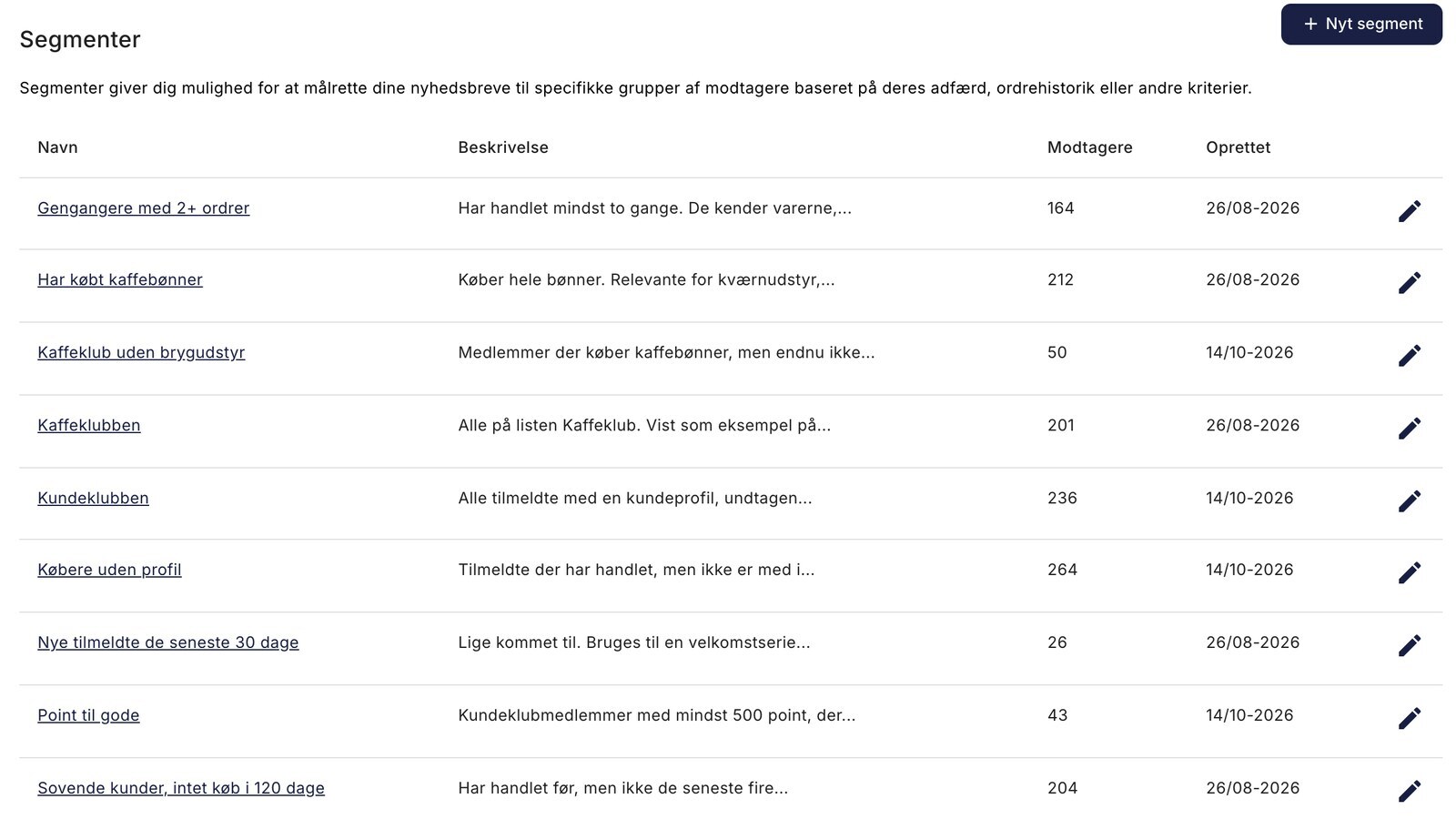
If a customer has points to redeem, they have one more reason to shop with you. Yet members of the customer club often receive exactly the same newsletter as those who have shopped only once as a guest. Three new rules in the segments— Customer Profile, Customer Group, and Point Balance—change that. With these, a newsletter for the loyalty club can target exactly the customers for whom the offer is relevant.
In this post, we’ll show you five segments for driving additional sales and what the email to each of them should include. Most are based on your loyalty program, which customers typically refer to as the customer club.
Why the customer club is your best audience
A customer club member has said “yes” twice: to creating a customer profile and to subscribing to your newsletter. You know their purchase history, and the points in their account are only redeemable with you. Every additional order from these members increases the customer’s CLV without spending a single penny on advertising. Under Statistics → Customer Statistics, you’ll see your Return Customer Rate, your Average Customer Value (CLV), and how many One-Time Customers you have. These are the numbers the newsletter to the customer club is designed to drive.
Three new rules: customer profile, customer group, and points balance
You’ll find these rules in your newsletter segments, and they can be combined with the ones you’re already familiar with, such as Number of Orders and Purchased From Category:
- “Has a Customer Profile (Yes or No)” targets subscribers who do or do not have a customer profile in your online store with the same email address. Points are tied to the profile, so “Yes” effectively means the customer club. However, this rule includes everyone with a profile, including, for example, business customers in a customer group outside the loyalty program. You can exclude them using the “Customer Group: Is Not In” rule.
- "Customer Group (Is in or Is not in)" targets subscribers whose customer profiles are in the selected customer groups. If the customer is associated with a company that does not have its own group, the company’s group applies.
- "Point Balance" targets registered members who have a specific number of active points in their account. Points in the pending period, revoked points, and expired points do not count. The rule is only displayed when the loyalty program is enabled under Customers → Loyalty Program.
Five segments that drive additional sales in the customer club
You create all five segments the same way:
- Go to Newsletter → Segments, click New Segment, and give the segment a name.
- Leave Match set to All rules must match (AND).
- The page starts with a pre-filled rule: Number of orders >= 1 (greater than or equal to 1). Select your first rule from the drop-down menu labeled “Number of orders.” If you leave it as is, the requirement for at least one order will be included in the segment.
- Click Add Rule for each of the following rules. A new row also starts with Number of Orders, so change it to the rule you need. Select customer groups and categories using the Select button.
- Click Create Segment. In the list of segments, the Recipients column shows how many match the criteria.
The screenshots are from the editing page, where the options are labeled “is in” and “is not in.” On the New Segment page, they are labeled “Has purchased ” and “Has not purchased ” for purchase rules, and “Is in ” and “Is not in ” for customer groups.
1. Points to Redeem
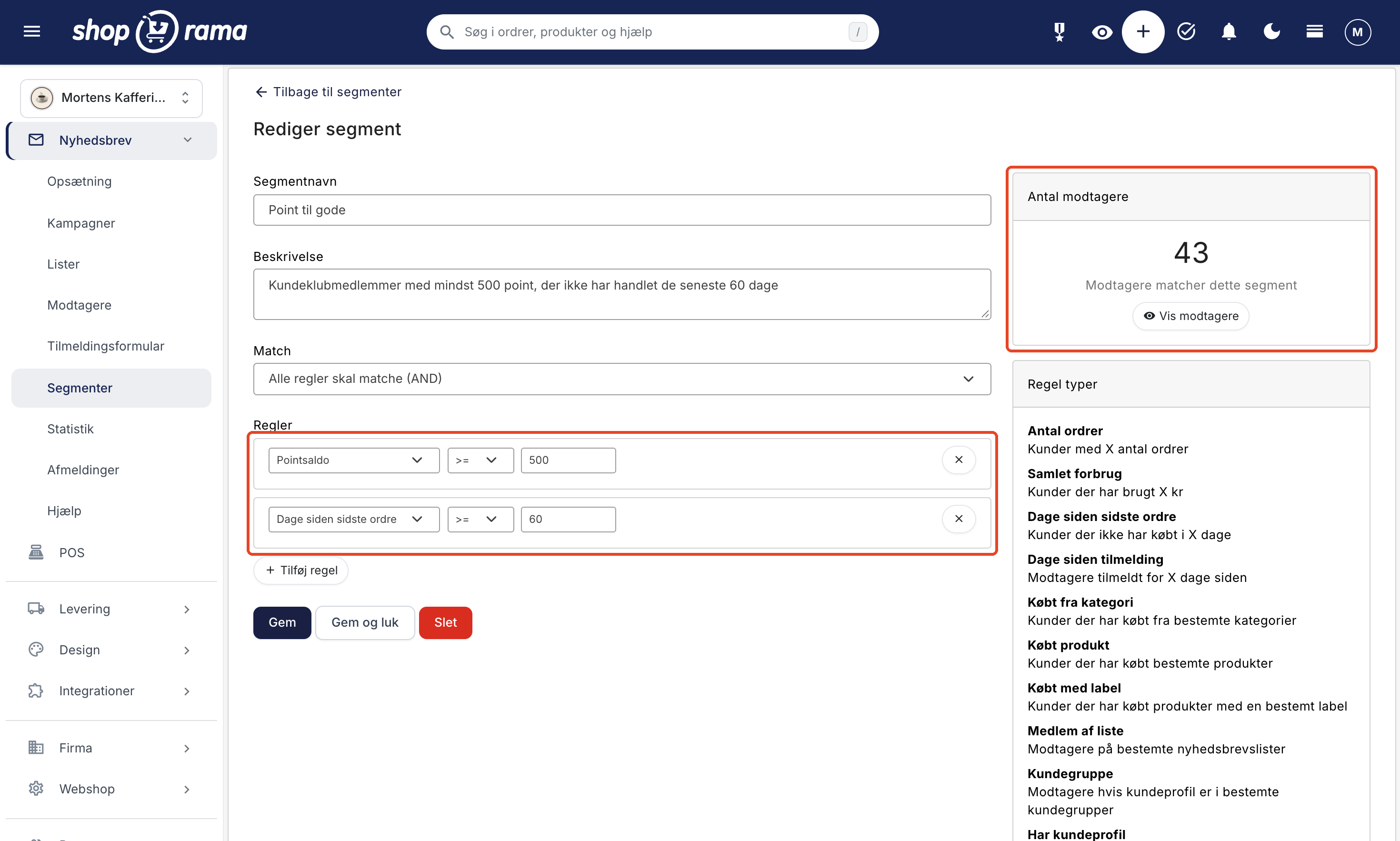
Members with points in their account who haven’t made a purchase in a while.
- Point balance >= your threshold (see box)
- Days since last order >= 60
Feel free to set the number of days slightly above the “Average time to repurchase” under Statistics → Customer Retention. With “>=” the rule means “has not shopped for at least that many days,” and it applies only to registered customers with at least one order.
Calculate the threshold based on kroner, not points. You determine the value of a point under Customers → Loyalty Program in the field “Number of points equivalent to 1 DKK.” The threshold is the amount in kroner multiplied by the number in the field. If the field is set to 100, 500 points is only 5 DKK, and if you want to target members with at least 50 DKK in credit, the threshold must be 5,000 points. Enter the number without a decimal point; otherwise, the threshold will be incorrect. The screenshot is from a test store where the field is set to 10, so there 500 points equal 50 DKK.
The email cannot display an individual’s balance, but everyone in the segment has at least the minimum threshold. For example, write “You have at least 50 kr. in points,” and ask the customer to log in to see the rest. In the built-in themes, the balance is shown on the profile. Show four to six items that cost slightly more than the points are worth, so the points can be used as a starting point for an order. Select items that the points can be redeemed for. Check under Customers → Loyalty Program to see if you’ve excluded any products, limited points to specific categories, or blocked them from being used on bundle deals. Discounted items only count if “Allow points to be used on discounted items” is enabled.
If you include a discount code in the same email, check the box next to “Can be combined with customer club points” for the code; otherwise, the customer won’t be able to use both. Do not include an expiration date, as it varies from customer to customer. The store will send the expiration reminder itself if you have checked the box for “Send an email to your customers before their points expire” under Customers → Loyalty Program.
2. For members only
- Has a customer profile = Yes
- Customer group: Not in [groups outside the loyalty program, e.g., business], only if you have customer groups that are not part of the loyalty program
This is the membership newsletter. Display the news first in the email, remind them that they’ll earn points on their purchase, and mention free shipping if “Free Shipping for Members” is enabled. If you want to provide a membership code, set “Can only be used once per user” and an expiration date for the discount code. It’s for members only because only that segment receives it, but it cannot be locked and can be shared.
3. Become a Member
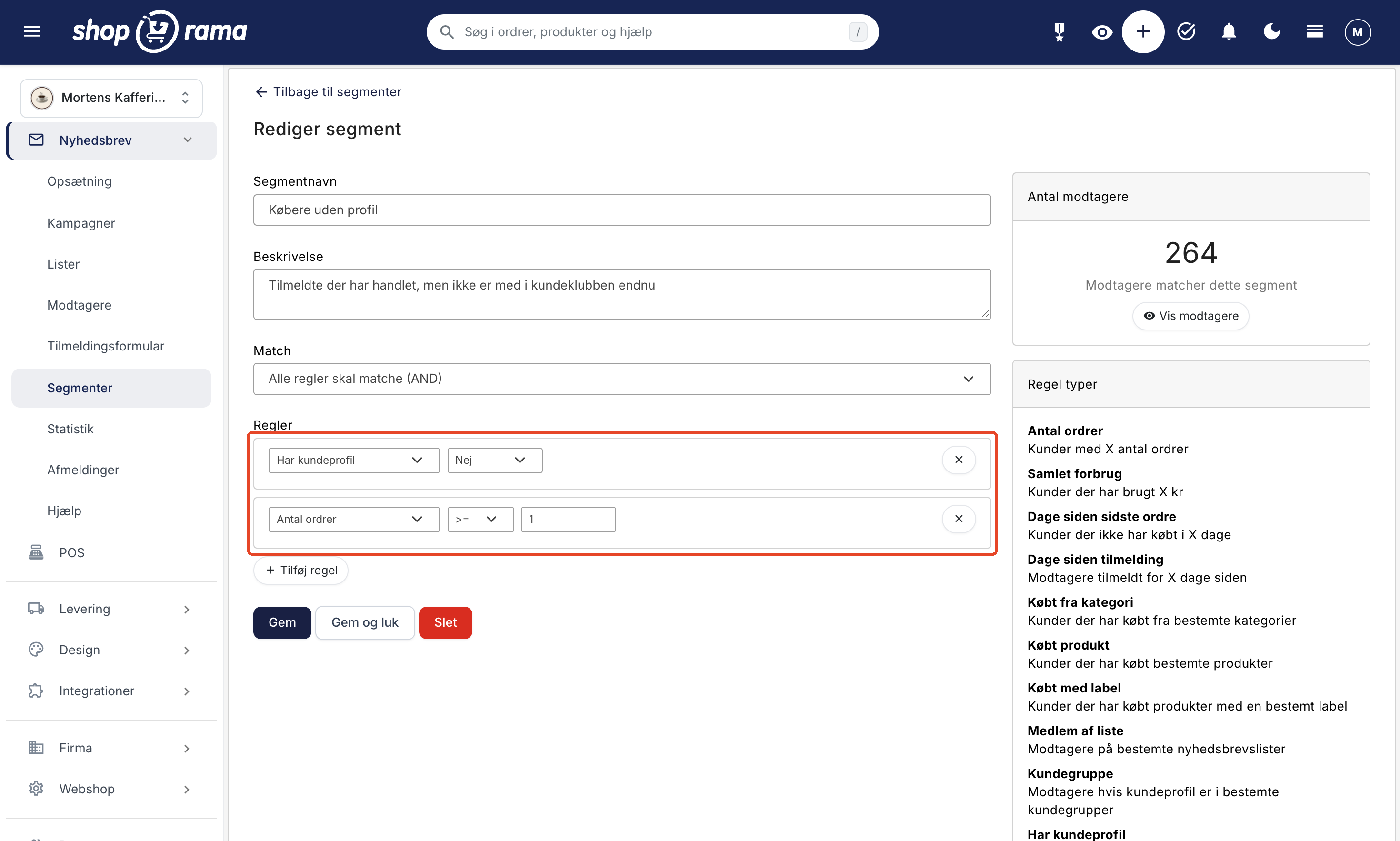
- Has a customer profile = No
- Number of orders >= 1 (or >= 2 to target only repeat customers)
Here, you can keep the existing rule “Number of orders >= 1” and simply add “Has a customer profile = No.”
Invite them to create a profile using the same email address as the one used for the newsletter. If you’ve enabled “Points upon sign-up,” the welcome points serve as the incentive. Don’t promise points for purchases they’ve already made, as they won’t receive those points retroactively. If you’ve enabled the “Standard Group for New Customers” setting for a customer group, that group must be selected under “Customer Groups That Can Earn and Use Points” in Customers → Loyalty Program. Otherwise, new members won’t be enrolled in the loyalty program at all. They will not receive any welcome points and will not earn points on their purchases. Anyone who creates a profile will be removed from the segment.
4. The VIP Group
- Customer Group Is in [your VIP group]
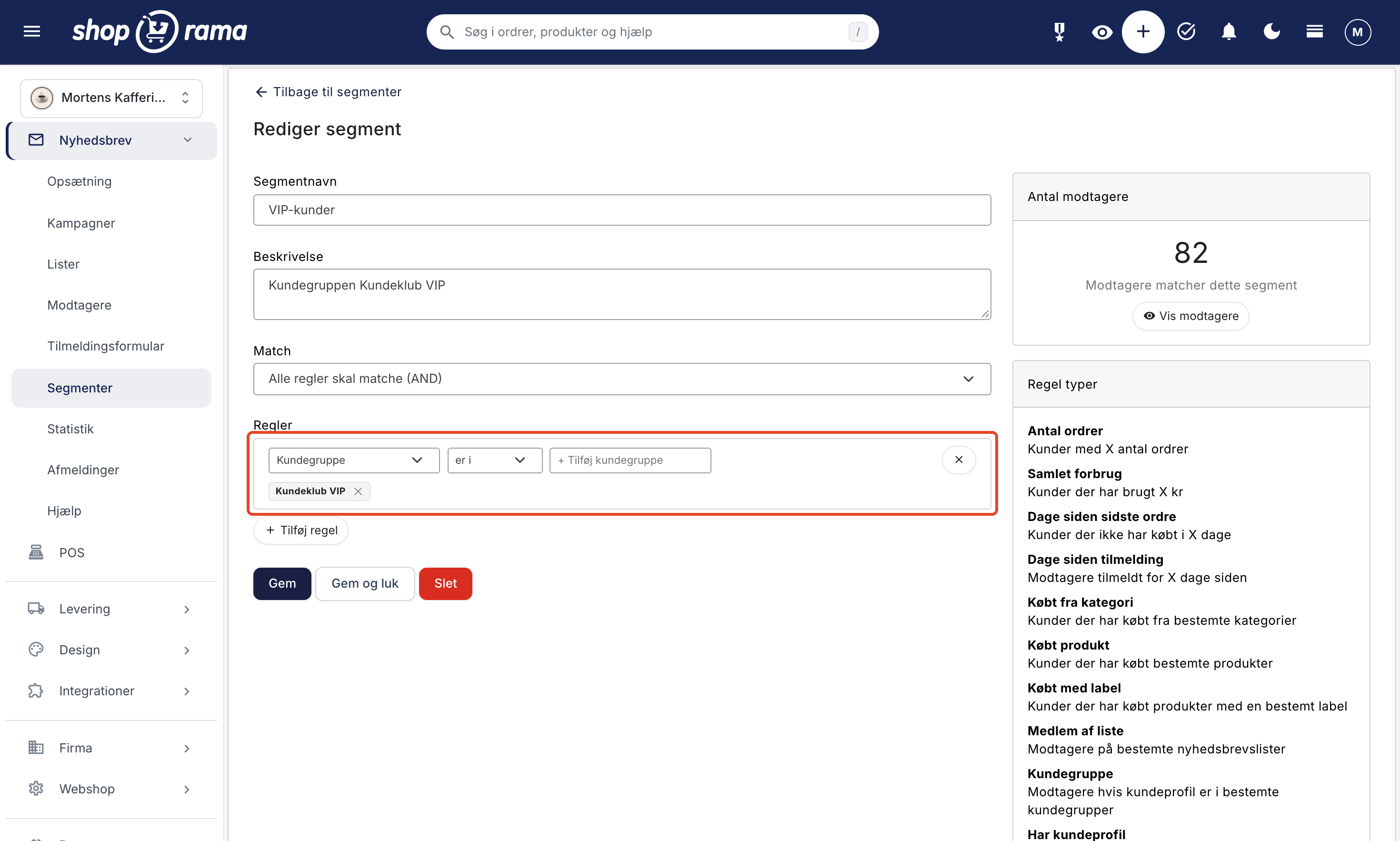
Your best customers—for example, a group with custom prices—can receive their own email. Write a personalized message and ask them to log in to view their prices. Customers who are already in a customer group are only part of the loyalty program if the group is selected under “Customer Groups That Can Earn and Redeem Points” in Customers → Loyalty Program. Otherwise, the VIP email should not mention points.
Upselling lies in exclusivity. Showcase new items from a brand you’ve made exclusive to the group, so only that group can view and purchase them. Learn how to hide or lock brands for customer groups.
5. Accessories for what they’ve already purchased
- Has customer profile = Yes
- Purchased from category Has purchased [e.g., Coffee Beans]
- Purchased from category Has not purchased [e.g., Brewing Equipment]
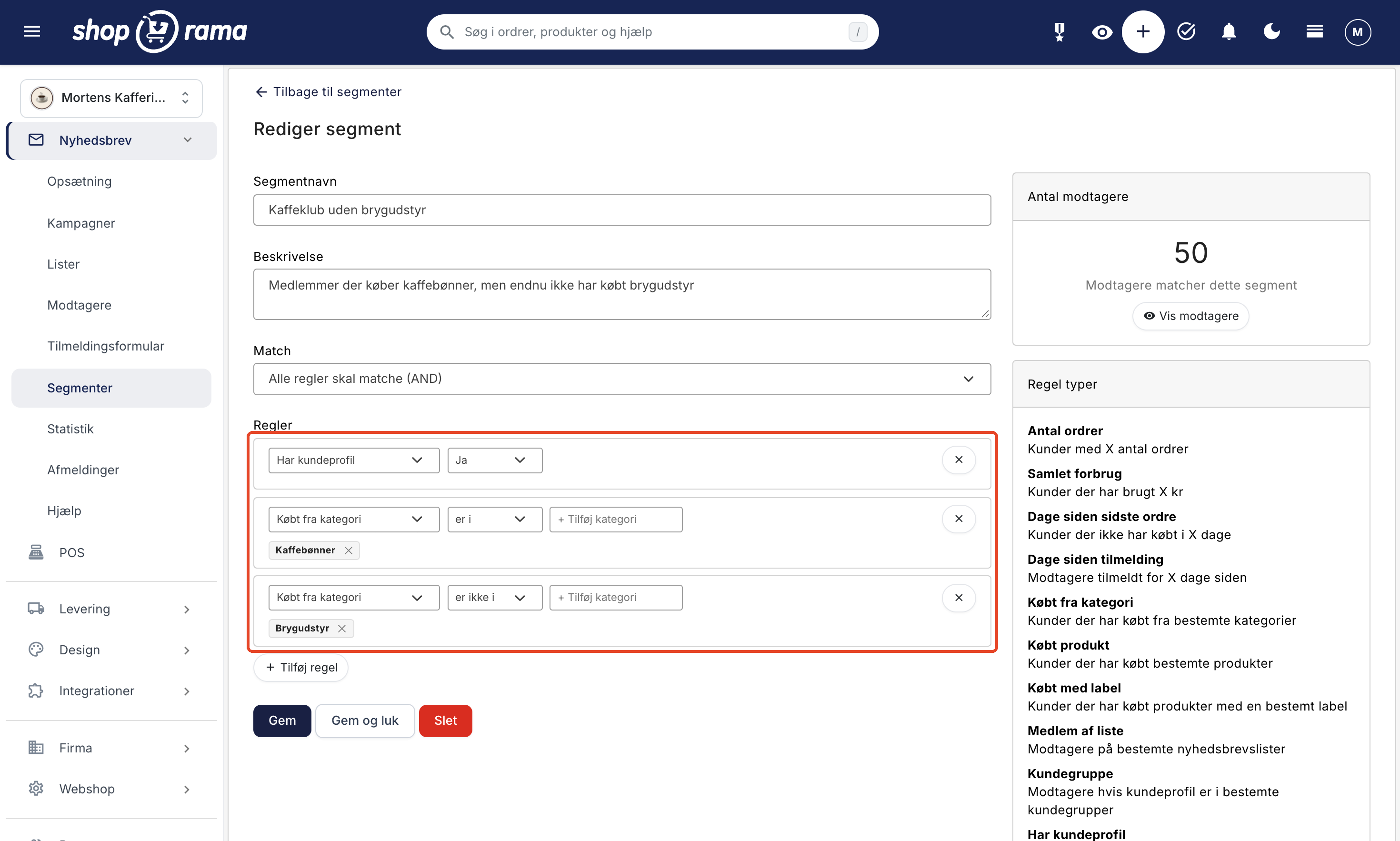
This is cross-selling based on purchase history. The email shows items from the category they’re missing. The “Bought Together” statistic shows which pairs make sense for your store. “Hasn’t Bought” only considers purchases made with the same email address. If the customer purchased the accessory using a different email address, they’ll still receive the email.
Send only to the segment
As always, you create the campaign in the newsletter module. Under “Recipients,” check the segment under “Select Segments” and leave “Select Lists” blank. “Estimated Number of Recipients ” shows how many people will receive the email.
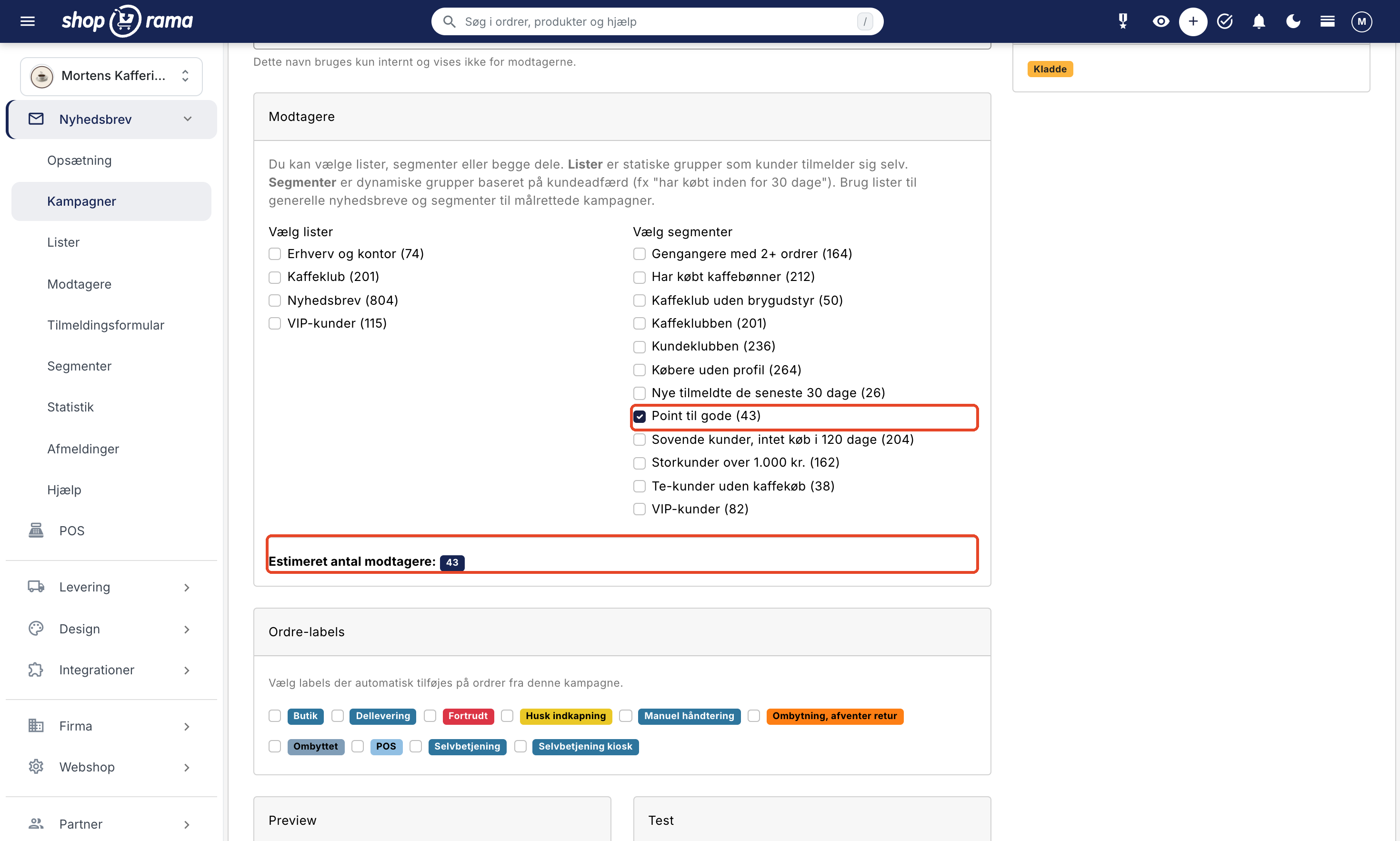
The recipients are the sum of the selected lists and segments, without duplicates.
You should check this before clicking “Send”
- The segment does not sign anyone up. It only selects from among active subscribers. Unsubscribers, unconfirmed subscribers (in the case of double opt-in), and blocked recipients are never included. Get more members to sign up, for example, using a sign-up form, but do not import the customer club as a list. An import will also sign up those who have never given their consent and will re-subscribe unsubscribed users.
- The email address is the key. The customer profile and subscription are linked to the email address. If the customer has changed their email address in one place but not the other, they will not be linked.
- Point balance requires a profile in the loyalty program. Subscribers without a profile will never be included in the point balance, not even with a balance of 0. Customers who are in a customer group outside the loyalty program will also not be included.
- Schedule the email close to the send time. Recipients are identified when you click “Send Now” or “Schedule,” not when the email is actually sent. A customer who redeems their points in the meantime will still receive the email about their remaining points.
Track what the customer club buys
Create a label, such as “Customer Club Email,” under Orders → Order Labels, and select it under Order Labels for the campaign so that orders from the campaign are automatically assigned that label. The campaign’s statistics show Opened, Clicked, Orders, and Revenue, and the order label indicates which orders came from the email. Over time, you can track the Repeat Customer Rate in Customer Statistics and the Reorder Rate in Customer Retention. These figures apply to the entire store, not just the customer club, but they show whether your customers are generally returning more often. Once a member has made a purchase, the receipt page in the built-in themes can take over with Post-Purchase Upselling.
Get Started
- Go to Customers → Loyalty Program to verify that the program is enabled and to check the value of a point. Review the loyalty program setup.
- Create the “Points Due” segment: select “Point Balance >= your threshold” in the first rule (enter the number without a decimal point), add “Days since last order >= 60,” and click “Create Segment.” The “Recipients” column shows how many customers match the criteria.
- Create a campaign under Newsletter → Campaigns using New Campaign, and build the email with a Products block containing four to six items and one Button.
- Select only the segment under Recipients, apply an order label, and send.
All the rules and more examples can be found in the support article “Customer Groups and Segmentation.” If you have any questions, please email support@shoporama.dk.
Related articles
Loyalty programme
Complete guide to the Shoporama loyalty program - setting up the points system, earning, redemption and customer communication.
Customer groups and segmentation
How to create customer groups and segments in Shoporama for targeted marketing and newsletters.
The newsletter module
Complete guide to Shoporama's built-in newsletter module. Learn how to create campaigns, segment recipients, use A/B testing, set up automatic...
Newsletter Subscribers: Manage Your List
Under "Newsletter" > "Subscribers," you can search for, edit, import, and export your newsletter subscribers. See what the columns mean and...
Kundegrupper og B2B-priser: giv forskellige kunder forskellige priser
Customer retention - target repurchase and cohort analysis
Understand your customer retention with Shoporama's cohort analysis. See reorder rates, time to repurchase and a visual heatmap showing how well...
More from the blog
Sell in multiple countries through the online store you already have
Now you can sell in other countries through the online store you already have. Under Online Store → Countries, you can set a unique address,...
11. oktober 2026
Roles for your team: Decide who has what permissions in the admin panel
Now the packer, the bookkeeper, and the web agency can each have their own role in the admin panel. You can choose from seven predefined roles and...
09. oktober 2026
Gift wrapping and add-ons in the cart: a little extra for Christmas
Black Friday and the holiday shopping season are just around the corner, and many orders are meant as gifts. Now you can offer gift wrapping,...
29. september 2026