The inventory is now synchronized between Customers 1st and the online store
If you use the Customers 1st (C1st) point-of-sale system in your store, Shoporama can now keep product and inventory levels consistent between the point-of-sale system and the online store. If you sell an item in one place, it is immediately deducted from inventory in the other.
Imagine a small shop selling coffee and kitchenware in a small town. The point-of-sale system runs on Customers 1st, and the online store runs on Shoporama. One Saturday, they sell the last coffee grinder over the counter, and on Monday morning, there’s an online order for that same grinder. Then they have to write to the customer to say that the item isn’t in stock after all. To avoid this, they update the inventory on the online store after every busy day, and when new items arrive, they enter them in both places.
Shoporama can now take over that task. With the new, free Customers 1st app, inventory is tracked in both the store and the online store, and stock levels are synchronized in both directions.
A sale at the register updates the online store’s inventory
When the grinder is sold at the register, the app updates the online store’s inventory, typically within seconds to a few minutes. If it’s sold on the online store, the app updates the register’s inventory. The app sends the change—that is, one sold—rather than a new inventory count. If the same item is sold in-store and online at the same time, both sales are therefore counted. We tested this: 5 in stock, one sale at the register and one online simultaneously, and afterward, both systems showed 3.
Items are available in both places
Items with the same SKU are linked. If an item is missing in Customers 1st, the app creates it there with a name, SKU, barcode, price, cost price, and stock level. This happens during the first synchronization, and for new items, when you save them in Shoporama. If the item is missing from the online store, the app creates it as an item without variants and sets it to “offline” so customers won’t see it until you’ve added images, a description, and a category and made it available online. Gift cards, credit notes, and deposits from the register are not created in the online store.
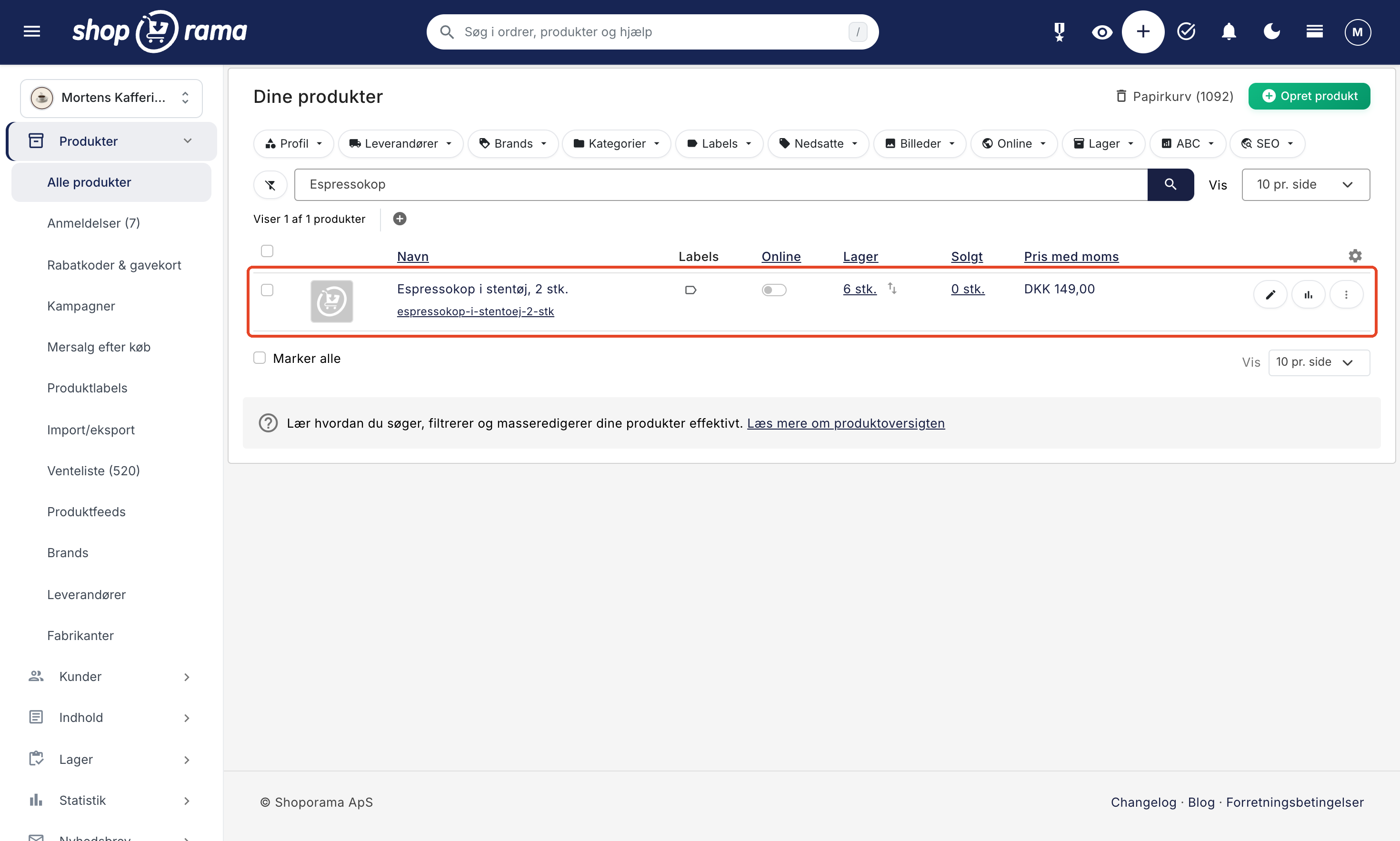
If you’ve just set up Customers 1st and the cash register is empty, the online store’s products will be transferred during the first synchronization, with the inventory from the store’s warehouse location as the initial stock. In our test, 96 products took 20 seconds.
The SKU links everything together
The app syncs only by product number (SKU), not by barcode, so the product number in Shoporama must match the one in Customers 1st. If a product has variants—for example, an apron in three sizes—each variant must have its own product number. In Customers 1st, each variant becomes a separate item with the variant’s value listed as the size, e.g., Blue T-shirt – Large. Customers 1st allows a maximum of 25 characters in the SKU for new items.
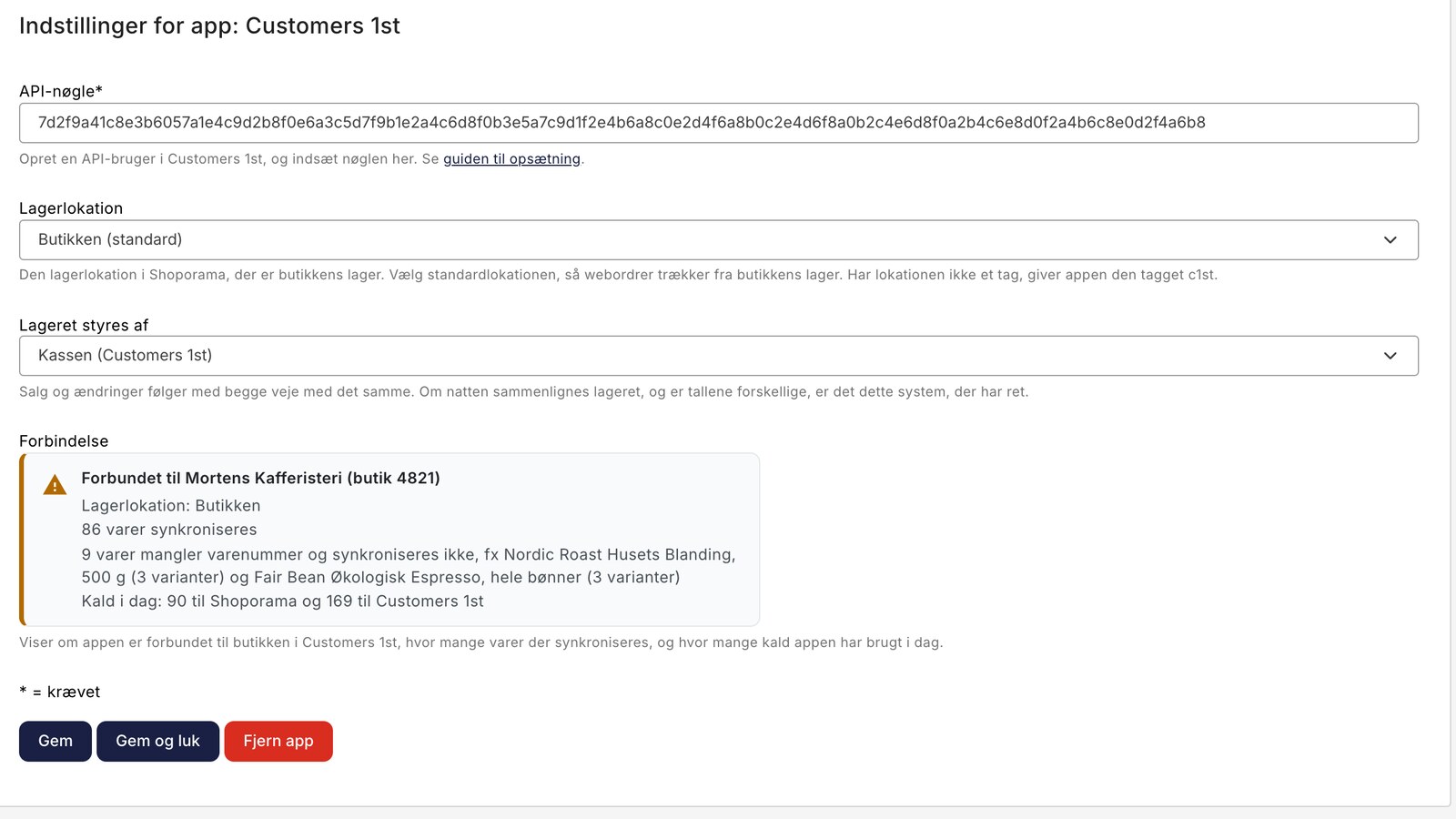
Items without an item number will not be included. The number of such items and examples of them are listed in the “Connection” status box in the app’s settings, along with the store, warehouse location, and the number of items being synchronized.
Returns and inventory receipts are also included
It’s not just sales that are included. If you receive items or count them at the register, the inventory on the online store is updated. If you adjust the inventory at the store’s location in Shoporama or create an inventory entry there, that information is reflected at the register. If a customer returns an online order, and you register the return or issue a credit for the order in Shoporama, the item will also be returned to inventory at the checkout. Register it in only one place; otherwise, it will be counted twice.
The numbers are checked overnight
At night, the app compares inventory levels in both systems. Changes that weren’t synced during the day are sent, and if the numbers still differ, the app adjusts them according to the system you selected under “Inventory is managed by.” The default is “Checkout” (Customers 1st). The app also identifies new items that haven’t been added during the day. This ensures that errors aren’t left unresolved.
Here’s how to set it up
- Make sure the items have the same SKU in Shoporama and Customers 1st.
- Create an API user in Customers 1st and copy the key.
- Go to Integrations → Apps in Shoporama, and click Install next to Customers 1st. This will open the app’s settings.
- Paste the key, select the store’s warehouse location, and click Save.
The first synchronization will start within about 5 minutes and run in the background. The full guide is available in Set Up the Customers 1st Integration.
The following is not included
- Sales from the register do not become orders in Shoporama, and online orders do not become sales in Customers 1st.
- Customers, gift cards, store credits, and loyalty points remain in their respective systems.
- The name and price are only transferred when the item is created, and descriptions, images, and categories are never transferred.
- If you delete an item in one system, it remains in the other.
- Currently, the app links one online store to one store in Customers 1st.
- Online orders are fulfilled from the default location, so select that as the store’s location if the online store sells from the store’s inventory. Learn more about inventory locations.
- If the Shoporama integration in Customers 1st is also enabled, disable it in Customers 1st; otherwise, inventory will be deducted twice.
How much does it cost?
The app is free. It uses Shoporama’s API, and its calls to Shoporama do not count toward the API calls included in your subscription, so they do not incur any additional costs. The app can use up to 20,000 calls per day. A sale at the register uses 1–2 calls. If you don’t see the API tab in Customers 1st, ask Customers 1st if it’s included in your subscription.
Get Started
You’ll find the app under Integrations → Apps in Shoporama. If you’d like to learn more before getting started, read “Online Store with Customers 1st,” or see what the app does and doesn’t do at “Customers 1st Integration.” If you have products with variants, see also Product Profiles and Variants. Need help? Email support@shoporama.dk.
Related articles
Set Up the Customers 1st Integration
Here's how to create an API user in Customers 1st, install the app, select a warehouse location, and ensure that products and inventory are...
Warehouse locations
Learn how to organize your inventory across multiple locations in Shoporama.
Product Profiles and Variants
Guide to product profiles and variants in Shoporama. Understand how profiles, attributes and variants are related.
More from the blog
Orders from the online store are now automatically transferred to Uniconta
If you use Uniconta, Shoporama can now send orders from the online store as sales orders. The customer, line items, discounts, and shipping are...
28. oktober 2026
Brand Pages: Each brand gets its own page in your online store
Now, every brand in your online store can have its own page with a logo, custom text, and all of the brand’s products, and customers can see an...
27. oktober 2026
Reviews with photos: Let customers show the product as it is
Now your customers can attach photos when they leave a review of their purchase. A photo of the product in use at a real customer’s home shows...
19. oktober 2026