Orders from the online store are now automatically transferred to Uniconta
If you use Uniconta, Shoporama can now send orders from the online store as sales orders. The customer, line items, discounts, and shipping are all set up, and you can invoice in Uniconta as usual.
Imagine a small coffee roastery called Ristebrødrene. They sell coffee beans through their online store to individual customers and supply a handful of cafes that purchase on account using their CVR numbers. Their accounting is handled in Uniconta. Every morning, one of them sits down and enters yesterday’s online store orders as sales orders: the customer, the items, the discount code, and the shipping cost. It takes time, and every now and then, an amount or a CVR number is entered incorrectly.
Shoporama can now take over that task. With the new, free Uniconta app, online store orders automatically convert into sales orders in Uniconta.
The order appears as a sales order, ready to be invoiced
Once the customer has paid, Shoporama sends the order to Uniconta. You can also choose to have this happen when the order is created or when it’s shipped. In Uniconta, it appears as a sales order under Accounts Receivable, Sales, Sales Orders.
The fact that it’s a sales order and not an invoice is a deliberate choice. You can review the order, make any necessary corrections, and invoice it when you’re ready—just as if you had entered it yourself.
The customer is already in the system or is created
The app searches for the customer in Uniconta using the CVR number or email address. If the café already exists as a customer in Uniconta with the same CVR number, that record is used. If the customer is new, a customer record is created with name, address, email, phone number, CVR number, and EAN number.
Items, discounts, and shipping on separate lines
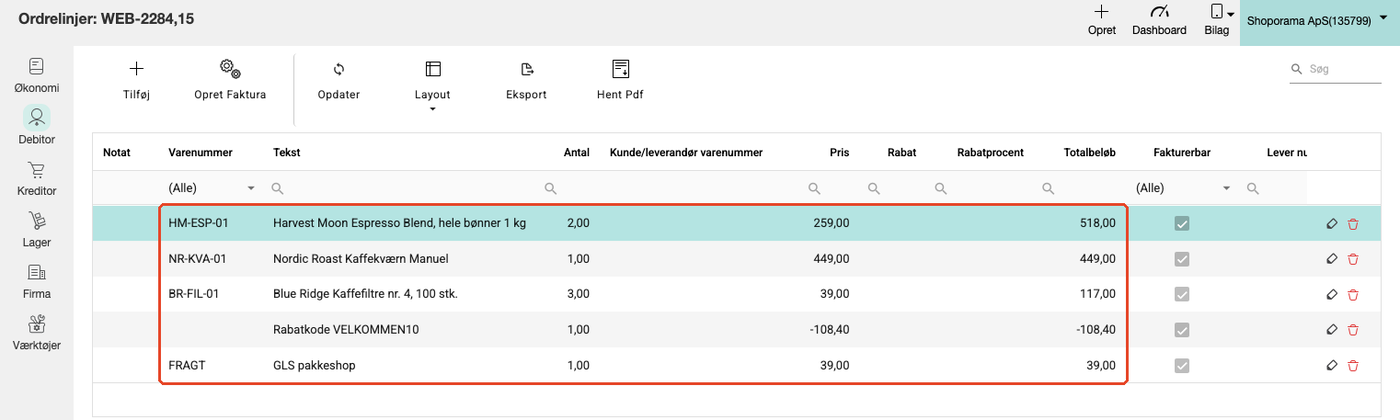
Each item appears on a separate line with the item number, quantity, and price. If the customer used a discount code, a promotion, or points, the discount appears as its own negative line, and shipping also has its own line. Orders from private customers are processed with prices including sales tax, while business orders are processed without it.
Business Customers, the EU, and the Euro
Cafés pay by invoice, so their orders are assigned the payment terms you’ve selected for invoice orders—for example, “Net 8 days”—while orders paid by card are assigned “Cash,” for example. The same applies to orders with an EAN number. If you sell to businesses in other EU countries with a valid VAT number, the lines will be assigned the VAT code for reverse charge, and if you sell in multiple countries with different currencies, orders in, for example, euros will be processed with the currency and exchange rate included.
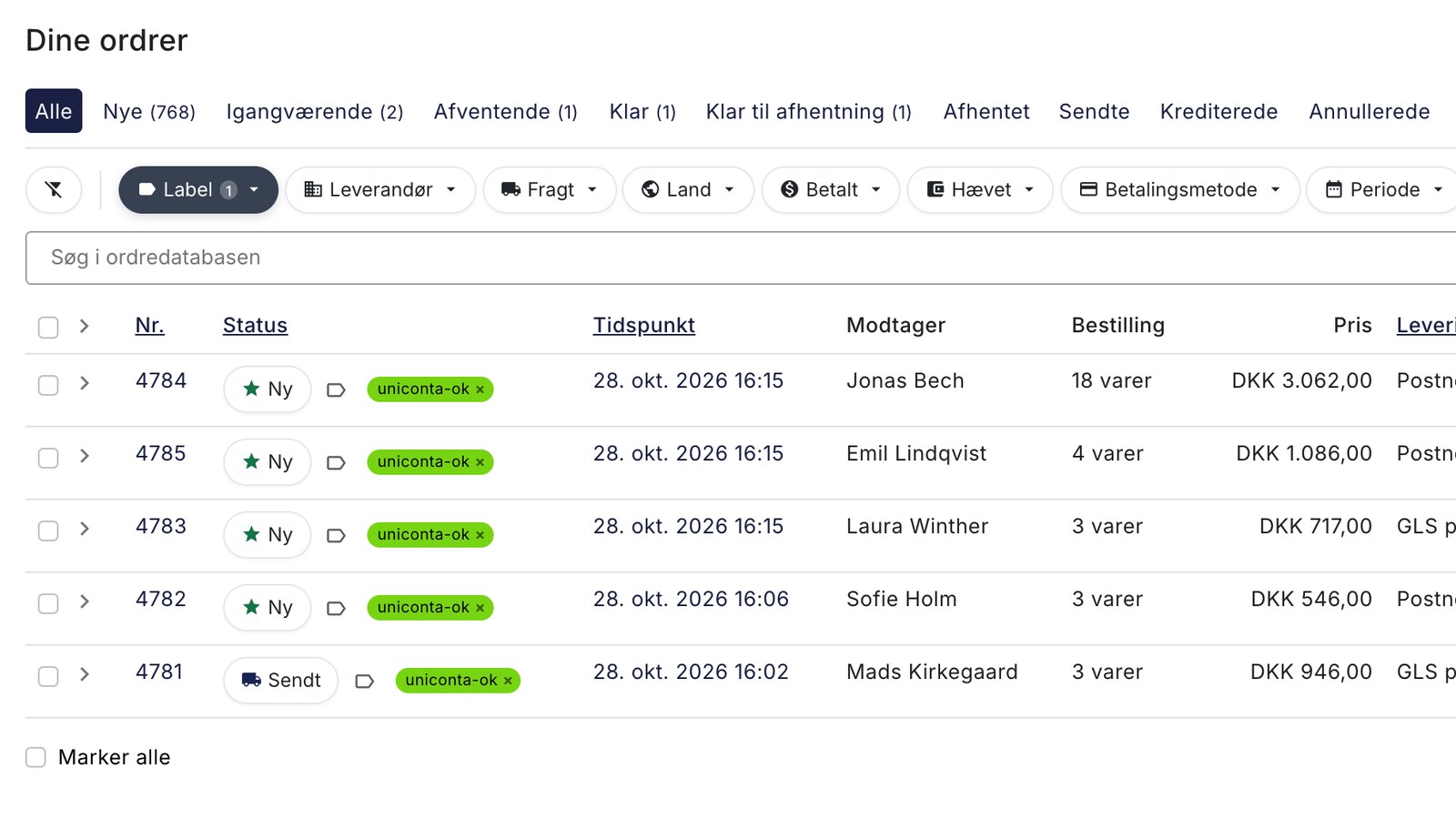
You can tell from the order that it has been transferred
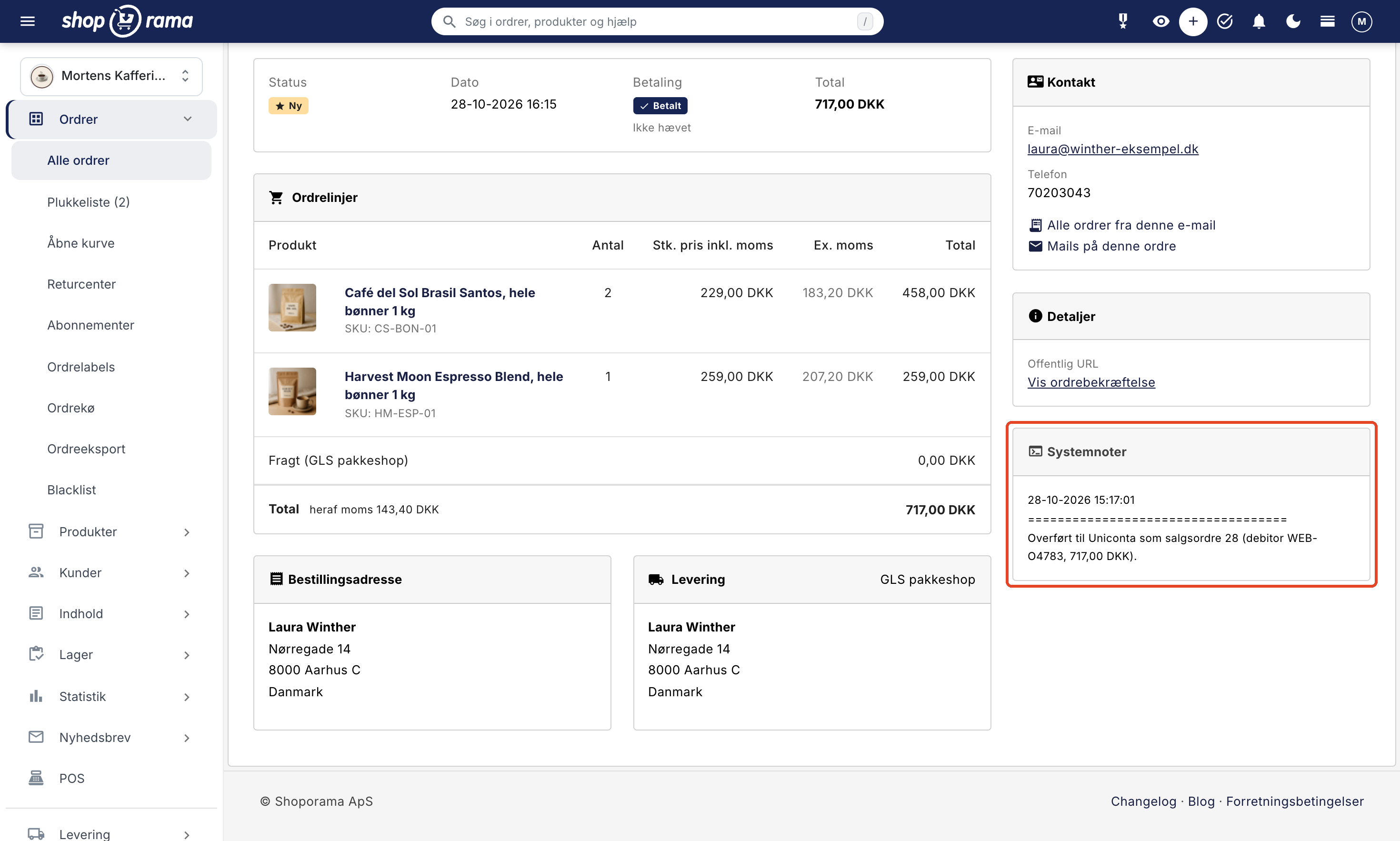
In Shoporama, the order receives the green “uniconta-ok” label and a note with the sales order number in Uniconta. The app also verifies that the amount in Uniconta matches the order total. If something goes wrong, the order receives the red “uniconta-failed” label with an explanation. Once you’ve corrected the error, apply the “uniconta-pending” label to the order, and the app will try again.
Credits are included
If you issue a credit for a transferred order, the credit will appear as a sales order with a negative quantity. If you invoice it in Uniconta, it will become a credit memo.
How much does it cost?
The app is free in Shoporama. It uses Uniconta’s API, and according to Uniconta, API access may incur additional costs depending on the type of user account used to log in to the app. Ask your Uniconta reseller. Uniconta’s subscription includes 5,000 API calls per user per day, and the app uses 2–4 calls per order. Even 500 orders a day typically result in 1,000–2,000 calls.
A few things you should know
- The app creates sales orders, not invoices, and it does not post payments.
- You still manage inventory and products in Shoporama.
- If you edit an order after it’s been transferred, you’ll also need to edit the sales order in Uniconta.
- Orders placed before you installed the app won’t be imported automatically.
- If you sell to private customers in other EU countries using their VAT rates, you must verify the VAT code on the sales order in Uniconta.
Getting Started
You’ll find the app under Integrations, Apps in Shoporama. In Uniconta, you’ll need your company ID, a user with write access, and the Orders and Shipping Address features enabled. The full guide is available in “Set Up Uniconta Integration,” and you can read more about the app in “Webshop with Uniconta.” If you use a different accounting program, see the accounting programs you can use with Shoporama.
Related articles
Set Up Uniconta Integration
Here's how to install the Uniconta app, create a user in Uniconta, and have orders from your online store transferred as sales orders, including...
Order labels
Guide to order labels in Shoporama. Create color-coded labels to organize and categorize your orders and set up automatic allocation based on...
Credit notes and refunds
Complete guide to credit notes and refunds in Shoporama, including partial refunds, full credit notes and transfer to accounting systems.
More from the blog
Brand Pages: Each brand gets its own page in your online store
Now, every brand in your online store can have its own page with a logo, custom text, and all of the brand’s products, and customers can see an...
27. oktober 2026
Reviews with photos: Let customers show the product as it is
Now your customers can attach photos when they leave a review of their purchase. A photo of the product in use at a real customer’s home shows...
19. oktober 2026
Inventory Value with Split Inventory: One Number for the Financial Statements, Without Duplicates
If your shops sell from the same inventory, each shop displays the full value of the shared inventory, and if you combine the shops, the items are...
17. oktober 2026